
Subcontractors
Subcontractors is the register of the firms you work with. A firm's details (contact, phone, tax number, address, bank), the agreements signed with it and the footprint it has left in the…
1. What it is for
Subcontractors is the register of the firms you work with. A firm's details (contact, phone, tax number, address, bank), the agreements signed with it and the footprint it has left in the project are all kept in one place.
The footprint is collected from six sources: progress payments issued, concrete pours linked, equipment worked, timesheets entered, agreements signed and the movements on the firm's current account. The page does not produce any of these itself; each is entered on its own page and gathered here per firm.
The questions this page answers: how many firms are we working with on this project, which of them are still on site, how much work have we billed a firm so far, how much of a lump-sum contract is complete, how many agreements does the project have and which of them have never been used, and what document do we put on the table when we sit down with a firm at month end.
2. How to open it, who can see it
In the sidebar: Management & Finance › Subcontractors.
| Your permission | What you can do |
|---|---|
| View | You see both views, the summary strip, the breakdowns, both tables and the four ledgers of the firm panel. You can produce all three exports and open the contract documents attached to agreements. The New subcontractor, Edit firm, Delete, Add agreement buttons and the edit/delete buttons on agreement rows are not drawn at all |
| Edit | Everything above, plus you can add a firm, write its details, add, edit and delete agreements, and delete the firm |
| No permission | The module appears dimmed and locked in the menu |
Besides the module permission, a server role also applies on this page. Two operations are open to administrators only, even when the project permission is granted:
Adding, editing and deleting agreements does not require administrator permission; it is open to anyone with edit permission. An account with the viewer role that tries to save gets "Saving an agreement requires edit permission; the viewer role can only read."
3. Anatomy of the screen
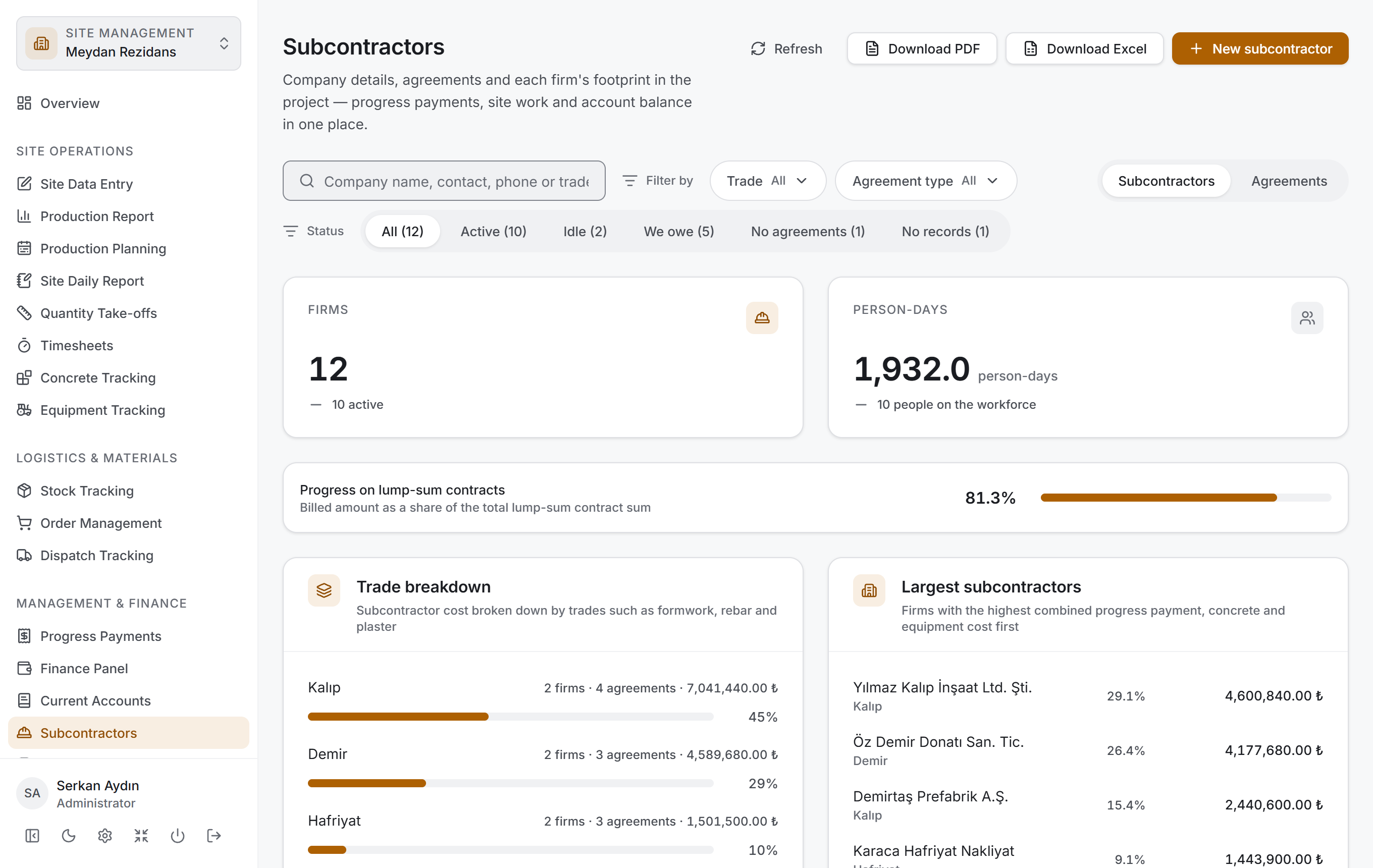
The page has two views, and both share the same shell and the same filter bar. The switch at the right end of the filter bar changes the view:
| View | What it shows |
|---|---|
| Subcontractors | The firms themselves — a list grouped by trade, with a summary and breakdown above it |
| Agreements | All agreements in the project — a single list grouped by type |
The Subcontractors view has four layers and follows the same order as Stock Tracking, Purchase Orders, Dispatch Tracking, Progress Payments and Current Accounts: first you narrow, then you read the result as figures, then you look at its breakdown, and finally you go down to the rows. There is a fifth layer where a firm's whole record opens: the firm panel you reach by clicking a firm name.
| Layer | What it does |
|---|---|
| Filter bar | Search, trade, agreement type, firm status; in Agreements also a period |
| Summary strip | Number of firms, person-days and progress on lump-sum contracts |
| Breakdown | Trade breakdown and largest subcontractors |
| Table | Firm list or agreement list |
| Firm panel | A firm's details and its four ledgers |
Seven ledgers — firms, agreements, progress payments, equipment entries, concrete pours, the workforce with the current month's timesheets, and the current account ledger — are downloaded once as the page opens. Changing the filter, flipping the view switch, opening the panel and switching tabs send no request to the server. Because the Progress Payments, Concrete Tracking and Current Accounts pages use most of these ledgers as well, coming here from those pages opens instantly.
Header and actions. The header shows Subcontractors and the description "Company details, agreements and each firm's footprint in the project — progress payments, site work and account balance in one place". On the right are Refresh, Download PDF, Download Excel and — with edit permission — New subcontractor.
If the project has no subcontractors yet, the filter bar, the summary strip and the breakdown cards are not drawn at all; a "No subcontractors in this project yet" card stands in the middle of the page, and its New subcontractor button takes you straight to the form.
Filter bar

The bar has two rows. On the top row:
| Control | What it does |
|---|---|
| Search box | Searches company name, contact, phone and trade; the hint reads Company name, contact, phone or trade |
| Trade | Multi-select menu; each option shows how many firms it covers |
| Agreement type | Multi-select menu; five types (Take-off, Day rate, Lump sum, Deduction, Equipment) |
| Clear filters | Appears only while a narrowing is active |
| View | At the right end: Subcontractors ⇄ Agreements |
The bottom row changes with the view. In the Subcontractors view a Firm status strip stands there, with a count next to each option:
| Option | Who it brings |
|---|---|
| All | Every firm in the filter |
| Active | Firms whose last activity is within 90 days |
| Idle | Firms whose last activity is older than 90 days |
| We owe | Firms whose account balance is against us |
| No agreements | Firms with no agreement entered |
| No records | Firms with no record at all in the project |
In the Agreements view the Agreement date strip replaces it: All time, Current year, Last 12 months. The trade menu is not drawn in this view — a trade is a property of a firm, not of a single agreement. The status strip is omitted for the same reason.
When a selection brings back no rows, the summary strip and the breakdown cards are not drawn either; a single card remains on screen saying how many firms (or agreements) the project has in total.
Summary strip
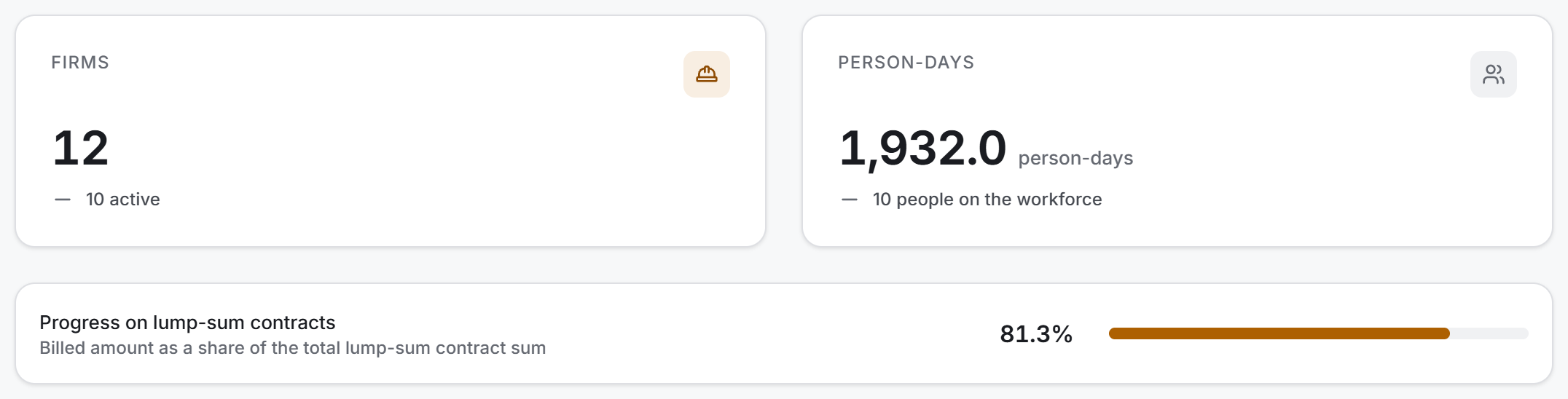
The strip carries no money. The question it answers is "how many firms and how much labour is this project working with" — workforce and progress:
| Tile | What it shows |
|---|---|
| Firms | Number of firms in the filter; below it, how many are active |
| Person-days | The firms' timesheet total for the last 12 months; below it, the number of people on the workforce |
Money lives elsewhere on this page: in the breakdown cards, in the Billed column of the table, in the firm panel and in all three exports.
Below them is the Progress on lump-sum contracts bar: the billed amount as a share of the total sum of lump-sum agreements. The bar is drawn only when a firm with a lump-sum contract exists — the billing of a firm working on take-off or day rates is not a percentage of a contract, and putting it in the denominator would make the ratio meaningless.
While a narrowing is active, a line appears under the strip: "The figures above are for the 8 firms in the filter; the project has 14 subcontractors in total."
Breakdown
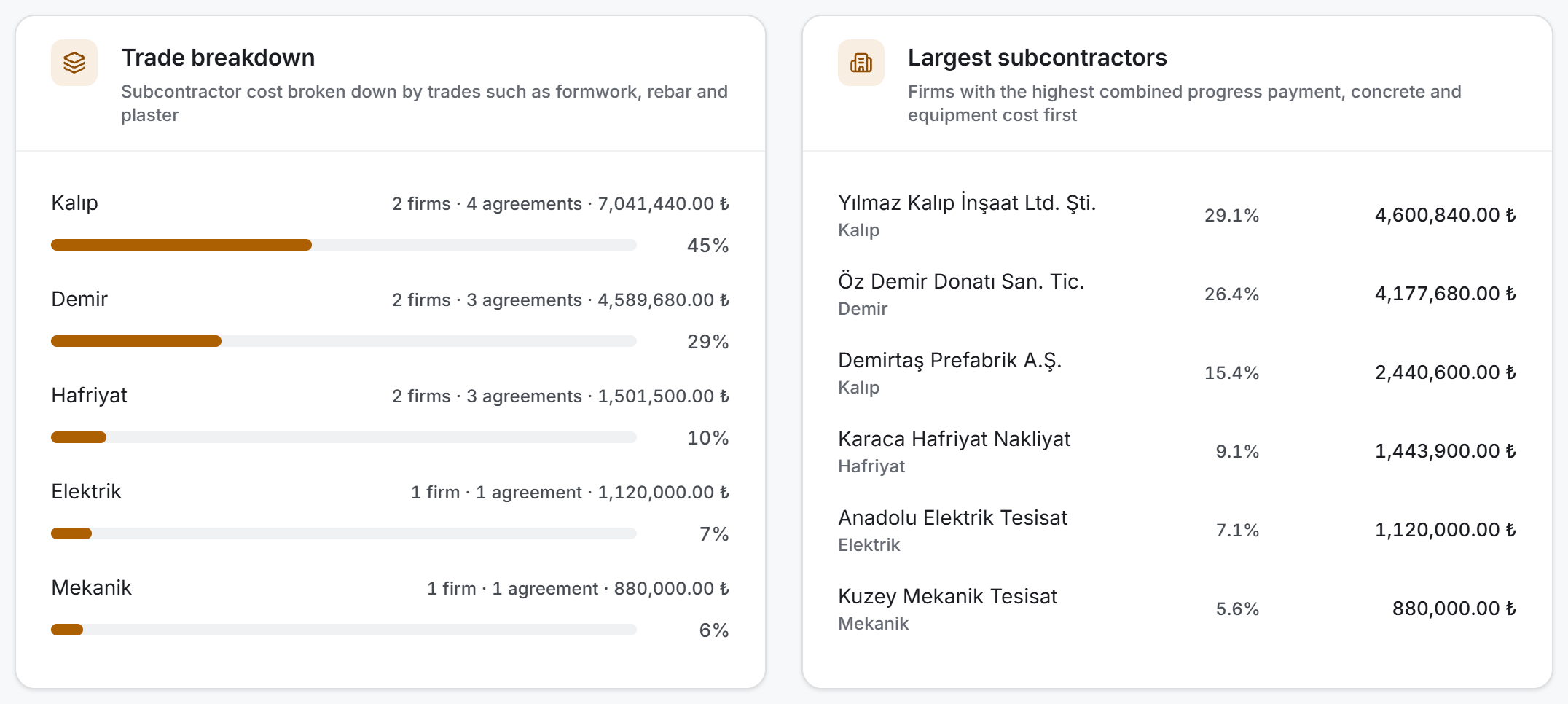
The two cards do not ask the same question:
| Card | Its question |
|---|---|
| Trade breakdown | What share of the cost went to which trade — which is why it carries a bar |
| Largest subcontractors | Who, and how much — which is why it carries figures, for at most six firms |
Both measure the same amount: progress payments + concrete + equipment. The account balance does not enter this total; one is a debt, the other a cost.
If a trade has no records yet, the bar is replaced by "No records entered for this trade yet" — writing "0%" would read as if that item were unimportant, whereas in fact the work has not started there.
Firm list
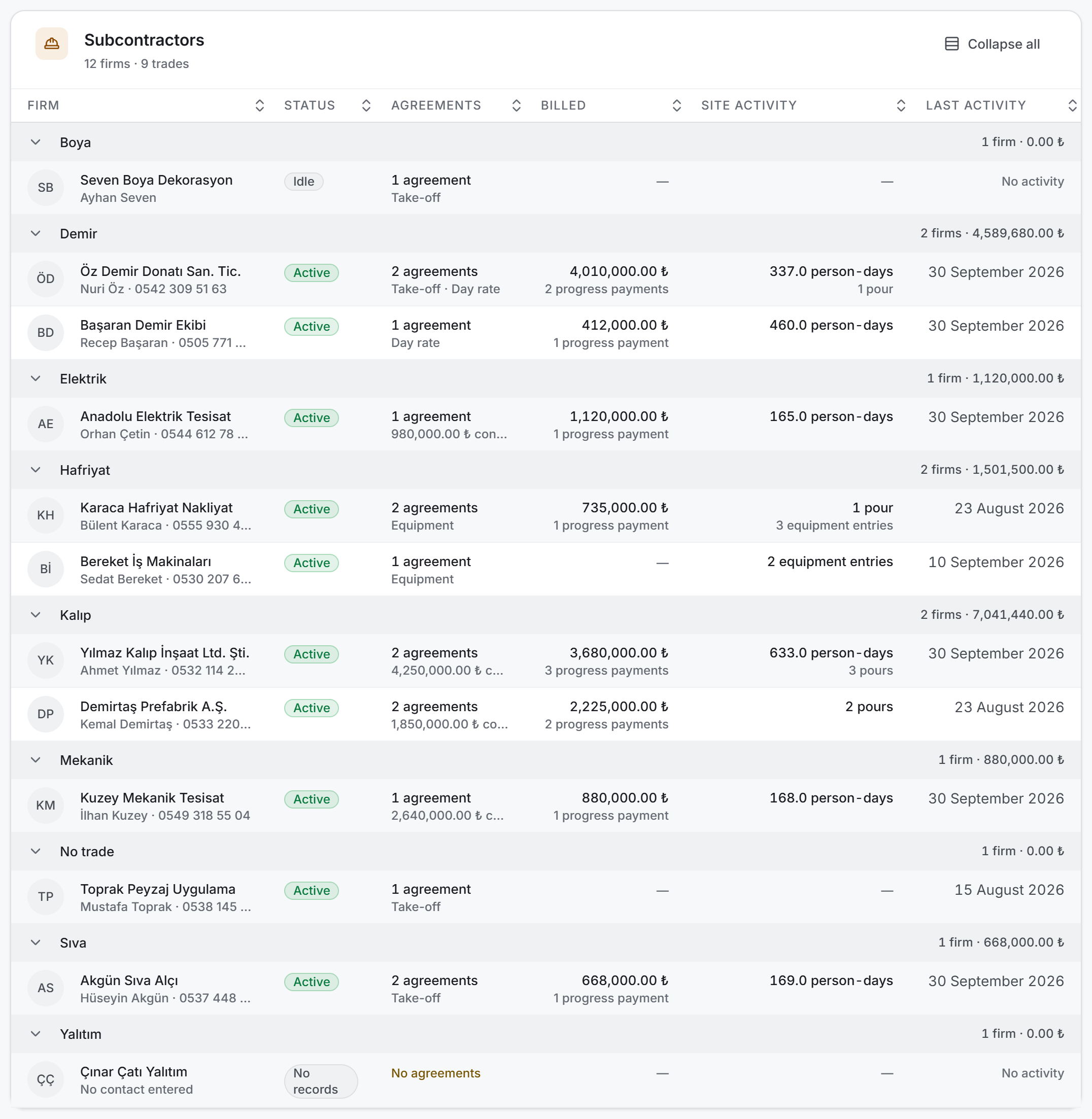
Firms are grouped by trade — the site's own breakdown. The group header shows how many firms there are and the total cost of that trade. Groups can be collapsed one by one; Collapse all at the top right folds them together.
| Column | What it shows |
|---|---|
| Firm | Initials, company name, and below it the contact and phone. The name is a button |
| Status | Active · Idle · No records |
| Agreements | How many agreements; below it the lump-sum contract sum or the agreement types |
| Billed | The total of progress payment net amounts (excluding VAT); below it the number of progress payments |
| Site activity | Person-days, number of pours and number of equipment entries |
| Last activity | The newest date from the six sources; No activity if there is none |
You can sort by clicking the headers. The Site activity column sorts by person-days — the three measures have different units and cannot be added up, and person-days describe a subcontractor's weight on site most directly. Firms with no record fall to the bottom of the Last activity sort.
For a firm with no agreements the agreement column is not left empty; it says No agreements in the warning colour: a firm without an agreement cannot be billed and cannot have concrete linked to it.
Agreement list

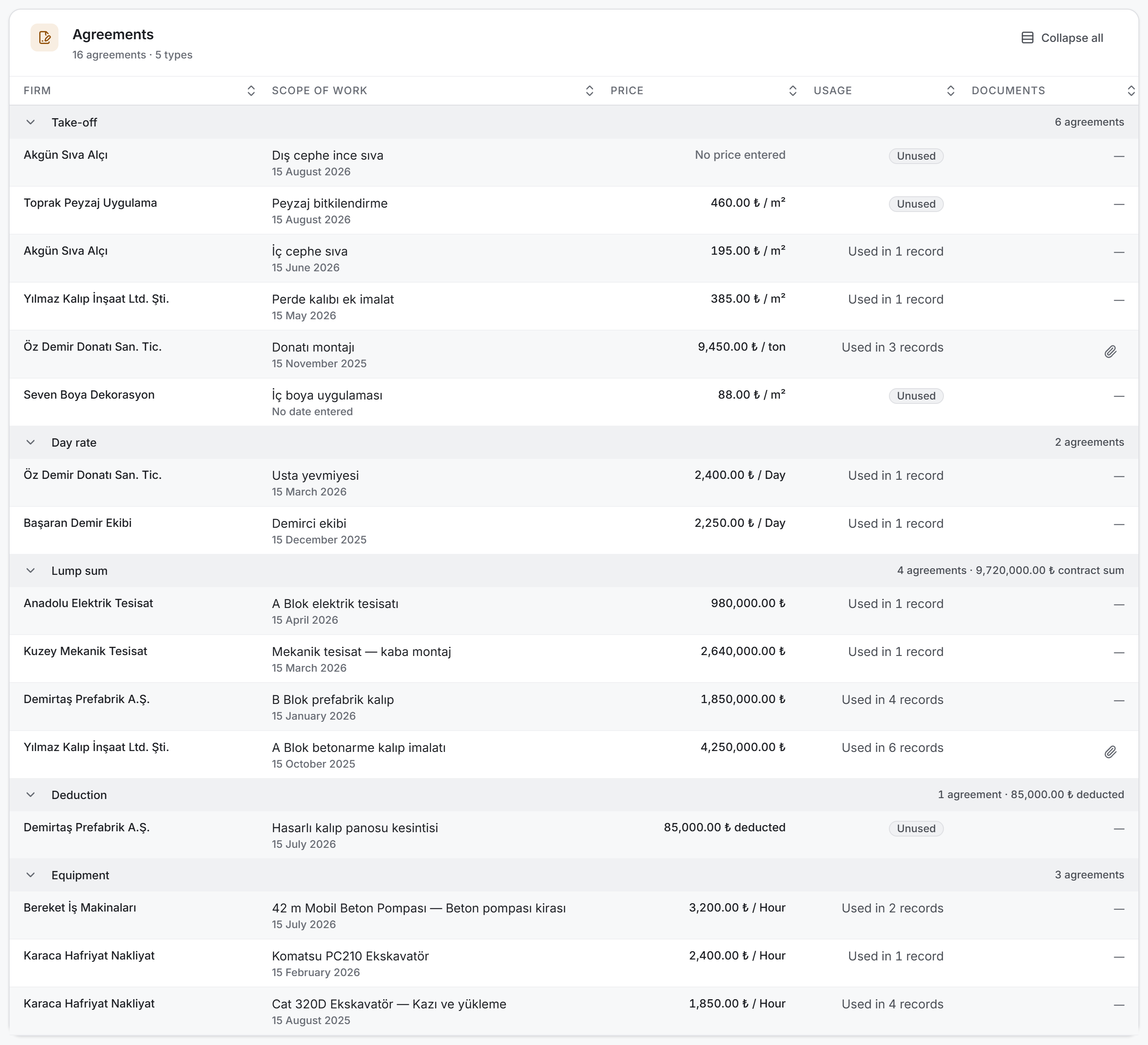
When you flip the view switch to Agreements, all agreements in the project are gathered into a single list grouped by type. The type is the one thing that determines what an agreement means: the same "1,200.00 ₺" is a square-metre price on one row and a total sum on another.
The group header shows the name of the type and how many agreements it holds. The Lump sum group also shows the total contract sum and the Deduction group the total deducted; the other three types show only the count — writing zero would read as "an agreement with no value".
| Column | What it shows |
|---|---|
| Firm | The agreement's subcontractor; the name is a button and opens its panel |
| Scope of work | The agreement's title; below it the date, or No date entered |
| Price | A unit price or a total sum depending on the type; if missing, a dimmed No price entered |
| Usage | The number of records linked to this agreement; an Unused badge if there are none |
| Documents | A paperclip button when a contract document is attached |
The Usage column counts how many progress payment items, concrete pours and equipment entries are linked to an agreement. An agreement at zero has either just been signed or been entered by mistake; both are worth seeing. The same count also appears in the delete confirmation.
Firm panel
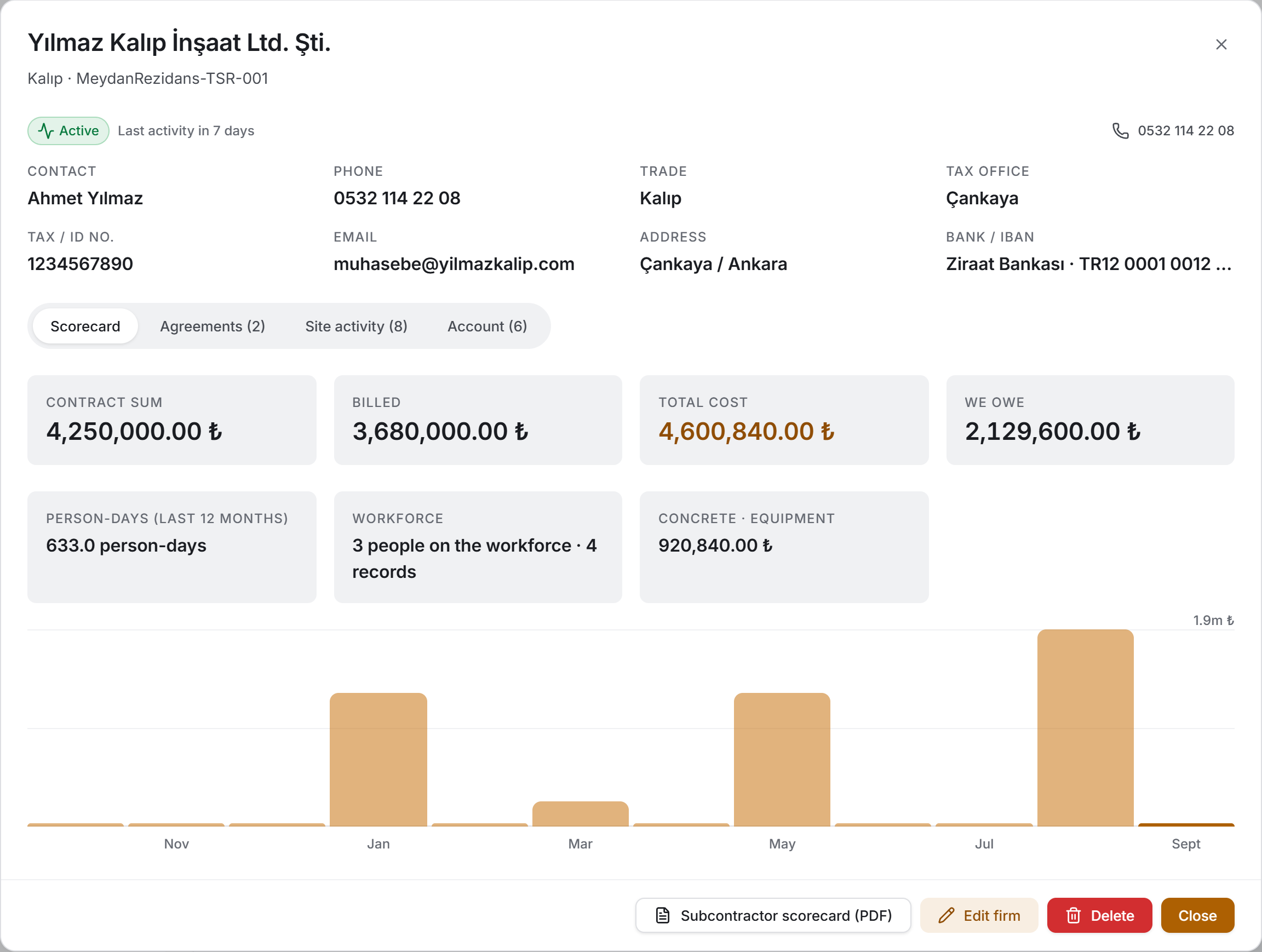
Clicking a firm name opens a wide window. The firm's details are at the top, and its four ledgers sit below as tabs. Opening the panel sends no request to the server; all the data has already been downloaded.
The details are merged from two records: company name, contact, phone and trade come from the firm record; tax office, tax number, email, address and bank details live on the current account. Empty fields are not drawn at all. Above the details are the status badge, how long ago the last activity was, and — if no current account has been opened — the No current account yet badge.
| Tab | What is in it |
|---|---|
| Scorecard | The firm's eight measures and the monthly cost chart for the last 12 months |
| Agreements | The firm's agreements, with add, edit, delete and document buttons |
| Site activity | Four sources (progress payment · concrete · equipment · agreement) in one chronological ledger |
| Account | The movements of the current account — read only |
The Scorecard tab has four tiles at the top: Contract sum (the total of lump-sum agreements only, otherwise No lump-sum agreement), Billed, Total cost (progress payments + concrete + equipment) and the balance. The label of the fourth tile is the direction of the balance — We owe, Owes us or Settled; for a firm with no current account the label is Balance and the value No account. Below are the Person-days (last 12 months), Workforce, Concrete · Equipment and — where there is one — Deduction tiles. At the bottom the firm's monthly cost chart for the last 12 months is drawn; if there are no records, "No cost records in the last 12 months" appears in its place.
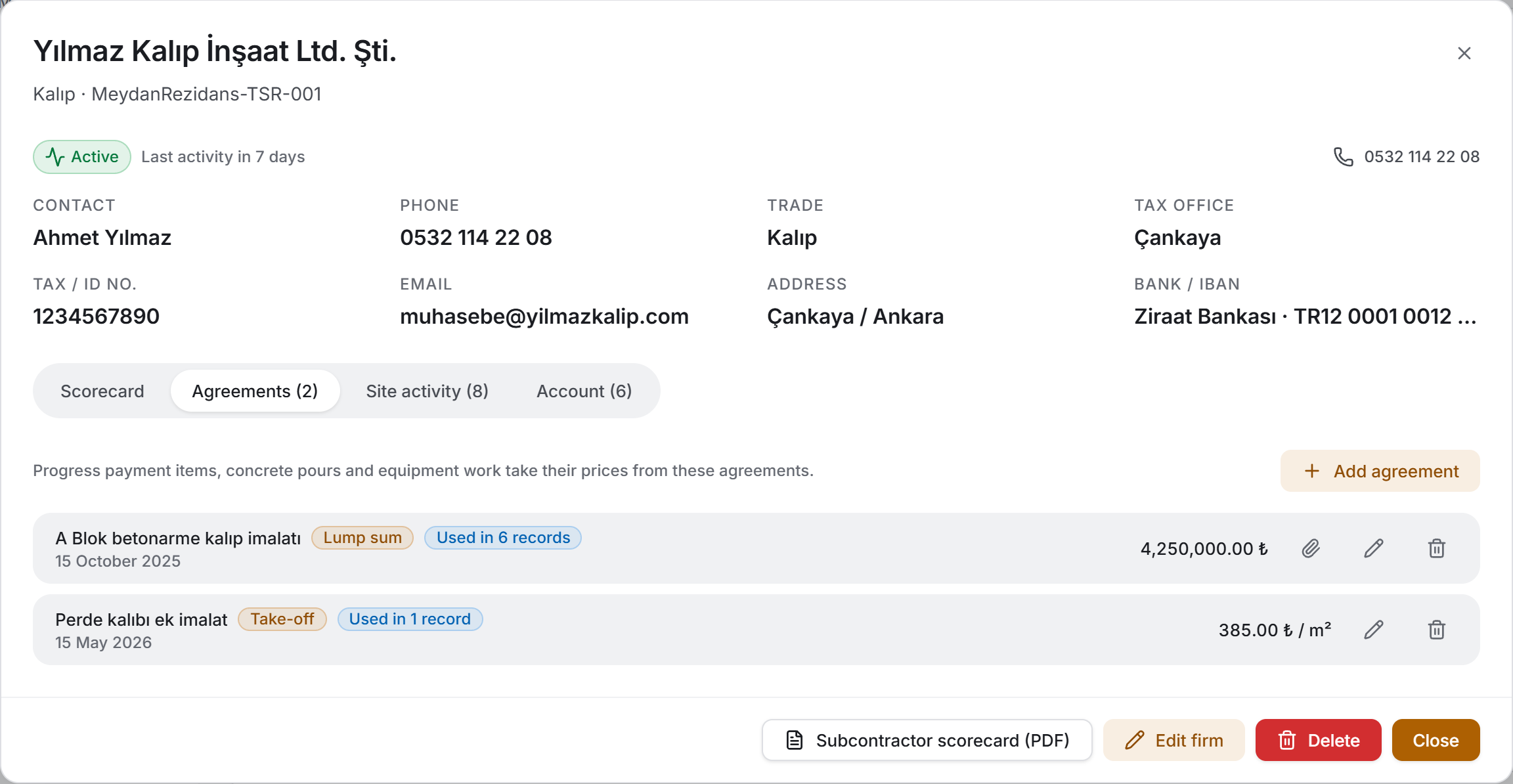
In the Agreements tab each row carries the agreement's title, its type badge, the number of records it is used in, its date and its price. Document, edit and delete buttons are on the right; without edit permission only the document button is drawn. The Add agreement button above the list also appears only with edit permission.
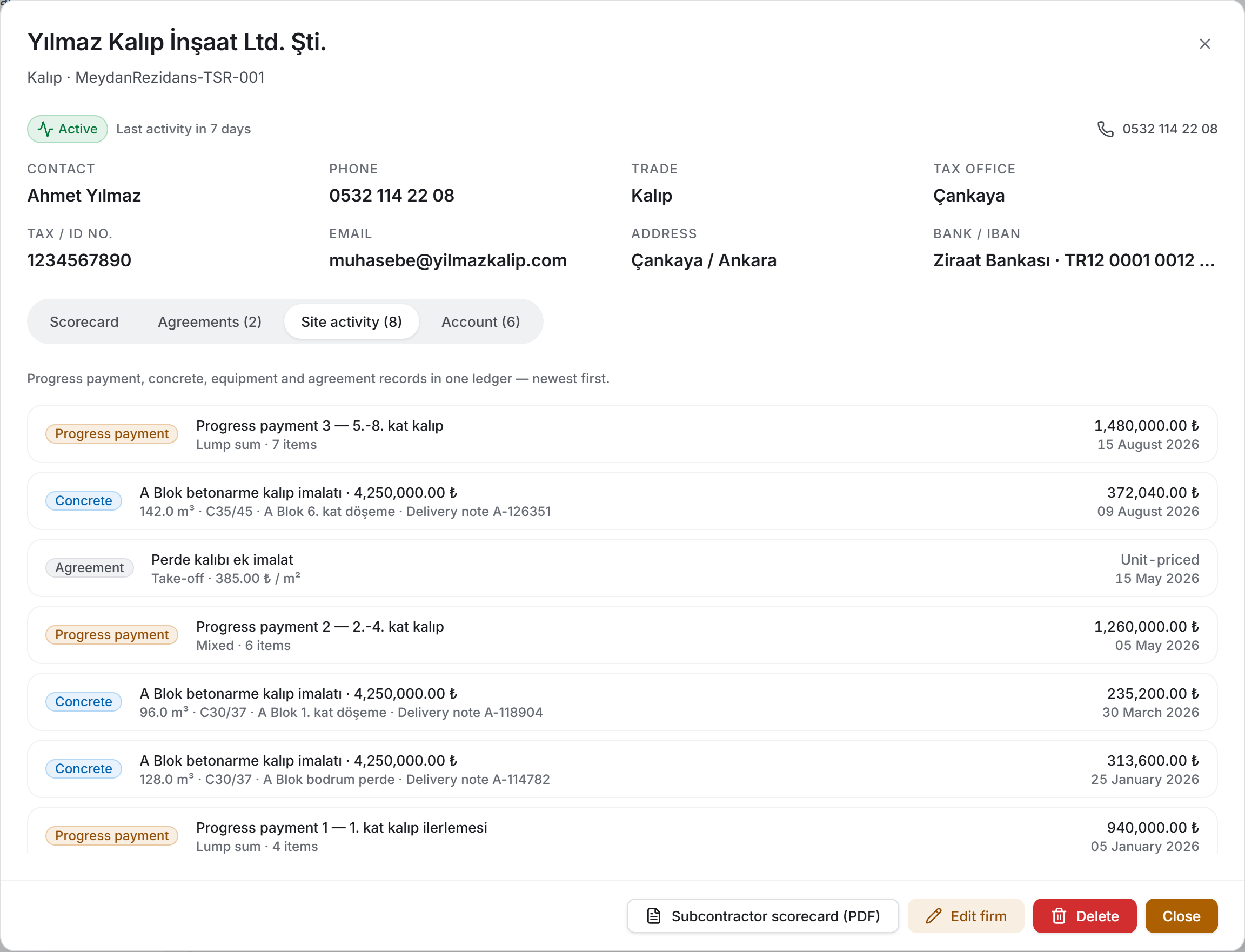
The Site activity tab lists everything the firm has on the project in one ledger, newest first. On the left of each row is a badge naming its source: Progress payment, Concrete, Equipment, Agreement. The amount and date are on the right. The title of a concrete row is the name and price of the agreement the pour is linked to; the title of an equipment row is the name of the machine.
The cases where the amount is not a number differ from one another, and the row distinguishes them:
- On a concrete pour with no price: No price entered — missing data.
- On an equipment entry with no amount: No amount entered — missing data.
- On a take-off, day-rate or equipment agreement: Unit-priced — not missing; that type has no total sum in the first place.
- On a deduction agreement: "85,000.00 ₺ deducted".
Records with no date fall to the end of the ledger and show No date instead of a date.
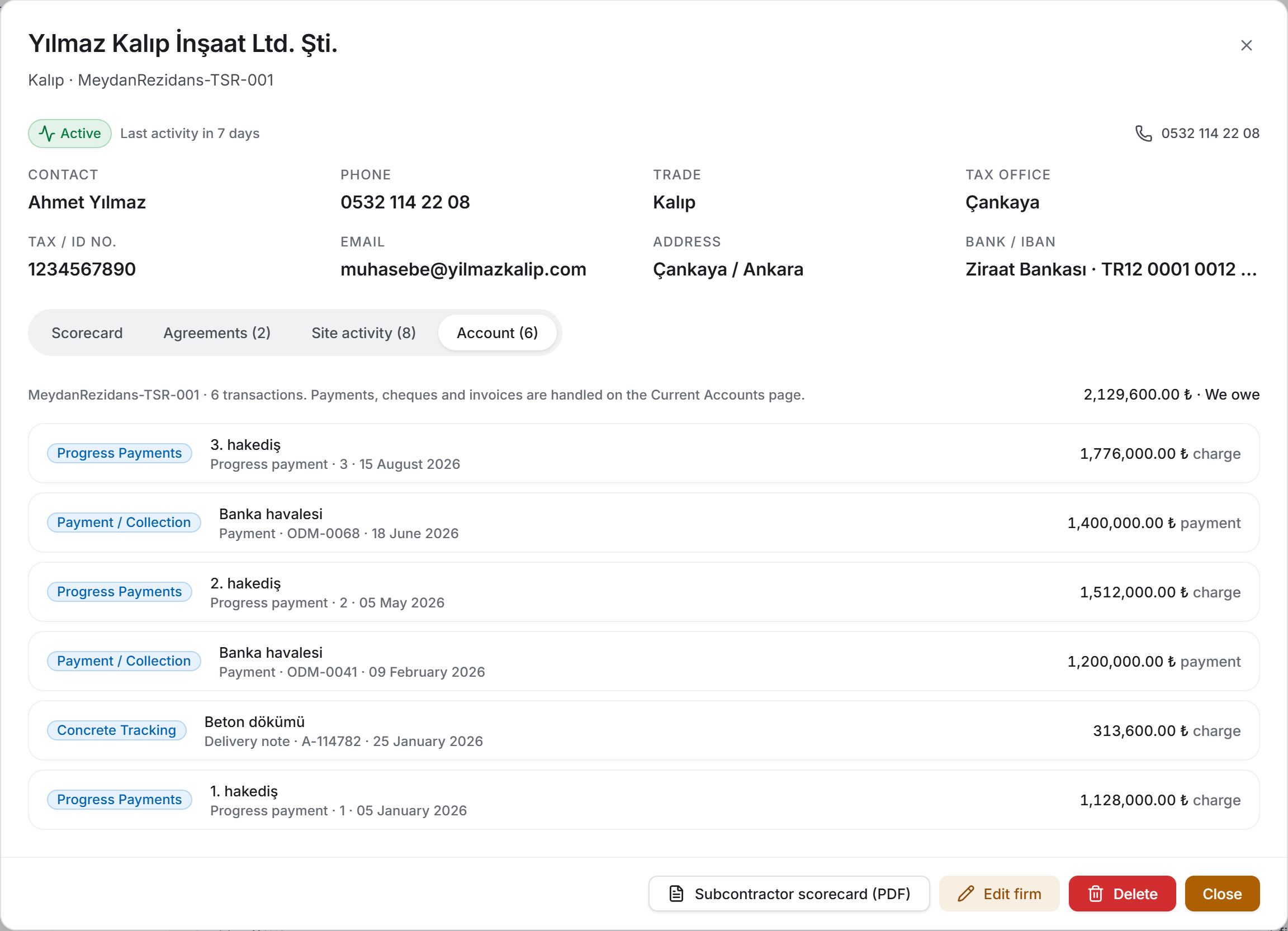
The Account tab shows the firm's current account ledger and writes nothing: entering payments, handling cheques and writing manual transactions belong to the Current Accounts page. Above the list are the account code, the number of transactions and the balance. The badge on the left of each row names the page the record came from (Progress Payments, Concrete Tracking, Payment / Collection); a manually entered row says Entered manually. The direction of a row is written in words and read from the subcontractor's point of view: charge is a debt we have booked to the firm, payment is money we have paid it.
If the firm has no current account at all, the tab says so and also says when one will be opened: the account opens automatically with the first progress payment or the first concrete pour.
At the bottom of the panel are the Subcontractor scorecard (PDF) button and — with edit permission — the Edit firm and Delete buttons.
4. Fields
The page has two forms.
Subcontractor form
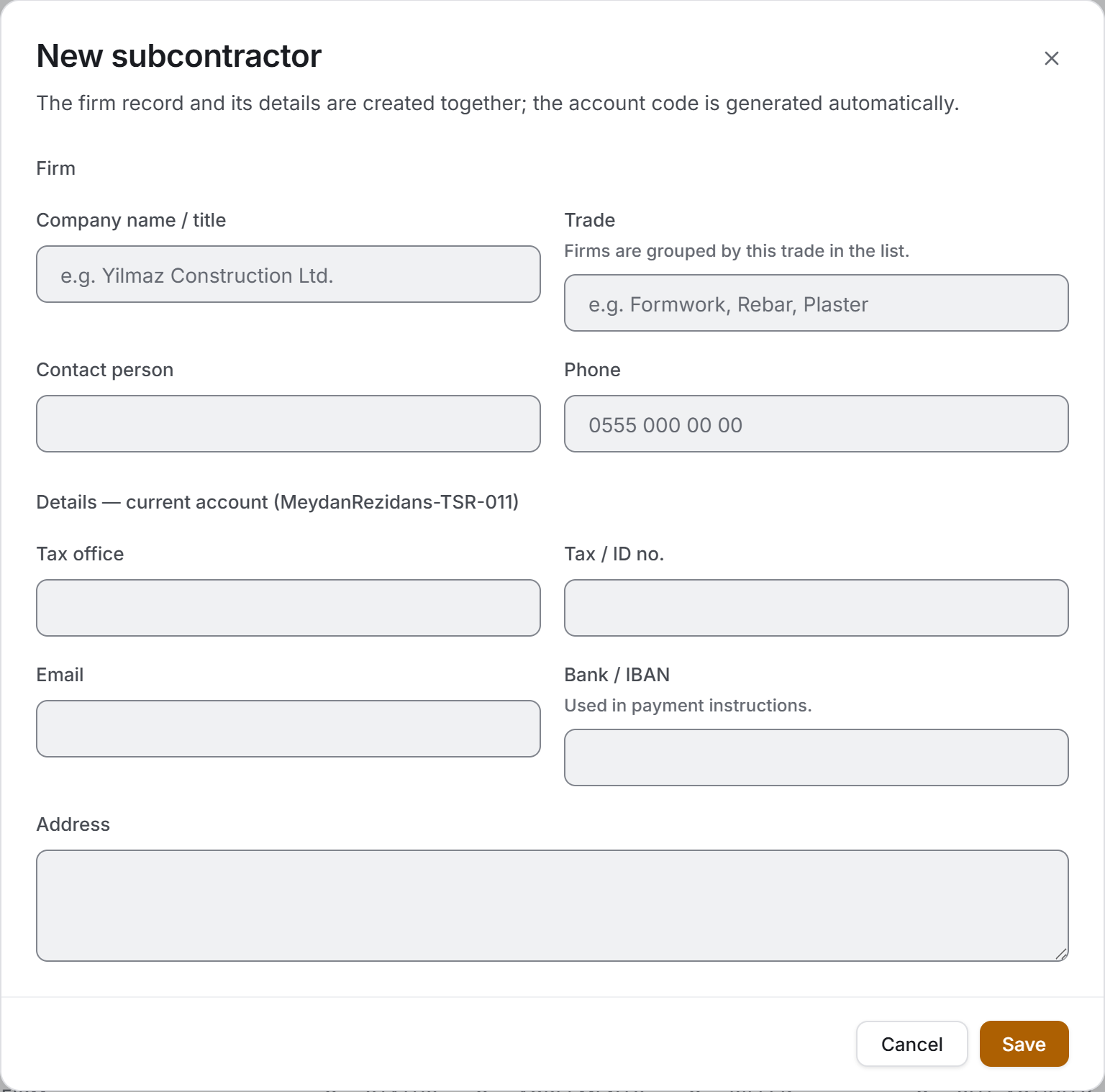
The form writes two records at once: the four fields at the top go to the firm record, the five below to the firm's current account. The account code is shown in the heading of the lower section; for a new firm the code is generated automatically.
| Field | What it means | Required | Where it is written |
|---|---|---|---|
| Company name / title | The name the firm appears under in lists | Yes | Firm record and the name of the current account |
| Trade | Formwork, Rebar, Plaster and so on; firms are grouped by it in the list | No | Firm record |
| Contact person | The person to deal with | No | Firm record and current account |
| Phone | The firm's phone number | No | Firm record and current account |
| Tax office | Used in contracts and reconciliation documents | No | Current account |
| Tax / ID no. | The same | No | Current account |
| The same | No | Current account | |
| Bank / IBAN | Used in payment instructions | No | Current account |
| Address | Used in contracts and reconciliation documents | No | Current account |
The company name cannot be left empty; when you try to save, the form says why: progress payment, concrete and timesheet records show the firm by this name, and a subcontractor with no name appears as "Untitled subcontractor" in every list.
Agreement form
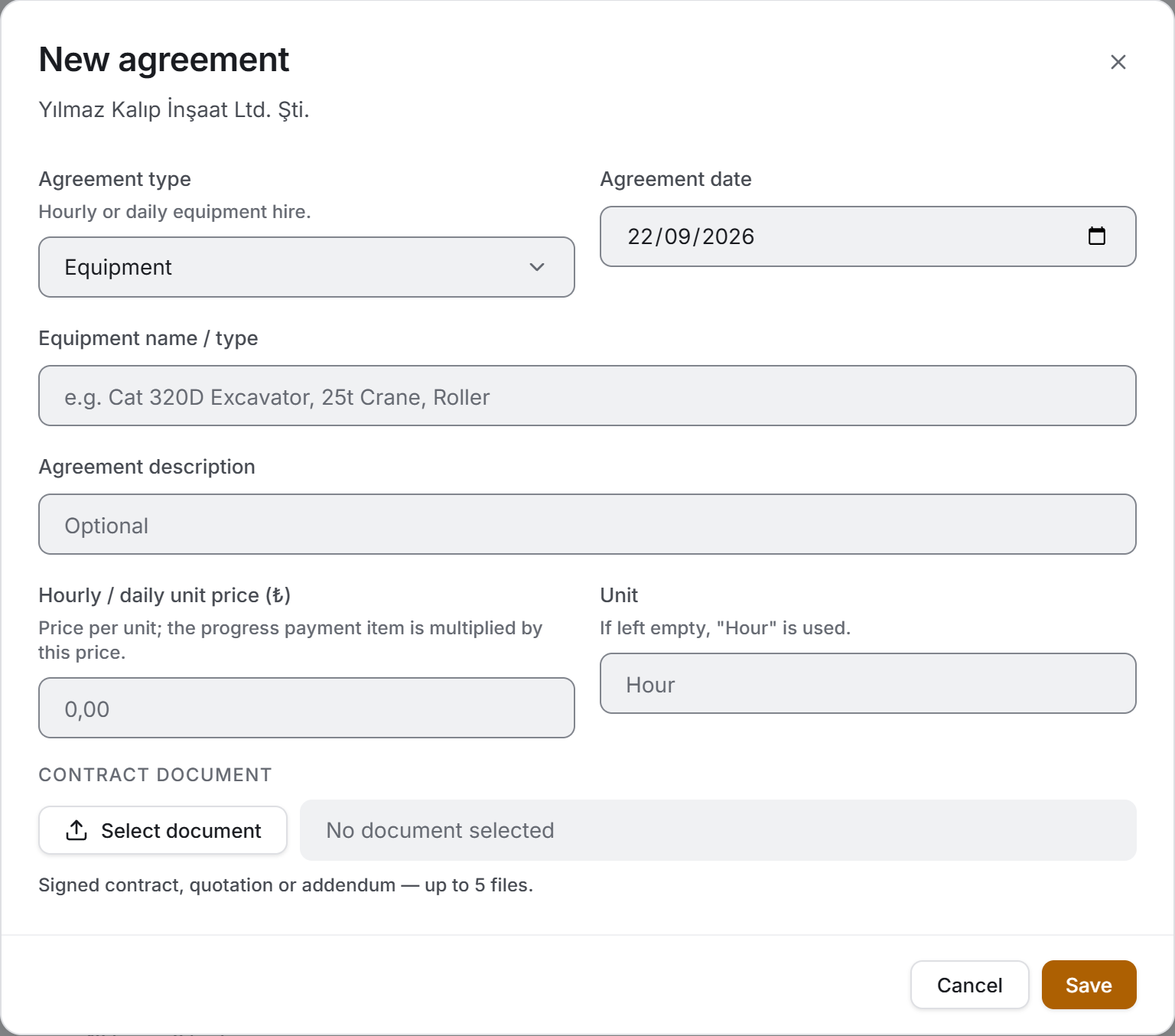
The agreement form changes shape with the type. Each of the five types gives the price a different meaning, and different boxes are drawn in the form:
| Type | Name of the price box | Unit box | Equipment name | What it means |
|---|---|---|---|---|
| Take-off | Unit price | yes | — | Work measured at a unit price; billing is calculated from quantities |
| Day rate | Daily rate | no (Day) | — | Daily work; billing is multiplied by the number of days |
| Lump sum | Total agreement sum | no | — | A fixed total sum; billing is issued by percentage complete |
| Deduction | Deduction amount | no | — | A deduction from the firm; it reduces the balance |
| Equipment | Hourly / daily unit price | yes (Hour) | required | Hourly or daily equipment hire |
| Field | What it means | Required |
|---|---|---|
| Agreement type | One of the five types above; what it means is written below it | Yes (default Take-off) |
| Agreement date | Filled with today on a new record | No |
| Equipment name / type | Drawn only for the Equipment type; it carries the title in lists | Yes (for that type) |
| Scope of work / description | The subject of the agreement; for the equipment type it becomes Agreement description | No |
| Price | A unit price or a total sum depending on the type; the box takes the name in the table above and carries the currency next to it | Yes, a valid number |
| Unit | m², m³, pcs, tonnes… If left empty, the type's default is written | No |
| Contract document | Signed contract, quotation or addendum — up to 5 files | No |
The price can be negative only for the Deduction type; for the others a negative price is meaningless and the form does not accept it.
5. Step by step
5.1 Adding a new subcontractor
- Press New subcontractor at the top right.
- Fill in Company name / title — this is the only required field.
- Enter the Trade. The list groups by it; firms left empty are collected in the No trade group.
- Enter the contact and phone.
- Fill in the detail fields in the lower section. If a contract or reconciliation will be written, the tax office, tax number and address are needed.
- Press Save.
The firm is saved and enters the list. If the details cannot be written (see §2), a yellow strip appears at the top of the page; the firm record stays in place and the details can be entered later by an administrator.
5.2 Editing a firm
- Click the firm name in the list; the panel opens.
- Press Edit firm at the bottom.
- The same form opens with the fields filled in. Make your changes and press Update.
The detail fields are written to the firm's current account; the same values also appear on the Current Accounts page.
5.3 Adding an agreement
- Open the firm's panel and go to the Agreements tab.
- Press Add agreement.
- Choose the Agreement type. The boxes in the form change with the type.
- For an equipment agreement, enter the equipment name — it is required for that type.
- Enter the price and, where needed, the unit.
- If there is a signed contract, attach it in the Contract document field.
- Press Save.
The agreement is saved against that firm. It now appears in the selection lists of the Site Data Entry, Concrete Tracking and Progress Payments dialogs.
5.4 Editing an agreement
- In the panel's Agreements tab, press the pencil button at the right of the row.
- Change the fields and press Update.
A price change propagates immediately: the new price appears in the Site Data Entry, Concrete and Progress Payments dialogs.
5.5 Deleting an agreement
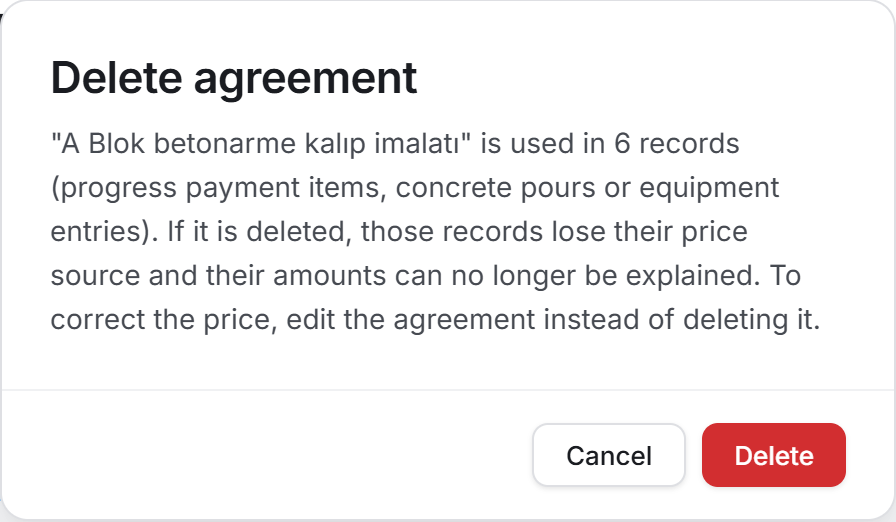
- In the panel's Agreements tab, press the bin button at the right of the row.
- Read the confirmation window.
If the agreement is not used in any record, the window says so and the deletion can go ahead. If it is in use, the window states in how many records it is used and explains what will happen: those records lose their price source and their amounts can no longer be explained. In that case the window suggests editing instead of deleting.
5.6 Deleting a firm
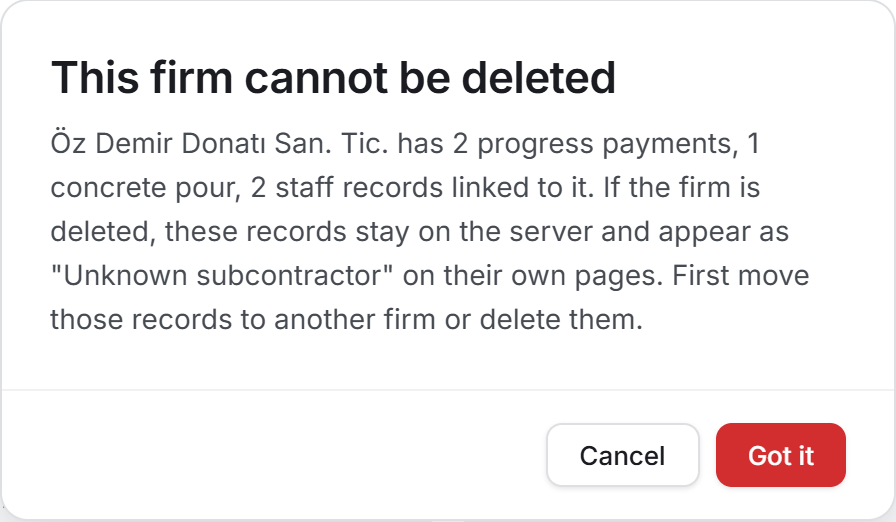
- Open the firm's panel and press Delete at the bottom.
- Read the confirmation window.
If the firm has progress payments, concrete pours, equipment entries or staff records, the deletion does not even start. The window counts the obstacles one by one ("2 progress payments, 12 concrete pours") and says what would happen: if the firm were deleted, those records would stay on the server and appear as "Unknown subcontractor" on their own pages. The window has Cancel and Got it buttons, and both only close it — this screen is not a confirmation but a notice. You first have to move those records to another firm or delete them.
If there is no obstacle, the window states what will go: the firm, its agreements and — where there is one — its current account and its ledger transactions. The operation cannot be undone.
5.7 Opening a firm's record
- Click the firm name in the Subcontractors view. (The firm name is a button in the Agreements view too, and opens the same panel.)
- Read the details and move between the tabs.
- Press Close or the
Esckey to close it.
5.8 Narrowing the list
- Type the firm you are looking for into the search box. The search respects Turkish letters: typing yilmaz finds Yılmaz İnşaat.
- Make a selection from the Trade or Agreement type menu; both are multi-select.
- Pick a status from the Firm status strip.
- To undo everything, use Clear filters.
Narrowing affects not only the table but the summary strip, the breakdowns and the exports as well: the Excel and list PDF write exactly what you see on screen and state in their header block which narrowing was active.
5.9 Producing an export
- For the list exports use Download Excel or Download PDF at the top right.
- For a single firm's document, open the firm's panel and use Subcontractor scorecard (PDF) at the bottom.
- Choose where to save in the window that opens.
Both buttons are disabled while the list is empty. If the list exceeds 1,000 rows, the PDF asks first; the app may be unresponsive for a while during preparation.
5.10 Opening a contract document
Documents open from the Documents column in the Agreements view or from the paperclip button in the panel's Agreements tab. View permission is enough.
5.11 Refreshing the page
Refresh reads all seven ledgers again. A progress payment, pour or payment entered by another user only appears after this.
6. Exports
The page produces three files. The first two are a breakdown of the list, the third is a signed document for a single firm.
Excel — three sheets
Subcontractors_<date>.xlsx
| Sheet | What is in it |
|---|---|
| Subcontractors | Firm · trade · contact · phone · status · agreement count · contract sum · deductions · billed · concrete · equipment · total cost · person-days · workforce · balance · position · last activity — 17 columns |
| Agreements | Firm · type · scope of work · equipment · unit price · unit · contract sum · date · usage · contract document — 10 columns |
| Details | Firm · account code · contact · phone · email · tax office · tax no. · address · bank — for whoever writes the contract |
Each sheet starts with the project name, the report date, the number of firms, the subcontractor cost and the billed amount; the third line states which narrowing was active. The header row is frozen and a filter is switched on. The first two sheets end with a grand total row.
All amounts come through as real numbers and dates as real dates: selecting a cell makes Excel show the total, and you can sort the column.
Subcontractor List (PDF)
Subcontractor_List_<date>.pdf — A4 landscape, nine columns: firm (with contact and phone below), trade, status, agreement count, contract, billed, concrete + equipment, person-days and balance. The table ends with a grand total row.
Notes stand at the bottom of the document, written so that no argument is needed later: that amounts exclude VAT, that person-days are calculated from the last 12 months, on what condition a firm counts as active (90 days), that the contract sum is the total of lump-sum agreements only, how many firms have no record at all in the project, and which date the balance refers to.
Subcontractor Scorecard (PDF)
Subcontractor_Scorecard_<firm>_<date>.pdf — the sheet of paper you put on the table when you sit down with a firm at month end. It is A4 portrait and signed: Subcontractor · Stamp · Signature and Site Manager · Signature lines are at the bottom.
The blocks of the document:
| Block | What is in it |
|---|---|
| Header | SUBCONTRACTOR SCORECARD, firm name, report date and, where there is one, the account code |
| Details | Project, trade, status, last activity |
| Parties | The subcontractor on the left (contact, phone, email, tax no., address), the issuer on the right |
| Summary | Lump-sum contract · billed · concrete pours · equipment work · deduction where there is one · total cost — count and amount |
| Balance strip | Account balance, number of ledger transactions and contract progress |
| Agreements | Type, scope of work, price, date |
| Record breakdown | The site activity ledger — the latest 40 records |
| Notes | The block that states the limits |
If the firm has more than 40 records, the document says so in the heading ("latest 40 records") and in the notes. The full breakdown is not in the Excel export; there is no record breakdown sheet there.
7. Things worth knowing
"Active" is a signal, not a permission. A firm counts as active if it has a progress payment, concrete, equipment, timesheet, agreement or account record within the last 90 days. The threshold was chosen to match the rhythm of a construction site: a subcontractor may stay quiet for months between finishing one item and starting the next. The status locks, hides or blocks nothing.
"No records" and "Idle" are not the same thing, but they merge in the filter. The badge says No records for a firm with nothing at all in the project — the question of activity is meaningless for it. The Idle option in the status strip means "everyone who is not active" and brings the firms with no records as well. Use the No records option to see only the genuinely empty ones.
Last activity shows the end of the month for firms with timesheets. A timesheet record has no day, only a month, and the page represents that month by its last day. So for a firm with a timesheet in the current month the Last activity column shows the end of the month — that is, a few days ahead — and the panel may say something like "Last activity in 7 days". It is not an error but a date standing for the whole month.
An agreement with no date makes the firm "Idle". Because the agreement is counted, the firm is not marked No records, but since the agreement has no date there is no last activity either: the row shows the Idle badge and the value No activity. Entering a date on the agreement corrects both.
The No records badge does not count account transactions. The count behind the badge is progress payments, concrete, equipment, timesheets and agreements. A firm with movements only in the account ledger says No records but still carries a date in the Last activity column.
The contract sum comes from lump-sum agreements only. In take-off, day-rate and equipment agreements the unit price is not a total — the agreement does not say how many square metres will be done — and it does not enter the contract sum. Neither does a deduction: it is not a commitment but a deduction. Because the two share the same field in the schema, the distinction is easy to miss, and adding them together would break both the "total contract sum" and the denominator of the progress ratio.
The billed figure is the net amount, not the grand total. VAT is a tax item and its rate can differ between two firms; what is comparable is the net amount. The same figure should match the net total of that firm's group on the Progress Payments page exactly.
Person-days come from the last 12 months of timesheets. Older months do not enter the figure. Because the timesheet module does not record wages, person-days are a measure of labour, not a cost; they are not added to the total cost.
Total cost is the sum of three items: progress payments + concrete + equipment. The account balance does not enter it — one is the price of the work done, the other how much we owe at this moment.
The account balance is only shown when the account is linked to the firm. Every account Sitabula opens itself is linked by the firm's identity. An account opened by hand or from the older application, with an empty link, is not matched by name and the firm shows No current account yet. This is deliberate: if two firms share a name, writing nothing is better than writing the wrong balance. If a balance does not match the one on the Current Accounts page, this is the first place to look.
The account code is not unique. The number is read from the list on screen; if two users open an account of the same type at the same moment, both may get the same number. The code is a label; records are linked to one another by their own identities.
A firm without an agreement cannot be billed. A progress payment item, a concrete pour and an equipment entry take their price from an agreement. If a firm is added and no agreement is entered, no site record can be opened for it; the list marks this as No agreements.
An unused agreement can mean two things. It has either just been signed or been entered by mistake. The Agreements view shows both; which one it is can be decided from its date and subject.
Deleting an agreement takes away the price source of the linked records. Progress payment items, concrete pours and equipment entries carry their amounts in their own records, but where the price came from is written in the agreement. To correct a wrong price, edit it instead of deleting and re-entering it.
Deleting a firm also deletes its agreements and its current account. The agreements go first and the firm itself last; if an error occurs in between, the firm stays in place and the operation can be repeated. Progress payment, concrete, equipment and staff records are not deleted — they belong to other modules, and if the firm were deleted they would appear as "Unknown subcontractor" on their own pages. That is exactly why the page never starts a deletion for such a firm.
Reopening the panel for the same firm lands on the tab you last looked at. Moving to another firm returns the tab to Scorecard. If you close the panel and open the same firm again, the tab you left is kept.
Lump-sum progress is calculated only from firms with a lump-sum contract. The denominator is the total of firms with a contract sum entered, and the numerator is only those firms' billed amounts. If the project has no lump-sum contract at all, the bar is not drawn.
An agreement with no price entered is not zero but unknown. The table writes this as a dimmed No price entered; writing "0.00 ₺" would read as an agreement with no value.
If the unit is left empty on day-rate and equipment agreements, the default is written: Day for a day rate, Hour for equipment. This is data, and the Equipment Tracking page reads it.
The search respects Turkish letters. Typing yilmaz finds Yılmaz İnşaat; ISKELE and iskele fall into the same set. The search does not work on amounts or dates.
Choosing a period in the Agreements view drops agreements with no date. While Current year or Last 12 months is selected, records without a date leave the list, and how many were dropped is not stated. Set the period to All time to see them all.
**Older records with an empty company name appear as Untitled subcontractor.** The edit form does not fill that fallback into the field; you have to type the name yourself.
8. Related chapters
Everything this page shows as activity is produced in other chapters:
- Progress Payments — every progress payment issued goes into the firm's Billed column, its scorecard and its site activity ledger. Progress payment items take their prices from the agreements here.
- Concrete Tracking — pours go into the firm's cost and its activity ledger; every pour's price is linked to an agreement.
- Equipment Tracking — equipment entries the same way; the unit price of the equipment agreement is read from here.
- Timesheets — person-days and the workforce count come from there. Timesheets do not record wages.
- Site Data Entry and Take-offs — production records pick their subcontractor and its agreement from here.
- Current Accounts — the firm's details and balance actually live there. The detail form on this page writes the same record; payments, cheques and invoices are only handled on that page.
- Suppliers — the material side of the same arrangement; there too the firm's details live on a current account.
- Users — who can see this module is set in the project permissions.