
Current Accounts
Current Accounts is the page that keeps the running account with each counterparty. It shows how much you owe a subcontractor, a supplier, a customer or a staff member, how much they owe…
1. What it is for
Current Accounts is the page that keeps the running account with each counterparty. It shows how much you owe a subcontractor, a supplier, a customer or a staff member, how much they owe you, how long that debt has been waiting, and which cheques and promissory notes you hold.
Most of the ledger fills itself: an issued progress payment, a poured batch of concrete, a received material delivery and every payment entered drops a line here from its own page. What is entered on this page is everything else: invoices, advances, deductions, payment and collection records, cheques and notes, and an invoice archive.
The page answers these questions: how much do we owe whom, which debt has passed its due date, what happened in the ledger this month, how did a firm's account reach this state, which cheques are waiting in the portfolio and how do I produce the statement to send to the other side.
2. How to open it, who can see it
In the sidebar: Management & Finance › Current Accounts.
| Your permission | What you can do |
|---|---|
| View | You see both views, the summary band, the ageing, the breakdowns and the account panel. You can take all four exports and open bank slips, cheque images and invoices attached to a record. New account, transaction, payment, cheque and document buttons are not drawn at all |
| Edit | The same, plus you open accounts, enter manual transactions, record payments and collections, process cheques and notes, and archive documents |
| No permission | The module appears dimmed and locked in the menu |
Besides the module permission, a server role also applies on this page. Some operations are open to administrators only, even when the project permission is granted:
3. Anatomy of the screen
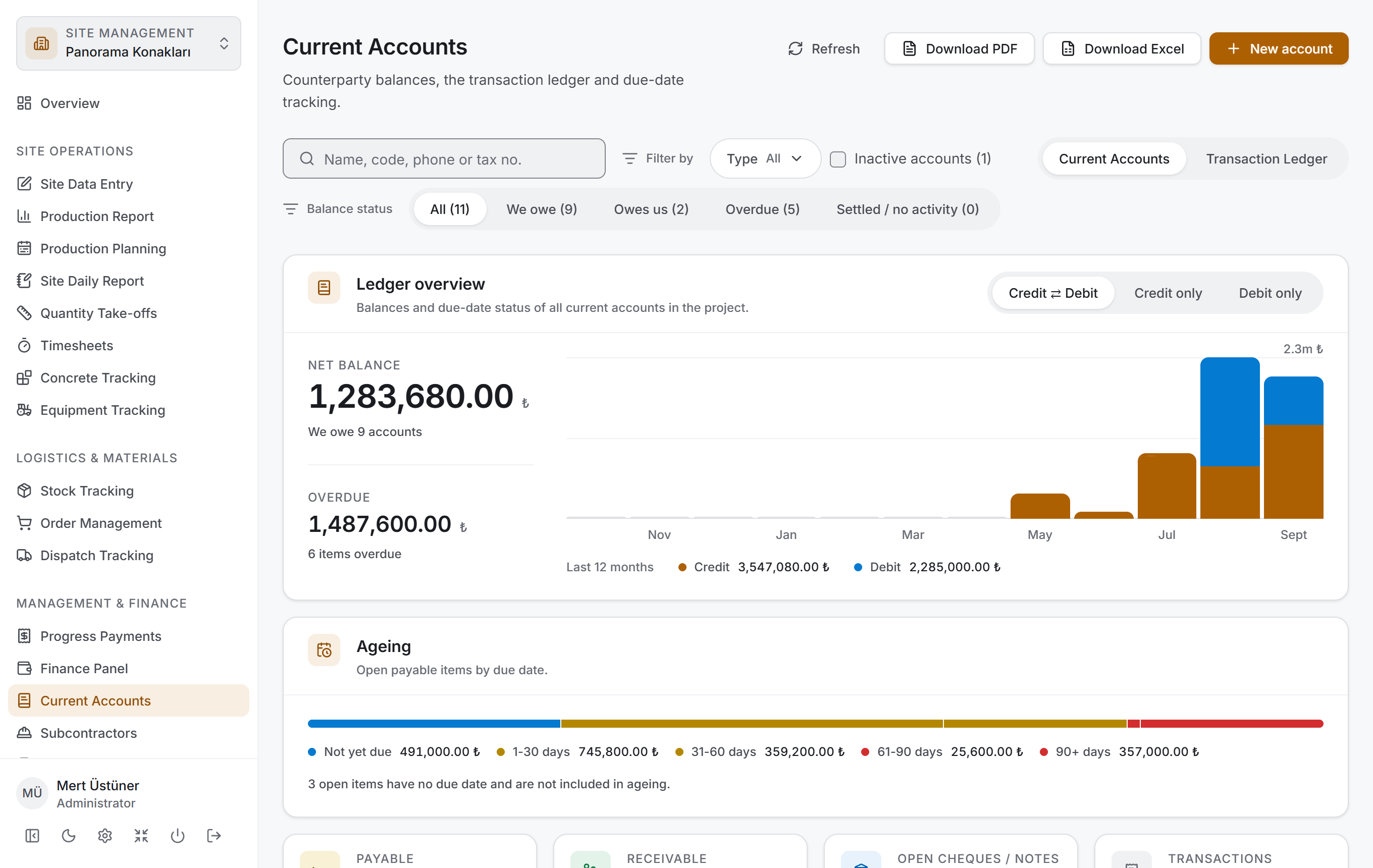
The page has two views, and both share the same shell and the same filter bar. The switch at the right end of the filter bar changes the view:
| View | What it shows |
|---|---|
| Current Accounts | The current state of the accounts — a balance list grouped by account type, with a summary, the ageing and the breakdowns above it |
| Transaction Ledger | The transactions themselves — a ledger grouped by day, newest day on top |
The Current Accounts view has four layers and follows the same order as Stock Tracking, Order Management, Dispatch Tracking and Progress Payments: first you narrow down, then you read the result as a figure, then you look at its breakdown, and finally you go down to the rows. There is a fifth layer where a firm's account opens: the account panel that appears when you click an account name.
| Layer | What it does |
|---|---|
| Filter bar | Search, account type, balance status; in the ledger also account, document, credit/debit and period |
| Ledger overview | Two headline amounts, the chart of the last twelve months, four small measures |
| Ageing | The open payable by due date |
| Breakdown | Distribution by type and the largest balances |
| Table | The balance list or the transaction ledger |
| Account panel | A firm's details and its four ledgers |
Five ledgers — accounts, transactions, payments, cheques/notes and the invoice archive — are loaded once when the page opens. Changing the filter, flipping the view switch, opening the panel and switching tabs send no request to the server.
Header and actions. The header shows Current Accounts and the description "Counterparty balances, the transaction ledger and due-date tracking." On the right are Refresh, Download PDF, Download Excel and — if you have edit permission — New account.
Filter bar

It has two rows. The top row holds the search box, the filters under the Filter by label and the view switch at the far right; the bottom row holds the selectors that belong to that view.
| Control | In which view | What it does |
|---|---|---|
| Search accounts | Current Accounts | Searches the account name, code, phone, tax number and contact |
| Search transactions | Transaction Ledger | Searches the account name, description, document number and source name |
| Type | Both | Subcontractor · Supplier · Customer · Staff · Other. More than one can be selected |
| Inactive accounts | Current Accounts | Adds closed accounts to the list. Their count is written next to it |
| Account | Transaction Ledger | Narrows the ledger to specific firms |
| Document | Transaction Ledger | Invoice · Delivery note · Progress payment · Payment · Collection · Advance · Deduction |
| Balance status | Current Accounts | All · We owe · Owes us · Overdue · Settled / no activity |
| Period | Transaction Ledger | All · This year · Last 12 months |
| Credit/Debit | Transaction Ledger | All · Credit · Debit |
| View | Both | Current Accounts ⇄ Transaction Ledger |
A figure sits next to each balance-status segment and each filter option; it tells you how many records would remain if you made that choice. The Inactive accounts switch is drawn only if the project has inactive accounts. While a filter is active, a Clear filters button appears.

When you switch to the Transaction Ledger the bottom row changes: the Balance status segments are replaced by the Period and Credit/Debit selectors, and the Account and Document filters are added to the top row.
Ledger overview
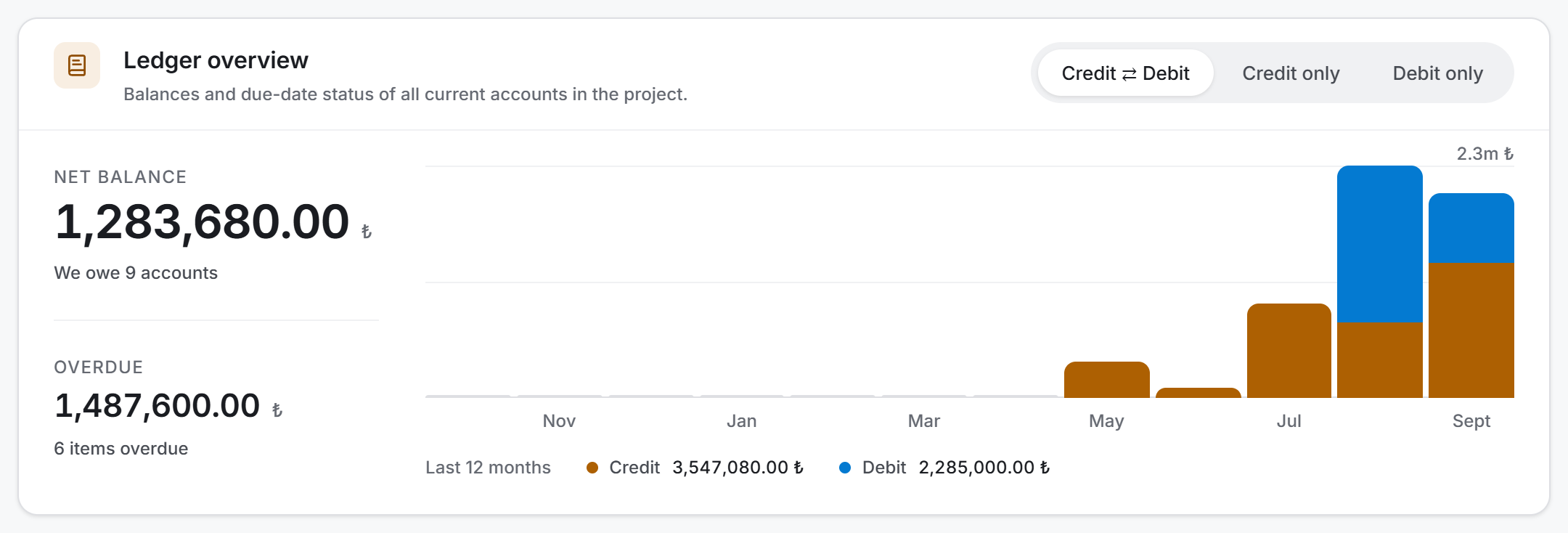
Two amounts sit one above the other on the left of the card:
- Net balance — the signed total of all accounts. The line under it states the direction as a sentence: "We owe 9 accounts", "2 accounts owe us" or "The ledger is settled." No minus sign is used; in a ledger "−1,240,000 ₺" could mean two different things.
- Overdue — the part of the open items that has passed its due date. Under it you read "6 items overdue" or "No overdue open items."
The column chart of the last twelve months is on the right. Each column is split into two colours: Credit and Debit. The selector in the top-right corner of the card changes the measure of the chart:
| Measure | What it shows |
|---|---|
| Credit ⇄ Debit | The two stacked. "How much did we take on this month, how much did we settle" |
| Credit only | Only the lines that create a debt |
| Debit only | Only payments and settlements |
While a filter is active, a line such as "Balance of the 5 accounts shown (11 in the project)" appears under the card title; with no filter the card's own description sits there. The twelve months of the chart come from the calendar: a month with no records stays as an empty column, it is not skipped.
Ageing
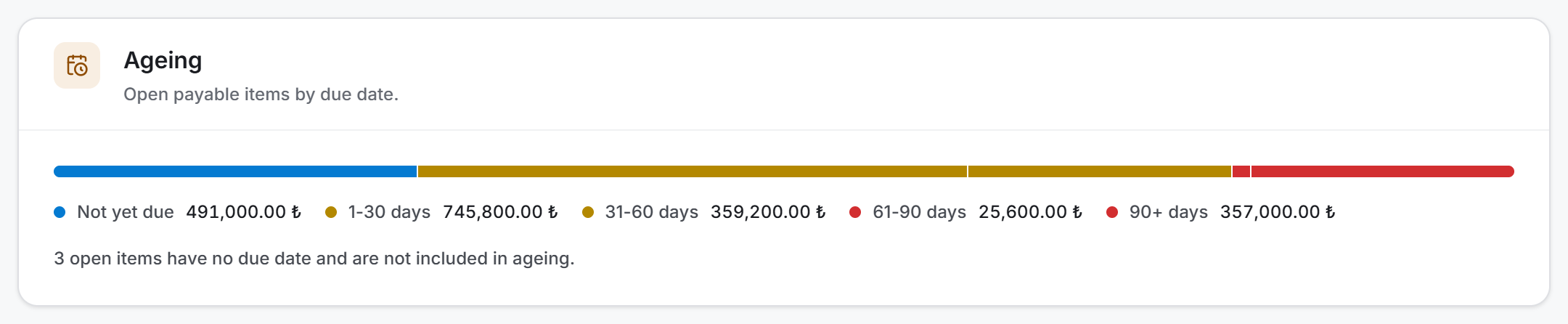
It shows the open payable by due date in a single horizontal bar. There are five buckets, and the colour darkens as the delay grows:
| Bucket | What it means |
|---|---|
| Not yet due | Due today or later |
| 1-30 days | Between one and thirty days past due |
| 31-60 days | |
| 61-90 days | |
| 90+ days | Waiting for more than ninety days |
If there are any, the line "3 open items have no due date and are not included in ageing" sits below the card.
The four measure tiles

| Tile | What it shows |
|---|---|
| Payable | The total of the accounts whose balance is a debt of ours |
| Receivable | The total of those who owe us |
| Open cheques / notes | The total of documents waiting in the portfolio and endorsed ones. Not included in the balance |
| Transactions | The total number of transactions of the accounts on screen |
Payable and Receivable are written separately, not netted off; the net balance is already in the card above. Owing and being owed by the same firm at the same time is an ordinary situation, and a single net figure would hide it.
Breakdown
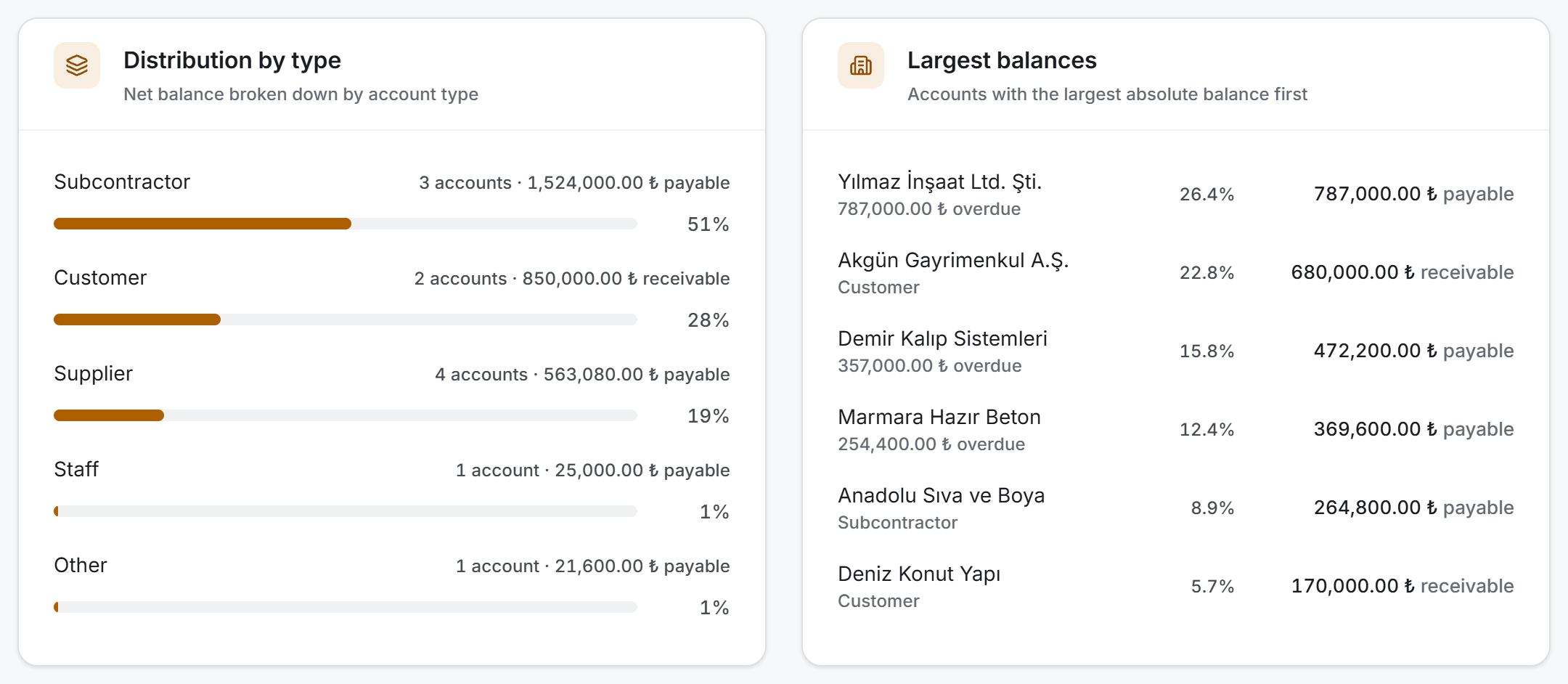
Two cards sit side by side and both are counted from the same rows:
- Distribution by type — the share of the net balance by account type, with bars. If a type's credits and debits cancel each other out, the bar is replaced by "Credits and debits cancel out"; a "0%" bar next to it would make that type look unimportant.
- Largest balances — the first eight accounts by absolute balance. Each row shows the firm name, under it either the overdue amount or the account type, and on the right its share and amount. The word next to the amount states the direction: payable or receivable.
Accounts with a settled balance never enter the second card.
Balance list
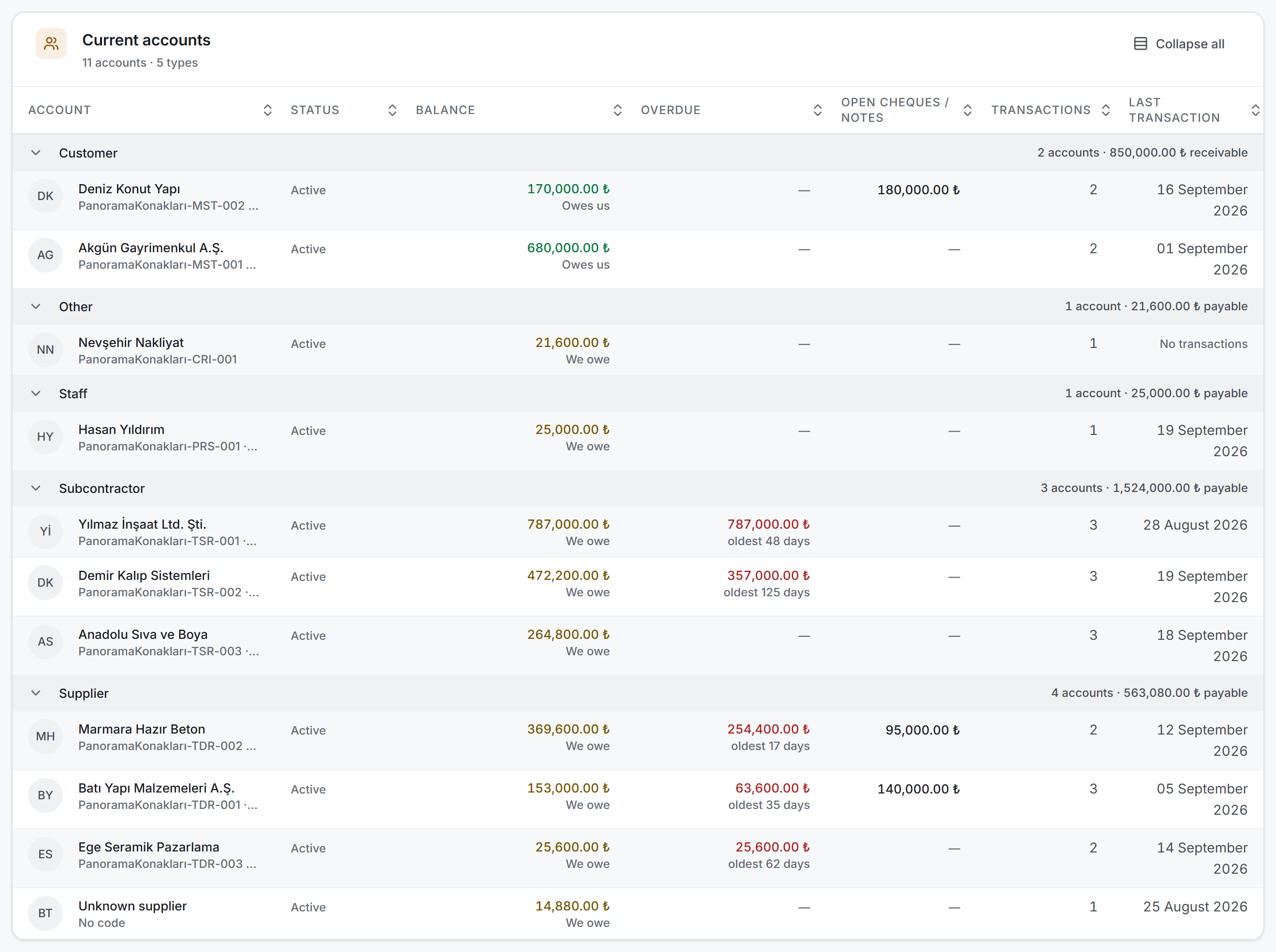
The card is titled Current accounts and described as "11 accounts · 5 types." On the right, Collapse all folds the groups.
Rows are grouped by account type, and the group header carries the net balance of that type ("3 accounts · 1,524,000.00 ₺ payable"). The default order puts the largest payable on top; you can change it by clicking a column header.
| Column | What it shows |
|---|---|
| Account | Initials, the firm name and, under it, its code and phone. The name is a button that opens the panel |
| Status | Active or an Inactive badge |
| Balance | The amount and, under it, its direction: We owe · Owes us · Settled |
| Overdue | The overdue amount and, under it, "oldest 48 days" |
| Open cheques / notes | The total of documents waiting in the portfolio |
| Transactions | The number of rows this account has in the ledger |
| Last transaction | The date of the most recent dated record in the ledger |
A row with a settled balance shows — instead of an amount. An account with no delay falls to the bottom when sorted by Overdue: zero means "no delay", and sorting it numerically would place it at the head of the least-delayed group.
Transaction ledger
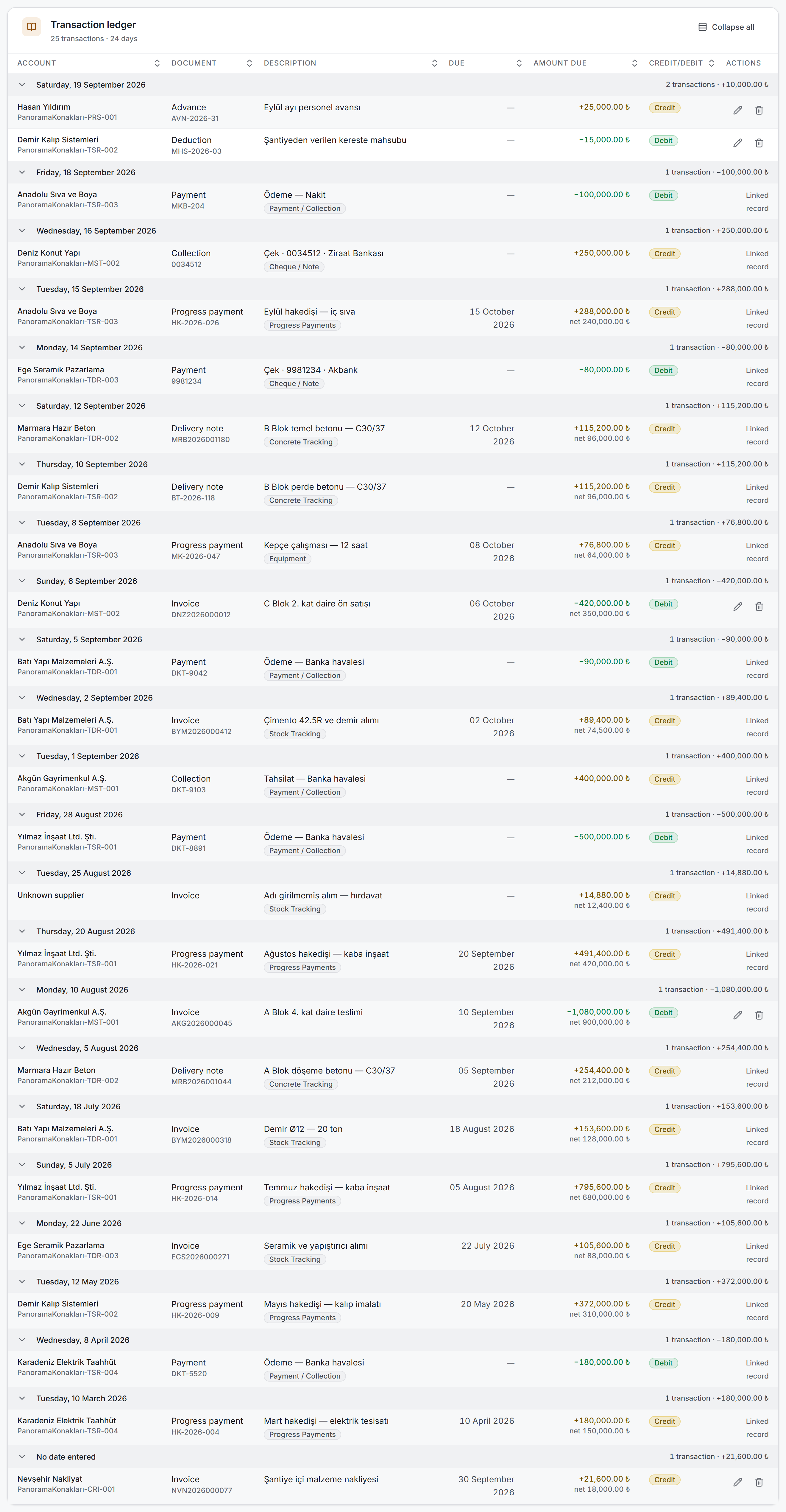
The card is titled Transaction ledger and described as "25 transactions · 24 days." Rows are grouped by day, the newest day sits on top, and the group header states the net effect of the day ("2 transactions · +10,000.00 ₺"). Records with no date are gathered at the very bottom under the No date header.
| Column | What it shows |
|---|---|
| Account | The firm name and code. The name is a button that opens the panel |
| Document | The document type and, under it, its number |
| Description | The row's description and, under it, the source badge |
| Due | The due date, if there is one |
| Amount due | The signed amount (+ credit, − debit) and, if there is VAT, the net amount under it |
| Credit/Debit | A Credit or Debit badge |
| Actions | Edit and delete on a manually entered row; Linked record on an automatic one |
The source badge says where the row comes from: Concrete Tracking, Stock Tracking, Progress Payments, Equipment, Payment / Collection or Cheque / Note. A row without a badge was entered manually on this page.
Account panel
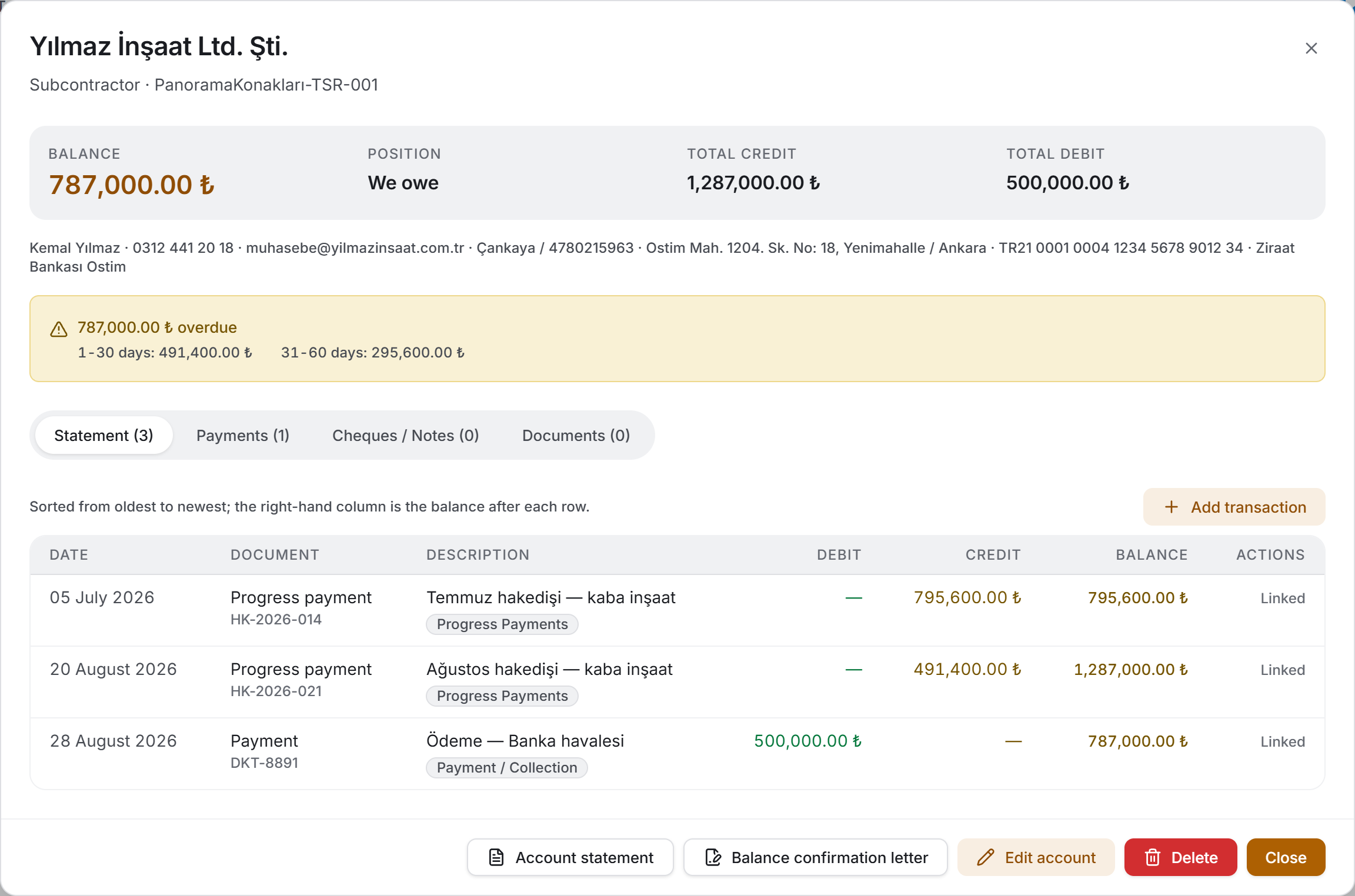
Clicking an account name opens a wide window. The header shows the firm name and, under it, its type and code. The window sends no new request; all the data is already loaded.
Four tiles of details sit at the top:
| Tile | What it shows |
|---|---|
| Balance | The absolute amount; Settled if it is level |
| Position | We owe · Owes us · Settled |
| Total credit | The total of all credit lines of the counterparty |
| Total debit | The total of all debit lines |
Below the tiles, a single line holds the contact person, phone, email, tax office/number, address and bank details — only the ones that have been filled in. Under that, if there are any, the ageing band ("63,600.00 ₺ overdue" and the bucket-by-bucket split) appears, and an information box if the account is inactive.
There are four tabs below, each with its record count:
| Tab | What is in it |
|---|---|
| Statement | Every transaction of this account, oldest to newest, with its running balance |
| Payments | The payment and collection records entered, with their documents |
| Cheques / Notes | Portfolio and settled documents, with their status |
| Documents | The invoice archive — records that do not enter the balance |
At the bottom of the window are Account statement, Balance confirmation letter, Edit account, Delete and Close. The first two are available with view permission as well.
The Statement tab. The columns follow the standard order of a Turkish account statement: Date · Document · Description · Debit · Credit · Balance. Debit and credit are read from the counterparty's point of view; the interpretation from our side is written in the Position tile of the details. The Balance column on the right is the balance after each row, which is why the list runs from oldest to newest.
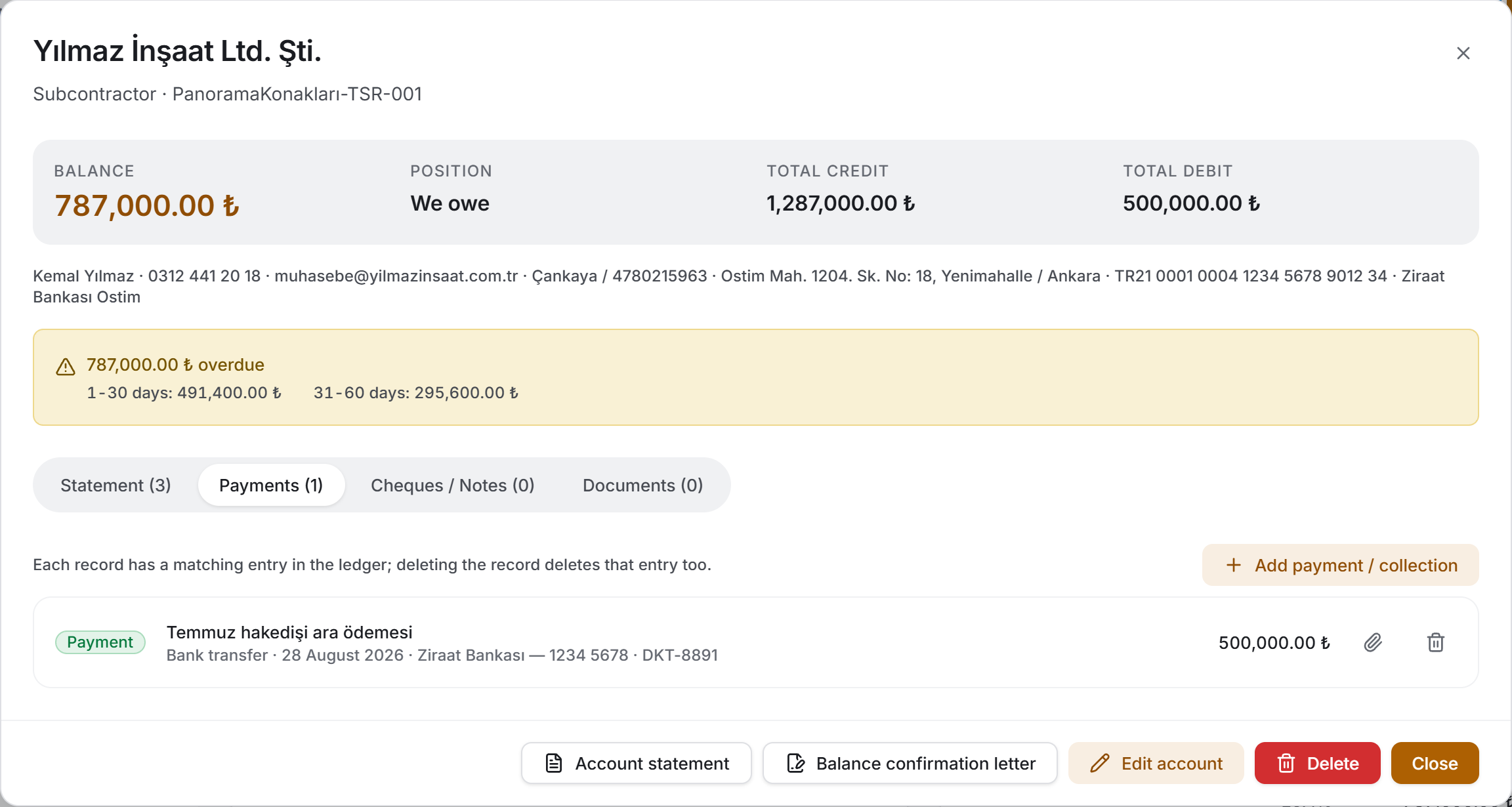
The Payments tab. Each row shows a Payment or Collection badge, its description and, under it, the method, the date, the bank account and the reference number, with the amount on the right. If a bank slip has been uploaded, the paperclip opens it. The line at the top of the tab says the record is posted to the ledger and that deleting it deletes that entry too.
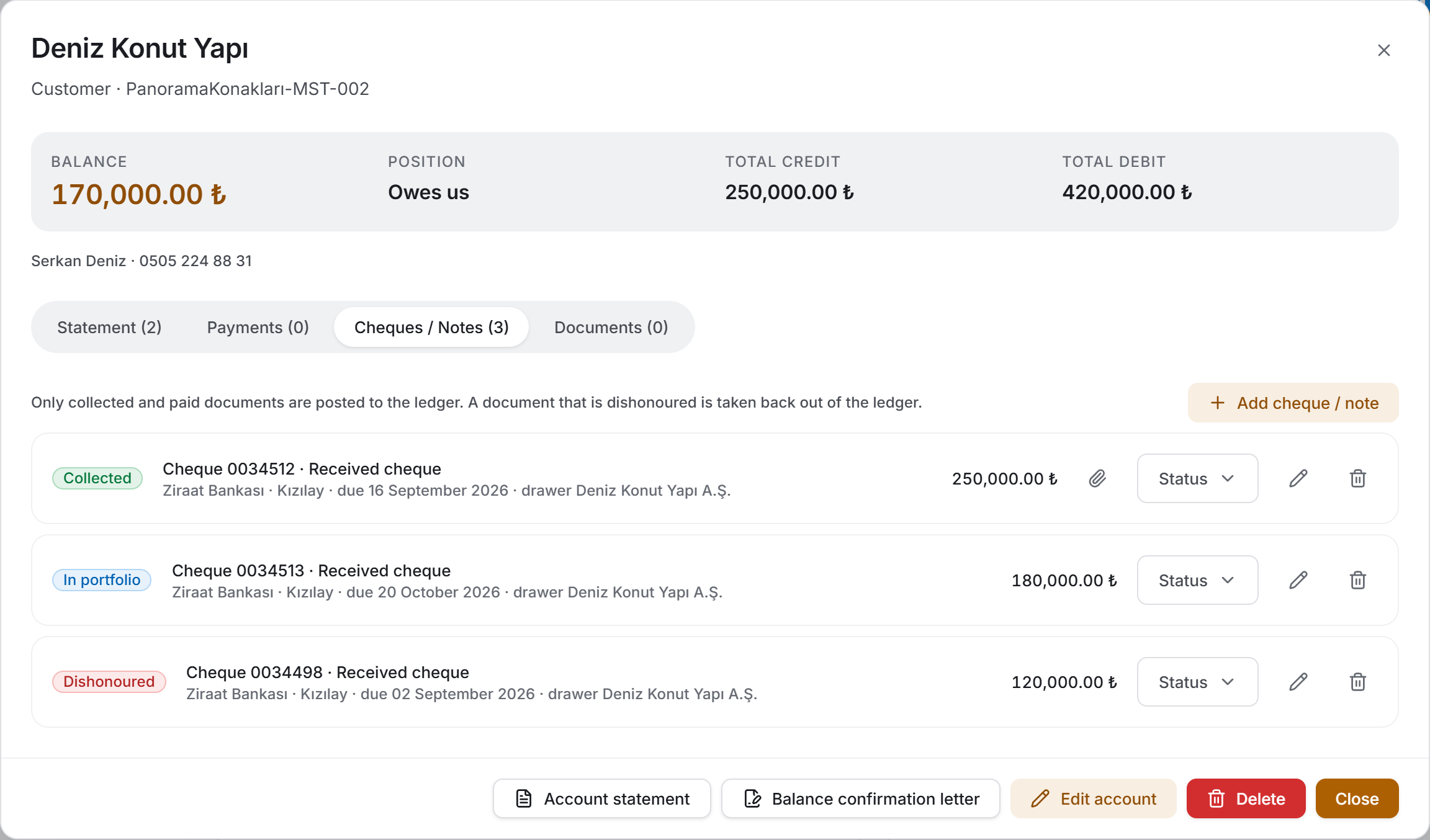
The Cheques / Notes tab. Each row shows a status badge (In portfolio · Endorsed · Collected · Paid · Returned · Dishonoured), the document type and number, its direction, bank, due date, drawer and amount. The menu on the right changes the status; the pencil and bin buttons are for editing and deleting. If an image has been uploaded, the paperclip opens it.
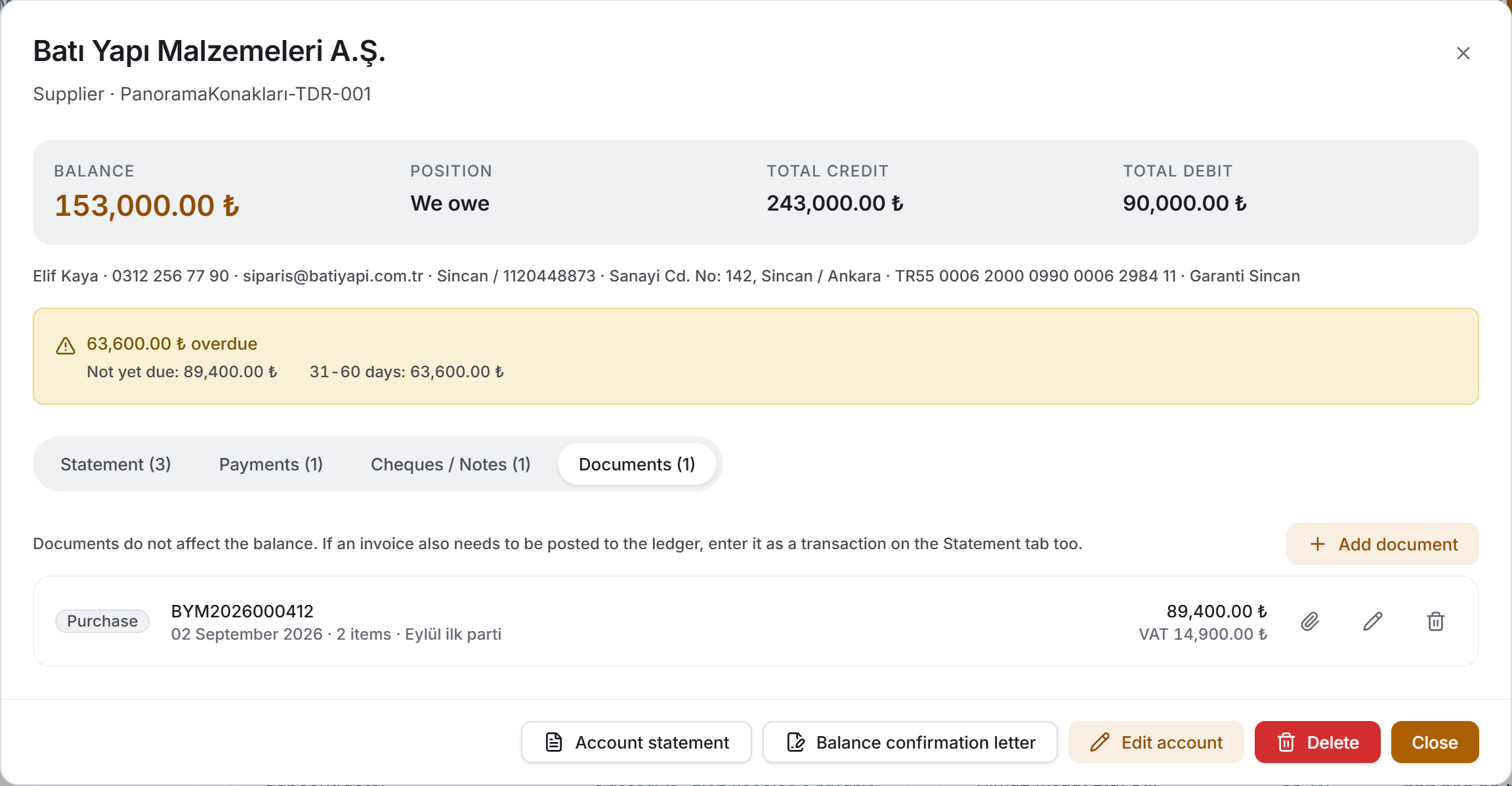
The Documents tab. The invoice archive is a place for records: it does not change the balance, it keeps the invoice itself, its items and the scanned file. A line at the top of the tab says so.
4. Fields
There are five forms on the page. Each writes its own record, and three of them also touch the ledger.
The current account form
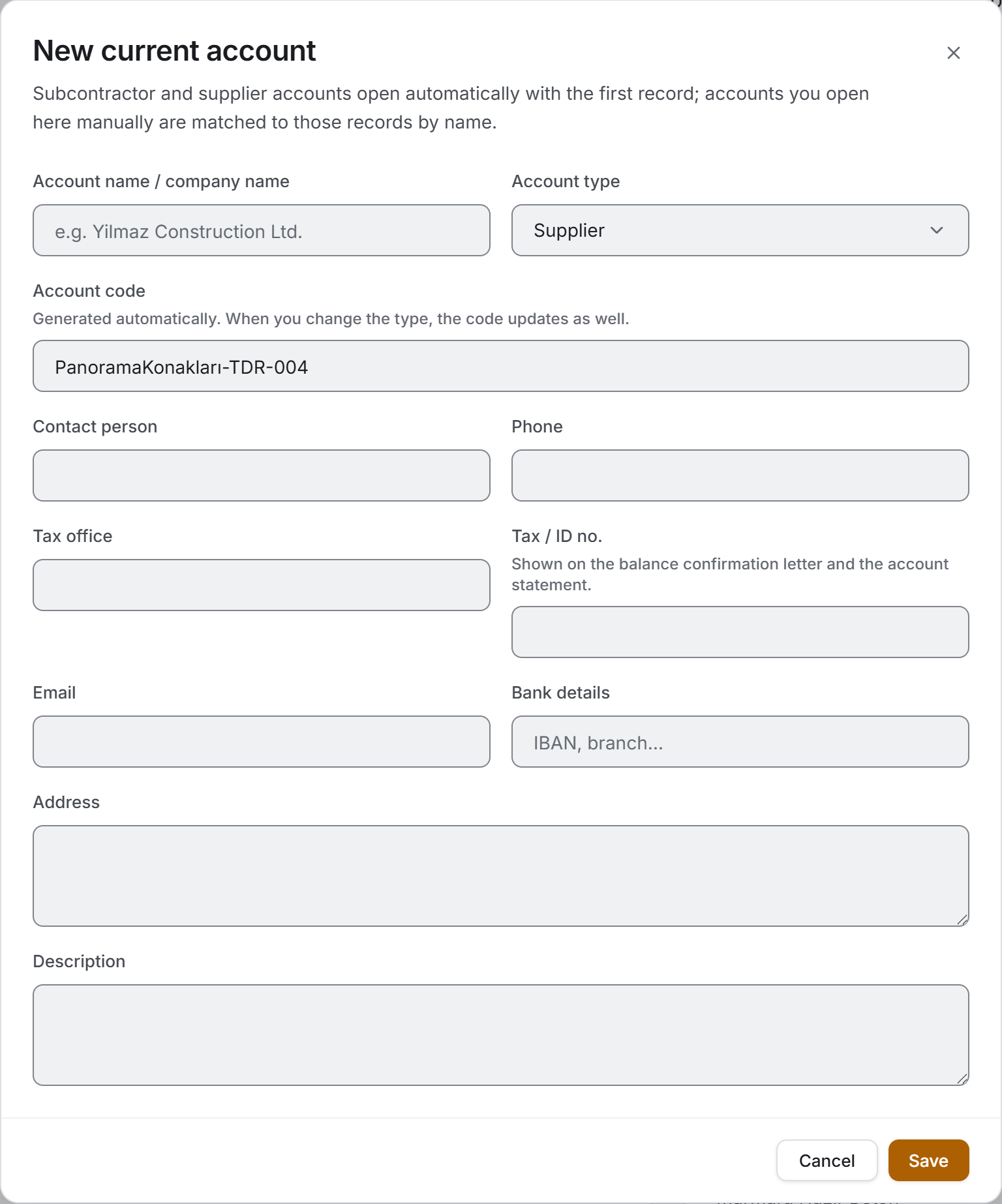
| Field | What it means | Required |
|---|---|---|
| Account name / company name | The name of the account. Automatic records are matched by this name | Yes |
| Account type | Subcontractor · Supplier · Customer · Staff · Other | Yes (Supplier by default) |
| Account code | Generated automatically in the form ProjectName-TSR-001; it cannot be changed by hand | — |
| Contact person | The counterpart. Written on the statement and the confirmation letter | No |
| Phone | Appears under the firm name in the list and on the statement | No |
| Tax office | Written on the confirmation letter and the statement | No |
| Tax / ID no. | Written in the same places | No |
| No | ||
| Bank details | IBAN, branch. Appears on the details line of the panel | No |
| Address | Written in the parties block of the statement | No |
| Description | A free note | No |
| Active account | Drawn only when editing. A closed account is hidden from the list by default | — |
On a new account the code updates itself as the type changes; it does not change once the record has been created. The abbreviations follow the type: subcontractor TSR, supplier TDR, customer MST, staff PRS, other CRI.
The transaction form
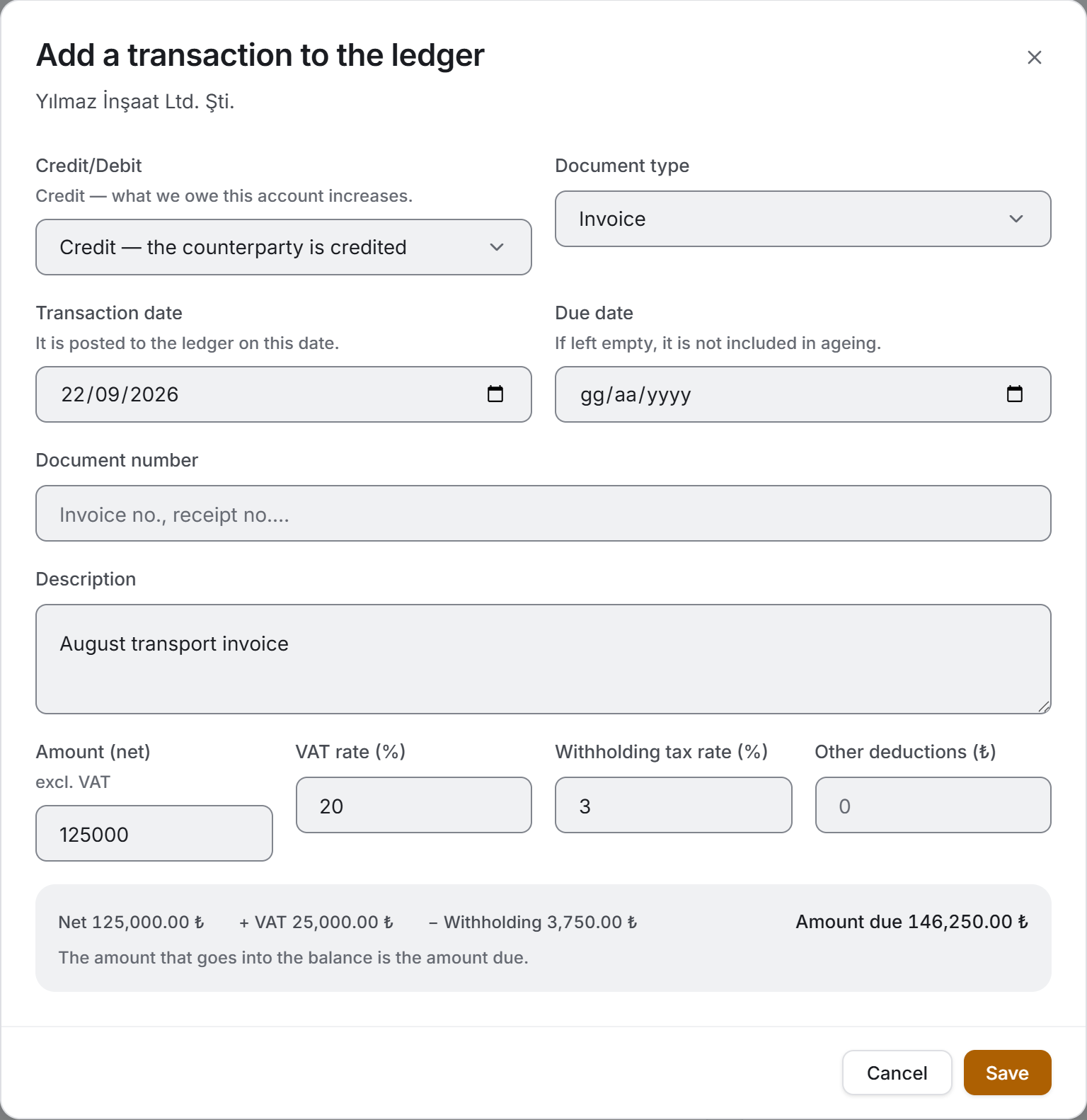
It adds a manual row to the ledger. It opens from the Statement tab of the panel or from the pencil button of a row in the ledger.
| Field | What it means | Required |
|---|---|---|
| Credit/Debit | Credit — what the counterparty is owed increases. Debit — it decreases | Yes (Credit by default) |
| Document type | Invoice · Delivery note · Progress payment · Payment · Collection · Advance · Deduction | Yes (Invoice by default) |
| Transaction date | The row is posted to the ledger on this date | Yes |
| Due date | The field ageing relies on. If left empty the item does not enter ageing | No |
| Document number | If left empty, an automatic number is written to the ledger | No |
| Description | The only field that says what a ledger row is | Yes |
| Amount (net) | The amount excluding VAT | Yes, greater than zero |
| VAT rate (%) | Between 0 and 100 | No |
| Withholding tax rate (%) | Between 0 and 100 | No |
| Other deductions (₺) | An amount, not a rate | No |
Four figures at the bottom of the form are calculated live and update as you type:
Net + VAT − Withholding − Deductions = Amount due
The figure that goes into the balance is the amount due. The due date cannot be earlier than the transaction date.
The payment / collection form
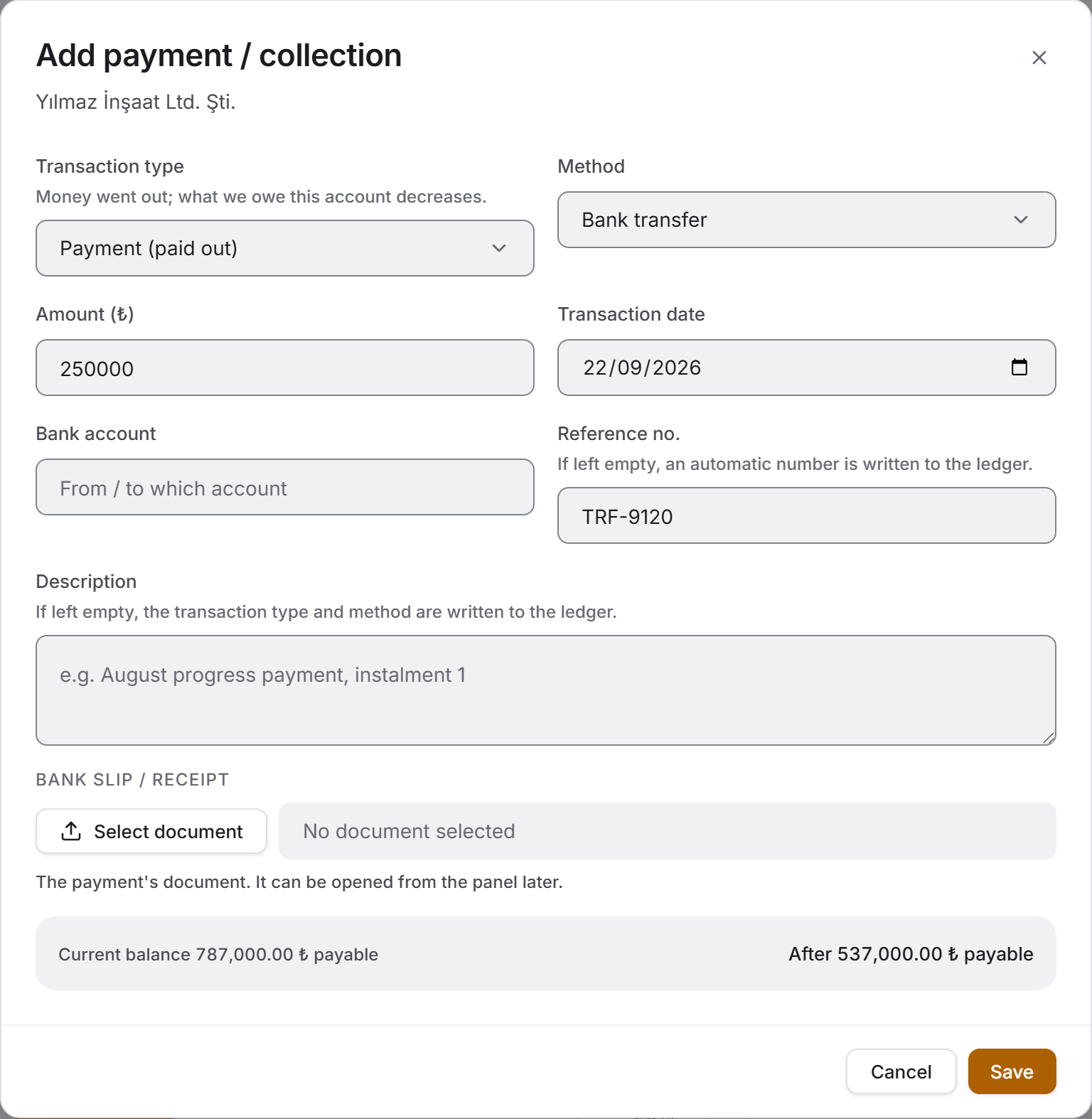
| Field | What it means | Required |
|---|---|---|
| Transaction type | Payment (paid out) or Collection (received) | Yes (Payment by default) |
| Method | Cash · Bank transfer · Credit card · Cheque · Promissory note · Deduction | Yes |
| Amount (₺) | Yes, greater than zero | |
| Transaction date | Yes | |
| Bank account | From / to which account | No |
| Reference no. | Bank slip no., receipt no. Written to the ledger as the document number; if left empty an automatic number is generated | No |
| Description | If left empty, the transaction type and method are written to the ledger | No |
| Bank slip / receipt | Up to five files. Opened from the panel later | No |
Current balance and After sit side by side at the bottom of the form; the second one changes as you type the amount. A payment reduces what we owe, a collection what we are owed.
The cheque / note form
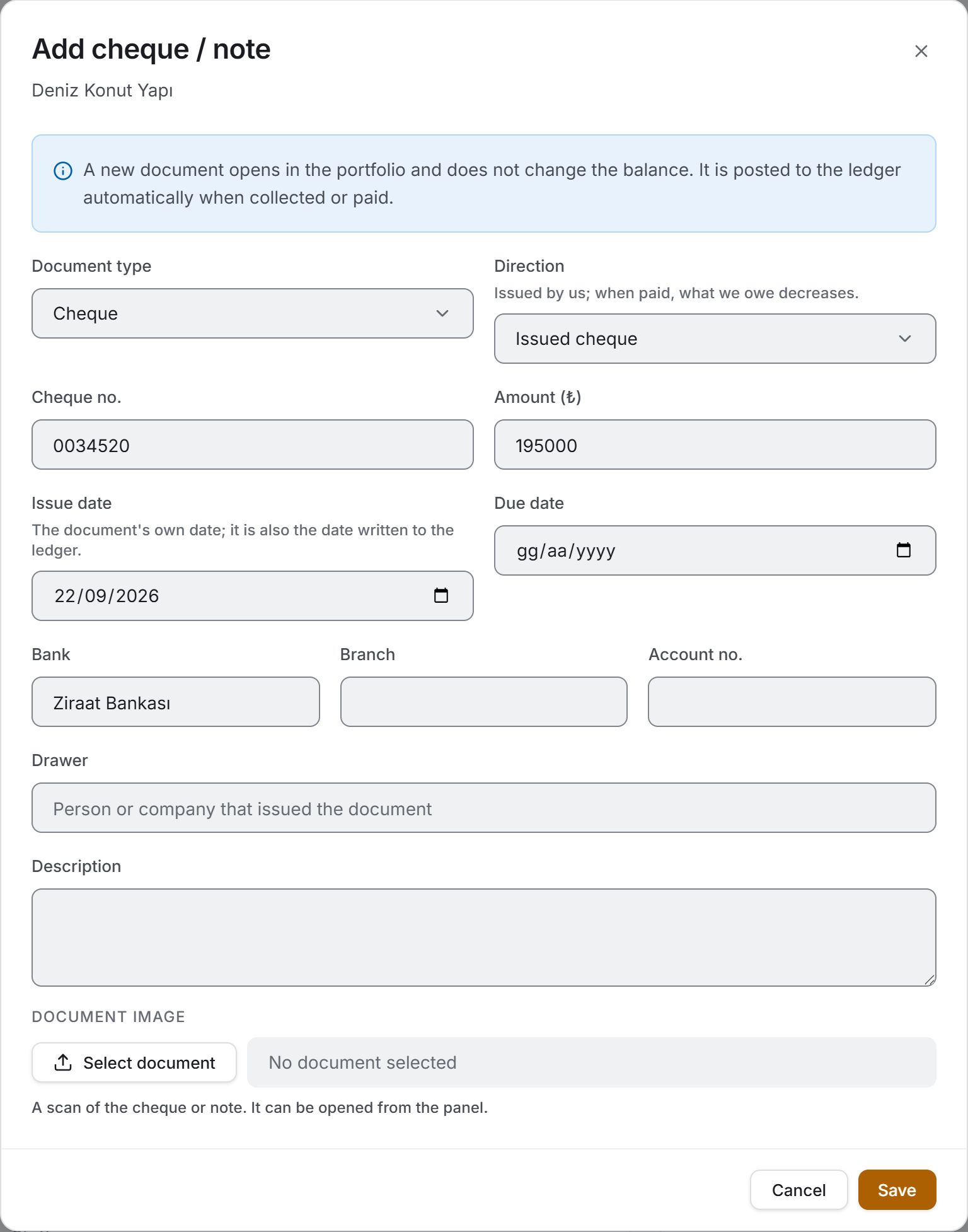
| Field | What it means | Required |
|---|---|---|
| Document type | Cheque or Promissory note | Yes (Cheque by default) |
| Direction | Received cheque · Issued cheque · Received promissory note · Issued promissory note | Yes |
| Cheque no. / Note no. | The only field that tells two documents in the portfolio apart | Yes |
| Amount (₺) | Yes, greater than zero | |
| Issue date | The document's own date | Yes |
| Due date | What portfolio tracking and overdue warnings rely on | Yes |
| Bank · Branch · Account no. | No | |
| Drawer | The person or company that issued the document | No |
| Description | No | |
| Document image | A scan of the cheque or note | No |
When the Document type changes, the Direction moves to the same type as well; choosing "Promissory note" and leaving the direction as "Issued cheque" is not possible. The due date cannot be earlier than the issue date.
The form has no status box. The status is the document's life cycle and changes from the panel, in a single-click menu; it should not be changed by accident in a form you opened to correct an amount.
The invoice / document form
| Field | What it means | Required |
|---|---|---|
| Invoice no. | Yes | |
| Invoice date | Yes | |
| Type | Purchase · Sale · Return | Yes (Purchase by default) |
| Items | Row by row: item name, quantity, unit, unit price, VAT (%) | At least one item |
| Description | No | |
| Invoice image / PDF | The scanned document | No |
The subtotal, the VAT and the grand total are calculated from the items and cannot be typed in. A row that has not been filled in at all is skipped silently; a half-filled row is an error — if an item whose name was entered but whose price was forgotten were skipped, the invoice total would come out short and you would not see it.
5. Step by step
5.1 Opening a new current account
- Press New account in the header.
- Enter the account name and type; the code is generated by itself.
- Fill in the details. The tax office, the tax number and the address will appear on the balance confirmation letter and the statement.
- Save.
5.2 Opening a firm's ledger
- Click the firm name in the balance list or in the ledger.
- Read the details and the balance in the panel first.
- Switch to one of the tabs: Statement, Payments, Cheques / Notes, Documents.
- Close returns you to the list; your filter and scroll position are still there.
When the panel opens for a different account, the tab returns to Statement.
5.3 Entering a manual transaction
- Press Add transaction on the Statement tab of the panel.
- Choose the direction and the document type; enter the date and the description.
- Type the net amount; add the VAT, withholding and deduction rates if needed. Check the Amount due on the line below.
- If this is a debt with a due date, enter the due date as well; otherwise the item does not enter ageing.
- Save.
5.4 Recording a payment or a collection
- Press Add payment / collection on the Payments tab of the panel.
- Choose the transaction type and the method, enter the amount and the date.
- Attach the bank slip if you have one.
- Check the After balance on the bottom line and press Save.
Every payment record has a matching entry in the ledger: a payment writes a Debit row, a collection a Credit row. Deleting the record deletes its ledger row too.
5.5 Processing a cheque or a note
- Press Add cheque / note on the Cheques / Notes tab of the panel.
- Enter the type, the direction, the number, the amount, the issue date and the due date.
- Save. The document opens in the portfolio and does not change the balance.
- When the document is collected or paid, choose Collected or Paid from the status menu at the right of the row. Its ledger entry is created at that moment.
- If it is dishonoured, choose Dishonoured: the ledger entry is taken back out and the debt appears again.
| Status | What happens in the ledger |
|---|---|
| In portfolio | No entry. The amount appears in the Open cheques / notes measure |
| Endorsed | No entry |
| Collected | A Credit row is written |
| Paid | A Debit row is written |
| Returned | The entry is taken back out |
| Dishonoured | The entry is taken back out |
5.6 Archiving an invoice
- Press Add document on the Documents tab of the panel.
- Enter the invoice number, date and type.
- Add the items row by row; the totals are calculated by themselves.
- Attach the scanned document and press Save.
5.7 Narrowing the ledger
- Choose Transaction Ledger from the view switch.
- Pick This year or Last 12 months from Period.
- Narrow down with the Account, Document and Credit/Debit filters.
- Clear filters releases all of them.
5.8 Deleting a record
- Press the bin button of the row to be deleted.
- Read the confirmation window: for a transaction it states the balance after deletion, for a cheque whether the document has been posted to the ledger, and for an account the number of linked records.
- Press Delete.
5.9 Taking an export
- For list exports, press Download PDF or Download Excel in the header.
- For a single account, use Account statement or Balance confirmation letter at the bottom of the panel.
- Choose the location and the name in the save window.
- Once the file is saved, a green band with its path appears at the top of the screen; Close removes it.
5.10 Refreshing the page
Refresh reads all five ledgers again. If another user has issued a progress payment, received material or entered a payment, the figures are up to date after this button.
6. Exports
The four exports serve four different purposes: two are working documents and two are documents that go to signature.
Excel — four sheets
The file is named Current_Accounts_<date-time>.xlsx. All four sheets are written whichever view you are in.
| Sheet | What is in it |
|---|---|
| Balance List | Account Name · Code · Type · Status · Total Credit · Total Debit · Balance · Position · Overdue · Open Cheques / Notes · Transactions · Last Transaction |
| Transaction Ledger | Date · Account Name · Code · Type · Document · Document No. · Description · Source · Credit/Debit · Net · VAT · Withholding Tax · Amount Due · Due Date |
| Ageing | Account Name · Type · the five buckets · Total Overdue · Oldest (days) · Items Without Due Date |
| Cheques and Notes | Account Name · Type · Direction · No. · Bank · Amount · Issued · Due Date · Status · Collected / Paid · Drawer |
The header row is frozen and the filter is on in all four sheets; at the bottom there is a GRAND TOTAL row that adds up its own columns. All amounts come out as real numbers and all dates as real dates — select an amount column and Excel shows the total by itself.
The Balance column of the Balance List is written with its sign (payable positive, receivable negative); its direction sits in a separate column as a word. Had the absolute value been written, the total of the column would have meant nothing.
Account Balance List / Account Transaction Ledger (PDF)
The working document produced by Download PDF; its name and content change with the view you are in. A4 landscape, as long as the number of records requires.
- Account Balance List — the header (scope, record count, payable, receivable) · a nine-column balance table · an Ageing summary below it (bucket by bucket and TOTAL OVERDUE) · Notes.
- Account Transaction Ledger — the same header · an eleven-column ledger table (Date · Account · Type · Document · Description · Source · Net · VAT · Amount Due · Credit/Debit · Due Date) · Notes.
The notes section states the limits of the document itself: how the balance is found, where the automatic rows come from, that portfolio documents and the invoice archive are not included in the balance, and — if there are any — the number of transactions with no date, of open items with no due date, and of inactive accounts included in the list.
Account Statement (PDF)
The signed breakdown produced by Account statement at the bottom of the panel; the file is named Statement_<account name>_<date-time>.pdf. A4 portrait; it grows with the number of transactions.
It contains, in order: the title, the firm name and the account code · the Project · Period · Transactions · Closing balance header band · the ISSUED BY and CURRENT ACCOUNT party boxes (type, contact, tax office/number, phone, address) · the Account Transactions table (Date · Document · Description · Debit · Credit · Balance) with a TOTAL and a CLOSING row below it · the Ageing of Open Items if there is any · Notes · and at the bottom the Issued by · Signature and Agreed · Stamp · Signature areas.
The document is not asked for a period; it works one out from the first and last dated transaction and writes it into the header. The notes also state that documents waiting in the portfolio and archived documents are not included in this balance.
Balance Confirmation Letter (PDF)
The declaration produced by Balance confirmation letter at the bottom of the panel; the file is named Balance_Confirmation_<account name>_<date-time>.pdf. A4 portrait and a single page — it does not grow, whatever the number of records.
It contains: the title and the firm name · the confirmation date · the SENDER and RECIPIENT party boxes · the "Dear Sir or Madam," salutation and the body sentence stating the balance · the Balance per Our Records table (Total credit · Total debit · BALANCE) · the Recipient's Declaration section — two boxes to tick (Our records agree / According to our records the balance is different), an amount field and a description line · Notes · and the Issued by · Stamp · Signature and Agreed · Stamp · Signature areas.
The letter carries no transaction breakdown; the side that wants the detail takes the statement, and the two are sent together. The last note says that this is not a request for payment but a request to reconcile records.
7. What you need to know
The balance is kept from the counterparty's point of view and interpreted from ours. The columns of the ledger are Debit and Credit — the standard vocabulary of a Turkish account statement. What the balance means is always stated as a sentence: We owe or Owes us.
Subcontractor and supplier accounts are matched by name. If you do not want a second account for a firm, write its name as it is written on the source page. An account with an empty name never matches, which is why the form does not allow one.
The uniqueness of the account code is not guaranteed. The number is read from the list on screen; if two users open an account of the same type at the same moment, both may get the same number. The code is a label and records are linked to each other by their own identifiers — but if you see two identical codes in an accounting export, this is why.
Automatic transactions cannot be edited or deleted here. Rows coming from progress payment, pour, material, payment and cheque records are derived from their source; had they been deleted here, the source would have stayed in place and the ledger would have quietly lost a row. The row says Linked record and its badge says where to go.
A cheque or note in the portfolio does not enter the balance. Only collected and paid documents are posted to the ledger. The total of documents in the portfolio and endorsed ones sits separately in the Open cheques / notes measure; the ledger entry of a document that is dishonoured is taken back out and the debt appears again.
A document's date in the ledger is the day its status changed. When you choose Collected from the menu, the ledger row is posted today, not on the document's issue date — the collection happened today.
The invoice archive does not enter the balance. The archive is a place that keeps the invoice itself and its items. An invoice that needs to be posted to the ledger must be entered as a separate transaction.
Ageing deducts payments from the oldest invoice. This is the standard accounting rule, and the result is this: the total of the buckets is always equal to the account's net payable. Had payments not been deducted, a firm with a balance of 1,704,000 ₺ next to it would have shown 2,604,000 ₺ of "overdue" debt.
Only debt documents enter ageing: Invoice, Delivery note, Progress payment, Advance and Deduction. Payment and collection rows have no due date and are not counted as "open items with no due date".
There is no ageing on an account that owes us. If the net balance is zero or in our favour we have no open payable; all the buckets come back empty.
An item with no due date never enters ageing. Its count is written under the card and in the notes of the exports. For ageing to work, the due date must be filled in on manually entered debts.
Inactive accounts are hidden from the list by default. Their records and balance stay as they are; the Inactive accounts switch adds them to the list, and the notes of the exports state how many were included.
Differences below one kuruş are treated as settled. The few thousandths left over from percentage VAT and withholding calculations are not enough to mark an account as "we owe" on screen.
There is no running balance in the transaction ledger. It would mean nothing in a multi-account list; it belongs to a single account's statement and is in the panel and in the Account Statement.
Transactions whose account has been deleted stay in the ledger. They say Deleted account, they keep counting towards the balance, and there are no details to open.
"Unknown supplier" is data, not an error. Stock Tracking gathers purchases with no name entered into an account with this name; the row itself is correct, only the firm name is missing.
Search respects Turkish letters. Typing yilmaz finds Yılmaz İnşaat; ISKELE and iskele fall into the same set. Search does not work on amounts or dates.
The page does not start a ledger transfer. Concrete, stock, progress payment and equipment records are written to the ledger on their own pages, and each of them carries its own "Resend to Current Accounts" band. If a record has not reached the ledger, the place to fix it is that page, not this one.
8. Related chapters
Most of the rows in the ledger are produced in other chapters:
- Progress Payments — every issued progress payment writes a Credit row to the subcontractor's account; the document type becomes Progress payment.
- Concrete Tracking — pour records drop a Delivery note row into the subcontractor's account.
- Stock Tracking — manual material entries and dispatch receipts drop an Invoice row into the supplier's account.
- Equipment Tracking — equipment work entries that have reached a progress payment come into the ledger from there.
- Subcontractors and Suppliers — the firm details (tax office, tax number, address, email, bank) actually live in the current account; the form on those pages writes the same record and shows the firm's account balance in its own panel.
- Finance Panel — it reads the project's cost from the source modules, not from the current account ledger. Deleting an account does not change the total in the Finance Panel.
- Projects — the name at the start of the account code comes from the project details.