
Suppliers
Suppliers is the register of the firms you buy materials from. A firm's details (contact, phone, tax number, tax office, address, bank) and the activity that firm leaves across the project…
1. What it is for
Suppliers is the register of the firms you buy materials from. A firm's details (contact, phone, tax number, tax office, address, bank) and the activity that firm leaves across the project are kept together here.
That activity is gathered from five sources: the quotes the firm submits, the dispatch cards opened for it, the material purchases that enter the store, its account ledger transactions and the materials you actually buy from it. The page does not produce any of this; each is entered on its own page and collected here firm by firm.
The questions this page answers are: who are we buying from on this project, how much have we purchased from a firm so far, does the firm win quote comparisons, and when it loses how far above the lowest does it stay, does it deliver on time, how much is committed in pending deliveries, how much of our spending goes through an order with collected quotes and which sheet goes on the table when we sit down with a firm at year end.
2. How to open it, who can see it
In the sidebar: Management & Finance › Suppliers.
| Your permission | What you can do |
|---|---|
| View | You see both views, the unregistered firms strip, the analysis strip, the breakdowns, both tables and the four ledgers of the firm panel. You can take all three exports and open documents attached to quotes. The New supplier, Edit firm, Delete and Add as supplier buttons are not drawn at all |
| Edit | Everything above, plus you can create a firm, enter its details, edit it and delete it |
| No permission | The module appears dimmed and locked in the menu |
On this page the server role matters alongside the module permission. Two operations are open to administrators only, even when the project permission is granted:
Adding and editing firms does not require administrator permission; administrator or site engineer is enough. An account with the viewer role that tries to save gets "You do not have permission to add or edit suppliers in this project".
3. Anatomy of the screen
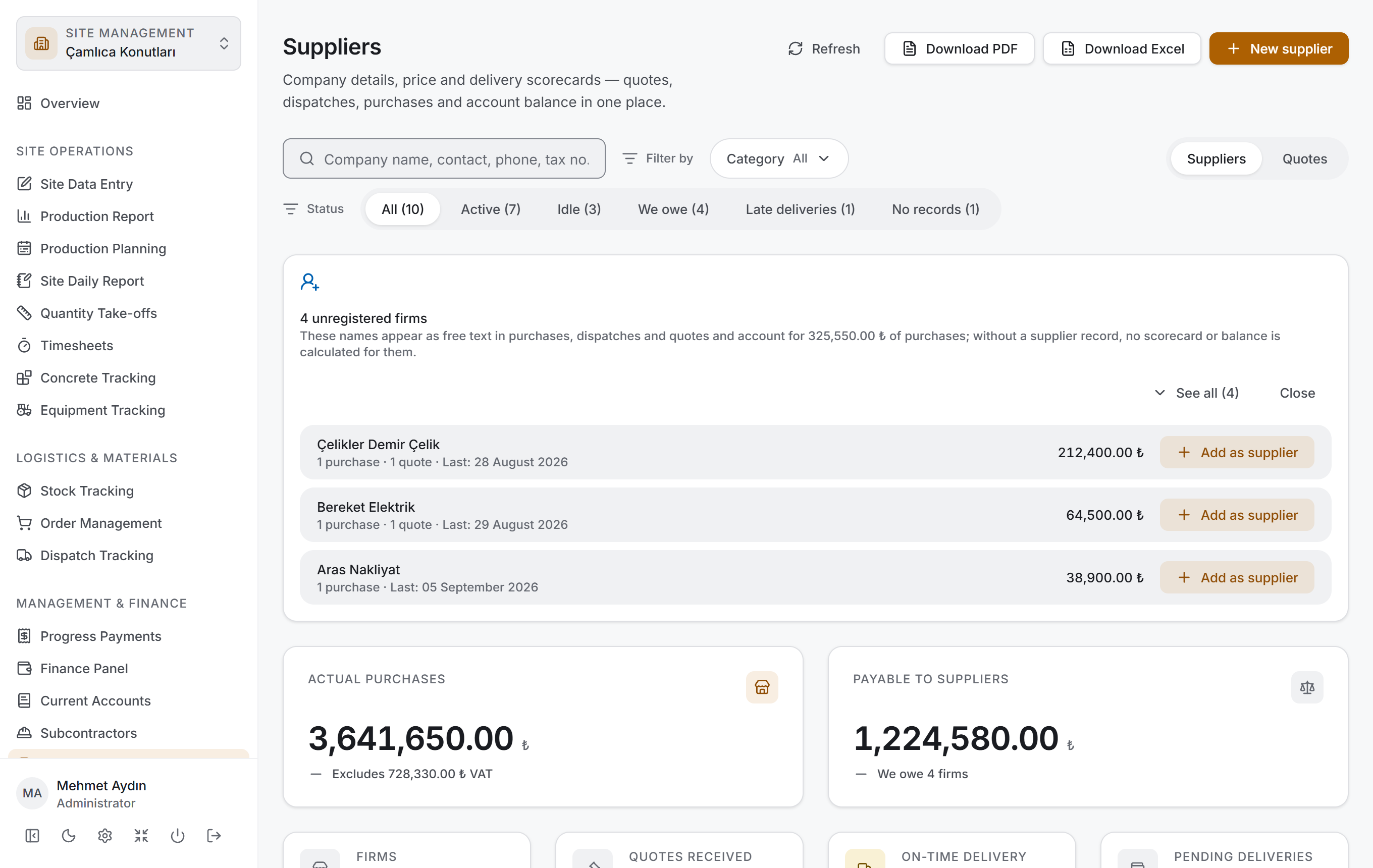
The page has two views and both share the same shell and the same filter bar. The switch at the right end of the filter bar changes the view:
| View | What it shows |
|---|---|
| Suppliers | The firms themselves — a list grouped by category, with a summary and breakdowns above it |
| Quotes | Every quote in the project — grouped by order, cheapest first within each group |
The Suppliers view has four layers and follows the same order as Stock Tracking, Order Management, Dispatch Tracking, Current Accounts and Subcontractors: first you narrow down, then you read the result as figures, then you look at its breakdown, and finally you go down to the rows. There is a fifth layer where a firm's whole ledger opens: the firm panel that appears when you click a firm's name.
| Layer | What it does |
|---|---|
| Filter bar | Search, category, firm status; in quotes, quote status and period |
| Unregistered firms strip | Firm names entered as free text, with no record |
| Analysis strip | Actual purchases, net balance, four counters and the share of purchases via orders |
| Breakdown | Category distribution and largest suppliers |
| Table | The firm list or the quote ledger |
| Firm panel | A firm's details and its four ledgers |
Five ledgers — firms, orders (with their quotes), dispatch cards, stock movements and the account ledger — are downloaded once when the page opens. Changing the filter, flipping the view switch, opening the panel and switching tabs send no request to the server. All five of these ledgers belong to other pages; when you come here from Stock Tracking, Order Management, Dispatch Tracking or Current Accounts, the page opens instantly.
Header and actions. The header reads Suppliers with the description "Company details, price and delivery scorecards — quotes, dispatches, purchases and account balance in one place". On the right are Refresh, Download PDF, Download Excel and — if you have edit permission — New supplier.
If the project has no suppliers yet, the filter bar, the analysis strip and the breakdown cards are not drawn at all; a "No suppliers in this project yet" card sits in the middle of the page and its New supplier button takes you straight to the form. The unregistered firms strip is drawn in this branch too — in fact that is when it matters most, because every purchase made while there was no registered firm was entered as free text.
Filter bar

The bar has two rows. The top row:
| Control | What it does |
|---|---|
| Search suppliers | Searches the company name, contact, phone, email, tax number, category and the material headings bought from the firm; the hint reads Company name, contact, phone, tax no. or material |
| Category | Multi-select menu; each option shows how many firms it holds |
| Clear filters | Appears only while something is narrowed |
| View | At the right end: Suppliers ⇄ Quotes |
The second row changes with the view. In the Suppliers view the Status strip sits there and each option carries its count:
| Option | Who it brings |
|---|---|
| All | Every firm in the filter |
| Active | Firms with activity within the last 90 days |
| Idle | Firms whose last activity is older than 90 days |
| We owe | Firms whose account balance is against us |
| Late deliveries | Firms with an open dispatch past its promised date |
| No records | Firms with no records at all in the project |
In the Quotes view the Quote status menu replaces the category menu, and the Quote date period replaces the status strip: All time, Current year, Last 12 months. The category menu and firm status are not drawn in this view — both are properties of a firm, not of a single quote.
Unregistered firms strip
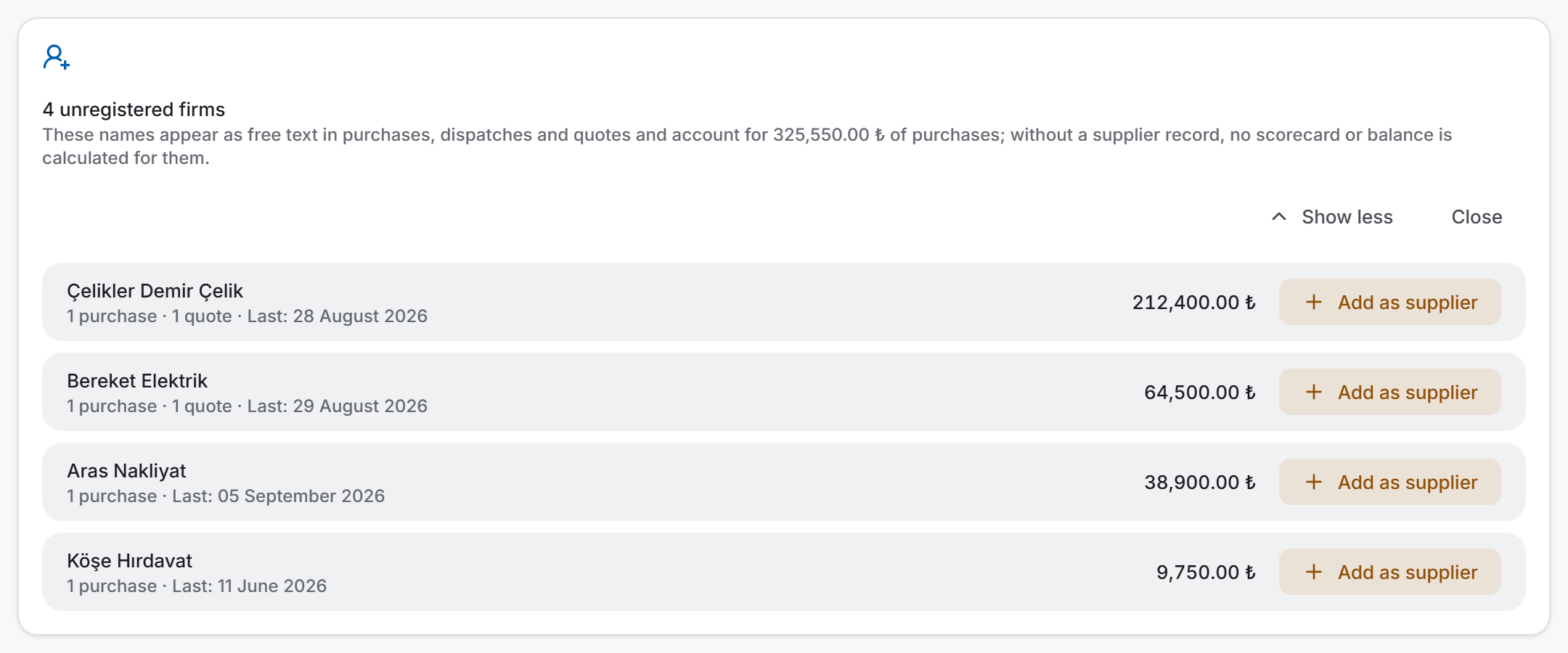
In purchase, dispatch and quote records the supplier can also be entered as free text: writing a company name does not require that firm to have a record. This strip collects exactly those names — the firms that money flows to but that never appear in the Suppliers list.
The strip's heading says how many firms there are, and beneath it how much purchasing those names carry in total. Each row shows the firm's name, how many purchases / dispatches / quotes it has, when it last appeared and the purchase amount; on a name with no purchases a No purchases badge takes the place of the amount. Rows are ordered by purchase amount, largest first.
The Add as supplier button on the right opens the firm form with the name already filled in. The first three rows are visible immediately; if there are more, See all opens the list. The strip can be hidden with Close and stays hidden until the page is opened again.
The strip is toned as information, not as a warning: buying with free text is not a mistake. For material bought once on site, opening a firm record may be unnecessary.
Analysis strip
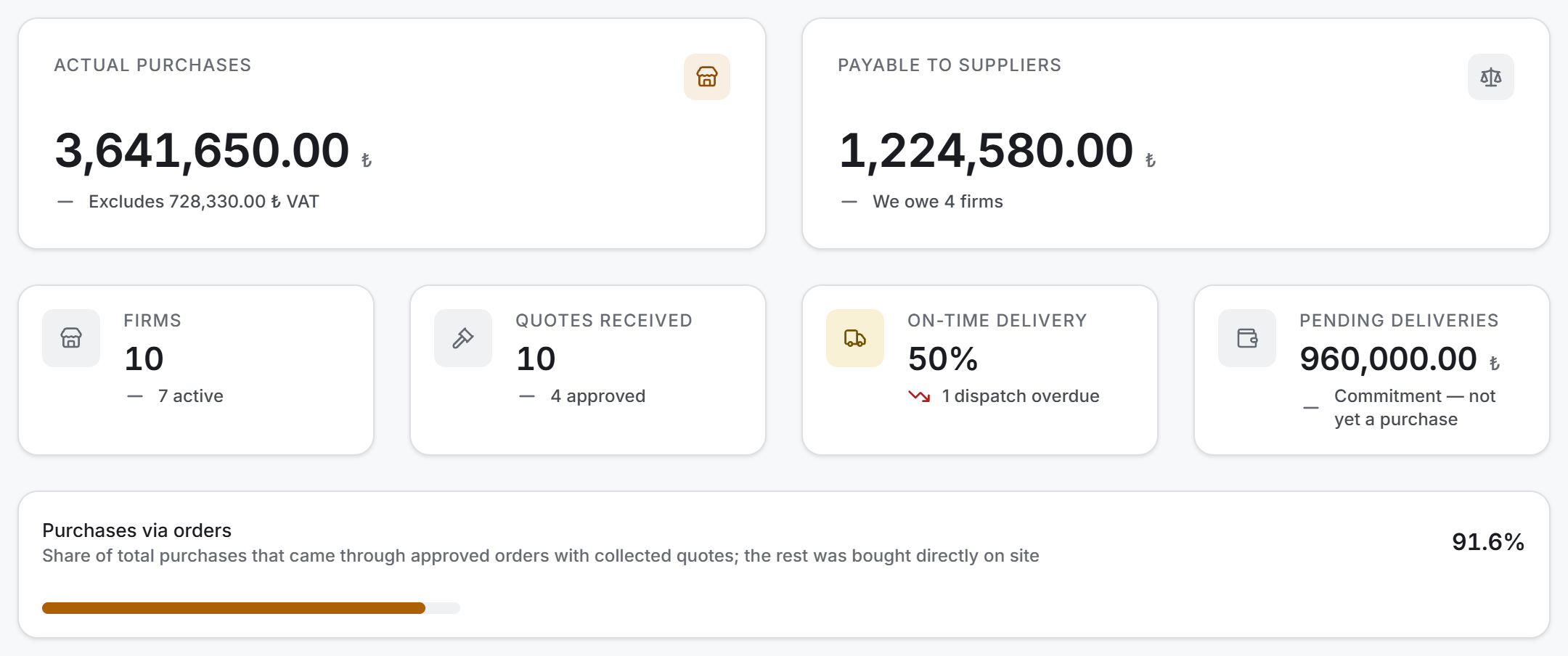
The strip has two tiers. Two main measures sit side by side on top:
| Tile | What it shows |
|---|---|
| Actual purchases | The VAT-excluded total of material that entered the store. The line beneath, "Excludes … VAT", gives the VAT amount left out |
| Payable to suppliers | The signed net total of the account ledgers. If the balance is in our favour the title becomes Receivable from suppliers, and if it is zero, Net balance; beneath it is the number of firms we owe |
Four small counters below:
| Counter | What it shows |
|---|---|
| Firms | The number of firms in the filter; beneath it how many are active |
| Quotes received | The number of quotes taken into comparison; beneath it how many were approved |
| On-time delivery | The project-wide rate; beneath it the number of overdue or open dispatches |
| Pending deliveries | The value of the part of open dispatch cards that has not arrived; beneath it "Commitment — not yet a purchase" |
The on-time delivery tile carries colour: 80% and above is green, between 50% and 80% amber, below that red. If there is no dispatch to measure, Not measurable takes the place of the figure — writing "0%" would make a well-running project look bad.
Below the strip is the purchases via orders bar: the share of total purchases that came through an order with collected quotes and an approval. The rest was bought directly on site. The bar is drawn only while the project has purchases.
While a filter is open, a line is added under the strip saying which set the figures above belong to: "The figures above are for the 6 firms in the filter; the project has 14 suppliers in total."
Breakdown cards
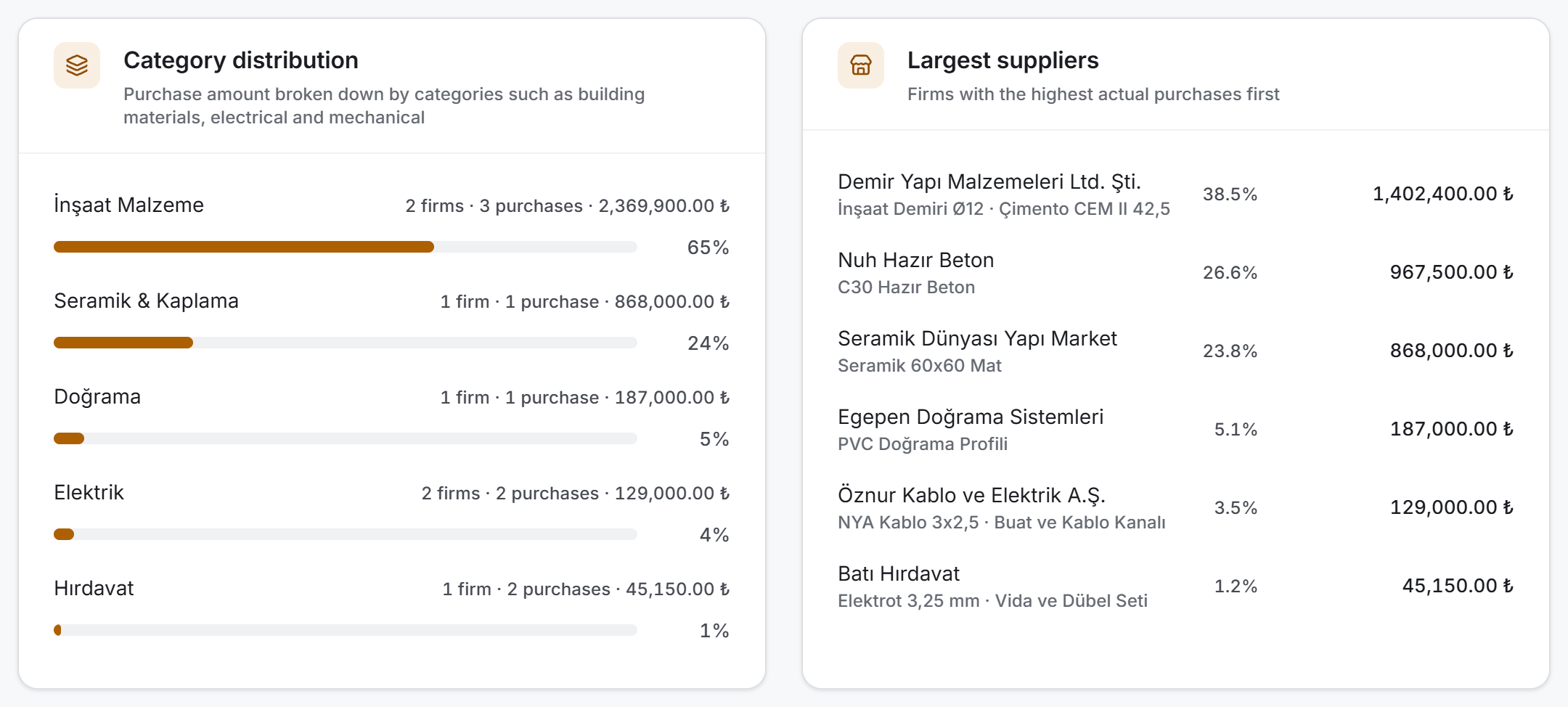
Two cards sit side by side and are counted from the same rows:
Category distribution asks about a share: the purchase amount broken down by categories such as building materials, electrical and mechanical. Each row carries the category name, how many firms and how many purchases it holds, its amount and a bar showing its share. In a category where a firm has been added but nothing purchased yet, "No purchases in this category yet" replaces the bar.
Largest suppliers asks about a ranking: the firm with the highest actual purchases first, at most six rows. Each row carries the firm's name, the most purchased material headings beneath it (or its category), and its share and amount on the right. A firm with no purchases never enters this list; the card is titled "largest" and adding a zero row at the end would extend the noise, not the ranking. If the project has no purchases at all, the card says "No firms with purchases".
Firm table
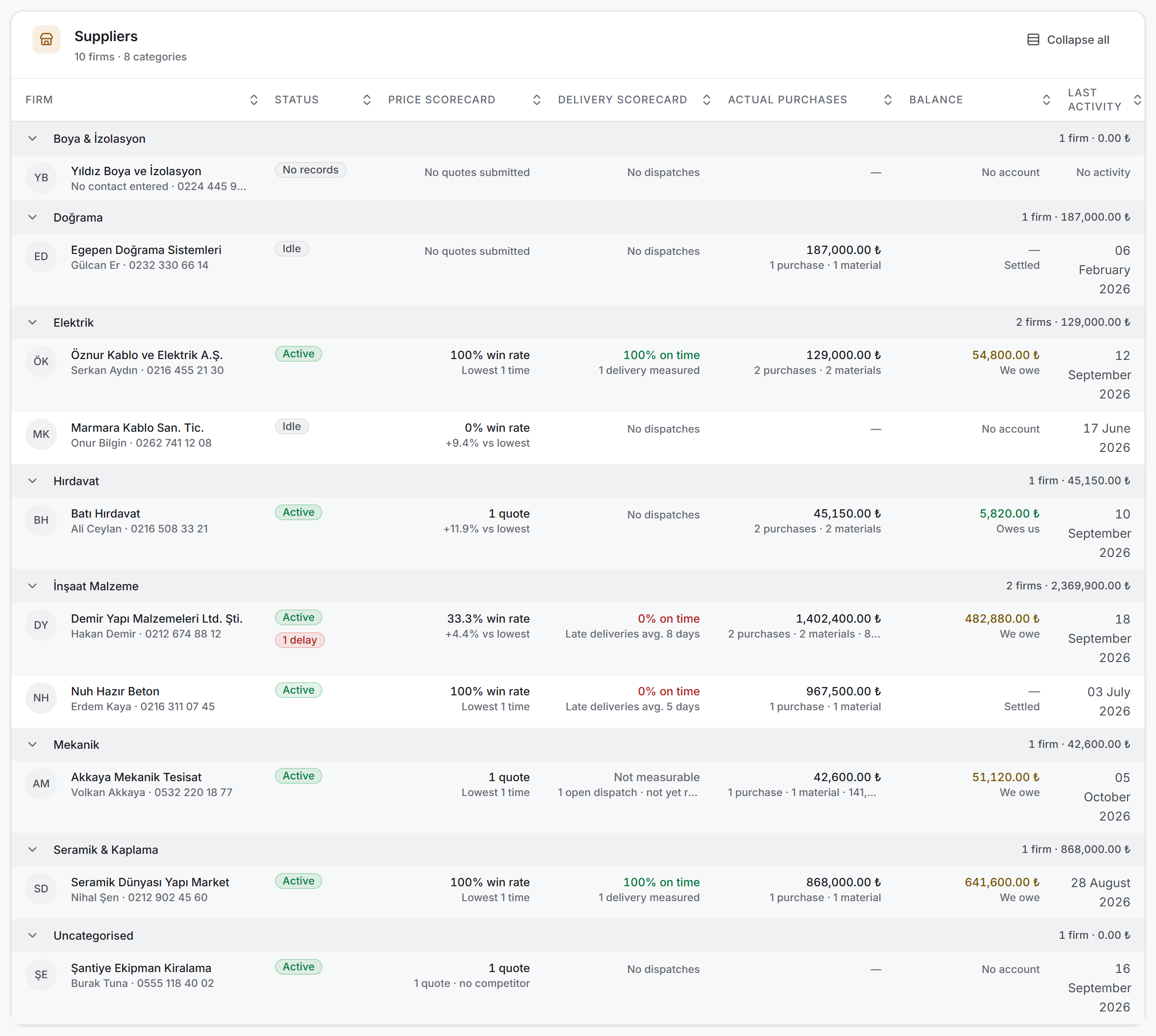
Firms are grouped by category; the group header carries the category name, how many firms it holds and the total purchases in that category. Firms whose category is left empty gather in the Uncategorised group, and that group always sits last. Clicking a group header collapses it; the Collapse all button at the top right of the card folds them all at once.
There are seven columns:
| Column | What it says |
|---|---|
| Firm | Avatar initials, the firm name (clickable), and the contact and phone beneath it |
| Status | An Active / Idle / No records badge; if there are overdue dispatches, a red "2 delays" badge beside it |
| Price scorecard | The win rate, and beneath it the average difference versus the lowest or how many times the firm was the lowest |
| Delivery scorecard | The on-time rate (coloured), with its basis beneath |
| Actual purchases | The VAT-excluded amount, with the purchase count, the material count and any pending amount beneath |
| Balance | The amount and its position (We owe · Owes us · Settled); on a firm with no current account, No account |
| Last activity | The newest date across the five sources; if there is none, No activity |
You can sort by clicking the headers. In sorting, rows that cannot be measured fall to the bottom: a firm that never quoted stays at the bottom of the price column, a firm with no dispatches at the bottom of the delivery column. The balance is sorted by its signed value, so the firm we owe the most and the firm that owes us land at the two ends of the list.
Quote ledger
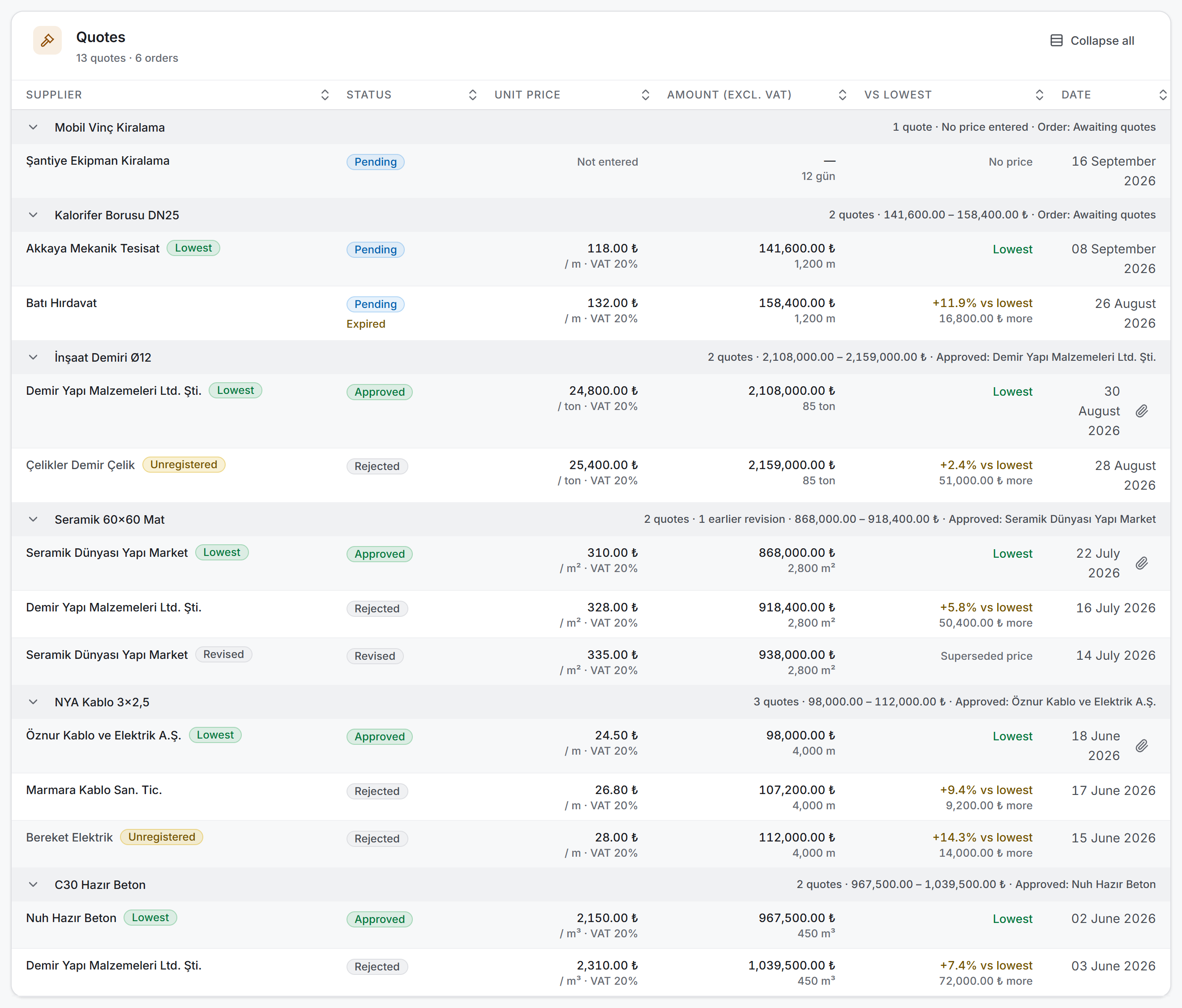
When the view switch is set to Quotes, the page shows every quote in the project in a single list. This list exists nowhere else: Order Management shows quotes only order by order, inside the comparison panel.
Quotes are grouped by order and ordered cheapest first within the group; quotes with no price fall to the end. Groups are sorted so that the order with the most recent quote is on top.
The group header carries the order's material, how many compared quotes it holds, how many earlier revisions there are, the price range and the winner. If a quote has been approved it reads "Approved: Öznur Kablo"; if not, the order's own status is written: "Order: Awaiting quotes".
There are six columns:
| Column | What it says |
|---|---|
| Supplier | The firm name; clickable if registered. Beside it the Lowest, Revised and Unregistered badges |
| Status | The quote's status; on a pending quote past its validity, Expired beneath it |
| Unit price | The VAT-excluded unit price, with its unit and VAT rate beneath |
| Amount (excl. VAT) | The quote's net amount, with the requested quantity beneath |
| Vs lowest | The percentage and amount difference; on the cheapest quote a green Lowest |
| Date | The quote date; if a document is attached, a paperclip button beside it |
An unregistered firm's name is not clickable — there are no details to open. Quotes entered as free text are told apart from registered firms this way.
Firm panel
When you click a firm name in the list, the panel opens. The header carries the firm's name, with its category and account code beneath. The panel holds the details on top and a four-tab ledger below.
Details show the fields coming from two collections as a single strip: contact, phone, email, category, tax number, tax office, address and bank. Empty fields are not drawn at all — printing a dash for a field that was never filled would turn the screen into a wall of dashes. If the details are entirely empty, the panel says so in one sentence and writes that Edit firm can fill them.
The badges above the details carry the firm's status (Active / Idle / No records), the number of overdue dispatches if any, how long ago the last activity was, and a "No current account yet" warning if the account has not been opened.
#### Scorecard tab
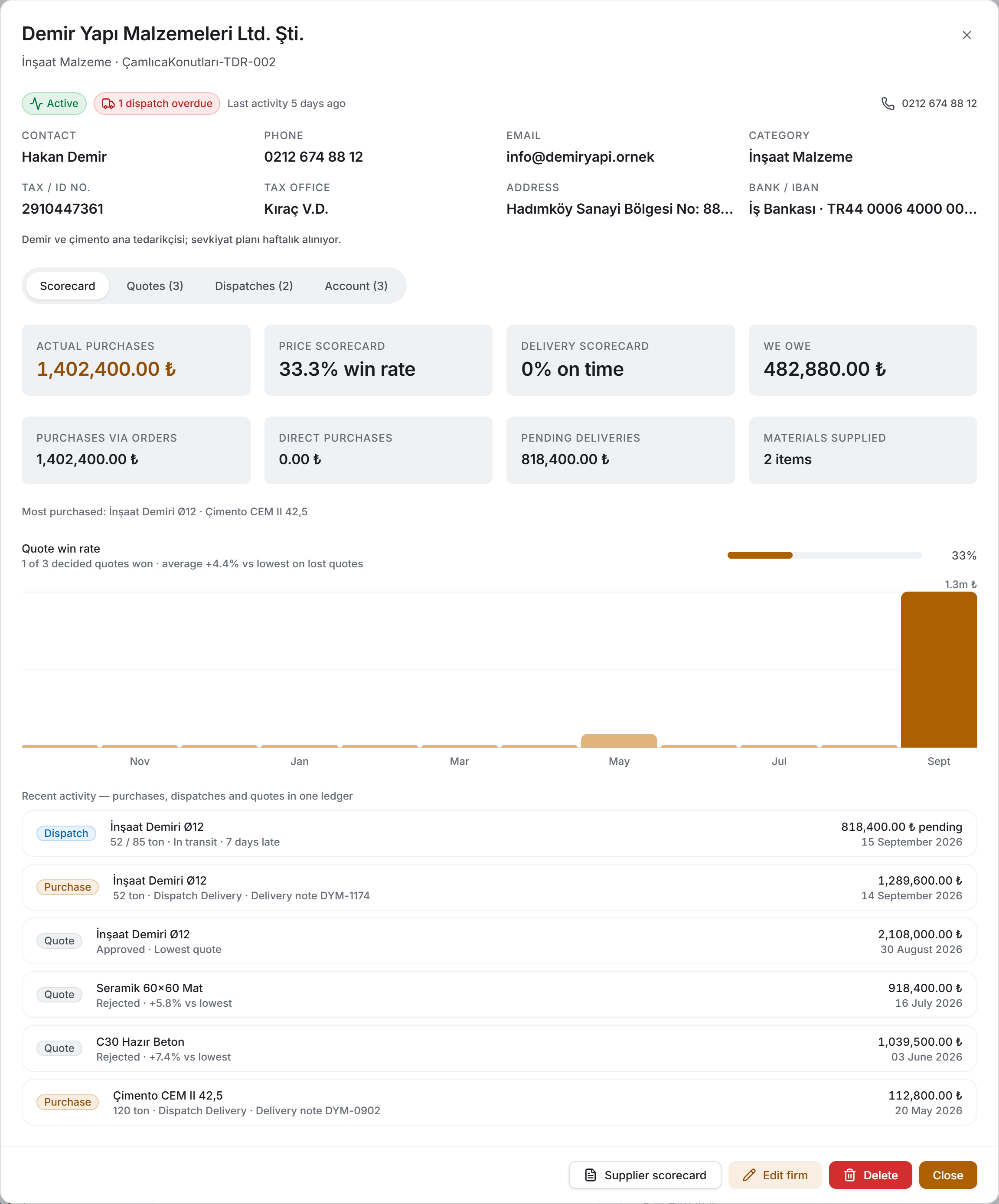
The first tab is the firm's summary. Four tiles on top — actual purchases, price scorecard, delivery scorecard and balance — and four more beneath: purchases via orders, direct purchases, pending deliveries and the number of materials supplied.
Below them are the most purchased material headings from the firm. These are not the category the firm wrote for itself but the goods you actually buy; the two can diverge and the difference is worth knowing.
For a firm with a decided quote, a win rate bar is drawn; beneath it is how many of how many quotes were won and the average difference versus the lowest on the losses. Pending quotes do not enter this calculation, because a pending quote is not a loss.
Then comes the monthly purchase chart for the last 12 months. The chart is a single series; the source split (via orders / direct) is written in the two tiles above. If there were no purchases in the last 12 months, a "No purchase records in the last 12 months" card takes the chart's place.
At the bottom is the recent activity ledger: purchases, dispatches and quotes in one chronological list, the six most recent rows. Each row has a badge on the left naming its source (Purchase, Dispatch, Quote).
#### Quotes tab
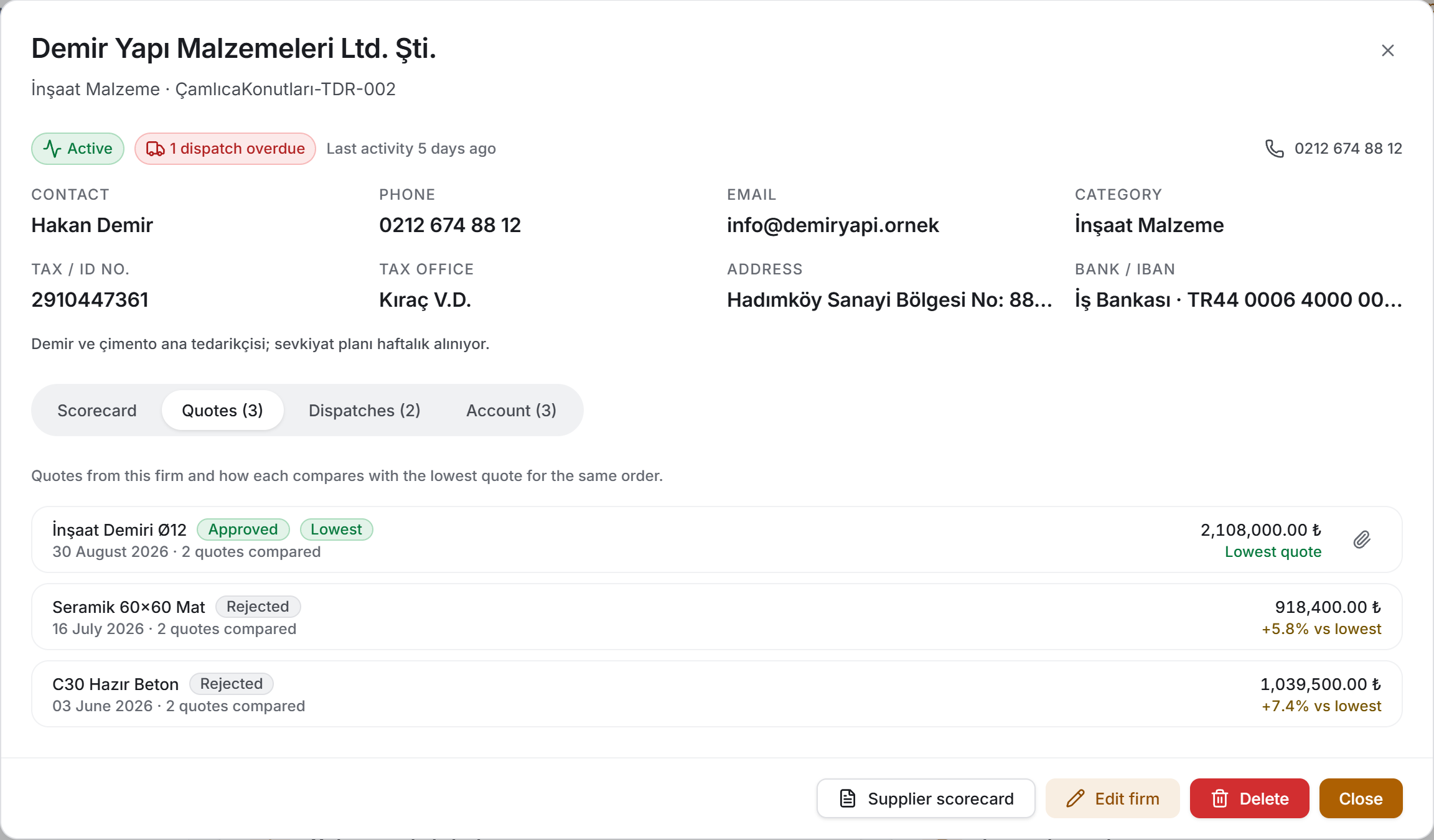
Every quote the firm has submitted, newest first. Each row carries the material name, the quote's status, a Lowest badge where applicable, its date, how many quotes competed and its amount; at the bottom right is its difference versus the lowest for the same order. If a document is attached, the paperclip button at the end of the row opens it.
If no quotes have been received from the firm, the tab says so and writes that quotes are entered on the Order Management page.
#### Dispatches tab
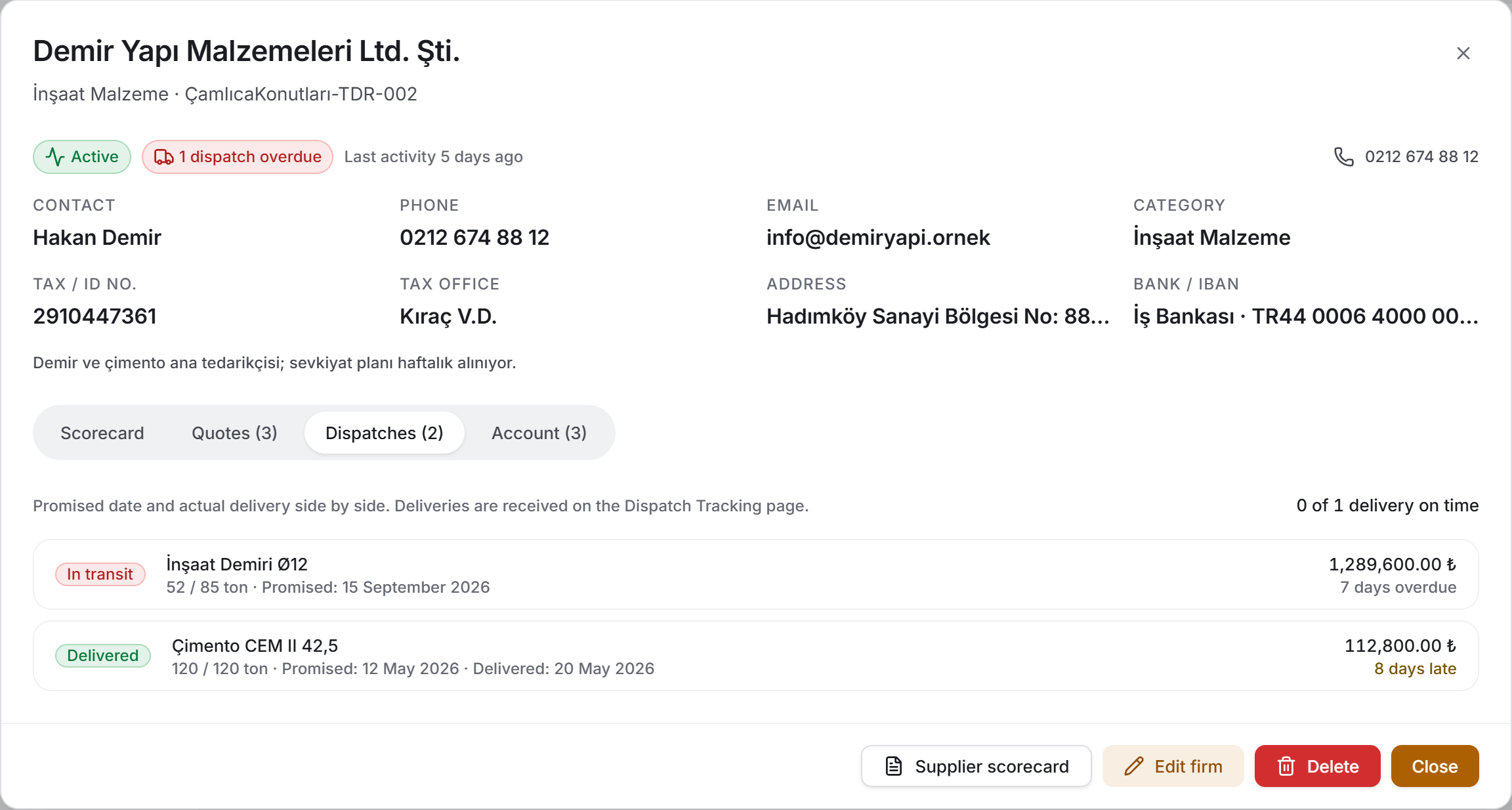
The firm's dispatch cards — read only. Receiving deliveries, closing cards and uploading documents belong to the Dispatch Tracking page; the tab says so at the top.
At the top right is the basis of the firm's delivery scorecard: "3 of 4 deliveries on time", or if it cannot be measured, the reason ("2 open cards · not yet measurable" or "2 cards · no delivery date entered").
Each row carries the card's status, the material name, the delivered / expected quantity, the promised date and the actual delivery date, and its value. At the bottom right it says whether the card arrived on time: On time, 3 days late, or for an open card 5 days overdue. On a cancelled card, Cancelled replaces the amount line, with Not counted in performance beneath.
#### Account tab
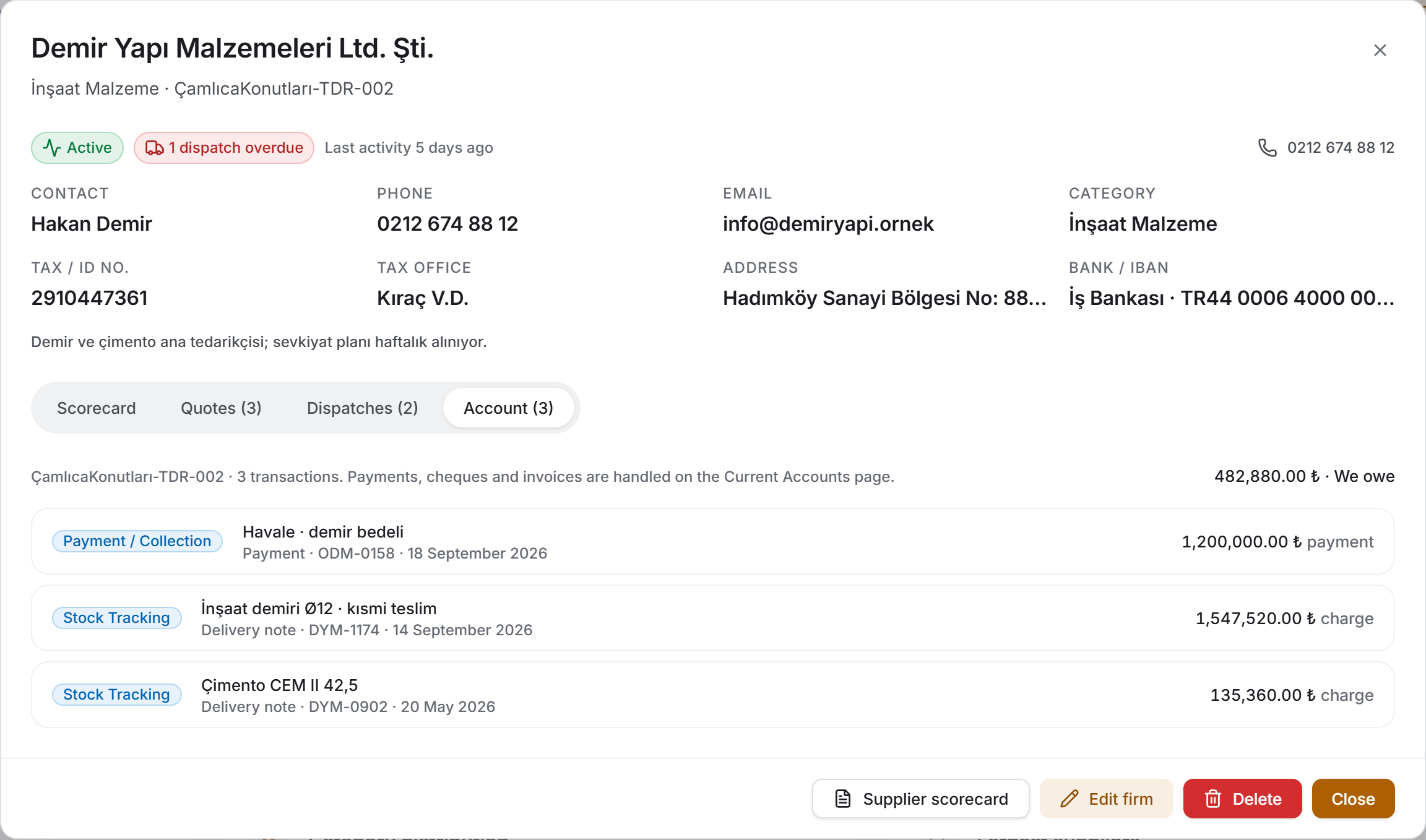
The firm's account ledger — this too is read only: entering payments, handling cheques and writing manual transactions belong to the Current Accounts page. The account code, the transaction count and the balance sit at the top of the tab.
The badge on the left of each row says which page the record came from; on a manually entered row it says Entered manually. The position of a row is written in words and read from the supplier's side: charge is the debt written to the firm, payment is what we paid the firm.
If the firm's current account has never been opened, the tab says so and also says when it will open: the account opens by itself with the first purchase from the firm.
At the bottom of the panel are the Supplier scorecard button and — if you have edit permission — Edit firm and Delete.
4. Fields
There is a single form on the page.
Supplier form
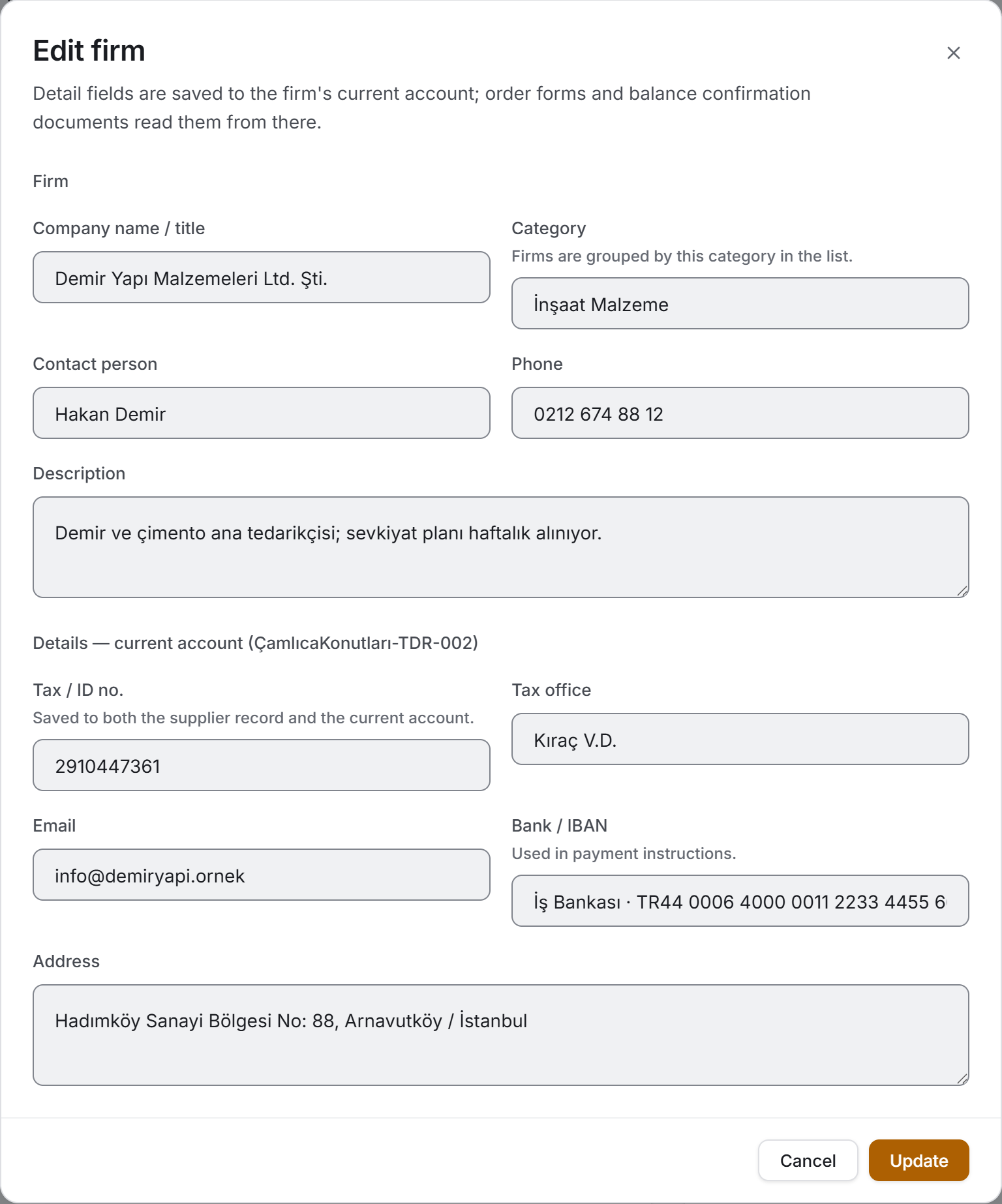
The form writes two records at once: the top five fields go to the firm record, the bottom five to the firm's current account. The heading of the lower section carries the account code; on a new firm the code is generated automatically.
| Field | What it means | Required | Where it is saved |
|---|---|---|---|
| Company name / title | The firm's name as it appears in lists | Yes | The firm record and the account name |
| Category | Building Materials, Electrical, Mechanical and so on; firms are grouped by this in the list | No | The firm record |
| Contact person | The person you deal with | No | The firm record and the account |
| Phone | The firm's phone | No | The firm record and the account |
| Description | A free note; shown beneath the details in the firm panel | No | The firm record |
| Tax / ID no. | Used in order forms and balance confirmation documents | No | Both — the firm record and the account |
| Tax office | Same | No | The account |
| Same | No | The firm record and the account | |
| Bank / IBAN | Used in payment instructions | No | The account |
| Address | Used in order forms and balance confirmation documents | No | The account |
The category box is free text, but as you type it suggests the categories already used in the project. You do not have to pick a suggestion; the point of the list is to stop Electrical and electrical becoming two groups.
The company name cannot be left empty; when you try to save, the form says why: purchase, dispatch and quote records show the firm by this name, and a supplier without a name appears as "Untitled supplier" in every list.
5. Step by step
5.1 Adding a new supplier
- Press New supplier at the top right.
- Fill in Company name / title — this is the only required field.
- Enter a Category. The list is grouped by it; firms left empty gather in the Uncategorised group. The box suggests the project's categories as you type.
- Enter the contact, the phone and a description if needed.
- Fill in the detail fields in the lower section. If an order form or a balance confirmation will be written, the tax number, tax office and address are needed.
- Press Save.
The firm is saved and enters the list. If the details cannot be written (see §2) an amber strip appears at the top of the page; the firm record stays in place and an administrator can enter the details later.
5.2 Registering an unregistered firm
- Find the firm in the unregistered firms strip; if there are more than three, press See all.
- Press Add as supplier on the right of the row. The form opens with the name filled in.
- Fill in the category, the contact and the details.
- Press Save.
The firm enters the list, but its scorecard is empty: older purchases, dispatches and quotes are not linked to this record and stay in the strip. The blue strip on the form says so before you save.
5.3 Editing a firm
- Click the firm name in the list; the panel opens.
- Press Edit firm at the bottom.
- The same form opens with the fields filled in. Make your changes and press Update.
The detail fields are saved to the firm's current account; the same values appear on the Current Accounts page too.
5.4 Reading a firm's whole ledger
- Click the firm name.
- Read the summary measures and the recent activity on the Scorecard tab.
- Look at the firm's pricing behaviour on the Quotes tab — how many comparisons it entered, how many it won.
- See the promised date beside the actual one on the Dispatches tab.
- Read where the balance comes from on the Account tab.
Opening the panel sends no request to the server; all the data came down when the page opened.
5.5 Comparing quotes
- Set the view switch to Quotes.
- Narrow from the Quote status menu if needed (for example only Pending).
- Pick Current year or Last 12 months from the Quote date period.
- Look at the price range in the group headers; the items with a wide range are the items with room to negotiate.
- Clicking a firm's name takes you to that firm's whole scorecard.
5.6 Opening a quote document
Press the paperclip button at the end of the row, either in the quote ledger or on the Quotes tab of the firm panel. It opens with view permission as well.
5.7 Deleting a firm
- Open the firm's panel and press Delete.
- Read the confirmation dialog. If the firm has a current account, the dialog says how many transactions will be deleted with it.
- Press Delete.
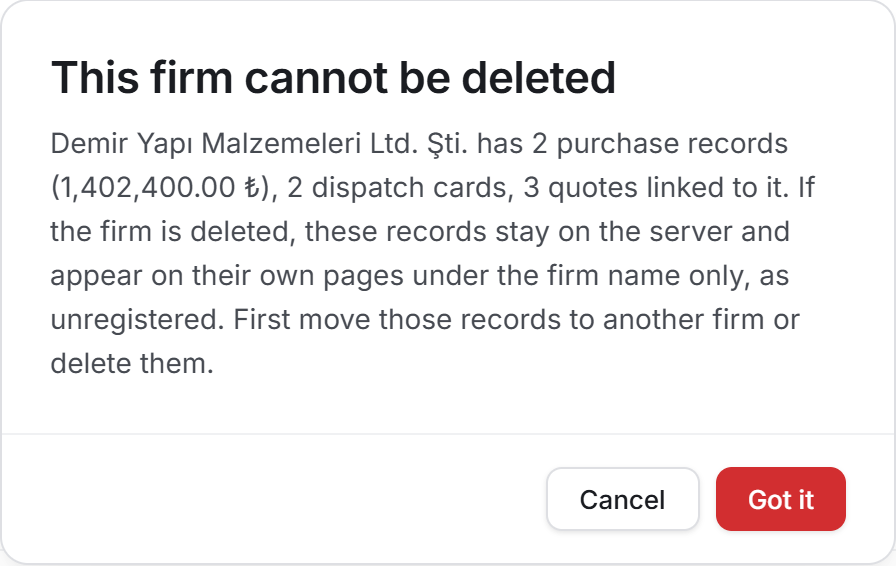
If the firm has any purchase, dispatch or quote record, the deletion never starts; the dialog counts the blockers with their amounts instead.
5.8 Taking an export
The Download Excel and Download PDF buttons at the top right write the set currently on screen: whichever view you are in and whatever narrowing is open, the file carries that. A single firm's scorecard is taken from the Supplier scorecard button at the bottom of the panel.
Both buttons are disabled while the list is empty. Above a thousand rows the application asks first when you request a PDF: the window may look frozen for a few seconds while the document is prepared.
5.9 Refreshing the page
Refresh re-reads all five ledgers. A quote, dispatch, purchase or payment entered by another user appears only after that.
6. Exports
The page produces three files. The first two are breakdowns of the list, the third is the signed document of a single firm.
Excel — three sheets
Suppliers_<date>.xlsx
| Sheet | What it contains |
|---|---|
| Suppliers | Firm · category · contact · phone · status · quotes · won · win rate % · vs lowest % · dispatches · on time % · avg. delay · purchase count · actual purchases · purchases via orders · pending deliveries · balance · position · last activity — 19 columns |
| Quotes | Material · category · supplier · status · quantity · unit · unit price · amount · VAT rate · quotes compared · vs lowest % · difference · quote date · note — 14 columns |
| Details | Firm · account code · category · contact · phone · email · tax office · tax no. · address · bank — for whoever writes the order form and the balance confirmation |
Each sheet starts with the project name, the report date, the number of firms, the actual purchases and the pending deliveries; the third line says which narrowing is open. The header row is frozen and the filter is switched on.
All amounts come down as real numbers and dates as real dates: select a cell and Excel shows the total, and you can sort the column.
Supplier List (PDF)
Supplier_List_<date>.pdf — A4 landscape, nine columns: firm (with the contact and phone beneath), category, status, quotes, win rate, on time, actual purchases, pending deliveries and balance. The table ends with a grand total row; the two percentage columns carry no total.
The header carries the project name, the report date, the firm and active counts and the project-wide on-time delivery rate.
Notes sit at the bottom of the document and they are written so that no argument arises later: that amounts exclude VAT, on what condition a firm counts as active (90 days), how the on-time rate is calculated (a 1-day tolerance), that the win rate comes only from decided orders, that pending deliveries are a commitment, how many firms have no records at all in the project, and which date the balance belongs to.
Supplier Scorecard (PDF)
Supplier_Scorecard_<firm>_<date>.pdf — the sheet that goes on the table when a year end or a contract renewal is discussed with a firm. A4 portrait and signed: Supplier · Stamp · Signature and Purchasing Officer · Signature lines sit at the bottom.
The blocks of the document:
| Block | What it contains |
|---|---|
| Title | SUPPLIER SCORECARD, the firm name, the report date and the account code if any |
| Details | Project, category, status, last activity |
| Parties | The supplier on the left (contact, phone, email, tax no. and office, address), the issuer on the right |
| Purchase summary | Purchases via orders · direct purchases · the actual purchases total — count and amount; pending deliveries beneath if any |
| Performance scorecard | Four measures: quote win rate, price competitiveness, on-time delivery, average delay — each with its result and basis side by side |
| Balance strip | The account balance, the number of ledger transactions and the number of materials supplied |
| Record breakdown | Purchases, dispatches and quotes in one ledger — the latest 40 records |
| Notes | The block where the limits are written |
If the firm has more than 40 records, the document says so in the heading ("latest 40 records") and in the notes. The whole breakdown is not in the Excel export; there is no record breakdown sheet there.
7. What you need to know
The purchase amount is read from one place and never counted twice. When a dispatch is received, the application also writes the same goods as a store entry. That is why Actual purchases is calculated only from store entry movements; the dispatch card's value is not added to it. What a dispatch adds to the page is not money but time: the promised date beside the actual one.
A pending delivery is not a cost. The part of open dispatch cards that has not arrived is a commitment: the goods have not come, no debt has been incurred. That is why it is written to a separate counter rather than beside actual purchases, and it does not enter the account balance either.
All amounts exclude VAT. VAT is a tax item and its rate can differ between two firms; what is comparable is the net amount. The total VAT left out is written beneath the purchases tile in the analysis strip.
The denominator of the win rate is deliberately narrow. Only quotes on orders with an approved quote are counted. A pending quote is not a loss; with a wider denominator, every firm that had just quoted would appear with a "0% win rate". If no order has been decided, the rate is not calculated and the screen reads "3 quotes · awaiting decision".
The difference versus the lowest comes only from quotes that actually competed. On an order with a single quote, no difference is calculated — there is no competitor to compare with, and "0% difference" would make that firm look like the cheapest. Quotes with no price do not enter the calculation either.
Revision history enters no figure but stays in the ledger. A revised quote is an old price invalidated by its own revision; it does not enter the win rate or the average difference. It keeps appearing in the list with a Revised badge, because why a price changed can only be understood by seeing the older row.
There is a one-day tolerance on delivery. A delivery that exceeds the promised date by at most 1 day counts as on time. Zero tolerance would make a well-run firm whose delivery note is dated the next day look bad on paper. The tolerance is only a signal; it is tied to no permission, warning or block.
Delivery performance is calculated from cards that have both dates. If the promised date was not entered, "it was late" cannot be said. If there is no card to measure, the screen says Not measurable and the reason is given separately: "not yet received" is a normal stage of the process, while "no delivery date entered" is missing data.
A cancelled dispatch does not enter performance. A cancelled card is not late, it never happened. The number in the panel's tab heading counts all cards while the scorecard does not count cancellations; the two differing is normal.
"Active" is a signal, not a permission. A firm counts as active if it carries a quote, dispatch, purchase or account record within the last 90 days. The threshold was picked from the rhythm of a site: months can pass between one material item finishing and the next starting. The status locks, hides or blocks nothing.
Last activity can be a date in the future. A dispatch card's activity is its actual date if it has been received, and its promised date if not. That is why a firm with an open card whose delivery date is set ahead shows a future date in the Last activity column, and a sentence such as "Last activity in 13 days" in its panel. It is not an error but the card's freshest trace at that moment.
"No records" and "Idle" are not the same thing, but the filter merges them. The badge writes No records for a firm with no records at all in the project — the question of activity is meaningless for it. The Idle option in the status strip, however, means "everyone who is not active" and brings the firms with no records as well. To see only the genuinely empty records, use No records.
The unregistered firms strip and the "No records" badge are different things. The strip shows firm names whose record was never opened; the badge marks a firm whose record was opened but that has no activity in the project. The first is a firm money flows to, the second an empty record.
Registering a firm entered as free text does not link the older records. The record is created, but earlier purchases, dispatches and quotes stay unregistered; the firm keeps appearing in the strip and its scorecard starts from zero. This behaviour was measured on all three platforms.
The account balance appears only if the account is linked to the firm. Every account Sitabula opens by itself is linked with the firm's identity. An account opened manually or by the older application, with an empty link, is not searched by name and the firm reads No account. This is deliberate: if two firms share a name, writing no balance is better than writing the wrong one. If a balance does not match the Current Accounts page, this is the first place to look.
The account code is not unique. The number is generated from the list on screen; if two users open an account of the same type at the same moment, both can get the same number. The code is a label; records are linked to each other by their own identities.
Deleting a firm also deletes its current account, but not other modules' records. Purchase, dispatch and quote records stay on their own pages and appear there under the firm name only, as unregistered. That is exactly why the page never starts a deletion for such a firm.
**Firms with an empty category sit in the Uncategorised group, and that group is always last.** Had the fallback word entered the alphabet, it would land in a different place in each language. The edit form does not fill this fallback into the box; you have to write the category yourself.
**Older records with an empty company name appear as Untitled supplier in the list.** The edit form does not fill this fallback into the box either.
Search respects Turkish letters. Typing oznur finds Öznur Kablo; SANTIYE and şantiye fall into the same set. Search does not work on amounts or dates.
Picking a period in Quotes drops undated quotes. While Current year or Last 12 months is selected, records with no date entered leave the list; how many were dropped is not written separately. To see them all, set the period to All time.
If a quote has no date, the record's creation date is used. The ledger is chronological and an undated row would land at the top of the list.
**A quote past its validity can still appear as Pending.** The status does not change by itself; the table says so with an Expired warning beneath the row.
The panel opens on the tab you last looked at when you open the same firm a second time. When you move to a different firm the tab returns to Scorecard. If you close and reopen the same firm, the tab you left is kept.
A quote with no price is not zero but unknown. The table writes it as a faint Not entered and sorts it to the end; "0.00 ₺" would make it look like the cheapest on the list.
The page waits for all five ledgers. If one does not arrive, none are shown because the scorecards would be incomplete; a "Suppliers could not be loaded" card and a Try again button sit on the screen.
8. Related chapters
Everything this page shows is produced in other chapters:
- Order Management — quotes are entered there. Every row in the quote ledger, the comparison information and the "lowest" marker come from that page's calculation; the two screens read the same order the same way.
- Dispatch Tracking — dispatch cards are opened and received there. The promised and actual dates are the only source of the delivery scorecard.
- Stock Tracking — store entries feed the Actual purchases column, the monthly chart and the category breakdown. The supplier box in material entry reads this page's firm list.
- Current Accounts — the firm's details and balance actually live there. The detail form on this page writes the same record; payments, cheques and invoices are handled only on that page.
- Subcontractors — the labour side of the same design; there too the firm details live in the current account.
- Finance Dashboard — pending deliveries are read as a commitment there as well.
- Users — who can see this module is set in the project permissions.