
Stock Tracking
Stock Tracking keeps the project's warehouse: how much of each material there is, what it is worth, where it came from and where it went.
1. What it is for
Stock Tracking keeps the project's warehouse: how much of each material there is, what it is worth, where it came from and where it went. Cement arrives at the warehouse, rebar goes out to site, a year-end count turns up a difference — each of them is one row here.
The page answers three questions: how much material is in the warehouse, what that material is worth and which material is about to run out. The third one is usually the most pressing: materials with a warning threshold are marked in the list and counted in the summary strip when they fall below it — that figure tells you your next order.
Material purchases reach Current Accounts: when a purchase is saved it is posted to the supplier's ledger as a payable. Site issues, count adjustments and project transfers are not financial transactions; they do not reach the ledger.
2. How to open it, who can see it
In the sidebar, Logistics & Materials › Stock Tracking.
| Your permission | What you can do |
|---|---|
| View | You see the list, the summary strip, the chart, the breakdowns and the transaction ledger. You can download Excel and PDF exports and open the delivery notes and invoices attached to entries. New material, Import, add transaction, transfer and delete buttons are not drawn at all |
| Edit | The same, plus you can define materials, enter transactions, make transfers and delete |
| No permission | The module appears dimmed and locked in the menu |
3. Anatomy of the screen
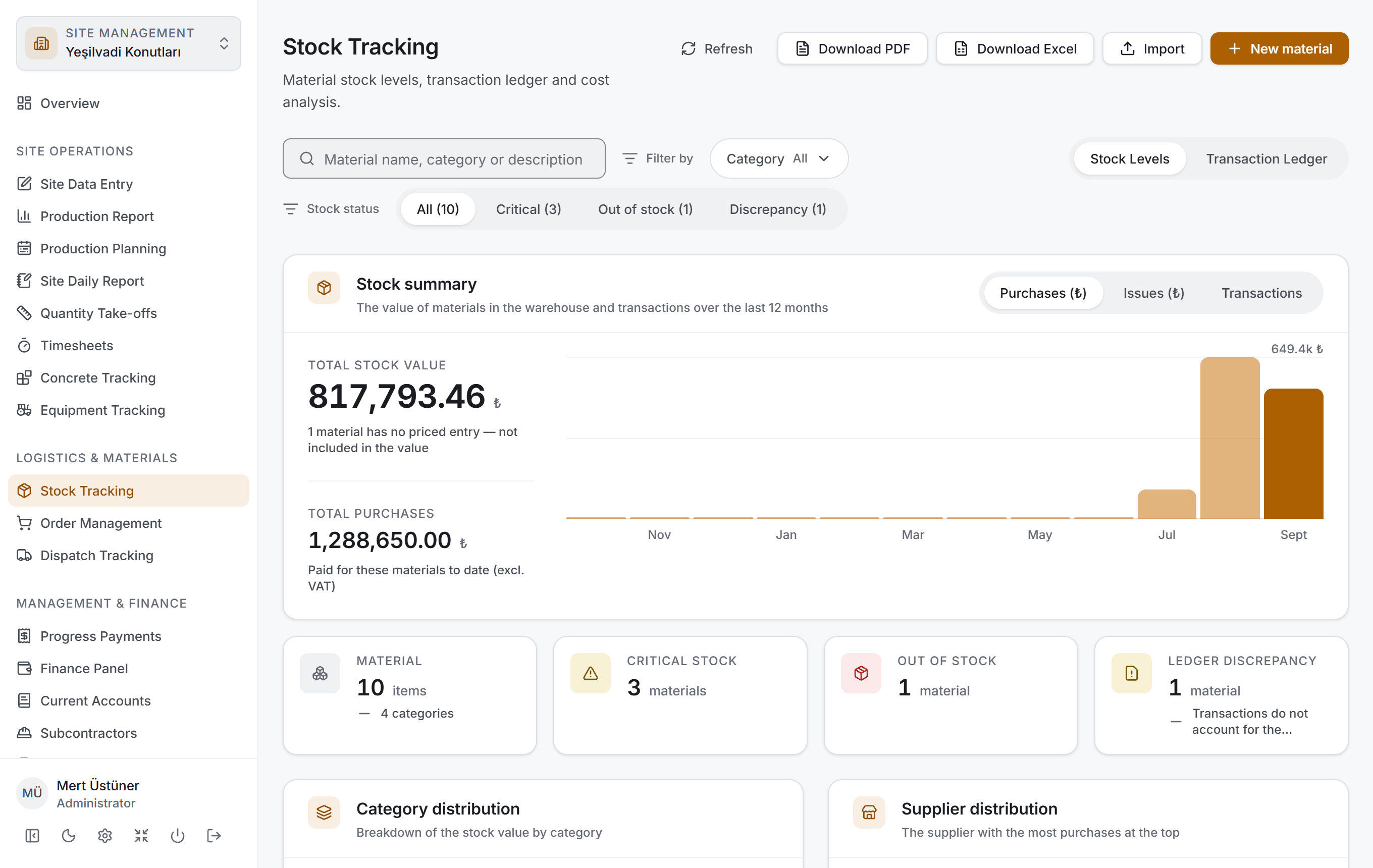
The page has two views and both share the same shell and the same filter. The switch at the right-hand end of the filter bar changes the view:
| View | What it shows |
|---|---|
| Stock Levels | The current state of the materials — a list grouped by category, with a summary and a breakdown above it |
| Transaction Ledger | The transactions themselves — a ledger grouped by day |
Stock Levels is four layers and follows the same order as Concrete Tracking and Equipment Tracking: first you narrow, then you read the result as figures, then you look at its breakdown, and finally you go down to the rows.
| Layer | What it does |
|---|---|
| Filter bar | Search, category and stock status |
| Stock summary | Two headline figures, a chart of the last twelve months, four small measures |
| Breakdown | Category distribution and supplier distribution |
| Material list | A table grouped by category |
In Transaction Ledger the two middle layers are not drawn. A ledger is a ledger: the filter bar and the table. The totals are not lost — the day's total is in the table's group header, and the grand total is in the caption line of the Excel and PDF exports.
All the lower layers are drawn from the rows that pass the filter above. When you make a selection they all change at once and no request goes to the server — the project data came down once.
Title and actions. The title reads Stock Tracking with the description "Material stock levels, transaction ledger and cost analysis." On the right there are five buttons: Refresh, Download PDF, Download Excel and (if you have permission) Import and New material.
Filter bar

There are two rows, and the second one changes with the view.
The top row is the same in both views: the search box, the filters under the Filter by label, and the View switch at the right-hand end.
| Control | What it does |
|---|---|
| Search materials / Search transactions | The name of the box and what it searches change with the view |
| Category | Narrows by category; each category shows how many records it holds |
| Supplier (ledger only) | Narrows by firm |
| Transaction type (ledger only) | Picks from the six types |
| View | Stock Levels ↔ Transaction Ledger |
In Stock Levels the second row is a four-way switch: All, Critical, Out of stock, Discrepancy. Each one shows how many materials it holds in brackets.
In Transaction Ledger the second row is the period selection: three ready-made ranges under the Period label (Current month · Last month · Current year) and two date boxes (Start · End). The selected ready-made range is highlighted; pressing it a second time removes it.
While a filter is active a clearing button appears at the end of the bar. If you have only typed in the search box it reads Clear search; if you have also picked a filter, a date or a status it reads Clear filters with the number of active criteria beside it.
Stock summary
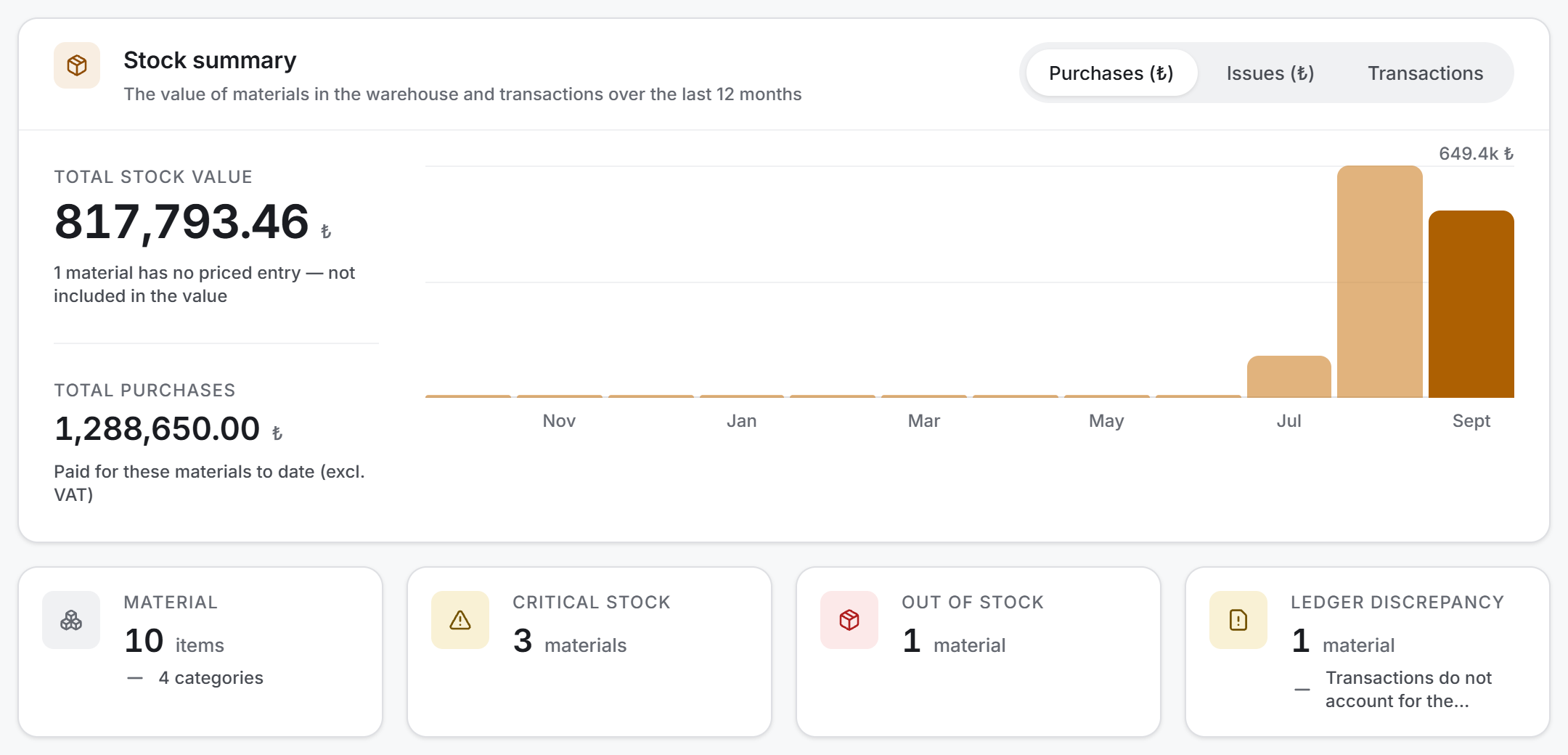
Drawn only in the Stock Levels view.
On the left of the card two headline figures sit one above the other:
| Measure | What it shows |
|---|---|
| Total Stock Value | What the material in the warehouse is worth — each material's stock multiplied by its own average cost and added up. Excl. VAT |
| Total Purchases | What has been paid for these materials to date. Excl. VAT |
The line below the first normally reads "At weighted average cost, excl. VAT"; if there is a material with no priced entry it gives way to the warning "N materials have no priced entry — not included in the value". That line matters: the value does not count material whose cost is unknown, and only that line tells you how many were left out.
The line below the second reads "Paid for these materials to date (excl. VAT)" when there are purchases and "No purchase records" when there are none.
On the right is a bar chart of the last twelve months. The Chart measure switch at the top right offers three options:
| Measure | What it draws |
|---|---|
| Purchases (₺) | The excl.-VAT amount of the purchases made that month |
| Issues (₺) | The value of the material issued to site that month |
| Transactions | The number of transactions that month |
Four small measures are lined up below the card:
| Measure | What it shows |
|---|---|
| Material | The number of materials passing the filter; below it, how many categories they spread across |
| Critical Stock | The number of materials that have fallen below their threshold. Drawn even when it is zero |
| Out of Stock | The number of materials whose stock is zero or negative |
| Ledger Discrepancy | The number of materials whose recorded stock does not match the total of their transactions |
The last measure does not exist in the old program and is explained separately in section 7.
Breakdown
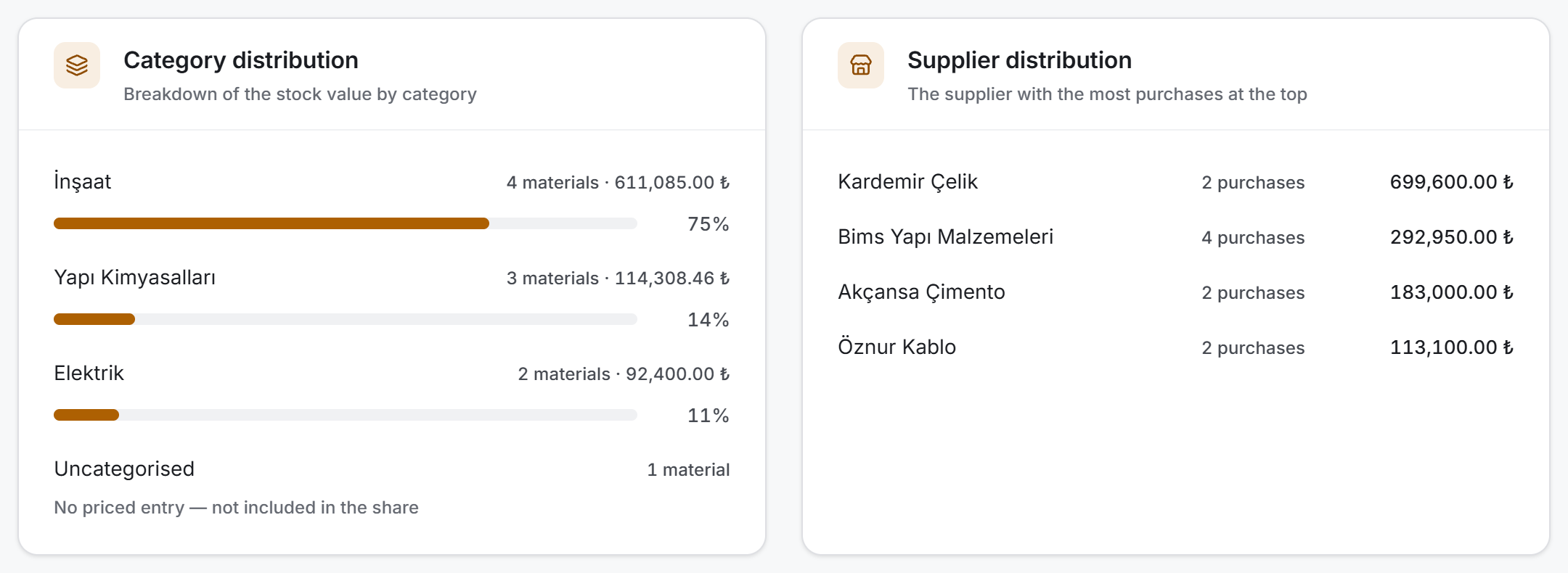
Drawn only in the Stock Levels view. Two cards sit side by side and ask two different questions.
Category distribution shows each category's share of the stock value: every row carries the number of materials, the amount and a percentage bar. A category with no amount shows "No priced entry — not included in the share" instead of a bar — a "0%" next to a row that reads "3 materials" would read as if the category were worthless.
Supplier distribution puts the firm with the most purchases at the top; every row carries the firm name, the number of purchases and the amount. For firms whose entries have no amount entered, a dash stands in place of the figure.
Material list
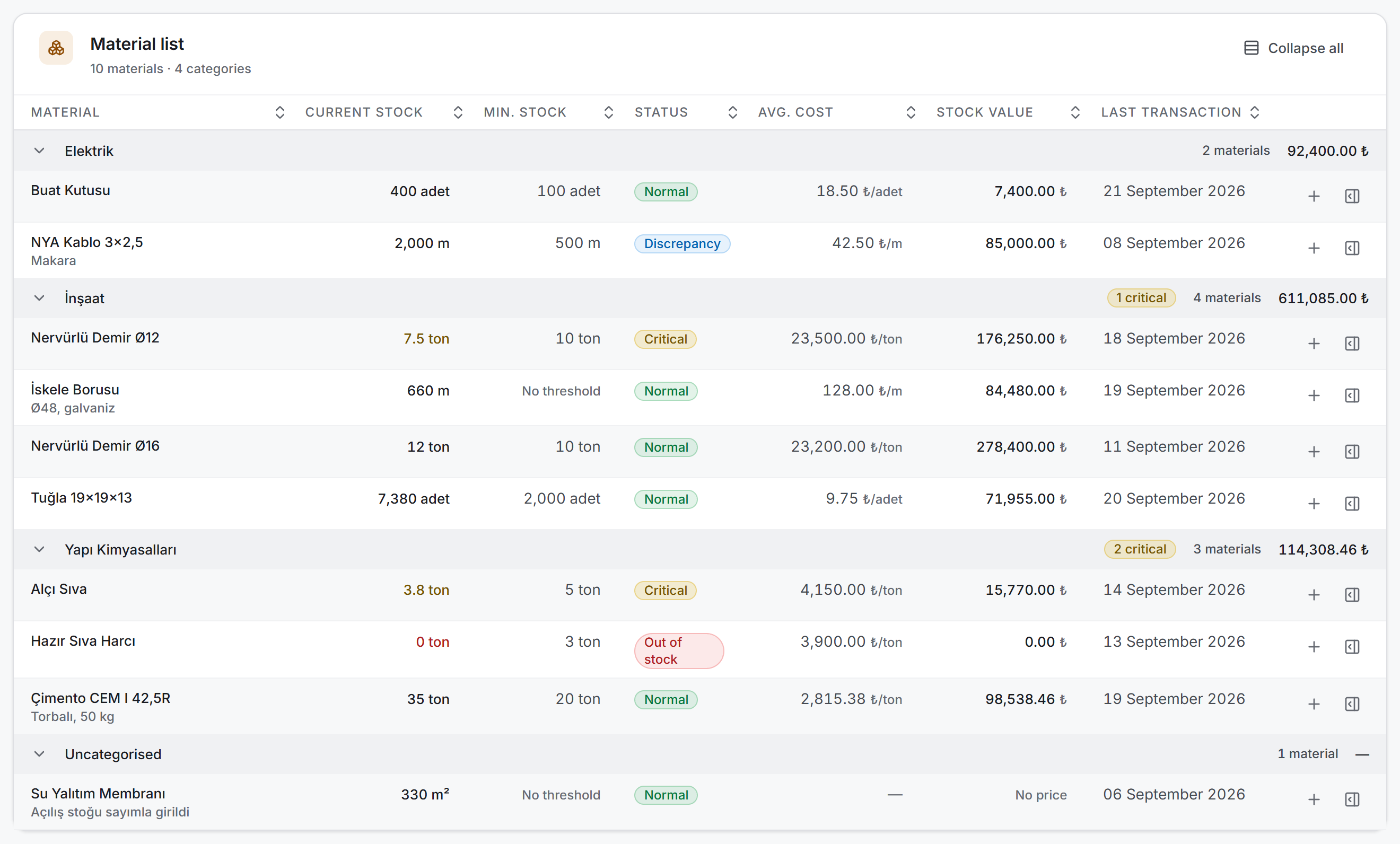
The table of the Stock Levels view. The rows are grouped by category; the group header carries the category name, a critical-material badge, the number of materials and that category's total stock value. Materials with no category are collected in the Uncategorised group, at the end.
There are eight columns: Material · Current stock · Min. stock · Status · Avg. cost · Stock value · Last transaction and the action column at the end of the row.
The material name is a button; clicking it opens that material's transaction panel. If the material has a description it sits below the name in muted type.
The Status column carries one of four badges: Out of stock (red), Critical (amber), Discrepancy (blue), Normal (green). The current-stock figure is coloured by the same three states.
Group headers can be collapsed; the Collapse all button in the header folds them all at once. You can sort by clicking the column headers — sorting works within the group, the order of the categories does not change.
Transaction ledger
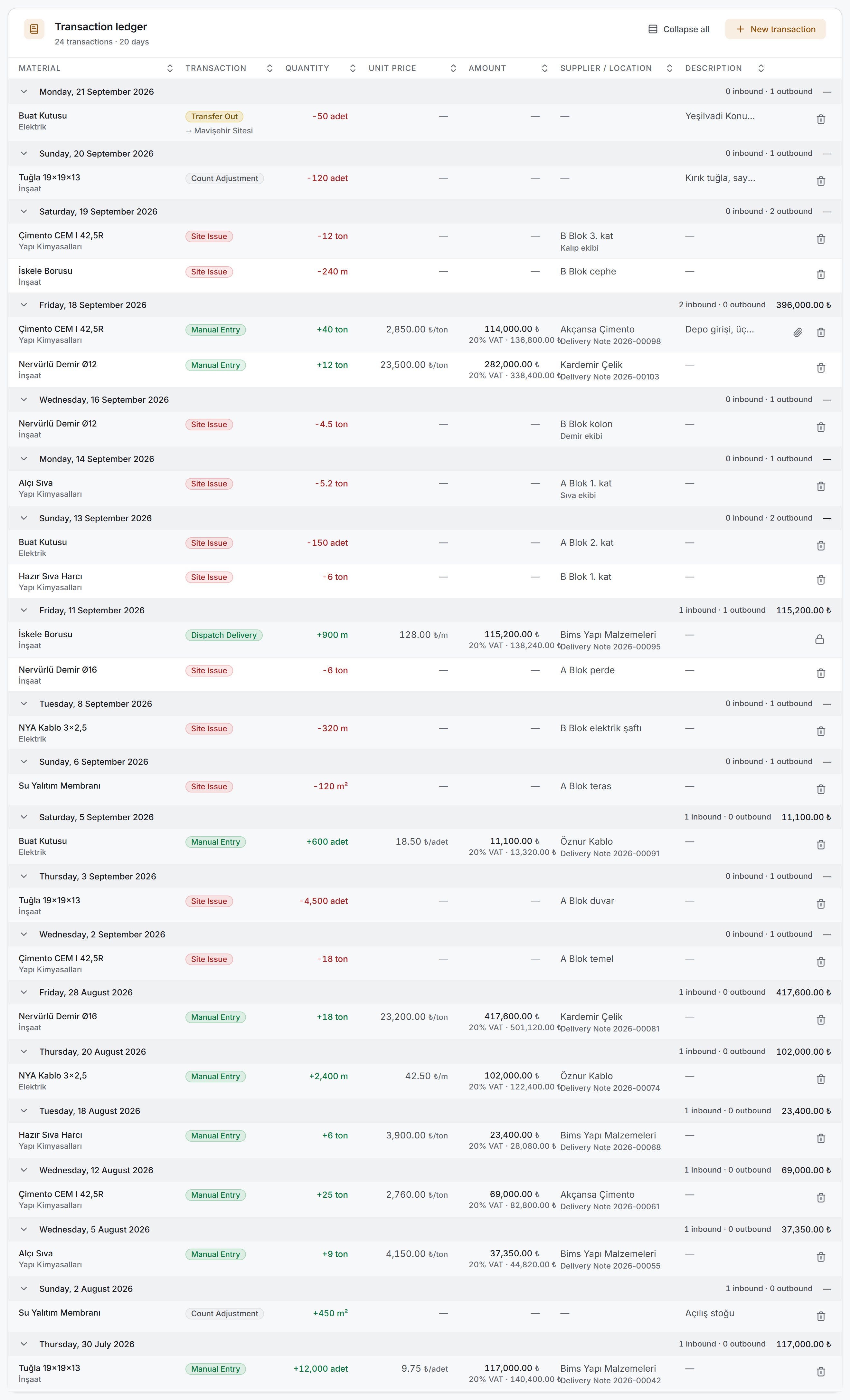
The table of the Transaction Ledger view. The rows are grouped by day; the group header carries the name of the day, how many inbound and how many outbound movements there were, and that day's purchase total. Entries with no date stand in their own group, at the end.
There are eight columns: Material · Transaction · Quantity · Unit price · Amount · Supplier / location · Description and the action column.
The quantity is signed: inbound movements are written in green with a plus, outbound ones in red with a minus.
The Amount column is filled only for purchase transactions; the VAT rate and the VAT-inclusive total sit on a second line below it. Other transactions show a dash. An entry that is a purchase but whose amount has not been entered reads "No amount entered" — these are two different things.
The Supplier / location column carries two roles in one column: for an inbound movement the supplier name with the delivery note number below it, for an outbound one the place of use with the person who received it below it.
At the end of the row there is a paperclip button if a document is attached to the entry and a bin button if you have permission.
Transaction panel
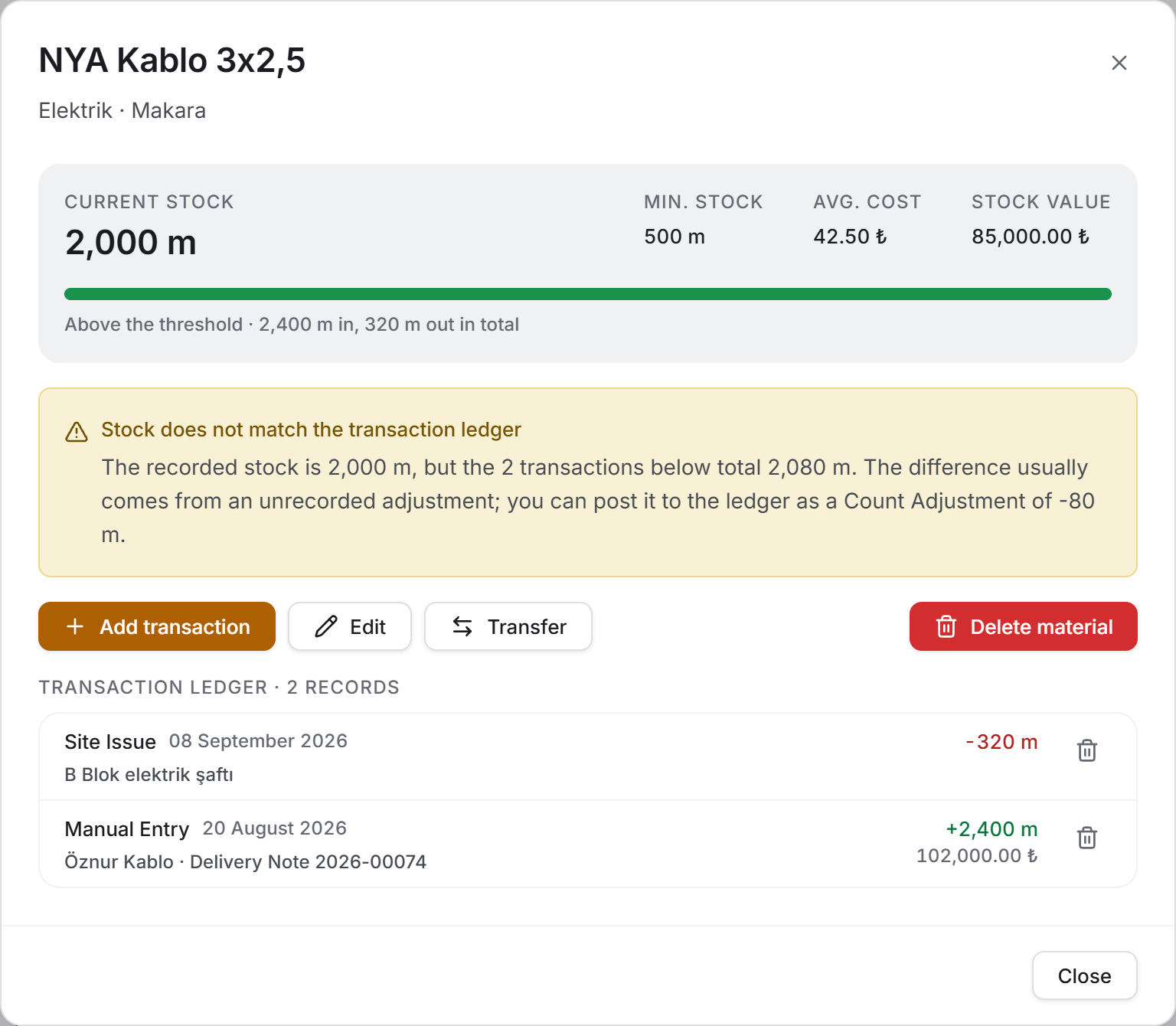
This is the window that opens when you click the material name or the panel button at the end of the row. The material's key figures sit at the top: Current stock, Min. stock, Avg. cost and Stock value. If a threshold is defined, a fill bar and a line such as "Above the threshold · 2,400 m in, 320 m out in total" sit below them.
Below that (if you have permission) there are four buttons: Add transaction, Edit, Transfer and, set apart at the right, Delete material.
At the very bottom, all transactions of that material are listed newest first. Each row carries the transaction type, its date, its context (supplier, delivery note, place of use, person who received it, counterpart project, description) and, on the right, the signed quantity and the amount.
4. Fields
Material definition
| Field | What it means | Required |
|---|---|---|
| Material name | The list, search and project transfers all match on this name | Yes |
| Unit | The measure for quantities and the unit price: tonne, piece, m², m… | No |
| Category | The list is grouped by this; materials left empty are collected in the Uncategorised group | No |
| Minimum stock threshold | Once the stock falls to this value, the material is shown as critical | No |
| Description | Extra information about what the material is; appears below the name in the list | No |
The stock quantity is not on this form and that is deliberate. The quantity changes only through transactions; a box here would create a quantity with no counterpart in the ledger and the page would mark it as a discrepancy.
Three more values are calculated on screen rather than entered:
| Value | How it is calculated |
|---|---|
| Current stock | The material's recorded quantity. Every transaction raises or lowers it |
| Avg. cost | A weighted average: the excl.-VAT amounts of the priced entries added up and divided by their quantities. If there is no priced entry at all, a dash is shown |
| Stock value | Current stock × average cost. If the cost is unknown it reads "No price" |
Stock transaction
There are six transaction types; three are entered by hand on this page, three are the result of other flows.
| Type | Where it comes from | Effect on stock |
|---|---|---|
| Manual Entry | This page | Raises it |
| Site Issue | This page | Lowers it |
| Count Adjustment | This page | Raises or lowers it according to the sign |
| Dispatch Delivery | The Dispatch Tracking module | Raises it |
| Transfer In | A transfer made from another project | Raises it |
| Transfer Out | The Transfer action on this page | Lowers it |
Each transaction's fields change with its type:
| Field | In which type | What it means |
|---|---|---|
| Material | All | The material the transaction will change. Required |
| Date | All | The ledger and the reports are grouped by this. Required |
| Quantity | Entry, issue | Must be greater than zero. Required |
| Adjustment quantity | Count adjustment | Signed: positive for an increase, negative for a decrease. Cannot be zero |
| Unit price | Entry | Excl. VAT, per the material's own unit |
| VAT rate | Entry | 0%, 1%, 10%, 20% |
| Supplier (registered) | Entry | The firms in the Suppliers module |
| Supplier name | Entry | Typed here if the firm is not in the list; the current account is opened under this name |
| Delivery note no. | Entry | Appears below the supplier name in the ledger |
| Document | Entry | A delivery note, an invoice or a photo. One document |
| Place of use | Issue | Where the material went — Block B, 3rd floor |
| Received by | Issue | The person who took delivery of the material |
| Description | All | Free text |
5. Step by step
5.1 Defining a material
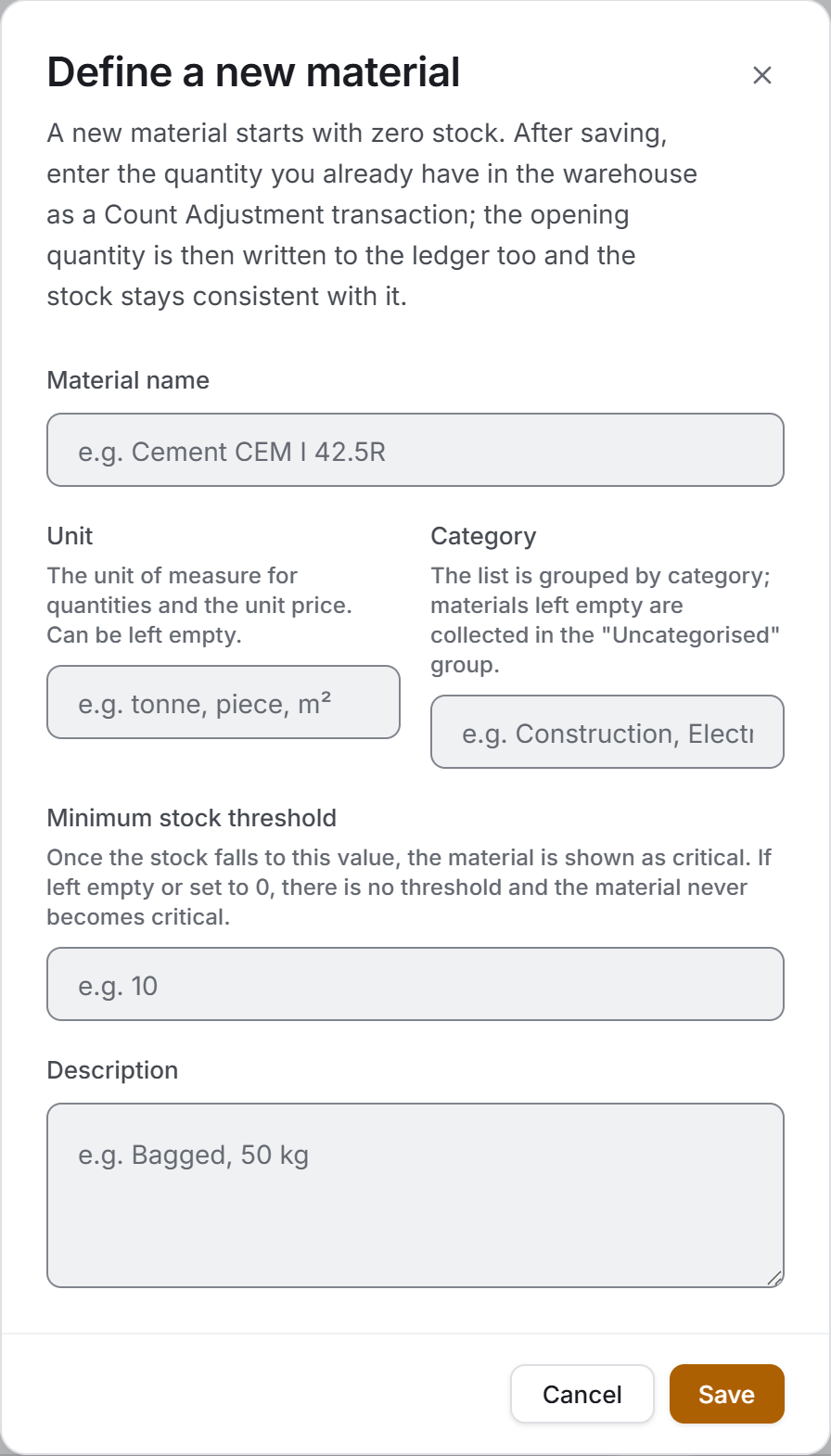
- Press the New material button in the header.
- Type the material name; the other four fields are optional.
- Save.
Below the title of the window there is a sentence reading "A new material starts with zero stock…" which tells you the next step: enter the quantity you already have in the warehouse as a Count Adjustment transaction after saving. The opening quantity is then written to the transaction ledger too and the stock stays consistent with it.
To edit an existing material, use the Edit button in the transaction panel. In edit mode the description becomes "The stock quantity cannot be changed here; it only changes through transactions."
5.2 Recording a warehouse receipt
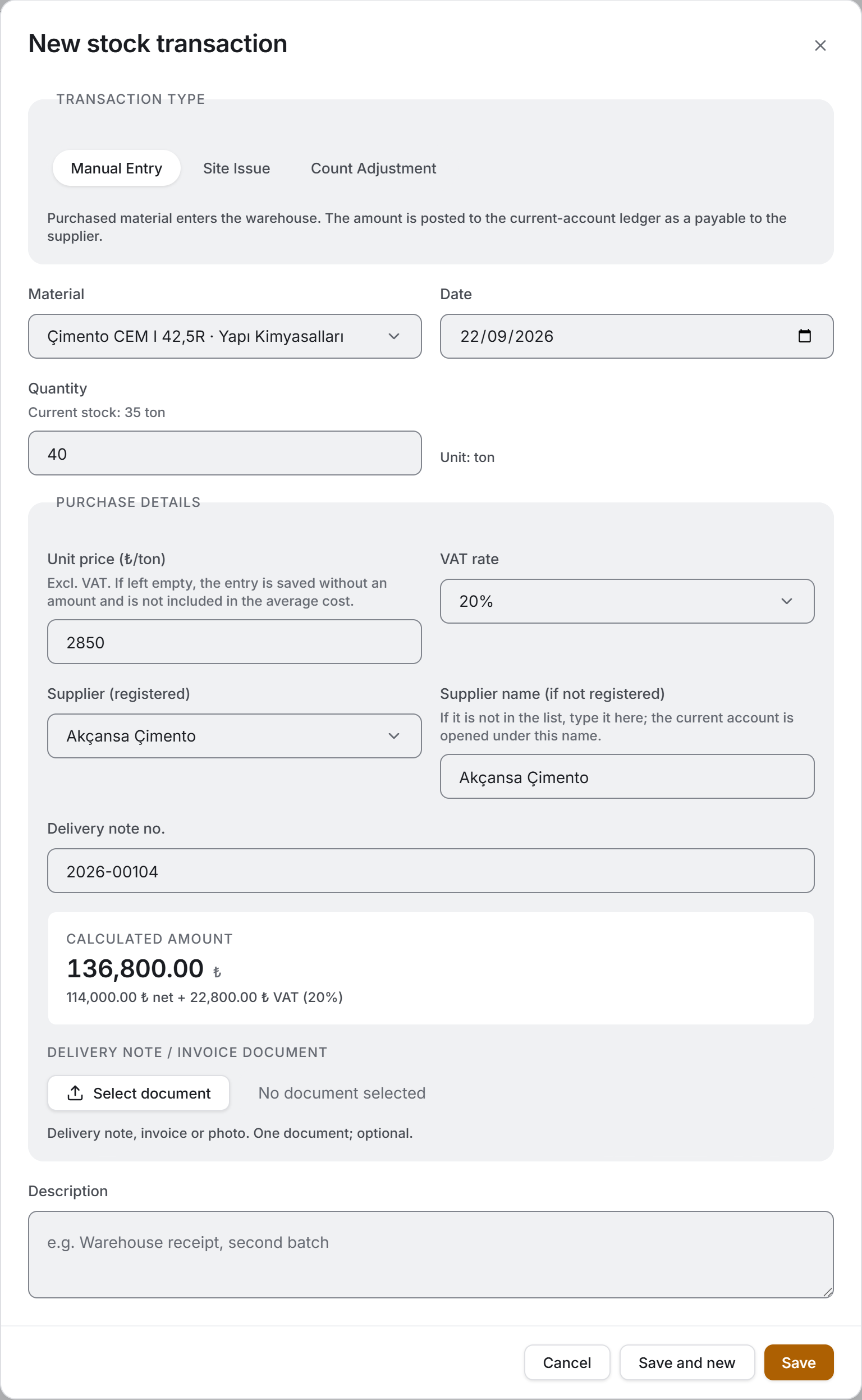
- Press the New transaction button in the Transaction Ledger view, or the + button on a row of the material list. The second one opens with the material selected.
- The transaction type comes up as Manual Entry.
- Check the Material and the Date; the date opens with today.
- Type the Quantity. The material's current stock appears below the box.
- In the Purchase details section enter the unit price (excl. VAT), the VAT rate, the supplier and, if there is one, the delivery note no.
- Add the image of the delivery note or invoice to the Document field.
- Look at the Calculated amount box — what you entered comes to that.
- Save.
The supplier is two boxes. If the firm is registered in the Suppliers module, pick it from the upper list; the selection fills the name box below it as well. If it is not registered, type into the lower box only — the current account is opened under that name.
5.3 Recording a site issue
- Open the transaction window and set the type to Site Issue.
- Enter the Material, the Date and the Quantity; the quantity is written positive, the direction comes from the type.
- Fill in the Place of use and Received by.
- Save.
An issue is not a financial transaction; the unit price, VAT, supplier and document fields are not shown for this type and nothing is written to Current Accounts.
5.4 Entering a count adjustment
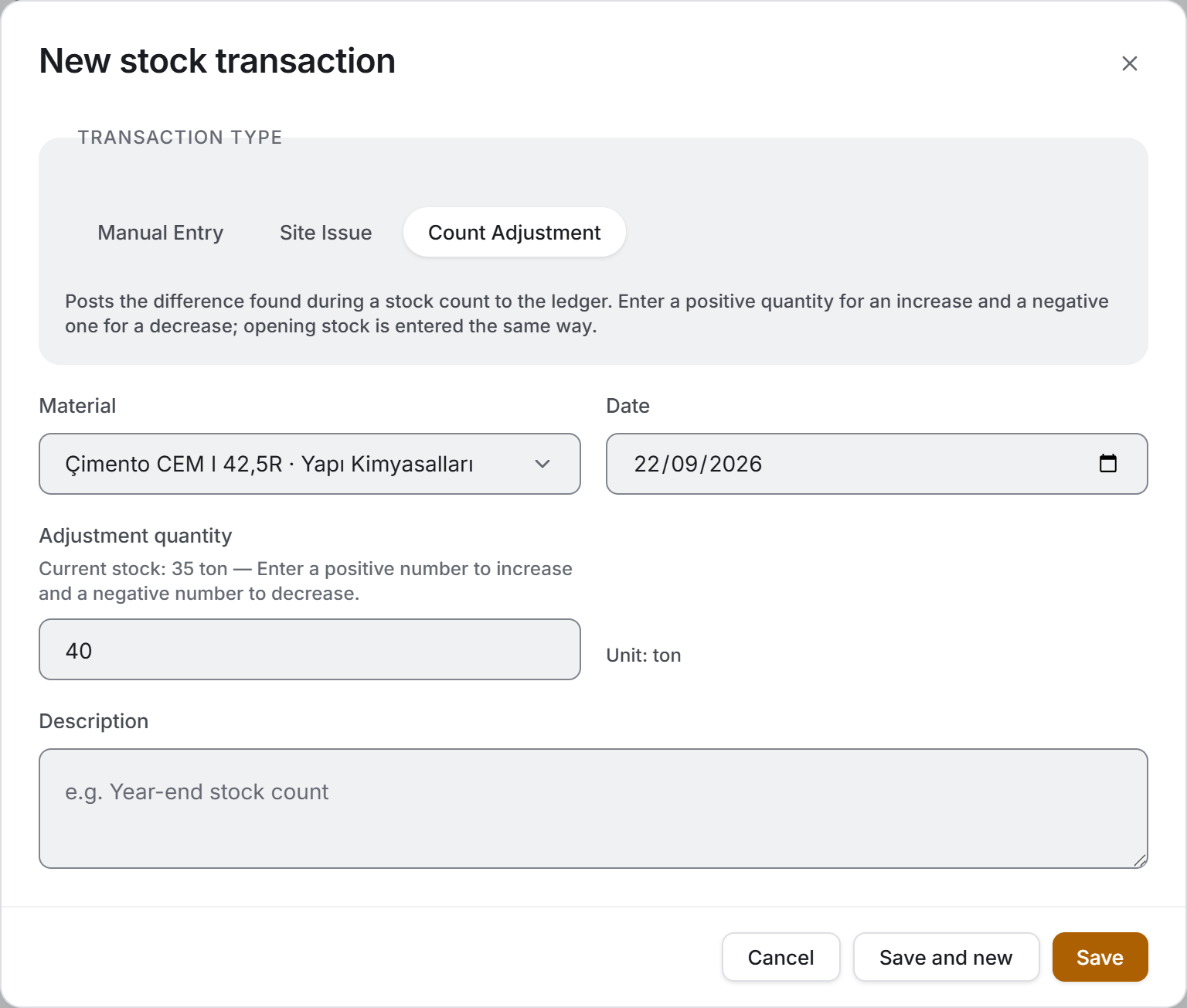
This type does two jobs: entering the opening stock and posting the difference found during a count.
- In the transaction window set the type to Count Adjustment.
- Type a signed number into the Adjustment quantity box: 2.5 for an increase, -2.5 for a decrease.
- Write the reason in the description — Year-end stock count, for example.
- Save.
The same type is used to enter material already sitting in the warehouse: you write the quantity you have as a positive adjustment. The opening quantity then reaches both the stock and the ledger.
5.5 Transferring a material to another project
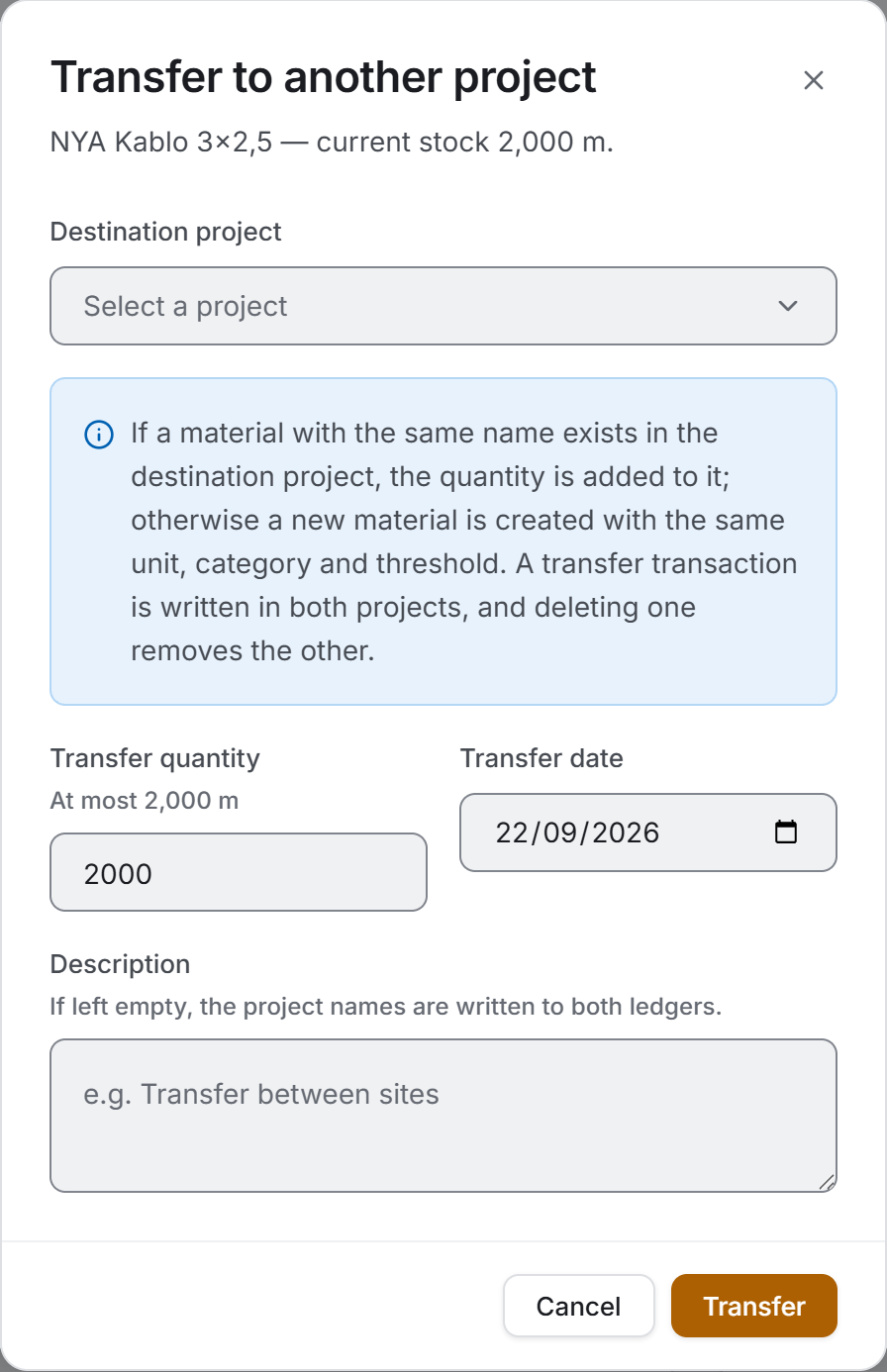
- Open the material's transaction panel.
- Press the Transfer button.
- Pick the Destination project. Only the other projects you have access to are listed.
- The Transfer quantity comes up filled with the current stock; reduce it if you need to.
- Enter the Transfer date and, if you want, a description.
- Transfer.
The rule standing in the window says this: if a material with the same name exists in the destination project the quantity is added to it; otherwise a new material is created with the same unit, category and threshold.
One transaction is written in each project — Transfer Out in the source, Transfer In in the destination — and the two are linked: deleting one removes the other.
5.6 Deleting transactions and materials
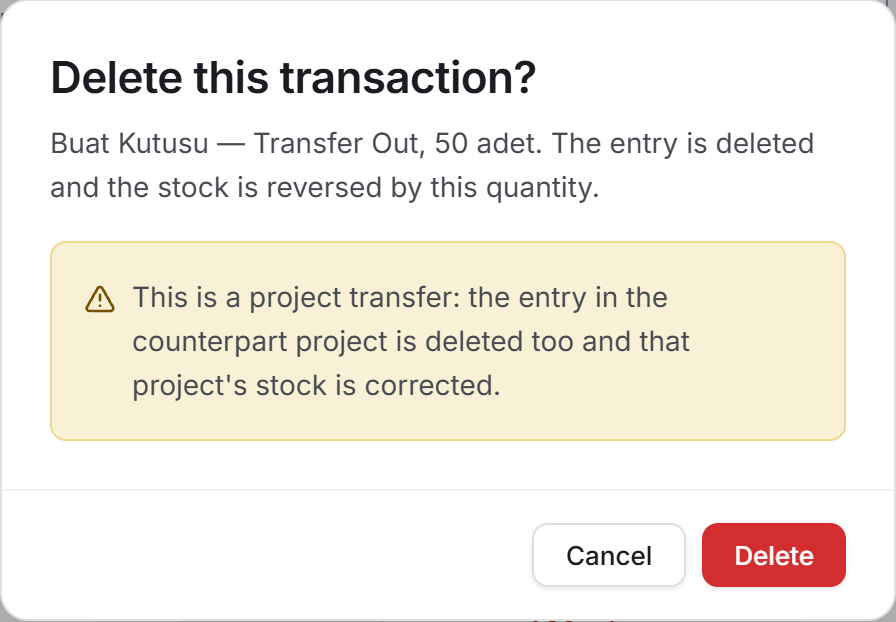
To delete a transaction, use the bin button in the ledger or in the panel. The confirmation screen says which entry will be deleted (material, type, quantity) and tells you that the stock will be reversed by that quantity. If the entry is a project transfer it also reminds you that the entry in the counterpart project will be deleted, and if a document is attached, that the document will go too.
Dispatch deliveries cannot be deleted here. On those rows the bin button is not drawn at all; a lock icon stands in its place and hovering over it reads "A dispatch delivery cannot be deleted here; open the dispatch on the Dispatch Tracking page and delete it from the delivery history." The reason is in section 7.
To delete a material, use the Delete material button in the transaction panel. If the material has transactions, an amber warning appears in the confirmation screen telling you how many will be deleted.
5.7 Defining materials in bulk from Excel
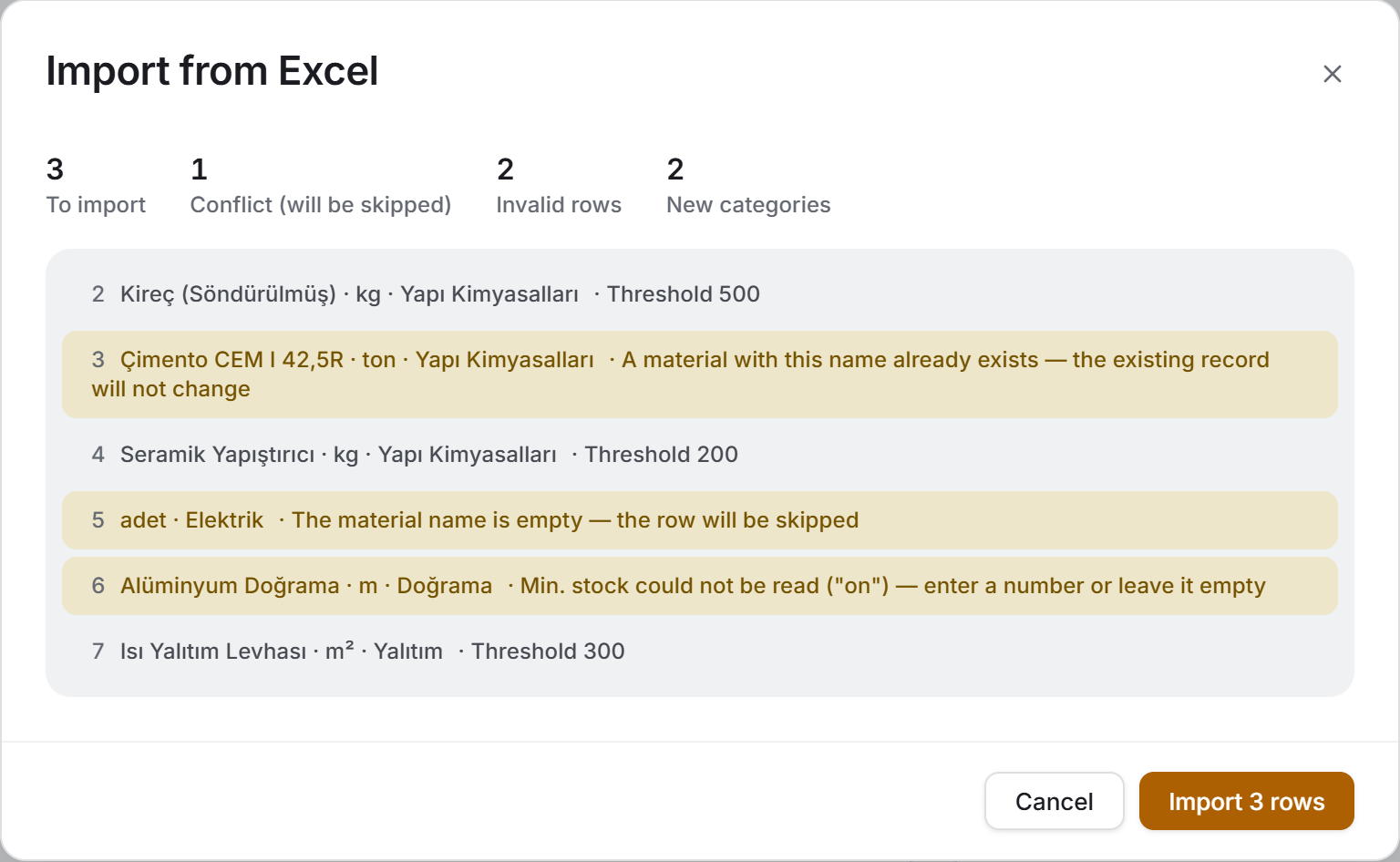
Instead of entering a long material list one by one you can import it from Excel. The process has four steps and no record is created until you confirm.
- Press the Import button and choose Download template. The template has two sheets: Materials and Instructions.
- Delete the sample rows and enter your own data. The columns are: Material Name · Unit · Category · Min. Stock · Description. Only the name is required.
- In the same window choose Choose file. The file is read and compared with the project's existing materials.
- Read the preview. Five counters sit at the top — To import · Conflicts (will be skipped) · Repeated in the file · Invalid rows · New categories — with a row-by-row result below them. Rows that will not be imported are marked with an amber background and the reason.
- Confirm with the Import N rows button. A progress bar fills; a summary appears when it finishes.
| Row status | What happens |
|---|---|
| Name empty | Skipped |
| Min. stock could not be read ("ten", for example) | Skipped — enter a number or leave it empty |
| Min. stock negative | Skipped |
| A material with this name already exists | Skipped; the existing record is not changed |
| The same name appears a second time in the file | The second row is skipped |
5.8 Searching and narrowing
The search box looks in different places depending on the view:
| View | Where it searches |
|---|---|
| Stock Levels | Material name, category, description and unit |
| Transaction Ledger | Material, category, supplier, description, delivery note no., place of use, person who received it and the name of the transaction type |
The search ignores Turkish letters: typing cimento finds Çimento.
There are two ways of picking a period in the ledger. The Current month, Last month and Current year buttons are one click; a range such as 15 March – 2 April is entered in the two date boxes. If you fill in only one of them there is no limit in the other direction.
The two most-used narrowings are these: Critical while preparing an order, Discrepancy before a count. Both are one click, and the list, the summary, the chart and the breakdowns narrow at the same time.
6. Exports
There are two exports and both put the list you see on screen outside — whichever view you are in is what gets printed, and whatever the filter is, that is what reaches the file. There is no separate export window; you have already made your decision in the filter bar.
The file name changes with the view: it starts with Stock_Levels_ in the stock view and Stock_Transaction_Ledger_ in the ledger, with a date-and-time stamp on the end. If you close the save window nothing happens; when it is saved, a band at the top of the page gives the file's full path.
Download Excel
The workbook has a single sheet, and the sheet is named after the view.
The Stock Levels sheet carries eleven columns: Material · Category · Unit · Current Stock · Min. Stock · Status · Avg. Cost (₺) · Stock Value (₺) · Total Purchases (₺) · Last Transaction · Description.
The Transaction Ledger sheet carries fourteen columns: Date · Material · Category · Transaction · Quantity · Unit · Unit Price (₺) · Net Amount (₺) · VAT % · VAT Incl. (₺) · Supplier / Place of Use · Delivery Note · Description · Document.
A three-line caption sits at the top: the project name; the report date and the totals; and a one-line summary of the filter applied. That last line matters — it is written so that a file taken with one category selected is not mistaken for the whole project when it is sent by e-mail. If there are critical materials, materials with no price or purchases with no amount, their counts are noted in the caption too.
Three useful details: the header row comes frozen, so the column names stay on screen as you scroll down; the filter is on, so you can ask your own question; and the dates and all the figures are real cell values — they can be sorted, added up and pivoted. In the ledger the quantity carries a signed raw number (-20), with its unit in the column beside it.
The quantity column in the ledger is coloured: inbound movements are written in green, outbound ones in orange, so the file can be scanned by eye.
Download PDF
An A4 landscape list with eight columns. Some of the columns from the screen and the Excel export are left out.
Stock Levels: Material · Category · Unit · Current · Min. · Status · Avg. ₺ · Value ₺.
Transaction Ledger: Date · Material · Transaction · Quantity · Unit ₺ · Net ₺ · VAT Incl. ₺ · Supplier / Location.
The first page carries the project name, the name of the view, the time it was produced and the filter summary. From the second page on, a thin band is repeated at the top, the column headers are rewritten on every page and a page number sits at the bottom.
The last row is the GRAND TOTAL row. In the stock view only the stock value is added up; in the ledger the net amount and the VAT-inclusive total. The quantity column is not added up and a dash stands in its place: a project may hold tonnes and pieces side by side, and adding two units in one cell would be adding apples and oranges. The average cost column is not added up either — an average appearing in a total row would read as a total.
7. Things worth knowing
Quantities are separated by unit, money is not. On one project cement is tracked in tonnes, brick in pieces and cable in metres; adding those three figures up and saying "1,240 units of stock" would produce a number that stands for nothing. That is why the page's headline measure is the stock value (₺), the chart's measures are money or counts, and the quantity column is empty in the total row of both exports.
The average cost is a weighted average. The excl.-VAT amounts of the priced entries are added up and divided by their quantities. Three batches of cement bought at different prices come down to one cost, and the stock value is calculated with it. Entries with no price do not enter the denominator either — they are not counted as free, they are not counted at all.
A material whose price has never been entered does not enter the value. Such a material reads "No price" in the list and does not enter the total stock value; how many materials were left out is written on the line below the summary strip. Writing zero would show a material sitting in a full warehouse as worthless.
What a ledger discrepancy is. Every material has two figures: its recorded stock quantity and the total of its transactions. Normally these match. If they do not, an unrecorded change has happened — a manual correction from the administration screen, or a deletion that stopped halfway. A material with a discrepancy is marked with a blue Discrepancy badge in the list, counted in the summary strip, carries its own segment in the filter and is explained by an amber warning in the transaction panel: what the recorded stock is, what the ledger says, and what size Count Adjustment would close the difference. In the old program this comparison is never made and the gap grows silently.
Purchases are written to Current Accounts, the others are not. When a manual entry is saved, a transaction is created in the supplier's ledger as a payable: the net amount, the VAT and the VAT-inclusive total are written separately. Site issues, count adjustments and project transfers do not reach the ledger — the material is already yours, no money has moved.
If the transfer fails an amber band appears at the top of the page and the transaction still counts as saved — the stock has changed, do not enter it a second time. The Resend to Current Accounts button in the band retries every purchase in the project. Three reasons are written separately:
| Reason | What to do |
|---|---|
| The supplier has no current account and only administrators can open one | Have an administrator create the firm once in Current Accounts; later records are sent automatically |
| The existing transaction in Current Accounts could not be updated (administrator permission) | Ask an administrator to update it; for now the amount shows its old value |
| The server could not be reached | Choose Resend to Current Accounts when the connection is back |
Dispatch deliveries cannot be deleted here. Transactions of this type belong to the Dispatch Tracking page: reversing a delivery also changes the dispatch's delivered quantity and the order's status. Running half of that chain from this page would split the rules of two modules in two. The lock icon standing in place of the delete button tells you where the entry can be deleted.
Project transfers are double entries. When you delete one, the entry in the counterpart project goes too and that project's stock is corrected. So before you delete a transfer, know that the other side will be affected as well.
Negative stock is not blocked. You can write an issue larger than the current stock; the application warns you but takes the entry. This is deliberate: while you are correcting a wrongly entered transaction the stock may temporarily go negative, and blocking the entry would cut off the correction.
Deleting a material deletes its transactions too. This is behaviour the old program does not have: there only the material definition is deleted, the transactions are left orphaned on the server, appear on no screen but keep counting towards the Finance panel's cost total. Here the transactions go first and the definition second.
The status counters do not see the search box. The bracketed figures on the All / Critical / Out of stock / Discrepancy switch in the filter bar are calculated against the selected category, not against the text you typed into the search box. The list narrows correctly; only the bracketed figures stay broad.
Inbound and outbound counts follow the sign. The "2 inbound · 1 outbound" figures in the ledger's day header are calculated not from the transaction's type but from whether it raises or lowers the stock. A positive count adjustment appears as "inbound" in that figure.
There is no period filter in Stock Levels. The date boxes are drawn only in the ledger. That is why the chart and the supplier card in Stock Levels cover all time; they narrow with the category and the search, not with a date. Stock is a moment anyway: there is no such figure as "last month's stock", there is today's stock.
Unit and category names are values you typed. ton, adet, m² appear exactly as they were written; the application does not translate them. The same is true of the material names and the categories — they are data, not interface text.
8. Related chapters
- Suppliers — the firms on purchase transactions are defined there. A firm that is not in the list can also be typed as free text; its current account is opened under that name.
- Current Accounts — material purchases reach the supplier's ledger as a payable from here.
- Dispatch Tracking — taking delivery of ordered material creates a transaction of type Dispatch Delivery on this page and raises the stock. Those entries can only be deleted there.
- Order Management — an order is an intention, it does not change the stock; the material enters the warehouse only when it is delivered. The order window shows the current stock in the warehouse.
- Finance Panel — the project's material cost is collected there together with the other cost items.
- Overview — critical stock appears as one item in the project summary.