
Order Management
Order Management holds the whole purchasing process for a material: a request is opened, quotes are collected from suppliers, the quotes are compared side by side, one is approved, and the…
1. What it is for
Order Management holds the whole purchasing process for a material: a request is opened, quotes are collected from suppliers, the quotes are compared side by side, one is approved, and the approved quote opens a dispatch card in Dispatch Tracking. As the goods arrive, the delivery rate is reflected back on this page.
The page answers these questions: what did we order, who quoted what, which job did we award, which order is past its due date and what did we save by negotiating.
An order or a quote is not a money movement — it is an intention and an agreement. Money only moves when the goods are received, and that record is written to Current Accounts by Stock Tracking. So there is no current-account transfer on this page, and warehouse stock does not change from here either.
2. How to open it, who can see it
In the sidebar: Logistics & Materials › Order Management.
| Your permission | What you can do |
|---|---|
| View | You see the list, the summary band, the chart, the breakdowns and the quote panel. You can take the Excel, PDF and purchase-order exports and open quote documents and save them to your computer. New order, adding quotes, approval, revision, cancelling, closing and deleting are not drawn at all |
| Edit | Everything above, plus you add and edit orders and quotes, approve quotes, revise them, close, cancel and delete orders |
| No permission | The module appears dimmed and locked in the menu |
3. Anatomy of the screen
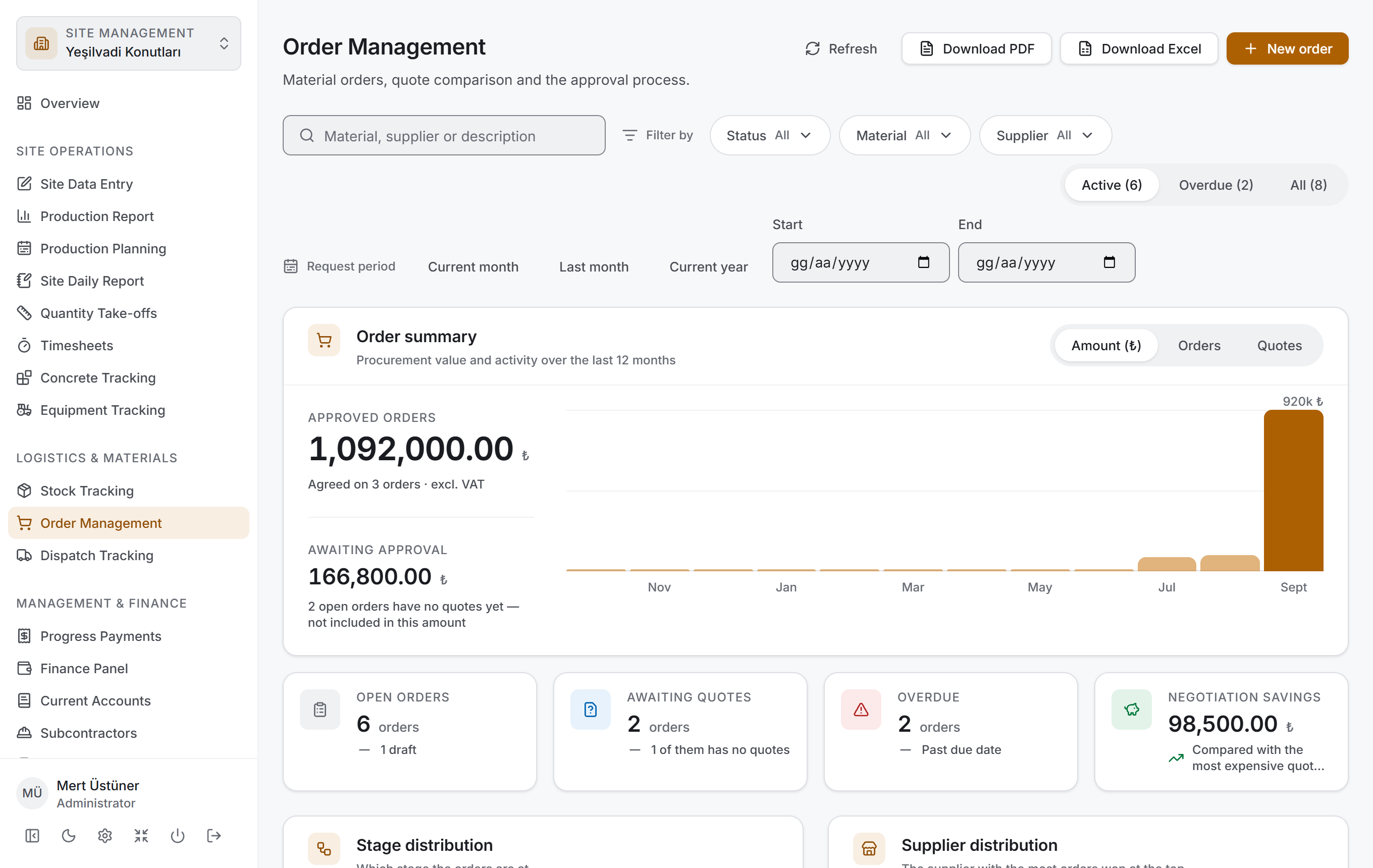
From top to bottom the page has four layers and follows the same order as Concrete Tracking, Equipment Tracking and Stock Tracking: first you narrow down, then you read the result as numbers, then you look at its breakdown, and finally you go down to the rows. There is a fifth layer where the real work of the page is done: the quote panel that opens when you click a row.
| Layer | What it does |
|---|---|
| Filter bar | Search, status, material, supplier, scope and request period |
| Order summary | Two main amounts, a chart of the last twelve months, four small measures |
| Breakdown | Stage distribution and supplier distribution |
| Order list | A table grouped by the stage of the process |
| Quote panel | One order's key facts, actions and quote comparison |
All four of the first layers are drawn from the rows that pass the filter above. When you make a selection, all four change at the same time and no request goes to the server — the project data came down once.
Title and actions. The title reads Order Management with the description "Material orders, quote comparison and the approval process". On the right there are four buttons: Refresh, Download PDF, Download Excel and (if you have permission) New order.
Filter bar

It has two rows. The top row has the Search orders box, next to it the Filter by label with the Status, Material and Supplier filters, and at the far right the Scope switch. The bottom row has the Request period label with three preset ranges and two date boxes.
| Control | What it does |
|---|---|
| Search orders | Searches the material name, the description, the category, the status name and the supplier names on the quotes |
| Status | Narrows by status. The list is not alphabetical but in process order: Draft · Awaiting quotes · Approved · Completed · Cancelled. Only the statuses that pass the current scope appear in the menu |
| Material | Narrows by material |
| Supplier | Narrows by company. At the end of the list there is a No quotes yet option — it brings up the orders that have received no quotes |
| Scope | A three-step switch: Active, Overdue, All. Each shows in brackets how many orders it holds |
| Current month · Last month · Current year | Preset ranges. The selected one is highlighted; pressing it again removes the range |
| Start · End | A free request-date range. If one is left empty there is no limit in that direction |
The page opens with the Active scope: completed and cancelled orders are not in the list. What you look for day to day is the open work; switch to All to see the closed ones.
While a filter is active, a clear button appears in the bar. If you have only typed in the search box it reads Clear search; if you have also picked a filter, a scope or a date it reads Clear filters and shows how many criteria are active. Clearing also resets the scope — but not to All: it returns to Active, the state the page opens in.

The filter menus feed each other: when you pick a status, the numbers in the material and supplier menus are recalculated for that status. So you can see whether ticking a second box will return anything before you tick it. The bracketed numbers on the Scope switch are likewise calculated against the material and status selection.
Order summary
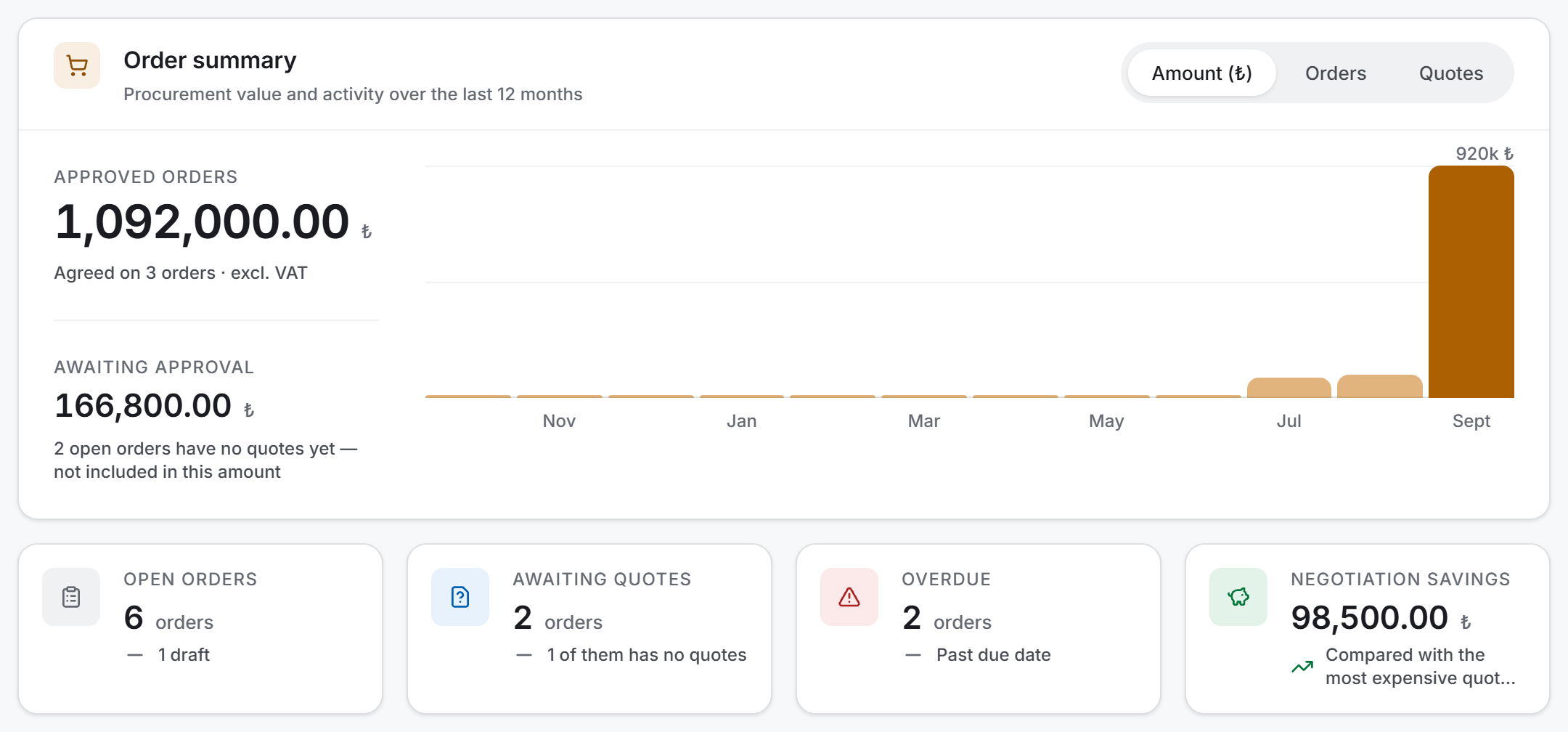
Two amounts sit one above the other on the left of the card:
| Measure | What it shows |
|---|---|
| Approved Orders | The total of approved quotes, excluding VAT. Cancelled orders are not included |
| Awaiting Approval | The value of open, not yet approved orders based on their cheapest quote |
Awaiting Approval is not an estimate, it is a lower bound. If an average were taken, an expensive quote still waiting to be rejected would pull the expected cost up and the number would not support any decision. The line below the figure says how many open orders with no quotes at all are not included in this amount; if all of them have quotes, the description "Based on the cheapest quote for each open order" takes its place.
On the right there is a column chart of the last twelve months. The Chart measure switch at the top right offers three options: Amount (₺) (the value of approved orders), Orders (the number of orders opened) and Quotes (the number of quotes received).
Four small measures are lined up below the card:
| Measure | What it shows |
|---|---|
| Open Orders | Orders that are neither completed nor cancelled. Below it, how many of them are drafts |
| Awaiting Quotes | Orders in the Awaiting quotes stage. Below it, how many have received no quotes at all |
| Overdue | Open orders past their due date. Above zero, the tile turns red |
| Negotiation Savings | The sum of the differences between the approved quote and the most expensive quote on that order |
Orders with a single quote do not count towards negotiation savings. No choice was made there: with one quote the "most expensive" and the "approved" are the same quote, and adding zero would make a negotiation that never happened look like a failed one.
Breakdown
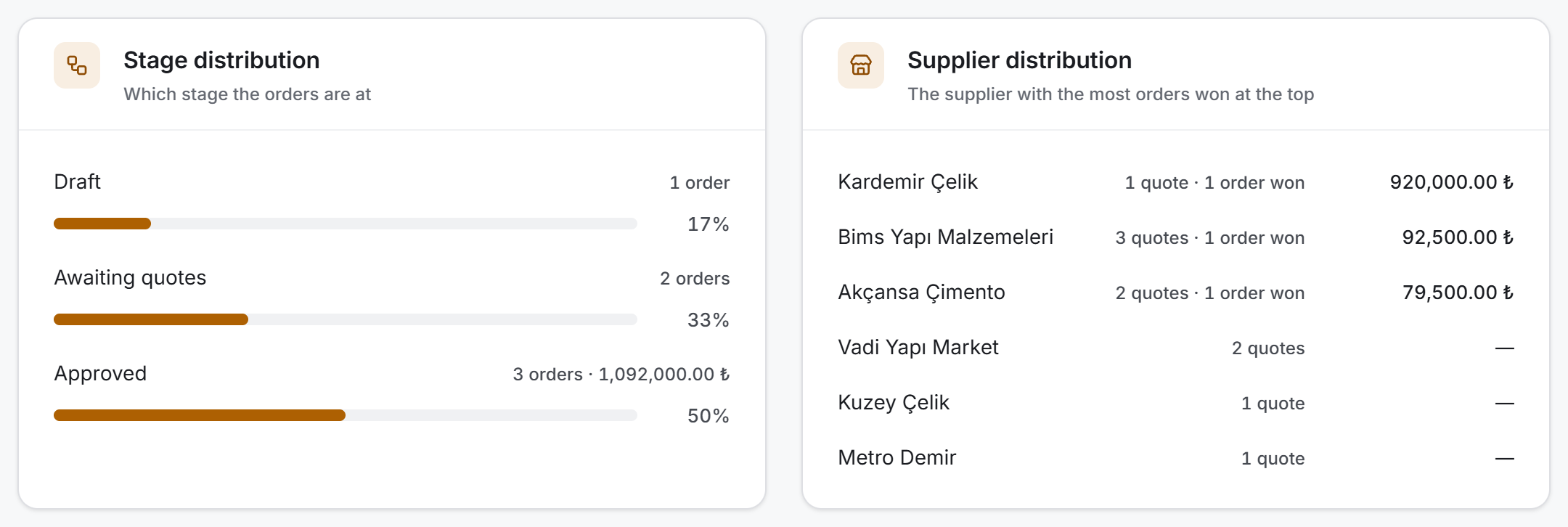
There are two cards side by side and they do not ask the same question.
Stage distribution reads like a funnel: which stage the orders are waiting at. Each row holds the name of the stage, how many orders it has, its amount if any, and a share bar. The stages are in process order.
Supplier distribution shows who did what: each row holds the company name, how many quotes it gave, how many jobs it won and the total value of those jobs. The company with the most orders won is at the top. A company that has won nothing shows a dash rather than 0 ₺ in the amount column — so it does not read as "quoted for free".
Order list
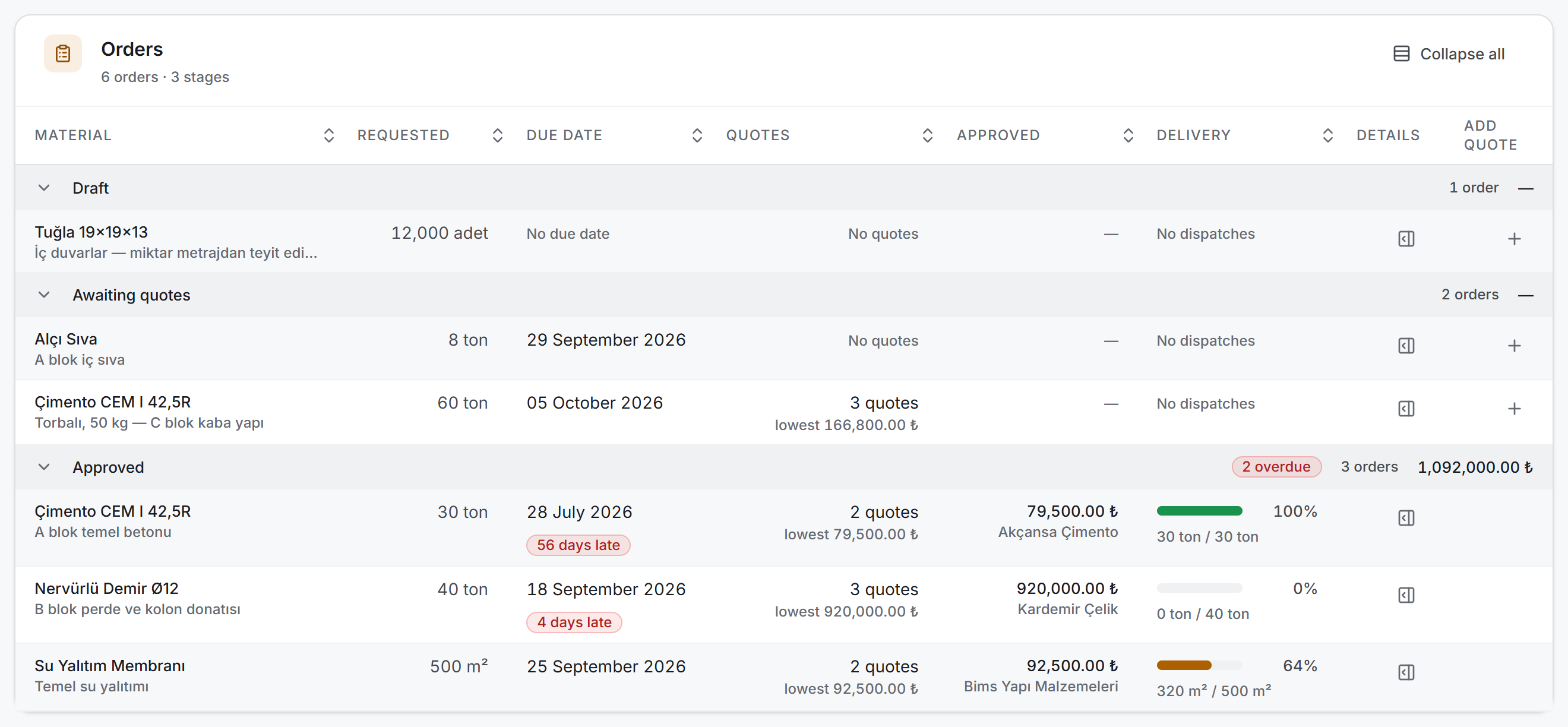
Rows are grouped by status and the groups are laid out in process order. The group header shows the name of the stage, a red overdue badge if there is one, the number of orders and the total amount at that stage. Clicking a header collapses the group; the Collapse all button at the top right folds them all at once.
Inside a group the order is: first the overdue ones (the most overdue at the top), then those with an approaching due date, and last those with no due date entered.
| Column | What is in it |
|---|---|
| Material | The material name with the order's description below it. Clicking the name opens the quote panel |
| Requested | The requested quantity and its unit |
| Due date | The due date; if it has passed, a red N days late badge beside it. If it is not entered, No due date |
| Quotes | The number of quotes in the comparison, with lowest … below it |
| Approved | The approved quote's amount excluding VAT, with the company name below it. A dash if there is no approval |
| Delivery | The delivery rate from the dispatch cards, with delivered / expected quantity below. If there is no card, No dispatches |
| Details | The button that opens the quote panel |
| Add quote | A plus button, drawn only with edit permission and only on draft orders and orders awaiting quotes |
You can sort by clicking the headers. Sorting uses the raw number; rows with no due date and rows with no approval fall to the end of the list.
Quote panel
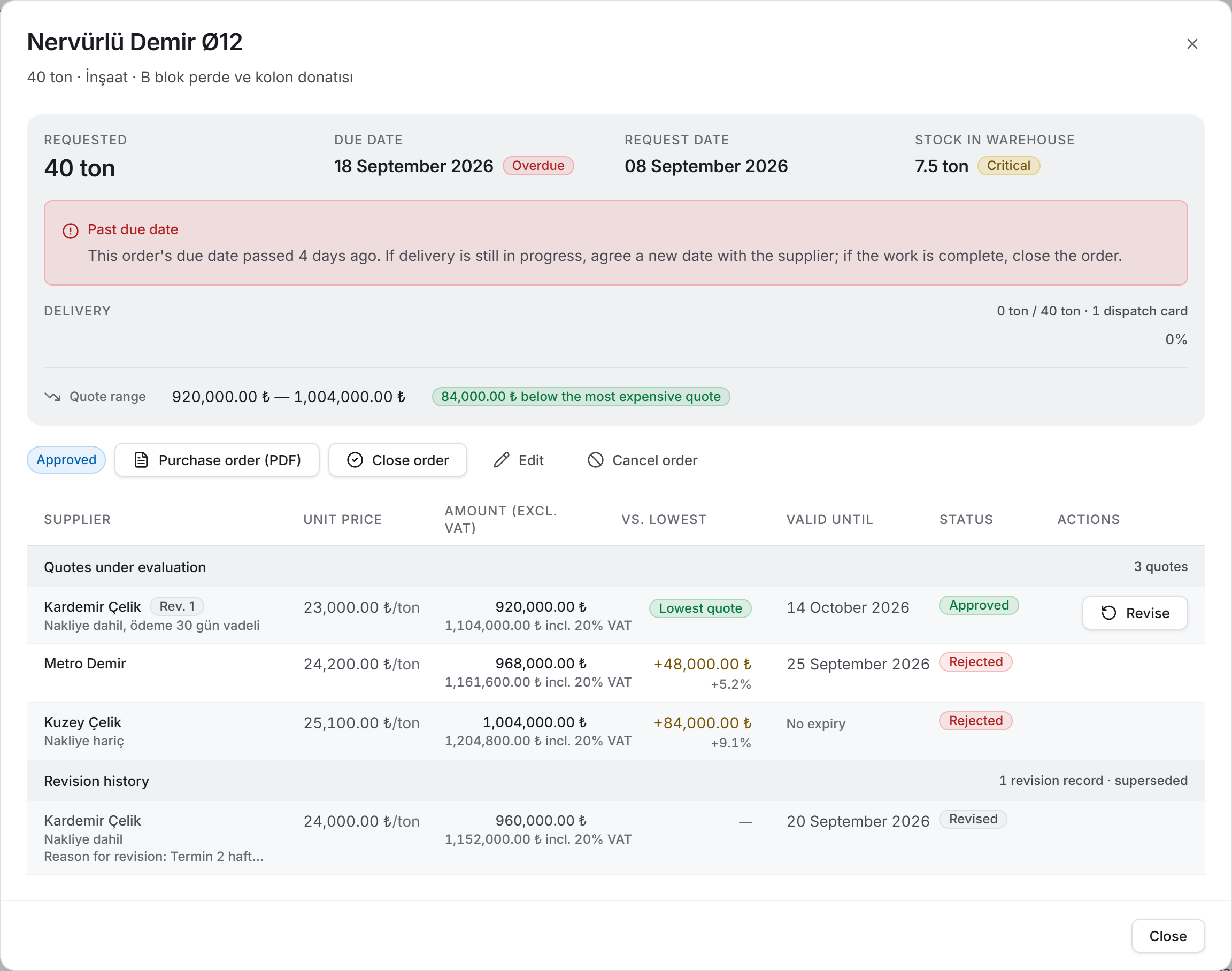
Clicking a row or the Details button opens a wide window. Its title is the material name, with the quantity, the category and the description below it.
At the top of the window are the order's key facts: Requested, Due date, Request date and Stock in warehouse. The last field is there so that the decision "shall I order 60 tonnes" is made with the warehouse in view; if the material is below its critical threshold, an orange Critical badge appears next to it.
Below the key facts, up to three bands can appear depending on the situation:
- If the due date has passed, a red Past due date warning says how many days ago and what to do.
- If a dispatch card has been opened, a delivery bar appears with the delivered / expected quantity and the number of dispatch cards beside it.
- If there is more than one priced quote, a Quote range line puts the cheapest and the most expensive side by side and shows the difference in a green badge.
Then comes the action band: on the left the order's status badge, next to it (if available) Purchase order (PDF) and, if you have edit permission, New quote, Request quotes, Close order, Edit, Cancel order and Delete depending on the status.
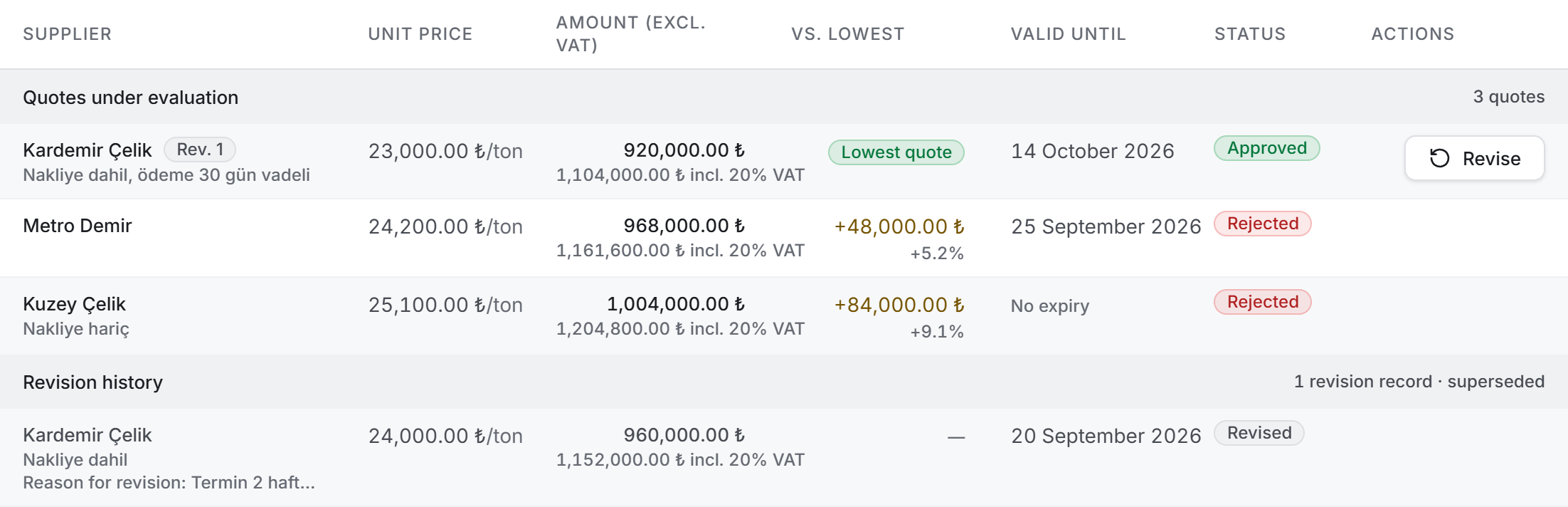
At the bottom sits the quote comparison table, split into two groups:
- Quotes under evaluation — the pending ones, the approved one and the rejected ones. A rejected quote stays in this group, because the answer to "why was this company chosen" is the prices that were rejected.
- Revision history — old prices superseded by their own revision. The group header says superseded, the rows are dimmed and the difference columns are empty.
| Column | What is in it |
|---|---|
| Supplier | The company name, a Rev. N badge if any, with notes and (in the revision history) the reason for revision below |
| Unit price | The unit price excluding VAT and the order's unit |
| Amount (excl. VAT) | Unit price × requested quantity. Below it, an incl. 20% VAT line; if there is no VAT, No VAT |
| Vs. lowest | A green Lowest quote badge on the cheapest, +amount and +percentage on the others |
| Valid until | The validity date; on a pending quote whose date has passed, an orange Expired badge. If there is no date, No expiry |
| Status | The quote's status badge, and a paperclip button that opens the document if one is attached |
| Actions | On a pending quote Approve, edit and delete; on the approved quote Revise |
A quote with no price entered shows No price entered rather than 0.00 ₺ in the amount column — so it does not read as "quoted for free".
4. Fields
Order fields
| Field | What it means | Required |
|---|---|---|
| Material | The material definition the order is linked to. The list comes from the project's materials | Yes |
| Requested quantity | How many units are wanted. Use a comma or a full stop for decimals; do not type a thousands separator | Yes, greater than zero |
| Unit | The unit of measure. It fills in automatically when the material is picked and can be changed by hand | No |
| Due date | The day the material must be on site. Once it passes, the order is marked Overdue | No |
| Description / specification | The nature of the material and where it is going — C30/37, pump included — Block A foundation | No |
| Request date | The day the record was opened. The app writes it; it cannot be changed | — |
| Status | Draft · Awaiting quotes · Approved · Completed · Cancelled | — |
Quote fields
| Field | What it means | Required |
|---|---|---|
| Registered supplier | A choice from the companies defined in the project. Selecting is optional | No |
| Supplier name | The company's name. You can type a company that is not in the list here | Yes |
| Unit price | The unit price excluding VAT. The label also shows the order's unit: Unit price (₺/ton) | Yes, greater than zero |
| Add VAT · VAT rate (%) | Ticking it opens the rate box; the default is 20%. The rate is limited to 0–100 | No |
| Quote date | The day the quote was given. Opens as today | Yes |
| Validity date | The day until which the price stands. It cannot be earlier than the quote date | No |
| Reason for revision | Appears only in revision mode. Whether the price, the due date or the terms changed | Yes, in a revision |
| Notes / terms | Terms such as delivery and payment. They also go onto the purchase order | No |
| Quote document | The PDF or photo the supplier sent. One document, up to 5 MB | No |
In the middle of the form there is a live total box with three lines: Amount (excl. VAT) (with the quantity × unit price calculation next to it), VAT and Grand total. It changes as you type.
5. Step by step
Opening a new order
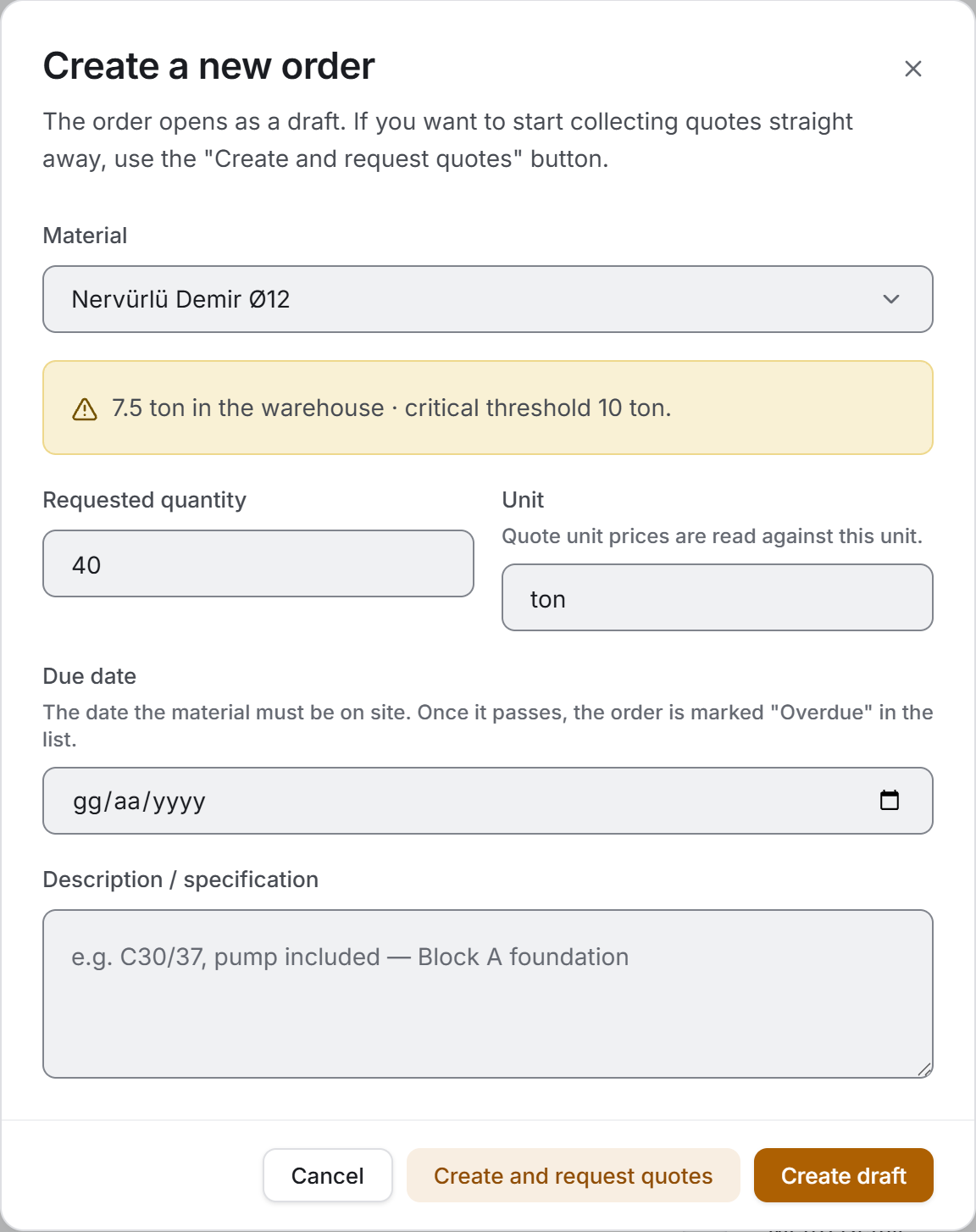
- Press the New order button at the top right.
- Pick a Material. The moment you do, that material's stock in the warehouse is shown at the bottom of the form; if it is below the critical threshold, the band turns orange.
- Enter the Requested quantity; the Unit is copied from the material, change it if needed.
- Add a Due date and a Description if you want.
- There are two ways to save:
- Create draft — the order stays as a draft. When the first quote is added it moves to the Awaiting quotes stage automatically.
- Create and request quotes — the order opens directly in the Awaiting quotes stage.
Adding a quote
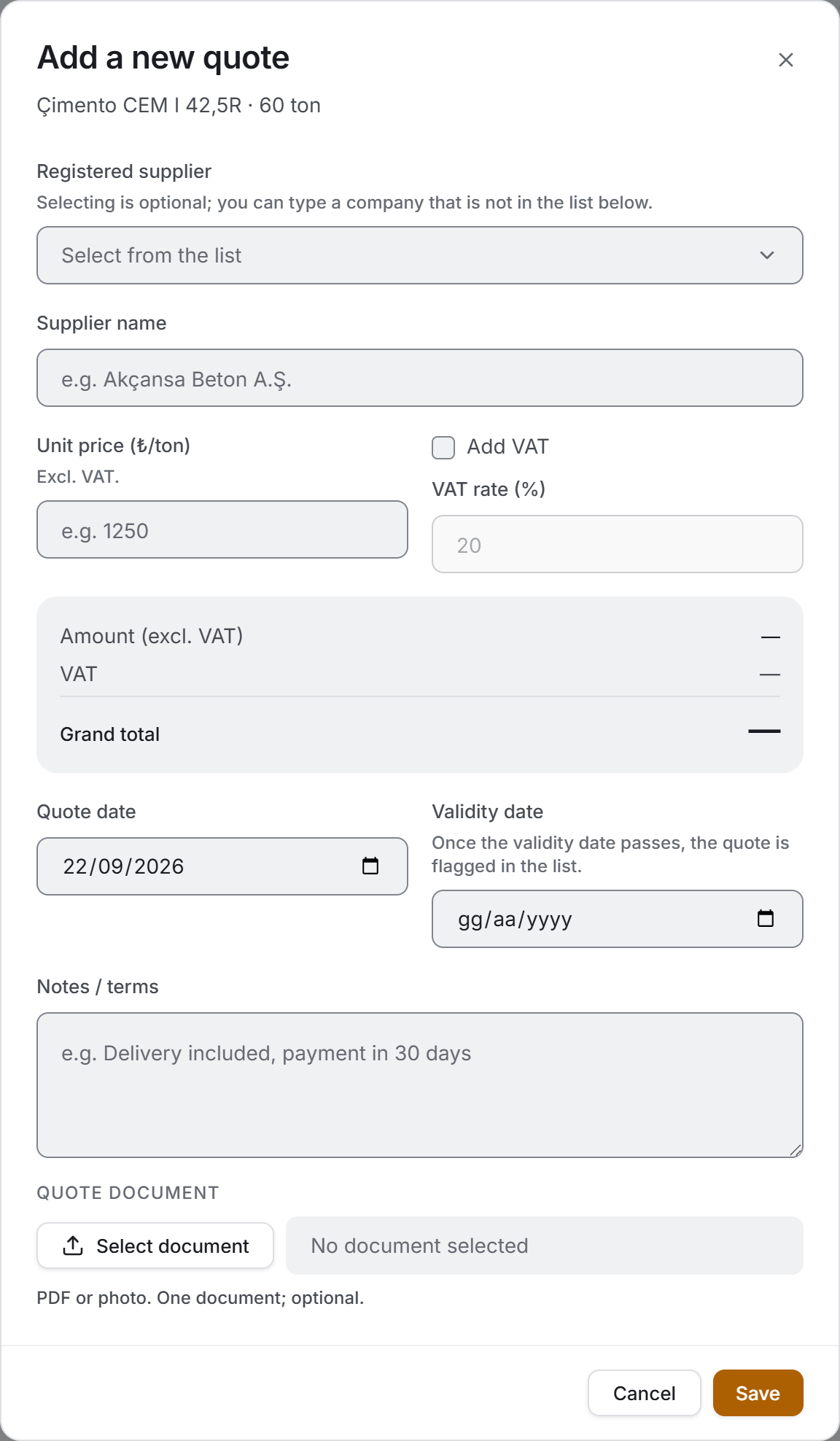
- Press the + button on the order's row, or New quote in the panel.
- If the company is registered in the project, pick it from the Registered supplier list; the name is copied into the box. If it is not registered, type it straight into the Supplier name box.
- Enter the Unit price excluding VAT. If there is VAT, tick Add VAT and write the rate.
- The Quote date comes in as today; correct it if the supplier gave the quote earlier. If you enter a Validity date, the quote is flagged in the list once that date passes.
- Attach the Quote document if there is one and press Save.
Editing and deleting a quote
A pending quote can be edited directly: press the pencil button at the end of its row in the comparison table. The way to change the price of an approved quote is not editing but a revision.
The bin button deletes the quote permanently, along with its document if there is one. On rejected and revised quotes these buttons are not drawn — they are the record of the purchasing history and are not changed.
Approving a quote
- Press the Approve button on the row of the pending quote you have chosen in the comparison table.
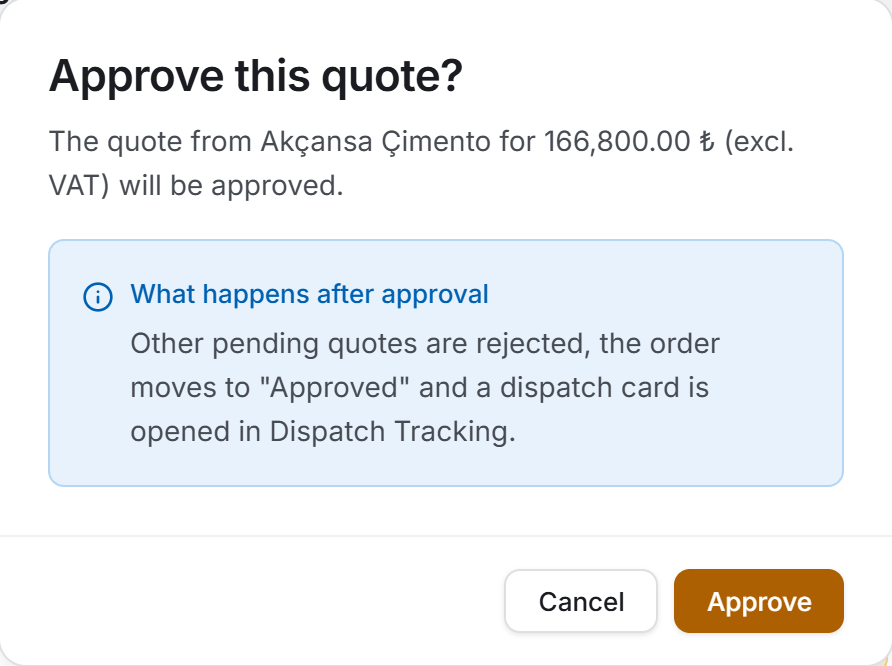
- The window that opens names the company and the amount excluding VAT, and explains below what will happen after approval. If the quote's validity has expired, a second warning appears as well.
- Press Approve.
The approval does four things at once: the other pending quotes are rejected, the chosen quote is approved, the order moves to Approved and a dispatch card is opened in Dispatch Tracking. The rest of the dispatch card's life — on the way, received, delivery note — is that page's job.
Revising an approved quote
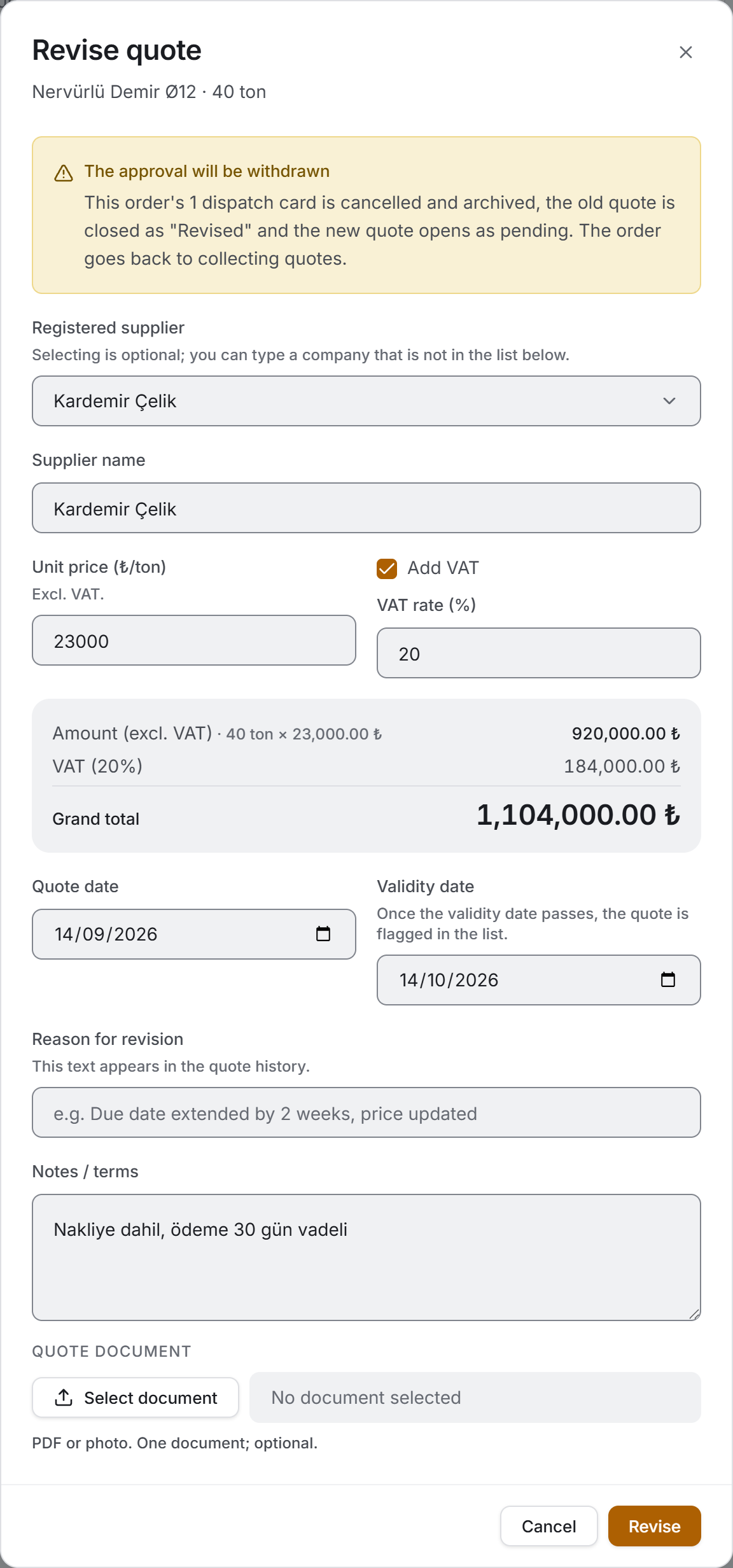
When the supplier changes the price or the terms, use the Revise button on the approved quote's row. The window says before you save what will happen:
- The order's approval is withdrawn.
- Any dispatch cards are cancelled and archived.
- The old quote is closed as Revised and the reason for revision you write is recorded on it.
- The new quote is added to the chain as Rev. N, in pending state.
- The order returns to the Awaiting quotes stage.
Editing an order
The Edit button in the panel changes the order's quantity, unit, due date and description. The material can be changed too.
Closing an order
On an order in the Approved state, a Close order button appears in the panel. It is used when the job is done: the order is marked Completed, dispatch cards with nothing received are cancelled, and partly received ones are closed as delivered.
Cancelling an order
Every order that is not closed has a Cancel order button. The order is marked Cancelled and stays in the list — it is not deleted.
Deleting an order
The delete button is drawn only on orders with no dispatch card opened. The confirmation window says that the quotes on the order and their documents will be deleted too.
On an order with a dispatch card, the delete button does not appear at all: the owner of that chain is the Dispatch Tracking page, and deleting a dispatch also touches stock quantities and the current-account ledger. Rather than removing the record from the list, cancel it.
Opening a quote document
The paperclip button next to the status badge in the comparison table opens the document the supplier sent in a viewer. You can save it to your computer from there. Viewing does not require edit permission.
Taking a purchase order
In the panel, orders with an approved quote show a Purchase order (PDF) button. That is the document sent to the supplier; details are below.
6. Exports
There are three exports. Two of them send out the list you see on screen — whatever the filter is, that is what goes into the file; the third describes a single order and is taken from the quote panel.
If the save dialog is closed, nothing happens; once saved, a band appears at the top of the page showing the full path of the file. All three exports can be taken with view permission.
Download Excel
The file name starts with Order_Report_ and has a date–time stamp added to the end. The workbook has two sheets, because it answers two different questions.
The Orders sheet carries fourteen columns: Material · Category · Requested · Unit · Request Date · Due Date · Delay (days) · Status · Quotes · Lowest (₺) · Approved Supplier · Approved Amount (₺) · Delivered (%) · Description.
The Quotes sheet writes all the quotes of the orders that pass the same filter, eliminated ones included, in thirteen columns: Material · Supplier · Quote Date · Valid Until · Unit Price (₺) · Amount (₺) · VAT (%) · VAT Amount (₺) · Grand Total (₺) · Difference to Lowest (₺) · Revision · Status · Notes. The reason for revision is appended to the notes as Revised: ….
Both sheets have a three-line header block at the top: the project name; the report date and the totals; and a one-line summary of the filter applied. That last line matters — it is written so that a file taken with one status selected is not mistaken for the whole project when it is emailed on. If there are overdue orders or negotiation savings, their figures go into the header block too.
Three useful details: the header row is frozen; the filter is on; and the dates and all figures are real cell values — they can be sorted, summed and pivoted. The amount cell of the lowest quote is written in bold green.
The last row of the Orders sheet is GRAND TOTAL; the quote count and the approved amount are summed. The Requested column is not summed and a dash stands in its place: a project may hold tonnes and pieces side by side. On the Quotes sheet the TOTAL row sums the amount and the grand total.
Download PDF
An A4 landscape status report with nine columns: Material · Requested · Due Date · Status · Quotes · Lowest (₺) · Approved Supplier · Amount (₺) · Delivered.
The first page carries the project name, the Order Status Report title, the time it was produced and the filter summary; at the top right it shows the approved total, the order and quote counts, and warnings about overdue orders and orders with no quotes if there are any. From the second page on, a thin band is repeated at the top, the column headers are written again on every page, and the page number is at the bottom.
The delay is written in orange below the due date rather than in a separate column. The delivery rate is shown as a percentage, not as a bar.
The last row is GRAND TOTAL: the quote count and the approved amount are summed. The Lowest column is not summed — adding up the cheapest quotes of different orders would produce a "total" of which none was ever approved.
Purchase order (PDF)
This is the document sent to the supplier and it is taken from the quote panel, only on orders that have an approved quote. The file name is made up of Purchase_Order_, the material name and the form number.
It is a single A4 portrait page and carries:
- The PURCHASE ORDER title, the project name, the Form No., the time of issue and the request date.
- Two parties: ORDERED BY (the project) and SUPPLIER (the company on the approved quote, the quote date and the revision number if any).
- The line-item table: the material and its description, quantity, unit, unit price, amount; below it Subtotal (excl. VAT), VAT (…%) and Grand total.
- TERMS: the delivery due date, the quote validity and the quote's notes. If there are none, the heading is not drawn either.
- Two signature areas: Prepared by / Stamp · Signature and Approved by · Signature.
7. Things worth knowing
All money totals on screen exclude VAT. VAT is not the project's cost but the state's share, and the amount of the same goods is read excluding VAT in Stock Tracking and Concrete Tracking too. VAT is not lost: it is written below the row in the quote comparison, on its own line in the purchase order, and in its own column on the Excel Quotes sheet.
A quote's amount is calculated from the unit price. Unit price × requested quantity. That way every quote answers the same question even when the quantity changes: "what is this company charging per tonne". The stored total is only used for quotes with no price entered at all.
The lowest quote is chosen by price. An approved quote may be more expensive than a pending one; in that case the Lowest quote badge sits not on the approved row but on the one that really is the cheapest.
Rejected quotes stay in the comparison. When an order is approved the others are rejected, but they do not drop off the list. A rejected quote is the justification for the choice; without them the fact that "three companies were asked" would be lost. Only the revision history moves to a separate group.
The validity warning appears only on a pending quote. Whether a rejected or approved quote has expired changes nothing; the badge would be noise there. The validity day is inclusive: a quote valid until 15 March is still valid on 15 March.
Delay is only calculated on an open order. A completed or cancelled order may be past its due date, but no badge appears — that would show a closed job as if it were still open.
The delivery rate comes from the dispatch cards. Archived cards are not counted; if there is no card at all, the cell reads No dispatches — which is not the same as "0% delivered". The bar stops at 100%; if more than expected has been received, read the real figures from the delivered / expected line under the bar.
This page does not write to the current-account ledger. An order and a quote are an agreement; the entry in the supplier's ledger is written by Stock Tracking when the goods are received.
Search respects Turkish letters. Typing santiye finds Şantiye Kablosu, and oznur finds Öznur Kablo. Search works on the status name too: typing approved brings up the orders at that stage.
When you pick a date range, records with no request date drop out of the list. They are not lost; they come back when you clear the filter.
Unit names are the values you typed. ton, adet, m² appear exactly as they were written; the app does not translate them. The material names, descriptions and notes in the screenshots above are likewise data and stay in the language they were entered in.
8. Related chapters
- Stock Tracking — the material definitions an order is linked to are created there. The order window and the purchase order show that material's current stock in the warehouse. The movement that increases stock when goods are received is created there too.
- Dispatch Tracking — the dispatch card opened when a quote is approved lands there. Receiving, delivery notes and the goods-acceptance record are that page's job; the Delivery column here shows its result.
- Suppliers — the companies that give quotes are defined there. A company that is not in the list can also be typed as free text.
- Current Accounts — this page does not write to the ledger; the entry in a supplier's account is made by Stock Tracking when the goods are received.
- Finance Panel — the project's material cost is totalled there together with the other cost items.