
Equipment Tracking
Equipment Tracking keeps a daily record of the hired machines and vehicles working on site. An excavator spends a day on the foundation dig, a truck hauls spoil for three hours;
1. What it is for
Equipment Tracking keeps a daily record of the hired machines and vehicles working on site. An excavator spends a day on the foundation dig, a truck hauls spoil for three hours; each of them is one row here — which day, whose machine, how long, and what it comes to.
The page answers two questions: how much did the equipment work and what did that work cost. A third question sits on the same screen and is usually the most pressing one: what will go into the progress payment you are about to issue. Entries that are not yet attached to a progress payment are counted separately and can be listed with one click.
An equipment work entry does not reach Current Accounts directly. The flow is: the entry is saved, it is added to a progress payment when that payment is issued, and the ledger transaction is created on the progress payment side. That is why there is no ledger transfer operation on this page.
2. How to open it, who can see it
In the sidebar, Site Operations › Equipment Tracking.
| Your permission | What you can do |
|---|---|
| View | You see the list, the summary strip, the chart and the breakdowns. You can download Excel and PDF exports and open work tickets and save them to your computer. New entry, edit and delete buttons are not drawn at all |
| Edit | The same, plus you can add, edit and delete work entries |
| No permission | The module appears dimmed and locked in the menu |
3. Anatomy of the screen
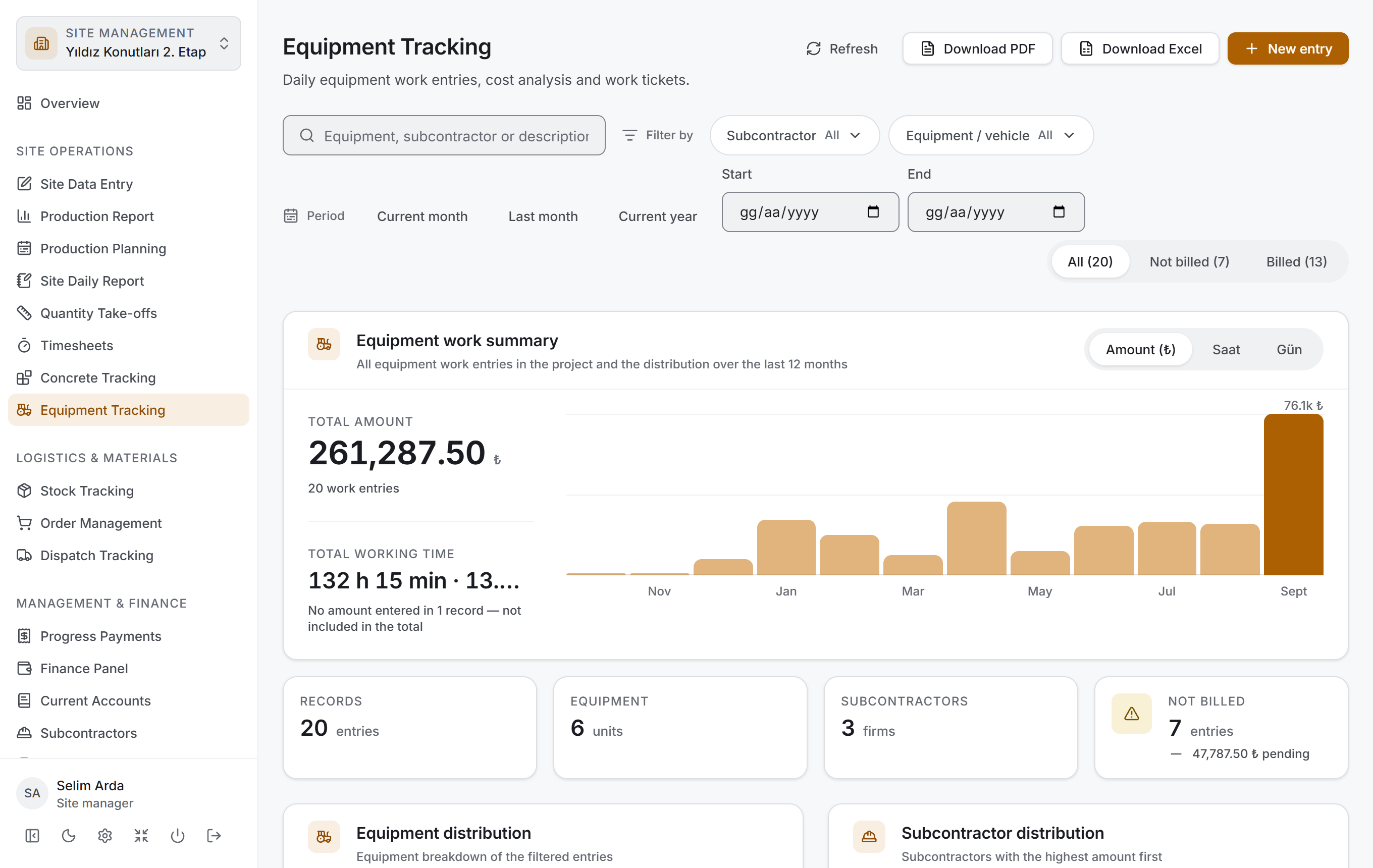
The page is four layers from top to bottom and follows the same order as Concrete Tracking: first you narrow, then you read the result as figures, then you look at its breakdown, and finally you go down to the rows.
| Layer | What it does |
|---|---|
| Filter bar | Search, subcontractor, equipment, period and billing status |
| Equipment work summary | Two headline figures, a chart of the last twelve months, four small measures |
| Breakdown | Equipment distribution and subcontractor distribution |
| Work entry list | A table grouped by day |
All three lower layers are drawn from the rows that pass the filter above. When you make a selection all four change at once and no request goes to the server — the project data came down once.
Title and actions. The title reads Equipment Tracking with the description "Daily equipment work entries, cost analysis and work tickets." On the right there are four buttons: Refresh, Download PDF, Download Excel and (if you have permission) New entry.
Filter bar

It has two rows. The top row holds the Search entries box and, next to a Filter by label, the Subcontractor and Equipment / vehicle filters; the bottom row holds a Period label with three ready-made ranges, two date boxes, and the Billing status switch at the right-hand end.
| Control | What it does |
|---|---|
| Search entries | Searches the equipment name, the scope of work, the subcontractor name and the description |
| Subcontractor | Narrows by firm; each firm shows how many entries it has |
| Equipment / vehicle | Narrows by machine. The list is alphabetical |
| Current month · Last month · Current year | Ready-made ranges. The selected one is highlighted; pressing it again removes the range |
| Start · End | A free date range. If one is left empty there is no limit in that direction |
| Billing status | A three-step switch: All, Not billed, Billed. Each shows its record count in brackets |
When a filter is active a clearing button appears at the end of the bar. If you have only typed in the search box it reads Clear search; if you have also chosen a filter, a date or a billing status it reads Clear filters with the number of active criteria beside it. With no filter at all the button is not drawn.
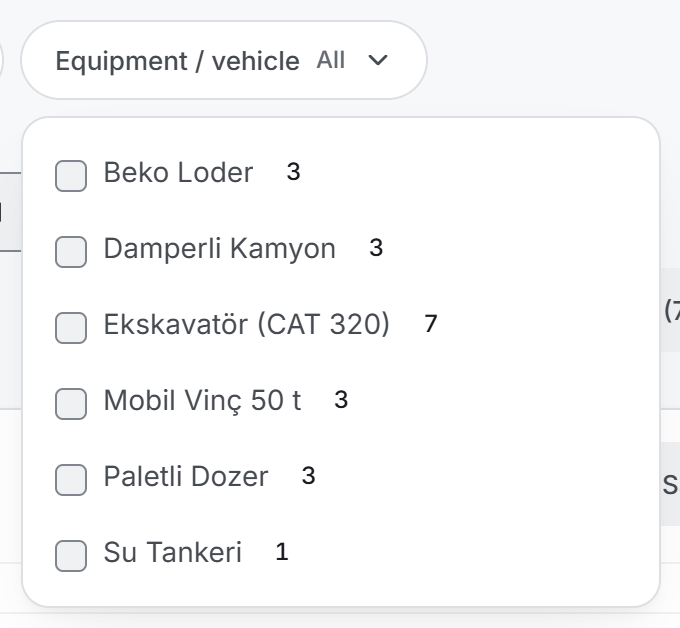
The filter menus feed each other: when you choose a subcontractor, the counts in the equipment menu are recalculated for that firm's entries. That way you can see whether ticking a second box will return anything before you tick it. The bracketed counts on the Billing status switch are calculated against the other filters in the same way.
Equipment work summary
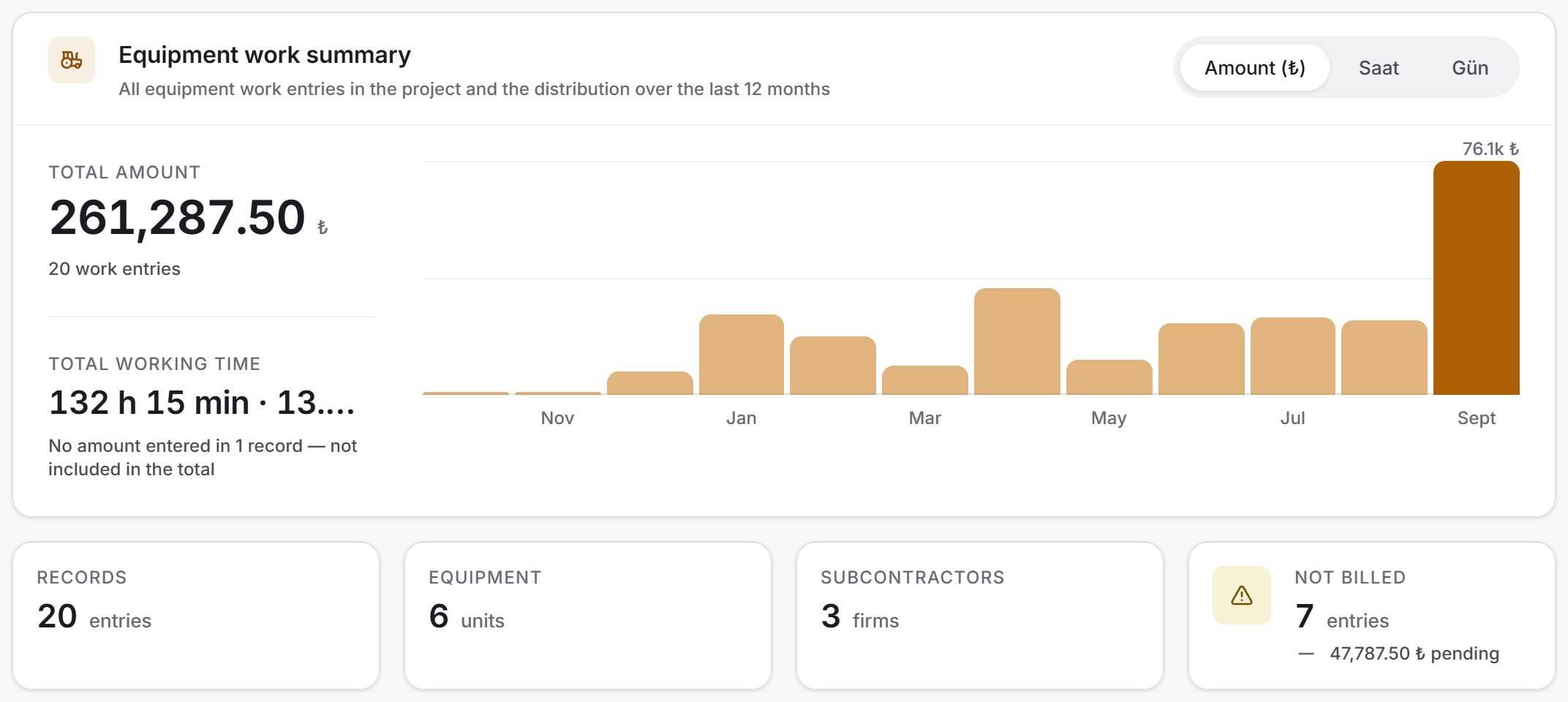
Two headline figures sit one above the other on the left of the card:
| Measure | What it shows |
|---|---|
| Total Amount | The cost of the entries that pass the filter. The record count is written underneath |
| Total Working Time | The total duration, separately per unit — such as 132 h 15 min · 13.5 gün |
The line under the second figure normally reads "Duration shown in the agreement's own unit"; if the filter contains entries with no amount, it gives way to the warning "No amount entered in N records — not included in the total".
The bar chart of the last twelve months sits on the right. The Chart measure switch at the top right changes what the chart draws. The first option is always Amount (₺); the options beside it come from the units in the data. If the project only has hourly machines you will see a single hour option; if there are daily agreements as well, a day option is added.
Four small measures are lined up below the card:
| Measure | What it shows |
|---|---|
| Records | The number of entries that pass the filter |
| Equipment | How many different machines worked |
| Subcontractors | How many different firms supplied machines |
| Not Billed | The number of entries not yet attached to a progress payment; the amount of those entries is written underneath |
The fourth tile is drawn on a yellow background when there are pending entries. It is drawn even when the count is zero: "everything has been billed" is also an answer worth reading.
Breakdown
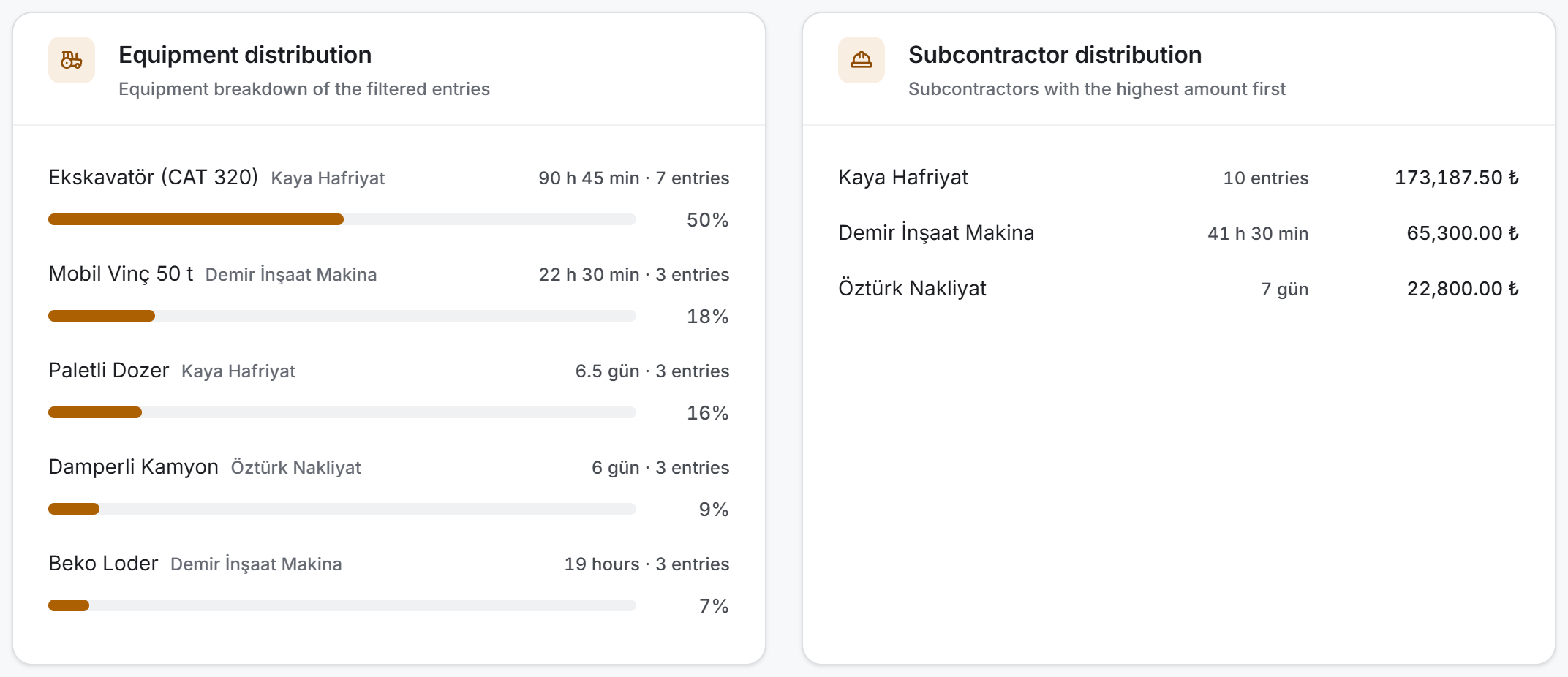
Two cards sit side by side and both are counted from the same rows:
- Equipment distribution — each machine's duration, entry count and percentage share. The share is shown as a bar; the card answers "what percentage of the cost is which machine". The firm that owns the machine is written next to its name in small type — Excavator appears at more than one firm on most projects and what tells them apart is the owner.
- Subcontractor distribution — how much work came from each firm and what amount it produced. The firm with the highest amount is at the top.
In the subcontractor card a firm may show an entry count instead of a duration: if one of that firm's machines is hired by the hour and another by the day, adding the two durations would be meaningless. A firm with no amount shows a dash rather than a zero.
Work entry list
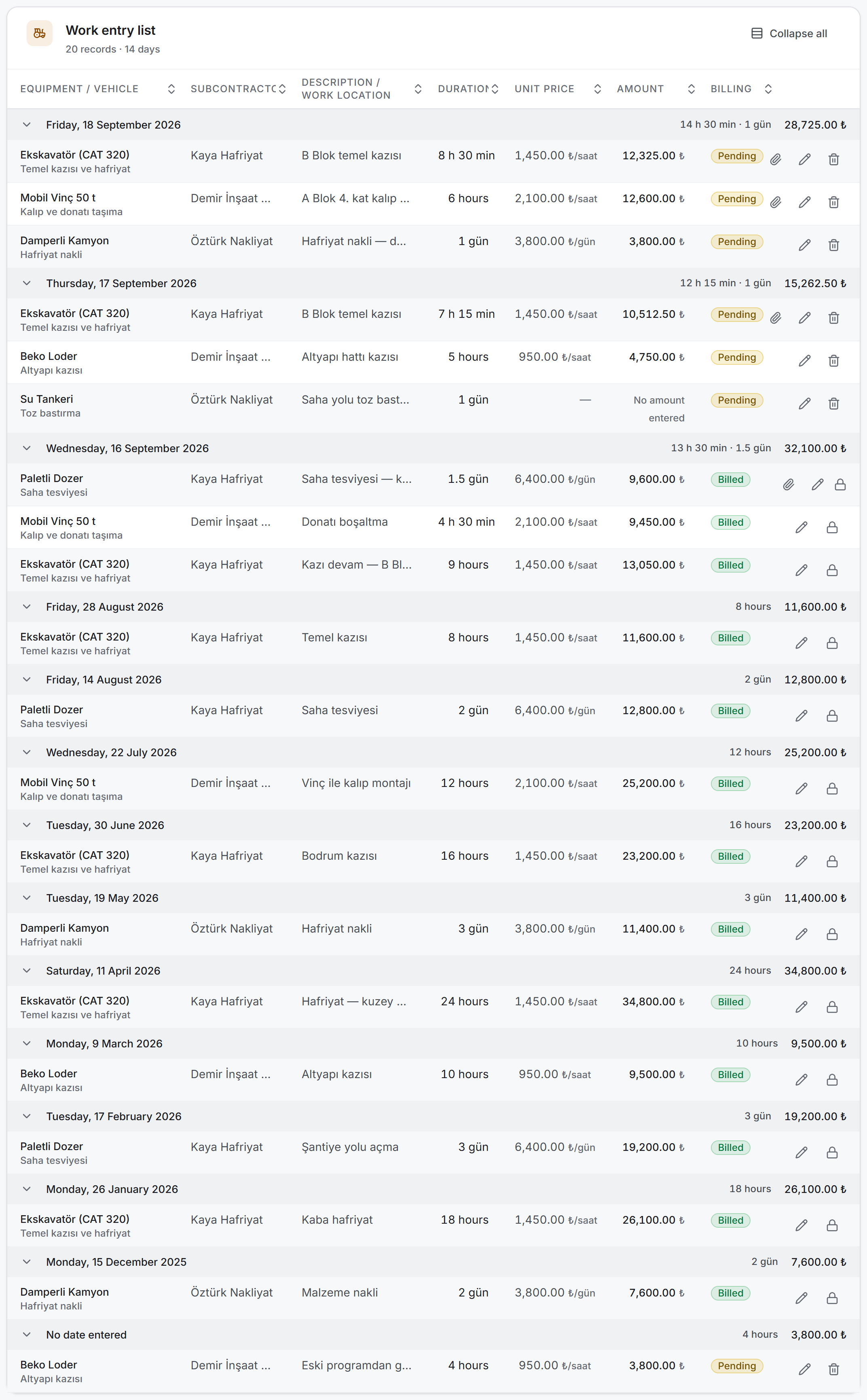
Rows are grouped by day. Each group heading is the full name of the day — Friday, 18 September 2026 — and the day's total duration and cost are written at the right-hand end of the heading row. The day name is not decoration: equipment hire is a cost tied directly to weekends and public holidays.
Days are ordered newest first; entries with no date entered are collected in their own group at the very bottom. Clicking a group heading closes that day, and the Collapse all button in the card header folds them all at once.
The columns, left to right:
| Column | What it holds |
|---|---|
| Equipment / vehicle | The machine's name — the identity of the row, written in bold. The agreement's scope of work appears underneath in small type |
| Subcontractor | The firm's name |
| Description / work location | What the machine did that day |
| Duration | The working time in its own unit — 8 h 30 min, or 1.5 gün where the agreement is not hourly |
| Unit price | This entry's own unit price, with the unit written underneath — ₺/saat, ₺/gün |
| Amount | The cost of the work; "No amount entered" if it has not been entered |
| Billing | A Billed (green) or Pending (yellow) badge |
The row's buttons sit in the right-hand column: a paperclip on entries that have a document (it opens the ticket), and, if you have edit permission, a pencil and a bin. On billed rows a padlock stands where the bin would be — that entry cannot be deleted.
You can sort by clicking the headings. Sorting works within the group: the order of the days is not disturbed, only that day's rows are rearranged. The duration column is sorted by the raw figure, so 10 hours and 2 hours end up in the right order.
Values that do not fit their column are shortened with an ellipsis. Hold the pointer over one for a moment and the full text appears; if you need to read all of it, every value is complete in the Excel export.
Empty screens
If the project has no entries at all, the filter bar, the summary strip and the breakdown cards are not drawn. A single card reading "No equipment work entries recorded in this project yet" stands on the screen, with a New entry button if you have permission.
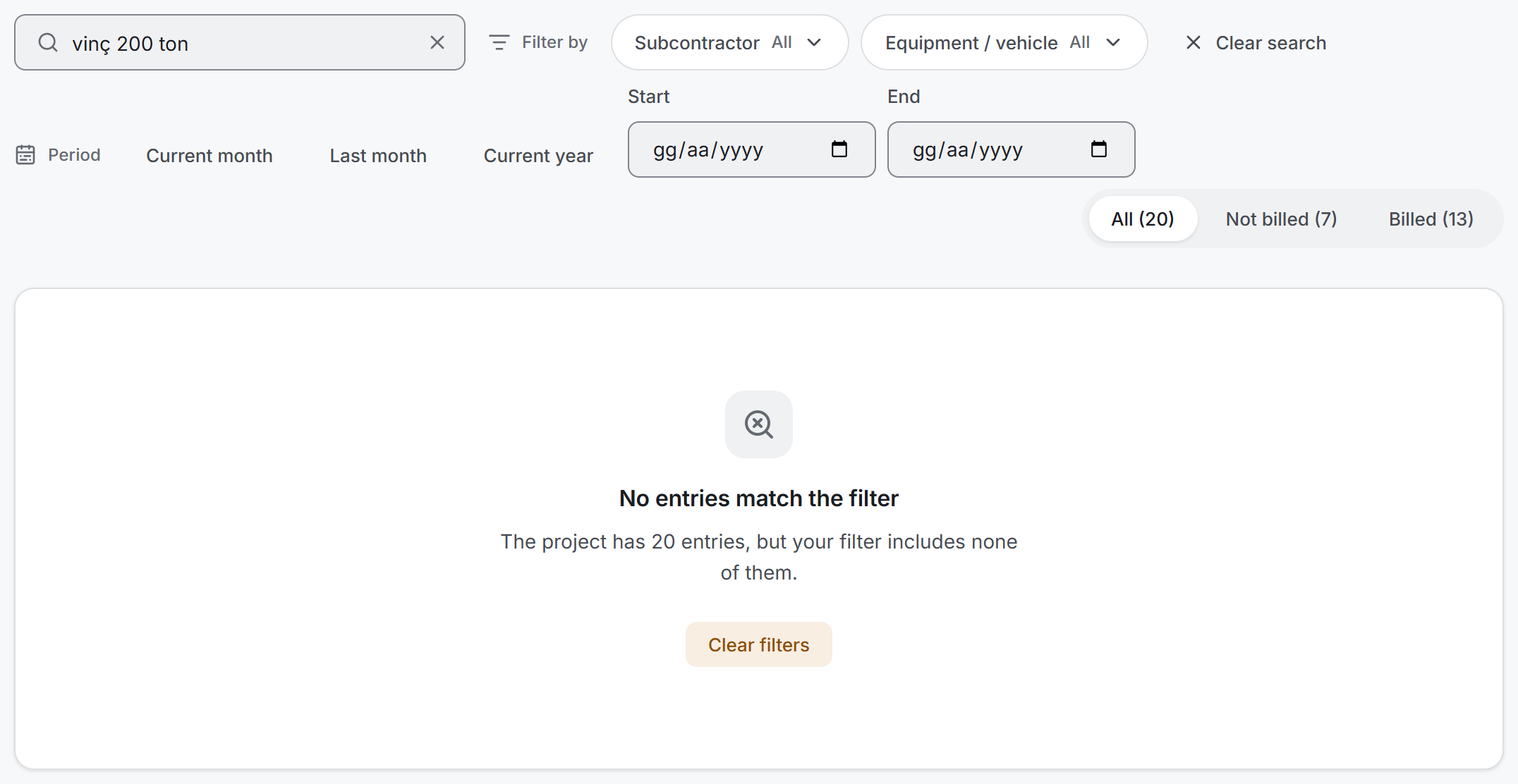
If there are records but the filter returns nothing, the filter bar stays in place, the summary and breakdown cards are not drawn, and in place of the table there is a single card telling you how many entries the project has, with a Clear filters button.
4. Fields
The information held in a work entry:
| Field | Description | Required |
|---|---|---|
| Subcontractor | The firm that owns the machine. Only firms with an equipment agreement are listed | Yes (a precondition for choosing the machine) |
| Equipment / vehicle | The firm's equipment agreement. The unit price and the unit come from it | Yes |
| Work date | The day the machine worked. The list and the reports are grouped by it. A new entry opens with today's date | Yes |
| Hours · Minutes | Two boxes appear if the agreement's unit is Saat (hour). Hours up to 999, minutes up to 59 | Yes (one of them must be filled) |
| Work quantity | A single box appears if the agreement's unit is not an hour, with the unit's name beside it | Yes |
| Description / work location | What the machine did that day — such as Foundation dig — Block B | No |
| Work tickets | PDF or photo. Up to five documents | No |
One value is not entered but calculated:
| Calculated | How it comes out |
|---|---|
| Amount | Working time × the agreement's unit price |
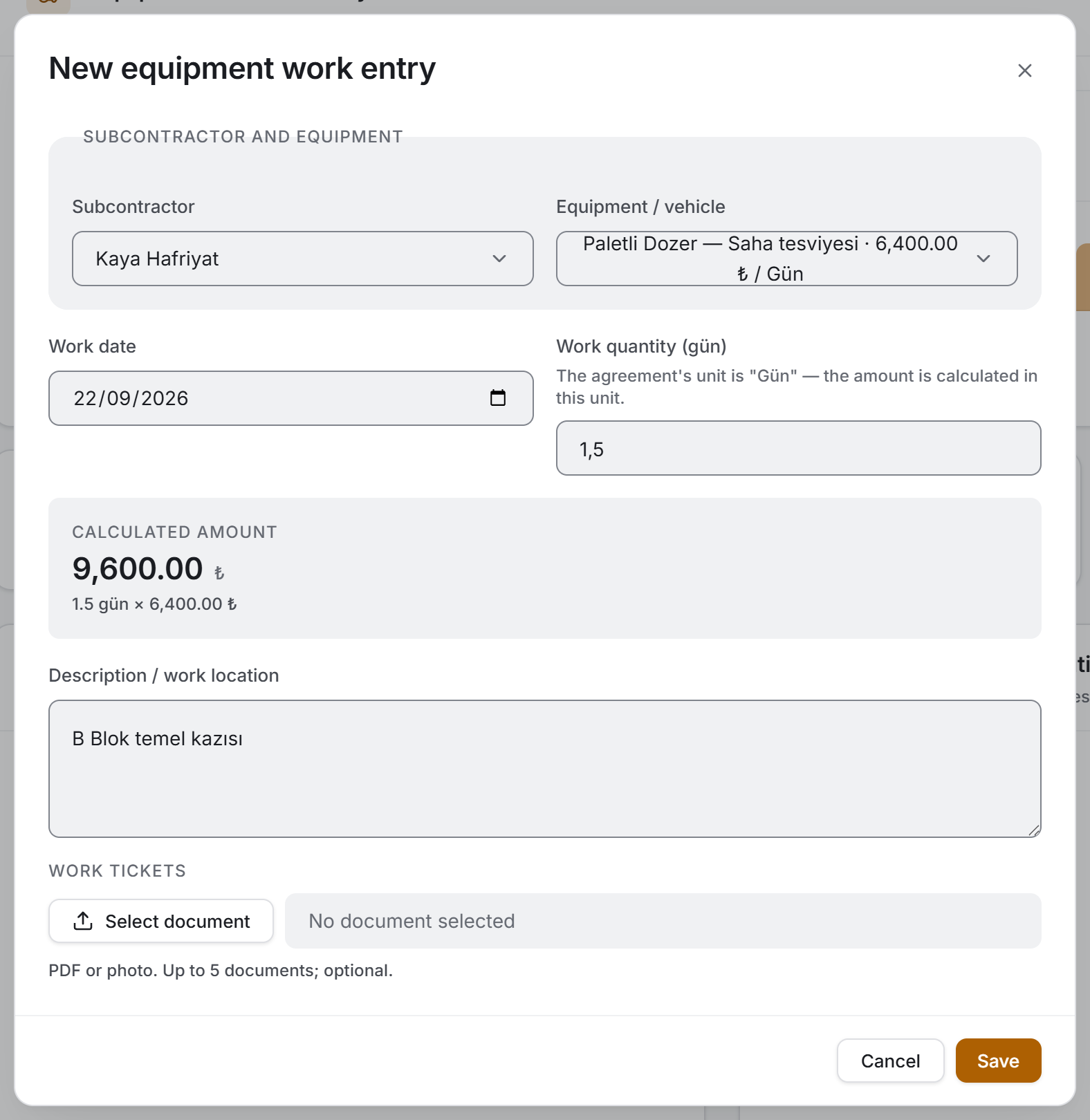
The amount appears in the form's Calculated amount box before you save. The arithmetic is written underneath: 1.5 days × ₺6,400.00.
5. Step by step
5.1 Recording a work entry
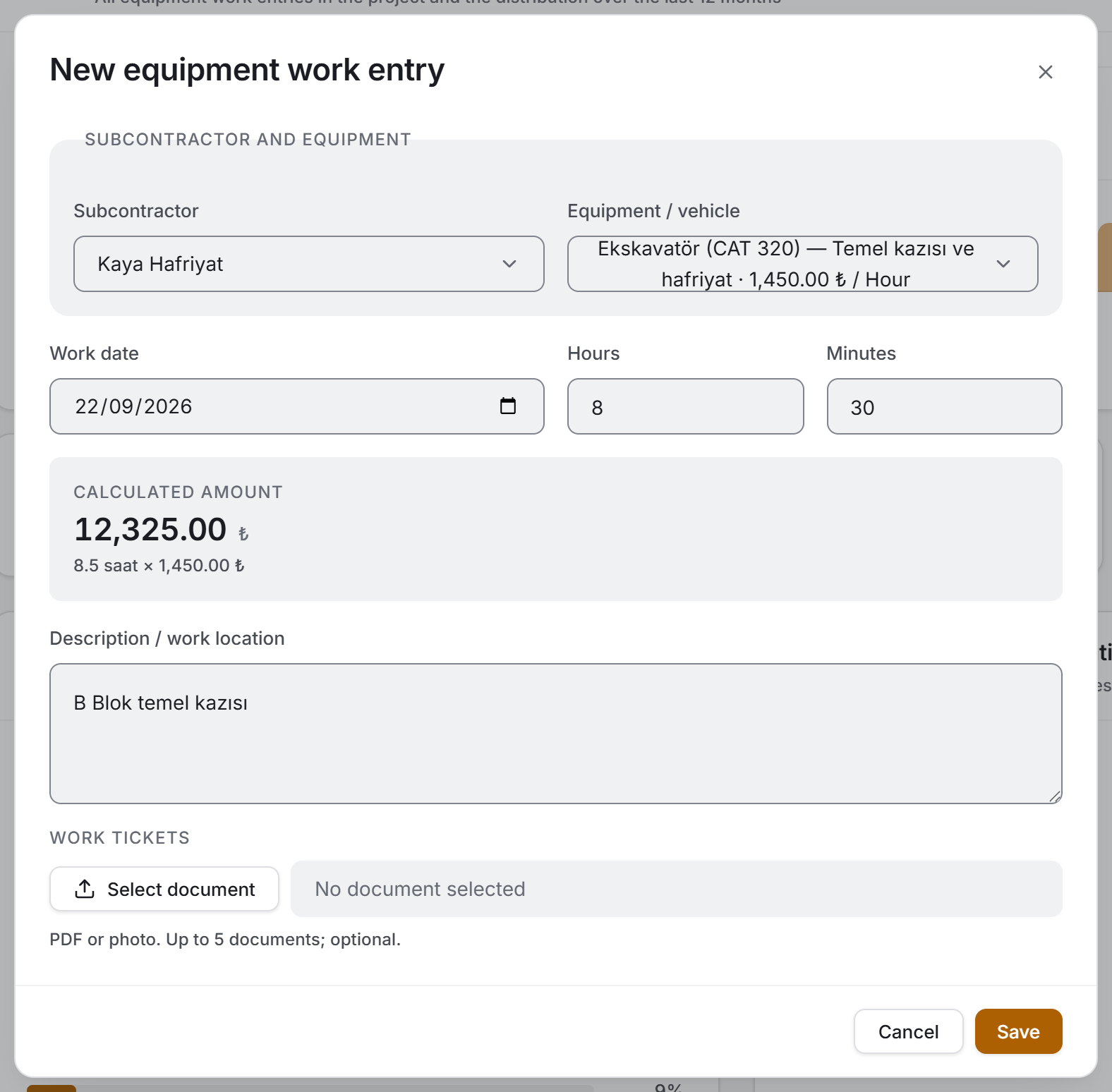
- Press the New entry button.
- In the Subcontractor and equipment section choose the firm first, then the agreement from the Equipment / vehicle box. The equipment box does not open until a subcontractor is chosen. Each machine in the list carries its scope of work and unit price: Ekskavatör (CAT 320) — Temel kazısı ve hafriyat · ₺1,450.00 / Saat.
- Work date opens with today's date; change it if the machine worked on another day.
- Enter the duration. If the agreement's unit is an hour, Hours and Minutes boxes appear; otherwise a single Work quantity box.
- Write what the machine did in the Description / work location field.
- Add a photo or a PDF of the ticket with the Select document button in the Work tickets field; after the first one the button becomes Add document and takes up to five.
- Press Save.
Three things are required: the equipment, the work date and the duration. Warnings only appear after you have pressed Save — seeing a red warning at first glance would be blaming you for a mistake you have not made yet.
5.2 How the amount is calculated
The amount is the duration you entered multiplied by the agreement's unit price, and it appears live in the box as you type. It is recalculated the moment you change the machine or the duration.
If the agreement you chose has no unit price, the box reads "The selected agreement has no unit price — the entry will be saved without an amount." The entry can still be saved; it appears in the list as "No amount entered" and does not count towards the totals. Once a price is written on the agreement, opening the entry and re-selecting the machine fills the amount in.
5.3 Adding and viewing a ticket
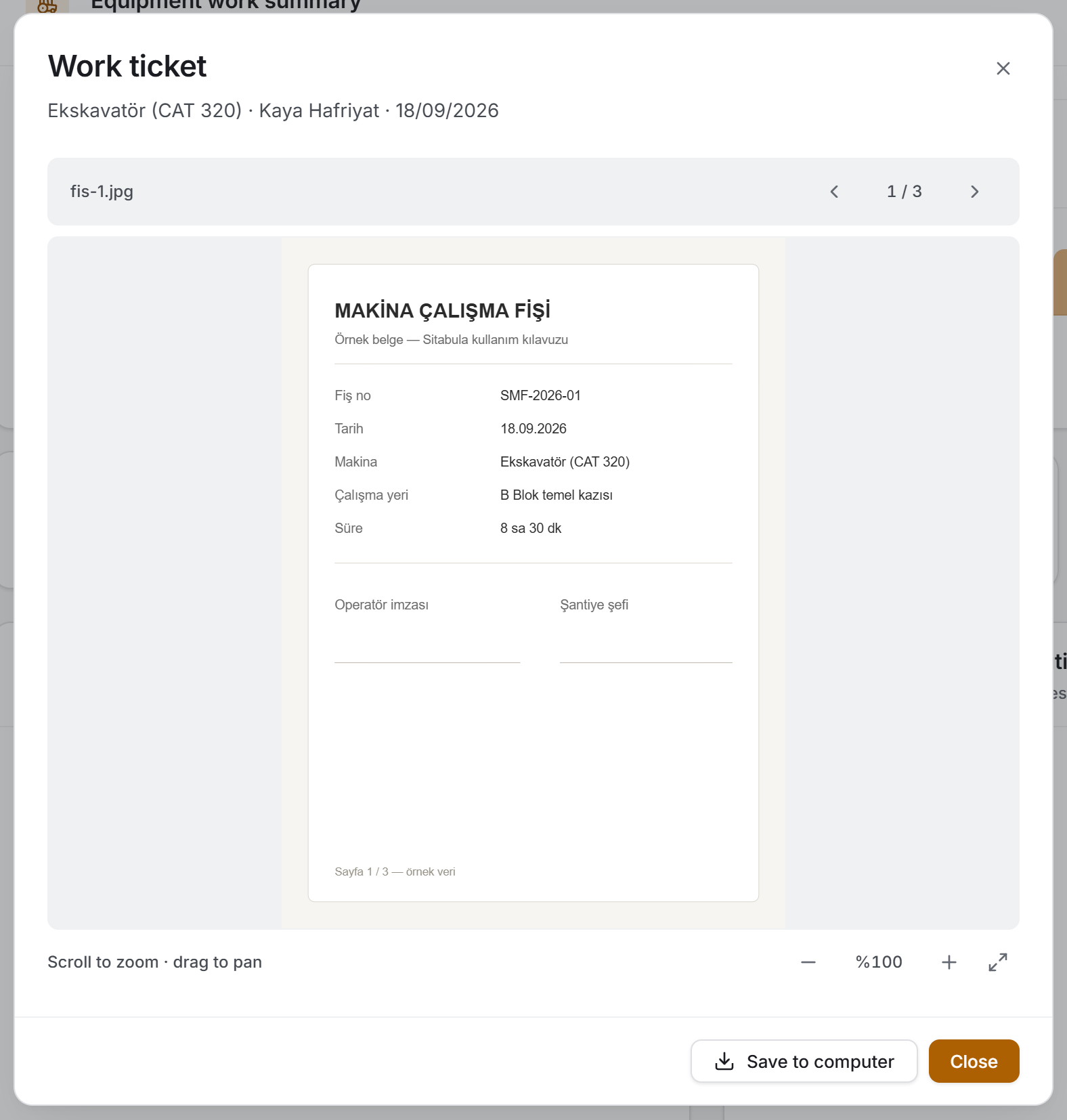
The document field accepts PDF, JPG, PNG and WEBP and an entry can hold up to five documents. Uploaded documents are listed by name inside the field, each with a Remove button beside it and an Add document button under the list. When five documents are reached Add document is disabled and "At most 5 documents can be added. Remove one before adding another" appears underneath.
A row with a document has a paperclip button at its end. Pressing it opens the document in a window:
- If it is a PDF, the window's own viewer opens it; zooming and printing come from there.
- If it is a photo, it is managed from the strip at the bottom of the window: the plus and minus buttons zoom, the ratio is written between them, the mouse wheel does the same job, and a zoomed image can be panned by dragging. The Fit button at the right-hand end of the strip puts the image back inside the window.
If there is more than one document, a counter in the form 1 / 3 and back-and-forward buttons appear at the top of the window; that is how you move between documents. The Save to computer button at the bottom downloads the document on screen.
5.4 Editing a work entry
Press the pencil button at the end of the row. The form opens with the saved values; change them and press Update.
If the saved equipment agreement has been deleted, the box holds an option reading "… (not in list)" and keeps it selected; opening and closing the entry does not delete its machine.
5.5 Editing a billed entry
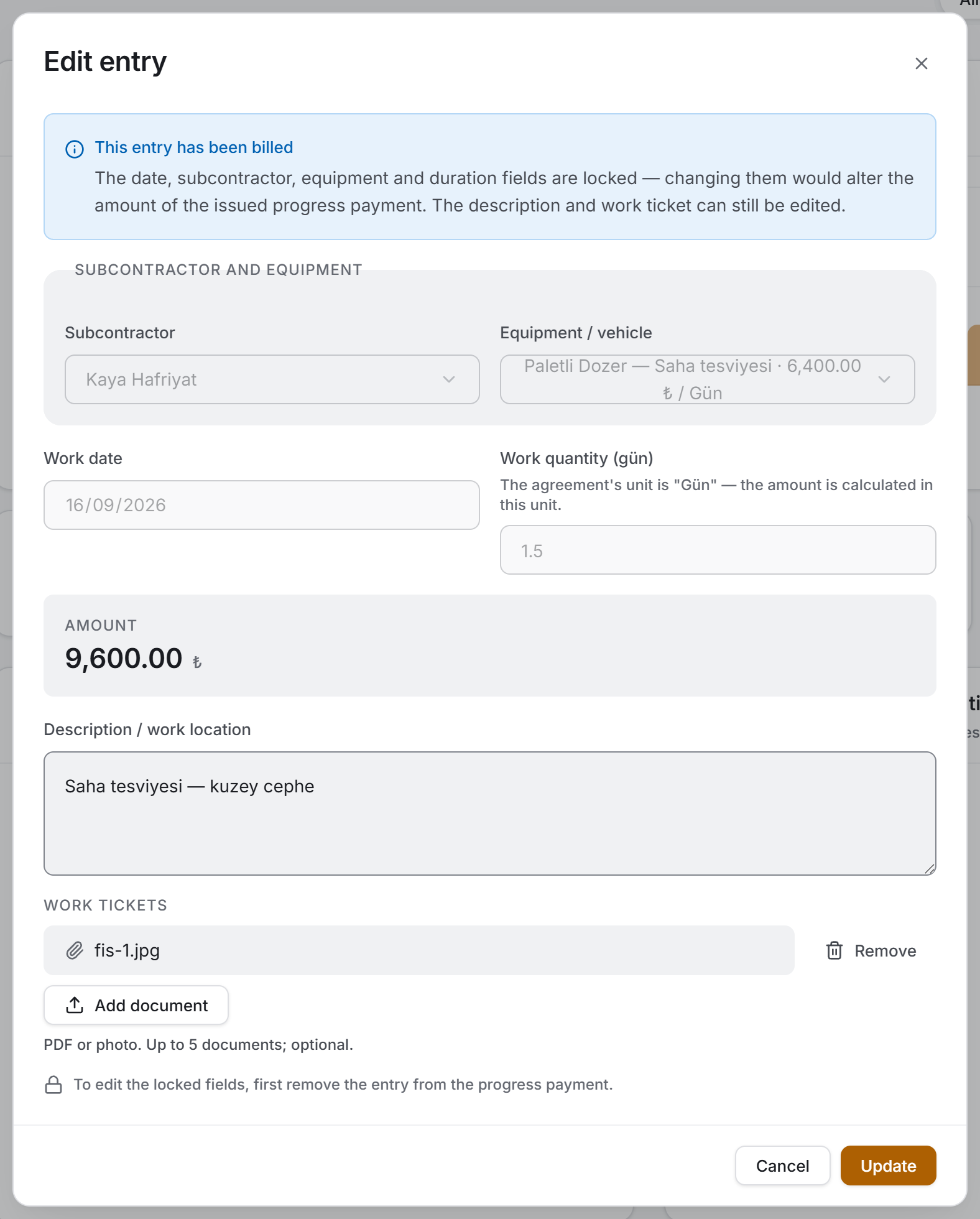
When a work entry is added to a progress payment, part of the record is locked. The form opens with a blue information strip reading "This entry has been billed."
| Field | State |
|---|---|
| Date, subcontractor, equipment, duration | Locked — changing them would alter the amount of the issued progress payment |
| Description, work tickets | Editable |
Leaving those two open is deliberate: the ticket usually arrives the day after the work and the description is corrected later; neither goes into the amount of the progress payment.
If you need to correct the locked fields, first remove the entry from the progress payment in the Progress Payments section; the lock opens then.
5.6 Deleting a work entry
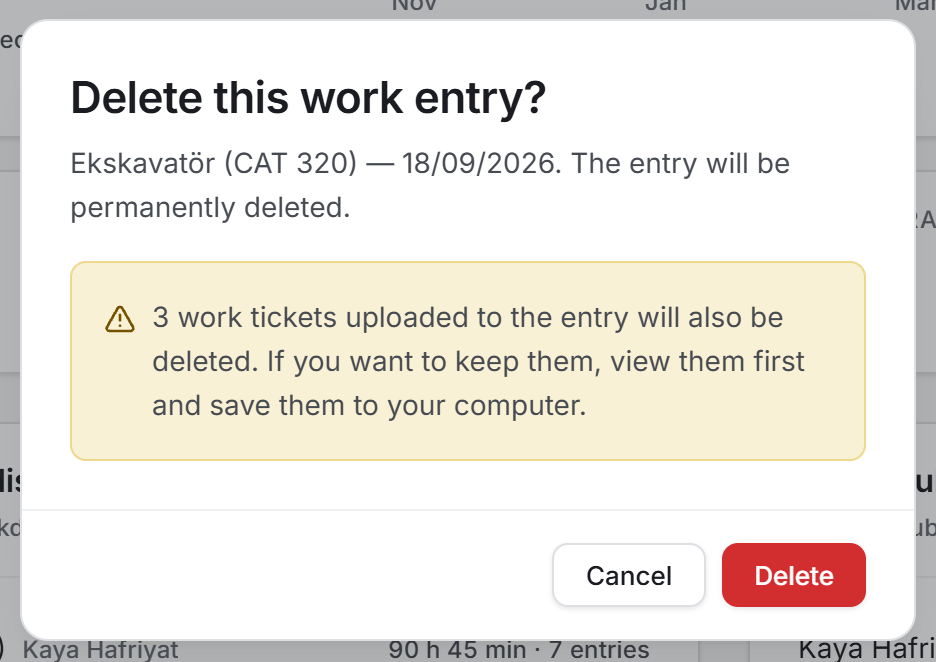
The bin button at the end of the row opens a confirmation screen. It states which entry will be deleted (the machine's name and the date).
A billed entry cannot be deleted. The bin button is not drawn on that row at all; a padlock stands in its place, and hovering over it reads "A billed entry cannot be deleted. Remove it from the progress payment first." The protection is deliberate: a deleted entry would leave the issued progress payment without a basis.
5.7 Seeing what will go into the progress payment
This is the most frequently used narrowing on the page and it is one click: choose Not billed from the Billing status switch at the right of the filter bar. The list, the summary strip, the chart and the two breakdown cards all narrow to those entries at once; the pending amount is already written in the bottom right tile of the strip.
Combining it with a period is useful too: Last month + Not billed gives you the equipment work entries that will go into last month's progress payment. An Excel export taken in that state can be sent straight to whoever prepares the payment — its header says which narrowing it was taken with.
5.8 Searching and narrowing
The Search entries box looks at the equipment name, the scope of work, the subcontractor name and the description at once. The search ignores Turkish diacritics: typing ekskavator finds Ekskavatör.
There are two ways of choosing a period. Current month, Last month and Current year are one click; a range such as 15 March – 2 April is entered from the two date boxes. If you fill in only one of the boxes there is no limit in the other direction.
6. Exports
There are two exports and both send out the list you see on the screen — whatever the filter is, that is what reaches the file. There is no separate export dialog; you have already made your decision in the filter bar.
File names start with Equipment_Tracking_ and a date–time stamp is appended. Nothing happens if you close the save dialog; when the file is saved, a strip appears at the top of the page with its full path.
Download Excel
The workbook carries eleven columns: Date · Subcontractor · Equipment / Vehicle · Scope of Work · Description · Duration · Unit · Unit Price · Amount · Billing · Documents.
A three-line header sits at the top: the project name; the report date, the record count, the total working time and the total amount; and a one-line summary of the filter applied. That last line matters — it is written so that a file taken with a subcontractor selected is not mistaken for the whole project when it is emailed. If there are entries with no amount, the header also carries a "No amount in N records" note, and if there are unbilled entries a "Not billed: N records / amount" note.
There is a GRAND TOTAL row at the end of the list and it totals only the amount column. A dash stands in the duration column: a project may hold hourly and daily agreements at the same time and totalling two units in one cell would be adding apples to oranges. The total working time is written separately per unit in the header line.
Three useful details: the heading row is frozen, so the column names stay on screen as you scroll down; the filter is switched on, so you can ask your own question; and the date and the duration, unit price and amount are real number cells — sortable, summable, ready for a pivot table. The duration column carries the raw figure (8.5) and the column beside it says what the unit is.
The Billing column is coloured: billed rows are written in green and pending ones in blue, so they can be scanned by eye in the file.
Download PDF
A landscape A4 list with eight columns. Of the Excel file's eleven, the scope of work has been moved under the equipment name, the unit has been merged into the duration, and the documents column has been dropped.
The first page carries the project name, the module name, the time of production and the filter summary; the total amount, the entry count and the total duration per unit stand at the top right. If there are pending and amountless entries, their lines are there too. From the second page a thin strip is repeated at the top, the column headings are rewritten on every page, and the page number is at the bottom. The last row is the total row and is separated by the heavy rule above it; as in Excel, the duration column is not totalled here either.
7. Things worth knowing
Durations are totalled per unit, not reduced to a single figure. On one project the excavator may be hired by the hour and the truck by the day. The screen reads "132 h 15 min · 13.5 days"; the two figures stand apart because adding them would produce a number that is the counterpart of nothing. For the same reason the duration column is not totalled in the total row of either export.
The shape of the duration field comes from the agreement. For the hours and minutes boxes to appear, the agreement's unit must read Saat. With any other unit (Gün, Sefer, Ton) a single quantity box appears and the value is entered in that unit. Unit names appear exactly as they were written on the agreement; the application does not translate them, because they are values you typed.
An entry with no amount does not count towards the totals. Such an entry is not treated as zero and added in; the table reads "No amount entered", it is counted in the summary strip, "No amount entered — not included in the share" stands in place of its bar in the breakdown card, and a note is added to the header of both exports.
The unit price in the table is the entry's own price. It is not the agreement's price today but that entry's amount divided by its duration. A work entry may have been recorded two years ago at a different price, and showing the agreement's price of today on that row would be writing a figure that does not explain the row's amount.
The price stays on the record and is not recalculated from the agreement. If an agreement's unit price changes later, the amounts of past entries do not change. That is the right behaviour: the work was done, and it was done at that day's price. The new price only applies to entries recorded from then on.
Nothing is written directly to Current Accounts. An equipment work entry reaches the ledger through a progress payment: the entry is saved, it is added to a progress payment, and the ledger transaction is created when that payment is issued. Do not look for a ledger transfer strip or a "resend" button on this page — there is none.
Billed entries are protected. They cannot be deleted and their money and duration fields cannot be edited. The only way to do either is to remove the entry from the progress payment first. This is a protection the old program did not have: there, a billed entry could be deleted without warning and the issued progress payment was left short.
The equipment name is read from the agreement. The Equipment / vehicle value in the list is the agreement's machine type, or its scope of work if that is empty. An entry whose agreement has been deleted reads "Deleted agreement", and an entry whose machine was never chosen reads "No equipment selected" — two different situations.
The subcontractor and agreement lists come from the Subcontractors module. If a firm is missing from the dropdown, or a machine does not appear, an agreement of the equipment type has to be defined there first.
The search hint is incomplete. The hint inside the box names three fields; the search also looks at the scope of work.
8. Related chapters
- Subcontractors — the firms supplying the machines and the equipment agreements the price comes from are defined there. There must be at least one agreement before this page can work.
- Progress Payments — unbilled equipment work entries are selected there as line items, and the ledger transaction is created there too.
- Current Accounts — the subcontractor's receivable lands in the ledger after the progress payment is issued.
- Finance Panel — the project's equipment cost is collected there together with the other cost items.
- Overview — equipment work also appears as an item in the project's summary.