
Finance Panel
The Finance Panel is the page that gathers everything the project has cost so far onto a single screen.
1. What it is for
The Finance Panel is the page that gathers everything the project has cost so far onto a single screen. It brings issued progress payments, purchased materials and poured concrete onto the same scale; it shows how much has been paid to each firm, how the money is spread across the months, and the open load still ahead of you.
The page keeps no records of its own. Every figure here is calculated from records entered in other chapters; the Finance Panel adds them up, breaks them down and turns them into a report. There is no add, edit or delete button.
The page answers these questions: what have we spent on this project in total, what have we spent this year, where did the money go, which firm did we pay the most, which month was expensive and how much ordered material is still undelivered.
2. How to open it, who can see it
In the sidebar: Management & Finance › Finance Panel.
| Your permission | What you can do |
|---|---|
| View | You see the whole page, use the filters, open the detail panels and take all three exports |
| Edit | The same. Since nothing is written on this page, edit permission has no additional effect |
| No permission | The module appears dimmed and locked in the menu |
3. Anatomy of the screen
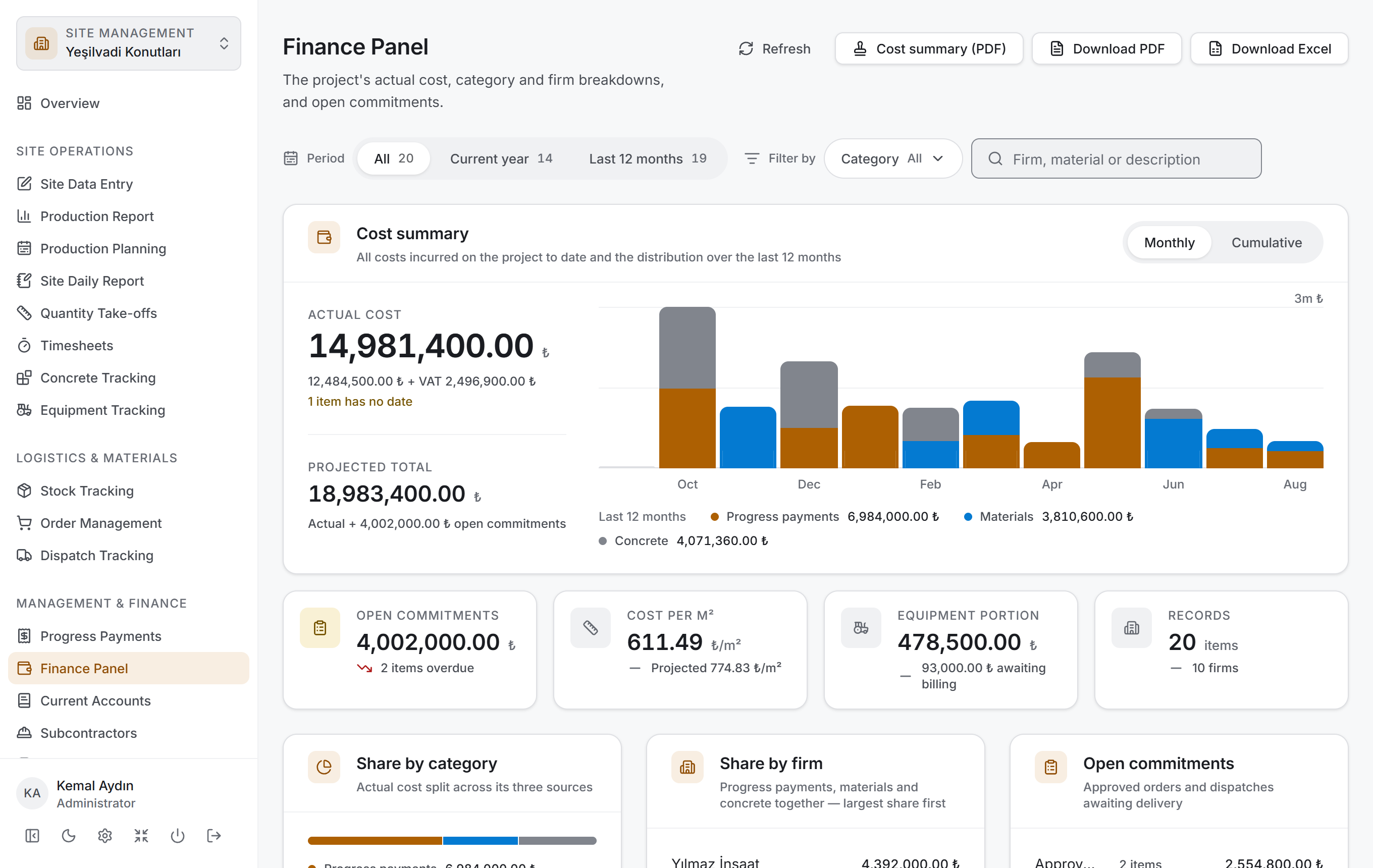
From top to bottom the page has four layers and follows the same order as Concrete Tracking, Stock Tracking, Order Management, Dispatch Tracking and Progress Payments: first you narrow down, then you read the result as a number, then you look at its breakdown, and finally you go down to the rows. There is a fifth layer as well: the detail panel that opens when you click a row.
| Layer | What it does |
|---|---|
| Control bar | Period, category filter and search |
| Cost summary | Two main amounts, the chart of the last twelve months, four small measures |
| Breakdown | Share by category, share by firm and open commitments |
| Details | A single table whose view changes |
| Detail panel | One row's header figures, monthly distribution and items |
All four layers are fed by the same items. When you change a filter all four change at once and no request goes to the server — the project data was downloaded once when the page opened.
Title and actions. The title shows Finance Panel and the description "The project's actual cost, category and firm breakdowns, and open commitments." On the right are Refresh, Cost summary (PDF), Download PDF and Download Excel.
Control bar

It is a single row. On the left a three-part selector labelled Period, in the middle the Category filter labelled Filter by, on the right the Search items box. When a filter is active a Clear button appears; with no filter it is not drawn.
| Control | What it does |
|---|---|
| All | Every record in the project. This is the selection on opening |
| Current year | From 1 January to today. Records before the turn of the year are dropped |
| Last 12 months | Twelve months including the current one; it starts on the first day of the eleventh month back |
| Category | Three options: Progress payments, Materials, Concrete. More than one can be selected |
| Search items | Searches the firm name, item name and description |
Each of the three period slices and each of the three categories carries a number beside it; it says how many items would remain if that selection were made. The period selector has no upper bound — a record dated in the future is never hidden.
Cost summary
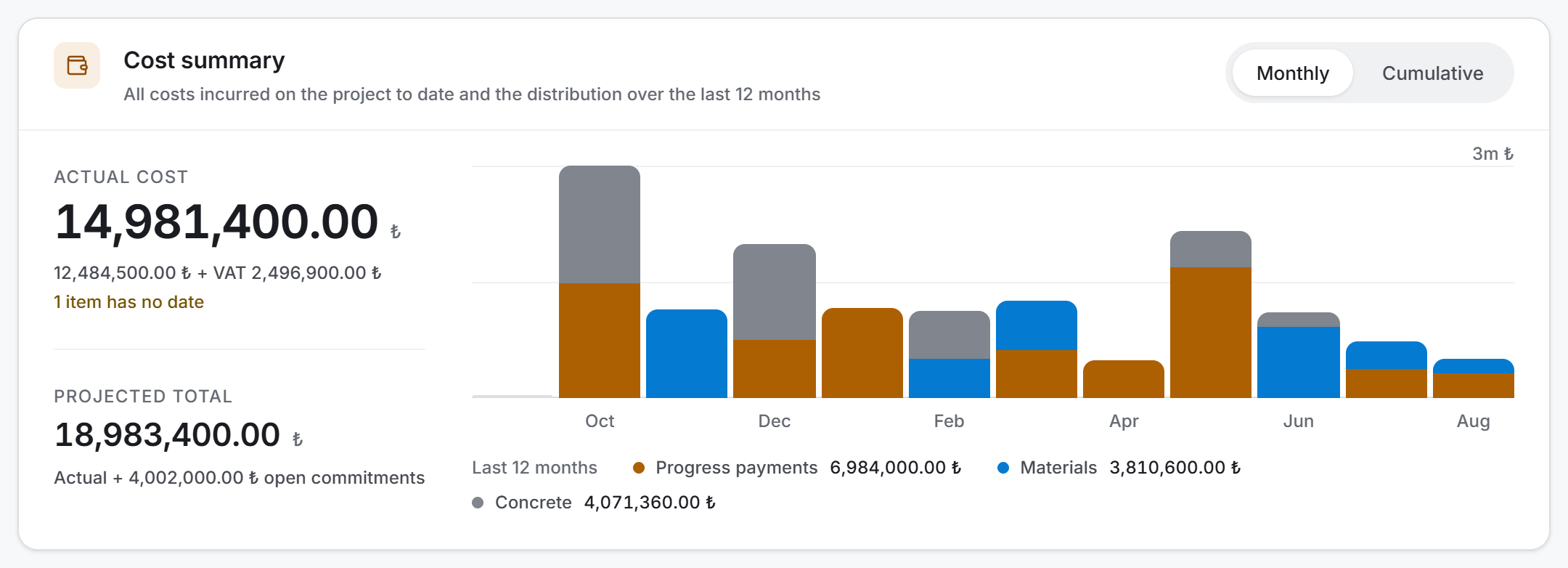
Two amounts sit one below the other on the left of the card:
- Actual Cost — the main measure of the page, VAT included. The line below splits the same figure as "{net amount} + VAT {vat}". If there are records with no date entered, their number is written here too, in an amber line.
- Projected Total — the actual cost with the open commitments added. Below it either "Actual + {amount} open commitments" or "No open commitments — same as actual" is written.
When a filter is active a line such as "14 items in the selected filter · 20 in the project in total" appears under the card title; with no filter the card's own description stands there.
On the right is the column chart of the last twelve months. Each column is split into three colours: progress payments, materials and concrete. The two-part selector at the top right of the card changes the measure of the chart:
| Measure | What it shows |
|---|---|
| Monthly | Each month's own spending. The answer to "which month was expensive" |
| Cumulative | The months added up as they accumulate. The answer to "how did the cost build up" |
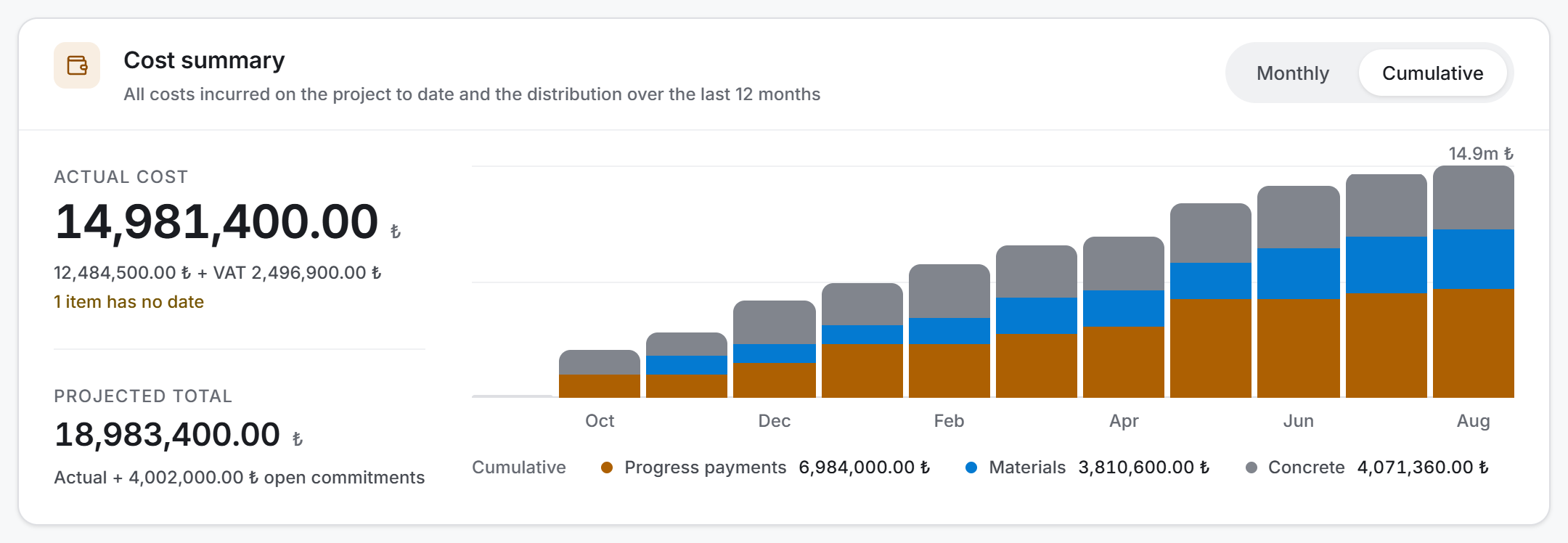
The twelve months of the chart come from the calendar: a month with no records stands as an empty column, it is not skipped. In cumulative mode the legend writes the accumulated amount of the last month, not the sum of the months.
The four measure tiles

Four small tiles sit below the chart.
| Tile | What it says |
|---|---|
| Open Commitments | The expected amount of orders and dispatches not yet received. The line below says how many open items there are and, if any are late, how many are overdue. While something is overdue the tile turns amber |
| Cost per m² | The actual cost divided by the construction area. The line below shows the area; if no area is entered the tile shows — |
| Equipment Portion | The amount of equipment work that has entered a progress payment (excl. VAT). The line below says "Within progress payments, not added again" or, if work is pending, "{amount} awaiting billing" |
| Records | The number of items in the filter; below it, how many firms they come from |
Breakdown cards
Three cards stand side by side and each asks a different question.
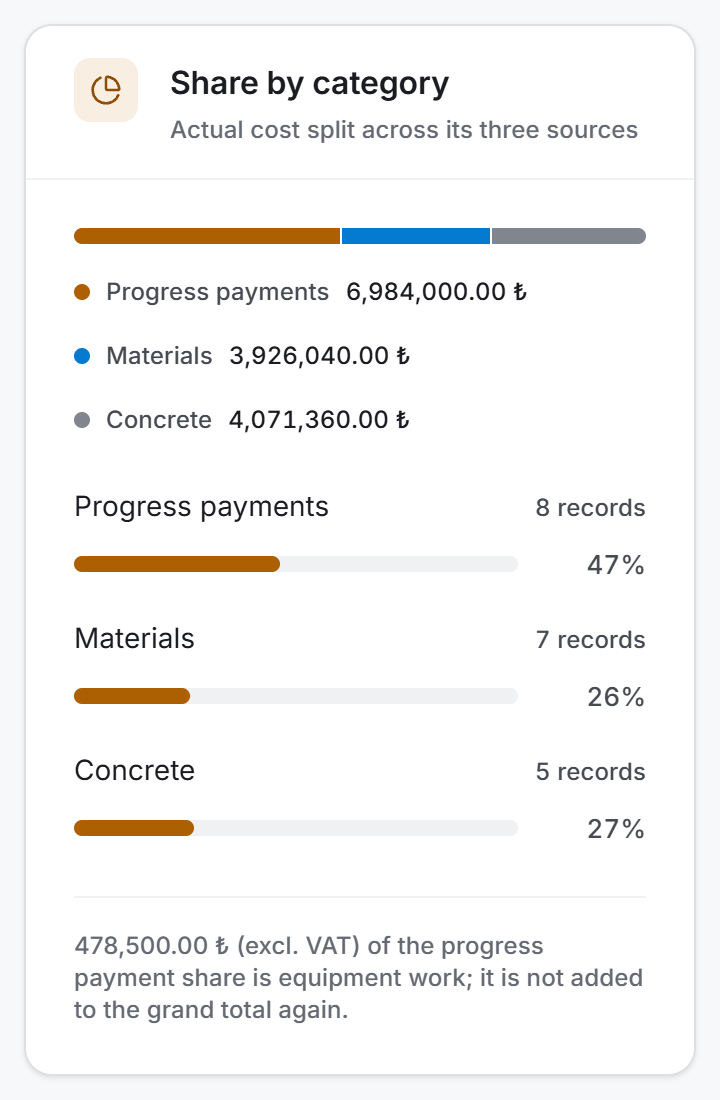
Share by category. A single three-colour bar with three rows below it. The rows do not write the amount — the legend of the bar already says it; what the row carries is the record count and the share bar. If there is equipment work inside a progress payment, a note at the bottom of the card says that the amount is within the progress payment share and is not added to the grand total again.
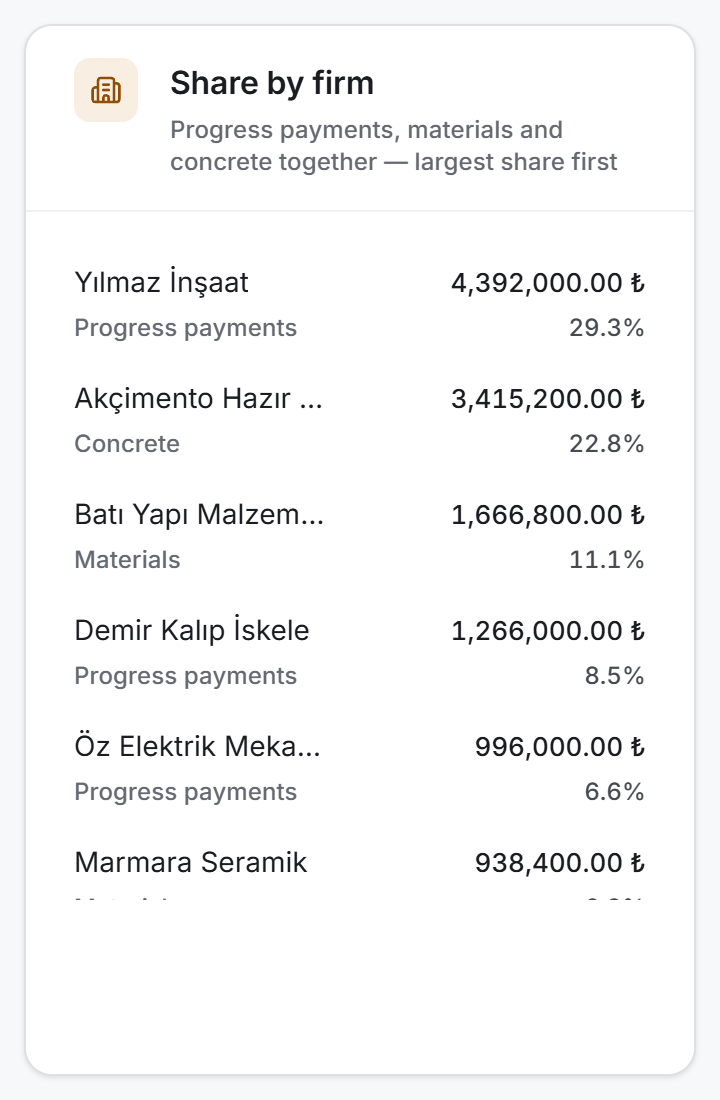
Share by firm. Progress payments, materials and concrete are counted together; if both concrete was bought from a firm and a progress payment was issued to it, the two are added up in one row and the sources are listed underneath. The list shows the top eight firms.
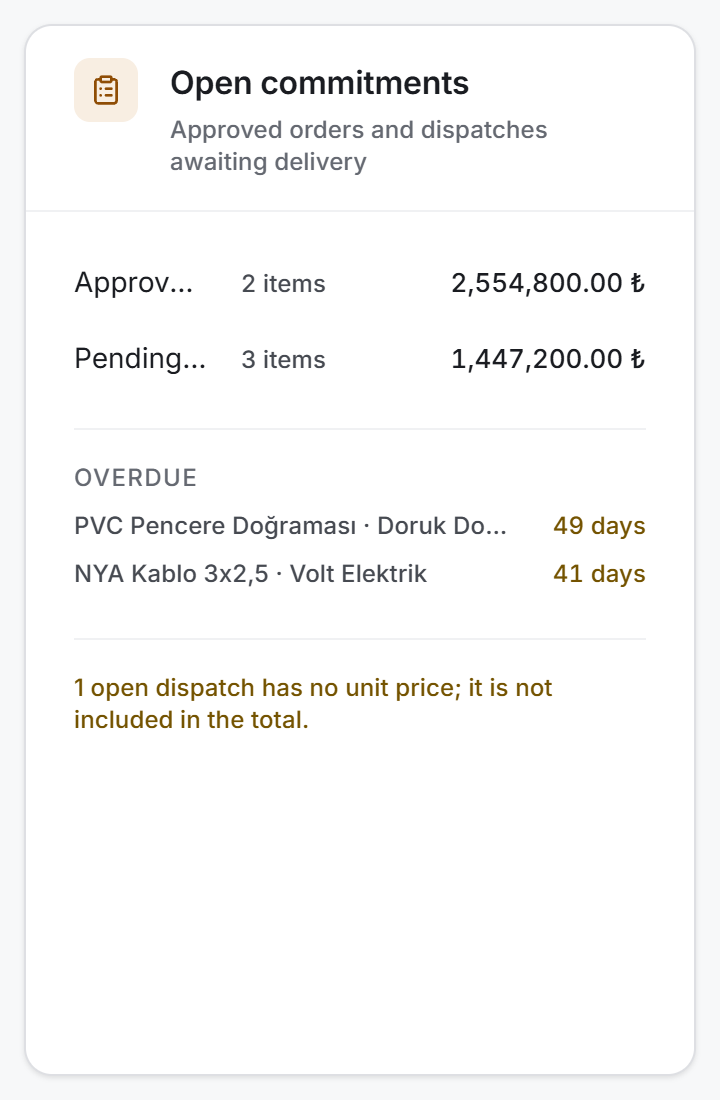
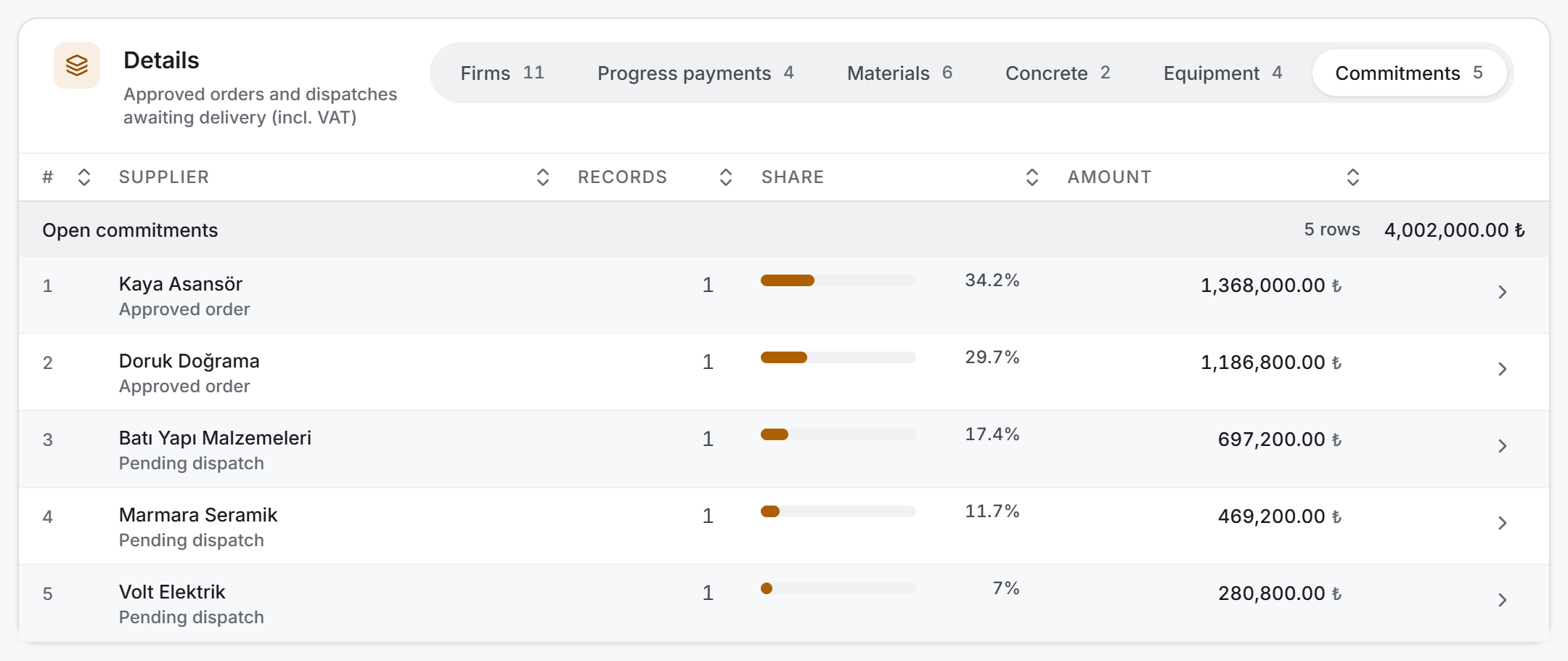
Open commitments. First the source totals (Approved order and Pending dispatch), then the four most overdue items under the Overdue heading. If there are more than four, the line below says how many more there are and that all of them are in the Commitments view of the details table. If an open dispatch has no unit price, its number is stated at the very bottom in an amber line.
Details
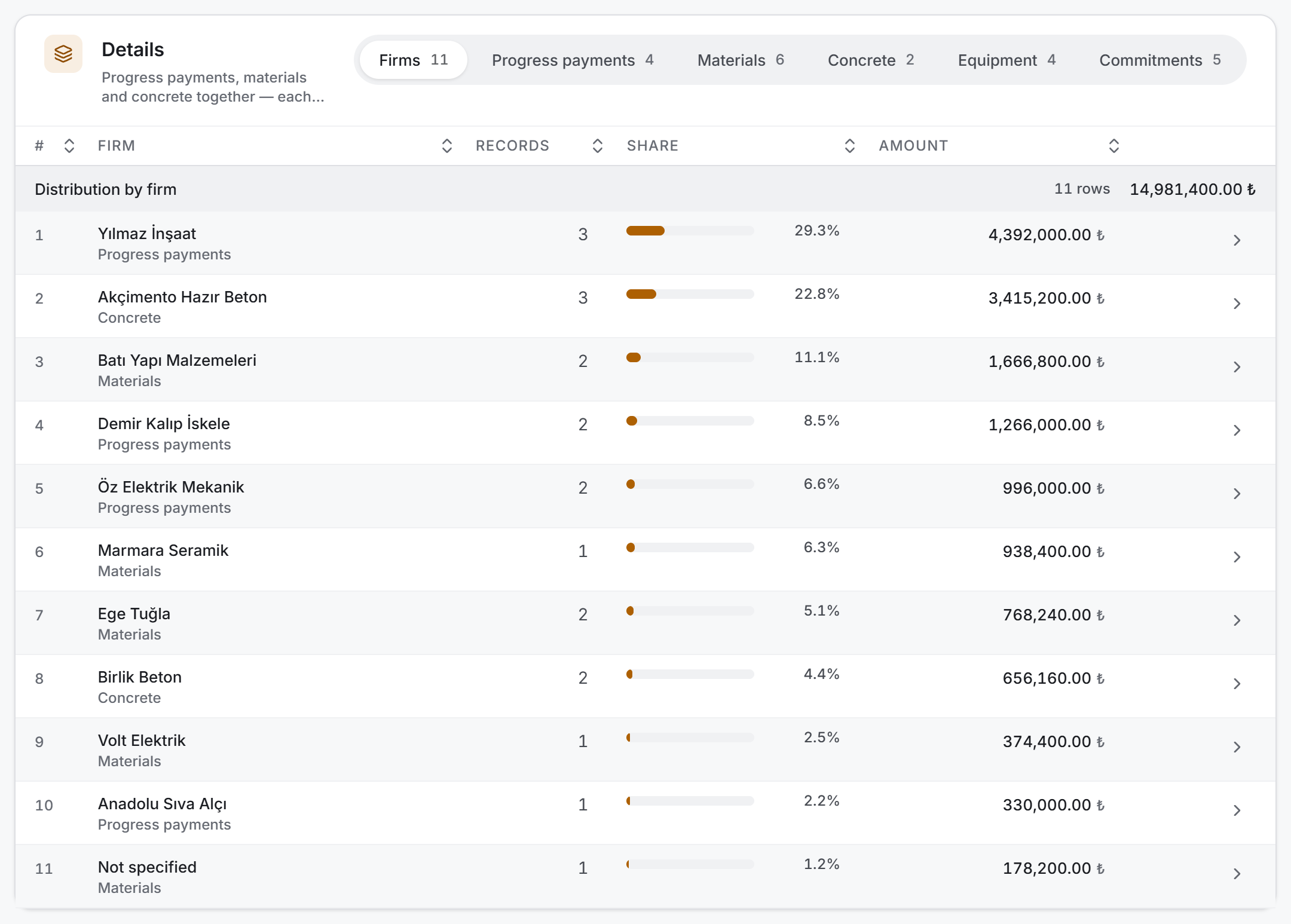
The real output of the page is a single table, and its view is changed with the six-part selector at the top right. The number beside each slice says how many rows that view has.
| View | How the rows are grouped | Name column |
|---|---|---|
| Firms | By counterparty; all three categories together | Firm |
| Progress payments | Progress payments only, by subcontractor | Subcontractor |
| Materials | Material purchases only, by material name | Material |
| Concrete | Concrete pours only, by firm | Firm |
| Equipment | All equipment work, by machine | Equipment |
| Commitments | Open orders and dispatches, by supplier | Supplier |
The table has six columns: # (rank), the name, Records, Share, Amount and the arrow that opens the row. The rank is fixed by amount — "1" is the row with the largest share. Clicking the column headers changes the sorting.
To the right of the group heading stand the row count and the total of that view. In the Equipment and Commitments views this total differs from the Actual Cost above; the reason is written in the table's description line.
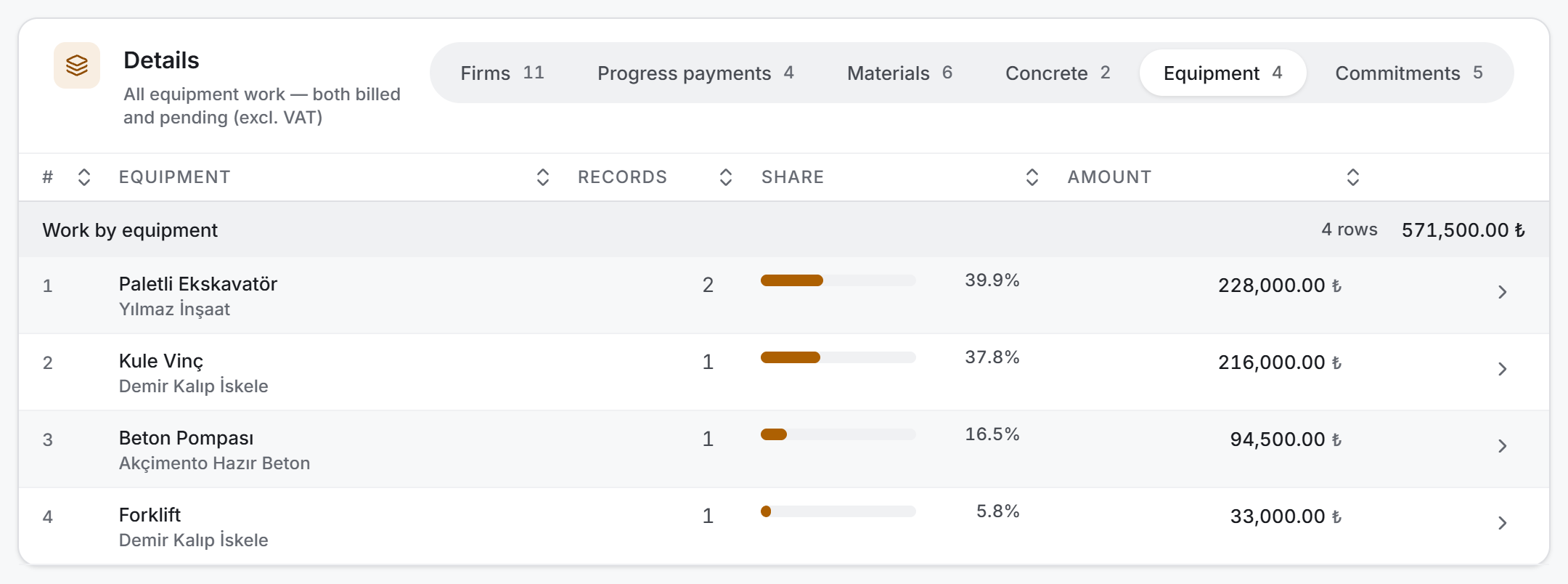
The second line under the name changes with the view: categories for firms, the subcontractor name for equipment, the source for commitments (Approved order · Pending dispatch), and the record count for progress payments and concrete.
The total of the Equipment view can be larger than the Equipment Portion tile above: the tile counts only work that has entered a progress payment, while the table shows both and separates them with a badge in the panel.
Detail panel
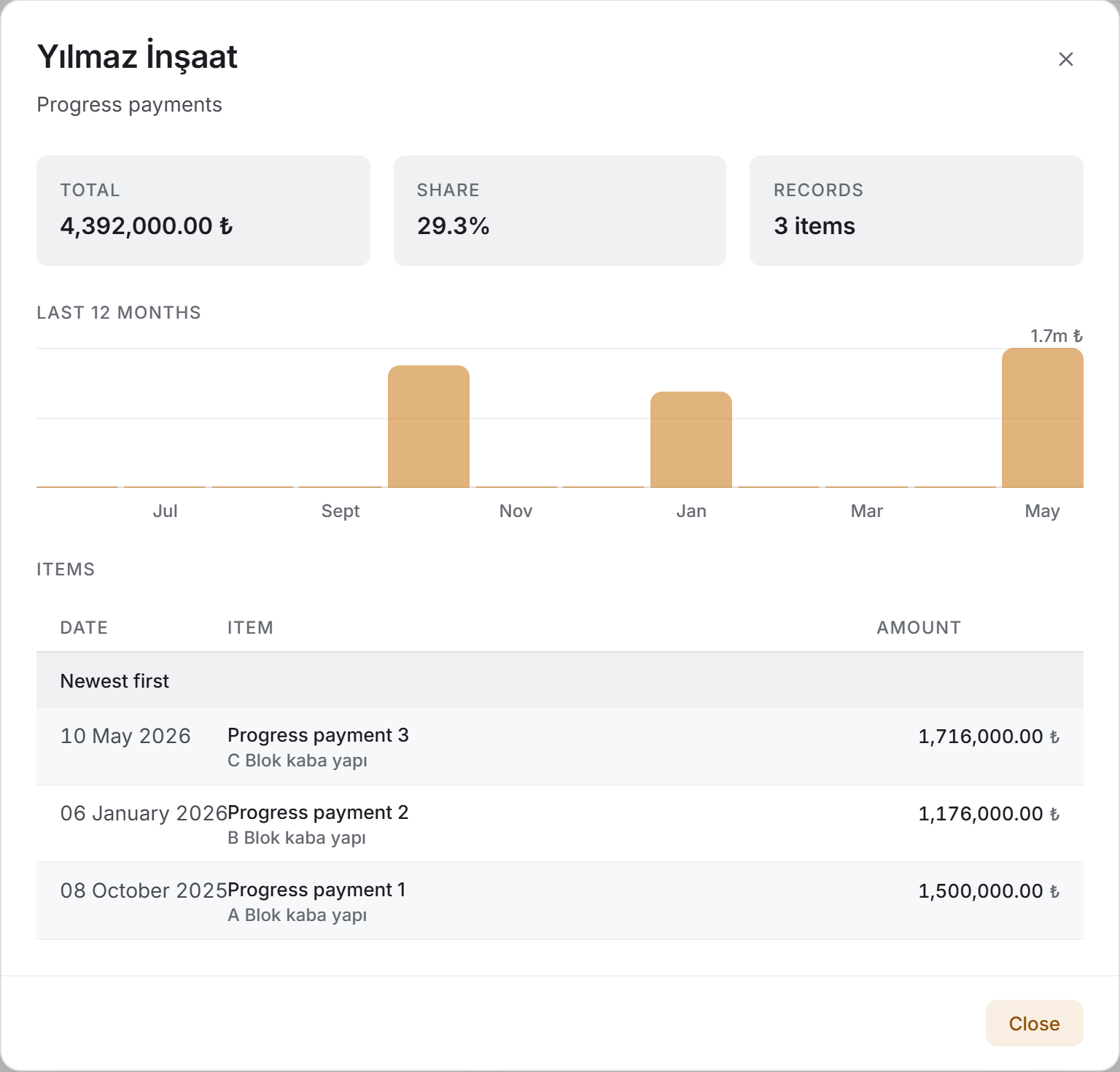
This is the window that opens when you press the arrow on the right of a row. It has three parts:
- Header figures — Total, Share and Records. All three come from the table; the panel does not recalculate them.
- Last 12 months — that row's own monthly distribution. The months again come from the calendar and the series is aligned to the row's most recent record. If there are items with no date, their number is written below the chart.
- Items — the individual records that make up the row, sorted newest first. Columns: Date, Item, (in views that carry a badge) Status and Amount. The list is paged twenty-five rows at a time.
There is no edit or delete button in the panel. To change a record, go to the chapter the record belongs to.
4. Fields
There is no field to fill in on this page; the table below says what the measures read on the screen mean and how they are calculated.
| Measure | What it means | How it is calculated |
|---|---|---|
| Actual Cost | Everything the project has cost to date, VAT included | The total of the three categories |
| Net amount | The same figure without VAT | The net amounts of the items are added up |
| VAT | The VAT part of the same figure | The VAT of the items is added up |
| Progress payments | Progress payments issued to subcontractors | Each payment's amount as written in the record + its VAT |
| Materials | Purchased material | Only Manual Entry and Dispatch Delivery movements, VAT included |
| Concrete | Poured concrete | The grand total of the concrete records |
| Open Commitments | Load that has not yet turned into cost, VAT included | The whole of approved orders with no dispatch card opened + the remaining quantity × unit price of open dispatches |
| Projected Total | The project's visible total load | Actual Cost + Open Commitments |
| Cost per m² | The cost per square metre | Actual Cost ÷ construction area |
| Equipment Portion | Equipment work inside a progress payment, excl. VAT | The amount of work linked to a progress payment |
| Equipment awaiting billing | Work done but not linked to any progress payment, excl. VAT | The amount of work not linked to a progress payment |
| Share | A row's share | The row's amount ÷ the total of that view; on the breakdown cards ÷ the actual total |
| Records | The number of items in the filter | — |
| Firm | How many separate firms were worked with | The Not specified bucket is not counted |
What enters a category and what does not
| Source | Does it enter the cost |
|---|---|
| An issued progress payment | ✔ Yes (VAT included) |
| A manual entry in stock | ✔ Yes |
| A dispatch delivery in stock | ✔ Yes |
| Site issue, transfer, count adjustment | ✘ No — these are not money coming into the project |
| A concrete pour | ✔ Yes |
| Equipment work | ✘ Not separately — it is already billed as a progress payment item |
| Approved order, open dispatch | ✘ Not in the cost; counted separately as a commitment |
Records with no counterparty
Records with no subcontractor or supplier selected are gathered into a single row named Not specified and are not counted as a firm. This is why the firm count in the Records tile can be one less than the number of rows in the Firms view. A deleted subcontractor, or one whose name was left blank, does not fall into this bucket — it stands in its own row as Deleted subcontractor or Untitled subcontractor.
5. Step by step
5.1 Choosing a period
- Press Current year or Last 12 months on the control bar.
- The cost summary, the breakdown cards and the details table narrow together.
- The Open Commitments tile does not change. Commitments look forward; the period of "what did we spend this year" is not the same as that of "what is ahead of us".
- All takes you back.
5.2 Narrowing by category
- Open the Category filter.
- Tick Progress payments, Materials or Concrete as you need.
- Items outside the chosen category are dropped; the numbers beside the detail views change accordingly. With only Concrete selected no rows remain in the Progress payments view and the table says so in a sentence.
- The Equipment Portion tile is not affected by this filter: equipment is not a category but an item inside a progress payment.
5.3 Searching
- Type part of a firm name, a material name or a description into Search items.
- The list narrows as you type. The search respects Turkish letters: typing yilmaz finds Yılmaz İnşaat.
- The search narrows the open commitments list too — type a supplier name and you also see that firm's open load.
5.4 Reading the chart
- Choose Monthly or Cumulative with the selector at the top right of the card.
- Hovering over a column shows the name of the month and its split across the three categories.
- An empty column means "no records were entered that month"; it is not removed from the chart.
5.5 Changing the detail view
- Choose a view with the selector at the top right of the table: Firms · Progress payments · Materials · Concrete · Equipment · Commitments.
- The table's title, description and name column change with the view.
- Clicking a column header changes the sorting. In a long list, sorting by name is the fastest way to find a firm.
5.6 Opening a row's details
- Press the arrow on the right of the row.
- The window that opens shows the row's total, share, record count, monthly distribution and items.
- The item list is paged twenty-five rows at a time; you move on with the page buttons below.
- Close returns you to your place in the table.
5.7 Taking an export
- Press one of the three buttons in the title: Cost summary (PDF), Download PDF or Download Excel.
- Choose the location and the name in the save dialog.
- Once the file is saved a green band appears at the top of the screen with its path; Close removes it.
- All three exports apply the filter on the screen and write which filter was applied into the header of the document.
5.8 Refreshing the page
Refresh reads all five ledgers again. If another user has issued a progress payment or received a dispatch, the figures are up to date after this button.
6. Exports
The three exports serve three different purposes.
Excel — three sheets
File name Finance_Panel_<date-time>.xlsx.
| Sheet | What is in it |
|---|---|
| Summary | Four columns: Measure · Value · Unit · Description. The three categories, actual cost, net amount, VAT, equipment portion, equipment awaiting billing, open commitments, projected total, construction area, cost per m² and the record count. At the bottom of the sheet the first five rows of every view stand as separate small tables |
| Items | The raw rows: Date · Category · Firm · Item · Description · Net Amount · VAT Amount · Grand Total. A GRAND TOTAL row at the bottom |
| Commitments | Source · Supplier · Item · Description · Expected Date · Delay (days) · Amount. A TOTAL row at the bottom |
The header row is frozen on all three sheets. The Items sheet also has the filter turned on — so that whoever opens the file can ask their own question. Every amount comes out as a real number and every date as a real date; select an amount column and Excel shows the total itself.
Project Cost Report (PDF)
The working document produced by Download PDF; file name Finance_Panel_<date-time>.pdf. A4 portrait, as long as the number of records requires.
It contains, in order: the project name and the actual total · the applied filter · the Cost Distribution table (three categories, the equipment line, the commitment line if any, ACTUAL TOTAL) · the cost per m² and construction area line · then a separate section for every view (Firms, Progress payments, Materials, Concrete, Equipment, Commitments) — each section a table with # · name · description · records · share · amount and a TOTAL row below it. From the second page onwards a band with the project name and the report date stands at the top and the page number at the bottom.
Project Cost Summary (PDF)
The signed statement produced by Cost summary (PDF); file name Project_Cost_Summary_<date-time>.pdf. A4 portrait and one page — it does not grow however many records there are. It is built to be handed to the project owner, a partner or a bank.
It contains: the title and the project name · the report date · the Scope · Records · Firm header band · the Cost Distribution table (three categories, ACTUAL TOTAL, and if there are commitments, the open commitment line and PROJECTED TOTAL) · three measures side by side (cost per m², VAT, equipment portion) · the Firms with the Largest Share table (the top five) · the Notes items · and at the bottom the Prepared by · Signature and Approved by · Stamp · Signature areas.
The notes state the limits of the document itself: which records the amounts were compiled from, why equipment is not added separately, that commitments are not included in the actual cost and — if there are any — the number of records with no date and of dispatches with no unit price.
7. Things worth knowing
The page writes nothing. If a figure here is wrong, this page is not where it is corrected; it is corrected in the chapter where the record was entered, and Refresh brings it here.
The equipment amount is not added to the grand total again. Equipment work is billed as a progress payment item, so it is already inside the progress payment share. Adding it again would count the same money twice. This is why the equipment tile and the Equipment view are written excluding VAT — VAT is added at the level of the progress payment.
Equipment follows the period selector but not the category filter. "What did we pay for equipment this year" is a valid question; zeroing the equipment counter when only Concrete is selected would imply a relationship that does not exist.
The equipment details can be larger than the equipment tile. The tile counts only work that has entered a progress payment; the table shows both the billed and the pending work and separates them with a badge.
Open commitments are affected by neither the period nor the category. Only the search narrows them too. If the open load shrank when a period was chosen, a figure that should stay put on the screen would move with the filter.
The same material is never counted twice. The part that has been received is already an actual cost; the open load is calculated from the remaining quantity on the dispatch card. If an order has been approved but no dispatch card has been opened yet, the whole of the approved quote counts as open load.
Open dispatches with no unit price cannot enter the commitment total. Their amounts are not known, so they cannot be added up; their number is written on the breakdown card and in the summary document so that they do not disappear silently.
Records with no date are dropped the moment a period is chosen. They come back under All and are included in the total; they never appear in the chart. Their number is written on the summary card.
The twelve months of the chart are aligned to the last month of the data, not to today. In a project that stopped months ago the chart does not stay empty; twelve months are drawn backwards from the last record.
The cumulative chart accumulates only the twelve visible months. The total of older months is not added to the base; if it were, the first column would show an enormous base and the movement of the twelve months itself would become unreadable. The total for the whole project is already written on the summary card.
The table total can differ from the Actual Cost. The Equipment view is exclusive of VAT and inside the progress payments, and the Commitments view has not yet been incurred. This is not an error, and the table's description line says so.
The share by firm card shows only the top eight firms. For all of them look at the Firms view of the table; there is no limit there.
A progress payment's amount is read from the record. If the sum of its items at today's unit prices differs from the amount written in the record, the correct one is the amount in the record; a progress payment is a signed document.
The cost per m² depends on the construction area. The area is kept as text in the project identity; if it is not entered or cannot be read as a number, the tile shows —. It does not show zero — zero is a measurement and would say "this building was free".
The page shares the data of other chapters. For a user arriving from Progress Payments or Stock Tracking the lists have already been downloaded and the server is not asked again.
The search does not work on amounts or dates. It searches the firm name, the item name and the description; narrowing by date is the job of the period selector.
8. Related chapters
None of the figures on this page is produced here. Where they come from:
- Progress Payments — the whole of the progress payment category and the equipment portion come from there; the amount and the VAT are read from the issued payment's own record.
- Stock Tracking — the material category consists of the manual entry and dispatch delivery movements there.
- Concrete Tracking — the concrete category comes from the pour records there.
- Equipment Tracking — equipment work is entered there; whether a job has entered a progress payment is also decided there.
- Order Management — one half of the open commitments: orders that are approved but have no dispatch card opened.
- Dispatch Tracking — the other half of the open commitments: the remaining quantity of dispatches awaiting delivery. The unit price and the VAT rate are read from there.
- Projects — the construction area, the divisor of the cost per m², is entered in the project identity.
- Subcontractors and Suppliers — the firm names come from there; the rows of the firm breakdown rest on those records.