
Concrete Tracking
Concrete Tracking keeps a record of every concrete delivery that arrives on site. A truck mixer discharges in the field and a delivery note ends up in your hand;
1. What it is for
Concrete Tracking keeps a record of every concrete delivery that arrives on site. A truck mixer discharges in the field and a delivery note ends up in your hand; the counterpart of that note is one row here — which day, from which subcontractor, to which location, in which class and how many cubic metres.
The page answers two questions together: how much concrete was poured and what it cost. Quantity is the site's question, amount is the accounts department's; because both sit on the same screen, you can answer "how many cubic metres did we pour this month and what does that come to" without opening a file.
Every pour that is saved with a price and a subcontractor also lands in Current Accounts by itself: the subcontractor gains a receivable from you and it appears in the ledger with its delivery note number. You do not have to make that transfer separately.
2. How to open it, who can see it
In the sidebar, Site Operations › Concrete Tracking.
| Your permission | What you can do |
|---|---|
| View | You see the list, the summary strip, the chart and the breakdowns. You can download Excel and PDF exports and open delivery note documents and save them to your computer. New pour, edit and delete buttons are not drawn at all |
| Edit | The same, plus you can add, edit and delete pours and restart the Current Accounts transfer |
| No permission | The module appears dimmed and locked in the menu |
3. Anatomy of the screen
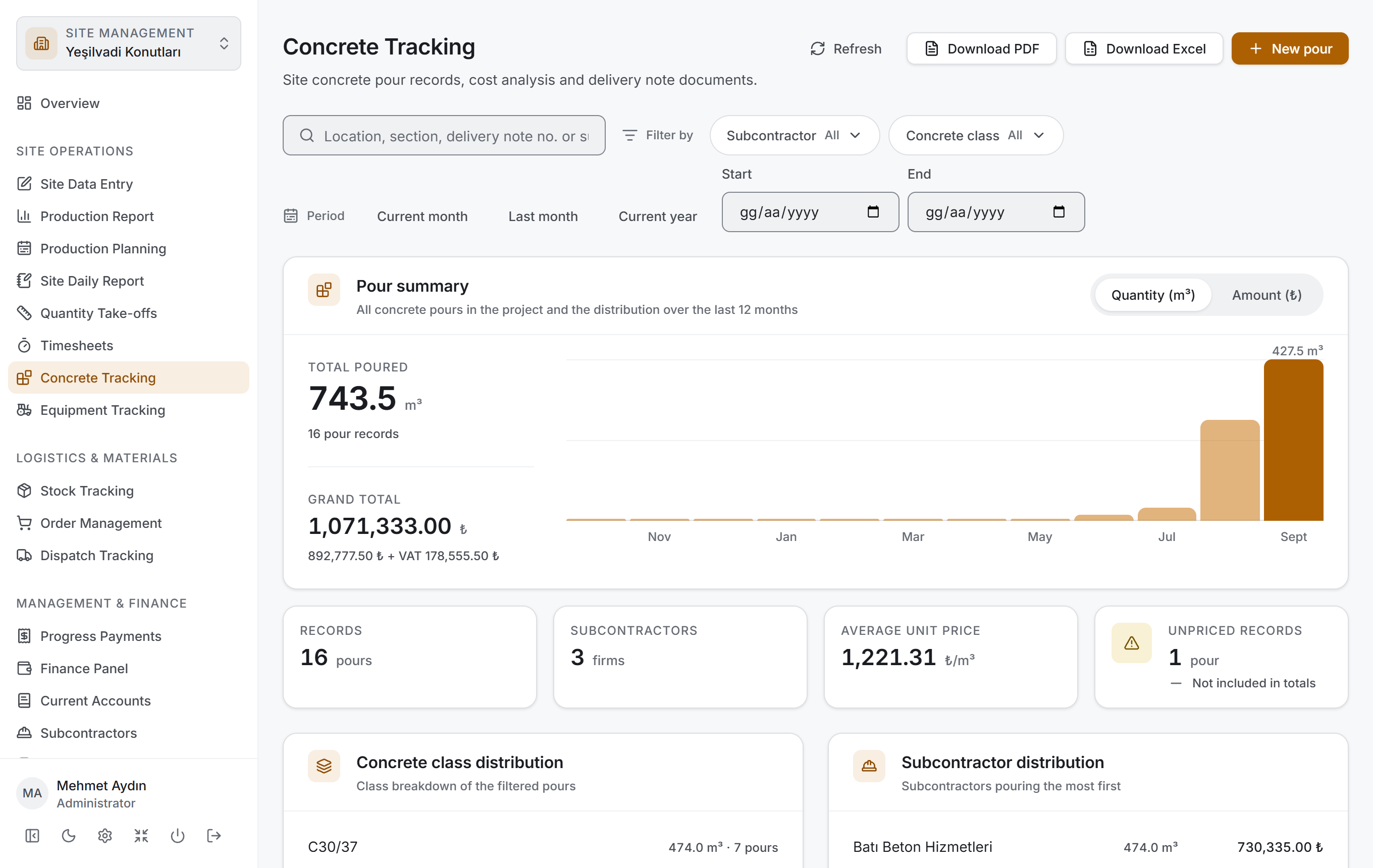
The page has four layers from top to bottom, and the order is deliberate: first you narrow, then you read the result as figures, then you look at its breakdown, and last you go down to the rows.
| Layer | What it does |
|---|---|
| Filter bar | Search, subcontractor, concrete class and period |
| Pour summary | Two headline figures, a chart of the last twelve months, four small measures |
| Breakdown | Concrete class distribution and subcontractor distribution |
| Pour list | A table grouped by day |
All three lower layers are drawn from the rows that pass the filter above. When you make a selection all four change at once and no request goes to the server — the project's data came down once.
Title and actions. The title reads Concrete Tracking with the description "Site concrete pour records, cost analysis and delivery note documents." On the right there are four buttons: Refresh, Download PDF, Download Excel and (if you have permission) New pour.
Filter bar

It has two rows. The upper row holds the Search pours box and, under the Filter by label, the Subcontractor and Concrete class filters; the lower row holds the Period label, three ready-made ranges and two date boxes.
| Control | What it does |
|---|---|
| Search pours | Searches the location, section, delivery note no., subcontractor name, concrete class and agreement name |
| Subcontractor | Narrows by firm; each firm's pour count is shown beside it |
| Concrete class | Narrows by class. The list is not alphabetical but ordered by strength |
| Current month · Last month · Current year | Ready-made ranges. The selected one is highlighted; pressing it again removes the range |
| Start · End | A free date range. If one is left blank there is no limit in that direction |
While a filter is active, a Clear filters button appears at the end of the bar with the number of active criteria on it. With no filter, that button is not drawn at all.
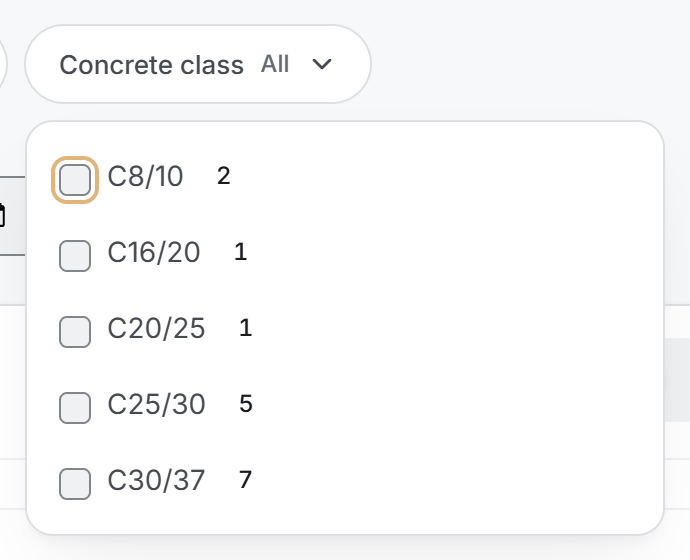
The filter menus feed one another: when you pick a subcontractor, the counts in the class menu are recalculated for that firm's pours. So you can see whether ticking a second box will bring anything before you tick it.
Pour summary
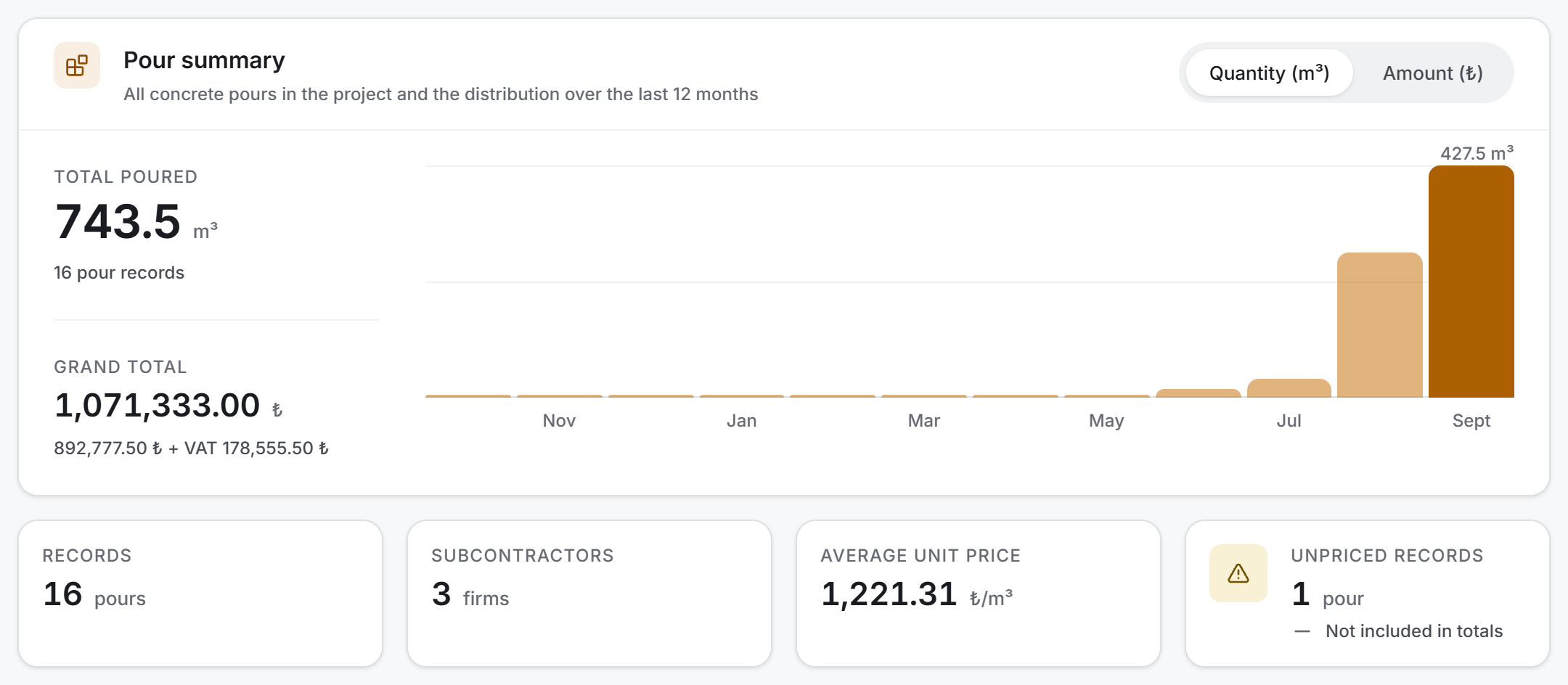
On the left of the card two headline figures sit one above the other:
| Measure | What it shows |
|---|---|
| Total Poured | The cubic metre total of the pours that pass the filter. The record count is written beneath it |
| Grand Total | The amount including VAT. Beneath it the "amount + VAT amount" breakdown is written |
On the right stands a column chart of the last twelve months. The Chart measure switch at the top right changes what the chart draws: Quantity (m³) or Amount (₺). The two do not have the same shape — a large pour of a cheap class is a peak on the quantity chart and middling on the amount chart.
Four small measures are lined up beneath the card:
| Measure | What it shows |
|---|---|
| Records | The number of pours that pass the filter |
| Subcontractors | How many different firms the concrete came from |
| Average Unit Price | The average price per cubic metre |
| Total VAT | The VAT total in the filter |
If there are records with no price entered, the fourth box gives way to the Unpriced Records counter; that box has an amber background and "Not included in totals" beneath it.
Breakdown
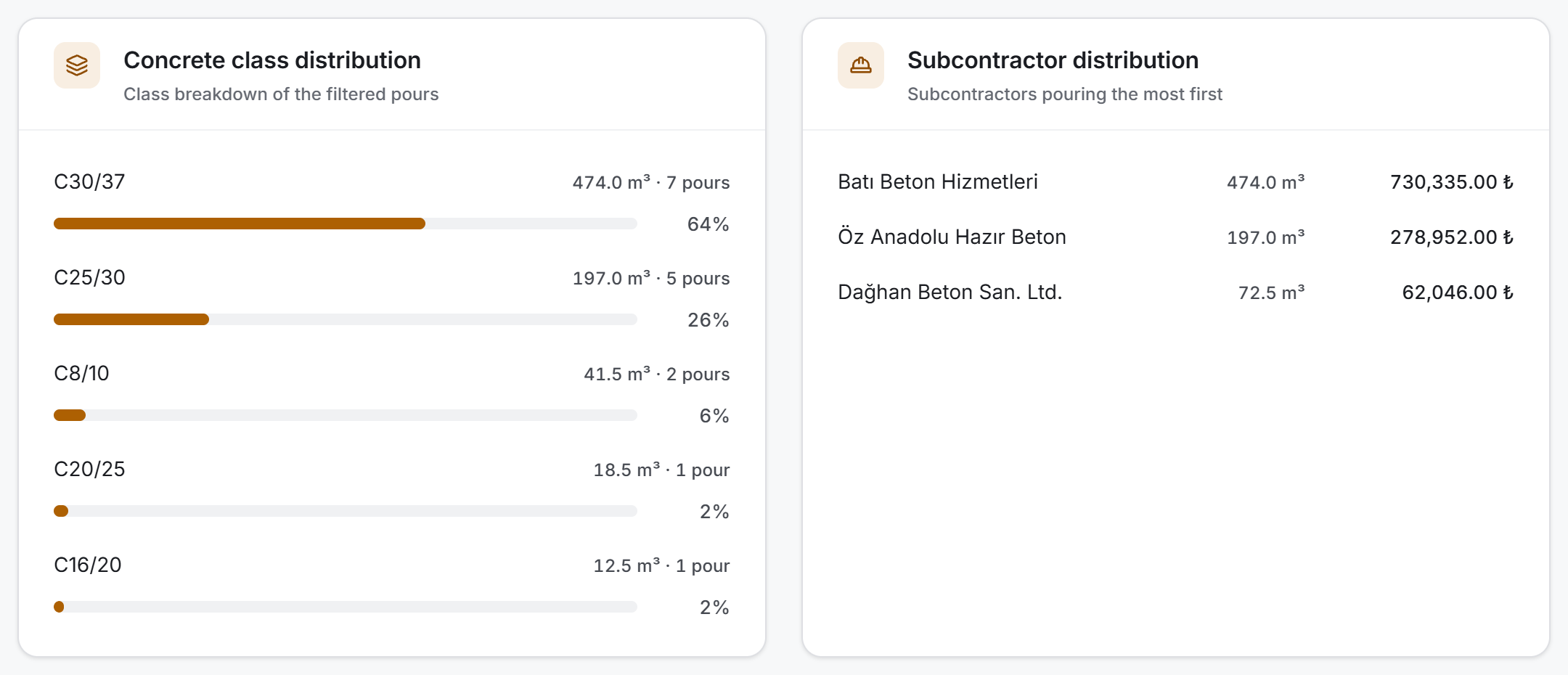
Two cards stand side by side and both are counted from the same rows:
- Concrete class distribution — each class's cubic metre total, pour count and percentage share. The share is shown with a bar; the card answers "how much of the total is which class".
- Subcontractor distribution — how much concrete came from which firm and what amount it came to. The firm that poured the most is at the top. A firm with no amount shows a dash rather than a zero; that means no price has been entered on that firm's pours.
Pour list
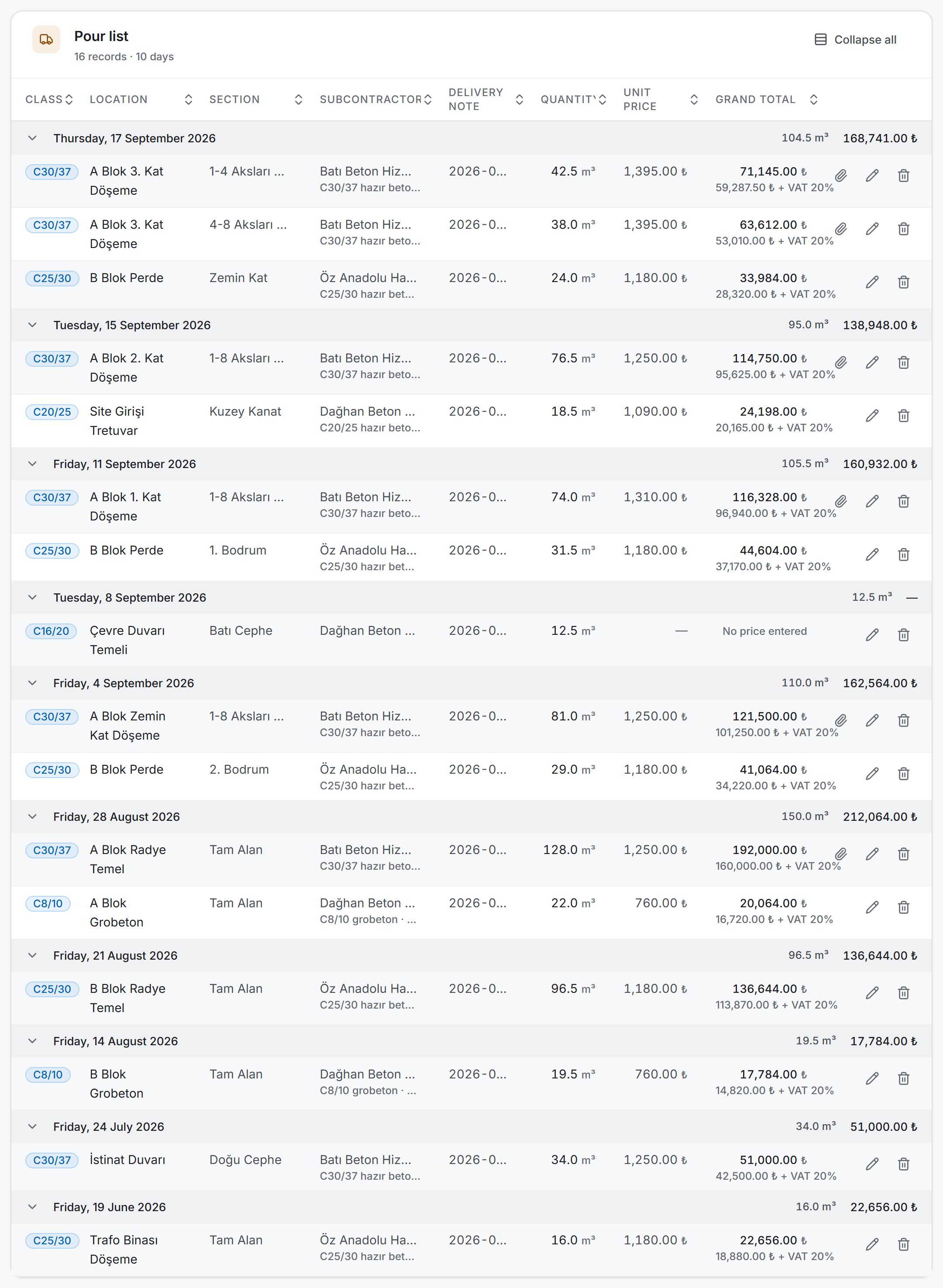
Rows are grouped by day. Each group's heading is the day written out in full — Thursday, 17 September 2026 — and to the right of the heading row the day's cubic metre total and its amount are written. The day name is not decoration: concrete pouring is work tied directly to weekends and to the weather.
Days are ordered from newest to oldest; records with no date entered collect in their own group at the very bottom. Clicking a group heading collapses that day, and the Collapse all button in the card header folds them all at once.
The columns from left to right:
| Column | What is in it |
|---|---|
| Class | The concrete class, as a badge |
| Location | Where the pour was made — the row's identity, written in bold |
| Section | The part within the location (axis range, floor, part of a block) |
| Subcontractor | The firm name; beneath it, in small type, the agreement the price came from |
| Delivery note | The delivery note number |
| Quantity | Cubic metres |
| Unit price | The price per cubic metre; a dash if none was entered |
| Grand total | The amount including VAT; beneath it the "amount + VAT rate" line |
The rightmost column holds the row's buttons: a paper clip (opens the delivery note) on records that have a document, and, if you have edit permission, a pencil and a waste bin. The paper clip is drawn only on records that really do have a document attached.
You can sort by clicking the headings. Sorting works inside the group: the order of the days is not disturbed, only that day's rows are rearranged.
Values that do not fit a column are shortened with an ellipsis — this is how long firm names, delivery note numbers and agreement names appear. Hold the pointer over one for a moment and the full text appears; if you need to read all of it, every value is complete in the Excel export.
On a row with no price entered the amount cell is not left blank, it reads "No price entered". This is a deliberate distinction: an empty cell and "0 ₺" look the same, yet one means free of charge and the other not yet known.
Empty screens
If the project has no pours at all, the filter bar, the summary strip and the breakdown cards are not drawn — with no filter to loosen, three cards saying "loosen the filter" would present a problem that does not exist as though it were yours. All that stands on the screen is a single card and, if you have permission, the New pour button.

When there are records but the filter brings nothing, the filter bar stays where it is, the summary and breakdown cards are not drawn, and in place of the table there is a single card telling you how many pours the project has, with a Clear filters button.
4. Fields
The information held in a pour record:
| Field | Description | Required |
|---|---|---|
| Pour date | The day the concrete was poured. The list and the reports are grouped by it | Yes |
| Delivery note no. | The number on the note that came with the mixer | No |
| Subcontractor | The firm supplying the concrete. The Current Accounts transfer depends on this field | No |
| Agreement | The contract the price comes from; selecting it fills the unit price box | No |
| Surcharge agreements | Items added on top of the main agreement (pump surcharge, winter additive, night premium) | No |
| Location | Where the pour was made — Block A, 3rd Floor Slab for instance | No |
| Section | The part within the location — Between Axes 1-4 for instance | No |
| Concrete class | Selected from a list; a new record opens with C30/37 | Yes (it has a default) |
| Quantity (m³) | The amount of concrete poured | Yes |
| Unit price (₺/m³) | The price per cubic metre. Can be left blank and entered later | No |
| Apply VAT | Ticking it opens the rate box; the default is 20% | No |
| Delivery note document | A PDF or a photo. One document, at most 50 MB | No |
Three values are not entered but calculated:
| Calculated | How it comes out |
|---|---|
| Amount | Quantity × unit price |
| VAT amount | Amount × VAT rate |
| Grand total | Amount + VAT amount |
All three appear in the Calculated amount box on the form before you save. Beneath it the working is written out: 46.5 m³ × 1,250.00 ₺ = 58,125.00 ₺ + VAT 20% (11,625.00 ₺).
5. Step by step
5.1 Recording a pour
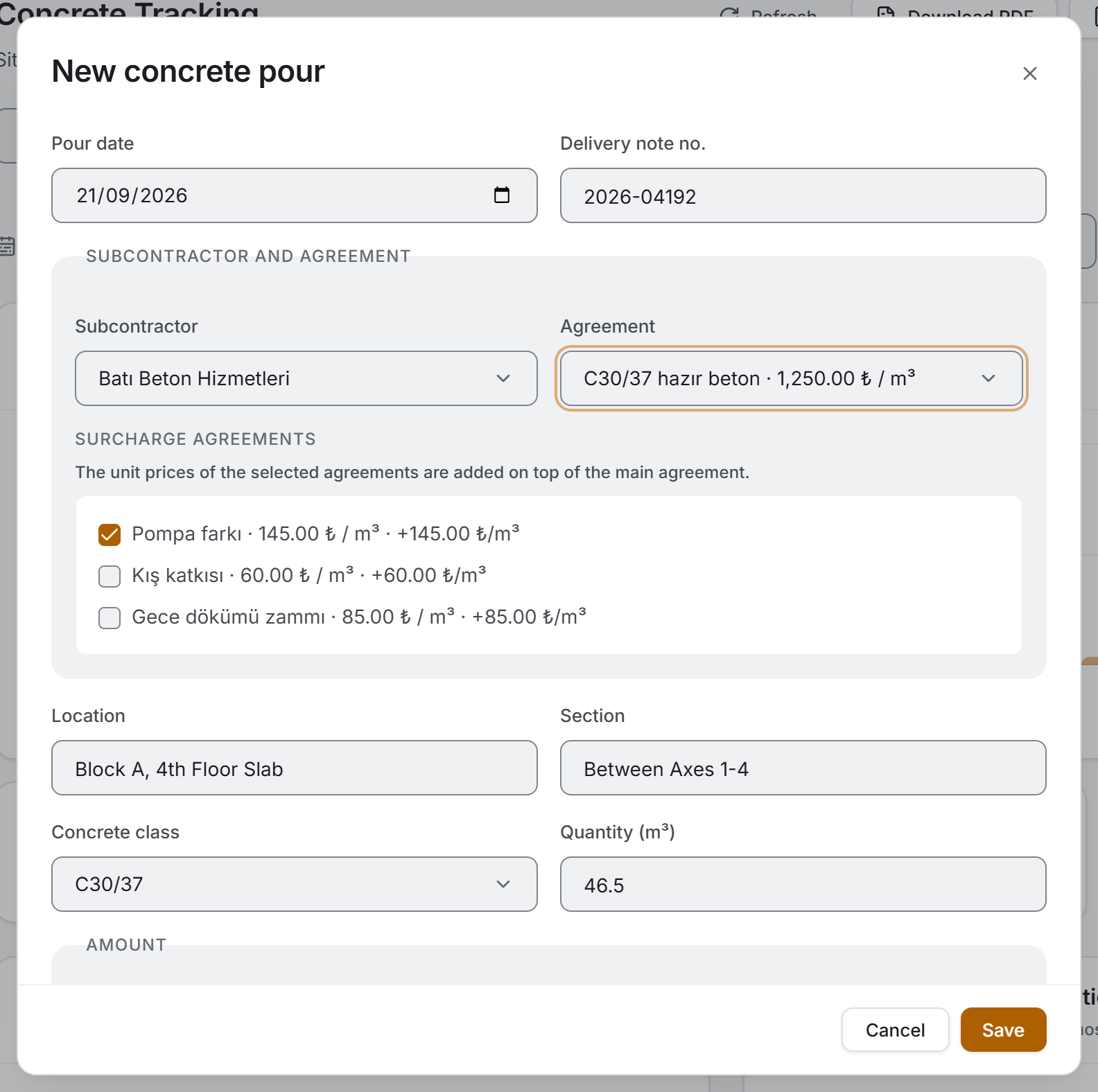
- Press the New pour button.
- The Pour date opens on today; change it if the mixer came on another day.
- Type the number from the note into Delivery note no.
- In the Subcontractor and agreement section pick the firm, then pick the Agreement if there is one. The moment an agreement is selected the unit price box fills by itself.
- Write where the pour was made into Location and Section.
- Pick the Concrete class and enter the Quantity.
- If needed, tick Apply VAT and type the rate.
- Add the photo or the PDF of the delivery note to the Delivery note document field.
- Press Save.
Two fields are required: pour date and quantity. Warnings appear only after you have tried to Save — seeing a red warning at first glance would put on you a mistake you have not yet made.
5.2 Surcharge agreements and the unit price
A pour's unit price may not come from a single agreement. Separate agreements such as a pump surcharge, a winter additive or a night premium are added on top of the main agreement. When you select the main agreement, that subcontractor's other agreements are listed with tick boxes under the Surcharge agreements heading; beside each one is what it adds per cubic metre.
Every surcharge you tick is added to the unit price and the box is recalculated at once.
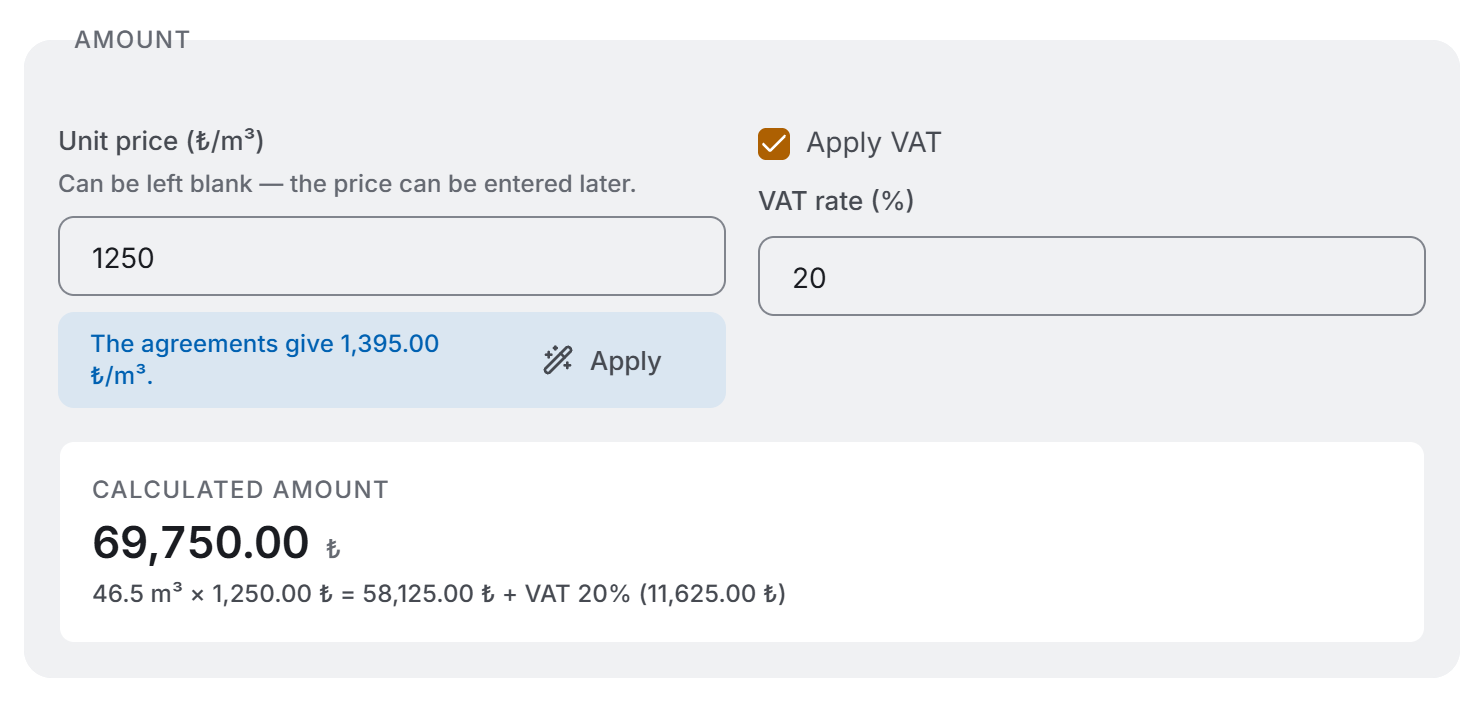
If you change the subcontractor, the agreement and surcharge selections are reset — another firm's agreement cannot stay selected.
5.3 Attaching and viewing the delivery note
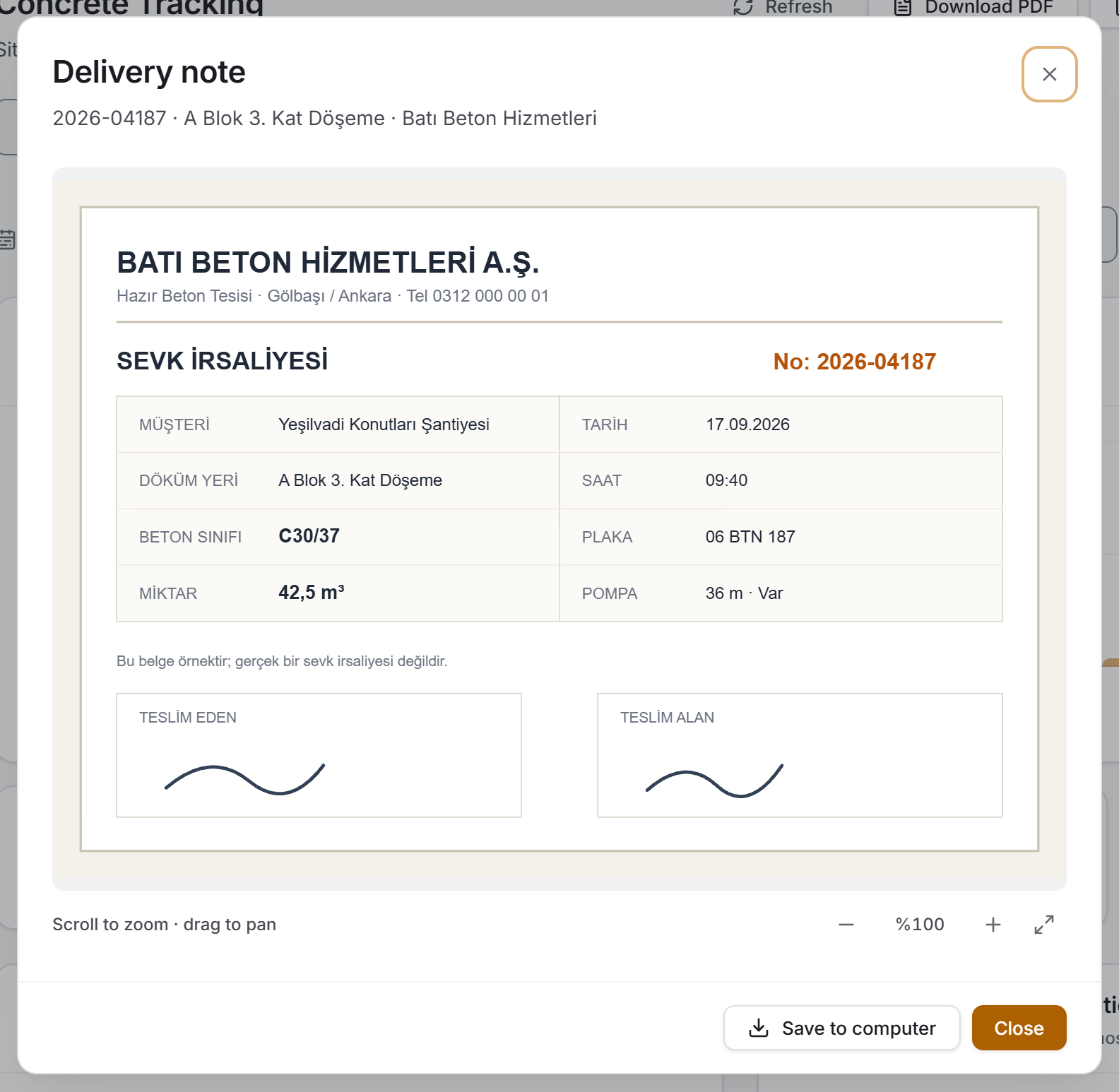
The document field accepts PDF, JPG, PNG and WEBP; the limit is 50 MB per file. One record holds one document; choosing a new file replaces the previous one.
In the list, a row that has a document ends with a paper clip button. Pressing it opens the document in a window:
- If it is a PDF, the window's own viewer opens it; zooming and printing come from there.
- If it is a photo, you zoom with the plus and minus buttons or with the mouse wheel, and you move a zoomed image around by dragging it. The Fit button puts the image back inside the window.
The Save to computer button at the bottom of the window downloads the document to disk. That is the way to send a delivery note to the accounts department.
5.4 Editing a pour
Press the pencil button at the end of the row. The form opens with the saved values; change them and press Update. If the saved concrete class is an older value that is not in the list (something typed by hand such as C25), it is added to the list rather than written over.
Updating also refreshes the linked transaction in Current Accounts; no second entry is created in the ledger.
5.5 Deleting a pour
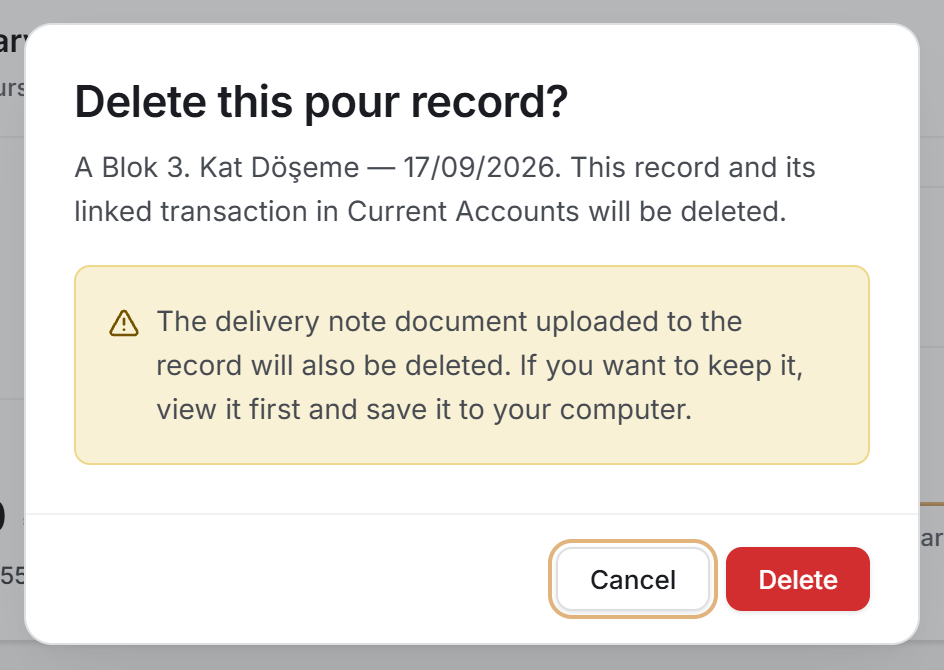
The waste bin button at the end of the row opens a confirmation screen. It says which record will be deleted (location and date) and tells you that the record's linked transaction in Current Accounts will be deleted as well.
Deleting removes the ledger transaction first and the pour record second. The order is deliberate: if the Current Accounts side cannot be deleted, the pour record stays where it is and no transaction is left in the ledger without a source.
5.6 Searching and narrowing
The Search pours box looks at the location, the section, the delivery note number, the subcontractor name, the concrete class and the agreement name all at once.
There are two ways to choose a period. Current month, Last month and Current year are one click; a range such as 15 March – 2 April is entered in the two date boxes. If you fill in only one of the boxes, there is no limit in the other direction.
5.7 If the Current Accounts transfer is left unfinished
When a pour is saved the application does two things: it writes the pour record first, then posts the transaction to Current Accounts. If the second fails, the pour has still been saved — do not enter the record a second time.
In that case an amber strip appears at the top of the page and says why. There are three reasons and their remedies differ:
| What the strip says | What to do |
|---|---|
| The subcontractor has no current account, and only administrators can open new accounts | An administrator creates the firm once in Current Accounts; later records are transferred by themselves |
| Only administrators can change account transactions | Go to an administrator to have the amount updated; the figure in the ledger stays at its old value |
| The server could not be reached | Press the Resend to Current Accounts button on the strip when the connection is back |
The Resend to Current Accounts button is drawn only for users with edit permission, and it transfers all of the project's pours again. When it finishes, a green strip says how many records were written, how many were removed from the ledger and, if any, how many orphaned transactions were cleaned up.
6. Exports
There are two exports and both send out the list as it appears on the screen — whatever the filter is, that is what goes into the file. There is no separate export window; you have already made your choice in the filter bar.
The file names start with Concrete_Tracking_ and a date–time stamp is added to the end. If you close the save window nothing happens; when it is saved, a strip appears at the top of the page with the file's full path on it.
Download Excel
The workbook carries fourteen columns: Date · Subcontractor · Agreement · Delivery Note No. · Location · Section · Class · Quantity (m³) · Unit Price · Amount · VAT (%) · VAT Amount · Grand Total · Document.
At the top there are three heading lines: the project name; the report date, the record count, the total poured and the grand total; and a one-line summary of the filter that was applied. That last line matters — it is written so that a file taken with a subcontractor selected is not mistaken for the whole project when it is sent by e-mail. If there are records with no price, the heading also carries the note "No price in N records".
At the end of the list there is a GRAND TOTAL row; it totals the quantity, amount, VAT and grand total columns and matches the summary on the screen exactly.
Three useful details: the header row comes frozen, so the column names stay on screen as you scroll down; the filter is on, so you can ask your own question; and the date and all the figures are real number cells — they can be sorted, added up and pivoted.
Download PDF
A4 landscape, a list of twelve columns. Of Excel's fourteen columns the cubic metre heading has been shortened and the document column left out.
The first page carries the project name, the module name, the time it was produced and the filter summary; at the top right stand the total quantity and the grand total. From the second page on, a thin strip is repeated at the top, the column headings are written again on every page, and the page number sits at the bottom. The last row is the total row and is separated by the heavy rule above it.
7. What you need to know
A record with no price entered does not go into the totals. Such a record is not counted as zero and added in; the table reads "No price entered", the summary strip counts it with the Unpriced Records measure and a note is added to the Excel heading. If you are reading a Grand Total on the page, you can also see from the same screen how many records that total does not cover.
The price stays in the record, it is not recalculated from the agreement. If an agreement's unit price changes later, the amounts of past pours do not change. That is the right behaviour: the delivery note was issued, and it was issued at that day's price. The new price applies only to records made from then on.
Not every pour goes to Current Accounts. A pour with no subcontractor selected or no price entered is not transferred to the ledger — its cost is not yet settled. When you later enter a subcontractor and a price on such a record, the transfer happens by itself.
The average unit price is weighted. It is not the flat average of the prices but the total amount divided by the total quantity. Averaging the prices of two pours, one of 5 m³ and one of 500 m³, with equal weight would show the project's real cost wrongly.
A concrete class is not a status but a property. All the badges are the same colour; blinding concrete is meant to be C8/10, it is not "bad". That is also why the filter list is ordered by strength rather than alphabetically — in alphabetical order C12/15 comes before C8/10 and the list reads backwards.
The class list does not overwrite records. The dropdown on the form holds eight standard classes, but older records may contain other values typed by hand. When you open such a record, that value is added to the list; opening and closing a record does not change its class.
The subcontractor and agreement lists come from the Subcontractors module. If a firm is missing from the dropdown, or an agreement does not appear, it has to be defined there first.
The search hint is incomplete. The hint inside the box names four fields; the search also looks at the concrete class and the agreement name.
8. Related chapters
- Subcontractors — the firms supplying the concrete and the agreements the price comes from are defined there.
- Current Accounts — every priced pour that is saved lands in the ledger as a receivable of the subcontractor.
- Finance Panel — the project's concrete cost is collected there together with the other cost items.
- Overview — concrete pouring also appears as an item in the project's summary.