
Files
Files is the project's document archive. Contracts, estimates, drawings, records, site photos and anything that will be attached to a progress payment live here;
1. What it is for
Files is the project's document archive. Contracts, estimates, drawings, records, site photos and anything that will be attached to a progress payment live here; they are sorted into folders, searched, downloaded, and when a newer version arrives the earlier one is kept rather than overwritten.
The page is the team's shared cabinet: the person who sends a document from their computer is not the person who looks for it months later. That is why every file is stored with a name, a category, a description and an upload date, and why the folder it sits in is printed in every list.
The questions this page answers are: what is in this project's archive, which folder holds the document I am looking for, how many files and how much space are in a folder, which version of a document is the current one and can I go back to the previous one, what takes up the most space, what was uploaded most recently and how do I put the whole archive on paper.
2. How to open it, who can see it
In the sidebar: Office & Tools › Files.
| Your permission | What you can do |
|---|---|
| View | You see both views, the folder tree, the analysis strip, the three breakdown cards and the file details; you browse folders and use search and filters. You can preview a file, open it in another app, download it and download its earlier versions. You can take the Excel and PDF exports. The Upload files, New folder, Edit, Move, Delete and New version buttons are not drawn at all, and cards cannot be dragged |
| Edit | Everything above, plus uploading files, creating folders, editing details, moving, deleting and uploading new versions |
| No permission | The module appears dimmed and locked in the menu |
Alongside the module permission, the server role matters here:
On trial (temporary) accounts the module is closed: "The Files module is not available on temporary accounts. Contact sales for more." No Try again button is offered in that case — there is nothing that trying again would open.
3. Anatomy of the screen
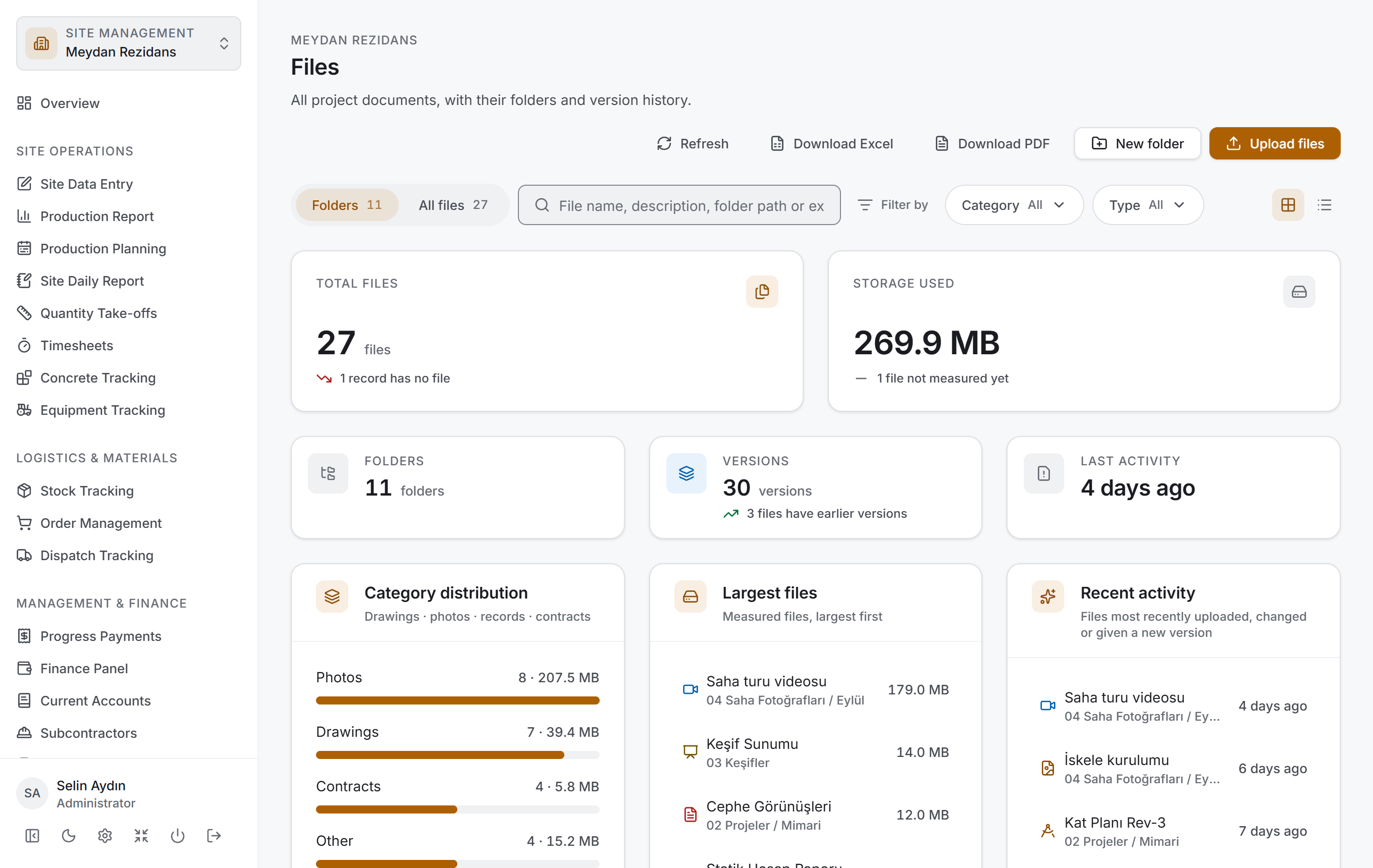
The page has two views and both share the same shell and the same filter bar. The switch at the left of the filter bar changes the view:
| View | What it shows |
|---|---|
| Folders | The shape of the archive — the folder tree, the path bar and the cards or list of the folder you are in |
| All files | Every file in the project in one table — grouped by folder, by day or by category |
The two views ask the same question in two ways. Folders asks "how is this archive organised, where are the estimates", and is browsed folder by folder. All files asks "what does the project have", and ignores folder boundaries entirely: every file is in one list, grouped along the axis you choose.
The Folders view has four layers:
| Layer | What it does |
|---|---|
| Filter bar | View switch, search, category and type filters, grid/list switch |
| Analysis strip | Total files, storage used and three counters |
| Breakdown | Category distribution, largest files and recent activity |
| Folder card | The folder tree on the left, the path bar with the grid or list on the right |
In the All files view the analysis strip and the breakdown cards are not drawn. The ledger is a list; it carries no summary above it. The numbers live in the Folders view.
Analysis strip
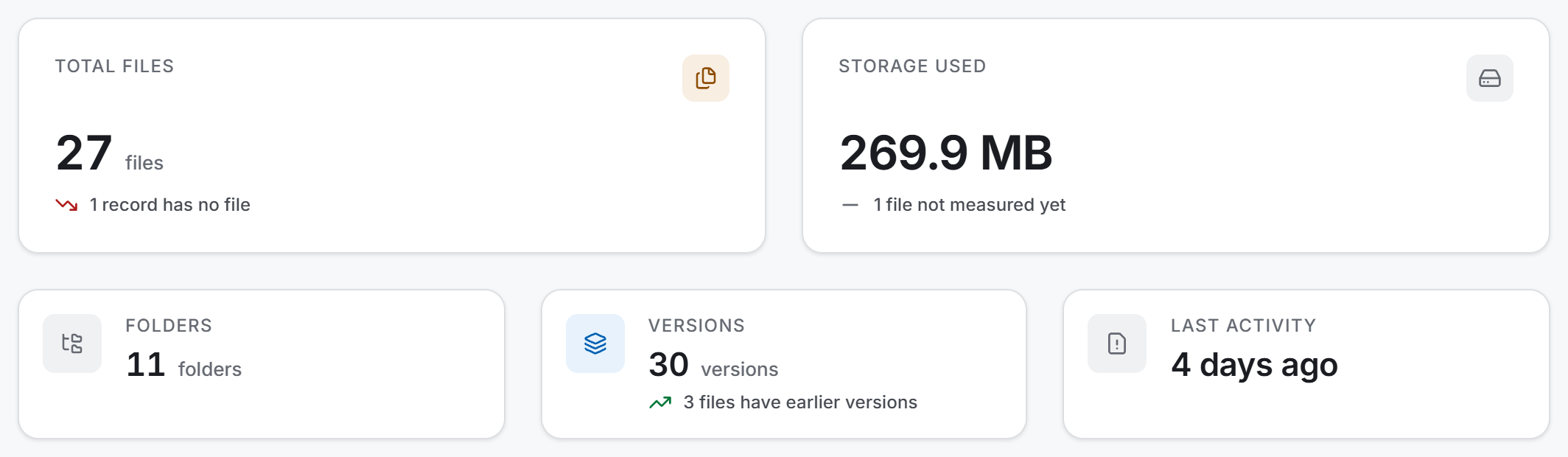
The strip has two tiers: two main measures on top, three counters below.
| Counter | What it says |
|---|---|
| Total files | The number of records in the archive. Below it you may read "N records have no file" |
| Storage used | The total of the files whose size could be measured. Below it you may read "N files not measured yet" |
| Folders | The number of folders in the project — filters do not affect it |
| Versions | The total number of versions carried by all records. Below it: "N files have earlier versions" |
| Last activity | How long ago a file was last touched. If nothing has happened: Never |
Breakdown cards
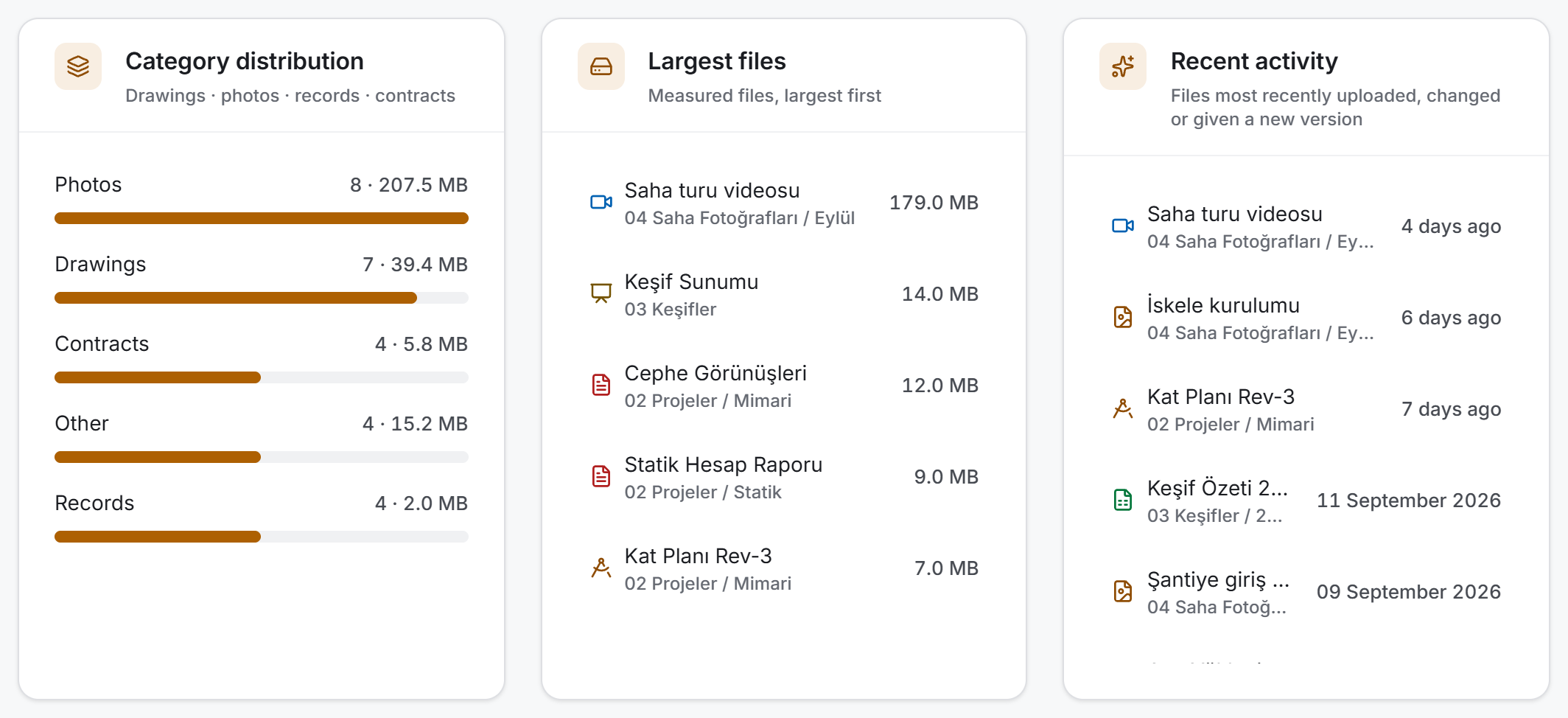
The three cards are counted from the same rows and each looks at a different question:
- Category distribution asks about a share: what the archive is made of. Each row shows the file count, the measured total size and a bar.
- Largest files asks about a ranking: the five biggest measured files. Until measuring finishes the card says "Sizes not measured yet".
- Recent activity asks about time: the six most recently touched files, with a relative date.
Clicking a row in a breakdown card opens that file's details.
Folder tree and path bar
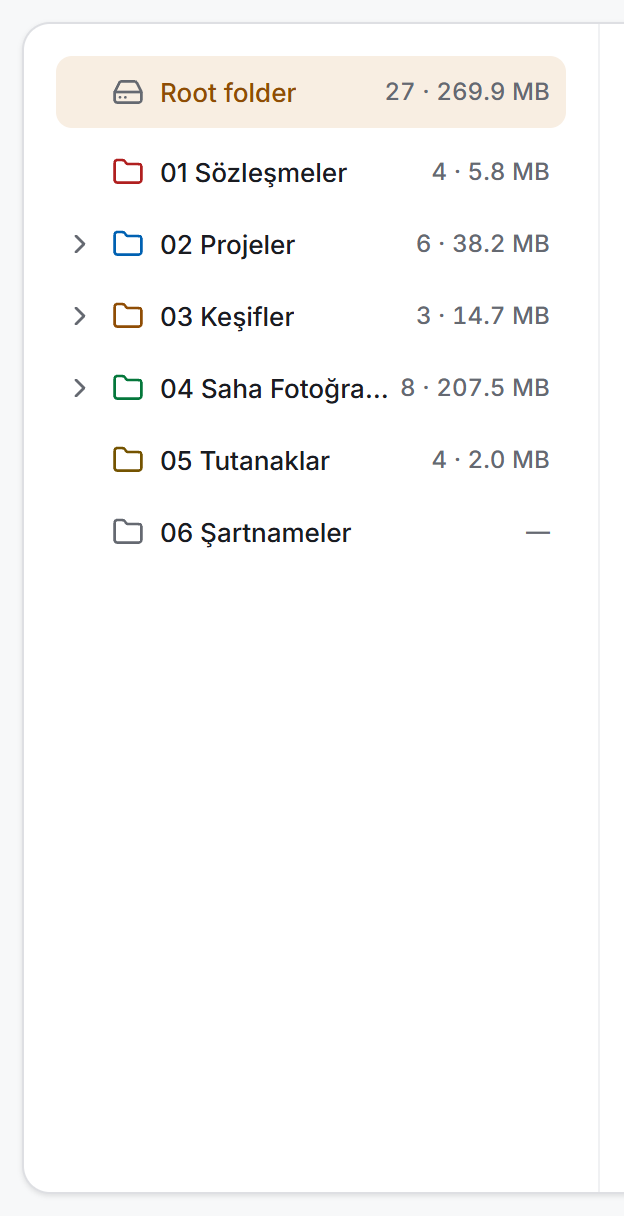
The tree on the left shows the whole archive. The Root folder row at the top is the project itself; every branch below it is a folder, drawn in that folder's colour.
Expanding a branch and entering it are two different things: clicking the arrow on the left expands the branch and shows its subfolders, clicking the name goes inside that folder. All the branches above the folder you enter expand by themselves.
The path bar sits above the right-hand area: the Go to parent folder button on the far left, then the links from the root down to the folder you are in. Every link can be clicked. At the right end of the bar you read how many folders and how many files are in this folder; while sizes are being measured, "measuring sizes" is appended.
Grid and list
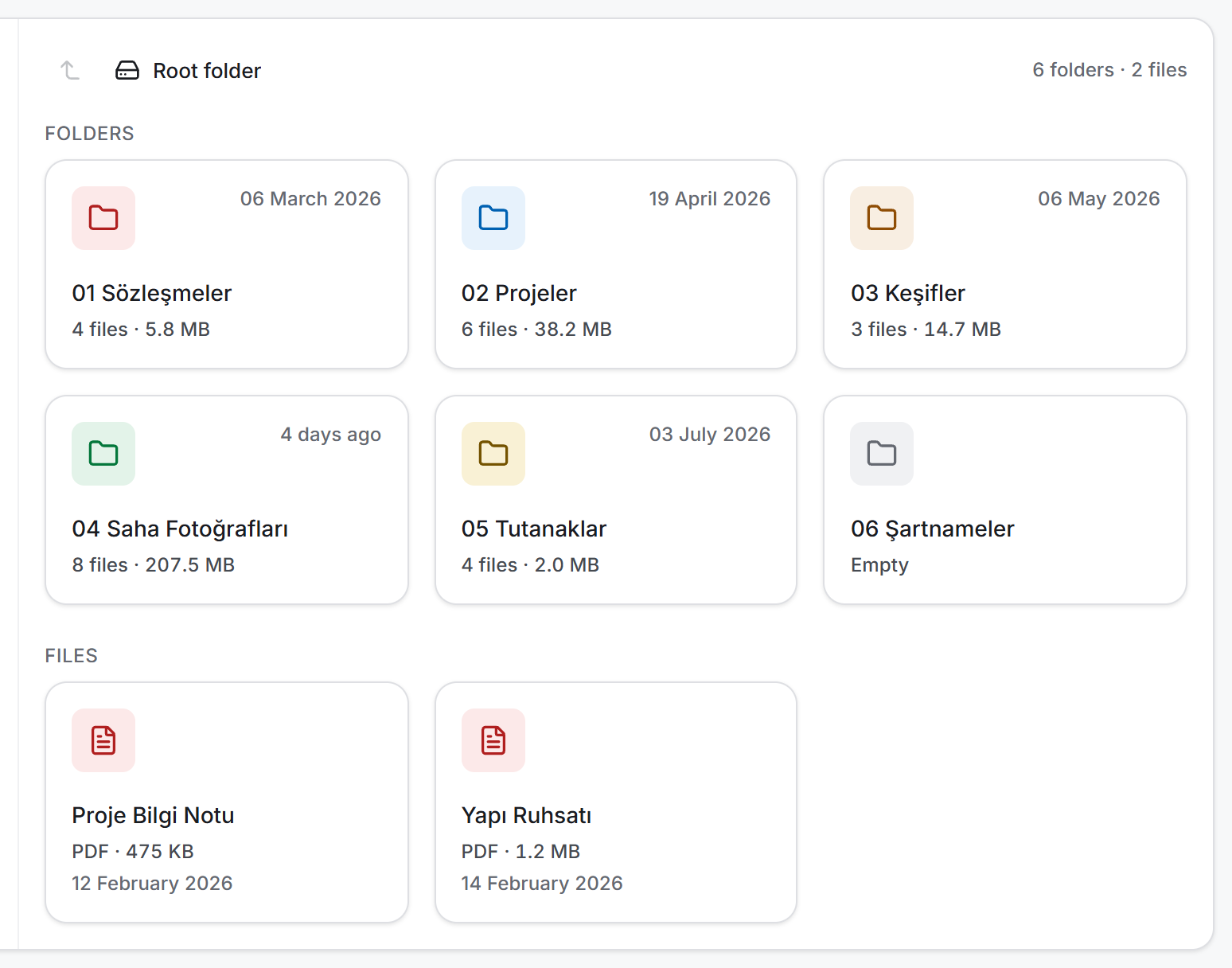
The two buttons at the right end of the filter bar choose whether the folder's contents are drawn as a grid or as a list.
In the grid, cards appear under a Folders heading and then a Files heading. A folder card carries its name, the number of files inside it, the size and the last activity; an empty folder reads Empty. A file card shows its type icon, extension, size and when it was last touched. Two badges can appear at the top right of a card: Open if the file is open in another app, and N versions if it has more than one.
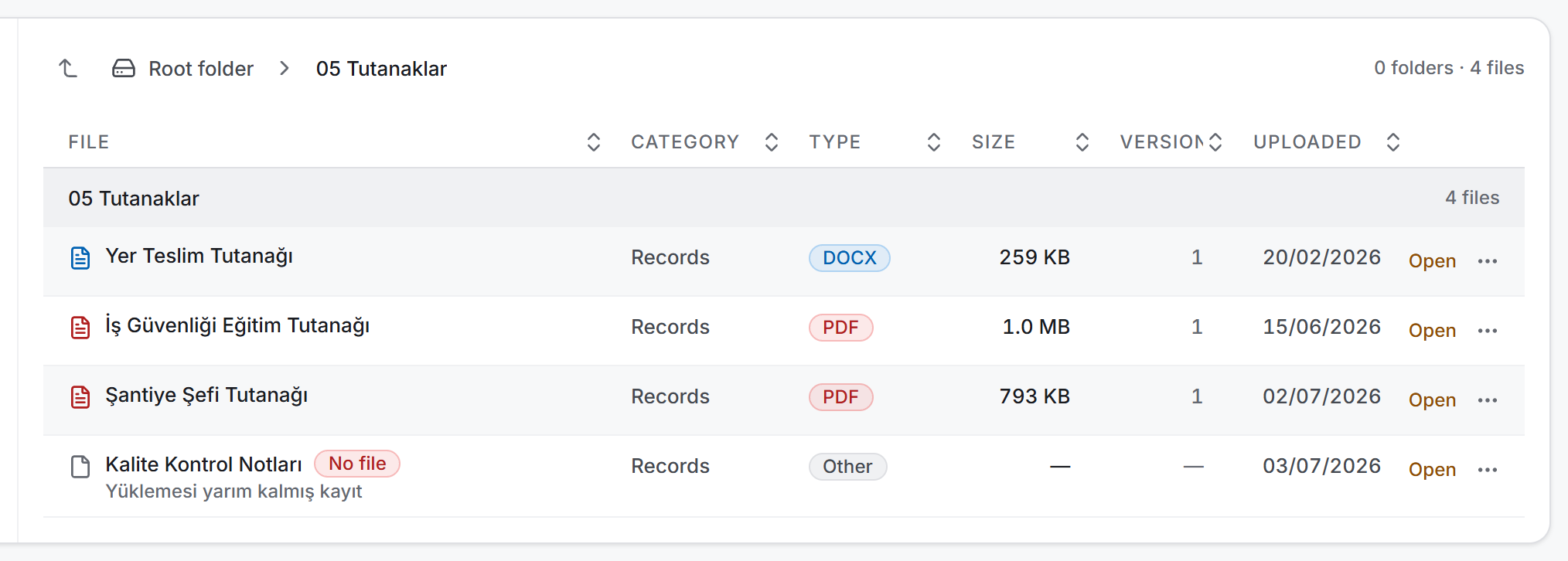
In the list, the same files sit in a table: file name, category, type, size, versions and upload date. Click a column heading to sort. Open at the right of a row opens the file, and the three dots next to it open the details.
All files
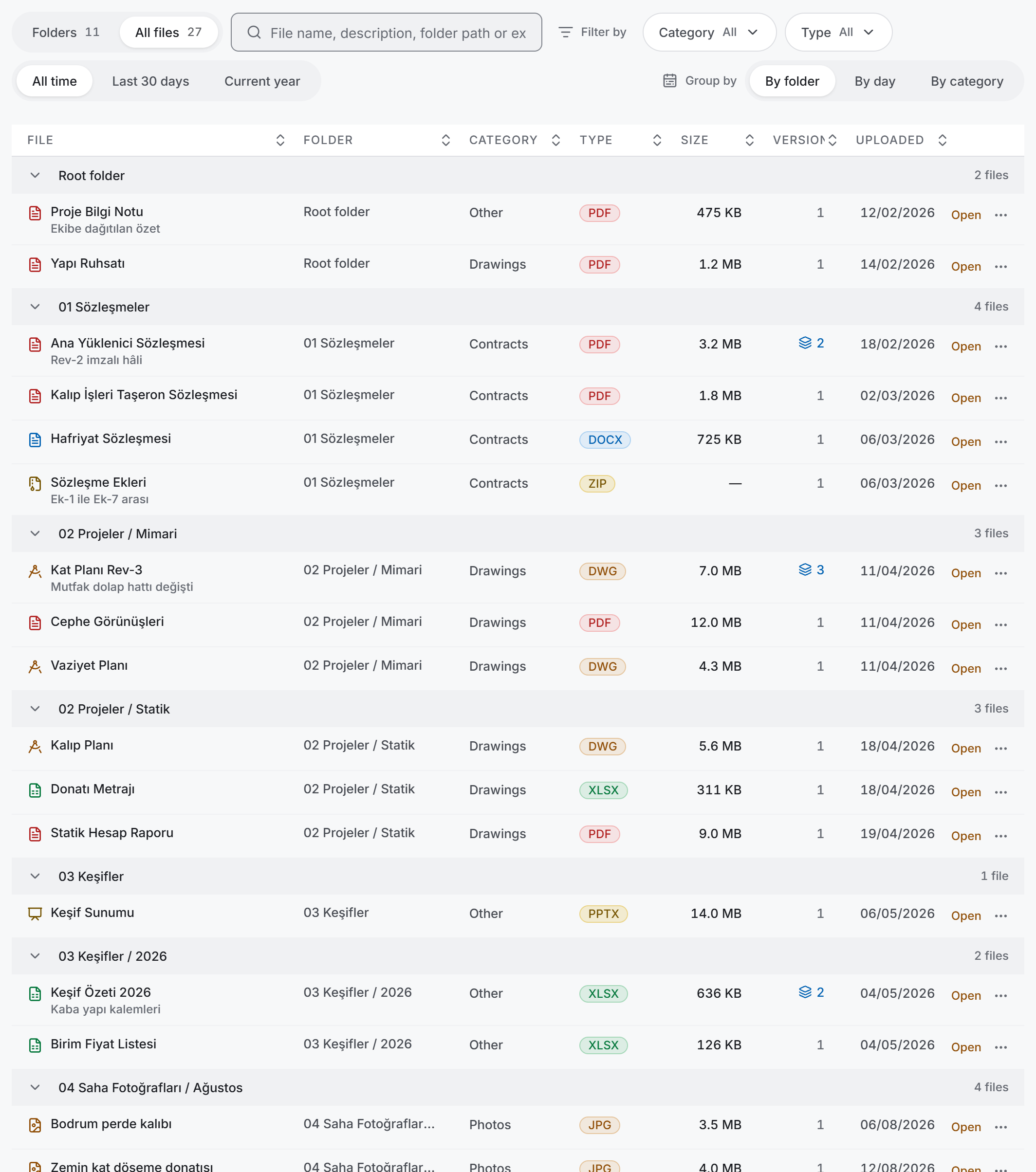
In this view every file in the project is in one table and a Folder column is added. The group headings follow the axis you choose and each group carries its file count; click a group heading to collapse it.
4. Fields
File record
| Field | What it means | Required | How it is filled |
|---|---|---|---|
| File name | The name shown in lists | Yes | The file's own name arrives when uploading; you can change it |
| Category | One of five options | Yes | Defaults to Drawings; chosen while uploading, editable later |
| Description | Free text | No | Search looks in this text too |
| Folder | Where the file sits | — | The folder you uploaded into; changed later with Move |
| Type | The type found from the extension | — | Calculated by the application, not chosen |
| Size | The size of the current version | — | Not stored on the record; asked of the server separately |
| Versions | How many versions the record carries | — | 1 on the first upload; grows with every new version |
| Uploaded | When the record was created | — | Automatic |
| Last modified | When the record was last touched | — | When details are edited or a new version arrives |
Categories: Drawings · Photos · Records · Contracts · Other. The category is a column in the list, an option in the filter and a share in the breakdown card; it changes no rule, no permission and no calculation.
Type list
The type is found from the file's extension and decides its icon. Any extension not in the list counts as Other.
| Type | Extensions |
|---|---|
| Word document | doc · docx · odt · rtf |
| Spreadsheet | xls · xlsx · xlsm · csv · ods |
| Presentation | ppt · pptx · odp |
| Image | jpg · jpeg · png · gif · bmp · webp · tiff · tif · svg |
| CAD drawing | dwg · dxf · dwf · rvt · ifc · skp |
| Video | mp4 · avi · mov · mkv · wmv · flv · webm |
| Audio | mp3 · wav · ogg · flac · aac · m4a |
| Archive | zip · rar · 7z · tar · gz |
| Text | txt · json · xml · html · css · js · ts · md · log |
| Other | everything outside the list above |
Folder
| Field | What it means | Required |
|---|---|---|
| Folder name | The name shown in the tree and the path bar | Yes |
| Description | What the folder holds | No |
| Colour | The icon colour in the tree and on the card | No — defaults to Amber |
Colour options: Amber · Blue · Green · Orange · Red · Grey.
Filter bar
| Control | What it does | Where |
|---|---|---|
| View | Folders ⇄ All files; the number beside each is the folder and file count | Both views |
| Search files | Searches the name, description, folder path, extension and category | Both views |
| Category | Files in the selected categories | Both views |
| Type | Files of the selected type | Both views |
| Period | All time · Last 30 days · Current year | All files only |
| Group by | By folder · By day · By category | All files only |
| Grid / List | How the contents are drawn | Folders only |
| Clear | Removes the active filters | While a filter is on |
5. Step by step
Browsing folders and searching for a file
- Click a folder in the tree on the left, or open a folder card in the grid.
- To go back up, use the Go to parent folder button in the path bar, or one of the links.
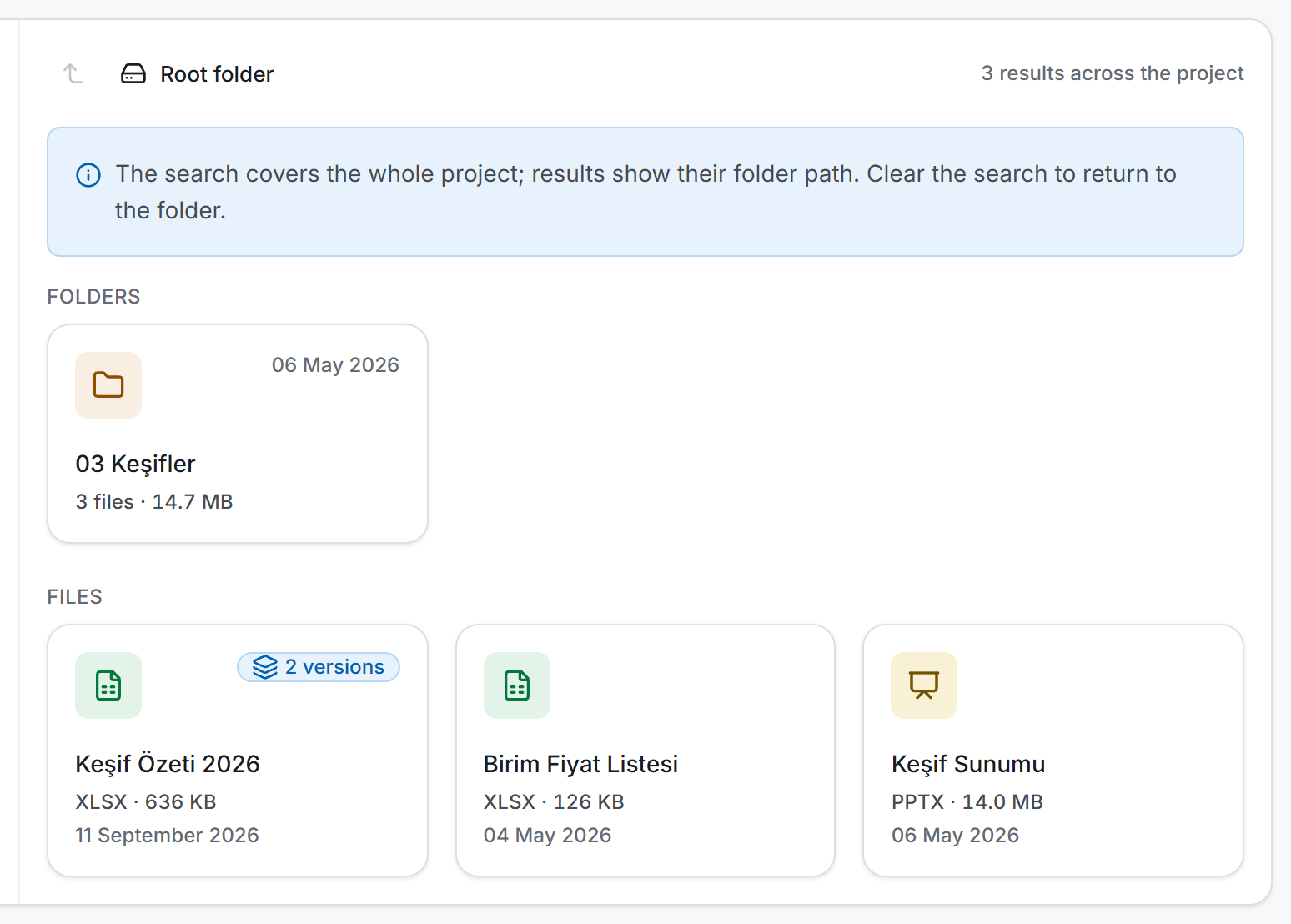
- If you do not know which folder holds the document, type in the Search files box.
Uploading files
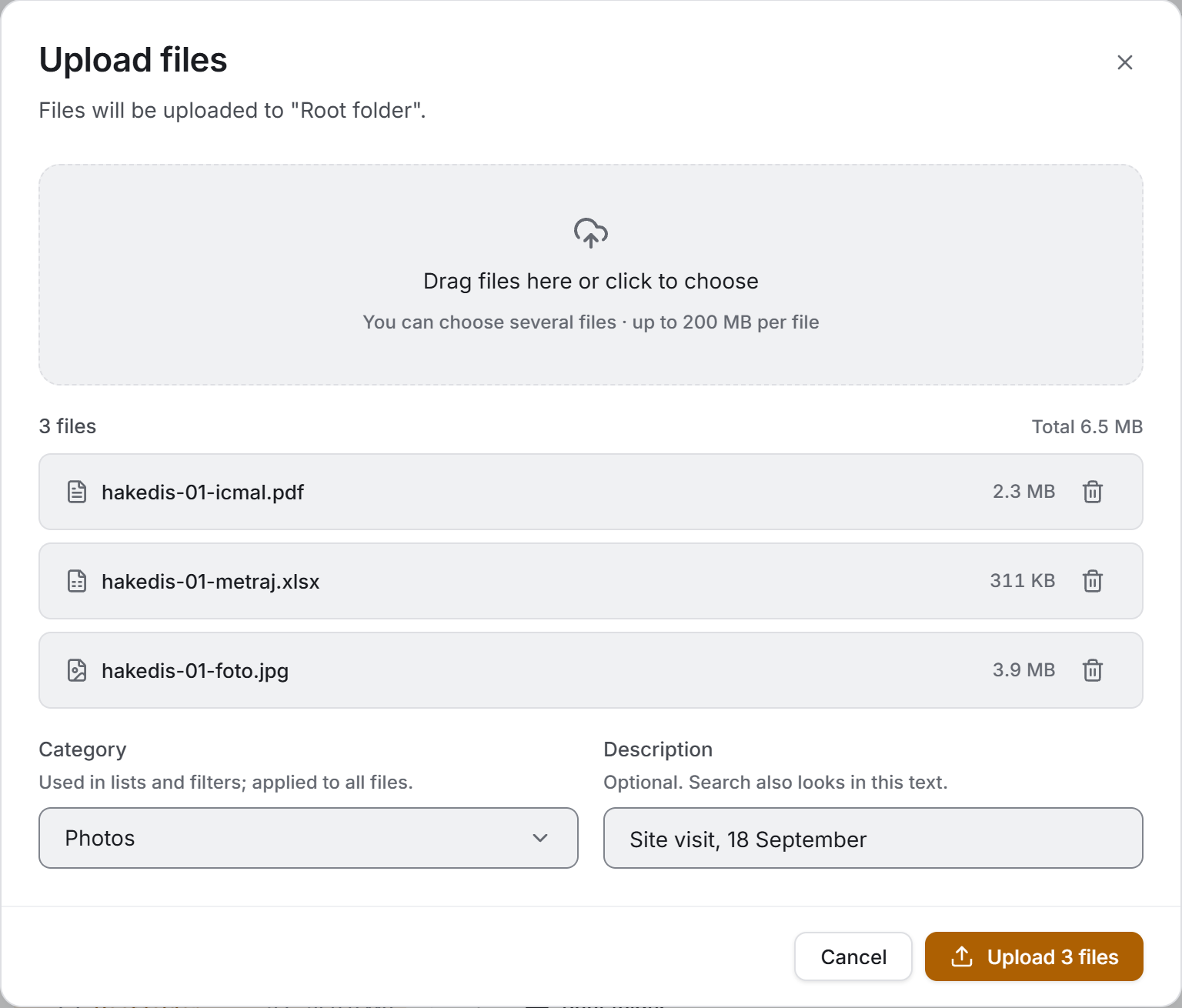
- Go into the folder the files should go to.
- Press Upload files at the top right of the page. The line under the dialog title says which folder the files will go to.
- Drag the files onto the drop area, or click it and pick them. You can select several files at once.
- You can correct the name of each file in the list, and remove one with the bin button.
- Category and Description are written once and applied to every file in the list.
- Press Upload. With more than one file the button reads "Upload N files".
If some of them fail, the dialog stays open: the uploaded ones leave the list, the rest stay, and a "Upload incomplete" strip at the top says how many went up, how many are left and what the first error was. Pressing Upload again sends only the remaining ones.
Creating a folder
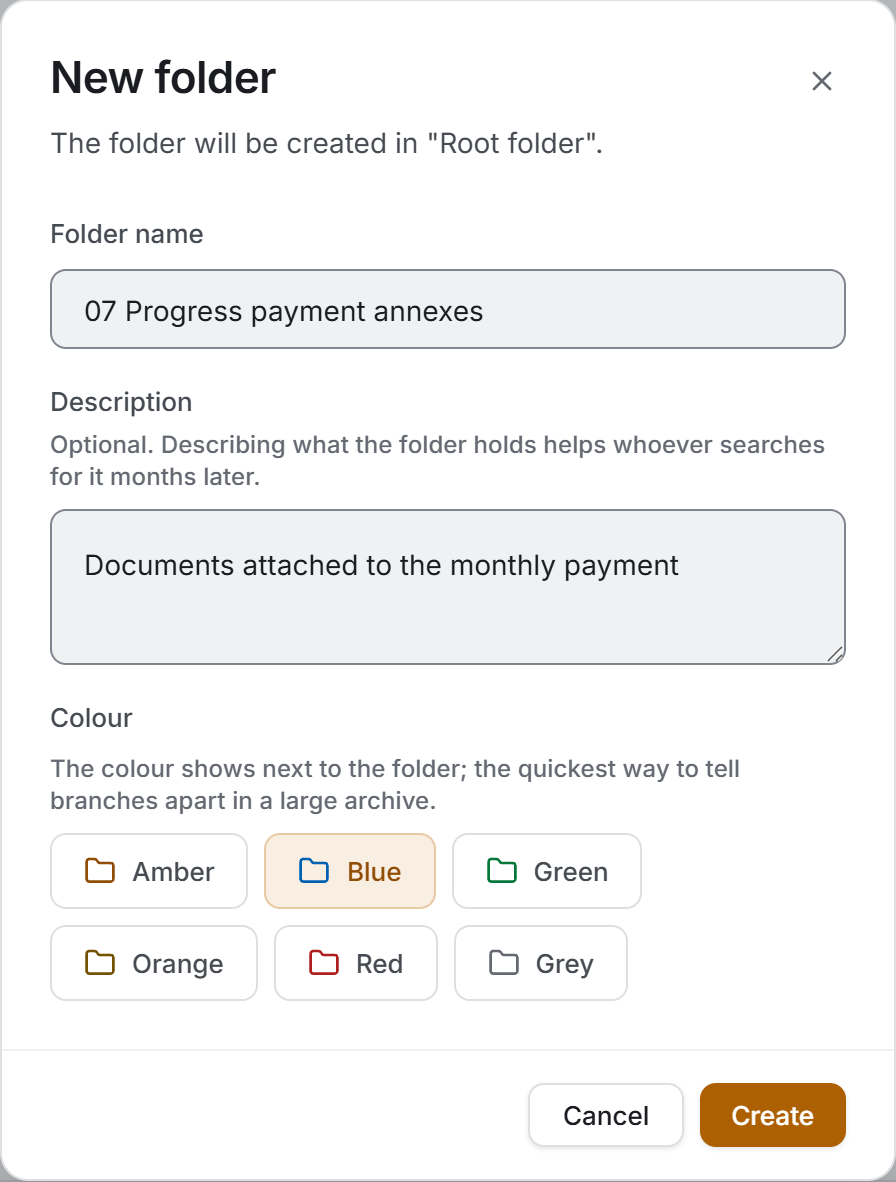
- Go to where the folder should be created — a new folder is created inside the folder you are in.
- Press New folder.
- Folder name is required. The description is optional; it tells whoever searches months later what the folder holds.
- Pick a colour if you like and press Create.
Correcting the name, category and description
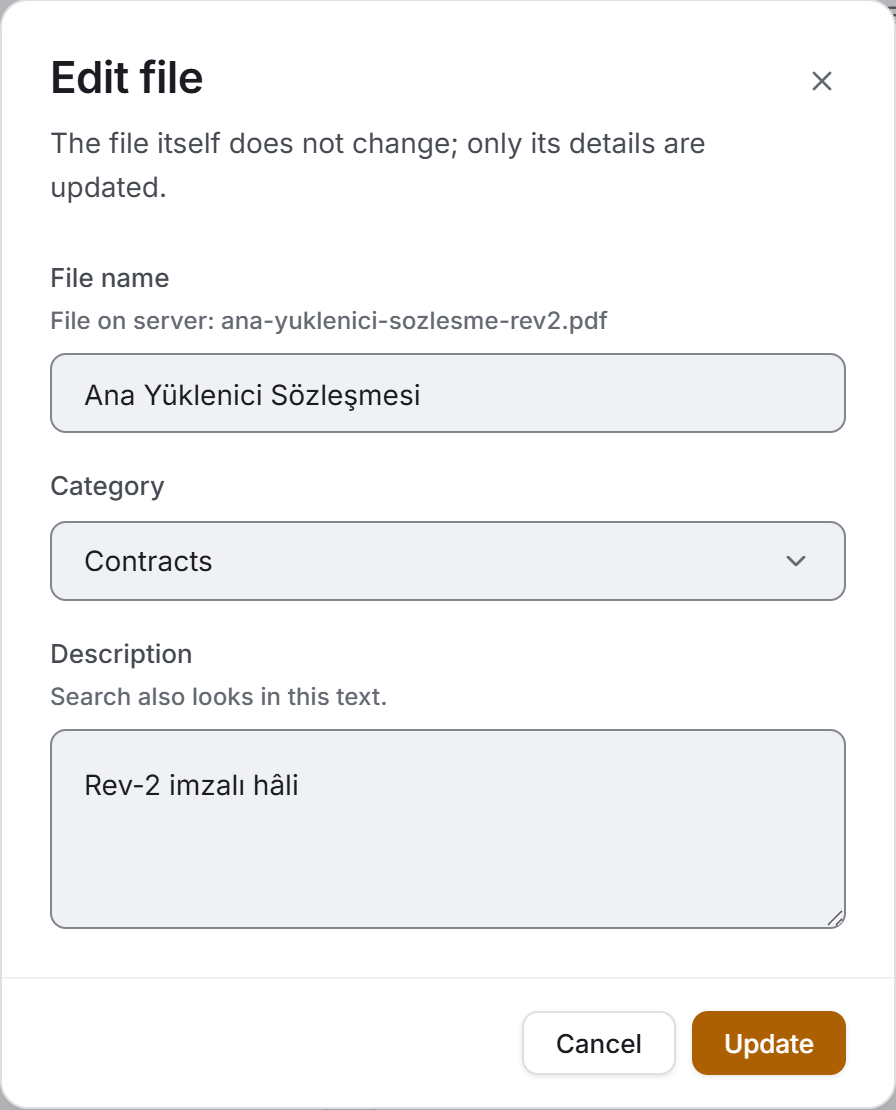
Right-click a file card and choose Edit, or open the details and press Edit. The name, category and description change; the file itself is not touched. The real file name on the server is written as a hint under the name box.
For folders the same job is done with Rename in the right-click menu; the name, description and colour change and the folder stays where it is.
Moving
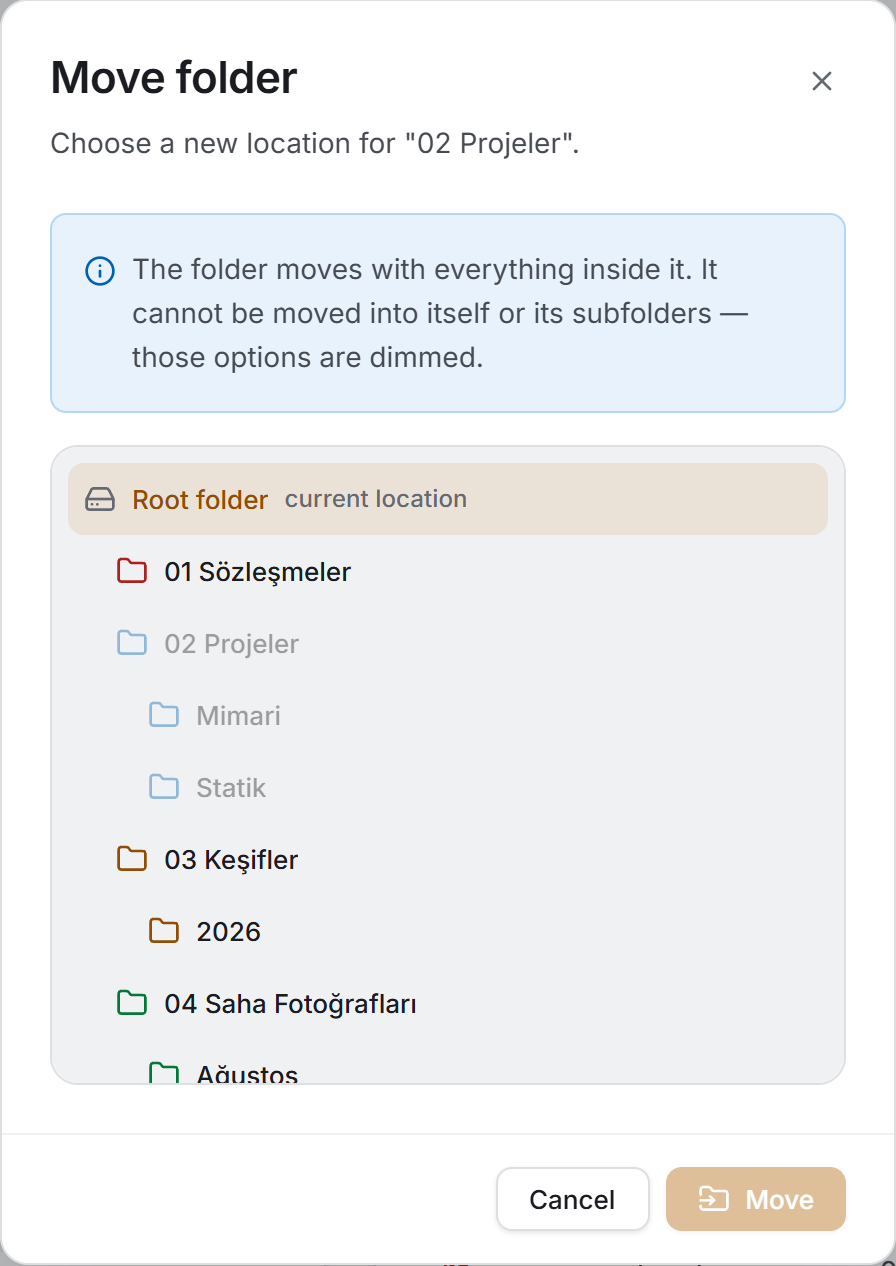
There are two ways:
- By dragging: drop a file card onto a folder in the tree on the left, or onto a link in the path bar. The card dims while it is dragged and the target is outlined.
- With the dialog: choose Move from the right-click menu, pick the target in the tree and press Move. The record's current place is marked current location on the right of the row, and the button only becomes active once you pick somewhere else.
Opening a file
Clicking a card, or pressing Open in a list row, opens the file. What happens depends on the type:
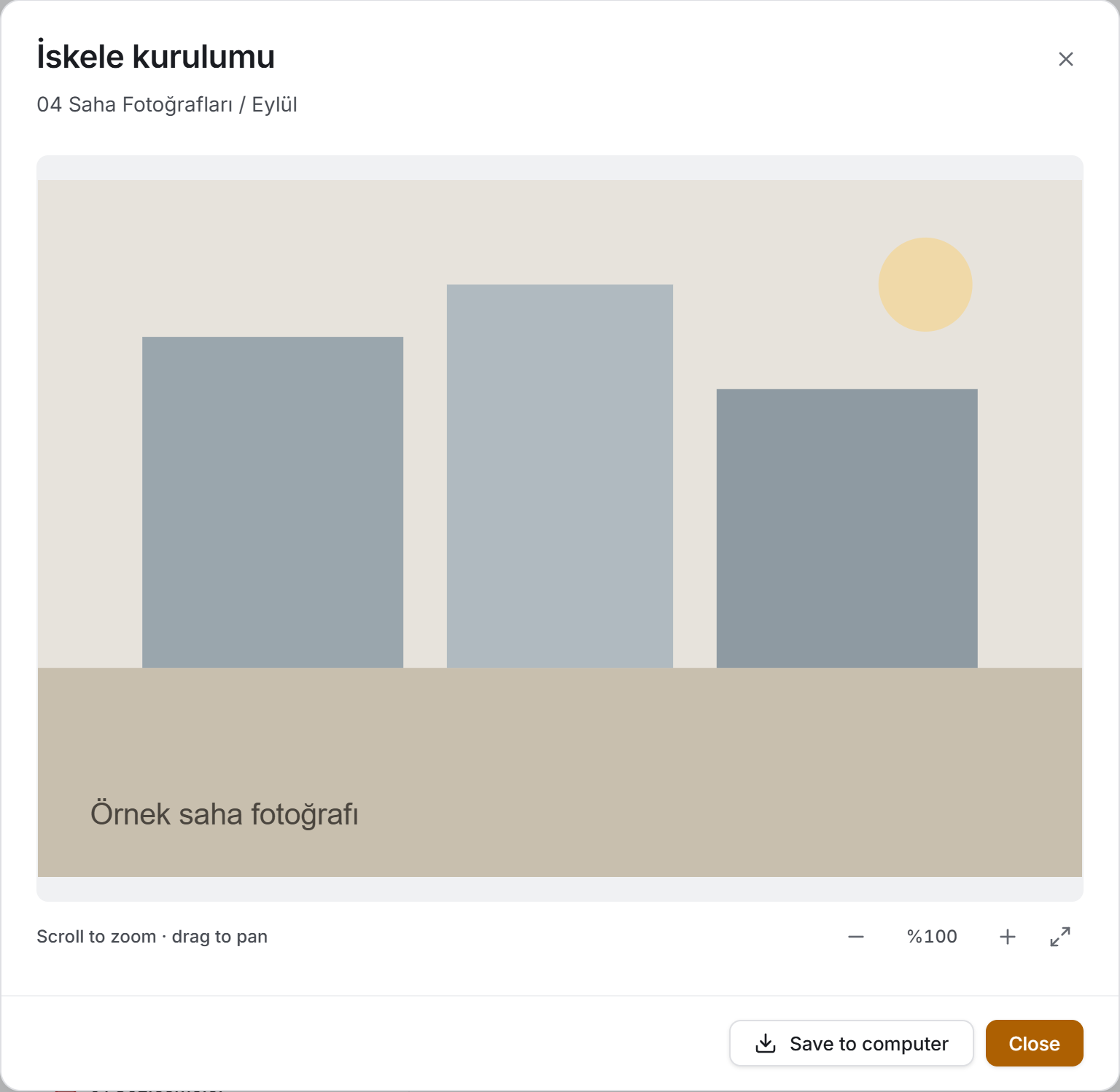
- PDFs and images open in the application's own window. The window has zoom, fit and a Save to computer button; on a photo you zoom with the wheel and pan by dragging.
- Everything else (spreadsheets, documents, drawings, video…) opens in the default application on your computer. The file is downloaded to a temporary copy for this.
Editing and sending it back
If you edit a file you opened in another app and save it there, Sitabula notices. When you return to the application a "… has changed" strip sits at the top of the page:
- Upload as new version — what you saved goes to the server and becomes the current version.
- Not now — the change is passed over and the file stays watched.
An open file shows an Open badge on its card and in its details. To stop watching it, use the Stop watching button in the details; the temporary copy is deleted.
Working with versions
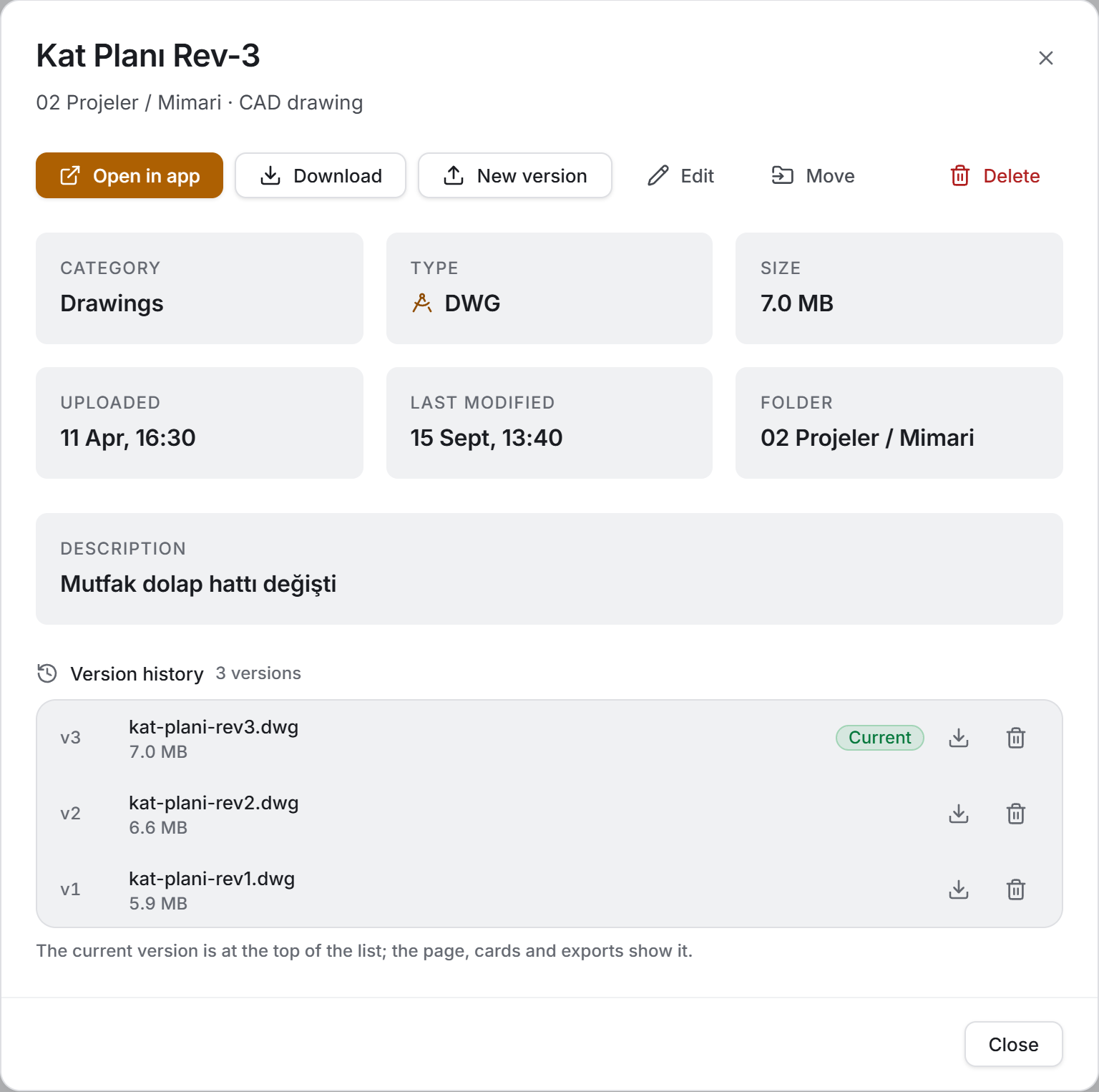
Versions live in the file's details. The details open from three places: the three dots at the right of a row in list mode, the same button in the All files ledger, and a row in a breakdown card. The dialog shows both the record's information and its version history.
- The New version button asks for a file and makes it the record's new current version. The earlier one is not deleted; it stays in the list.
- The version list runs newest to oldest; the top one carries the Current badge. The page, the cards and the exports always show the current version.
- The download button on each row downloads that version — this is how you go back to an earlier state.
- A version uploaded by mistake can be deleted with the bin button; the card and the list go back to the previous version.
Deleting
Choose Delete from the right-click menu.
- For a file, the confirmation says the file will be permanently deleted. If the file has more than one version, a "This file has N versions; all of them are deleted" warning is added.
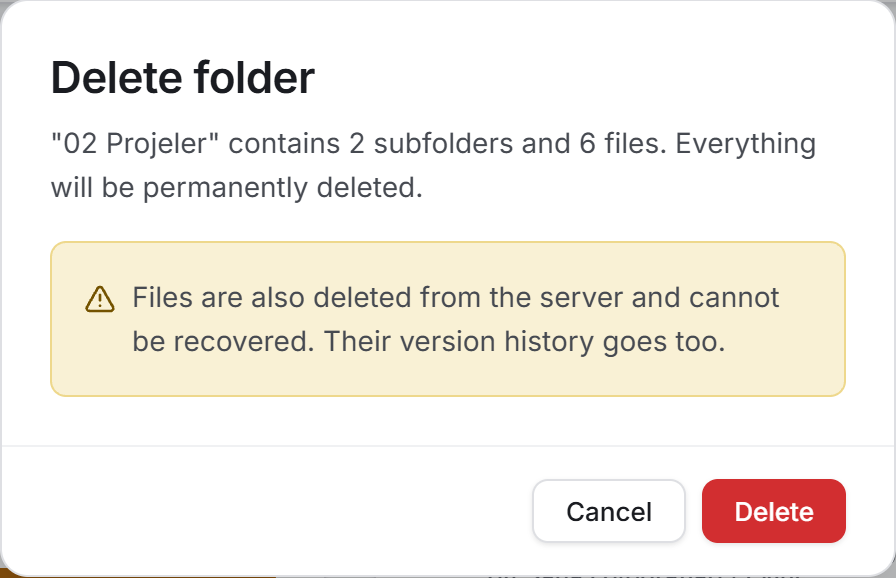
- For a folder, the confirmation counts what is inside: how many subfolders and how many files. If there are files, "Files are also deleted from the server and cannot be recovered. Their version history goes too" is added below.
If you delete the folder you are in, the page returns to the root level.
6. Outputs
There are two export buttons at the top right of the page. Both are disabled while the archive has no files.
Download Excel
The workbook carries two sheets:
| Sheet | What is in it |
|---|---|
| Files | File · Folder · Category · Type · Extension · Size (bytes) · Size · Versions · Uploaded · Last modified · Description |
| Folders | Folder path · Name · Depth · Files directly inside · Total files · Size (bytes) · Size · Last upload · Description |
Both sheets open with a header block: the project name, the report date, the file and folder counts, the storage used and, if not everything was measured, how many were. The third line carries whatever filter was on.
The Folders sheet gives something no screen does: the tree flattened. The number of files directly inside a folder and the total of its whole subtree stand side by side.
Download PDF
Not a one-page summary but the list of the archive: A4 landscape, seven columns (file · folder · category · type · size · versions · uploaded). Under the file name sits its description, or the real file name on the server if there is no description. A GRAND TOTAL row closes the table, and the project name and report date sit at the foot of every page.
The header block carries the line "Size measured for N files"; if everything was measured it reads "All file sizes measured". That line says how much of the total is real.
For both exports you choose where the file is saved; when it is saved a "File saved: …" strip appears at the top of the page. If you close the save dialog nothing is said — cancelling is not an error.
7. Things worth knowing
A file's size is not stored, it is measured. The server does not return it with the record; the application asks for each file separately. That is why Storage used starts small when the page opens and grows as the measuring goes on, with "measuring sizes" in the strip. The measuring never makes you wait.
A file that cannot be measured is not counted as zero. It shows — in the list, stays out of the total and sorts to the bottom. Writing zero would make it look like an empty file.
The same file is not measured twice. Refreshing the page does not restart the measuring; only new addresses are measured. When a file gets a new version it is measured again by itself.
The size of earlier versions is only measured when the details are opened. A row in the version list may briefly read "Measuring the size of earlier versions".
The search covers the whole project and scans five fields: name, description, folder path, extension and category. Typing pdf brings every PDF; typing estimate brings everything whose name or path mentions it. The search folds Turkish letters: typing kesif finds Keşifler.
Entering a folder clears the search. With both on at once, what is on screen would belong to neither.
The category and type filters only remove files. Folder cards and the tree stay; a folder whose name matches the search appears even when its contents do not pass the filter.
The folder counter ignores filters. The Folders number in the analysis strip is always every folder in the project.
Numbers in the tree cover the whole subtree, and so do the sizes. The size on a branch is the total of the measured files below it; while measuring goes on, that number grows too.
A duplicate name is not an error, it is a warning. You can create a second item with the same name in the same folder; the application says so but does not stop you.
Old records left without a name are shown with a fallback. A folder with an empty name reads Untitled folder in the tree, a file with an empty name reads Untitled file in the list. These fallbacks live on the screen only; they are not written to the record and they do not join the search.
Some records have no file on the server. A record whose name is there but whose content is not shows a No file badge in the list, — in the versions column, and its details say "This record has no file". There is nothing to open or download; you can make the record usable again by uploading a New version. The analysis strip counts these as "N records have no file".
A new version does not overwrite the old one. The earlier states of a file stay on the record and can be downloaded one by one. A record can carry at most 100 versions; beyond that the server refuses the new version and the message about the file limit appears.
Version compatibility with the older Sitabula: the old application sees a record's last version, so it opens the right file. But if a new state is uploaded to the same file there, the old one is deleted — the version count looks smaller here afterwards. That is expected.
Folders created by the old application appear amber. The old version writes the folder colour in a form this one does not recognise, and any unrecognised colour falls back to the default. To change it, pick a colour in the rename dialog.
The limit is 200 MB per file. Files over the limit appear in red in the upload list and Upload does not run until they are removed. The server enforces the same limit itself.
You do not have to put an extension in the file name. You can save it as Floor Plan Rev-3; when it is downloaded the extension is taken from the real file on the server, so the file opens with the right application on your computer.
An incomplete deletion is silent. If some records cannot be deleted while a folder is being removed, the confirmation still closes and nothing is written on screen; the folder or file that survived stays in the list. Check the list once after a deletion, and repeat it if something is still there.
The delete order is deliberate. Files go first, then folders from the deepest up to the root, so that even if something goes wrong no record is left "visible in no folder at all".
In the grid the details cannot be opened. Clicking a card opens the file itself, and the right-click menu has no details entry. To see a file's category, description, size and version history, switch to list mode, use the All files ledger, or click the file in one of the breakdown cards if it is there.
Dragging is for files only. Folders cannot be dragged; use the Move dialog for them.
A file opened in another app is a temporary copy on your computer. It is deleted when you leave the page or press Stop watching. If the application closes unexpectedly, copies can be left behind.
Only one "file has changed" question is shown at a time. If you opened three files, the questions queue up: answering one brings out the next.
"Last activity" is not the upload date, it is the touch date. It is refreshed when a file's details are edited or a new version arrives; the day the record was created does not change.
If the archive cannot be read, the page shows nothing. The folders and the file records come down together; if one of them fails the tree would be incomplete, so a "Could not load files" card and a Try again button are shown instead.
8. Related chapters
This archive is closed in on itself: its data comes from no other module, and uploading a file changes no other module's numbers.
- Projects — the archive belongs to a project. When you switch projects, the whole tree, the counters and the files change.
- Users — who can see this module and who can upload and delete is decided in the project permissions. The server role matters here too: an account with the viewer role cannot see any files.