
Progress Payments
Progress Payments is the page that determines how much a subcontractor will be paid. It gathers the work done on site, the lump-sum payments tied to a contract and the equipment work…
1. What it is for
Progress Payments is the page that determines how much a subcontractor will be paid. It gathers the work done on site, the lump-sum payments tied to a contract and the equipment work entries into a single record; it calculates the amount, adds the VAT and writes a credit line to the subcontractor's current account.
A single progress payment can carry items from five different agreement types, and they can be mixed in one record: Take-off, Day rate, Lump sum, Deduction and Equipment. The items come from three separate places: production items entered on site, equipment work entries, and lump-sum payments that have no counterpart on site.
The page answers these questions: how much did we issue this month, how much do we owe each subcontractor, what is left on the lump-sum contract, how much was deducted from this progress payment and which record has an item total that does not match.
2. How to open it, who can see it
In the sidebar: Management & Finance › Progress Payments.
| Your permission | What you can do |
|---|---|
| View | You see the list, the summary band, the chart, the breakdowns, the progress payment panel and the item breakdown. You can take all four exports. New progress payment, editing, deleting, reordering and the ledger transfer are not drawn at all |
| Edit | Everything above, plus you issue, edit and delete progress payments, change the sequence and re-run the ledger transfer |
| No permission | The module appears dimmed and locked in the menu |
3. Anatomy of the screen
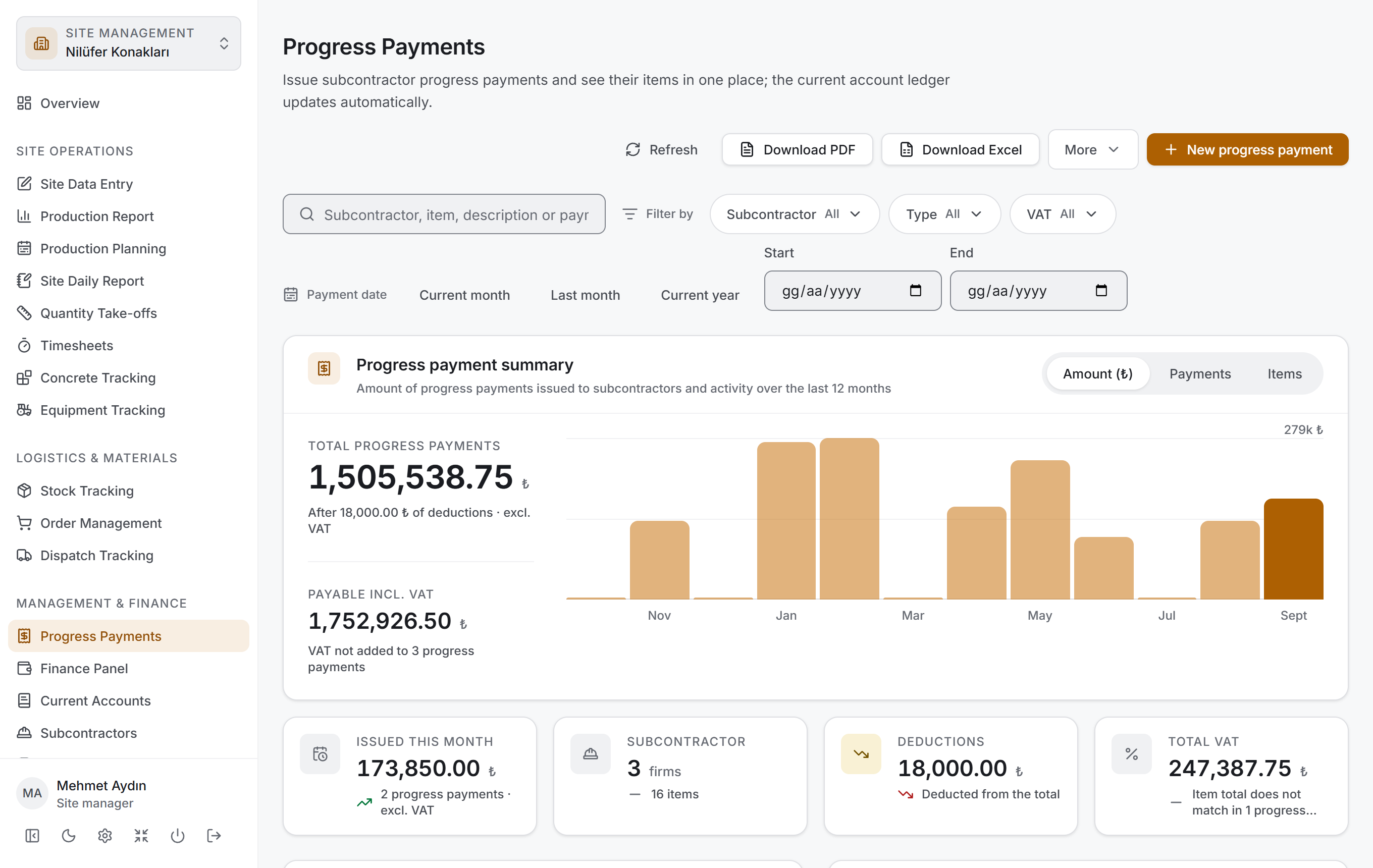
From top to bottom the page has four layers and follows the same order as Concrete Tracking, Timesheets, Equipment Tracking, Stock Tracking, Order Management and Dispatch Tracking: first you narrow down, then you read the result as numbers, then you look at its breakdown, and finally you go down to the rows. There is a fifth layer where the inside of a progress payment becomes visible: the progress payment panel that opens when you click a row.
| Layer | What it does |
|---|---|
| Filter bar | Search, subcontractor, type, VAT and payment date range |
| Progress payment summary | Two main amounts, a twelve-month chart, four small measures |
| Breakdown | Type distribution and subcontractor distribution |
| Progress payments | A table grouped by subcontractor |
| Progress payment panel | A payment's details, its actions and its item breakdown |
All four of the first layers are drawn from the rows that pass the filter above. When you make a selection, all four change at once and no request goes to the server — the project data has been loaded once. Every calculation on the page, including the lump-sum balance, comes out of those loaded rows.
Title and actions. The title reads Progress Payments with the description "Issue subcontractor progress payments and see their items in one place; the current account ledger updates automatically." On the right sit Refresh, Download PDF, Download Excel, the More menu and (if you have permission) New progress payment. The More menu holds Subcontractor balance statement and — if you have permission — Edit sequence.
Filter bar

It has two parts. On top a Search progress payments box and next to it, under the Filter by label, the Subcontractor, Type and VAT filters; below, under the Payment date label, three ready-made ranges and two date boxes. When a filter is active a Clear filters button appears and the number next to it says how many narrowings are open; with no filter the button is not drawn.
| Control | What it does |
|---|---|
| Search progress payments | Searches the subcontractor name, description, payment number, type name and item names and locations. Typing no 3 or just 3 brings up the third payments |
| Subcontractor | Narrows down by company. Records with no subcontractor and with a deleted subcontractor are listed as their own groups |
| Type | Narrows down by agreement type: Take-off · Day rate · Lump sum · Deduction · Equipment |
| VAT | Two options: With VAT and Without VAT |
| Current month · Last month · Current year | Ready-made ranges. The selected one is highlighted; pressing it a second time removes the range |
| Start · End | A free payment date range. If one is left empty there is no limit in that direction |
The ready-made ranges here are monthly and yearly — in Dispatch Tracking they are weekly. The questions a progress payment answers are "what did we issue this month" and "how much did we pay this subcontractor this year".
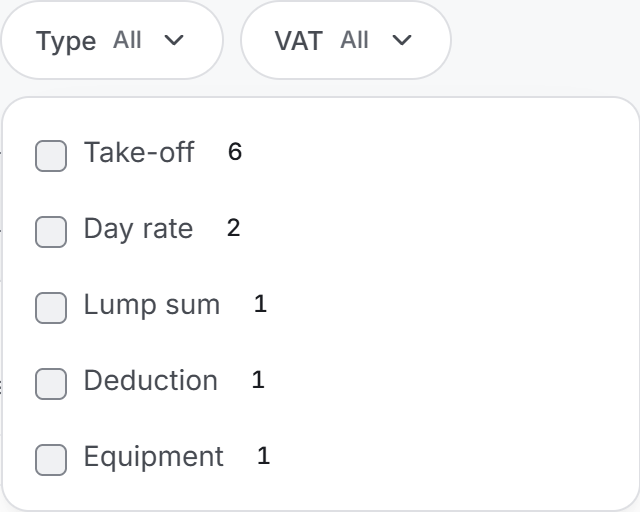
In a filter menu each option carries how many progress payments it matches. These counts are calculated after the other filters have been applied; so when you pick a subcontractor, the counts in the type menu describe that company's payments. An option you have selected stays in the list even if the narrowed filter makes it disappear (with a zero next to it).
Progress payment summary
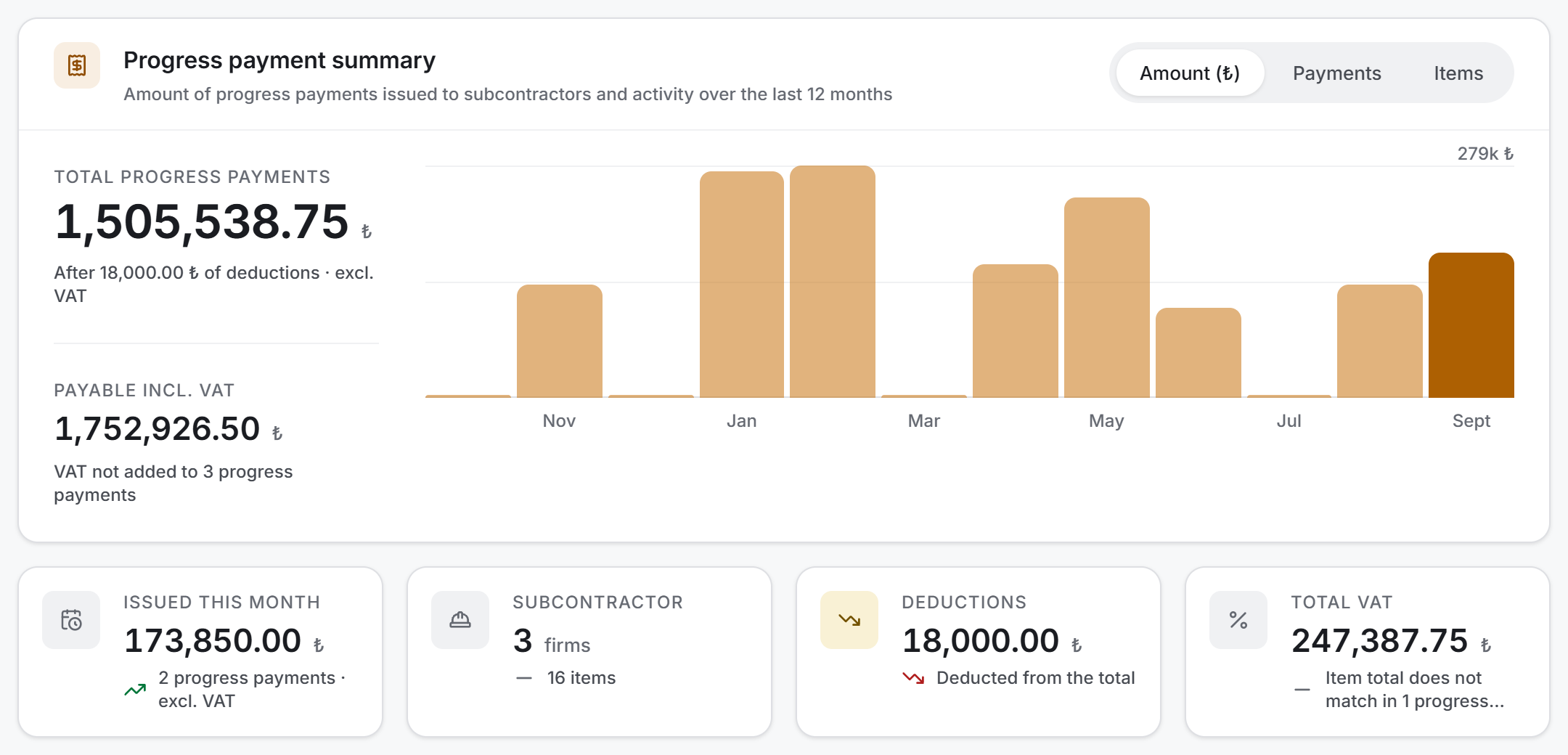
On the left two main amounts, on the right the chart of the last twelve months, below four small measures.
| Measure | What it says |
|---|---|
| Total Progress Payments | The excl. VAT total of the payments that pass the filter. If there are deductions, the line below says how much was subtracted |
| Payable incl. VAT | The net amount plus the VAT — the figure accounting will pay. If any payment has no VAT, the count appears below |
| Issued This Month | The excl. VAT total issued in the current calendar month; the count below |
| Subcontractor | How many companies received a payment; the total item count below |
| Deductions | The total of the deduction items. Above zero the tile reads orange |
| Total VAT | The total of the VAT amounts. If any record's item total does not match, the count appears under this tile |
The measure of the chart changes with the switch at the top right: Amount, Payments or Items.
Breakdown
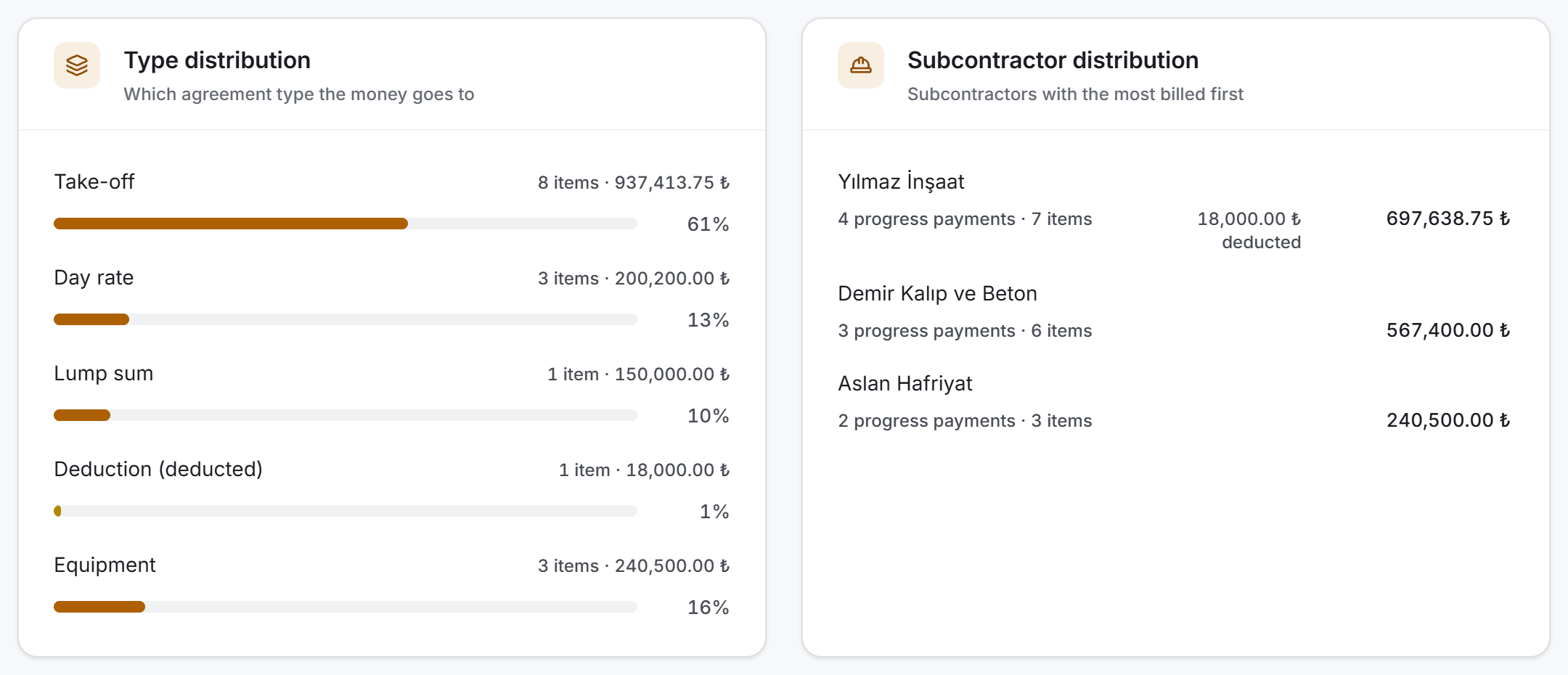
Two cards, both counted from the same rows; neither brings an extra request.
Type distribution shows with a bar which agreement type the money goes to. The share is calculated from the amount, not the count: thirty take-off items could hide that a lump sum took half the money. The deduction row is orange, its label reads (deducted) and its bar is drawn with its absolute value — a negative bar would be unreadable.
Subcontractor distribution counts how much was issued to each company. Every row carries the number of payments, the number of items, any deduction and the excl. VAT amount. The order is by amount; a company that has received nothing shows a dash, not a zero.
Progress payments
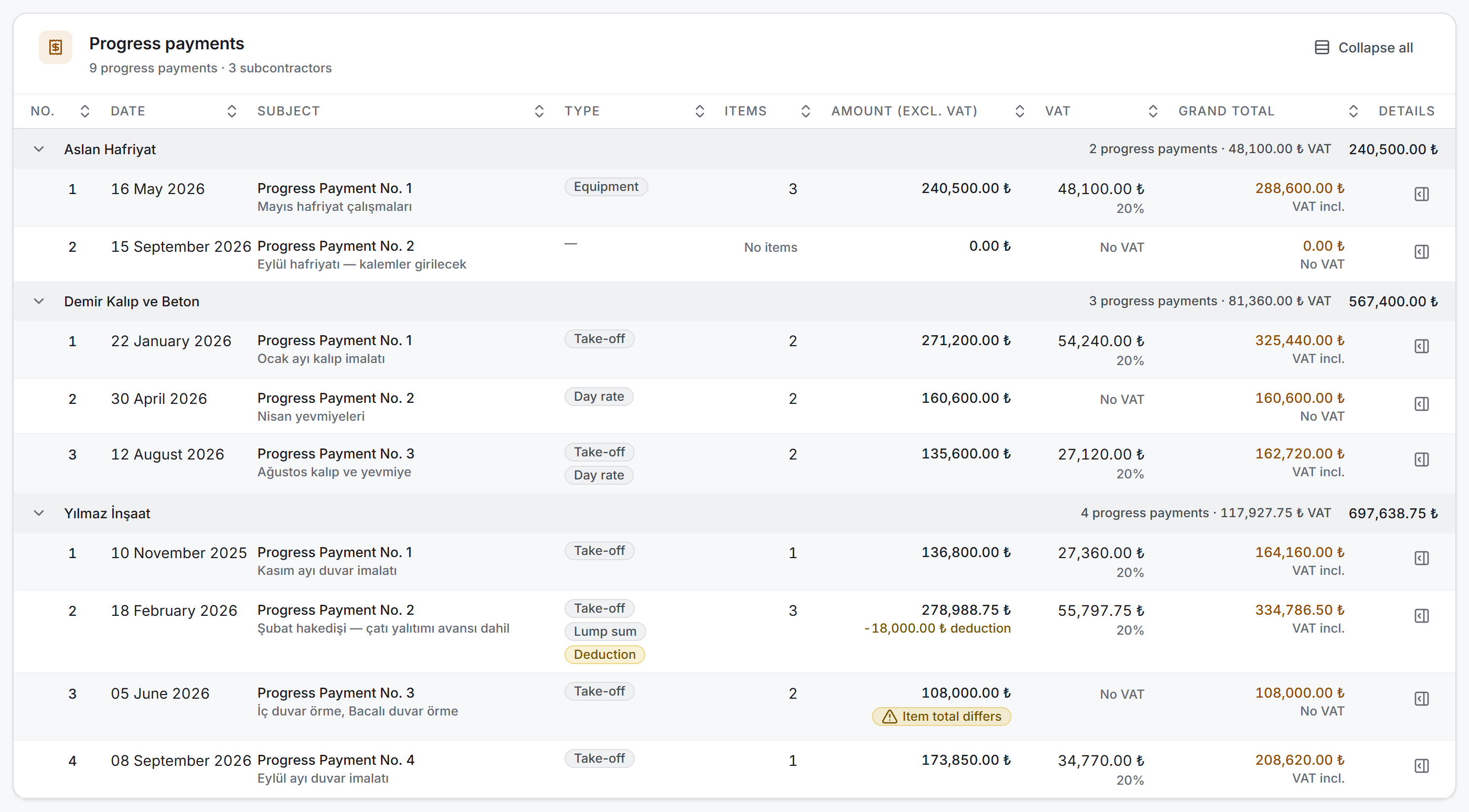
The table is grouped by subcontractor and the groups are alphabetical. The group header carries that company's payment count, its VAT total if any, and its excl. VAT amount. You can collapse groups by clicking their headers, or collapse all of them with Collapse all at the top right.
| Column | What is in it |
|---|---|
| No. | The payment number. It starts from 1 within the subcontractor group |
| Date | The payment date; if none was entered, No date. Undated records sort to the end |
| Subject | Progress Payment No. n and below it the payment's summary — the description if there is one, otherwise the first two item names and the rest as a count. Clicking it opens the panel |
| Type | The types present among the items, as badges. Deduction is orange, the rest neutral |
| Items | The item count. A payment with no items reads No items, not zero |
| Amount (excl. VAT) | The recorded net amount. If there is a deduction, -amount deducted appears below; if the item total does not match, an Item total differs badge appears |
| VAT | The VAT amount and its rate below. A payment without VAT reads No VAT — not zero |
| Grand total | The net amount plus VAT; below it VAT incl. or No VAT |
| Details | Opens the progress payment panel |
You can sort by clicking the column headers. The default order inside a group is the payment number.
Progress payment panel
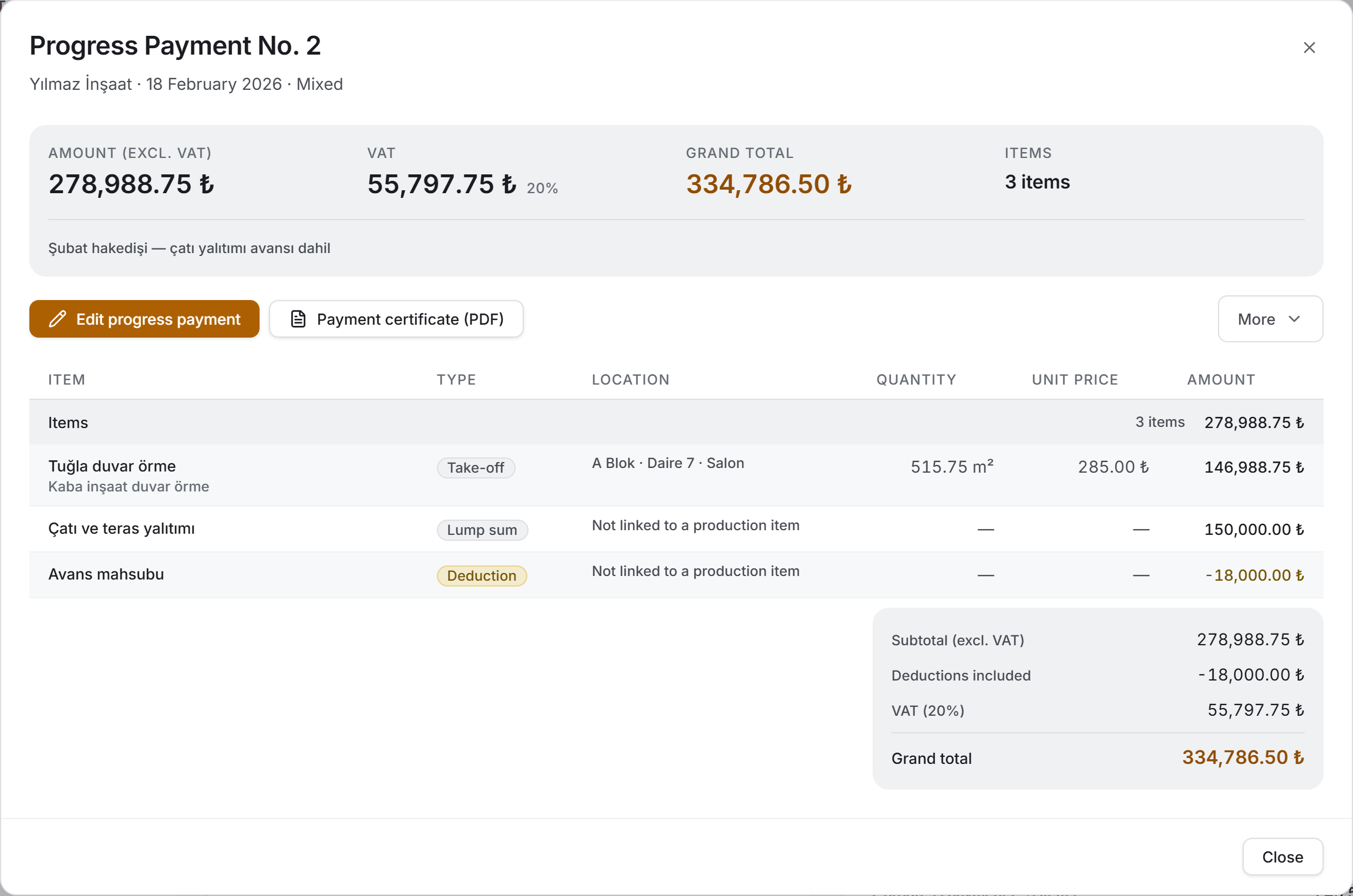
It opens when you click the Subject column of a row or the Details button. The title reads Progress Payment No. n and below it the subcontractor · date · type. It has three parts.
Details. Four fields: Amount (excl. VAT), VAT (with its rate if there is one), Grand total and the Items count. Below them the payment's description, if any. Two warnings also appear here: an orange band explaining why the item total differs from the recorded amount, and a blue band if no item is linked at all.
Action row.
| Button | What it does |
|---|---|
| Edit progress payment | Opens the payment window in edit mode |
| Payment certificate (PDF) | Prepares the one-page document to be signed with the subcontractor |
| More | Edit sequence · Resend to Current Accounts · Delete progress payment |
Item breakdown. The payment's ledger; described under its own heading below.
#### Item breakdown
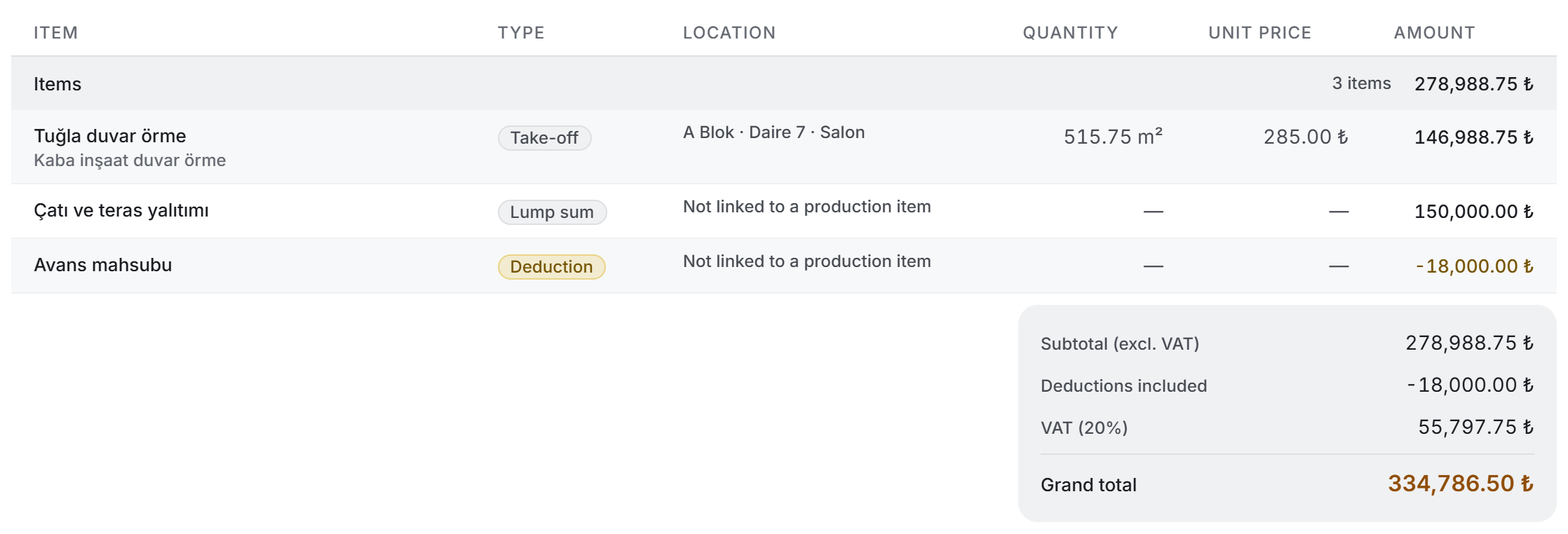
The items are listed in the order stored in the record; the header says how many there are and their total at current prices.
| Column | What is in it |
|---|---|
| Item | The item's name and below it the subject of the agreement it belongs to |
| Type | The agreement type badge; deduction is orange |
| Location | For a production item, Block · Unit · Room; for an item not linked to one, Not linked to a production item; for an equipment item, the date of the work entry |
| Quantity | The quantity with its unit. There is no such thing as a quantity for lump sum and deduction, so a dash appears |
| Unit price | The agreement's current unit price. A dash for lump sum and deduction |
| Amount | The item's amount. A deduction row is written with a minus sign and in orange |
Below the table, right-aligned, sits an amount breakdown: the subtotal (excl. VAT), the deductions included if any, the VAT if any, and the grand total.
For a payment with no items the table is not drawn at all; the blue band in the details already says the same thing.
4. Fields
The fields on the top row of the payment window — they are the same in New progress payment and Edit progress payment:
| Field | What it means | Required |
|---|---|---|
| Subcontractor | The company the payment is issued to. The items come from this company's agreements | Yes |
| Payment date | This date is written to the current account ledger. It opens filled with today | Yes |
| Add VAT | When ticked, VAT is calculated and the rate box appears | No |
| VAT rate (%) | As a percentage, between 0 and 100. The default is 20 | Yes, if VAT is on |
| Description | A free note. It is also shown on the current account ledger line and appears in the list as the payment's summary | No |
The fields of the item picker — used when adding items to the payment:
| Field | What it means | Required |
|---|---|---|
| Agreement | One of the subcontractor's agreements. Next to it stand its type, its subject, how many pending records it has and how many are already in the selection | Yes |
| Amount payable (₺) | Only on a lump sum agreement. The amount to be paid on this progress payment | Yes |
| Amount to deduct (₺) | Only on a deduction agreement. Do not enter a minus sign — the type marks it as a deduction | Yes |
| Production items | The unbilled production items under the agreement. At least one must be selected for take-off and day rate | Depends on the type |
| Production items in scope | On lump sum and deduction the same list is optional: the item may have no counterpart on site | No |
| Work entries | Only on an equipment agreement. The unbilled work entries; at least one must be selected | Yes |
Calculated values — these are not entered by hand, they come out of the record:
| Value | How it is calculated |
|---|---|
| Payment No. | The position within the subcontractor group. The default order is by date; a manually set sequence wins |
| Item amount | For take-off and day rate, quantity × the agreement's unit price; for equipment, the recorded amounts of the work entries; for lump sum and deduction, the amount entered by hand |
| Amount (net) | The total of all items in the selection — with deductions subtracted |
| VAT amount | Net × rate ÷ 100. Zero if VAT is off |
| Grand total | Net + VAT |
| Item total | The total of the items at today's prices. If it differs from the recorded amount by more than one kuruş, a badge appears |
| Deduction | The total of the deduction items, as an absolute value |
| Remaining contract sum | For lump sum and deduction: contract sum − billed on other payments − other rows in the current selection |
5. Step by step
Issuing a progress payment
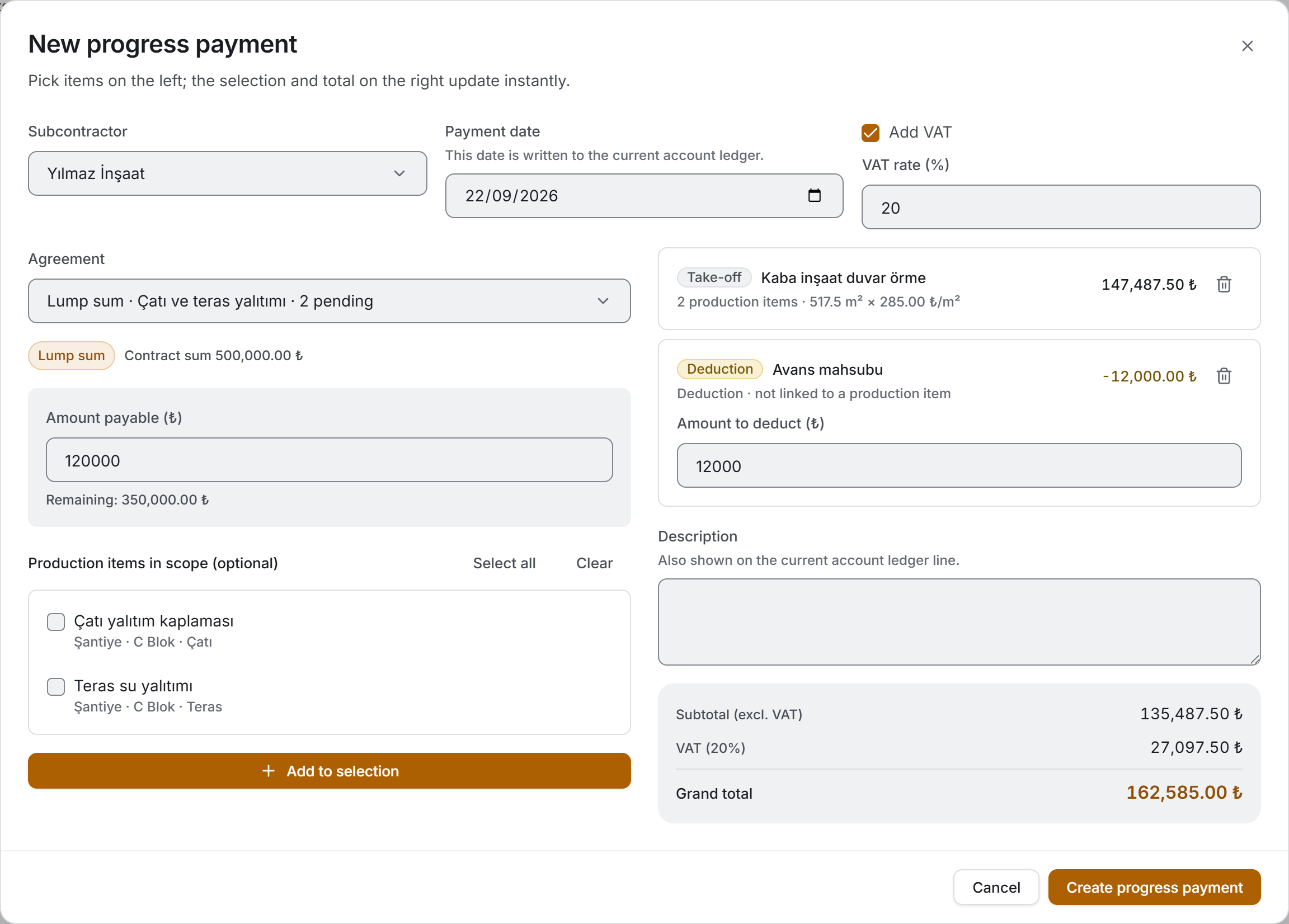
The window has two columns: the item picker on the left, the selection and the total on the right. The selection and the total update instantly with every pick; while you add the second item you can see the amount of the first.
- In the title bar choose New progress payment.
- Pick a Subcontractor. Until you do, the columns are not drawn and "Select a subcontractor first" appears in their place.
- Check the Payment date — it opens filled with today.
- If you need to, tick Add VAT and enter the rate.
- Add items from the left (described per type below). A progress payment can carry items from more than one agreement, and more than one row from the same agreement.
- If you wish, fill in the Description box at the bottom right.
- Choose Create progress payment.
Saving does four things: the payment record is created, the selected production items and equipment work entries are linked to it and marked as billed, the lump sum and deduction items that are not linked to a production item are written, and a credit line is posted to the subcontractor's current account.
Adding an item
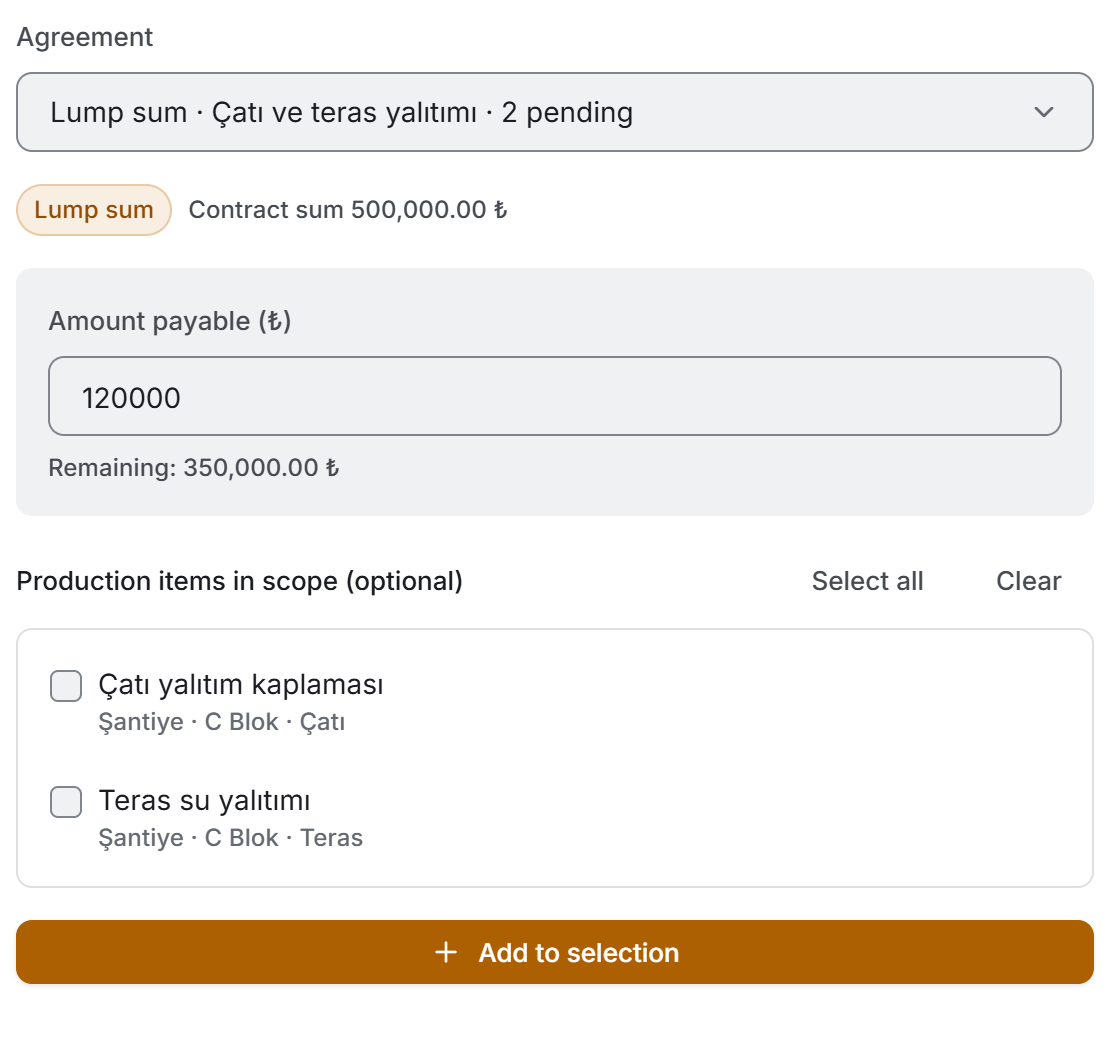
First pick an agreement from the Agreement box on the left. The option line carries the type, the subject, how many pending records there are and, if any, how many are already in the selection. Once an agreement is picked, the type badge and the price information appear below it; what follows depends on the type:
- Take-off and Day rate. The **unbilled production items with the status Done under the agreement are listed. Tick at least one. Select all and Clear** save you from ticking forty boxes one by one on a large agreement. The amount is the quantity total of the selected items multiplied by the agreement's unit price.
- Equipment. The work entries are listed in the same place: date, duration, amount and description. A work entry with no amount reads No amount entered.
- Lump sum. Enter the Amount payable. Below the box stands the remaining contract sum on that agreement, and it shrinks with every row you add to the selection. If you wish you can spread that amount across one or more production items — the Production items in scope list is optional.
- Deduction. Enter the Amount to deduct and do not put a minus sign; the type marks it. The item enters the selection with a negative amount and lowers the total.
Finally choose Add to selection. The item drops into the selection on the right, the agreement box empties, and you are prevented from adding the same record twice — the production items and work entries in the selection drop out of the picker list.
Correcting or removing an item in the selection
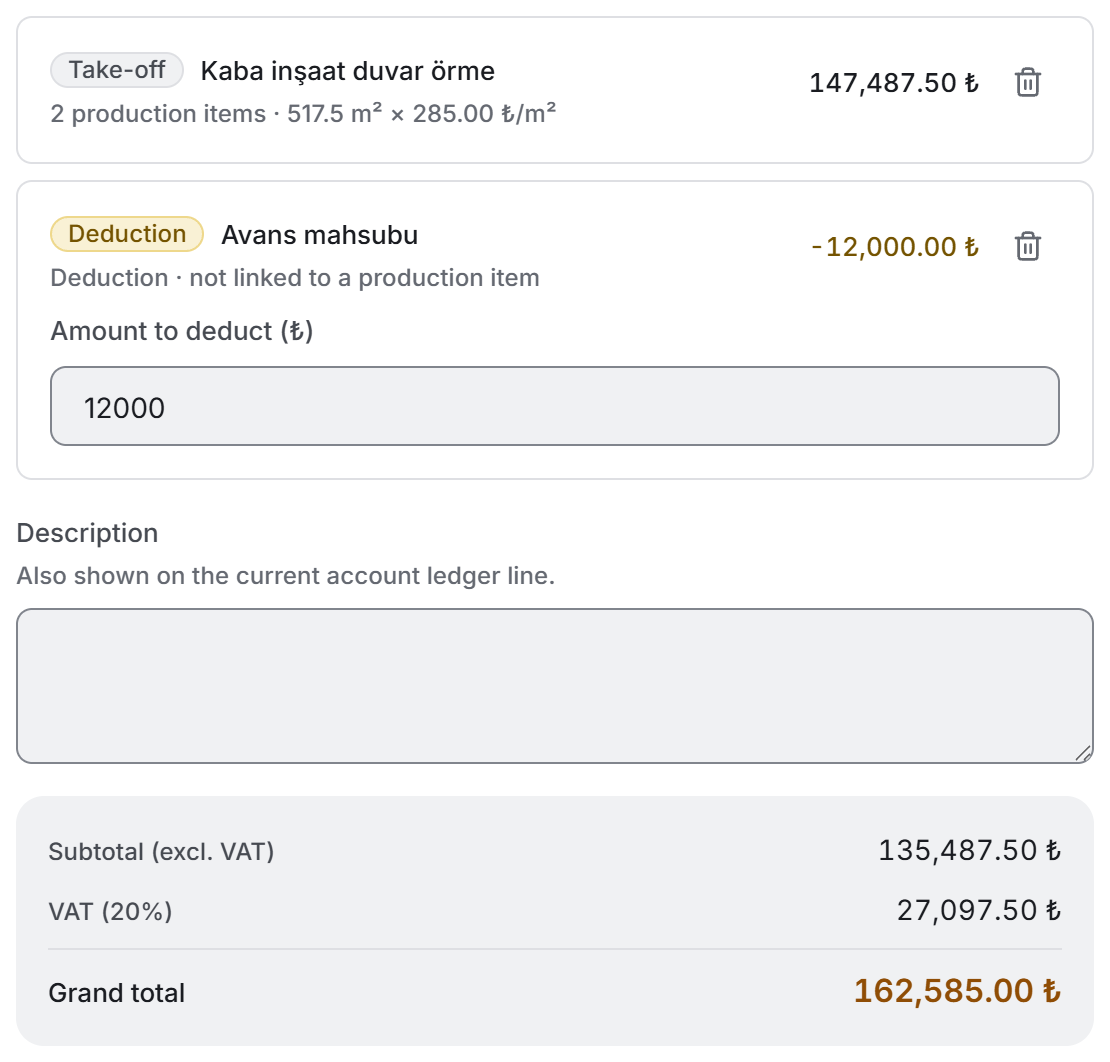
Every row in the selection carries its type, the subject of the agreement, a one-line summary and its amount. On lump sum and deduction rows the amount box sits inside the row and can be corrected directly — you do not have to remove the item and add it again. The bin button removes the row from the selection.
The total box below the selection writes the subtotal, the VAT if any and the grand total one under the other.
Three situations block saving, and all three are stated in a red band under the selection: if the selection is empty, if a lump sum or deduction row has a zero amount, or if an agreement's contract sum is exceeded.
Editing a progress payment
- Open the row and choose Edit progress payment in the panel.
- It is the same window; the selection is rebuilt from the saved items.
- You can add and remove items, correct the amounts, and change the date, the VAT and the description.
- Choose Save.
The subcontractor cannot be changed and the box is locked: every item is tied to that subcontractor's agreements, and changing it would invalidate them all. If you have to change it, delete the payment and issue it again.
Changing the payment numbers
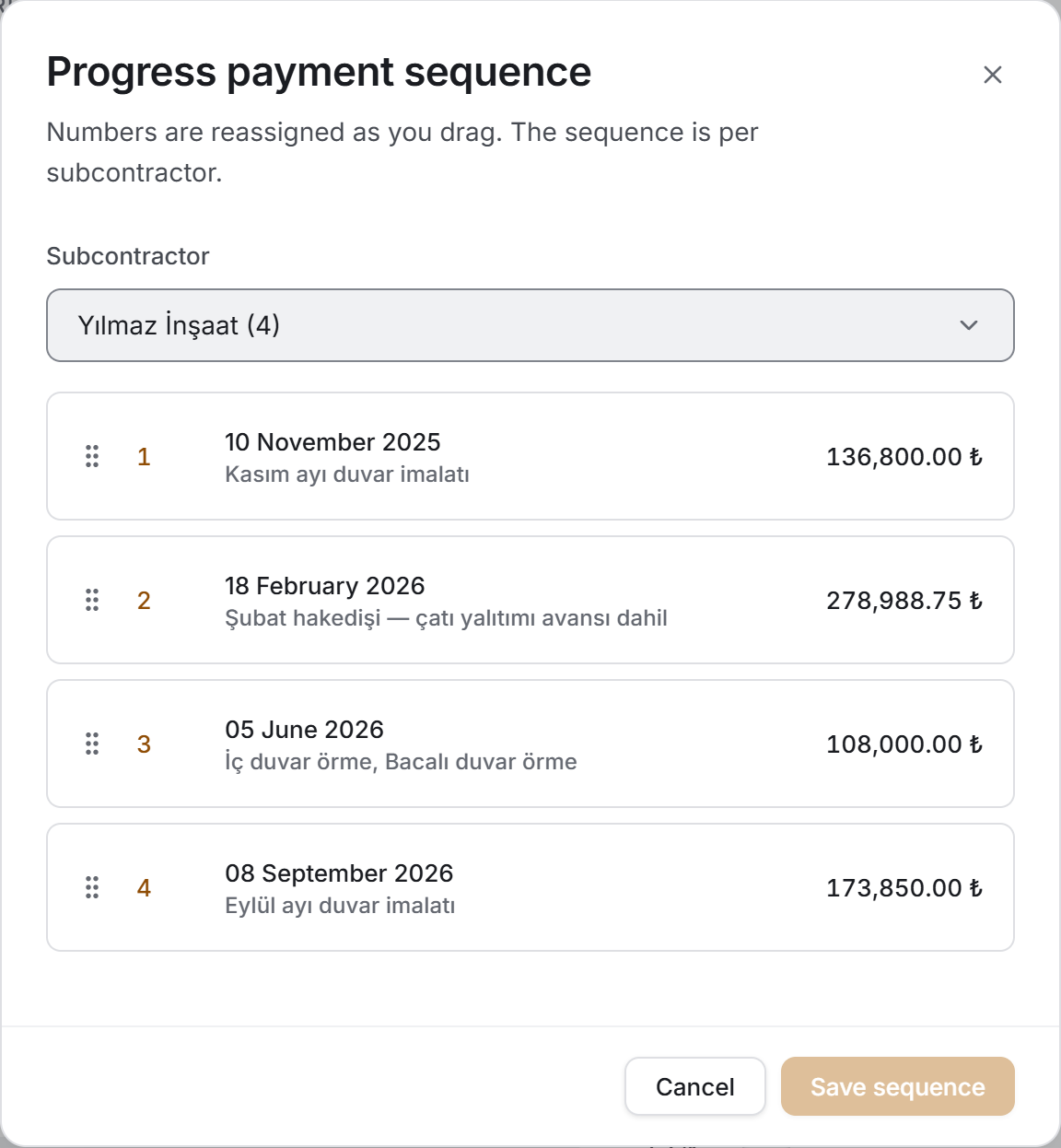
The payment number is the position within the subcontractor group. The default is by date; if you set a sequence by hand, that wins.
- Choose More › Edit sequence in the title bar, or the same item from the panel — coming from the panel opens it with that payment's subcontractor selected.
- If there is more than one subcontractor, pick one from the box at the top. With a single subcontractor the box is not drawn.
- Drag the rows by their handles. The numbers are reassigned instantly as you drag.
- Choose Save sequence. If nothing changed the button stays disabled.
Deleting a progress payment
- Open the panel and choose More › Delete progress payment.
- The confirmation window carries the subcontractor, the number and the summary in its title; the amount and how many items will be released are in the orange band.
- Choose Delete progress payment.
The deletion order is this: first the ledger movement is removed, then the production items and equipment work entries are released, then the items not linked to a production item are deleted, and last of all the payment record. If any step fails the payment stays in place and you can try again.
The production items and equipment work entries are not deleted; they become available to be added to a progress payment again.
Re-running the ledger transfer
If the payment was saved but could not be written to the current account ledger, an orange band appears at the top of the page saying "Progress payment saved, but not written to the current account ledger." The payment is in the list and its production items and equipment work entries are linked to it; the only thing missing is the line in the subcontractor's ledger.
In that case do not issue the payment a second time: a second record would put a second credit line in the ledger and the same work would look as though it were owed twice. You would not find its items either — the production items and work entries are bound to the first payment and no longer appear in the picker.
Check your connection, open the panel and choose More › Resend to Current Accounts. There are three possible outcomes: the line is created and "The progress payment was sent to the current account ledger" appears; if the payment has no subcontractor or its amount is zero the ledger line is removed and the reason is stated; if there is a permission or connection problem the error appears in its own words.
6. Exports
There are four exports. Two of them send the list you see on screen out — whatever the filter is, that is what goes into the file; the third describes a single progress payment and the fourth a single subcontractor.
If the save window is closed nothing happens; when it is saved, a band appears at the top of the page with the full path of the file. All four exports can be taken with view permission.
Download Excel
The file name starts with Progress_Payment_Report_ and a date–time stamp is appended. The workbook has two sheets, because it answers two separate questions: the first is "how much did we pay whom", the second "what work did we pay for".
The Progress Payments sheet carries eleven columns: Subcontractor · No. · Date · Subject / Description · Type · Items · Amount (₺) · VAT (%) · VAT Amount (₺) · Grand Total (₺) · Deductions (₺).
The Items sheet writes all the items of the payments in the same filter across twelve columns: Subcontractor · Payment No. · Date · Item · Type · Block · Unit · Room · Quantity · Unit · Unit Price (₺) · Amount (₺).
Above both sheets sit three header lines: the project name; the report date and the totals; and a one-line summary of the filter that was applied. That last line matters — it is written so that a file taken with a subcontractor selected is not mistaken for the whole project when it is emailed. The deduction total and the number of records whose item total does not match are also noted in the header if there are any.
Three useful details: the header row comes frozen; the filter is on; and the dates and all the numbers are real cell values — they can be sorted, summed and pivoted. The grand total column is bold and highlighted, the deductions column is orange; on the Items sheet the amount of a negative row is orange too.
The last row of both sheets is the GRAND TOTAL, and every total sums its own column. On the Progress Payments sheet the item count, the amount, the VAT, the grand total and the deductions are summed.
Download PDF
An A4 landscape status report with nine columns: Subcontractor · No. · Date · Subject / Description · Type · Items · Amount (₺) · VAT (₺) · Grand Total (₺).
The first page carries the project name, the Progress Payment Report subtitle, the time it was produced and the filter summary; at the top right the excl. VAT total, the payment and subcontractor counts and, if any, the incl. VAT amount and the deduction warning. From the second page on, a thin band repeats at the top, the column headers are rewritten on every page and the page number sits at the bottom.
The deduction is noted in orange below the amount. On a payment whose item total differs from the recorded amount, an italic line reading "item total …" is added under the subject — accounting works with this file and should know why the numbers do not match.
The last row is the GRAND TOTAL: the item count, the amount, the VAT and the grand total columns are summed.
Payment certificate (PDF)
This is the document signed with the subcontractor, and it is taken from the progress payment panel. The file name is made of Payment_Certificate_, the subcontractor's name and the payment number.
It is an A4 portrait document and carries:
- The PAYMENT CERTIFICATE title, the project name, the Progress Payment No., the Document reference, the time it was issued and the payment date.
- Two parties: SUBCONTRACTOR (the firm) and ISSUED BY (the project · site management).
- A four-box summary: ITEMS, TYPE, DEDUCTIONS, VAT. If the item total differs from the recorded amount, a note stating the difference sits below.
- An item table: every item's name, agreement, type, location, quantity, unit price and amount.
- The amount breakdown: Subtotal (excl. VAT), VAT (…%) if any, and the GRAND TOTAL.
- A NOTES section if there is anything to say: the payment's description and the sentence stating the deduction.
- Two signature areas: Subcontractor / Stamp · Signature and Site management · Signature.
Subcontractor balance statement (PDF)
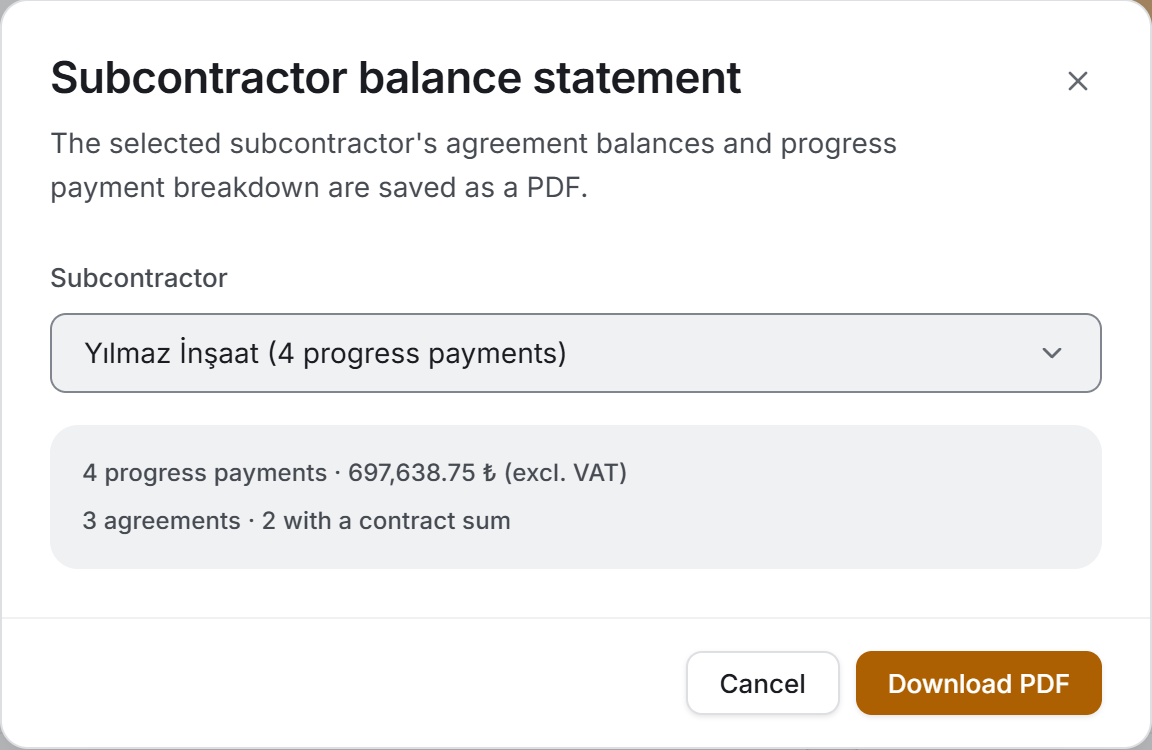
This is the document that shows how much has been billed against each agreement of a subcontractor and how much is left. It is taken with More › Subcontractor balance statement in the title bar.
- If there is more than one subcontractor, pick one from the box at the top; the number of payments it has is written next to it.
- The grey box below the window summarises the selection: how many payments, the total amount, how many agreements and how many of them have a contract sum.
- Choose Download PDF.
The file name is made of Balance_Statement_, the subcontractor's name and a date–time stamp. The A4 portrait document has two tables:
- AGREEMENT BALANCES — Agreement · Type · Unit Price · Contract sum · Billed · Remaining. Agreements with a contract sum come first. Take-off, day rate and equipment agreements are open-ended and read Open-ended in the Remaining column; a zero there would read as "finished".
- PROGRESS PAYMENTS — No. · Date · Type · Items · Amount · VAT · Grand Total, with a TOTAL row below.
7. What you need to know
All the money totals on the screen are excl. VAT. The project's cost for the subcontractor is the excl. VAT figure; the VAT goes to the state and is offset. The VAT does not disappear: it is in its own tile on the summary band, in its own column in the table, in the panel's amount breakdown and on its own line in every export.
The amount of an issued progress payment is frozen. Every total on the page sums the amount written in the record — not one recalculated from the items. If the agreement's unit price changes after the payment was issued, the items' total at today's prices separates from the recorded amount; the recorded amount is what applies and it is what was written to the current account ledger.
This separation is not hidden. An Item total differs badge appears in the table, a band explaining why in the panel, the number of affected records under the VAT tile, and a line each in the Excel header and in the PDF. If you want the new price to apply, open the payment and save it again.
The payment number is a position, not an identity. It starts from 1 inside the subcontractor group and the later ones shift when a record is deleted. The number that does not change is the Document reference on the certificate.
A deduction lowers the money; the type sets the sign. You do not type a minus sign when entering a deduction; the item enters the selection with a negative amount, lowers the total and reads orange everywhere. On the breakdown card, however, its bar is drawn with its absolute value — a negative bar would be unreadable.
The lump-sum balance is calculated from three sources: the contract sum, what has been billed on other payments, and the rows currently in the selection. You are prevented from adding two rows from the same agreement and spending the balance twice. This calculation does not go to the server; moving around the picker list triggers no request.
A progress payment touches four ledgers at once: its own record, the production items on site, the equipment work entries and the subcontractor's current account. The first three are written in a single operation; the ledger is reported separately.
If the ledger transfer fails, the payment has still been saved. A band appears on screen saying "Progress payment saved, but not written to the current account ledger." The record and its links are complete; the only thing missing is the line in the subcontractor's ledger. Do not issue the payment a second time — a second record would open a second credit line in the ledger. Use the Resend to Current Accounts button.
A production item can belong to only one progress payment at a time. Billed items drop out of the picker list; they come back when the payment is deleted or the item is removed. The same rule applies to equipment work entries.
**Only production items with the status Done can enter a progress payment**, and an item with no payment type is not listed at all: it is unclear which agreement it would be paid from. Both are set in Site Data Entry.
A progress payment with no items is real. You can create the record and add the items later; the table writes No items rather than zero on that row, and the panel explains why.
When you select a date range, progress payments with no date drop out of the list. They are not lost; they come back when you clear the filter.
The search respects Turkish letters. Typing yilmaz finds Yılmaz İnşaat. The search also works on the payment number and the item names; the date of an equipment item does not enter the search — searching by date is the job of the period filter.
Unit names are the values you entered. m², Gün, Saat appear exactly as they were written; the app does not translate them.
8. Related chapters
- Subcontractors — the companies and the agreements are defined there. A progress payment is always tied to an agreement; the agreement's type, unit price, unit and lump-sum contract sum come from there. A progress payment cannot be issued to a subcontractor with no agreement.
- Site Data Entry — the production items that take-off, day rate, lump sum and deduction items are linked to are entered there. An item's payment type and status are set there; billed items appear with a badge and their money fields are locked.
- Equipment Tracking — the work entries that equipment items come from are kept there. Billed work entries are marked there.
- Production Report — whether a production item has entered a progress payment appears there as a column.
- Current Accounts — every issued progress payment is written to the subcontractor's ledger as a credit line; the line's date and description go from here.
- Finance Panel — the subcontractor cost is totalled there together with the other cost items.
- Overview — the project's twelve-month progress payment chart and total are summarised there.