
Dispatch Tracking
Dispatch Tracking holds the part of the process that runs from the goods leaving the supplier to them entering the warehouse.
1. What it is for
Dispatch Tracking holds the part of the process that runs from the goods leaving the supplier to them entering the warehouse. When a quote is approved in Order Management, a dispatch card opens here automatically; as the goods arrive you enter deliveries against that card. Every delivery both increases the stock and is posted to the supplier's current account.
The page answers these questions: what am I waiting for, how much has arrived, which supplier has not delivered, how much did the warehouse take in this month and which delivery is missing its delivery note.
An order is an intention; a delivery is a money movement. That is why the page that writes to the current-account ledger is this one, not Order Management.
For deliveries that have no order behind them — small purchases, donated material, goods coming from another site — you can open a manual dispatch by hand.
2. How to open it, who can see it
In the sidebar: Logistics & Materials › Dispatch Tracking.
| Your permission | What you can do |
|---|---|
| View | You see the list, the summary band, the chart, the breakdowns and the dispatch panel. You can take the Excel, PDF and goods-receipt-note exports and open attached documents and save them to your computer. Manual dispatch, receiving, editing, cancelling, archiving and deleting are not drawn at all |
| Edit | Everything above, plus you open dispatches, receive and edit and delete deliveries, cancel and archive cards, close orders and delete dispatches |
| No permission | The module appears dimmed and locked in the menu |
3. Anatomy of the screen
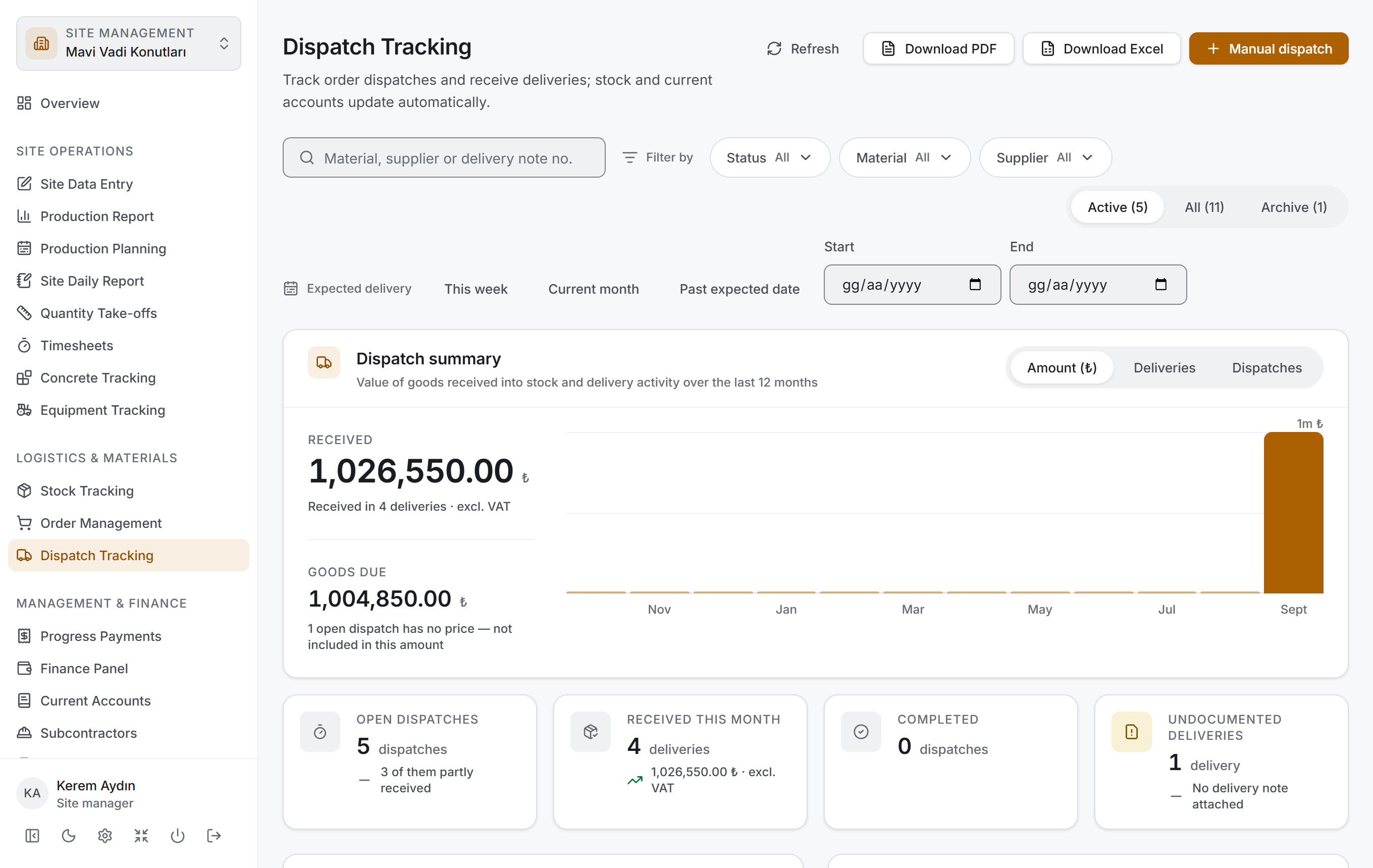
From top to bottom the page has four layers and follows the same order as Concrete Tracking, Equipment Tracking, Stock Tracking and Order Management: first you narrow down, then you read the result as numbers, then you look at its breakdown, and finally you go down to the rows. There is a fifth layer where the real work of the page is done: the dispatch panel that opens when you click a row.
| Layer | What it does |
|---|---|
| Filter bar | Search, status, material, supplier, scope and expected-delivery period |
| Dispatch summary | Two main amounts, a twelve-month chart, four small measures |
| Breakdown | Stage distribution and supplier distribution |
| Dispatches | A table grouped by the stage of the process |
| Dispatch panel | A card's details, its actions and its delivery history |
All four of the first layers are drawn from the rows that pass the filter above. When you make a selection, all four change at once and no request goes to the server — the project data came down once.
Title and actions. The title reads Dispatch Tracking with the description "Track order dispatches and receive deliveries; stock and current accounts update automatically." On the right there are four buttons: Refresh, Download PDF, Download Excel and (if you have permission) Manual dispatch.
Filter bar

It has two parts. The top one holds the Search dispatches box, then the Filter by label with the Status, Material and Supplier filters; the Scope switch sits at the right end. The bottom one holds the Expected delivery label, three ready-made ranges and two date boxes.
The controls wrap with the width of the window: in a narrow window the Scope switch drops to a line of its own. While a filter is selected, a Clear filters button appears on the left and the number next to it says how many narrowings are on; with no filter set, that button is not drawn.
| Control | What it does |
|---|---|
| Search dispatches | Searches the material name, supplier, description, category, status name and delivery note number. The delivery note number is searched both on the card and in every delivery |
| Status | Narrows by status. The list is not alphabetical but in process order: Pending · In transit · Delivered · Cancelled |
| Material | Narrows by material |
| Supplier | Narrows by company. Companies typed by hand, which are not registered, also appear as their own groups |
| Scope | A three-step switch: Active, All, Archive. Each one shows how many dispatches it holds in brackets |
| This week · Current month · Past expected date | Ready-made ranges. The selected one is highlighted; pressing it again removes the range |
| Start · End | A free expected-delivery range. If one is left empty there is no limit in that direction |
The page opens with the Active scope: delivered and cancelled cards are not in the list. In day-to-day work what you are looking for is the goods still on their way; switch to All to see the closed ones.
The ready-made ranges here are weekly — in Order Management they are monthly. The question a dispatch answers is "what is arriving this week"; the question an order answers is "what did I order this month".
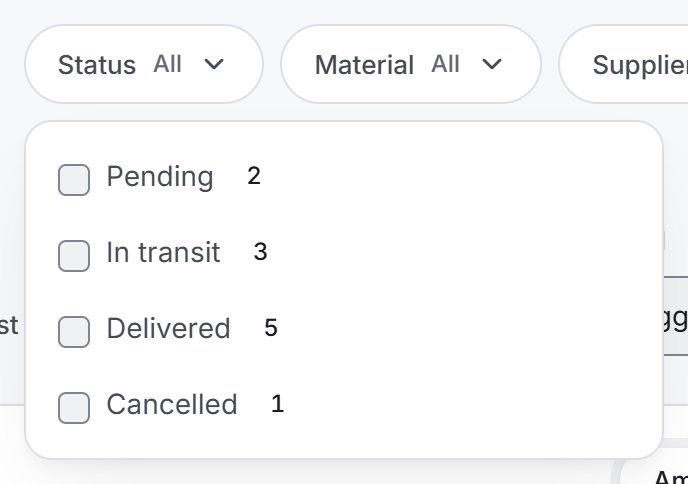
In a filter menu each option shows how many dispatches it matches. These counts are calculated after the other filters have been applied; so when you pick a supplier, the numbers in the status menu describe that company's dispatches. An option you have selected stays in the list even if the narrowing makes it disappear (it then shows a zero) — otherwise you could not undo your own selection.
Dispatch summary
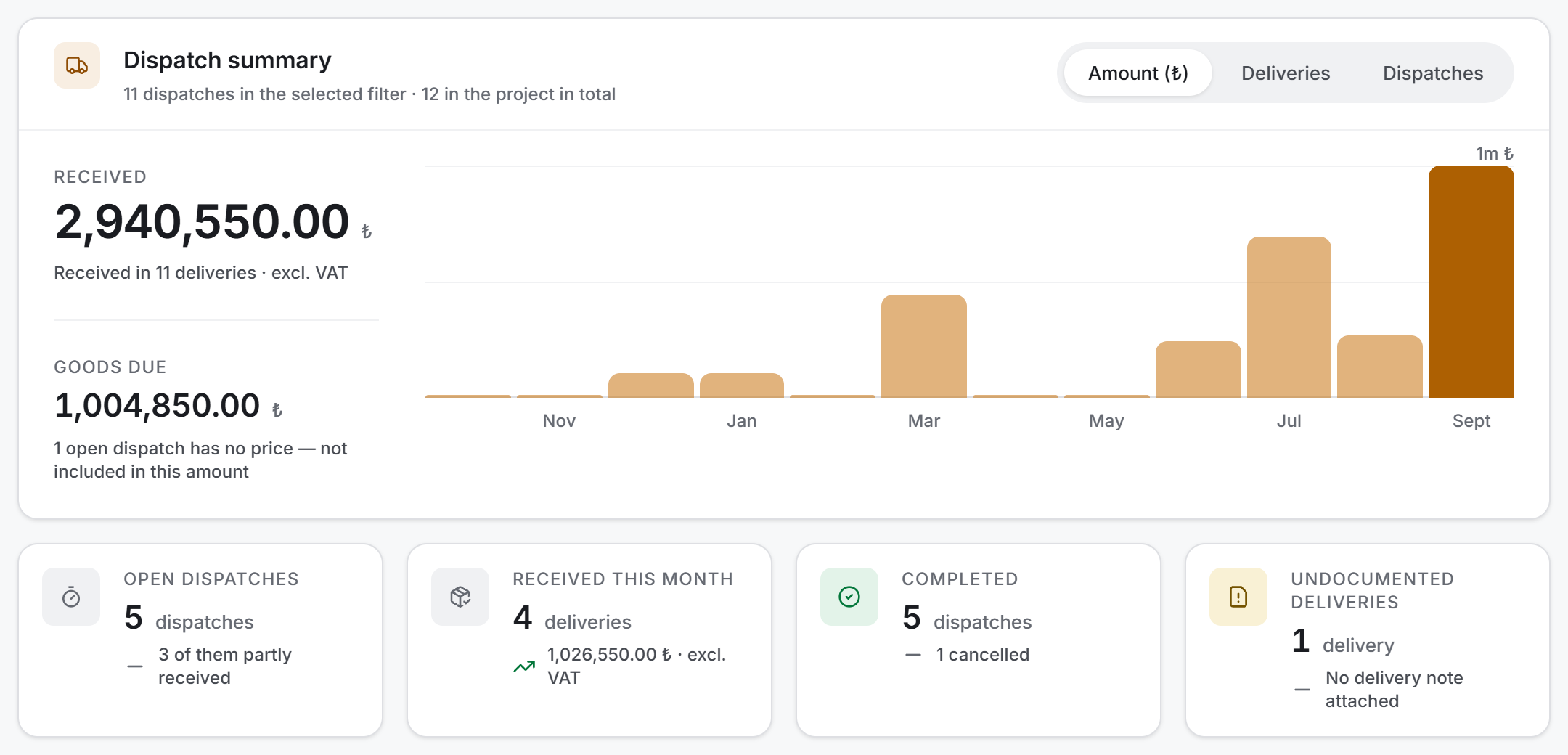
Two main amounts on the left, the last twelve months as a chart on the right, four small measures below.
| Measure | What it says |
|---|---|
| Received | The total, excluding VAT, of goods that entered the warehouse. Below it, in how many deliveries they came |
| Goods Due | The value of the not-yet-arrived part of open cards: remaining quantity × unit price |
| Open Dispatches | The number of pending and in-transit cards; below it, how many of them are partly received |
| Received This Month | The number of deliveries received in this calendar month; below it, their value |
| Completed | The number of delivered cards; below it, the number of cancelled ones |
| Undocumented Deliveries | The number of deliveries with no delivery note attached |
The chart measure changes with the switch at the top right: Amount, Deliveries or Dispatches.
The chart is drawn from the deliveries, not from the cards. A dispatch may be opened in January and arrive in March; the answer to "when did the goods come in" is the second date.
Breakdown
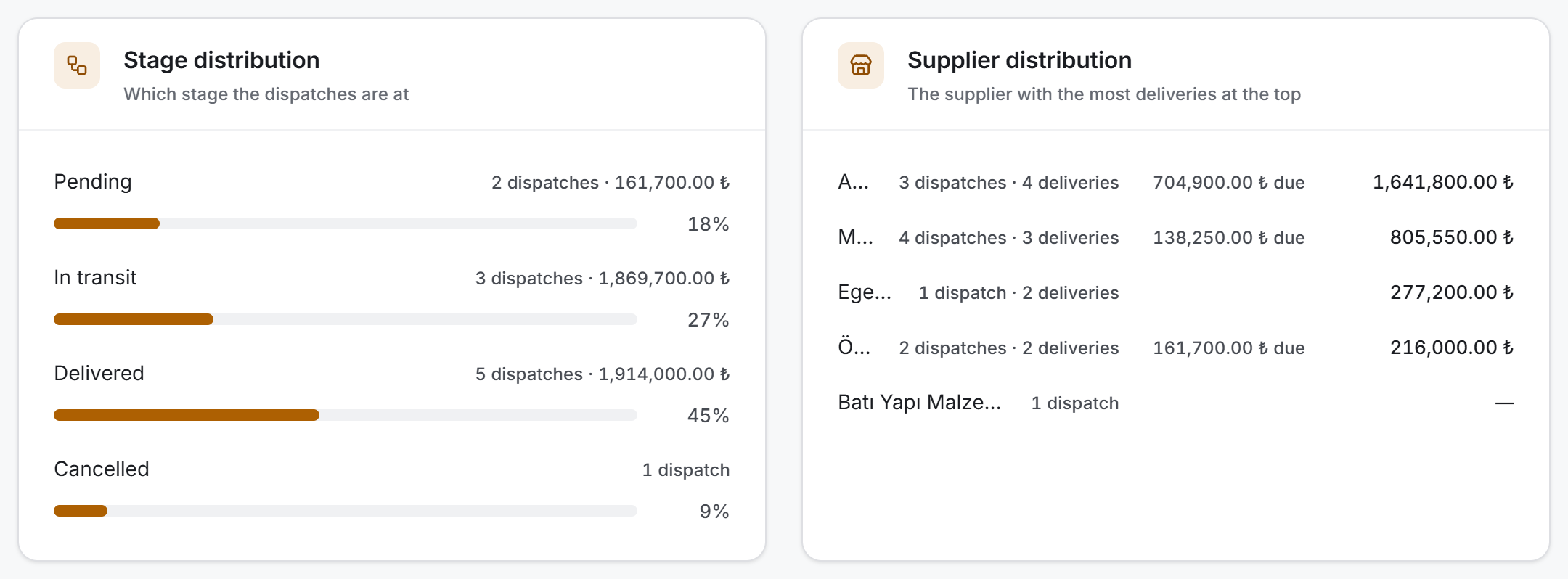
There are two cards and both are counted from the same rows; they cause no extra requests.
Stage distribution shows with bars how many dispatches are at each stage of the process. The share is calculated from the number of dispatches. The amount next to it changes with the stage: on an open card it is the value of the expected goods, on a closed card the value of the goods received.
Supplier distribution counts how much each company has delivered. Every line holds the number of dispatches, the number of deliveries, the amount due if any, and the amount delivered. The order is by the amount delivered. A company that has delivered nothing yet shows a dash, not a zero.
Dispatches
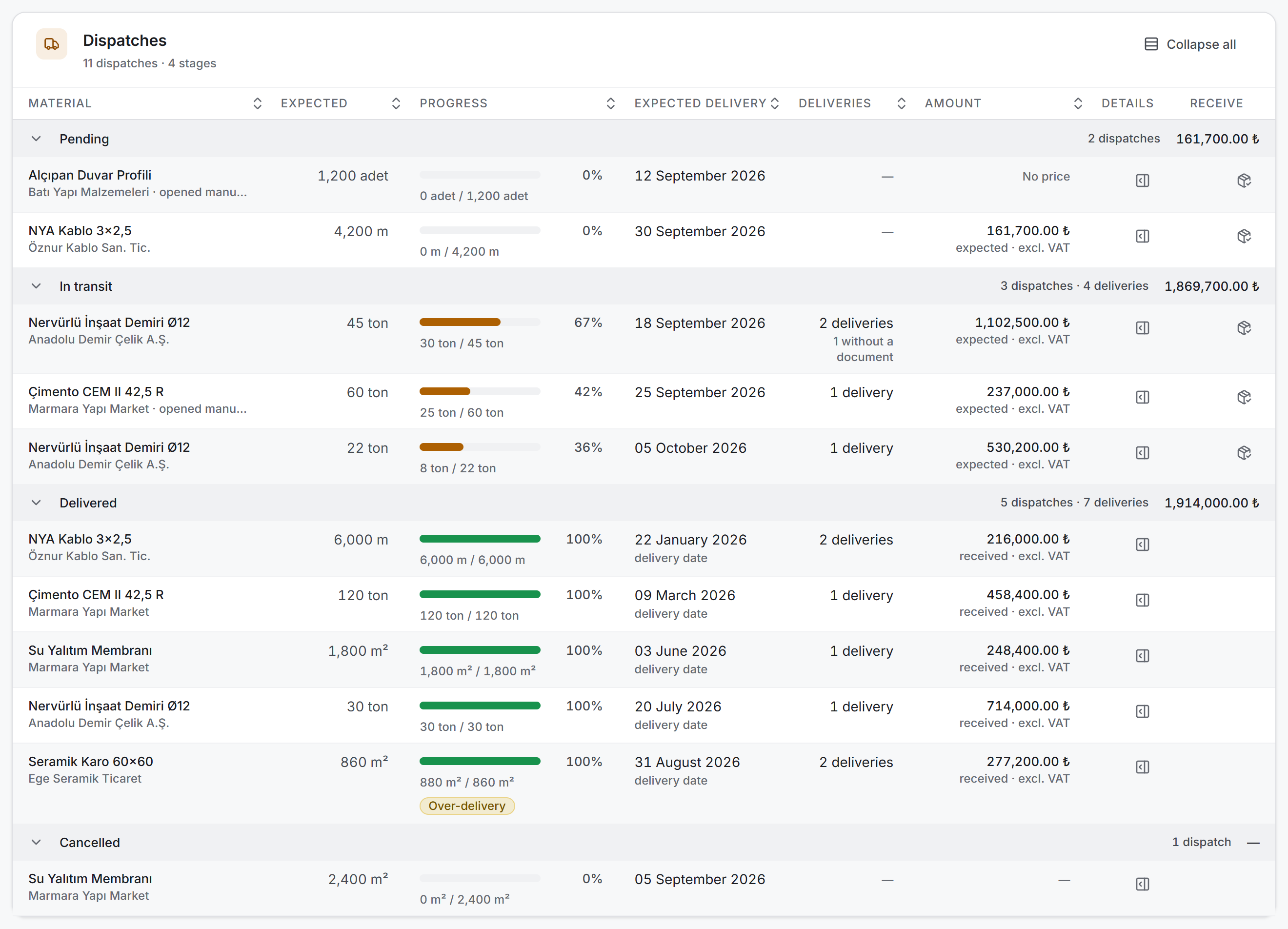
The table is grouped by the stage of the process: Pending, In transit, Delivered, Cancelled. The group heading holds the number of dispatches at that stage, the number of deliveries and the amount. You can collapse the groups by clicking their headings, or fold them all at once with Collapse all at the top right.
| Column | What is in it |
|---|---|
| Material | The material name and the supplier below it. On cards opened by hand "· opened manually" is added. Clicking the name opens the dispatch panel |
| Expected | The quantity the card is waiting for, with its unit |
| Progress | A bar with the percentage to its right; below it, received / expected. If more than expected has arrived, an Over-delivery badge appears |
| Expected Delivery | If the goods arrived, the actual delivery date with delivery date below it; if not, the expected date. If there is no date, No date |
| Deliveries | How many deliveries came; below it, how many of them are without a document |
| Amount | On an open card the expected value, on a closed card the received value, excluding VAT. Which one it is, is written below |
| Details | Opens the dispatch panel |
| Receive | Receives the whole remaining quantity in one step (edit permission only) |
You can sort by clicking the column headings. The page opens with overdue dispatches first: open cards past their expected date are at the top, then the rest by expected date.
Dispatch panel
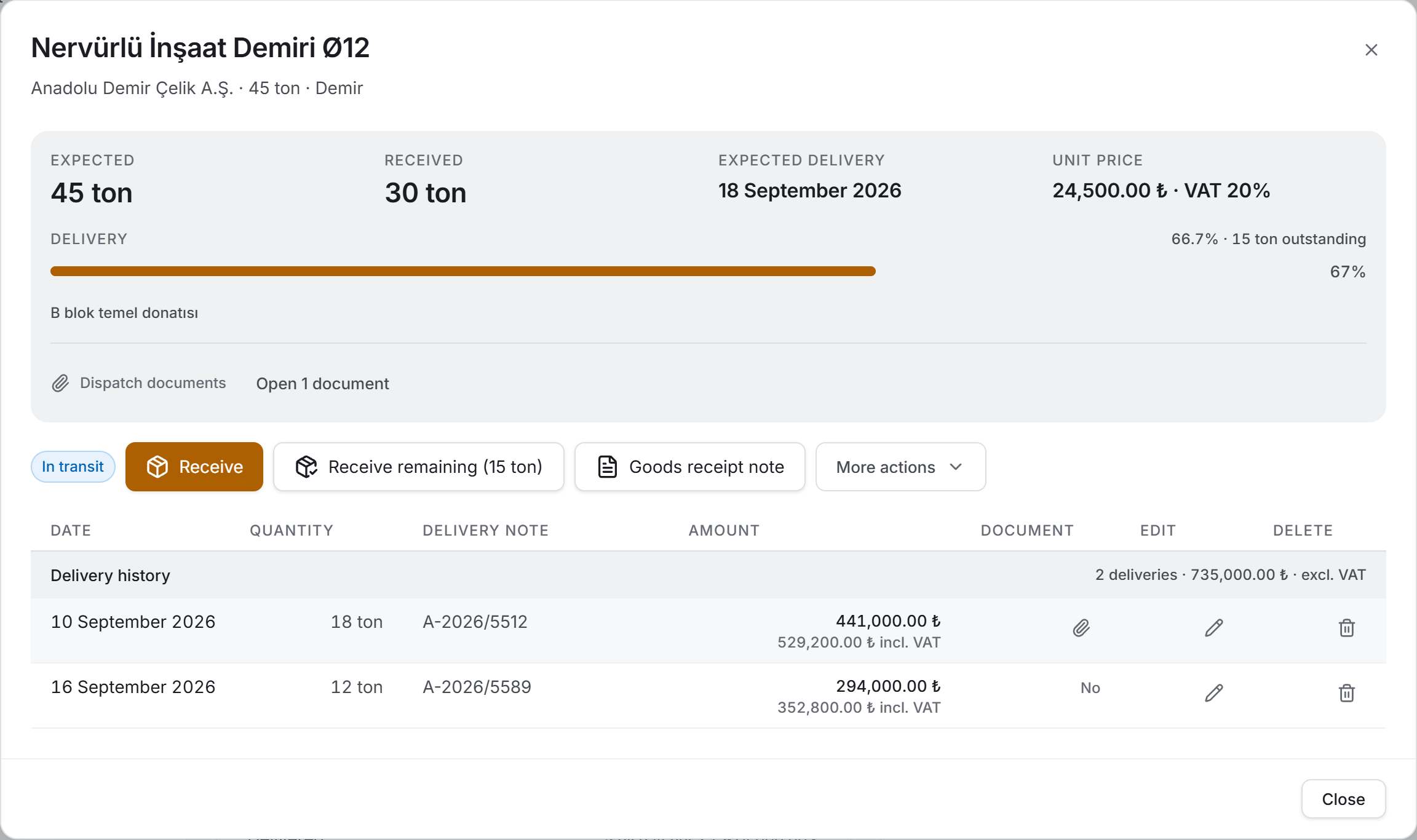
It opens when you click a row's material name or its Details button. It has three parts.
The details block. Four fields: Expected, Received (with an Over badge if more arrived than expected), Delivery date or Expected delivery, and Unit price (with the VAT rate next to it if there is one). Below them a Delivery bar, and above its right end a line reading "66.7% · 15 ton outstanding". The card's description and its attached Dispatch documents are here too.
The action row. The status badge on the left, an Archived badge if there is one, then the buttons:
| Button | What it does |
|---|---|
| Receive | Opens the delivery form |
| Receive remaining (…) | Records the whole remaining quantity as received today |
| Goods receipt note | Prepares the single-dispatch PDF document |
| More actions | Editing, status and deletion actions |
Delivery history. The card's ledger; described under its own heading below.
#### Delivery history

Deliveries are sorted oldest first; a history is a ledger and a ledger is read from the beginning. The heading shows how many deliveries came and their total amount.
| Column | What is in it |
|---|---|
| Date | The delivery date; if not entered, No date |
| Quantity | The quantity received, with its unit |
| Delivery note | The delivery note or invoice number; if not entered, No number |
| Amount | The amount excluding VAT; if there is VAT, the incl. VAT figure below it |
| Document | The paperclip button opens the scanned delivery note; if there is no document it reads No |
| Edit · Delete | Drawn only with edit permission |
If the card has received nothing, a one-sentence state message appears instead of the table; on a cancelled card the sentence says so.
4. Fields
The fields of the dispatch card — entered in the manual dispatch window and changed in the edit dispatch window.
| Field | What it means | Required |
|---|---|---|
| Material | The material definition the card is linked to. The list comes from the materials defined in Stock Tracking | Yes |
| Expected quantity | The quantity expected to arrive. The label carries the unit of the selected material | Yes, greater than zero |
| Expected delivery date | The day the goods are expected on site. The period in the filter bar uses this date | No |
| Supplier (registered) | One of the companies defined in the project | No |
| Supplier (if not in the list) | Free text for a company that is not registered. Current-account entries are grouped under this name | No |
| Unit price (excl. VAT) | The unit price of the goods. If left empty, deliveries are saved without an amount and are not written to the current account | No |
| VAT rate (%) | As a percentage. If left empty or zero, no VAT is calculated | No |
| Dispatch documents | PDFs or photos attached to the card; up to 10 documents | No |
| Description | A free note | No |
The fields of a delivery — the same in the receive and edit delivery windows:
| Field | What it means | Required |
|---|---|---|
| Received quantity | The quantity that arrived in this delivery. The box opens filled with the remaining quantity | Yes, greater than zero |
| Delivery date | The stock and current-account entries are recorded on this day. Opens filled with today | Yes |
| Delivery note / invoice no. | The number written on the paper. This number is also included in searches | No |
| Delivery note document | The scanned delivery note; one document | No |
| Description | A free note — "arrived on two lorries, the second one 200 kg short" | No |
Calculated values — these are not entered by hand, they come out of the record:
| Value | How it is calculated |
|---|---|
| Received | The sum of all the card's deliveries |
| Remaining | Expected − received; zero if more arrived |
| Progress | Received ÷ expected. The bar stops at 100% |
| Status | Pending if nothing has been received, In transit if part has arrived, Delivered if it all has. Cancelling is a decision and is not undone by deleting a delivery |
| Amount | On an open card expected × unit price, on a closed card the total of the deliveries received — both excluding VAT |
5. Step by step
How a dispatch card is born
There are two ways:
- By approving an order. When a quote is approved in Order Management, a card opens here automatically. The material, supplier, expected quantity and unit price come from there.
- By hand. You open it yourself with the Manual dispatch button in the title.
Opening a manual dispatch
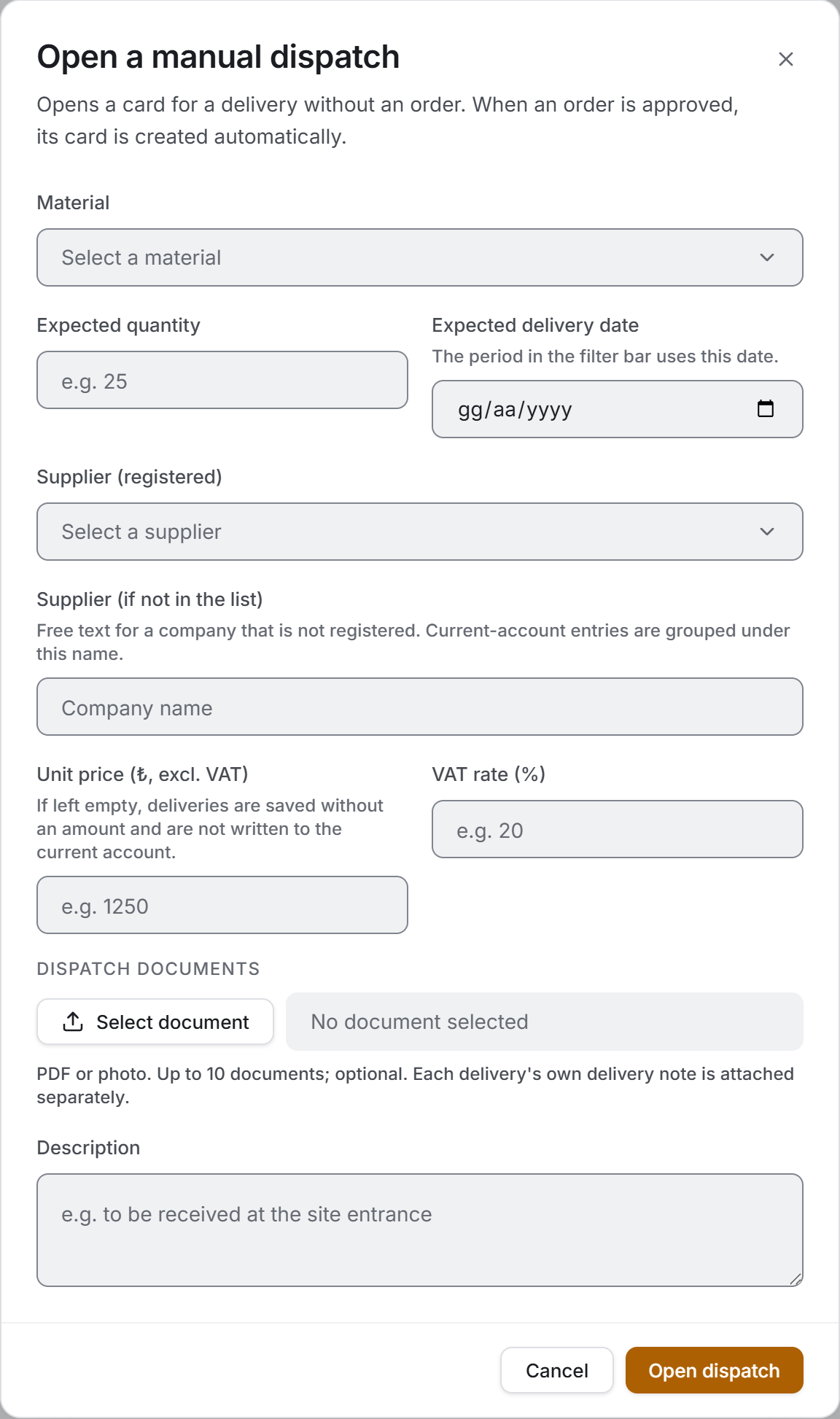
- In the title, choose Manual dispatch.
- Select a Material. If the list is empty, define the material in Stock Tracking first.
- Type the Expected quantity and, if there is one, the Expected delivery date.
- Pick the supplier from the list or type the company name by hand.
- If you know them, enter the Unit price and the VAT rate. Both are optional, but if no price is entered the deliveries taken against that card are not posted to the current account.
- Attach a dispatch document and write a description if you need to.
- Choose Open dispatch.
Once a price and a quantity are entered, a line appears under the form: "Once everything arrives, this will be a purchase of … (excl. VAT)."
Receiving a delivery
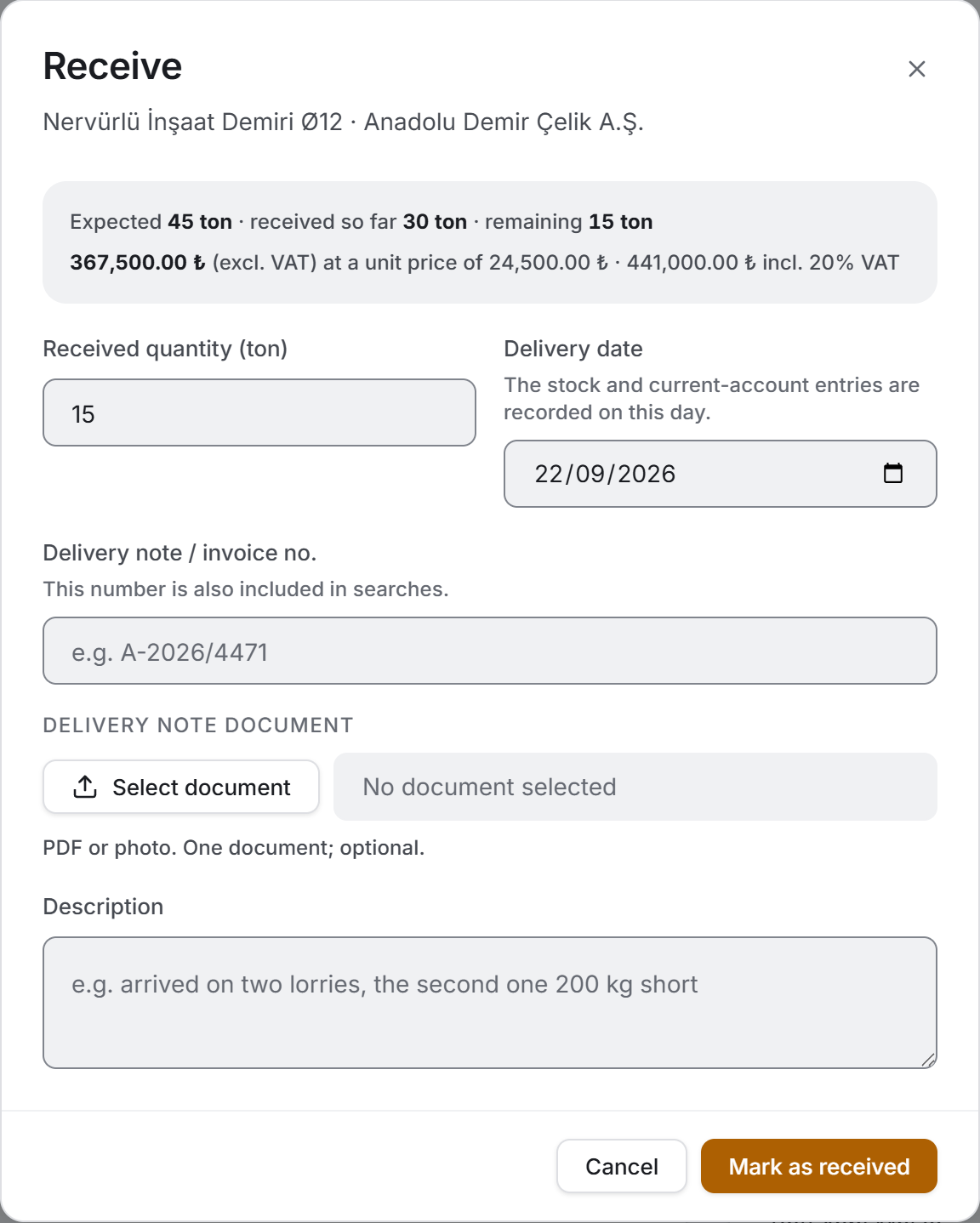
- Open the row and choose Receive in the panel.
- The grey band at the top of the window reads expected · received so far · remaining; if the price is known, the amount of the quantity you type is calculated live below it.
- Check the Received quantity — the box comes filled with the remaining quantity.
- Enter the Delivery date. The stock and current-account entries are recorded on this day.
- Type the delivery note number, attach the scan, and leave a description if needed.
- Choose Mark as received.
Three things happen when you save: the stock quantity increases, the card's received total and status are recalculated, and a purchase line is written to the supplier's current account.
Receiving the whole remainder in one step
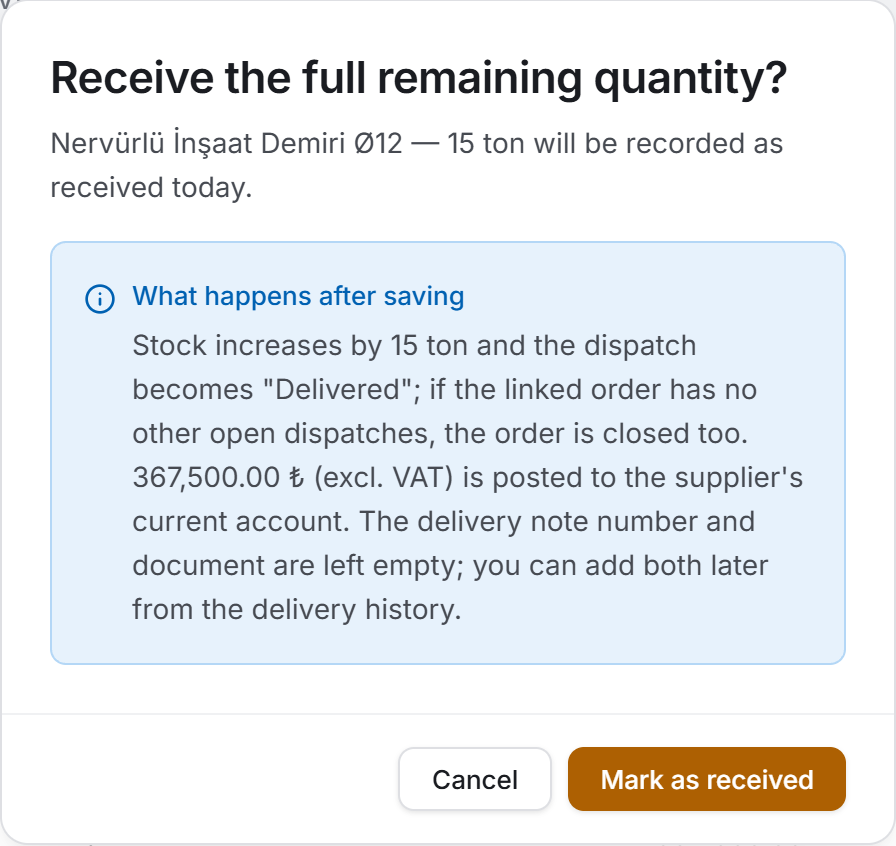
If the goods arrived exactly as expected there is no need for the form. The Receive button in the table, or the Receive remaining (…) button in the panel, records the whole remaining quantity as received today. The confirmation window states line by line what will happen: how much the stock will grow, which status the card will move to, and what will be posted to the current account.
The delivery note number and document are left empty; you can add both later from the delivery history.
Correcting or deleting a delivery
The pencil button on a line in the delivery history opens the same form in edit mode; the quantity, date, number, document and description can be changed. Only the difference is applied to the stock.
The bin button deletes the delivery. The confirmation window says that three records will be corrected at once: the stock is reduced by that quantity, the card's received total goes down and the line in the current account is removed. If the card was closed, it is reopened.
Changing the card's status
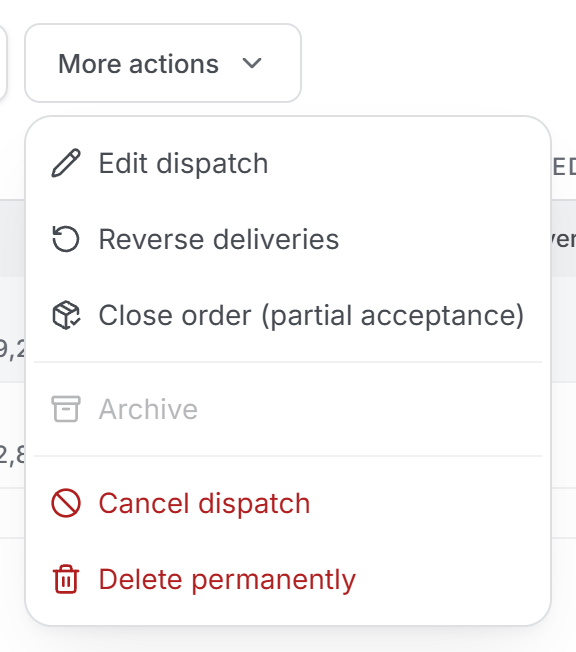
Depending on the status, the More actions menu in the panel holds the following:
| Item | What it does |
|---|---|
| Edit dispatch | Opens the card window |
| Mark as in transit | Sets a pending card to In transit when the goods leave |
| Reverse deliveries | Deletes all the card's deliveries and returns the card to Pending |
| Close order (partial acceptance) | Closes the linked order and all of that order's dispatches |
| Archive · Unarchive | Takes the card out of the day-to-day view of the list |
| Cancel dispatch | Sets the card to Cancelled; the record stays in the list |
| Delete permanently | Deletes the card and all its deliveries |
Archiving a dispatch
Archiving is how you take finished work out of the day-to-day list. An open dispatch cannot be archived and the menu item is disabled on those cards: the card would disappear while the goods were still on their way. Receive or cancel it first.
To see archived cards, set the Scope switch to Archive. The archive is not a separate page — the selection carries the summary band, the breakdowns and the exports with it.
Closing an order with partial acceptance
If the supplier is not going to bring the rest — the order shrank, the job changed, the company cannot deliver — Close order (partial acceptance) closes all the dispatch cards of that order: cards with nothing received are cancelled, partly received ones are closed as Delivered. This item only appears on cards born from an order; a manual card has no order above it to close.
Editing a dispatch
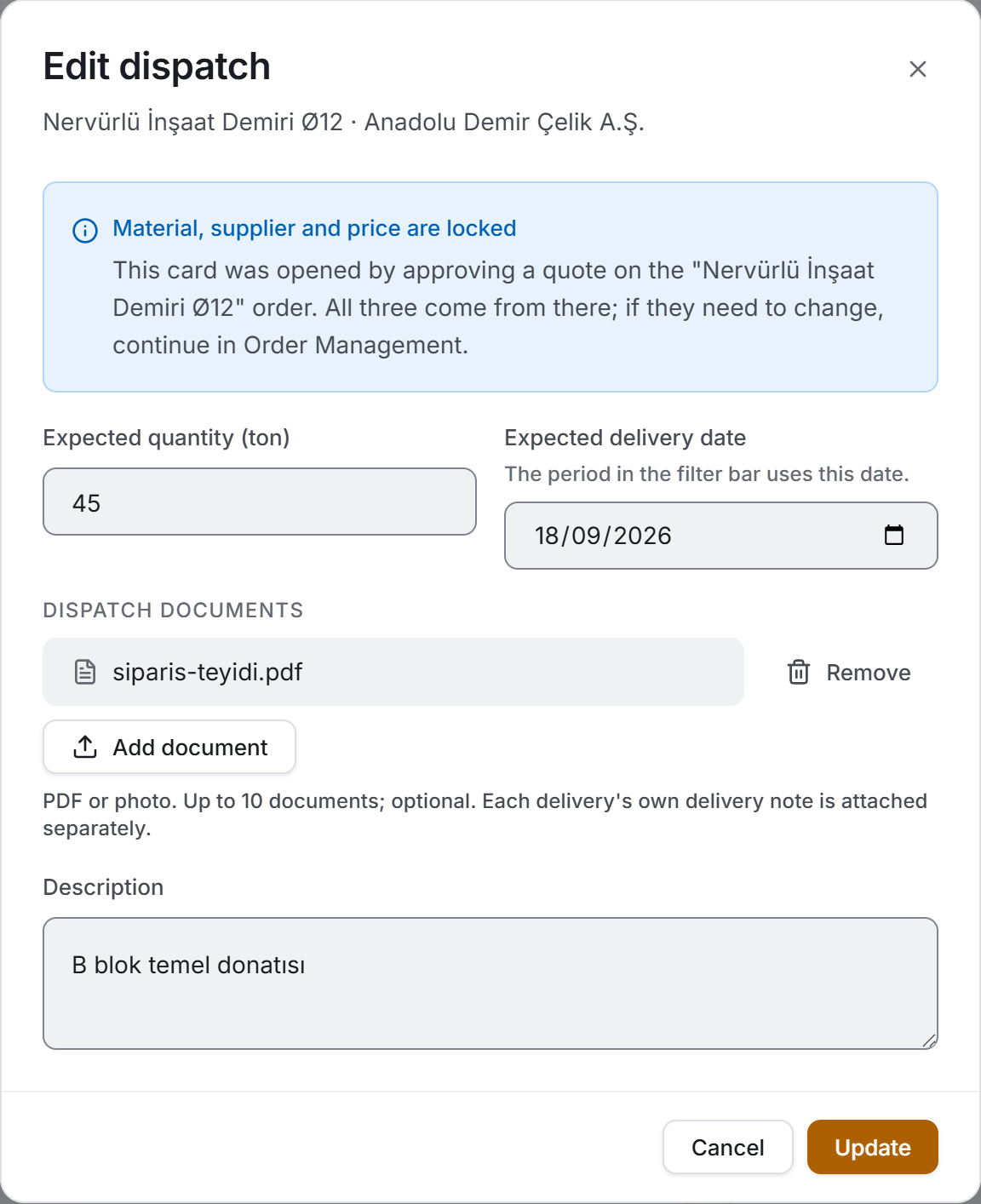
On a card born from an order, the material, supplier and unit price cannot be changed — all three were settled when the quote was approved. On those cards these fields are not disabled, they are not drawn at all: the window holds only the expected quantity, the expected delivery date, the documents and the description, with an information band at the top saying why. If they need to change, continue in Order Management. On manual cards all the fields are open.
If you lower the expected quantity to or below the received quantity, the card becomes Delivered by itself; the window writes this as a warning before you save.
Deleting a dispatch
Delete permanently deletes the card and all its deliveries: the goods received are deducted from stock and their current-account entries are removed. The confirmation window says how many deliveries and how much quantity are involved.
Opening documents
There are two separate document areas and they should not be confused:
- Dispatch documents are the card's own documents — order correspondence, a proforma, a freight slip. They are opened from the paperclip line in the panel's details block.
- The delivery note document is each delivery's own scan. It is opened from the paperclip button in the delivery history.
The viewer also lets you save the document to your computer and does not require edit permission.
6. Exports
There are three exports. Two of them send out the list as it appears on screen — whatever the filter is, that is what goes into the file; the third describes a single dispatch and is taken from the dispatch panel.
If you close the save dialog nothing happens; when you save, a band appears at the top of the page with the full path of the file. All three exports can be taken with view permission.
Download Excel
The file name starts with Dispatch_Report_ and a date–time stamp is added to the end. The workbook has two sheets, because it answers two separate questions: the first is "what am I waiting for", the second is "what arrived".
The Dispatches sheet carries seventeen columns: Material · Category · Supplier · Status · Expected · Unit · Received · Remaining · Delivered (%) · Deliveries · Expected Delivery · Delivery Date · Unit Price (₺) · Expected Amount (₺) · Received Amount (₺) · Delivery Note No. · Description.
The Deliveries sheet writes all the deliveries of the dispatches that pass the same filter in thirteen columns: Date · Material · Supplier · Quantity · Unit · Delivery Note No. · Unit Price (₺) · Amount (₺) · VAT (%) · VAT Amount (₺) · Grand Total (₺) · Document · Description. This is the sheet the accounts department is after: it shows a month's entire goods intake with delivery note numbers and amounts in one place.
Above both sheets there is a three-line header: the project name; the report date and the totals; and a one-line summary of the filter that was applied. That last line matters — it is written so that a file taken with one status selected is not mistaken for the whole project when it is sent by e-mail. If there are undocumented deliveries and over-deliveries, their counts are added to the header too.
Three useful details: the heading row is frozen; the filter is on; and the dates and all the figures are real cell values — they can be sorted, summed and pivoted. The received amount column is written in green and bold, and the received quantity of an over-delivered row in orange; on the Deliveries sheet the Document cell of undocumented rows is orange as well.
The last row of both sheets is GRAND TOTAL. On the Dispatches sheet the number of deliveries, the expected amount and the received amount are summed; on the Deliveries sheet the amount, the VAT and the grand total. The quantity columns are not summed and a dash sits in their place: a project may hold tons and pieces side by side.
Download PDF
This is a landscape A4 status report with nine columns: Material · Supplier · Status · Expected · Delivered · Remaining · Expected / Delivered · Deliveries · Amount (₺).
The first page holds the project name, the Dispatch Status Report title, the time it was produced and the filter summary; at the top right the received total, the numbers of dispatches and deliveries, and — where there are any — warnings about goods due, undocumented deliveries and dispatches past their expected date. From the second page on, a thin band repeats at the top, the column headings are rewritten on every page, and the page number sits at the bottom.
The material's description is written under its name, and the delivery note number under the supplier, in italics. An over-delivery is marked in orange below the delivered quantity rather than in a column of its own.
The last row is GRAND TOTAL: the number of deliveries and the amount column are summed. The quantity columns are not summed.
Goods receipt note (PDF)
This is the document signed with the supplier or the site store, and it is taken from the dispatch panel. The file name is made of Goods_Receipt_, the material name and the note number.
It is a portrait A4 document and carries:
- The GOODS RECEIPT NOTE title, the project name, the Note No., the time it was issued and, if there is one, the delivery date.
- Two parties: DELIVERED BY (the supplier; if the card was opened by hand, a line below says so) and RECEIVED BY (the project · site store).
- A four-box summary: EXPECTED, RECEIVED, REMAINING, STATUS. Below it, if there is a shortfall or an excess, a note stating the difference.
- The delivery table: each delivery's date, delivery note number and description, quantity, unit price and amount. Deliveries with no document attached are marked on the row.
- The amount breakdown: Subtotal (excl. VAT), VAT (…%) if there is any, and Grand total.
- A NOTES section where there is one: the card's description, and on a card that has not arrived yet, the expected date.
- Two signature areas: Delivered by / Stamp · Signature and Received by · Signature.
7. Things worth knowing
All the money totals on the screen exclude VAT. VAT is not a cost of the project but the state's share, and the amount of the same goods is read excluding VAT in Stock Tracking and Order Management too. VAT is not lost: it is written below the line in the delivery history, on its own line in the goods receipt note, and in its own column on the Deliveries sheet of the Excel export.
Quantities are not summed, money is. Cement comes in tons, bricks in pieces, cable in metres; adding those three numbers is adding apples to oranges. All the page's totals are money; a quantity is only shown within a single dispatch or a single delivery.
The received quantity is calculated from the ledger. The number on the card is the sum of the deliveries and is recalculated after every write — it is not added on top of the copy on screen. So if two people enter a delivery on the same dispatch at the same time, neither is lost.
Receiving more than expected is not blocked, it is stated. In the field both shortfalls and excesses happen; making the record match reality is better than making reality match the record. The excess appears as a warning in the form before you save, as an Over-delivery badge in the list, as a band in the panel and as a note in the goods receipt note. The progress bar stops at 100%; read the real quantities from the received / expected line below the bar.
Cancelling is a decision. A cancelled card is not reopened even if one of its deliveries is deleted. Cancelling does not take back goods that have arrived either — the stock and the current account stay as they are. If you want to reverse the received goods too, choose Reverse deliveries first.
A card with no unit price writes nothing to the current account. The delivery is saved and the stock increases, but no line is created in the supplier's account. If you enter the price on the card later and save the delivery again, the line is created.
A delivery touches three ledgers at once: the dispatch card, the stock and the current account. All three are updated in the same operation; the quantity in Stock Tracking and the delivery column in Order Management change immediately too.
If the current-account transfer fails, the delivery has still been saved. A band appears at the top of the page reading "The delivery was saved but could not be written to the current account". In that case do not enter the delivery a second time — the stock would increase twice. Check your connection and edit and save the delivery, or transfer it again from Current Accounts.
A dispatch delivery cannot be deleted from Stock Tracking. In the movement list on that page, rows coming from a dispatch are locked; to delete one you have to open the dispatch here and delete it from the delivery history. The chain has a single owner.
An order's status changes in two directions only. When all of an order's dispatches close, the order becomes Completed; if a dispatch of a closed order is reopened, it goes back to Approved. A cancelled order is not reopened by either route.
When you select a date range, records with no expected date drop out of the list. They are not lost; they come back when you clear the filter.
Search respects Turkish letters. Typing santiye finds Şantiye Kablosu, and oznur finds Öznur Kablo. Search works on the status name too: type in transit to bring up the cards at that stage.
Unit names are the values you typed. ton, adet, m² appear exactly as they were written; the app does not translate them.
There is no badge on the screen for a dispatch past its expected date. Being overdue only feeds the default sort order: those cards fall to the top of the list. You can see their count at the top right of the PDF export.
8. Related chapters
- Order Management — most dispatch cards are born there when a quote is approved. The material, supplier, expected quantity and unit price come from there and cannot be changed here. The deliveries entered here are reflected in that page's Delivery column.
- Stock Tracking — the material definitions a dispatch is linked to are created there. Every delivery appears there as a purchase movement and increases the warehouse quantity; those movements are locked there.
- Current Accounts — the amount of goods received is posted to the supplier's ledger from here. If the supplier is not registered, the entries are grouped under the company name typed by hand.
- Suppliers — companies are defined there; on a company's page the promised date and the actual delivery appear side by side.
- Finance Panel — the project's material cost is totalled there together with the other cost items.