
Site Daily Report
Site Daily Report is the page that puts on record how a day went on site. One report is written for each day, and that report holds three things: the day's weather, the subcontractor teams…
1. What it is for
Site Daily Report is the page that puts on record how a day went on site. One report is written for each day, and that report holds three things: the day's weather, the subcontractor teams on site with their headcounts, and what those teams did and where.
These are the questions the page answers: how many people were on site yesterday, which subcontractor did which job, which days this month have no report and how many person-days did each firm spend this month. A single day's report can be taken out as PDF or Excel and carried to a signature, a file or a progress payment meeting; the whole month can also be written into one Excel file.
The page is built around a month calendar. A day with a report has a coloured background, a day without one stays empty; so "which day was skipped" is answered at a glance, without reading a list.
2. Opening it, and who can see it
In the sidebar, Site Operations › Site Daily Report.
| Your permission | What you can do |
|---|---|
| View | You read the calendar, the day panel and the list view, and you can export PDF and Excel. The New report, Edit and delete buttons are not drawn at all |
| Edit | Everything above, plus creating, editing and deleting reports |
| No permission | The module appears dimmed and locked in the menu |
3. The anatomy of the screen
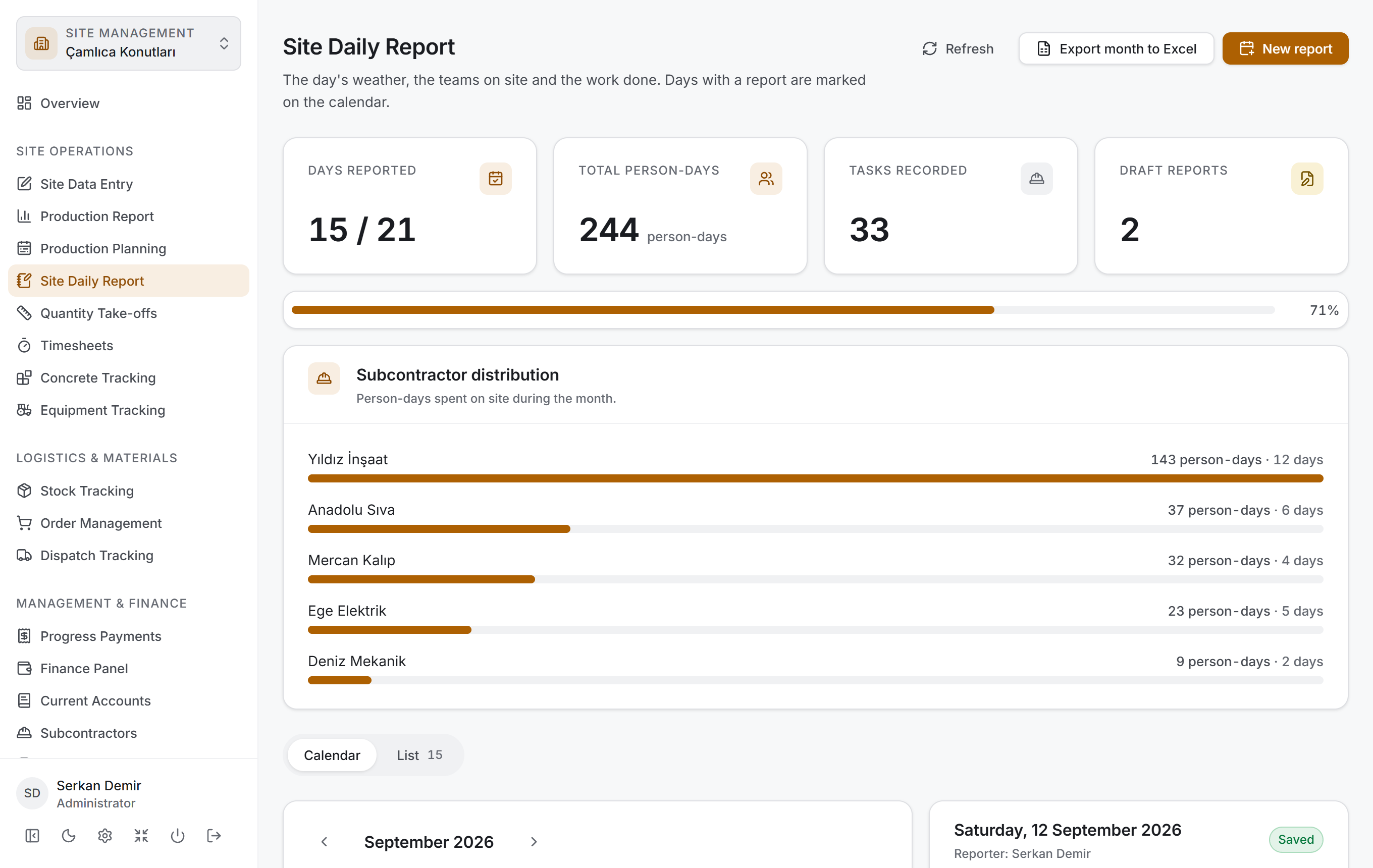
The page has three layers, top to bottom:
| Layer | What it does |
|---|---|
| Month strip | The month's four measures, the coverage bar and the subcontractor distribution |
| View switch | Switching between Calendar and List |
| Calendar + day panel | The month grid on the left, the whole of the selected day on the right |
Header and buttons
The title is Site Daily Report, with "The day's weather, the teams on site and the work done. Days with a report are marked on the calendar." below it. At most three buttons sit on the right:
| Button | What it does |
|---|---|
| Refresh | Reads the month from the server again. It says Refreshing while it runs |
| Export month to Excel | Writes every report in the visible month into one file. It says Preparing… while it runs |
| New report | Opens the empty report page |
Export month to Excel is dimmed if the month has no reports. New report behaves like this: if today has no report it opens today, and if today already has a report it opens the day selected on the calendar. If both today and the selected day already have reports, the button stays dimmed — a button that would answer "there is already a report for this date" is a button that does not work.
When a file is saved, a green strip appears under the header with the full path of the file; you close it yourself with Close.
Month strip
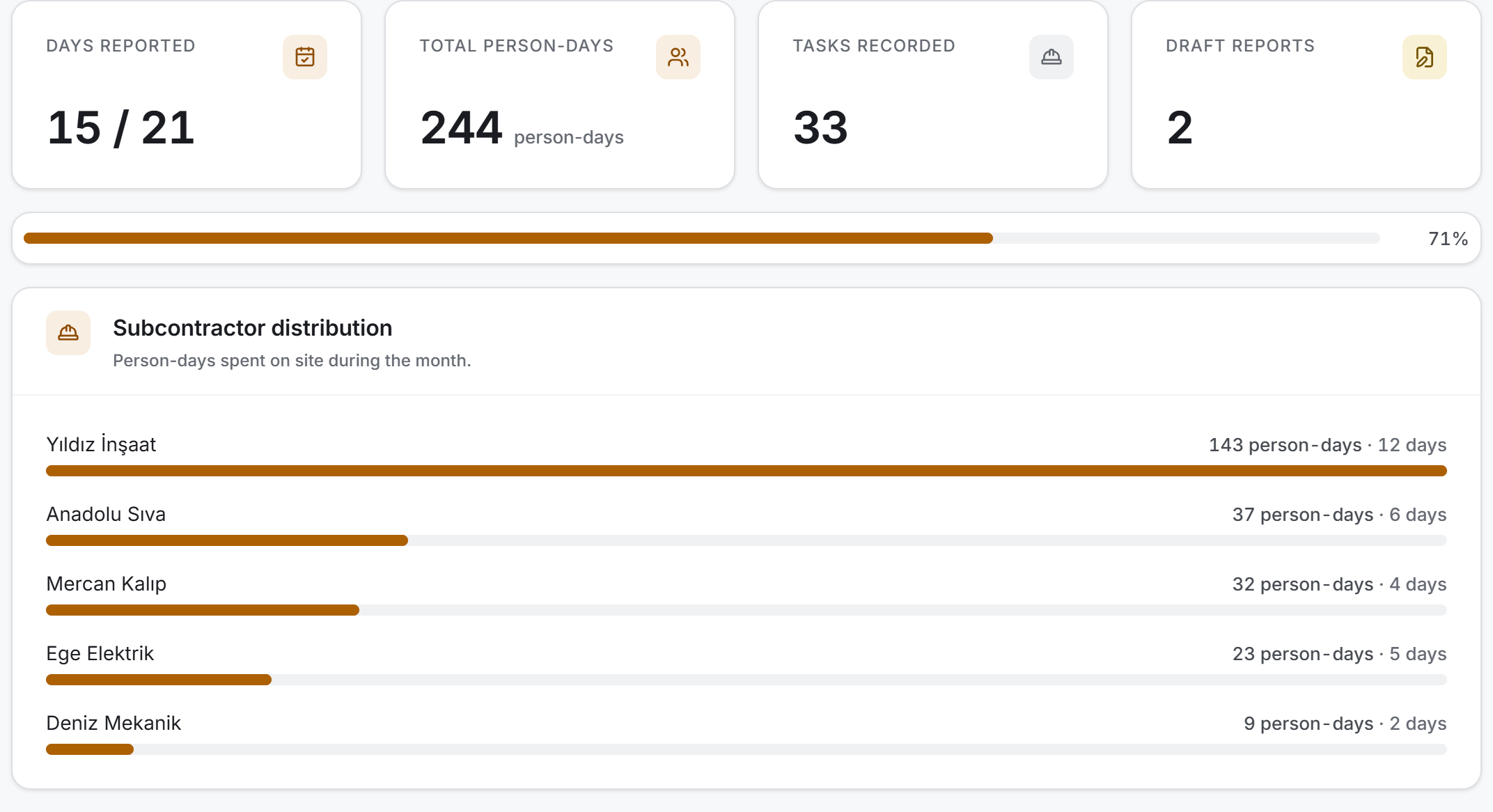
Four measures, the coverage bar below them, the subcontractor distribution at the bottom. All of them describe the visible month; they all change together when you change month.
| Measure | What it says |
|---|---|
| Days reported | The number of days with a report, over the number of days a report is expected for — for example 18 / 21 |
| Total person-days | The sum of the headcounts in every report of the month |
| Tasks recorded | The number of task lines written during the month |
| Draft reports | The number of reports still left as drafts |
The denominator of Days reported is built like this: in the current month, the number of days elapsed so far; in a past month, the whole month; in a future month, zero. Since a future month has no denominator, the coverage bar is not drawn either.
The colour of the card follows the ratio: green at 90% and above, the accent colour between 60% and 90%, amber below that. When there are no drafts the Draft reports card stays calm; above zero it turns amber.
Subcontractor distribution ranks the firms that spent the most person-days in the month. Each row gives the firm name, its person-day total and how many days it was on site; the bar next to it is scaled against the firm that spent the most, not against the month total. If the month has no team records, "No team records this month" appears instead.
Calendar
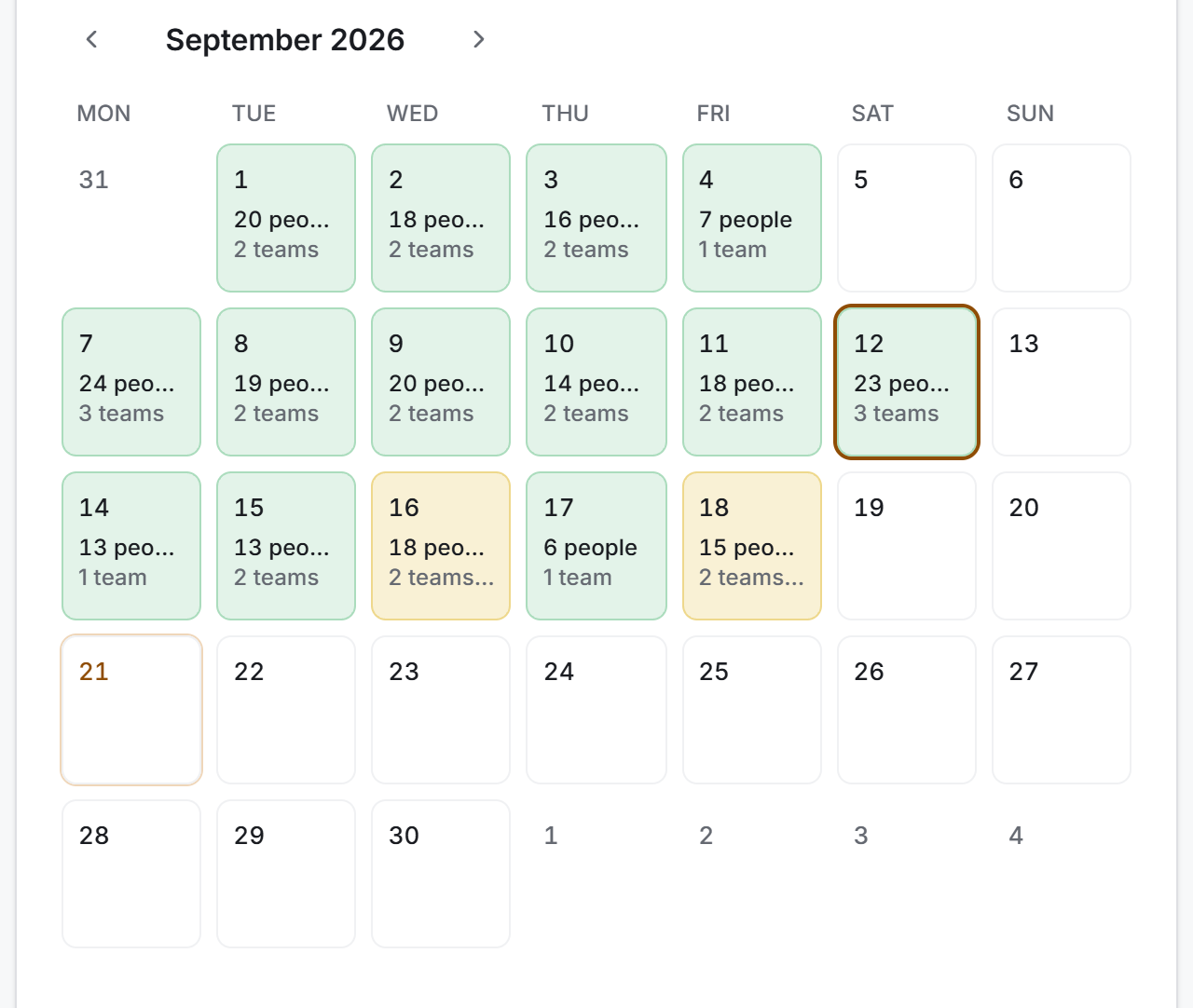
The month name and two arrows sit above the calendar; the arrows move one month back and forth. If the visible month does not contain today, a Today button appears next to the arrows and takes the calendar back to this month and the selection back to today.
The week starts on Monday. The grid is made of whole weeks; days from the neighbouring months are dimmed and cannot be clicked.
Every cell with a report has two lines:
- N people — that day's on-site headcount
- N teams — the number of subcontractors on site that day; if the report is a draft, an amber · Draft is added to the end of the same line
The background of a cell is green for a saved report and amber for a draft. A day with no report stays empty: it has a border but no background. Today's cell has a thin frame and the selected cell a thick one.
Day panel
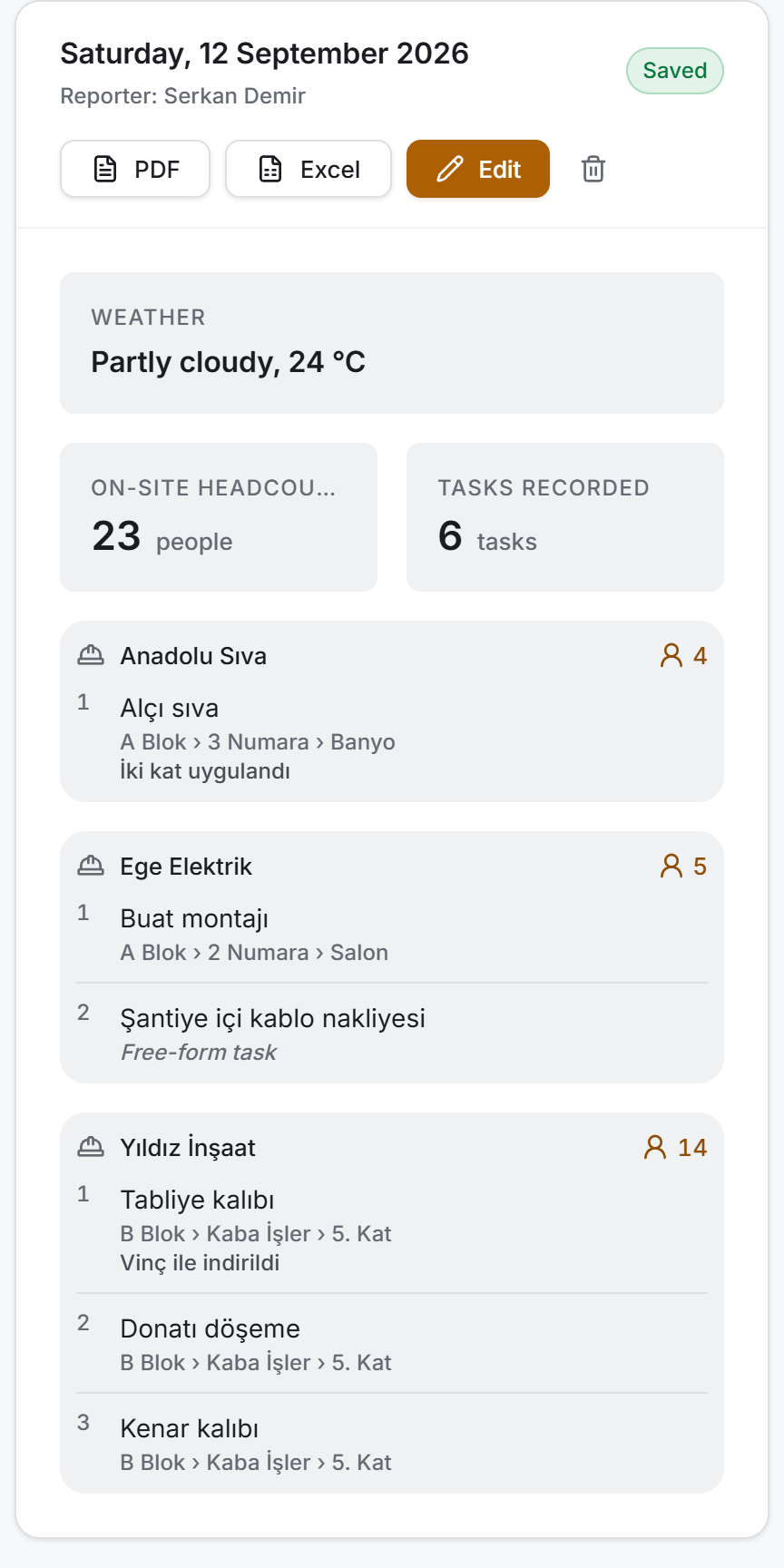
The column to the right of the calendar shows the whole of the selected day. It has three states, and each one names a different next step:
| State | What it says |
|---|---|
| A future day | "This is a future date. A daily report is written once the day has passed." No button is drawn |
| A past day with no report | "No report has been entered for this day yet." and a Create report button |
| A day with a report | The day details, its measures and the team list |
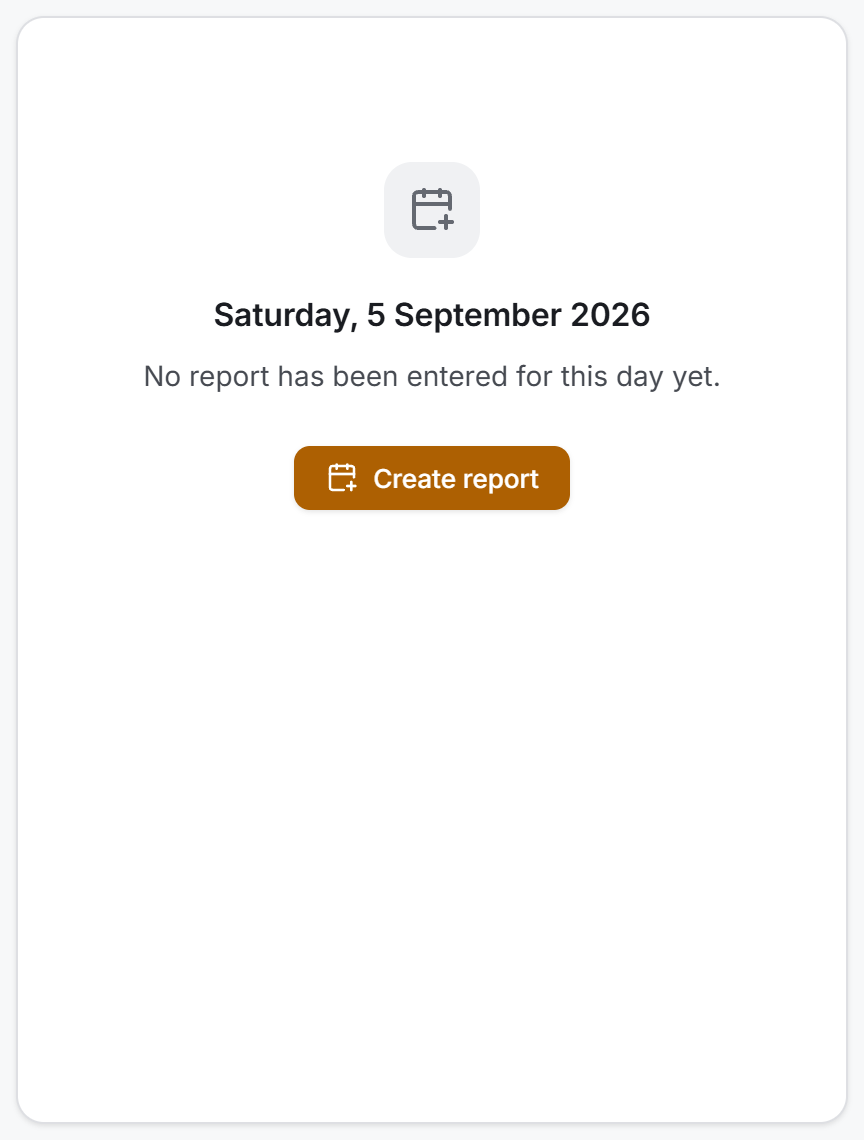
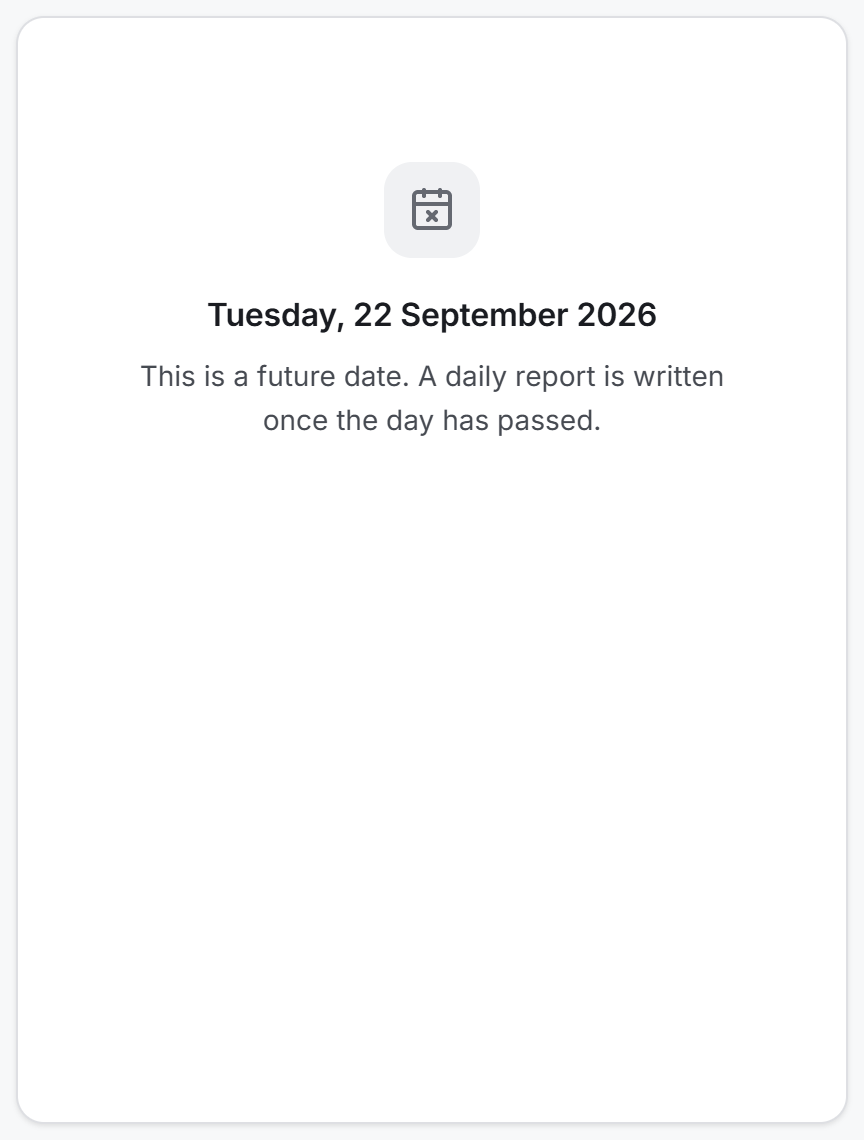
When there is a report, the panel begins with the long date of the day (Saturday, 12 September 2026), the Reporter: … line below it and the status badge on the right (Saved or Draft). If it is not known who saved the report, it says Reporter unknown.
Four buttons sit under the details: PDF, Excel, Edit and a bin icon (Delete report). The first two are drawn for everyone, the last two only for those with edit permission.
Then come three fields:
| Field | What it says |
|---|---|
| Weather | The name of the weather and the temperature, for example Partly cloudy, 24 °C |
| On-site headcount | The sum of the headcounts of every team |
| Tasks recorded | The number of task lines written that day |
The team list sits at the bottom. Each team has its own box, with the subcontractor name at the start and the headcount on the right. The tasks inside the box are numbered, and each task has three layers:
| Line | What it says |
|---|---|
| First | The name of the production item, in bold — Slab formwork |
| Second | The location path, dimmed — Block B › Structural work › Floor 5 |
| Third | The description, if any — Lowered by crane |
For tasks not linked to a production item, the second line says Free-form task in italic instead of the location. If no task has been written for a team, the box says "No tasks entered."
If the report has no teams at all, a "No teams in this report" box and an Add team button appear in place of the list. If the weather was left empty, a small "No weather entered." line sits at the bottom of the panel.
List view
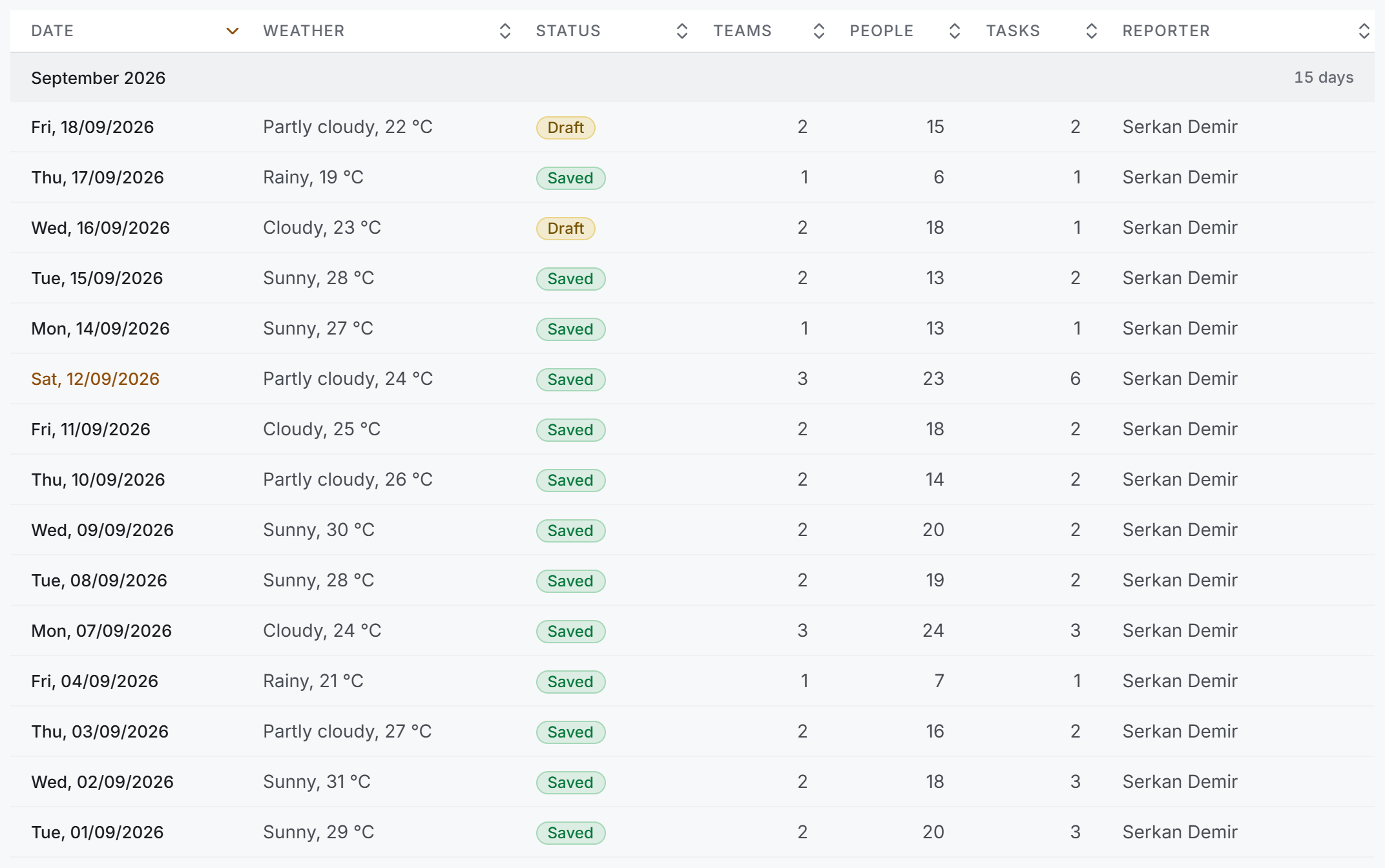
Setting the View switch to List turns the same month into a table. The data is the same and the switch sends no request to the server; only the way you read it changes. The number next to the List option says how many reports the month has.
The table is one group, and the title of that group is the name of the month; the number of days sits next to it. The columns:
| Column | What it holds |
|---|---|
| Date | The short date of the day; clickable |
| Weather | The name of the weather and the temperature |
| Status | A Saved or Draft badge |
| Teams | The number of subcontractors that day |
| People | The on-site headcount |
| Tasks | The number of tasks recorded |
| Reporter | The person who saved the report; a dash if empty |
You can sort by any column by clicking its header; the table opens sorted by date, newest first. Clicking the date in a row takes you back to the calendar view and selects that day.
If the month has no reports at all, the table is replaced by "No reports this month".
4. Fields
The fields below are filled in on the report editing page.
Day details
| Field | What it means | Required |
|---|---|---|
| Report date | The day the report belongs to | Yes |
| Weather | One of six choices: Sunny · Partly cloudy · Cloudy · Rainy · Snowy · Stormy | No |
| Temperature (°C) | The temperature of the day, a whole number | No |
| On-site headcount | The sum of the team headcounts — not typed, calculated | — |
| Tasks recorded | The number of task lines written — not typed, calculated | — |
Temperature is limited to between −60 and 60; you cannot type outside that range. Left unlimited, a mistyped key could produce a report saying "320 °C". Zero is a valid reading, and a report saved with zero opens with zero.
Team
| Field | What it means | Required |
|---|---|---|
| Subcontractor | The firm on site; chosen from the Subcontractors section | Yes |
| Headcount | How many people that firm had on site that day | Yes, at least 0 |
A newly added team starts at 1 person; the headcount can be between 0 and 999.
Task
| Field | What it means | Required |
|---|---|---|
| Block · Unit · Room | Where the work was done; selected in order | Yes for a linked task |
| Production item | The production item record in that room | Yes for a linked task |
| Description | A note written on top of the task — "Lowered by crane" | No |
| Free-form task | Text for work not linked to a production item — cleaning, transport, formwork stripping | Yes for a free-form task |
5. Step by step
Writing a new report
- Select the day on the calendar and press Create report in the panel. (The New report button in the header goes to the same place.)
- On the page that opens, fill in Weather and Temperature. Both are optional.
- In the Teams on site card on the left, pick the firm from the Add subcontractor list and press the plus next to it. The team drops into the list and becomes selected.
- Set the small number in the team's box to the headcount on site that day.
- Write the tasks in the Work done card on the right (the two procedures below).
- If another firm was on site too, carry on from step 3; every team has its own task list.
- If the day is not over yet, press Save draft; if the day has closed, press Save report.
Adding a task linked to a production item
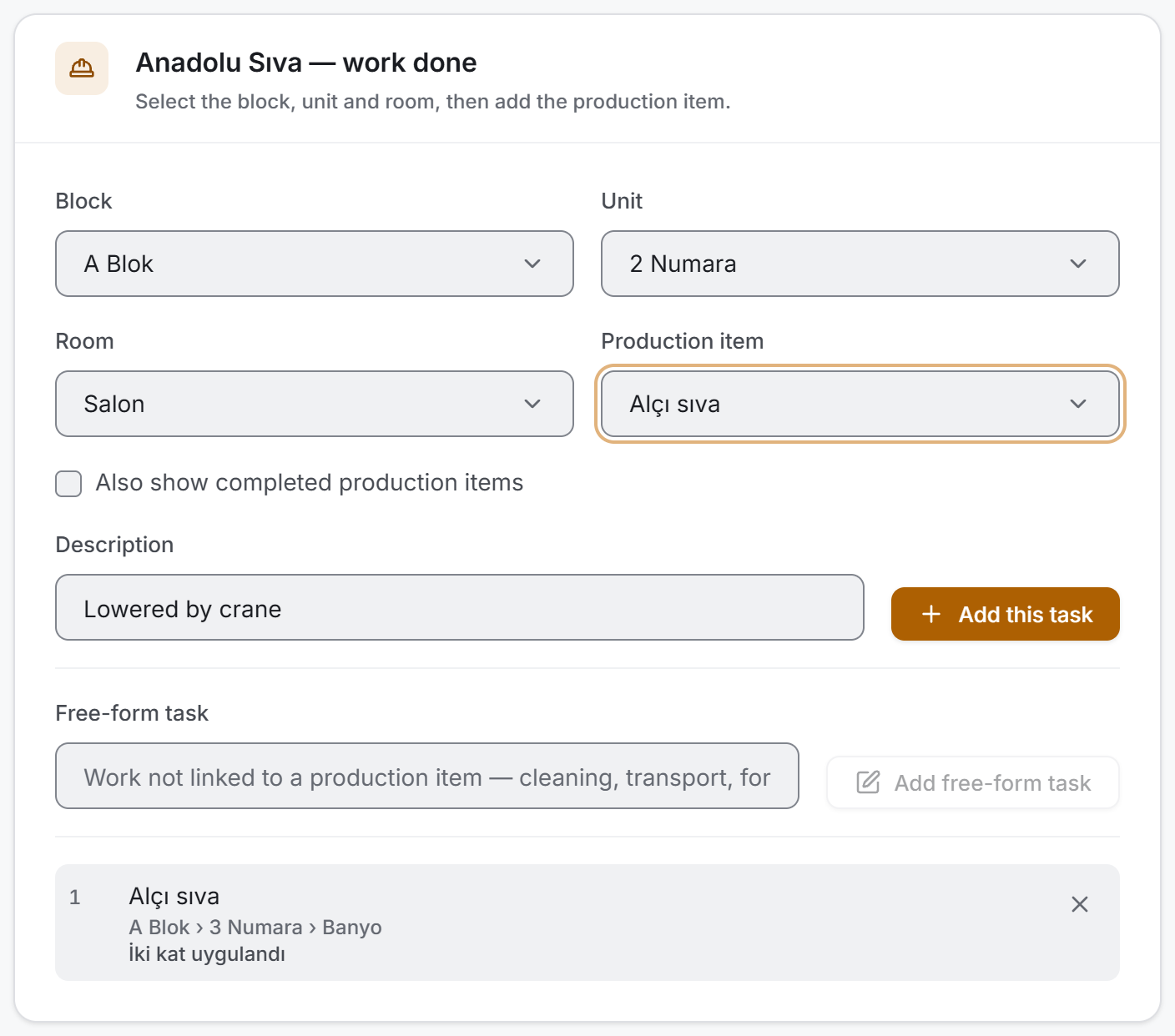
- Select the team you are writing the task for from the list on the left. Until a team is selected, the card on the right says "Tasks are recorded under a team; first select a team on the left."
- Select Block, Unit and Room in order. Changing a higher level clears the ones below it.
- Select the task from the Production item list.
- If you want, write what was done in the Description box.
- Press Add this task. The task drops in at the end of the list, numbered.
After adding, the location stays selected and only the production item and the description are cleared: writing several tasks in the same room is ordinary, and you should not have to pick the four levels again each time.
Bringing a completed production item into the list
By default, items marked Done do not appear in the list; a daily report is usually about work in progress. If a job finished yesterday was touched up today, tick the Also show completed production items box under the four levels. While the box is ticked, completed items enter the list with · completed next to their names.
Adding a free-form task
Work not linked to a production item record — site cleaning, transport within the site, formwork stripping — is entered on a separate row. Write the job in the Free-form task box at the bottom of the card and press Add free-form task. The task appears in the list under its own name, with Free-form task written in italic below it.
Editing a report
- Select the day on the calendar and press Edit in the panel.
- Add or remove teams, change headcounts; add tasks or remove them with the cross next to them.
- Finish with Save draft or Save report. Cancel saves nothing.
Removing a team removes all of that team's tasks with it.
Changing the date of a report
You can change the Report date field on the editing page. When the date changes, a warning appears under the field: "The date has changed; when you save, the report moves to this day." When you save, the calendar goes to the month containing the report's new day and selects it — otherwise the report you moved would look as if it had disappeared.
Deleting a report
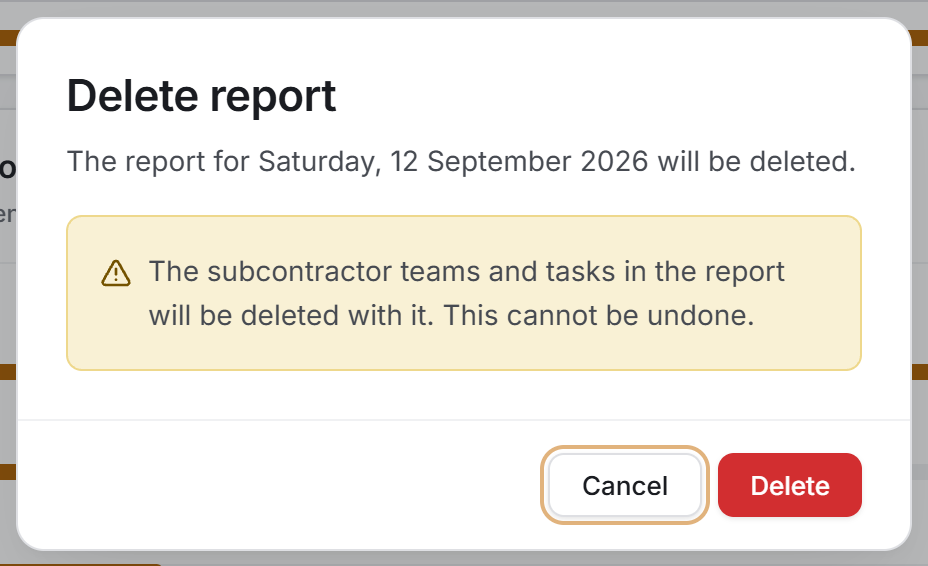
- Select the day and press the bin icon in the panel.
- The window that opens names the day whose report will be deleted, with an amber warning inside it: "The subcontractor teams and tasks in the report will be deleted with it. This cannot be undone."
- Press Delete.
6. Exports
There are three exports and all three open the Windows save window. If you press Cancel, nothing is written and nothing is said on screen either. Only one file is prepared at a time; while one is running the other buttons wait.
| Export | Where from |
|---|---|
| The day's PDF | PDF in the day panel |
| The day's Excel | Excel in the day panel |
| The month's Excel | Export month to Excel in the header |
The file name comes ready. The two files for a day start with Site_Daily_Report_ and end with that day's date; the month's file starts with Site_Report_Analysis_ and ends with the date and time the export was taken. In Turkish the names are identical to the old app's, so that files taken from the two programs sit side by side in the same folder.
The day's PDF
A portrait A4 document, not a table export: it is prepared to be signed and filed.
- The project name sits at the top of the first page, with SITE DAILY REPORT and the long date of the day below it. Top right it says On-site Headcount: 23 people · 3 teams.
- Below that is the details strip: WEATHER, REPORTER, TASKS RECORDED.
- Then each team starts with its own header strip and its tasks are listed in a five-column table: # · Block · Unit · Room · Production Item / Task. For free-form tasks the location columns are not left empty, they say Free-form task.
- The bottom of each page carries the moment the export was taken and the page number; from the second page on, the project name and the report date repeat at the top.
Each team starting with its own header is so that wherever the page breaks, there is a firm name above every task.
The day's Excel
A single-sheet workbook. The project name and the SITE DAILY REPORT title sit top left, with the details top right: Report Date, Weather, Report Status, Reporter, Total On-site Headcount.
The columns of the table below: Subcontractor · People · Block · Unit · Room · Production Item.
If a team has several tasks, the subcontractor and people cells are merged vertically — a firm with three tasks takes three rows in the file but writes its name once. The zebra shading also changes per team rather than per row. The header row is frozen. If no team was added to the report, a one-line note takes the place of the table.
The month's Excel
Every report of the visible month on one sheet, oldest to newest. The project name is at the top, with the moment the export was taken and the total number of reports below it.
The columns: Date/Day · Weather · Report Status · Subcontractor · People (Person-Days) · Block · Unit · Room · Production Item.
The day details (date, weather, status) are merged across all the rows of that day, and the subcontractor and people cells merge across that team's tasks. The zebra shading changes per day. The header row is frozen with an auto filter on it. The date cell is a real date, so it can be sorted and filtered. A day with no teams entered still takes a row in the file; its columns are filled with dashes.
7. Things worth knowing
One report per day. Before saving, the app checks whether another report exists for the same day; if there is one it says "There is already a daily report for …" and does not save. This check is inside the app, not on the server: if two people save at exactly the same moment, both can go through. If such a day occurs, a yellow warning strip appears at the top of the page naming the dates with duplicate records. Only the last one shows on the calendar for that day.
No reports are written into the future. When you click a day after today, the panel says "This is a future date" and the create button is not drawn.
The coverage ratio does not separate weekends. The denominator of the Days reported card is every elapsed day of the month; Saturday and Sunday are counted too. Saturdays are worked on site, Sundays can be too, and the system holds no information about which day was a holiday. An invented working calendar would turn the coverage ratio into a number you could not trust.
The difference between draft and saved is a habit, not a lock. A saved report can still be edited and deleted later; the only differences are the colour on the calendar, the badge, and the warning at the top right of the PDF.
The weather may hold a value that is not in the list. The field is free text and something else may have been written from the phone version or the old app. Such a value is shown on screen and in the exports exactly as it is in the record, not hidden: a screen that hides a value it does not recognise has disregarded the data.
Repeated parts of a location path are collapsed. If the block, the unit and the room carry the same name ("Site General"), it is written once on screen instead of three times. Nothing is lost — what is dropped is a repeat of the same thing. This is not done in the file exports — there the three names are in their own columns, and an empty column would read as "no data".
A deleted subcontractor and an unselected one are written differently. If a team's firm was never selected it shows No subcontractor selected; if the firm record was deleted later it shows Unknown subcontractor. They are not the same thing: one is missing data, the other is a deleted record.
The month is a snapshot. The data comes down once when the page opens. If someone else adds a report at the same time, you need to press Refresh to see it.
Editing does not lose entries. When you edit a report and save it, the teams are not deleted and rewritten: a team that stays is updated, a new one is created, a removed one is deleted. If saving is interrupted, the remaining records stay where they are.
The task picker list can come up empty. If there is no production item assigned to the selected team's subcontractor or left unassigned, the block list stays empty and says "No matching production items were found for this subcontractor." below it. In that case the item either has not been defined in Site Data Entry or has been assigned to another firm.
The same subcontractor cannot be added to one report twice. A firm that has been added drops out of the list. If every firm in the project has been added, the list says "All subcontractors in the project have been added to the report."; if the project has no subcontractor records at all, it says "There are no subcontractor records in this project."
8. Related sections
- Site Data Entry — the block, unit, room and production item lists in the task picker come from there. A production item must be defined there before it can be written into a report.
- Subcontractors — the firms added to teams come from there; if a firm is deleted there, its name in the report turns into Unknown subcontractor.
- Production Planning — how much of the planned work was actually done on site that day is written here.
- Timesheets — it keeps the headcount person by person rather than as a subcontractor team; the two pages describe the same day at two different levels of detail.
- Production Report — it reads the overall state of the same production items; this page keeps their day-to-day flow.