
Projects
Projects is the door to the application. Every record in Sitabula sits under a project, so before you start work you choose which project you are in; that choice is made here.
1. What it is for
Projects is the door to the application. Every record in Sitabula sits under a project, so before you start work you choose which project you are in; that choice is made here.
The screen is called Site Portfolio and it has two jobs: listing the projects you can reach, and managing the projects themselves. A new project is created here, and its name, location, status, start date and photo are changed here; if a project has to go, it is deleted here.
Once you open a project the module menu appears, and from that moment every figure you see belongs to the project you chose.
2. Opening it, and who can see it
It opens by itself right after you sign in — there is no screen in between. To come back while a project is open, use the Projects button at the very top of the sidebar; it carries the small heading Site Management and shows the name of the open project underneath.
Which projects appear in the list depends on your account:
| Your role | What you see in the list |
|---|---|
| Administrator | Every project in the company |
| Other roles | Only the projects opened to you. A project that is not opened to you does not appear at all, not even by name |
| Suspended | Nothing. The screen tells you the account has been suspended |
The actions on the screen carry their own permissions:
| Action | Who can do it |
|---|---|
| Opening a project | Anyone with access to it |
| Creating a New project | Everyone. This button is not restricted by role |
| Edit details | An administrator, or a user granted edit permission on that project |
| Delete project | Administrators only |
3. Anatomy of the screen
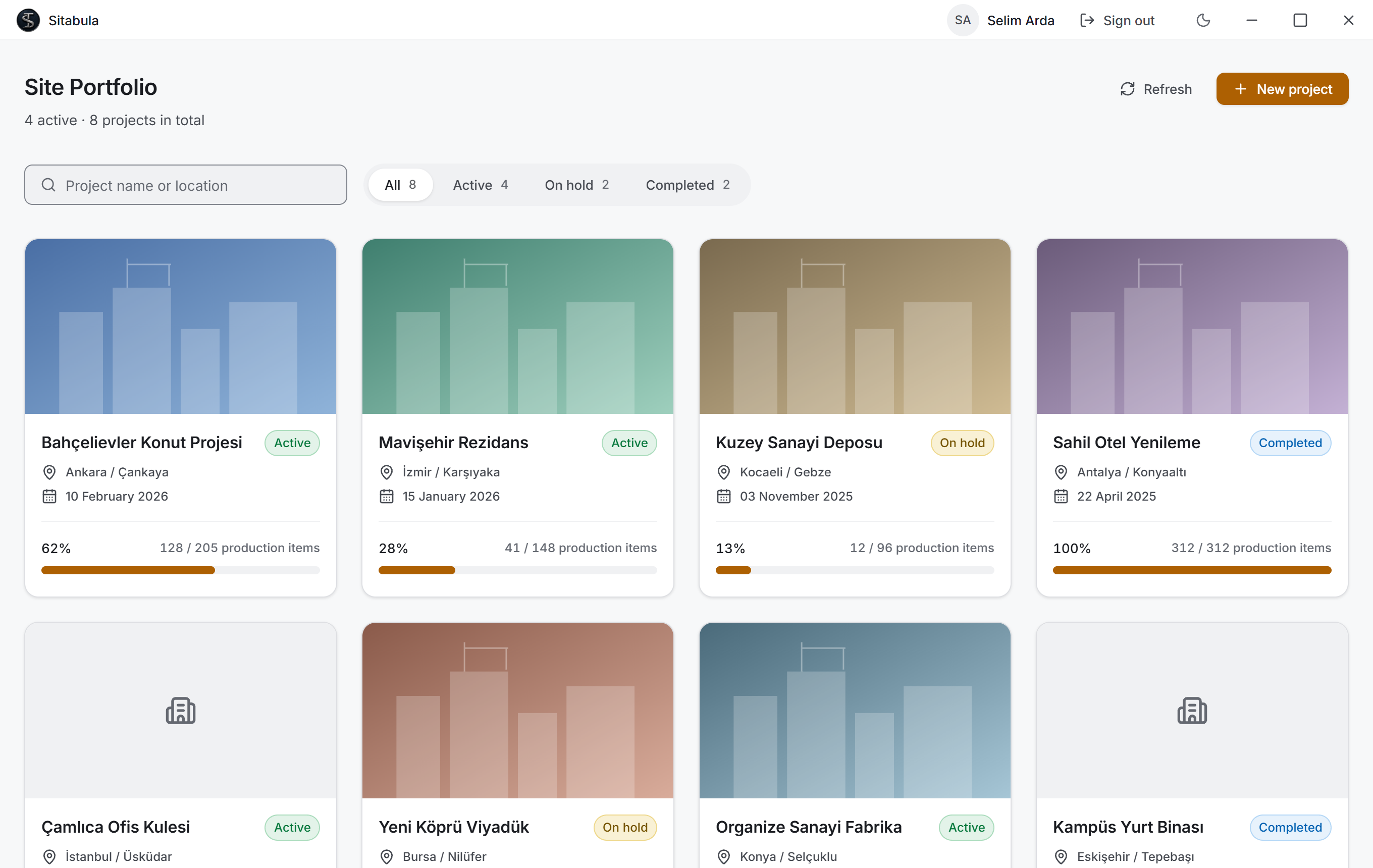
The page has no sidebar — the headings in the menu would be meaningless before a project is chosen. From top to bottom there are three bands: the heading, the filters, the cards.
The title bar
The strip at the very top of the window shows who is signed in; hover over the name and your role appears as well. Next to it sits Sign out, then the theme switch and the window buttons.
Heading and summary
The heading reads Site Portfolio, and the single line under it summarises the list. It can say two things:
| When | What it says |
|---|---|
| Search and filter are empty | How many projects are active, and how many there are in total |
| A search or filter is in use | How many projects matched, and how many there are in total |
The summary line is not written before the list arrives. Showing "0 active" while loading would be wrong information for a moment; the grey cards already say that something is on its way.
There are two buttons on the right:
| Button | What it does |
|---|---|
| Refresh | Reads the list from the server again. While it runs the icon spins and the button reads Refreshing |
| New project | Opens an empty project window |
Search and status filter

This band is drawn only when the list has projects. On the left is the Search projects box; you type a project name or a location into it. While it holds text, a clear button appears at its right end. Next to it stands the four-button status filter: All · Active · On hold · Completed. Each one carries the number of projects in that status.
The numbers come from the unfiltered list. Otherwise a user who picked Active would see zeros next to the other buttons and would think those statuses held no projects at all.
The two work together: type "ankara" in the search and press On hold, and only the projects that satisfy both remain.
Project cards
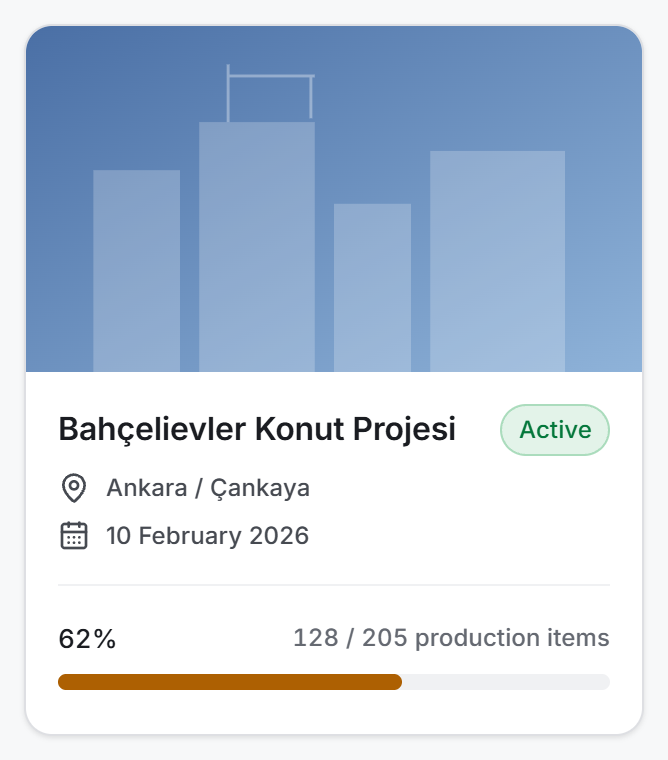
Cards are laid out as many per row as the window fits; on a wide screen that is four. The order always puts the most recently changed project first.
From top to bottom a card carries:
| Part | What it shows |
|---|---|
| Image | The project photo. If there is none, or it cannot be loaded, a building icon is drawn |
| Name and badge | The project name and its status — Active · On hold · Completed |
| Location | If entered; if not, the line is not drawn at all |
| Start date | If entered |
| Progress | Below the divider: the completion percentage and the production-item ratio |
The whole card is a button — there is no separate "Open" button; clicking the card opens the project. The keyboard takes the same route: Tab moves between cards, Enter opens.
The progress line can say four things:
- A percentage with the ratio beside it — for example "128 / 205 production items".
- "No production items defined yet" — the work list is empty, which is not the same as 0%.
- "Progress could not be read" — the count for that card did not arrive.
- A grey strip — the count is still running.
When the list is empty or incomplete
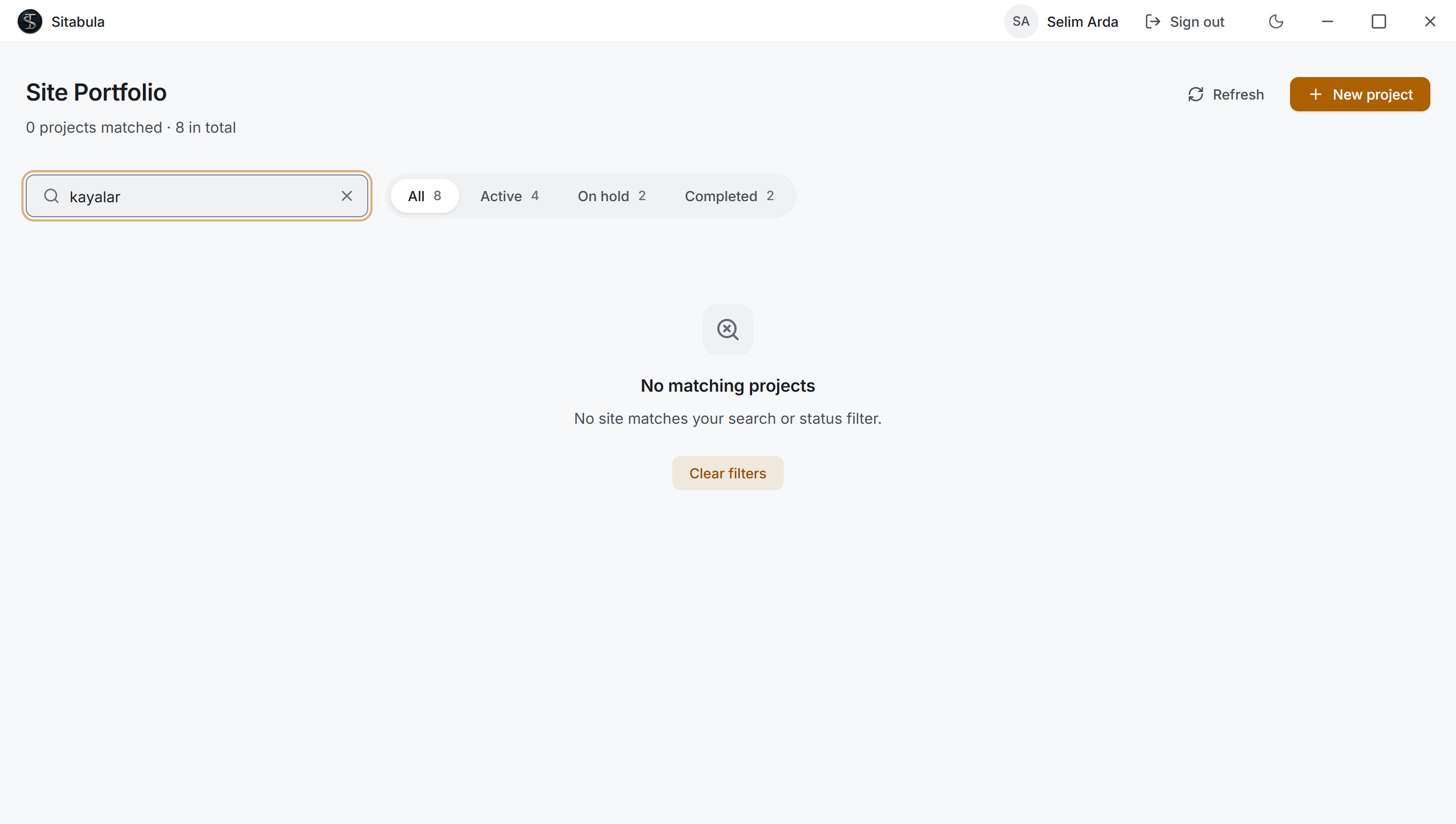
The empty screen has four separate forms, and which one you see tells you what to do:
| What you see | What it means | What you do |
|---|---|---|
| A message saying your account is suspended | Your role is Suspended | Talk to your administrator |
| A message saying the company has no projects | You are an administrator and no project has been created yet | Create the first one with the New project button below the message |
| A message saying no project is shared with you | Projects exist but none is open to you | Ask your project manager for access |
| No matching projects | The search or the status filter removed everything | Press Clear filters |
If the list cannot be read from the server at all, an error card appears instead and carries a Try again button. The card also gives the reason: an inactive company, a suspended account and a dropped session are each written as their own sentence.
4. Fields
The fields of the project window
The same window both creates a new project and edits an existing one; only the title differs.
| Field | What it means | Required |
|---|---|---|
| Project Name | The name shown in the list, in the shell and in every report | Yes |
| Location | Where the site is — city, district or a free-form address | No |
| Status | Active · On hold · Completed. A new project arrives as Active | Yes, arrives selected |
| Start Date | The day the project started. A new project arrives with today | No |
| Project Image | The photo shown at the top of the card. JPEG, PNG or WebP | No |
The project name cannot be left empty. Pressing Save with an empty name does not close the window; a warning appears at the top: "The project needs a name. This name appears in the list and in reports."
Leading and trailing spaces in the name and the location are trimmed when the record is saved.
What status is for
Status is a label; it changes no calculation and no permission. You can keep entering records into a project marked Completed. Its job is to filter the list and to be told apart on the card at a glance.
| Status | When it is used |
|---|---|
| Active | The site is working |
| On hold | Paused, not yet closed |
| Completed | The work is finished; the records stay as an archive |
The rules for the image
Only JPEG, PNG and WebP are accepted, and the file can be at most 50 MB. If you pick a file that is not accepted, a yellow strip appears in the window and says why; that strip does not mean the record failed to save, only that the file was not taken.
The preview has the same shape as the card (a wide rectangle), so whatever you see in the window is what you will see in the list.
Fields that are not here
A project's Block / Parcel, Construction Area, Landscape Area and Building Inspection details are not in this window. They are project details and are entered from the Edit details window on the Overview page.
Calculated values
| Value | How it is found |
|---|---|
| The percentage on the card | The share of Done production items in the project's total |
| The ratio on the card | Completed production items / total production items |
| The filter counts | The projects in the list counted by their status |
| The summary line | The number of active projects and the total number of projects |
5. Step by step
5.1 Opening a project
- Click anywhere on the card.
- The shell opens and the sidebar arrives on the left.
With the keyboard: Tab to the card, press Enter.
5.2 Searching and filtering
- Type part of a project name or a location into the Search projects box. The list narrows as you type; there is no need to press Enter.
- Press one of the status buttons to narrow the list to that status.
- To get everything back, press All and empty the search box. If nothing matched, the Clear filters button on the screen clears both at once.
The search tolerates Turkish letters: typing "santiye" finds Şantiye, and "istanbul" finds İstanbul. Upper and lower case make no difference either.
5.3 Creating a new project
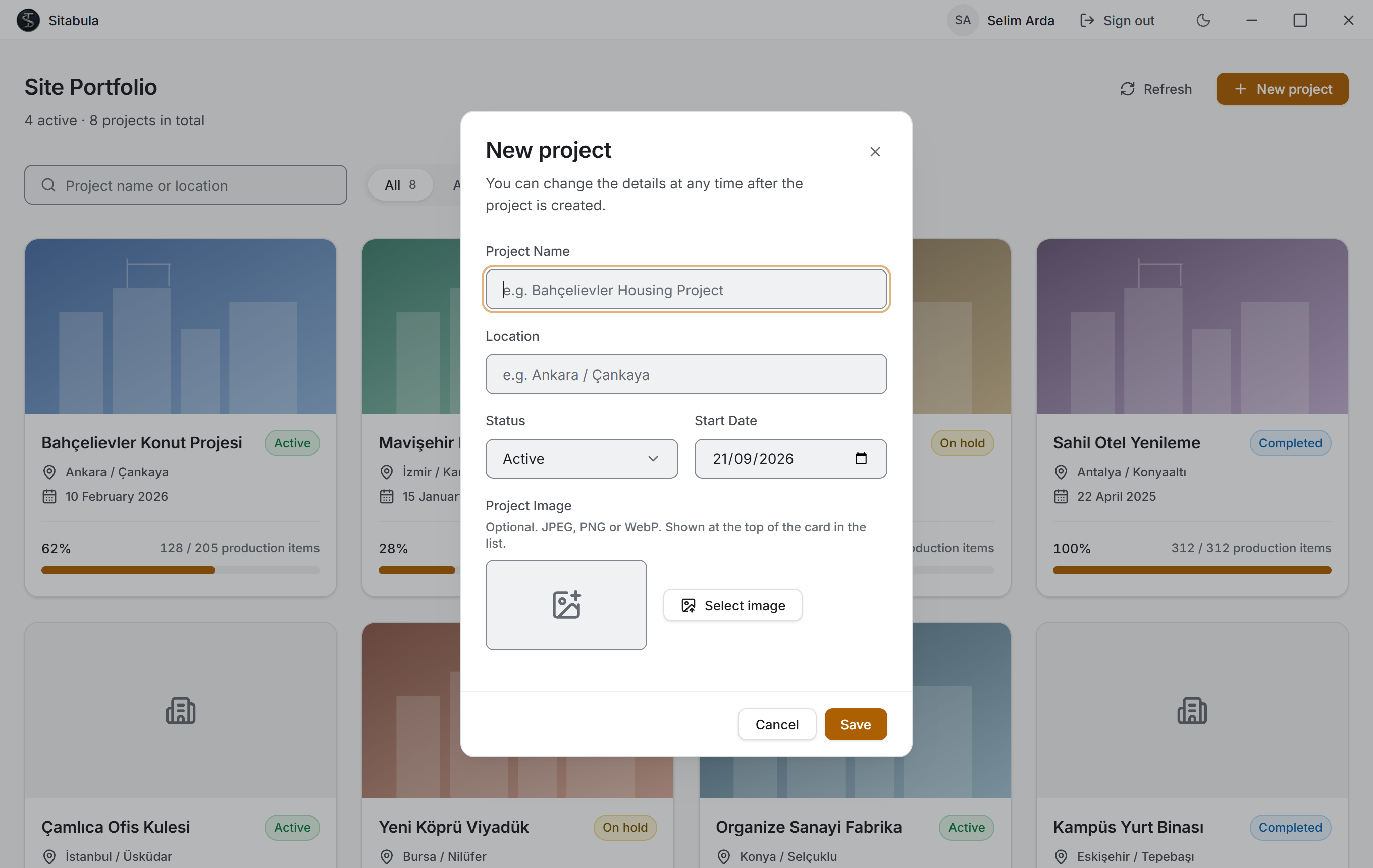
- Press New project at the top right. If the list is empty, the button in the middle of the screen opens the same window.
- Type the Project Name. This is the only required field.
- If you need to, type the Location, pick the Status and change the Start Date. The date arrives filled with today.
- If you wish, add a photo with the Select image button at the bottom.
- Press Save.
The window closes and the list refreshes; the new project appears first.
5.4 Editing project details
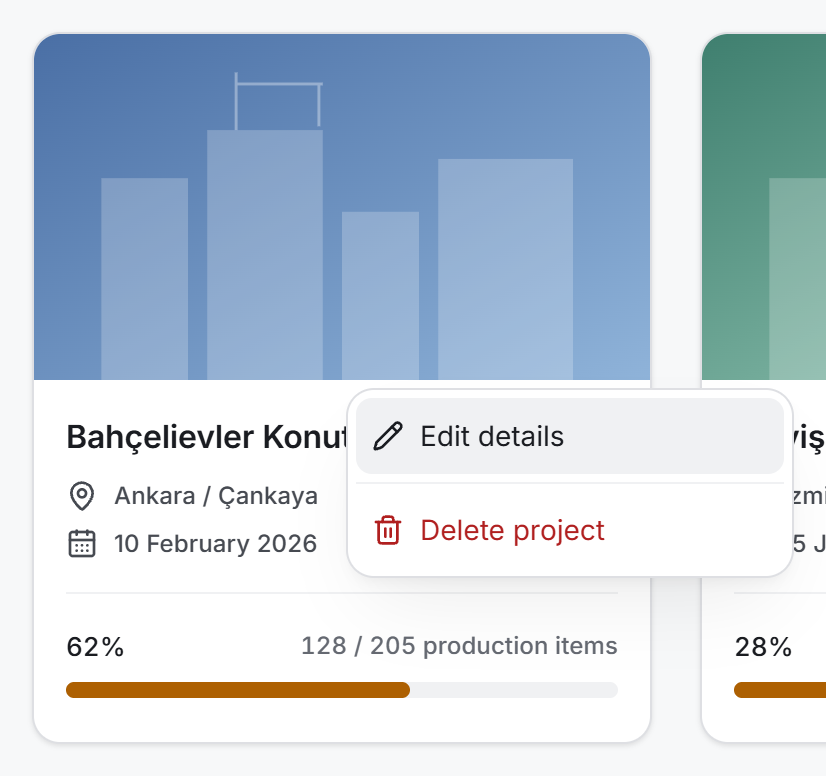
- Right-click on the card. With the keyboard: the Menu key or Shift + F10 while the card is selected.
- Choose Edit details.
- Change the fields and press Save.
The window opens filled with the project's current details. To clear a piece of information, empty its box.
5.5 Changing or removing the project image
- Open the window with right-click › Edit details.
- Press Change image to replace it, or Remove to clear it.
- Press Save.
Remove appears only while the preview holds something. If you do not touch the image at all, the photo on the server stays as it is — a project opened only to rename it does not lose its photo.
5.6 Deleting a project
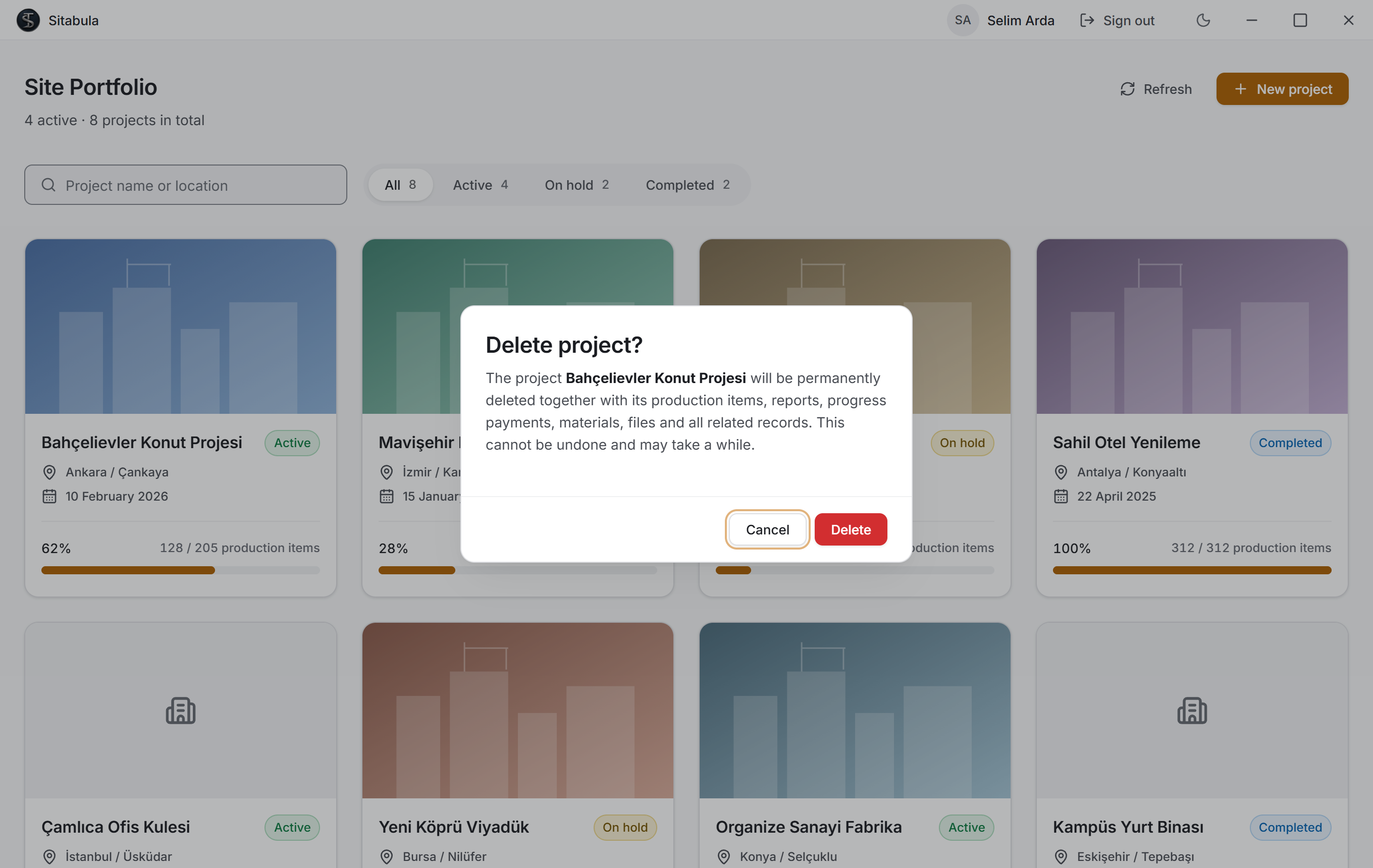
- Right-click on the card and choose Delete project.
- The window that opens states what will go: the project together with its production items, reports, progress payments, materials, files and all related records.
- Press Delete.
- While the deletion runs the window shows a progress bar and, underneath it, the name of the record group being cleared at that moment: Scanning linked records · Progress payments · Quantity take-offs · Production items…
- When it finishes the window closes by itself and the list refreshes.
Deletion may take a few minutes. Do not close the application until the bar fills; the window will not close either, because if it could, the work would carry on unseen.
At the start of the run the bar sits at zero and reads "Scanning linked records". That is normal: the number of records to delete is counted first, otherwise the progress bar would have nothing to report.
5.7 Refreshing the list
Refresh reads the projects from the server again. The progress figures on the cards are renewed by this button too; otherwise they are shown from the cache for a while.
5.8 Moving to another project
You do not need to sign out. Use the Projects button at the top of the sidebar to come back to this screen and click another card.
6. What you should know
Deletion cannot be undone. The confirmation window says so. What goes with the project is not only the project record: the production tree, site notes, daily reports, quantity take-offs, progress payments, timesheet records, personnel, concrete and equipment records, material definitions, orders, dispatches, stock movements, current accounts and their transactions, cheques and promissory notes, payments and collections, invoice documents, files, subcontractors, suppliers and project permissions are deleted as well.
Why can only administrators delete? The financial records the chain passes through are only deletable by an administrator on the server. If someone else started, the deletion would run up to that point, stop there, and leave a half-deleted project behind.
The "Project deleted, some records remain" warning. After a deletion a yellow strip may appear at the top of the page stating how many records were left behind and from which group. The most common cause is project notes: a note can only be deleted by the person who wrote it, and that rule lives on the server. The project is gone; what remains are records no screen shows any more.
What happens if deletion stops halfway. If the connection drops the work stops and the window says where it stopped. You can refresh the list and try the deletion again; on the second run the records already deleted are skipped.
Temporary accounts have a one-project limit. Accounts opened for trial can create only one project. If you hit the limit the New project button does not open the window at all; instead an information window appears with the limit and the sales contact address. The check happens up front so that you are not turned down after filling in four fields.
The status counts may add up to less than "All". An older record may carry a status value that is not recognised; such a project appears in the list with no badge on its card, but it falls into none of the three status buttons.
Progress counts production items, not quantities or amounts. Large and small items count the same. That is why the ratio is written beside it: two out of three items is 67%, and so is six hundred out of nine hundred.
You cannot set the order. The list is always arranged with the most recently changed project first. Editing a project's details from Overview also moves it to the front.
The application does not remember the project you last worked on. The portfolio appears at every start. In the meantime your permissions may have changed or the project may have been deleted; in such a case the application dropping into an empty screen without saying why is worse than seeing the list once more.
A building icon on the card can mean two things: no photo was ever added to the project, or the photo that was added cannot be found on the server. The two are not told apart; uploading the photo again solves both.
7. Related sections
- Overview — the summary screen of the project you chose. The project details (block and parcel, construction and landscape area, building inspection) are entered there.
- Users — who a project is opened to, and who may edit it, is decided there; the list on this screen is the result of it.
- Production Report and Site Data Entry — the progress percentage on the cards is counted from the production records there.
- Getting started — signing in, the first look at the portfolio, the tour of the shell and the roles.