
Overview
Overview is the summary screen of the selected project. At a glance it answers two questions: where the project stands and how much has been billed.
1. What it is for
Overview is the summary screen of the selected project. At a glance it answers two questions: where the project stands and how much has been billed. Below that sit the counters of the day's work, the latest records from the site and the team's notes.
The page is mostly read, not filled in. There are two exceptions: project details and project notes are entered here. Every other number on the screen is calculated from other modules' ledgers and cannot be changed here — Overview only gathers and shows them.
The page always describes one project: whatever project is open in the title bar, the numbers belong to it.
2. Opening it, and who can see it
At the top of the sidebar, under no group heading: Overview. It is the first page that opens when you start the application and when you switch projects.
| Your permission | What you can do |
|---|---|
| View | You read every block. Edit details and Add note are visible, but when pressed they tell you that you have no permission |
| Edit | You can edit the project details, add notes and change or delete your own |
| No permission | The module appears dimmed and locked in the sidebar; the application opens on the first page that is available to you |
3. Anatomy of the screen
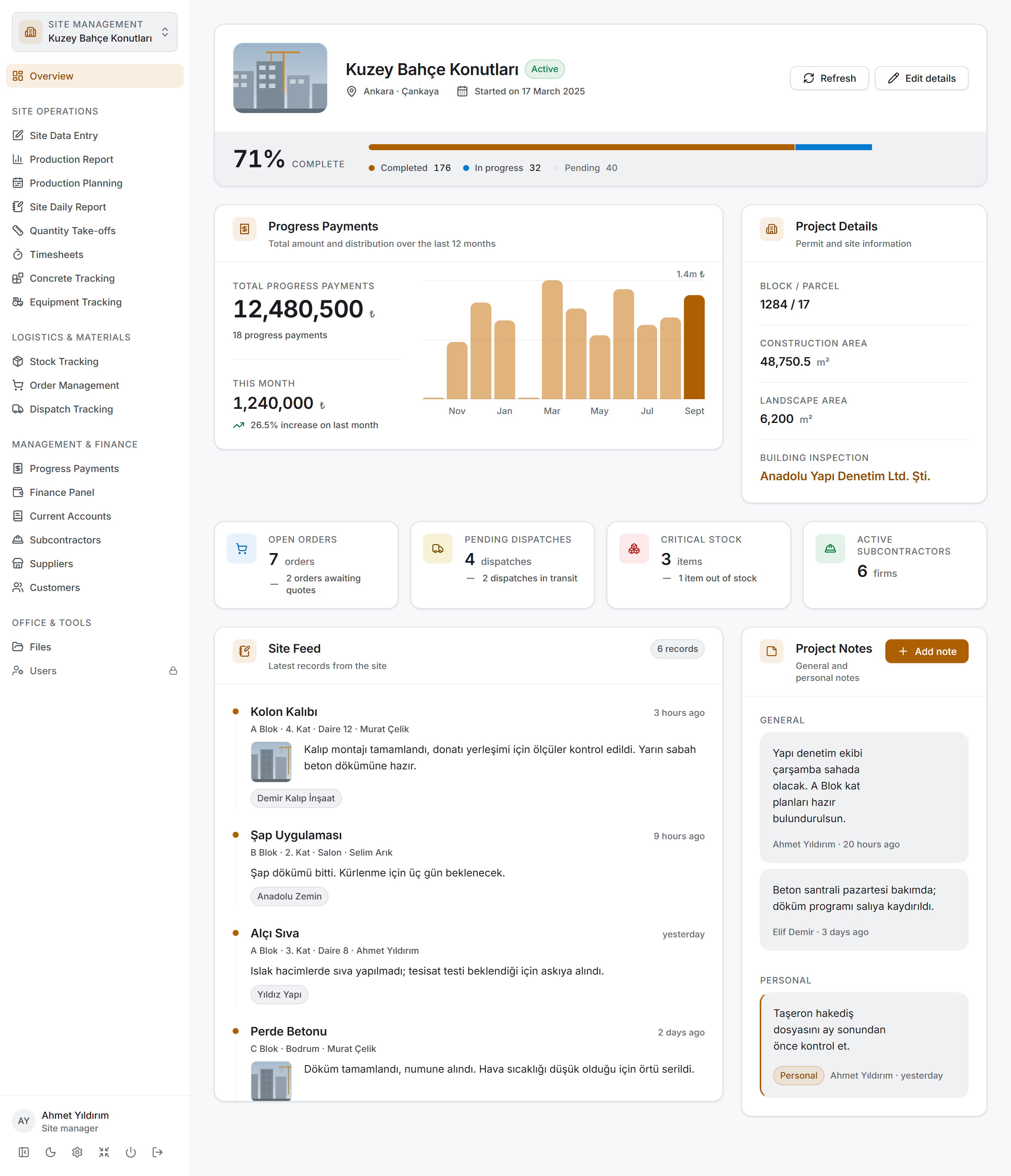
From top to bottom the page is made of five blocks. The layout is an order, not a grid: the project itself at the top, the money measure right below it, then the counters of the day's work, and the flowing records at the bottom.
The project strip
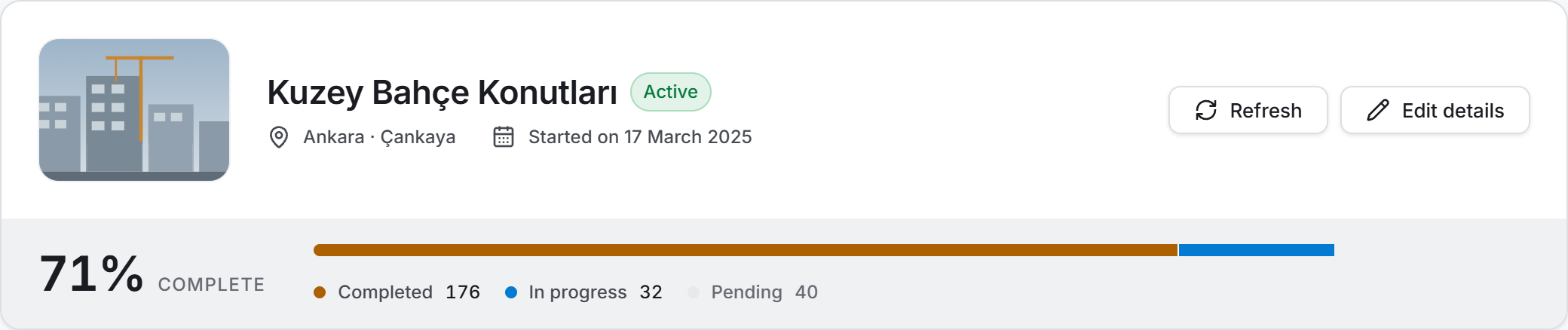
The wide strip at the very top. On the left is the project photo, next to it the project name and a badge for its status (Active · On hold · Completed). Under the name sit the project location and the "Started on …" line. Information that was never entered takes up no room: if there is no location, that line is not drawn at all.
There are two buttons on the right:
| Button | What it does |
|---|---|
| Refresh | Reads every block on the page from the server again. While it runs the icon spins and the button reads Refreshing |
| Edit details | Opens the project details window. Without permission the button stays dimmed with a padlock icon |
The lower band of the strip shows completion: a large percentage on the left and, to its right, a bar splitting production into three, with the name and count of each segment beneath it — Completed, In progress, Pending. Colour never carries meaning on its own; each segment's name and count is written out.
This band can say three different things:
- The percentage and the bar, once the counts arrive.
- "No production items defined yet — progress will appear here as the work list is built." That means the work list is empty; it does not mean 0%.
- "Completion could not be calculated — production records cannot be reached right now." A Try again button appears next to it.
The warning strip
The summary figures come from six separate groups, and if one cannot be read the others still fill in. When a group fails, an amber strip appears under the project strip: "Some summary values could not be loaded", and the sections that could not be read are named. The strip carries a Try again button.
Progress Payments
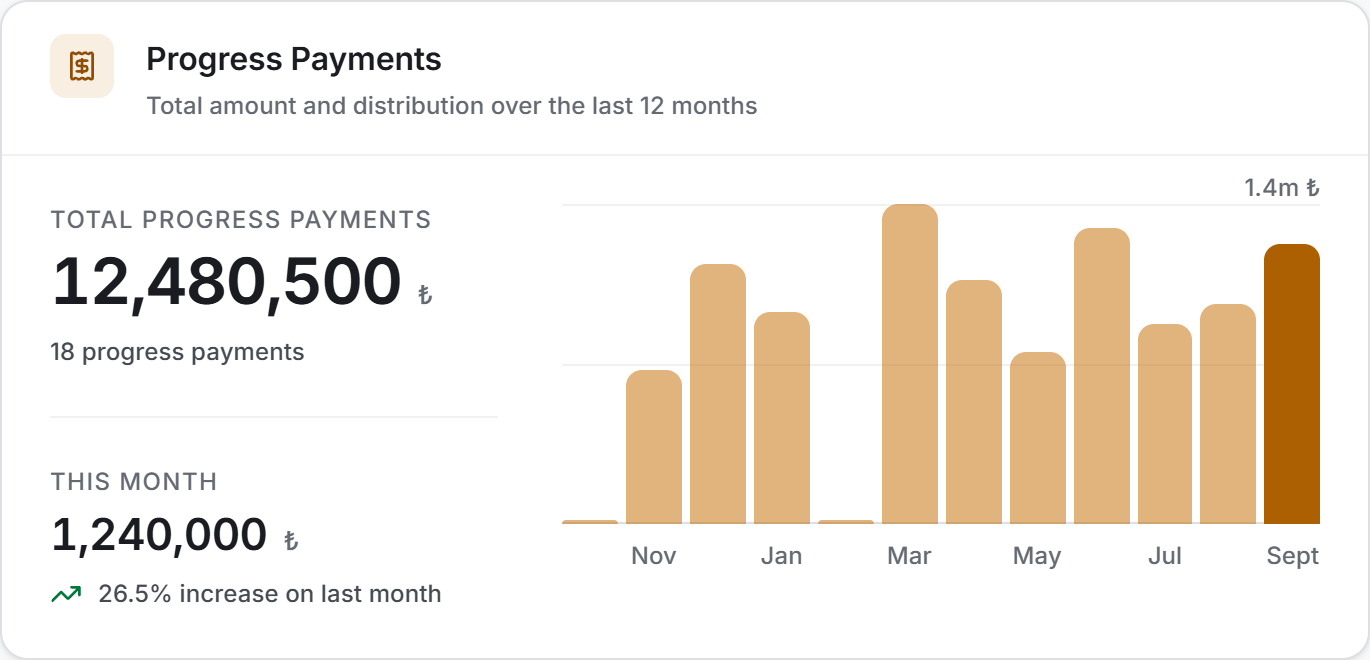
The main measure of the page. The card is titled Progress Payments, with the description "Total amount and distribution over the last 12 months".
There are two figures in the left column:
| Measure | What it shows |
|---|---|
| Total Progress Payments | The sum of every progress payment record on the project. Below it, how many records it came from; with no records at all it says "No progress payments issued yet" |
| This Month | The total for the current month. Below it, a line comparing it with last month |
The comparison line can say four things: an increase or a decrease on last month, "Same level as last month", or — when there were none last month — "No progress payments last month." Movement under half a point does not count as change; it reads as the same level.
On the right is a column chart of the last twelve months. Hovering over a column shows the full name of the month and its amount. Axis labels are written every other month, but the last month is always labelled.
Project Details
The narrow card to the right of the progress payments block: Project Details, "Permit and site information." It carries four rows — Block / Parcel, Construction Area, Landscape Area, Building Inspection.
A row that was not filled in is not drawn. If all four are empty, the card says "No project details entered" and carries an Enter details button.
The measure strip

Below the details sit four small cards side by side: Open Orders, Pending Dispatches, Critical Stock, Active Subcontractors. All four count quantities; none of them holds money. Each card has a second line beneath it giving one detail about that number.
The cards take on colour only when there is something to warn about: pending dispatches and critical stock stay neutral at zero and turn amber and red above it. They also stay neutral when the value could not be read — a number nobody could fetch should not look like bad news.
Site Feed
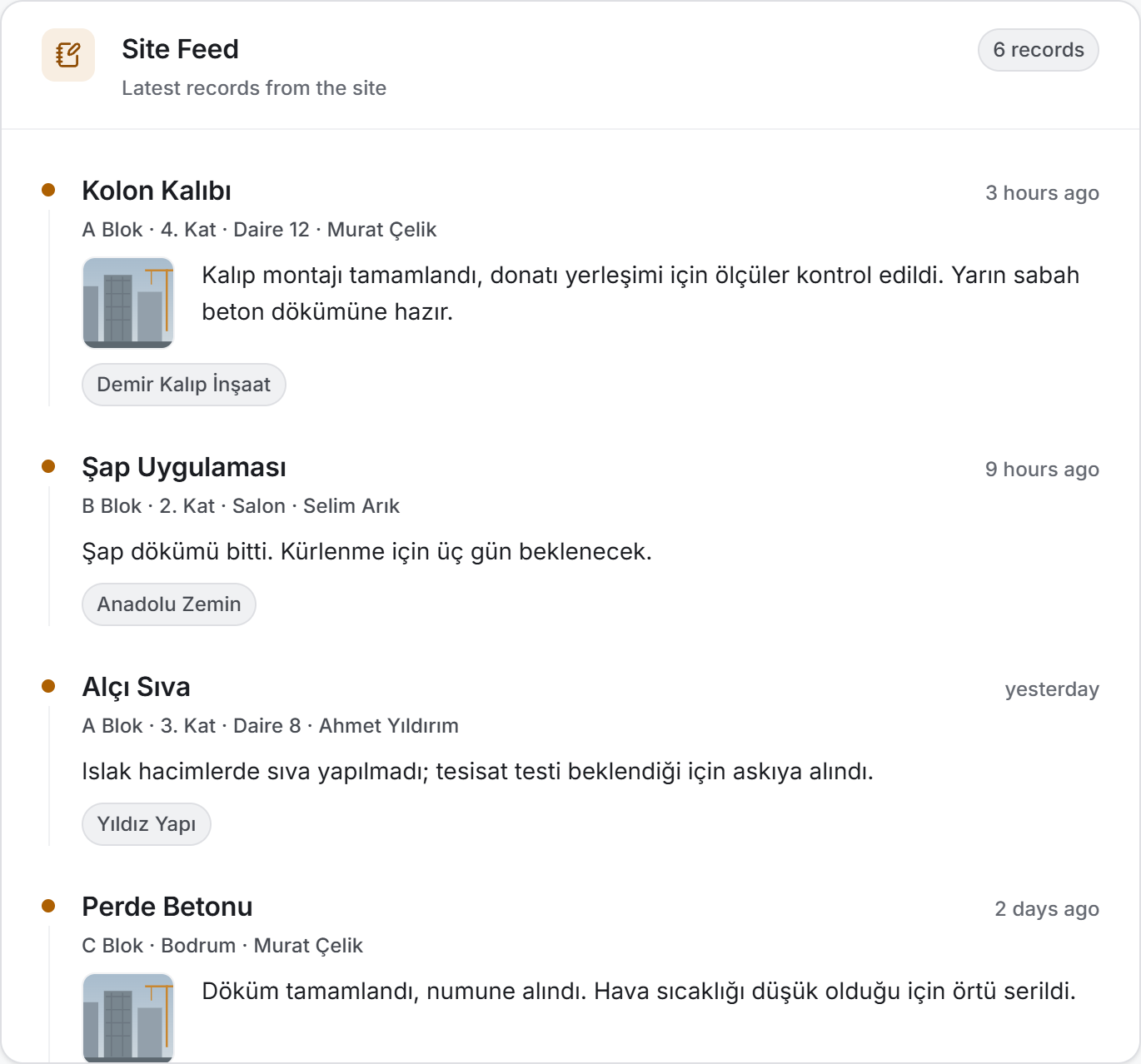
The wide block at the bottom of the page: Site Feed, "Latest records from the site." The badge next to the heading gives the total number of records — all of them, not just the ones loaded so far.
The records are laid out as a timeline. Each record carries the production item at the top, next to it its location (block · unit · room) and the name of whoever wrote the note, the time since it was entered on the right, and the note itself below. If the subcontractor doing the work is known, it appears as a small badge. When there is a photo, a small preview sits beside the note; clicking it opens the full-size image.
The list scrolls inside the card, not the page. As you scroll down the next records load by themselves; there is no button to press. When the feed ends, "All notes loaded" appears at the bottom.
Project Notes
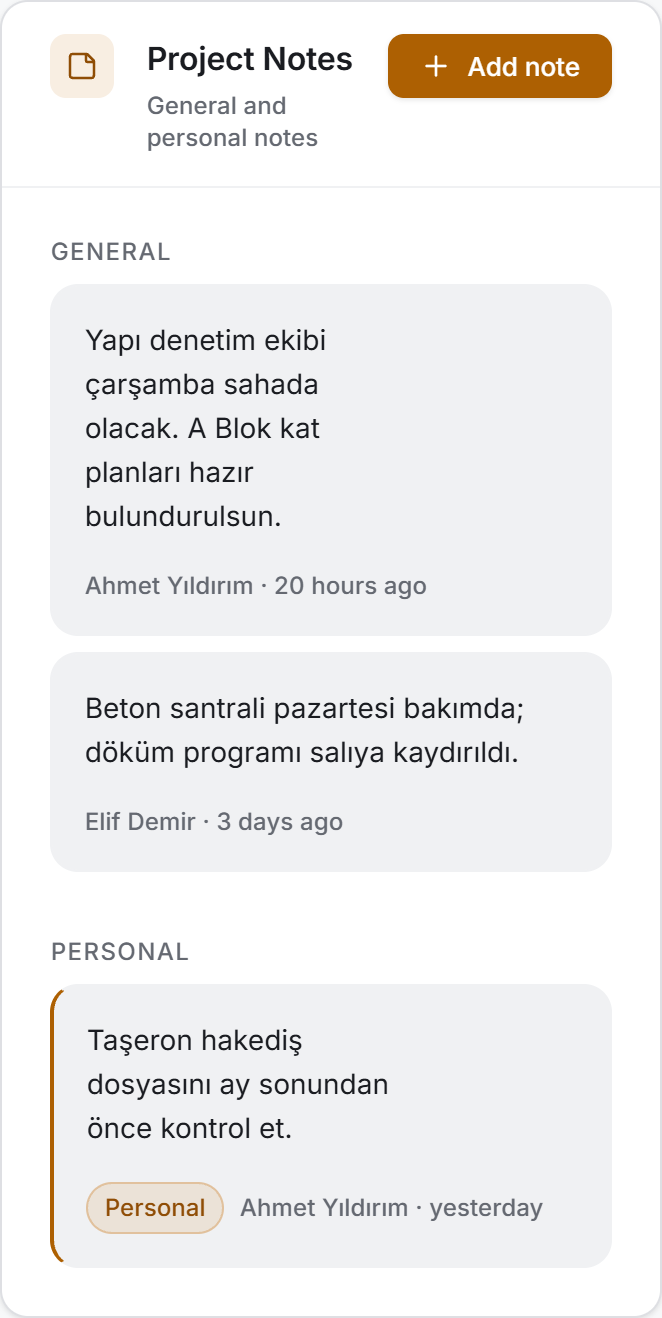
The card to the right of the site feed. It has two sections and both are always open:
| Section | Who sees it |
|---|---|
| General | Everyone with access to the project |
| Personal | Only whoever wrote the note |
Personal notes are set apart by the accent stripe along their left edge and by the Personal badge; colour is never left to carry it alone. Under each note sit the name of whoever wrote it and how long ago it was written.
At the top right of the card is the Add note button. While a section is empty it also carries its own Add general note and Add personal note buttons.
4. Fields
Entered fields — project details
All four are entered from the Edit details window and none of them is required.
| Field | Description | Required |
|---|---|---|
| Block / Parcel | The block and parcel number on the title deed | No |
| Construction Area | The construction area in square metres | No |
| Landscape Area | The landscape area in square metres | No |
| Building Inspection | The name of the building inspection firm | No |
Construction Area and Landscape Area are free text. If what you type can be read as a number, it is shown formatted and with an m² unit; if it cannot, it stays exactly as you typed it and no unit is added. The hint line inside the window tells you which of the two it will be as you type.
Notes have a single field: Note. It cannot be left empty. When adding one you also choose a Note Type (General or Personal).
Calculated measures
These are not entered; they are counted from other modules' records.
| Measure | How it is calculated |
|---|---|
| Completion percentage | The ratio of production items marked Done to all production items on the project |
| Completed · In progress · Pending | The counts of production items marked Done, In progress, and everything left over |
| Total Progress Payments | The sum of every progress payment record on the project — there is no date limit |
| This Month | The progress payment total for the current month |
| The column chart | The progress payment total for each of the last twelve months |
| Open Orders | Orders whose status is neither Completed nor Cancelled |
| second line | Those among them whose status is Awaiting quotes |
| Pending Dispatches | Dispatches that are not archived and whose status is neither Delivered nor Cancelled |
| second line | Those among them whose status is In transit |
| Critical Stock | Material items whose stock level has reached or fallen below the minimum stock threshold defined for them |
| second line | Items whose stock level is zero or below |
| Active Subcontractors | The number of subcontractor firms defined on the project |
5. Step by step
5.1 Entering and editing the project details
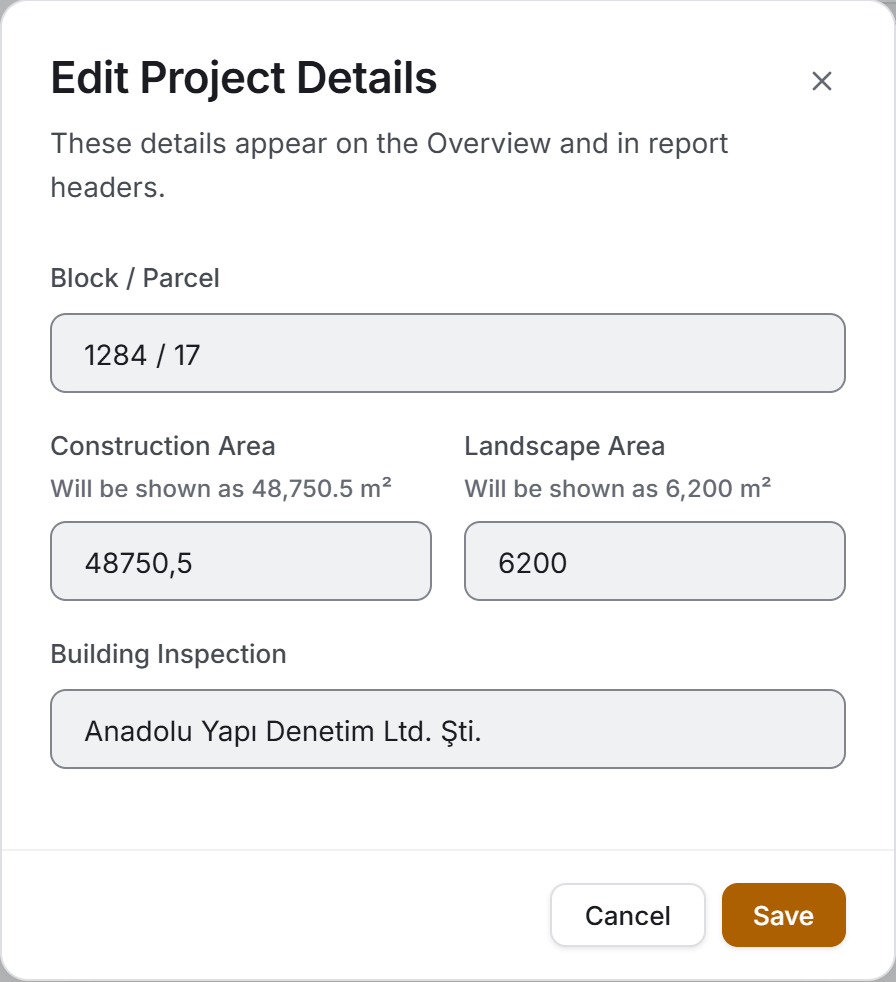
- Press Edit details in the project strip. If the details card is completely empty, the Enter details button inside it opens the same window.
- Fill in the four fields. None of them is required; to remove a value you entered by mistake, just clear the box.
- Watch the hint line that appears between the field name and the box: if your value was read as a number it says "Will be shown as … m²", and if it was not it says "Not recognised as a number; will be shown as you typed it".
- Press Save.
What you save does not stay on this page alone; it also appears in report headers.
5.2 Adding a note
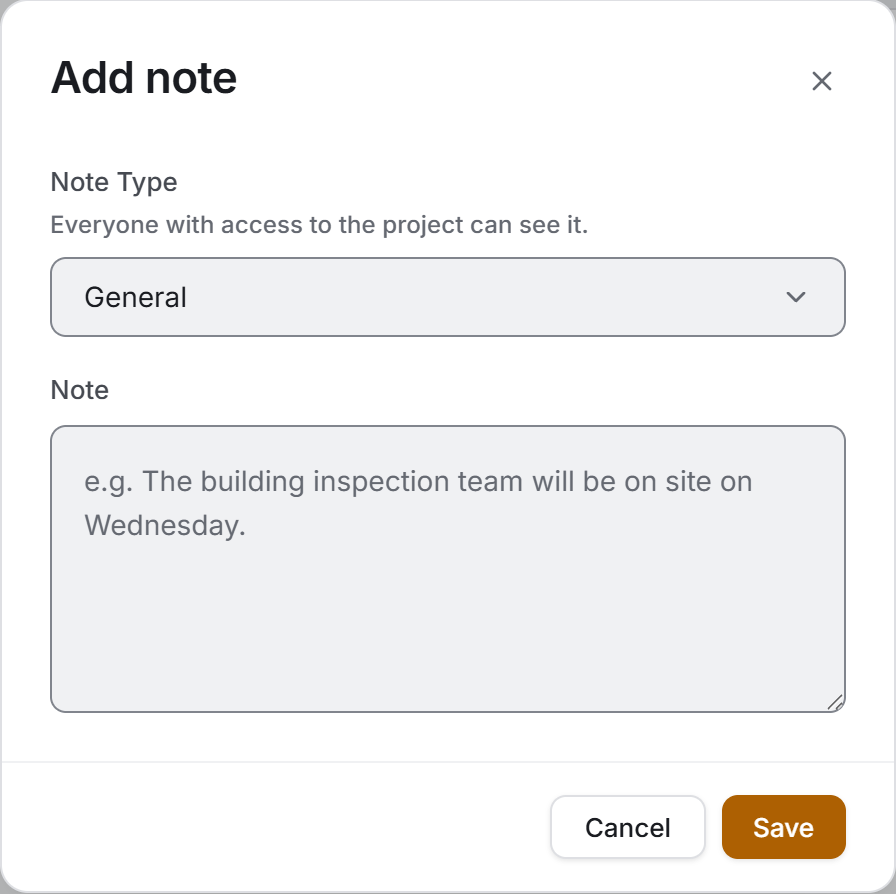
- Press Add note at the top right of the card. If you use a section's own add button, the type comes preselected.
- Choose the Note Type. The line above the selector tells you who will see it: "Everyone with access to the project can see it" or "Only you can see it."
- Write the note and press Save.
The note field takes several lines; Enter starts a new line, it does not send the note. Sending happens only through the Save button.
5.3 Editing and deleting a note
The edit and delete icons are drawn only on your own notes. They do not appear on someone else's note because the server enforces the same rule: if they were drawn, they would be two buttons that could never work.
The edit window has no type selector — only the text of the note changes. Turning a general note into a personal one would mean losing it from the sight of the colleagues who have already read it.
5.4 Moving through the site feed
- Scroll down inside the card; the next records arrive by themselves.
- To enlarge a record with a photo, click the small preview in the note. The window that opens also carries the name of the production item and its location.
- Press Close to close it.
5.5 Refreshing the page
Refresh in the project strip renews every block together. The icon spins while it runs. If only one block failed to load, using that block's own Try again button is quicker; it repeats only the query that failed.
6. Things worth knowing
The blocks do not wait for each other. The page is drawn from several separate queries, not one. When progress payments cannot be read, the details, the notes and the site feed stay on screen. That is why you never see an error screen covering the whole page.
"—" does not mean zero. If you see a dash on a card, that value could not be read. The warning strip above names the group that failed.
The total and the chart do not cover the same period. The total on the card covers the whole project; the chart shows only the last twelve months. A progress payment older than twelve months is in the total but not in the chart.
Completion counts production items, not quantities or amounts. The percentage tells you how many production items are finished; large and small items count the same. For financial progress look at Progress Payments, and for progress against the schedule at Production Planning.
"Pending" is not a status but a remainder. The pending segment of the bar is everything outside completed and in progress.
Notes belong to the project, not to you. When you switch projects the notes change too. A personal note also lives inside one project — it is not visible once you move to another.
Active Subcontractors counts every firm defined on the project. It does not look at whether they worked that month; the number is the record count in the Subcontractors module.
A user who cannot see Overview does not meet an empty screen. Without permission the application opens on the first section available to them. If no section is available at all, the screen says so and asks them to contact their project manager.
7. Related sections
None of the numbers on this page are produced here. Where they come from:
- Production Report and Site Data Entry — the completion percentage and the site feed come from the production records kept there.
- Progress Payments — the total, this month and the twelve-month chart are read from that ledger.
- Order Management — the open order and awaiting-quotes counts.
- Dispatch Tracking — the pending and in-transit dispatch counts.
- Stock Tracking — the critical and out-of-stock item counts; the critical threshold is defined there.
- Subcontractors — the active subcontractor count.
- Projects — the project name, photo, status, location and start date are entered there; the detail fields are edited from this page.