
Settings
Settings is the application's own settings page. It keeps no site records, shows no list and produces no export.
1. What it is for
Settings is the application's own settings page. It keeps no site records, shows no list and produces no export. Its work is this: setting how the app looks and which language it speaks, deciding which currency symbol sits next to the company's amounts, showing your account details and the app's version, opening the legal documents and — at the very bottom, on its own — deleting your account.
Two different kinds of setting sit side by side on this page, and the difference matters. Theme and language are personal: they are kept only on the computer you are sitting at, they do not change anyone else's screen and they have nothing to do with your role. The currency is the company's: when an administrator changes it, everyone in the company sees the new symbol. Having both on one page is not a contradiction, it is what the page is — this is the application's own switchboard.
2. How to open it, who can see it
It opens from the gear button in the strip at the very bottom of the sidebar. Settings is not a module: it has no row in the module list above, it sits in the same strip as the collapse and theme buttons.
The button is a switch. Press it once and Settings opens, press it again and it closes, returning you to the module you had open. Choosing any module from the menu also closes Settings. While Settings is open the button appears highlighted.
The page asks for no permission. There is no Settings row in the project permission matrix, and that is deliberate: the language is every user's own preference. An account with no access to any project, whose permissions have not been granted yet, or that has been suspended can still open Settings. The button works even when every row in the menu is locked.
| Your role | What you see |
|---|---|
| Administrator | The whole page. The CURRENCY card holds a switch with three options |
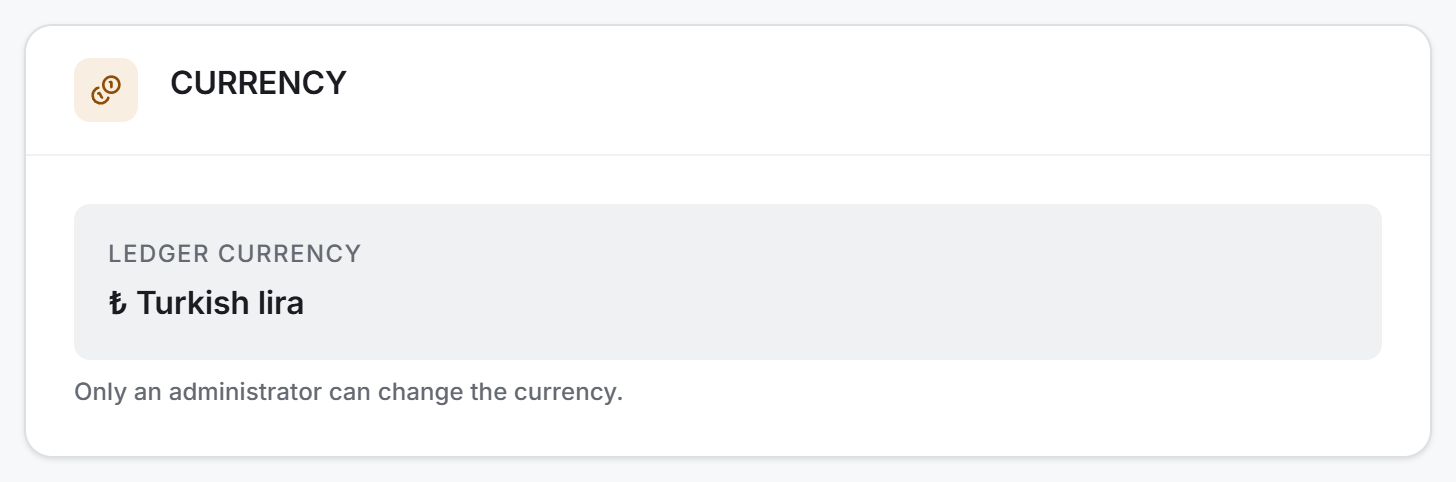
| Any other role | The whole page. The one difference: the CURRENCY card shows a read-only field rather than a switch, and below it reads "Only an administrator can change the currency" |
3. Anatomy of the screen
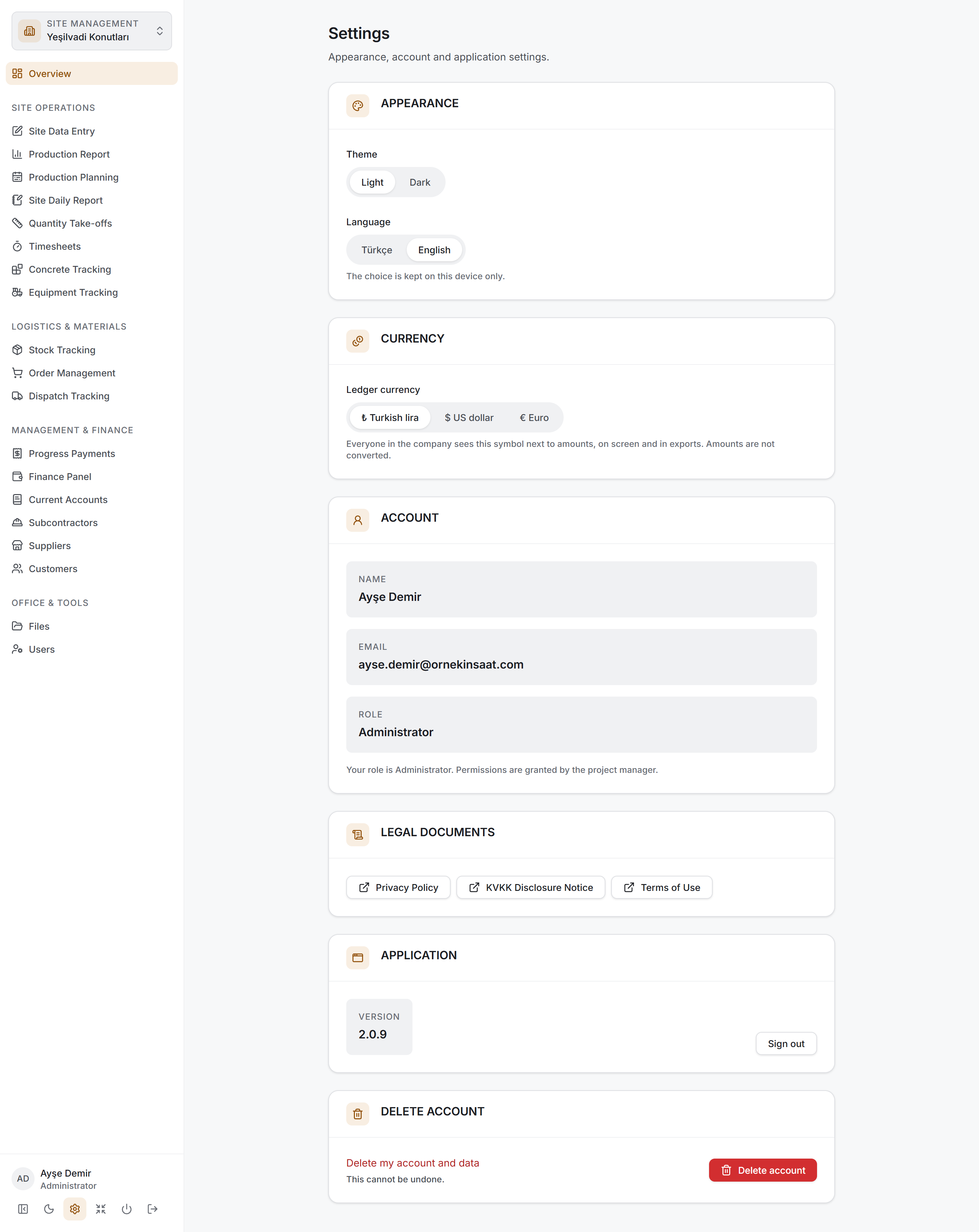
Settings does not look like the other pages in this guide. There is no toolbar, no filter bar, no summary strip, no breakdown card and no table. In the middle of the screen there is a narrow column, and in that column six cards stacked one above the other. At the top of the page sits the Settings heading and, below it, the description "Appearance, account and application settings."
The order of the cards is fixed and follows one logic from top to bottom — what you touch every day first, what you touch once at the very end:
| # | Card | What is in it |
|---|---|---|
| 1 | APPEARANCE | The theme and language switches |
| 2 | CURRENCY | The company's ledger currency |
| 3 | ACCOUNT | Your name, email, role |
| 4 | LEGAL DOCUMENTS | Links to the three documents |
| 5 | APPLICATION | The version number and Sign out |
| 6 | DELETE ACCOUNT | Permanently deleting the account |
The APPEARANCE card
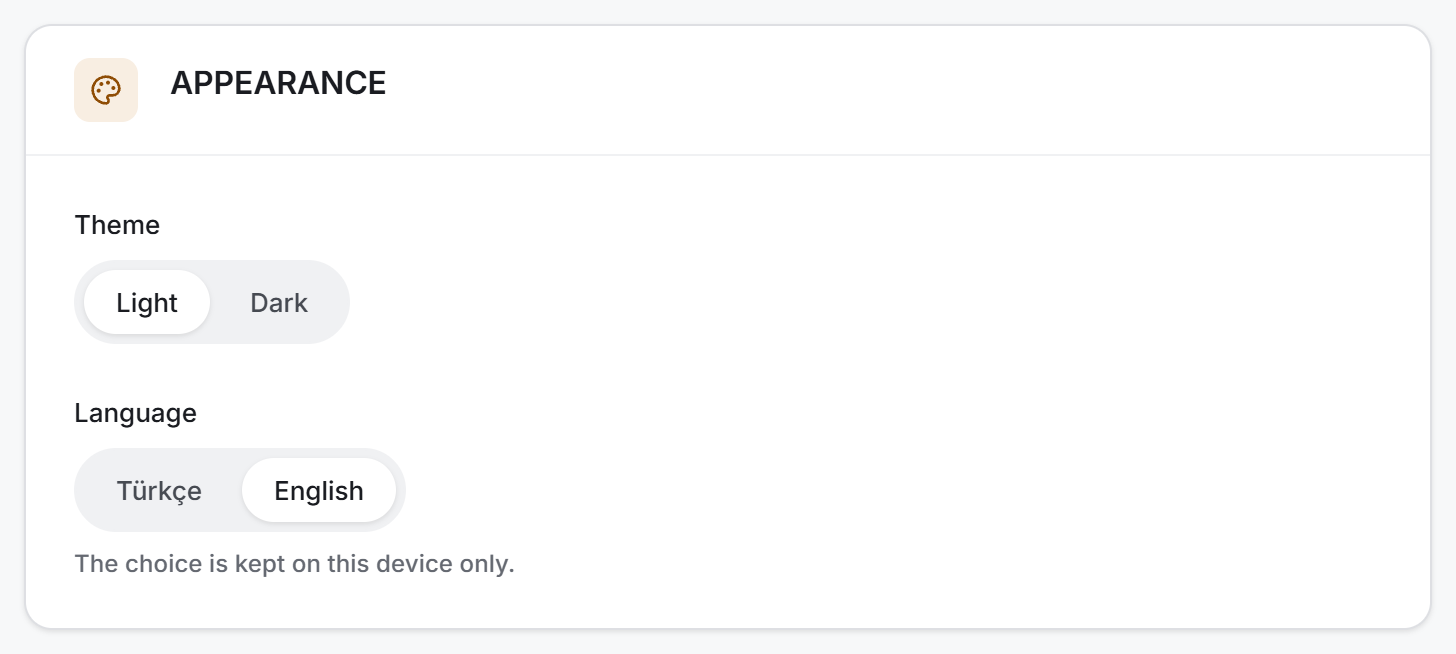
Two switches sit one above the other. Both are two-option segmented bars; the selected option appears highlighted.
Theme — Light or Dark. Applied the moment you click.
Language — Türkçe or English. Applied the moment you click; you do not have to restart the app. Below it reads "The choice is kept on this device only."
The CURRENCY card
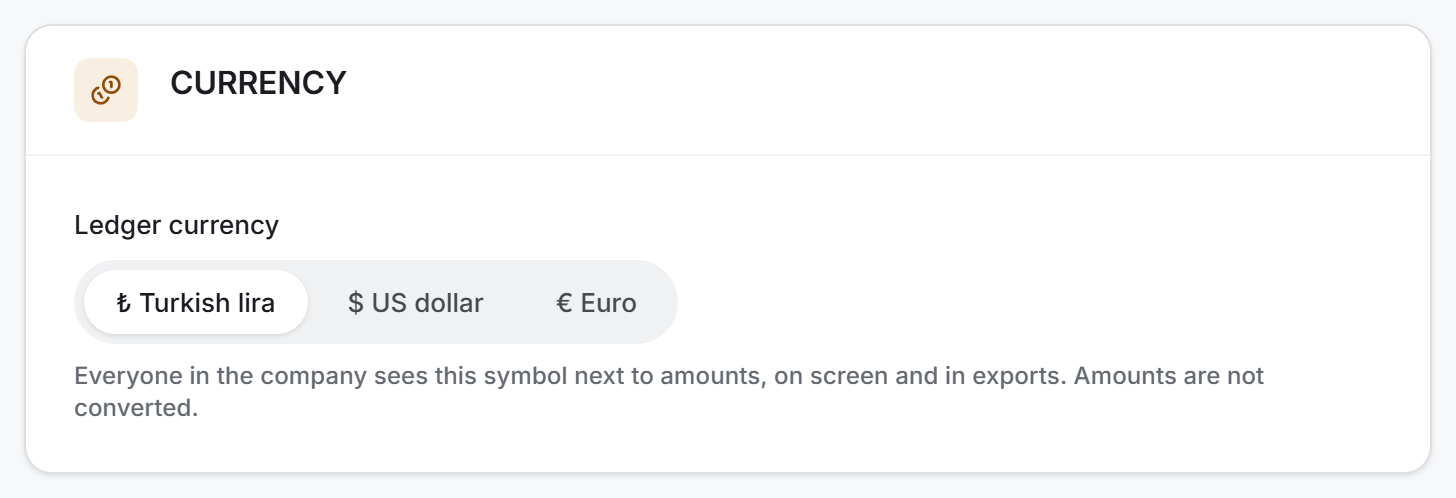
The card carries the company's ledger currency. There are three options: ₺ Turkish lira, $ US dollar, € Euro. For an administrator this is a segmented bar; below it reads "Everyone in the company sees this symbol next to amounts, on screen and in exports. Amounts are not converted."
On an account that is not an administrator, the same card shows a read-only field:
Clicking an option does not save the setting straight away. A confirmation dialog opens first:
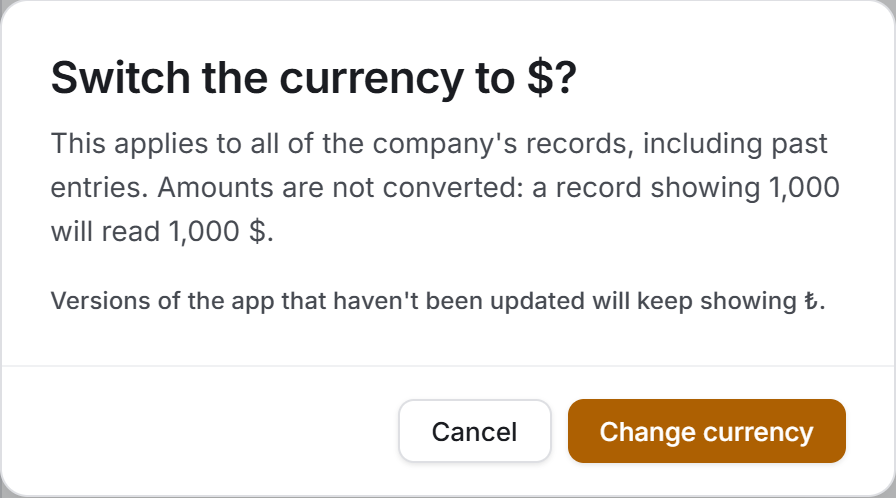
The dialog asks "Switch the currency to $?" and says in one sentence what will happen: the setting applies to all of the company's records, including past entries; amounts are not converted, a record showing 1,000 will read 1,000 $. Below it sits a second line: "Versions of the app that haven't been updated will keep showing ₺." The buttons are Cancel and Change currency.
The ACCOUNT card
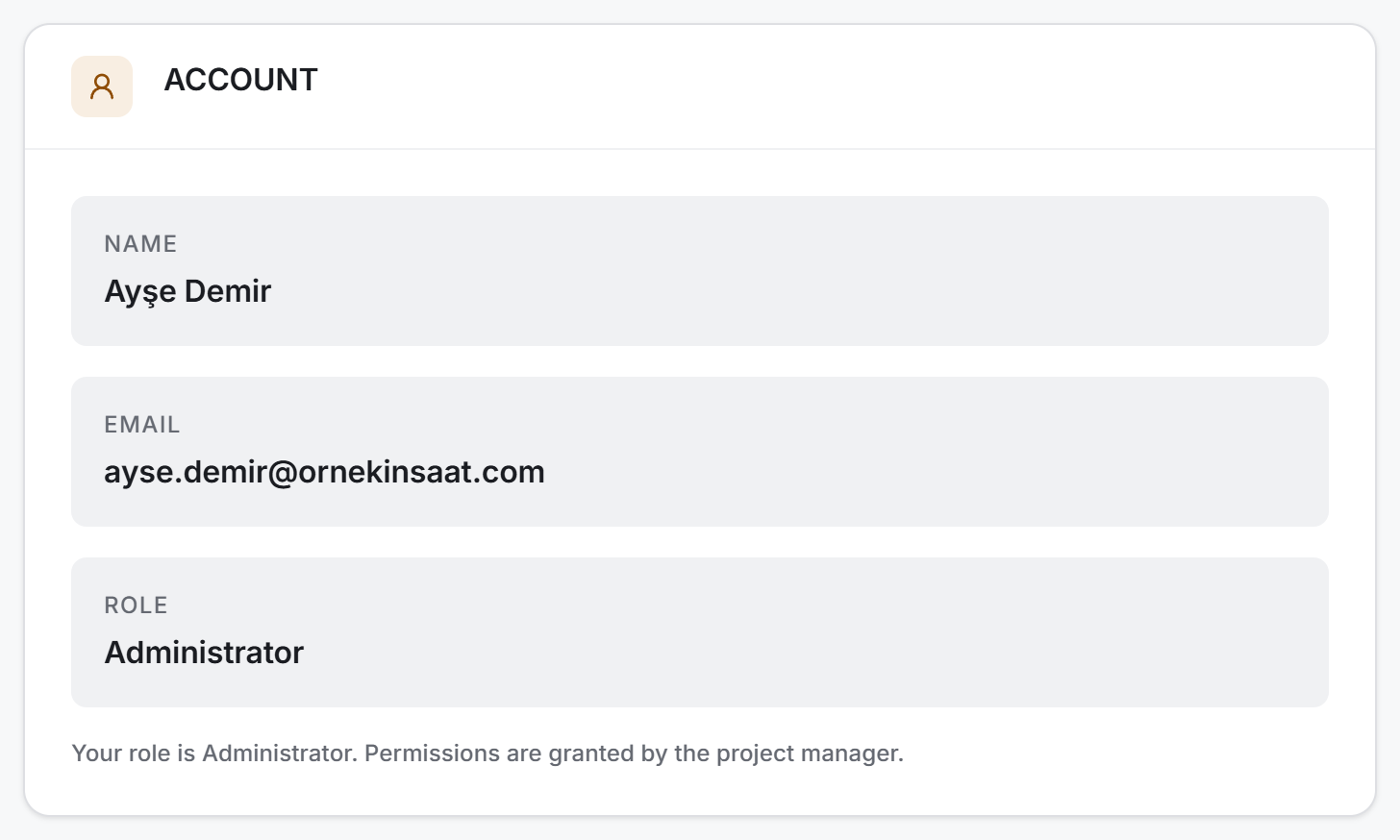
Three read-only fields: Name, Email, Role. Below them sits one sentence: "Your role is Administrator. Permissions are granted by the project manager."
Nothing on this card can be edited. Your name, your email and your role are only displayed here; changing them is the Users section's work and belongs to an administrator.
The LEGAL DOCUMENTS card
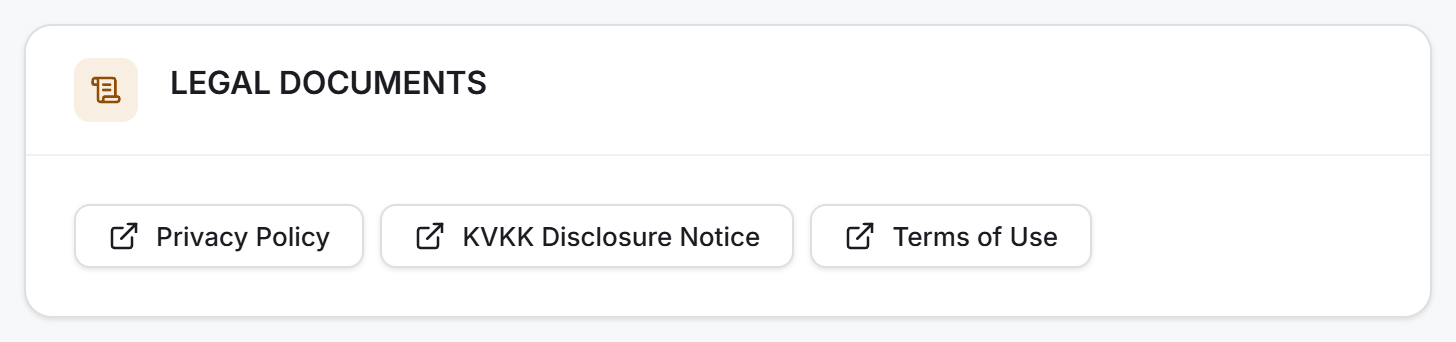
Three buttons side by side: Privacy Policy, KVKK Disclosure Notice, Terms of Use. Each carries an outward arrow icon — the document opens in the computer's browser, not inside the application.
These are the same documents you accepted when you registered. When the app is in English mode the links open the English version of the pages.
The APPLICATION card
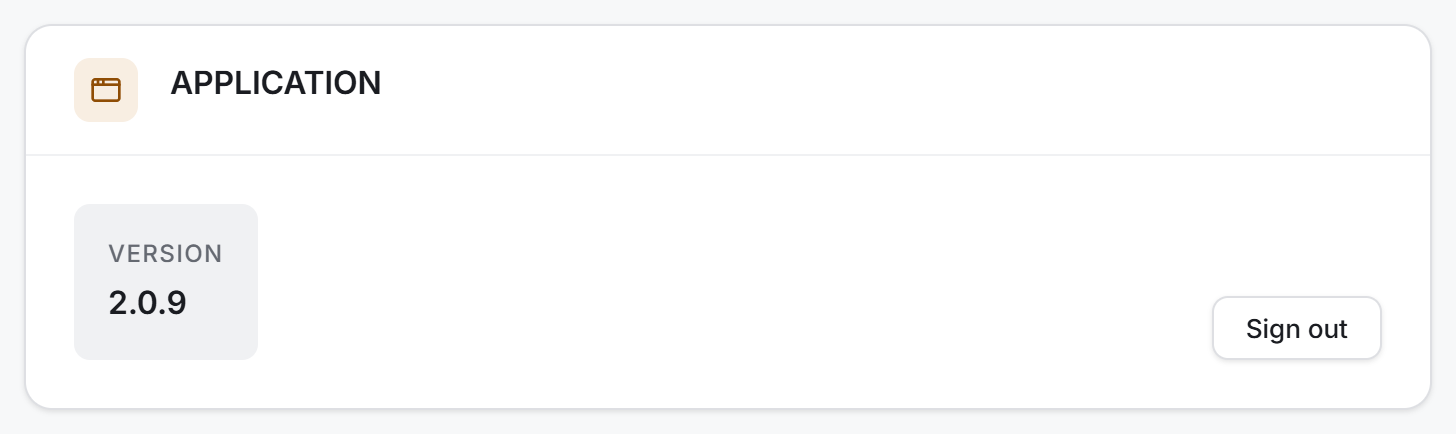
On the left the Version field, on the right the Sign out button. The version is the number of the installed application; it is the first thing you are asked when you ask for support.
Sign out returns you to the sign-in screen. It does the same job as the sign-out button in the sidebar.
The DELETE ACCOUNT card
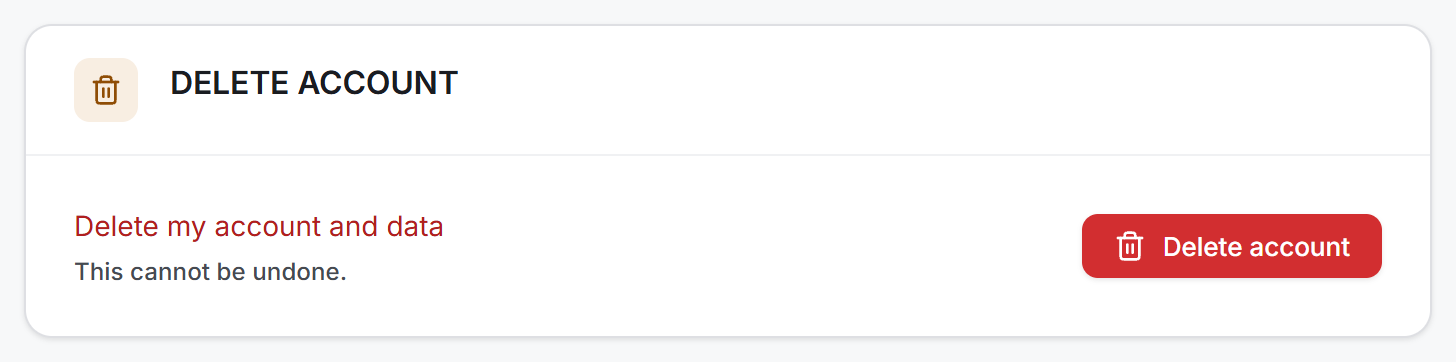
On the left a red line — "Delete my account and data" — and below it "This cannot be undone." On the right the red Delete account button.
Pressing the button deletes nothing. The only thing it does is ask the server "if I delete my account, what goes with it"; the button reads Loading… until the answer arrives, then a dialog opens. The question is not destructive, it only counts.
If the question cannot be answered, a red banner appears above the card: Could not start account deletion, with the reason below it. No dialog opens.
4. Fields
| Field | What it means | Who can change it | Where it is kept |
|---|---|---|---|
| Theme | Whether the app looks light or dark | Anyone, for themselves | On this computer |
| Language | The language the app speaks — Türkçe or English | Anyone, for themselves | On this computer |
| Ledger currency | The symbol written next to amounts: ₺ · $ · € | Administrators only, for the whole company | On the server, in the company record |
| Name | The account's display name | An administrator, from the Users section | On the server |
| The address you sign in with | An administrator, from the Users section | On the server | |
| Role | Administrator · Site manager · Field engineer · Subcontractor · Viewer · Suspended | An administrator, from the Users section | On the server |
| Version | The number of the installed application | Cannot be changed; rises with an update | — |
The fields in the account deletion dialog are separate and all come from the server:
| Field | What it means |
|---|---|
| Company | The name of the company to be deleted. Drawn only in the company-owner branch, and only if the company has a real name |
| Projects | The number of projects to be deleted |
| User accounts | The number of accounts to be deleted. If any belong to someone else, the count of those is written next to it |
5. Step by step
5.1 Changing the theme
- Press the gear icon at the bottom of the sidebar.
- In the APPEARANCE card, choose Light or Dark from the Theme switch.
The change is applied immediately and kept; the next time you open the app, the theme you chose comes up.
5.2 Changing the language
- Open Settings.
- In the APPEARANCE card, choose Türkçe or English from the Language switch.
The whole screen moves to the new language at once. Open dialogs are translated too; you do not have to close and reopen anything.
1.234,50, English mode 1,234.50.5.3 Changing the currency (administrators only)
- Open Settings.
- Choose the unit you want from the CURRENCY card.
- Read what will happen in the dialog that opens.
- Press Change currency. While it is being saved the button reads Saving…
The switch stays on the old unit until you confirm. It moves to the new unit only after the server has accepted it; from that moment everyone in the company sees the new symbol. If it cannot be saved the dialog does not close and the reason is written inside it in a red banner; when you leave with Cancel, the same warning stays above the card. In other words, the symbol you see on screen is always the value on the server.
5.4 Reading a legal document
- Open Settings.
- Press the document's name in the LEGAL DOCUMENTS card.
The document opens in a new tab in the computer's browser. The application stays open.
5.5 Finding the version
- Open Settings.
- Read the Version field in the APPLICATION card.
5.6 Deleting your own account
- Open Settings and scroll to the bottom.
- Press Delete account. The app asks the server what will go.
- In the Delete account dialog that opens, read the figures under the TO BE DELETED heading.
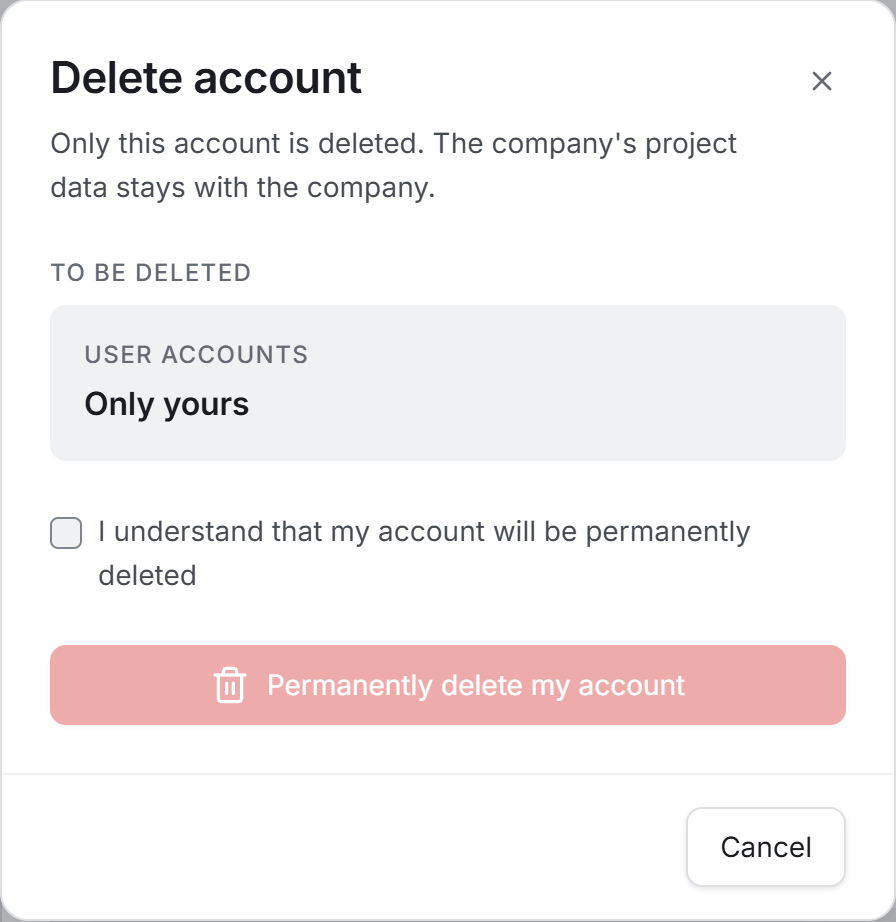
If only your account is to be deleted, the dialog begins with "Only this account is deleted. The company's project data stays with the company" and the User accounts field reads Only yours.
- Tick the "I understand that my account will be permanently deleted" box. The red button below does not work until the box is ticked.
- Press Permanently delete my account.
- In the second dialog — Are you sure? — press Yes, delete.
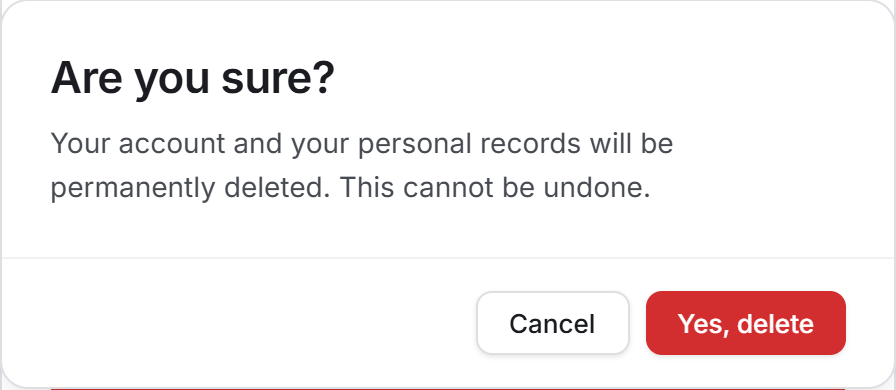
When the deletion is complete the app returns you to the sign-in screen automatically.
You can back out at every step: the Cancel button at the bottom of the dialog, or a click outside the dialog, is enough. Until the deletion starts, nothing happens.
5.7 Deleting the account as the company owner
The steps are the same as 5.6, but the dialog speaks differently:
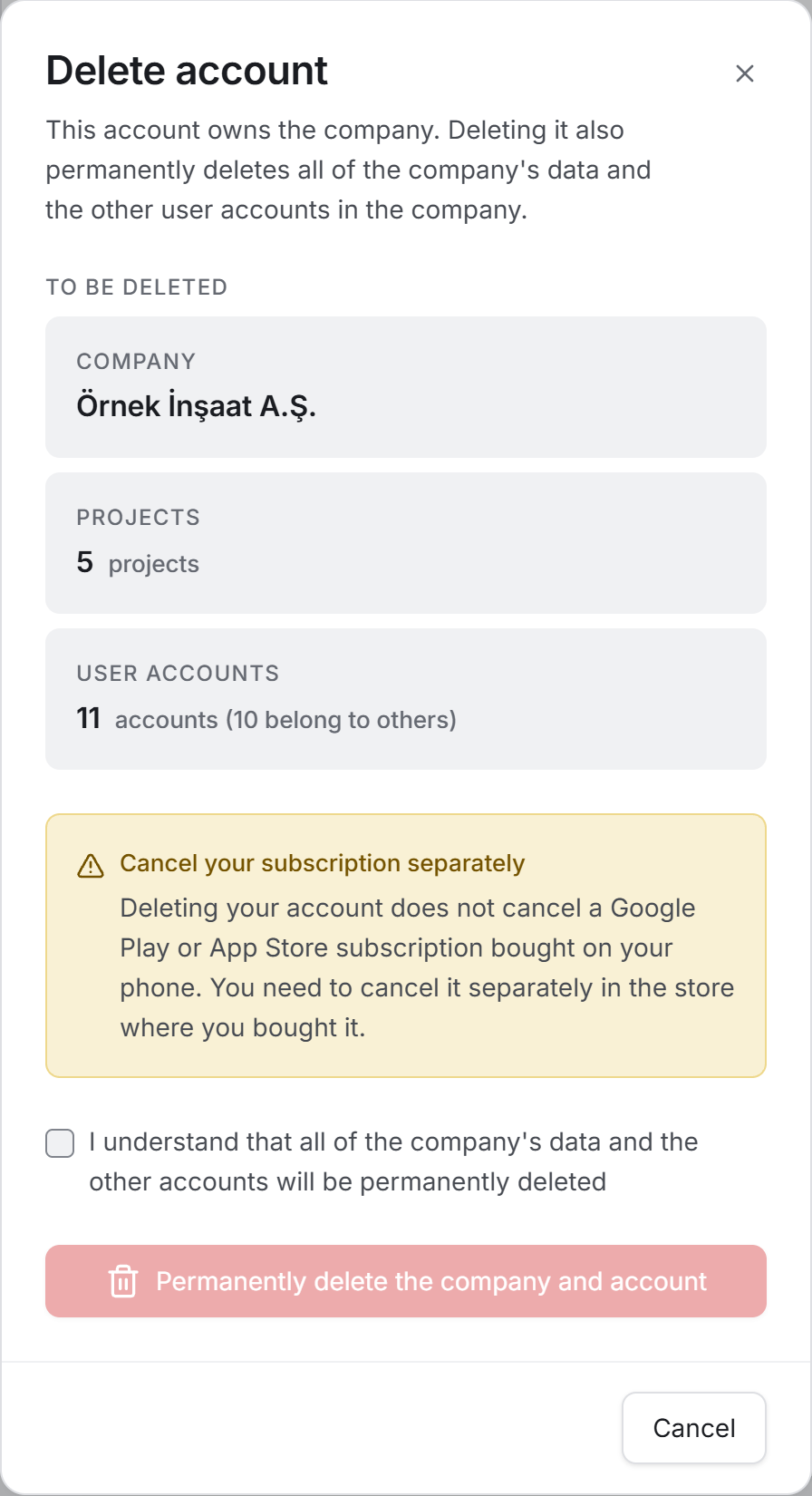
The dialog begins with "This account owns the company. Deleting it also permanently deletes all of the company's data and the other user accounts in the company." Under TO BE DELETED you see the company's name, the number of projects and the number of accounts; next to the accounts line is written how many of them belong to someone else. The text of the tick box changes too: "I understand that all of the company's data and the other accounts will be permanently deleted." The red button reads Permanently delete the company and account, and the second confirmation repeats the number of accounts that will go.
If your account has a subscription bought on a phone, a yellow warning banner also appears in the dialog: Cancel your subscription separately. Deleting the account does not cancel the subscription; you have to cancel it separately in the store where you bought it.
6. Things worth knowing
Language and theme belong to the computer, not to the account. Signing in with the same account on another computer means choosing them again there. They are not sent to the server and are not kept anywhere an administrator can see.
On first run the language comes from Windows' display language. If the computer's language is Turkish the app opens in Turkish, otherwise in English. Once you have chosen by hand the system language is no longer consulted — your choice stays. The theme always starts on Light.
The currency is only a symbol and a format. There is no exchange rate in the app, no conversion, and past records are not recalculated.
The currency can be changed from a phone too. The Android and iOS versions carry the same setting. When it is changed from another device, the Windows version re-reads the server every time you return to the window, so you do not have to close and reopen the app.
If the server does not support this setting, saving fails. If you are connected to an older server the card reads "The server doesn't support this setting yet. Try again once the server has been updated." This is not a fault, it means the server has not been updated yet.
Name, email and role cannot be changed from this page. All three are only displayed. Changing them happens in the Users section and by an administrator's hand.
The password is not changed from this page. The way to change a password is the Forgot password link on the sign-in screen: a link arrives at your email address and you set the new password there.
The legal documents do not open inside the application. They open in the computer's browser; this is deliberate, because a web page opened inside the app's own window has no back button.
Account deletion is a single operation on the server. Either everything is deleted or nothing is. While it is running the dialog does not close and Cancel does not work — since closing the screen would not stop the request, this is deliberate.
The subscription warning is drawn on Windows too. The Windows version is not sold through a store, but the subscription information comes from the server: a company owner who subscribed from their phone needs to see the warning when they delete their account from the computer.
Settings has no Excel or PDF export. The page keeps no records, so there is nothing to export.
The version field is filled in only in the real application. Run outside the app's own window, the field shows a dash (—); a thing that is not running was left blank rather than made to show a wrong number.
7. Related sections
- Getting started — what the theme, language and currency mean on first use is described briefly there; this chapter is the full account of the same settings.
- Users — your name, email and role are managed from there. Settings only displays them.
- Finance Panel, Progress Payments, Current Accounts, Order Management, Stock Tracking and every section that shows amounts — the currency symbol next to them comes from the CURRENCY setting on this page. The Excel and PDF exports carry the same symbol.
- Projects — Settings is reachable only after a project has been chosen; there is no gear button on the project selection screen.