
Users
Users is the company's team and permission page. Who uses the application, how much of each project each person can reach, who signs in from which computer and whose account sits idle are…
1. What it is for
Users is the company's team and permission page. Who uses the application, how much of each project each person can reach, who signs in from which computer and whose account sits idle are all read here. Creating an account, changing someone's role, opening and closing their projects and removing an account from the team are this page's work as well.
It differs from every other chapter in this guide in one way: the data belongs to the company, not to the project. Switching projects does not change the team; the list always holds every user in the company and their permissions in every project. The one exception is the panel's Activity tab — that tab looks only at the project currently selected.
The questions this page answers are: how many people the company has and how many actually use the app, how many seats the plan has left, what this person can view and edit in which projects, who can reach a given project, who signed in last and when, who registered which device, whether there are accounts that have never signed in or cannot reach any project and how to put one person's permissions on a signable sheet of paper.
2. How to open it, who can see it
In the sidebar: Office & Tools › Users.
This section is open to accounts with the administrator role only. Every other page is opened by the project permission matrix; this one is not. There is no Users row in the permission matrix, and rightly so: user management is the company's business, not a project's.
| Your role | What you see |
|---|---|
| Administrator | The whole page; creating users, changing roles, editing details, editing permissions, deleting and every export |
| Any other role | The row appears dimmed and locked in the menu; hovering it reads "Users — administrators only". Clicking it does not open the page, an Access denied dialog appears instead |
The dialog gives the reason too: "Users is open to administrator accounts only", and below it "User management belongs to the company, not to the project; this section is opened by role, not by permission."
3. The screen
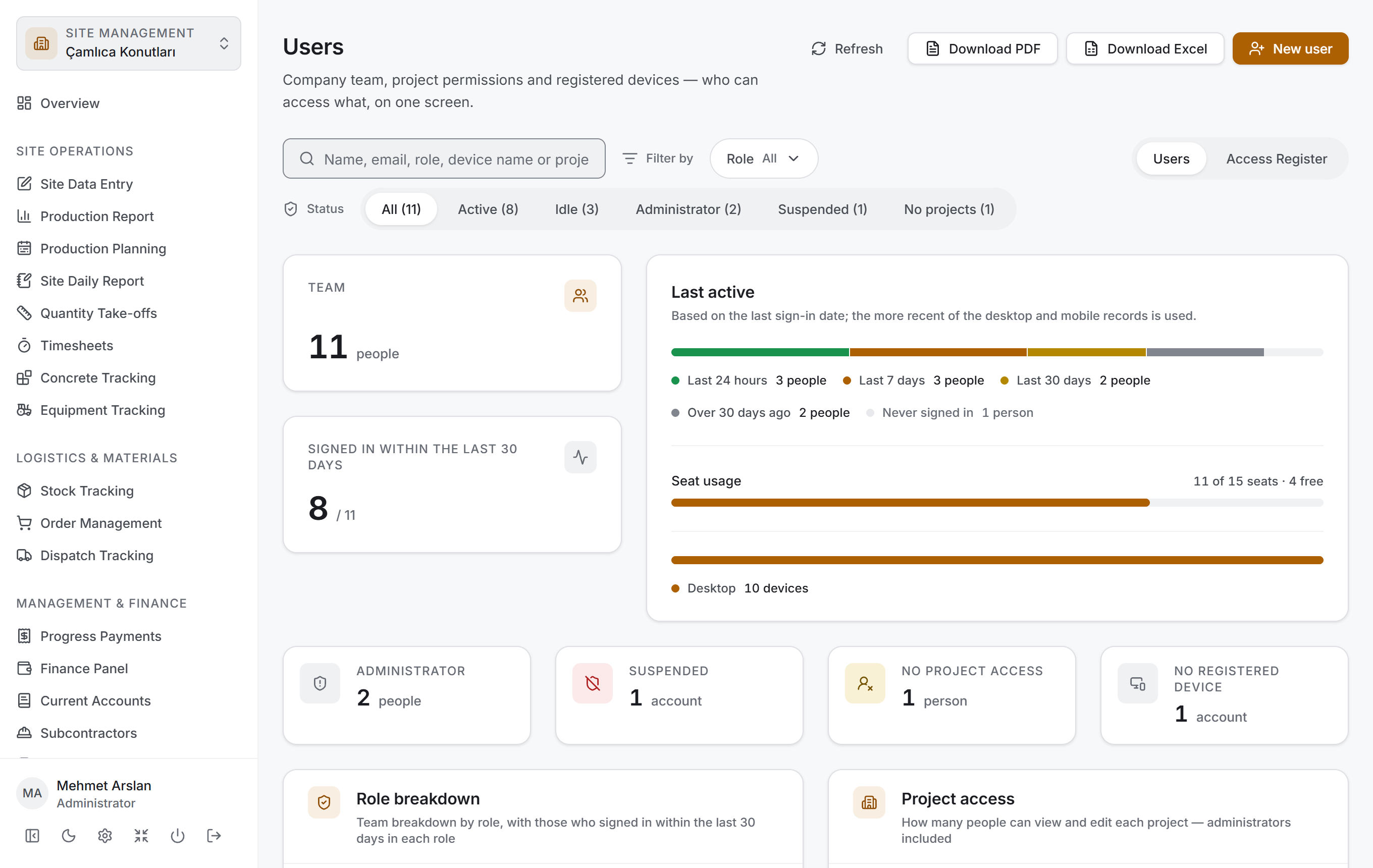
The page has two views and both share the same header and the same filter bar. The switch at the right-hand end of the filter bar changes the view:
| View | What it shows |
|---|---|
| Users | The team — who is there, in which role, how many projects they reach, which device they signed in from |
| Access Register | Every access row in the company — each row is one person's permission in one project |
The two views look at the same data from two directions. Users starts from the person: one row is one person. Access Register starts from the access itself: one row is one person–project pair, and the list is grouped by person, so a group is one person's whole portfolio.
The Users view has four layers:
| Layer | What it does |
|---|---|
| Filter bar | Search, role filter, user status and the view switch |
| Analysis strip | Team, last active, seat usage, device platforms and four counters |
| Breakdown | Role breakdown and project access |
| Team table | The user list grouped by role |
In the Access Register view the analysis strip and the breakdown cards are not drawn. The register is a list; it carries no summary above it.
Four buttons sit at the top right of the page: Refresh, Download PDF, Download Excel and New user.
The filter bar

The bar has two rows. The top row holds the search box, the Role filter and, at the far right, the view switch; the bottom row holds the Status segments.
| Control | What it does |
|---|---|
| Search box | Searches names, email addresses, role names, registered device names and the names of the projects a person can reach |
| Role | The roles present in the team; each option carries the number of people in that role |
| Status | All · Active · Idle · Administrator · Suspended · No projects — each segment carries its count |
| View switch | Users ⇄ Access Register |
In the Access Register view two controls change: Status is replaced by Access (All · Has access · Can edit · No access) and a Project filter is added next to the role filter. The search box narrows as well: in the register it searches person names, project names and roles.
The analysis strip
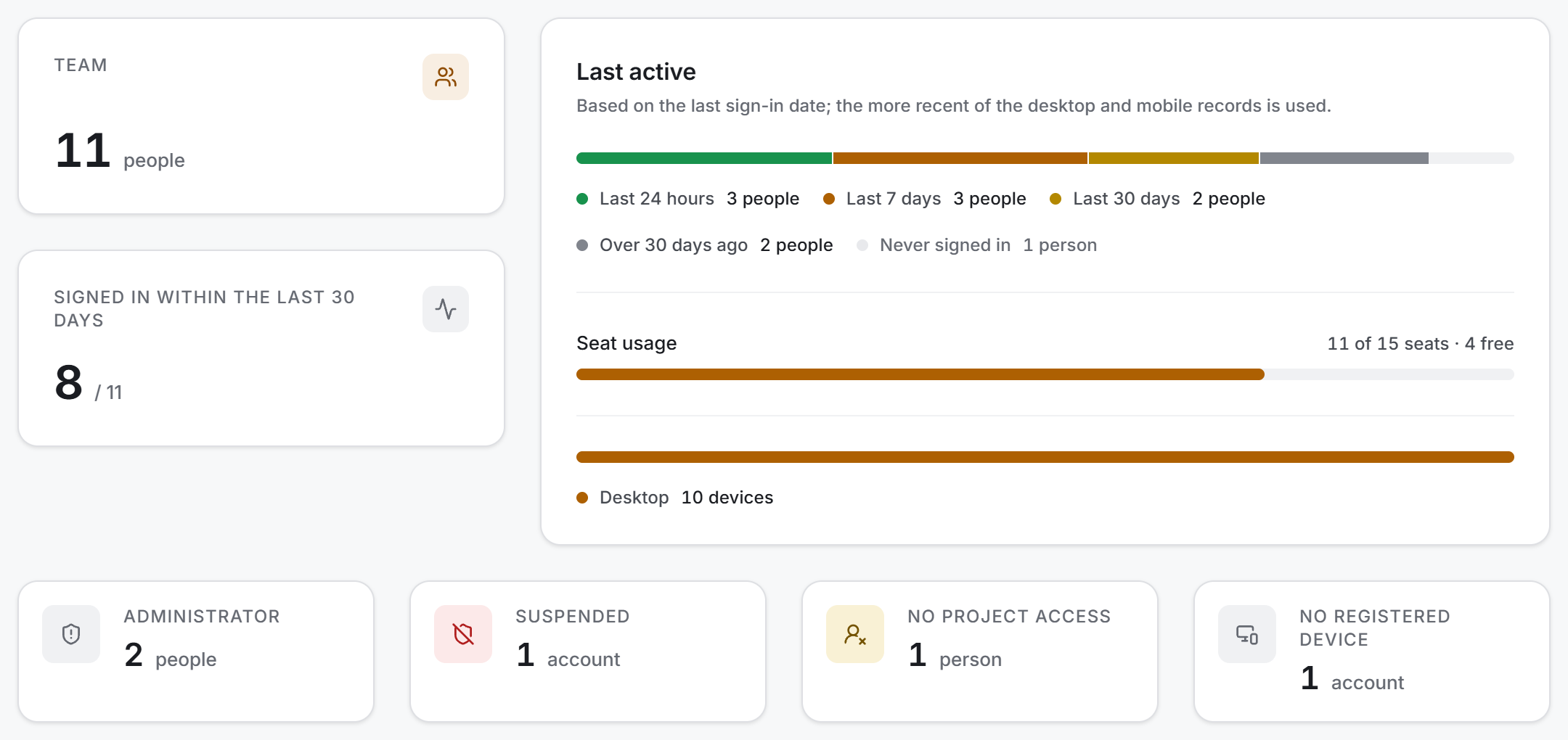
The strip has two tiers. Two headline measures on the left, a three-part card on the right:
| Measure | What it says |
|---|---|
| Team | The number of users in the filter |
| Signed in within the last 30 days | Of the same set, those who signed in during the last 30 days; / total below it |
| Last active | One bar in five tiers: Last 24 hours · Last 7 days · Last 30 days · Over 30 days ago · Never signed in |
| Seat usage | How many seats the plan allows, how many are taken and how many are free |
| Platform bar | The untitled bar at the bottom of the card: the Desktop / Android / iOS split of registered devices |
Four small counters sit below:
| Counter | What it says |
|---|---|
| Administrator | The number of administrators. It turns amber when only one is left |
| Suspended | The number of suspended accounts; red when above zero |
| No project access | Accounts that are not administrators yet cannot reach a single project |
| No registered device | Accounts that have never signed in — a device is registered at first sign-in |
The breakdown cards
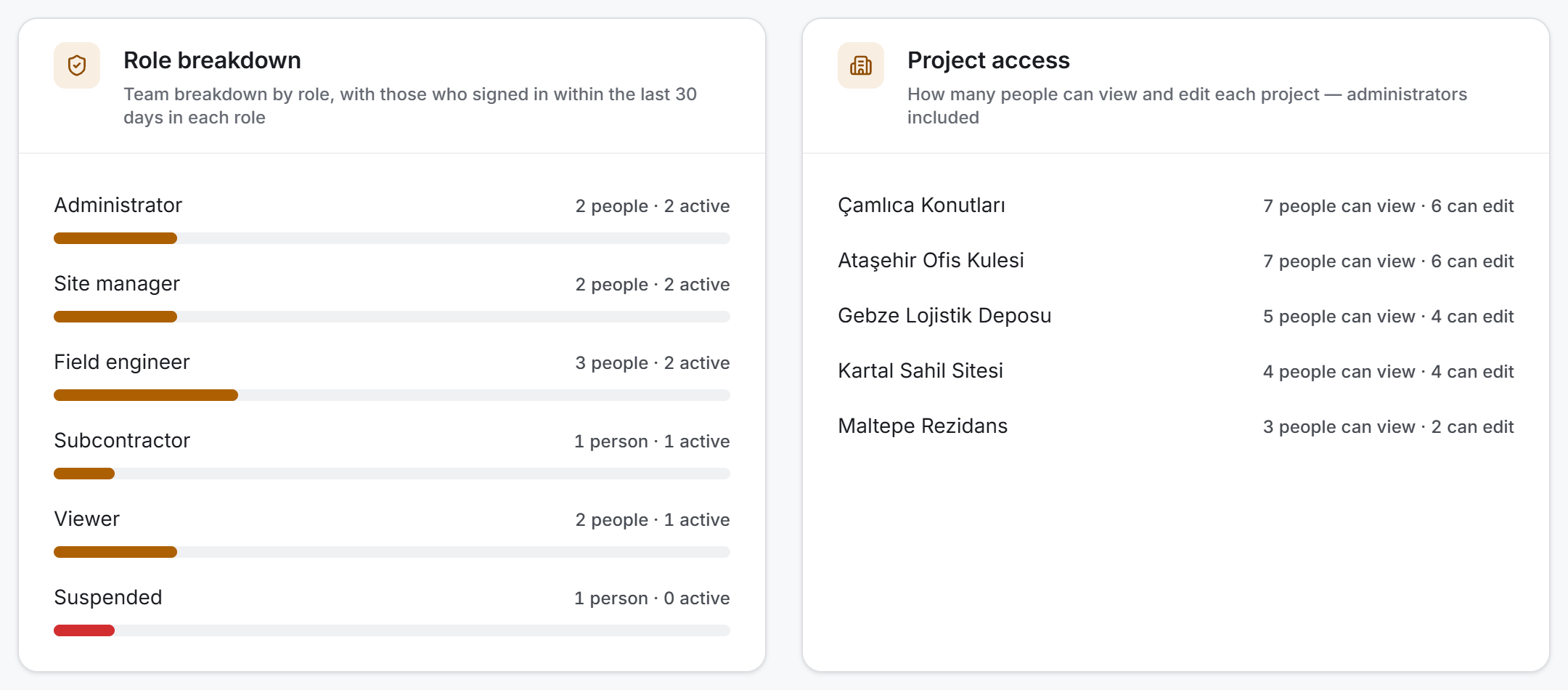
Both cards are counted from the same rows and each asks a different question:
- Role breakdown asks about a share: which roles the team is made of. Each row carries the number of people, how many of them signed in during the last 30 days, and a bar. The Suspended row's bar is red.
- Project access asks about reach: how many people can view each project and how many can edit it. A project nobody can reach says Nobody has access in amber instead of a number.
The team table
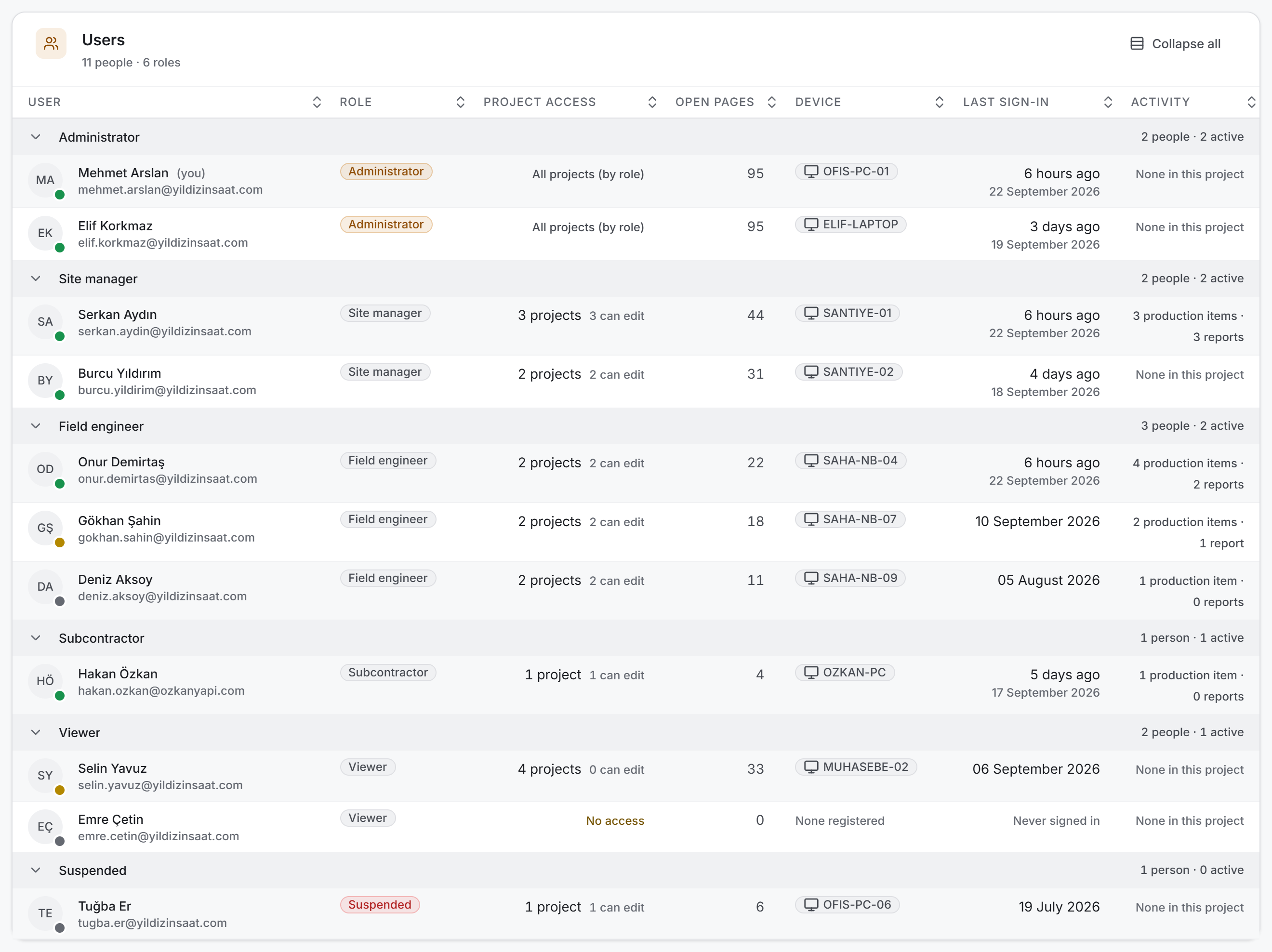
The table is grouped by role, and each group header carries the number of people in that role and how many of them are active. Groups collapse one by one or all at once with Collapse all. Clicking a header sorts the table.
The initial order is: administrators first, then by last active, then by name. That way who runs the company is visible without reading the list.
The circle on the left is the person's profile picture; without one it shows their initials. The dot at its bottom right carries the last sign-in tier — green for today or this week, amber for this month, grey for older or never. Colour alone carries no meaning; the same information is written out in the Last sign-in column.
Clicking a name opens that person's panel.
The access register
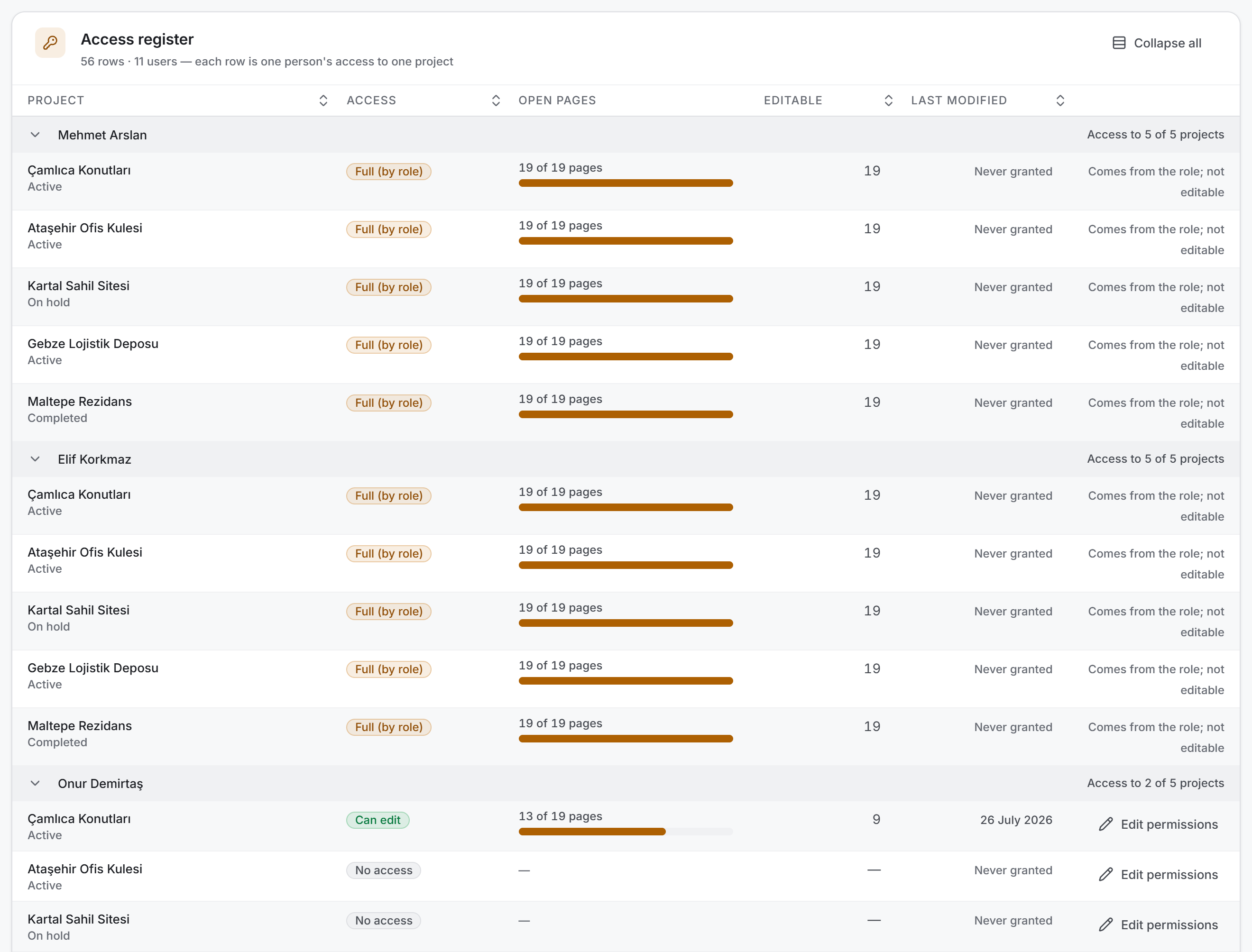
In the register each row is one person's access to one project, and the list is grouped by user. The group header says how many projects that person can reach: "Access to 3 of 8 projects".
Rows with no access stay in the list too — the point of the register is to show what is closed as well. The Edit permissions button at the end of a row opens the permission dialog.
The user panel
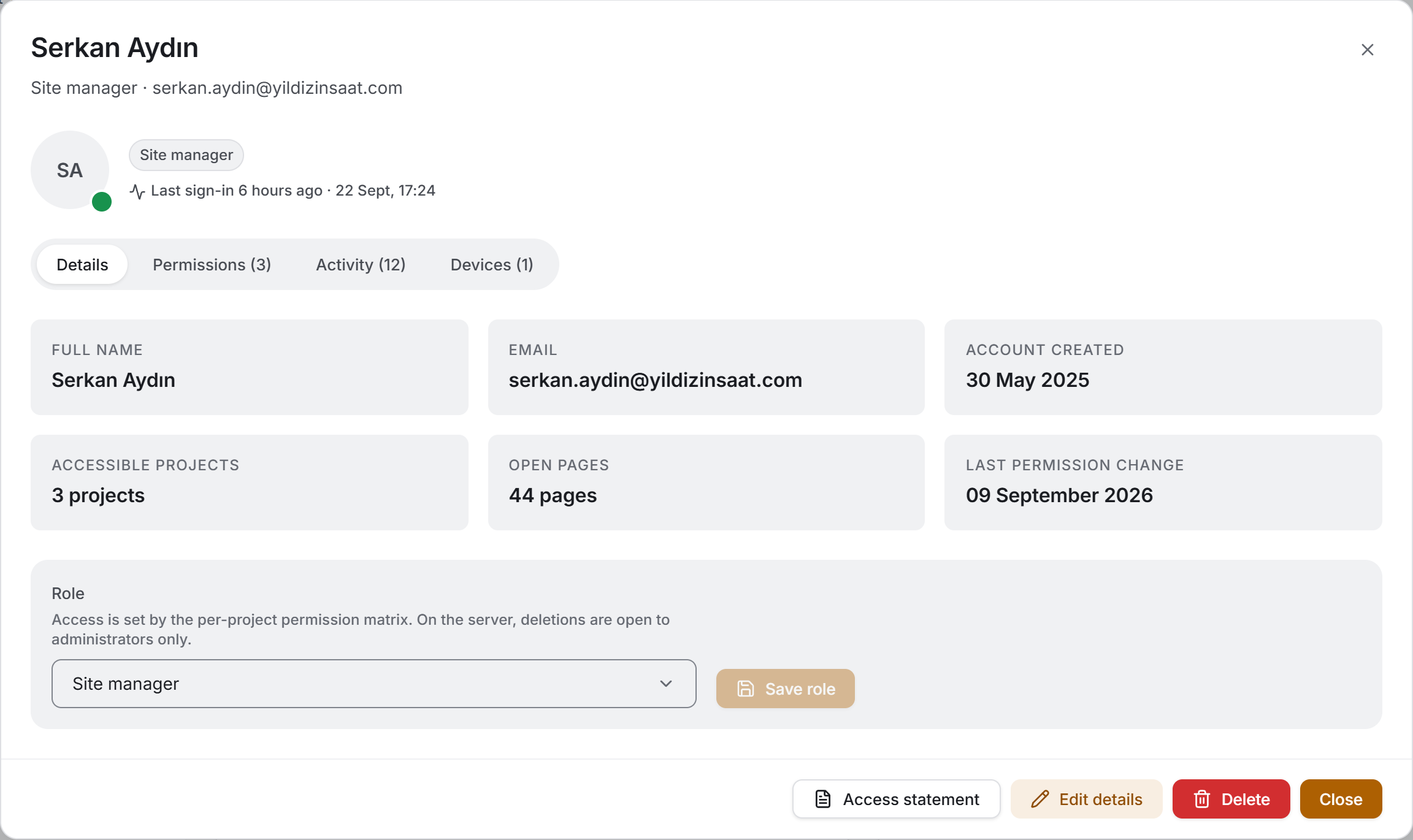
Clicking a name in the list opens a wide dialog. At the top are the person's picture, role, badges and last sign-in line; below them four tabs:
| Tab | What is in it |
|---|---|
| Details | Name, email, account created, accessible projects, open pages, last permission change and the role box |
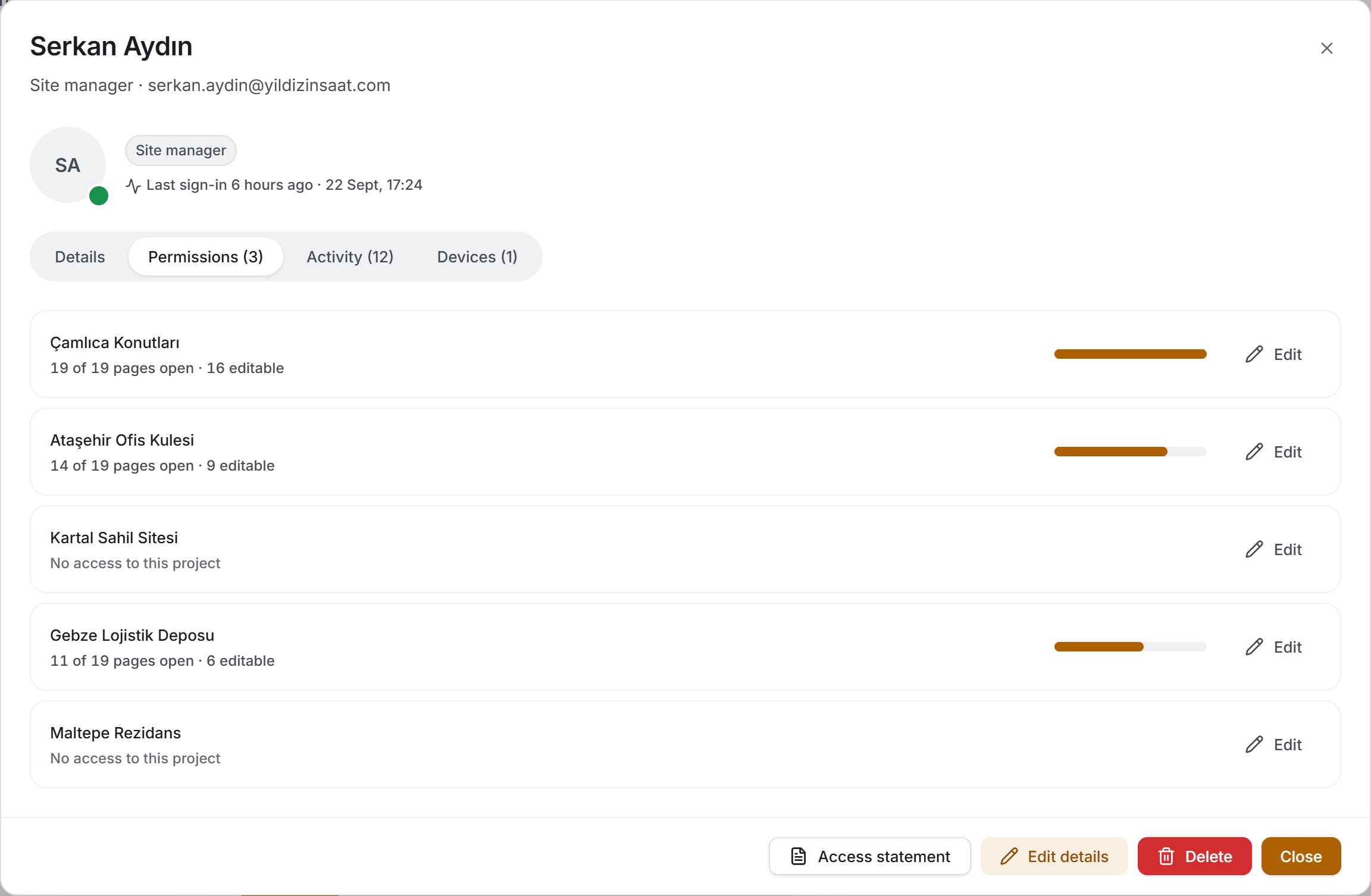
| Permissions | Their access in every project, each with the share of open pages |
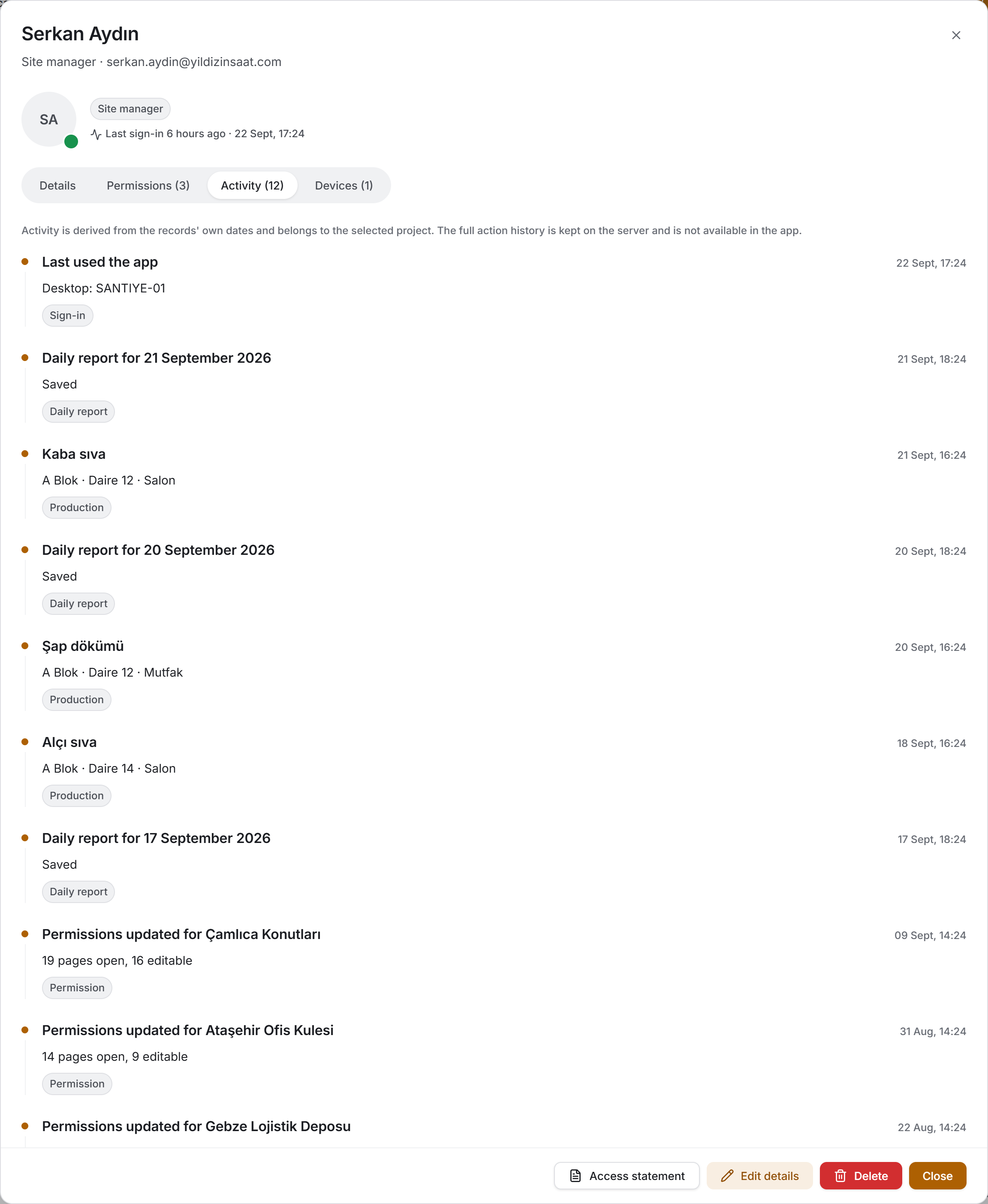
| Activity | A timeline — sign-in, device registration, permission change, production items and daily reports |
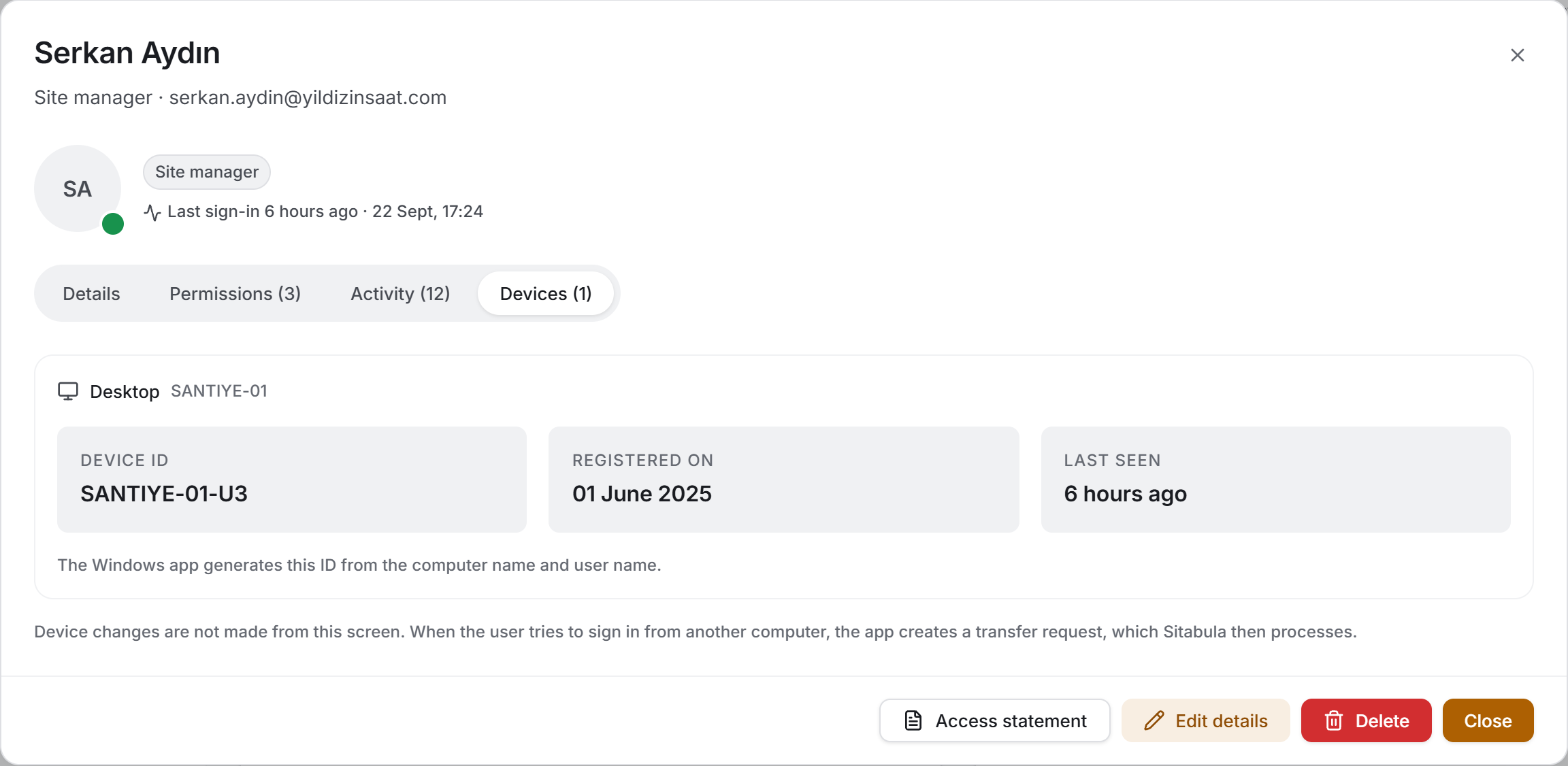
| Devices | The details of the registered devices |
Access statement, Edit details, Delete and Close sit at the bottom of the dialog.
The top line gives the person's pulse: "Last sign-in 2 hours ago · 22 Sep 2026 09:14". For an account that has never signed in it reads "Never signed in — the seat is in use but the account sits empty" instead. Your own card carries a You are signed in with this account badge, and a suspended account carries a The server rejects all their requests badge.
4. Fields
Columns of the team table
| Column | What it means |
|---|---|
| User | The name with the email address below it. Your own row is marked (you) |
| Role | One of the six roles; administrator in amber, suspended in red |
| Project access | How many projects they can view, and next to it how many they can edit. For an administrator, All projects (by role); with no access at all, No access |
| Open pages | The total of the open pages across every project |
| Device | Registered devices; None registered if there are none |
| Last sign-in | If newer than seven days, a relative phrase with the date below it ("3 days ago" / 18 Sep 2026); older than that, the date alone. Never signed in if they never did |
| Activity | The number of production items they updated and daily reports they wrote in the selected project |
Columns of the access register
| Column | What it means |
|---|---|
| Project | The project name with its status below it |
| Access | Can edit · Can view · No access, or Full (by role) for an administrator |
| Open pages | The number of open pages in this project, out of 19, with a share bar |
| Editable | How many pages in the same project can be edited |
| Last modified | When this row's permissions were last touched; Never granted if they never were |
Roles
A role is company-wide: a person has the same role in every project. There are six values, and what the one you pick does is written under the box.
| Role | What it does |
|---|---|
| Administrator | Full access to all projects and all pages; user management is open to this role only. The permission matrix does not apply to administrators |
| Site manager | Access is set by the per-project permission matrix. On the server, deletions are open to administrators only |
| Field engineer | The same |
| Subcontractor | The same; subcontractor records may also be restricted by firm |
| Viewer | Read-only by server rule: cannot write notes, files or records even if editing is enabled in the permission matrix |
| Suspended | The account is suspended. The server rejects all requests even if permissions are granted; the user cannot see any project |
The new user form
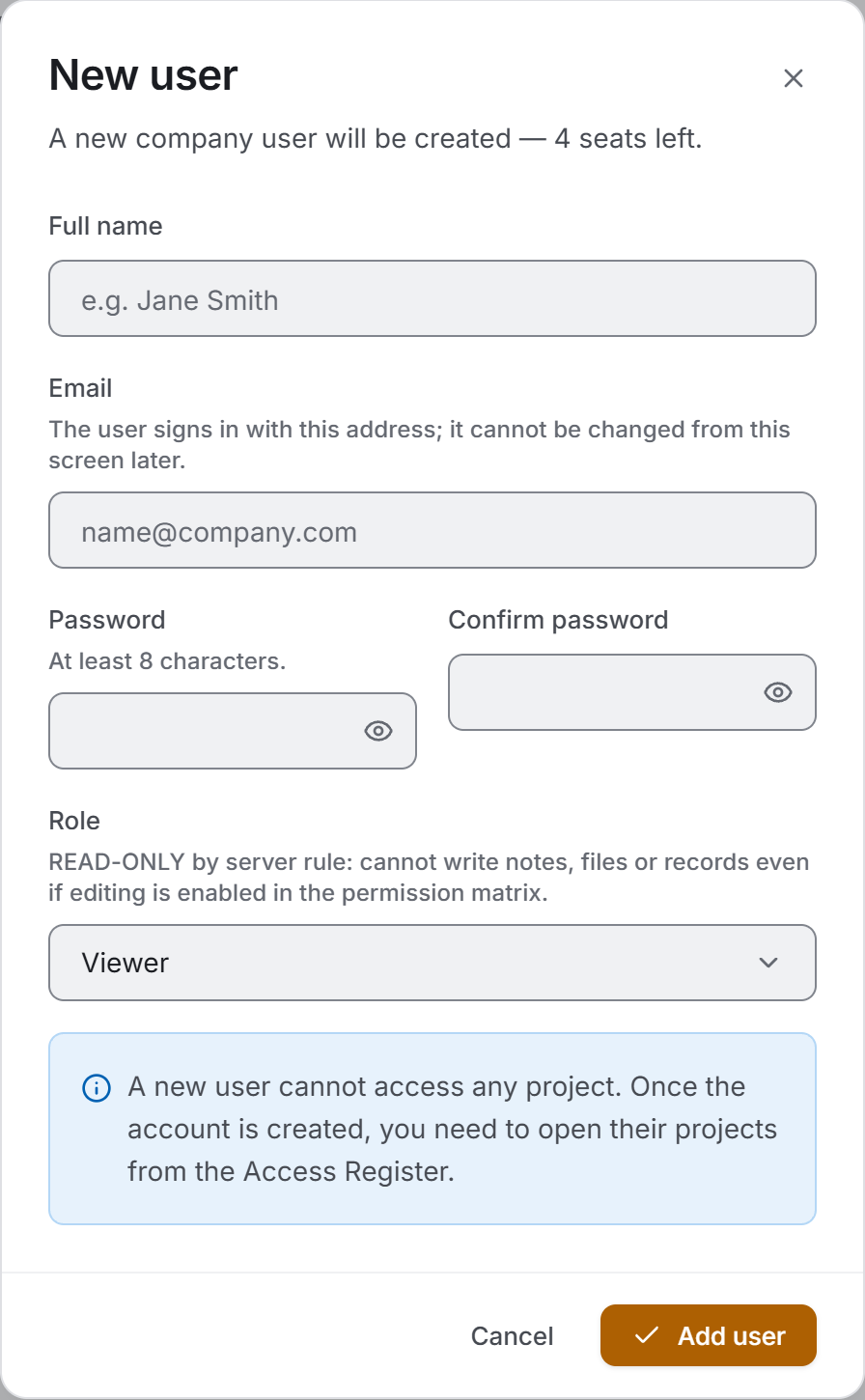
| Field | What it means | Required |
|---|---|---|
| Full name | The name that will appear in the list and on every record | Yes |
| The user signs in with this address | Yes | |
| Password | At least 8 characters | Yes |
| Confirm password | The same password | Yes |
| Role | One of the six roles | Yes — Viewer by default |
Below the dialog title it says how many seats are free. At the bottom, a blue banner says up front that the new user will not be able to reach any project.
The details form
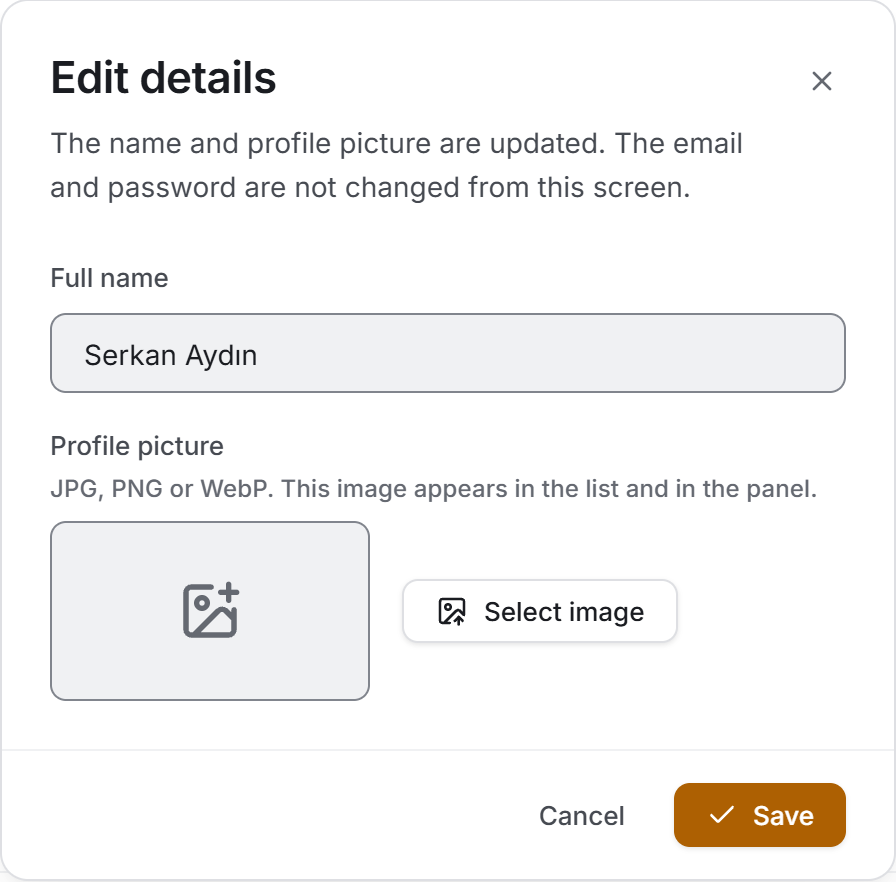
For an existing user the form comes down to two fields: Full name and Profile picture (JPG, PNG or WebP). The email address and the password are not drawn at all — changing somebody else's password means access without the account owner's knowledge.
5. Step by step
5.1 Adding a user
- Press New user at the top right.
- Fill in Full name and Email.
- Type the password twice — at least eight characters.
- Pick the Role. The line under the box says what that role does.
- Press Add user.
The account is created and joins the team, but it cannot reach any project. For the person to start working you need to open at least one project for them, following §5.4.
5.2 Editing the details
- Click the person's name in the list.
- Press Edit details at the bottom of the dialog.
- Correct the name and pick a profile picture if you want one.
- Press Save.
Use the clear control in the image field to remove a picture. The name cannot be left empty.
5.3 Changing a role
- Open the person's panel and stay on the Details tab.
- Pick the new role from the Role box. The hint under the box and the blue banner below it say what the change will do as soon as you pick it.
- Press Save role.
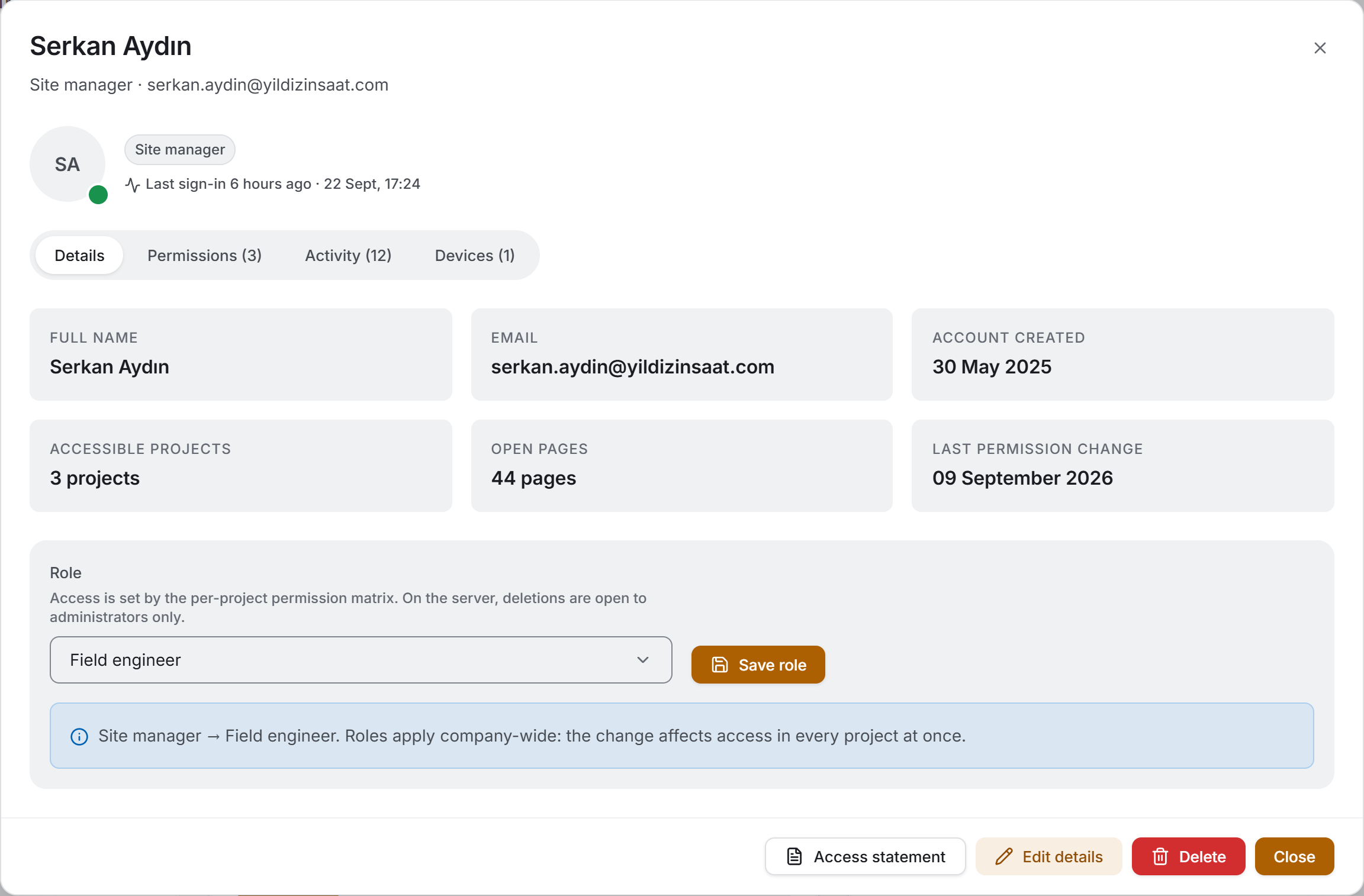
In two cases the box is locked or asks for confirmation:
- When the company's only administrator is open, the box comes down disabled and an amber banner gives the reason: if that account's role is downgraded, nobody will be left who can open user management. Make somebody else an administrator first.
- If you are downgrading your own role, a confirmation dialog appears before saving. The moment it is saved you lose this page, adding users and editing permissions; you will need another administrator to undo it.
5.4 Editing one person's permissions in one project
- Open the person's panel and go to the Permissions tab — or switch the view to Access Register and find their group.
- Press Edit on the project's row (Edit permissions in the register).
- In the dialog that opens, switch on the Project access row at the top. While that row is off, the project will not open no matter what is ticked below it.
- Tick the pages one by one, or grant them together with Grant view on all / Grant edit on all; Revoke all takes everything back.
- Check the menu the user will see in the preview on the right.
- Press Save permissions.
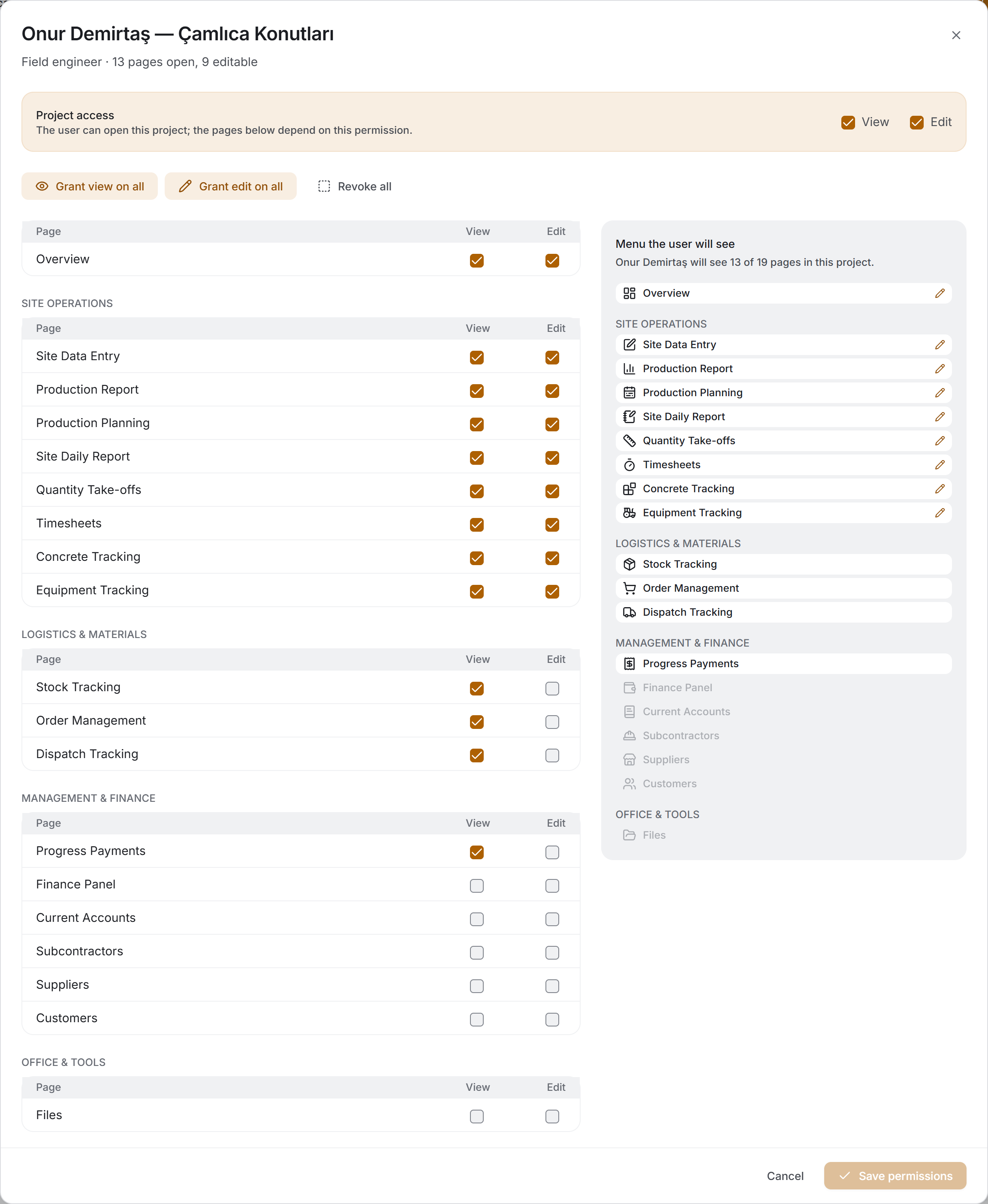
The right-hand half of the dialog holds the person's own sidebar and it changes with every tick: rows they will not see fade, and the ones they can edit carry a pencil. The preview is not a mock-up; it comes from the same source that draws the menu.
Three rules are applied as you tick:
- Editing covers viewing. Ticking Edit switches View on as well.
- If any page is open, project access is opened too — a page cannot be seen without entering the project.
- If project access is switched off, every page closes.
5.5 Seeing who can reach a project
- Switch the view to Access Register.
- Pick the project from the Project filter.
- Pick Has access from the Access segments.
The remaining rows are the people who can reach that project. For a quick look, the Project access breakdown card in the Users view gives the same number.
5.6 Reading one person's file
- Click the name in the team table.
- Read the identity fields and the access numbers on the Details tab.
- See how many pages are open in which project on the Permissions tab.
- Follow the person's work in the selected project on the Activity tab.
- Read the registered device's name, ID, registration date and last-seen time on the Devices tab.
5.7 Suspending an account
Set the role of an account that is no longer used, but that you do not want to delete, to Suspended (§5.3). From that moment the server rejects all of that account's requests; even if the user signs in they cannot see any project.
5.8 Deleting a user
- Open the person's panel.
- Press Delete at the bottom.
- Read the confirmation dialog — it says how many projects' permissions will be deleted.
- Press Delete.
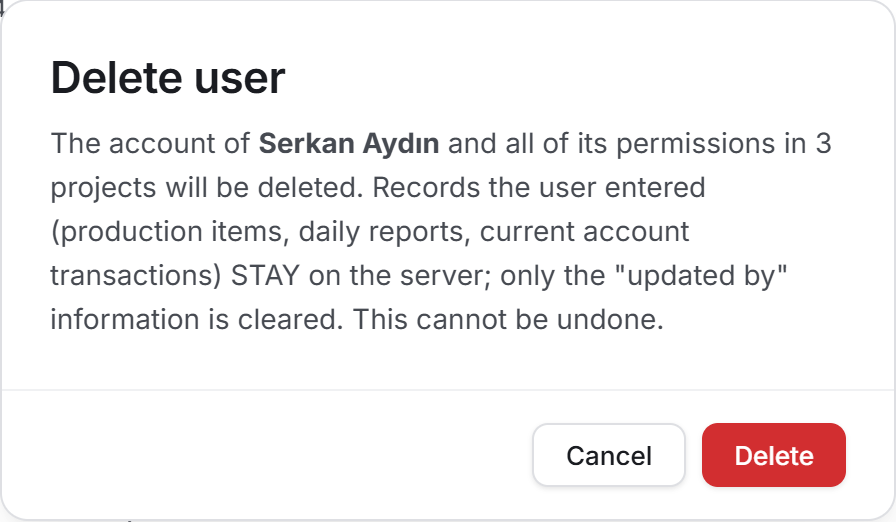
The account and all of its permission rows are deleted and the seat is freed. The records the user entered stay on the server — production items, daily reports and current-account transactions remain; only the "updated by" information is cleared. This cannot be undone.
5.9 Searching and filtering
- Type a name, an email address, a role name, a device name or a project name into the box. Typing "suspended" brings the suspended accounts; typing a project name brings the people who can reach it.
- Pick one or more roles from the Role menu.
- Pick one of the Status segments: Active is those who signed in during the last 30 days, Idle those who did not, No projects those who cannot reach any project.
- If nothing matches, a card summarising what you searched for and a Clear filters button appear.
6. Exports
The page produces three exports. Two of them are registers of the list and are taken from the buttons at the top of the page; the third is one person's signable statement and is taken from their panel.
All three follow the filter on screen; the header line says which filter is on. With no filter it reads "No filter applied".
Download Excel
A workbook of three sheets:
| Sheet | What is in it |
|---|---|
| Users | Full name · email · role · accessible projects · editable projects · open pages · device · last sign-in · last active · account created |
| Access Matrix | User · role · project · project access · open pages — followed by one column for each of the 19 pages |
| Devices | Full name · role · platform · device name · device ID · registered on · last seen |
The top of every sheet carries the company name, the report date, the number of users and administrators, and the seat usage. The header row is frozen and filtered; the dates are real dates, not text.
Download PDF
This is the register of the team: A4 landscape, eight columns (full name · role · project · can edit · open pages · device · last sign-in · last active). The email address is printed under the name. At the end of the table a TOTAL ACCESS ROWS line adds up the project, editable and open-page columns.
The top of the page carries the company name, the report date, the number of users and active users, and the seat usage; the bottom of every page carries the company name and the date.
The access statement
The Access statement button at the bottom of a person's panel produces one user's signable register. This is the document asked for in an audit, at a handover or when somebody leaves.
The statement holds, in order: the title and the company name, the user ID, the details (name · role · account created · last sign-in), the parties (the user and the administrator who issued it), the project access table, a page breakdown for each project, the notes and two signature blocks.
The statement also writes its own limits. Depending on the case, the notes carry these sentences: that an administrator's access comes from the role rather than the matrix, that the viewer role is read-only, that the account is suspended, how many more projects the user cannot reach, that access is limited to the registered device, and that deletions are open to the administrator role only.
For all three exports you choose where the file is saved; once it is saved a "File saved: …" banner appears at the top of the page. If you close the save dialog, nothing is said.
7. Worth knowing
Mobile devices do not appear on Windows in this version. The server's team list sends only the desktop device fields; the mobile registration is not in the response at all. As a result the Device column and the Devices tab show computers only, the platform bar never shows an Android or iOS segment, and a user who signs in from their phone but never registered a computer counts as "No registered device". The phone application can show the same records. This is a known gap on the server side.
"Last sign-in" is refreshed on the server at every sign-in. It is the only live measure on this page; there is no other number that says whether a person really uses the application. The page does not refresh itself — use the Refresh button.
Last active is a tier, not a number. "37 days ago" is information but does not prompt a decision; "Over 30 days ago" does. The five tiers are: Last 24 hours, Last 7 days, Last 30 days, Over 30 days ago and Never signed in for an account that never did.
An account with no device has never signed in. A device is registered automatically at first sign-in; an account without one takes a seat in the team but has never been used.
Device changes are not made from this screen. When a user tries to sign in from another computer, the application creates a transfer request and Sitabula processes it. The page only lets you see why the user cannot get in.
An administrator has no permission records, and that is correct. Their access comes from the role; that is why the team row reads "All projects (by role)", the register "Full (by role)", the Excel "By role" and the PDF "(by role)". Ticking something in the permission matrix does not change an administrator's access.
A suspended account keeps taking a seat. The role makes the server reject all of its requests, but it does not touch the plan's limit.
The viewer role overrides the permission matrix. Even with editing switched on in the matrix, the server grants this role no write access; notes, files and records cannot be written. On top of that, an account with the viewer role cannot see the Files module at all.
Delete permission comes from the role, not from the matrix. The "edit" tick in the permission matrix does not grant delete permission; on the server, deletions are open to the administrator role only.
The seat limit comes from the plan. On trial (temporary) accounts the capacity is one person regardless of the plan; once the company goes premium, the plan's limit applies. If the limit cannot be read, the strip says "Your plan's user limit could not be read" and the New user button stays enabled — in that case the server applies the limit when the user is added.
The company's last administrator is protected. When only one administrator is left the role box is locked; because the team list and adding users require administrator permission on the server, there would be no easy way back if that account's role were downgraded.
Activity belongs to the selected project only. The panel's Activity tab and the column of the same name in the team table count the person's production updates and daily reports in that project; their work in other projects does not appear here. Switching projects changes these numbers and nothing else on the page.
The timeline is not an action history. The real audit log on the server is not available to the application; the list here is derived from the records' own dates and shows at most 40 events. A line at the top of the tab says so. In other words, an action missing from the timeline does not mean it never happened.
The date of a permission change is read from the permission row. The "Last modified" column and the "Last permission change" field say when that row was last written on the server — not who wrote it.
A deleted project's permissions can stay in the list. A permission row belonging to a project that is not in the project list appears under the name Deleted project. It is not hidden: a permission you cannot see is a permission you cannot clear.
The team is not sorted alphabetically. Administrators come first, then last active, then the name. For an alphabetical order, click the User header.
The page shows the administrator's own record too. Your own row is marked (you); you cannot delete your own account, and if you are the only administrator you cannot downgrade your own role.
If the team cannot be read, the page shows nothing. The user list and the permissions come down together; if one of them fails, a Users could not be loaded card and a Try again button are shown. If the production and daily-report sources fail, the page keeps working and only the Activity tab stays empty.
The profile picture only appears in this application. The old Sitabula does not use that field at all.
8. Related chapters
This page is the company's centre: who can see what in the rest of the application is decided here.
- Projects — the projects in the access register come from there. Nobody can reach a newly created project; access has to be granted here. Administrators are the exception, they see every new project automatically.
- Every module — each row in the sidebar is drawn, or appears locked, according to the permission granted on this page. If a user says "I cannot see a page", their permission row is the place to look.
- Production Report and Site Daily Report — the panel's Activity tab and the Activity column are counted from these two modules' records.