
Getting started
Sitabula is a construction site management program that gathers everything a site produces — on site and in the office — in one place.
Sitabula is a construction site management program that gathers everything a site produces — on site and in the office — in one place. How much of the work is done, timesheets, material orders, progress payments, current accounts: it all sits under the same project, and a record entered in one module shows up in the others by itself.
This section takes a first-time user all the way in: installation, signing in, choosing a project, the layout of the screen, roles and permissions. The modules themselves are covered one by one in the sections that follow.
1. Installing and opening for the first time
Sitabula is a Windows, iOS and Android program; it does not run in a browser. This guide covers the Windows version. Once you run the installer it has its own icon, its own window and its own entry in the Start menu.
Every time it opens, before it even shows the sign-in screen, the app checks your version. This is deliberate: an old client should not even connect to the server, because the difference between them can turn into lost data.
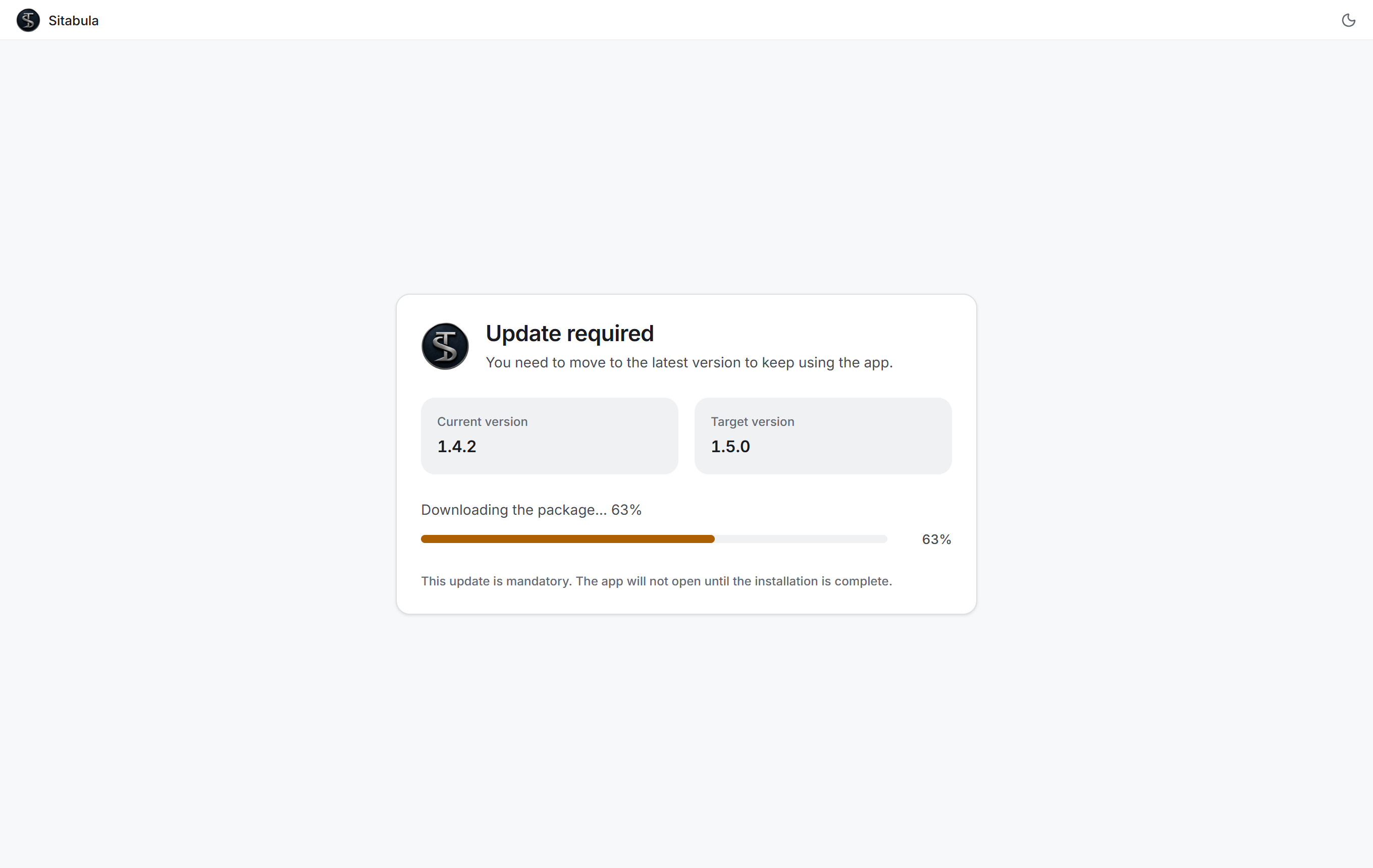
The screens you may see during the check:
| Screen | What it means | What you do |
|---|---|---|
| Checking your version | Connecting to the update server | Wait — it takes a few seconds |
| Update required | A newer version exists | Nothing to do; the download starts by itself and its percentage moves on screen |
| Installation starting | The package is down, the install is being applied | The app closes and reopens on the new version |
| The update server could not be reached | No internet, or the server is unreachable | Try again · Download the installer · Continue for now |
| The update could not be completed | The package could not be downloaded or installed | Try again or Download the installer |
Download the installer opens the download page in your browser. If the automatic path is blocked, you can fetch and run the installer yourself.
2. Signing in
2.1 The sign-in screen
The screen is split in two: an introduction panel on the left, the sign-in card on the right.
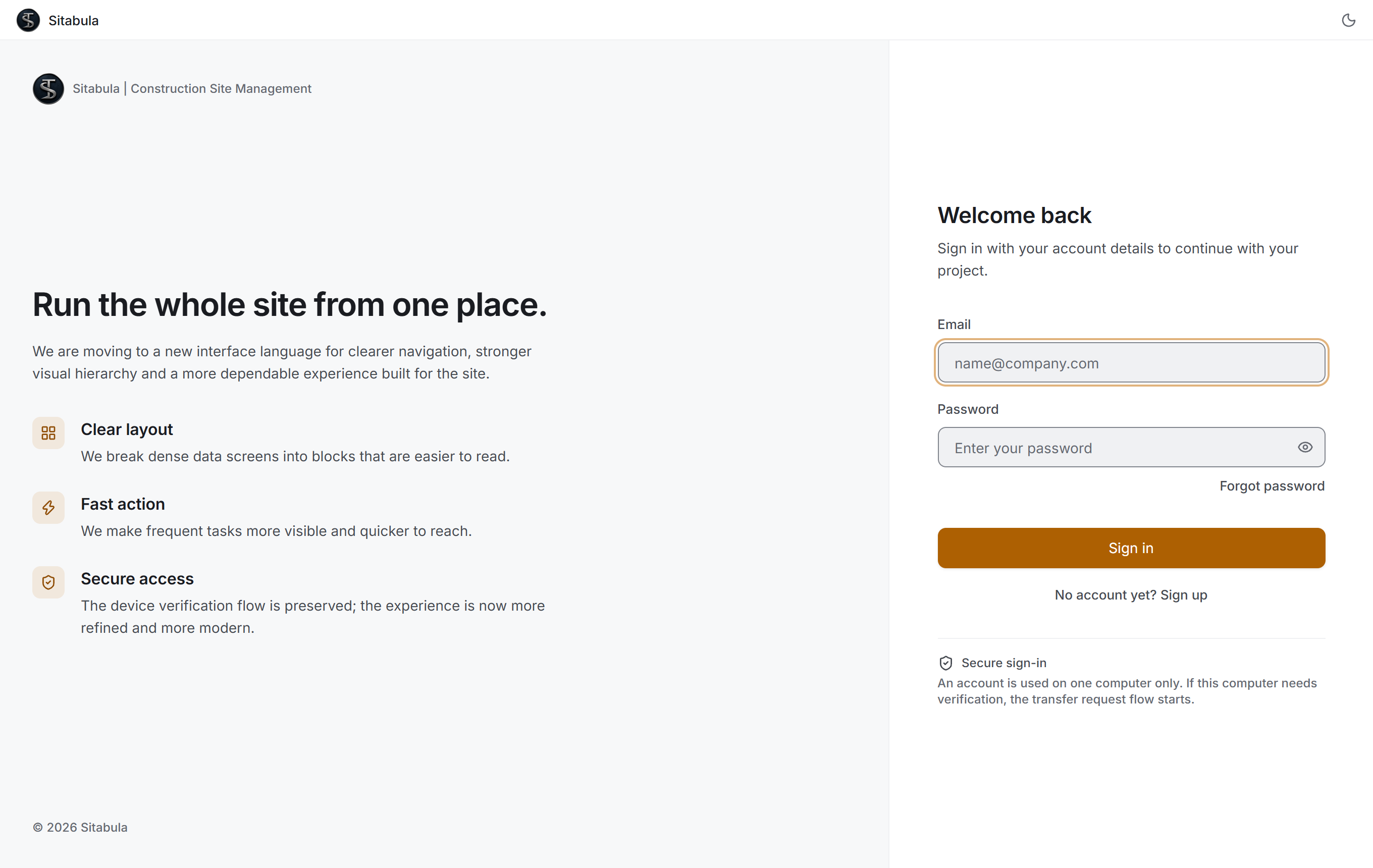
The card has two fields — Email and Password — with a Sign in button below them. The eye icon in the password field reveals the password. Pressing Enter in either field also starts the sign-in.
Forgot password sits under the password field, and No account yet? Sign up under the button.
At the bottom there is a note headed Secure sign-in, saying that an account is used on one computer only. What that means is in §2.4.
If something goes wrong, a red strip appears at the top of the card and says why. For a wrong password it reads "Sign-in failed. Check your email or password and try again."; with no internet you get a separate message about the connection. The two are deliberately kept apart — "wrong password" and "no internet" are not the same thing.
2.2 Creating an account
Sign up turns the card into a registration form, which asks for:
| Field | Description |
|---|---|
| Full name | Your first and last name |
| The address you will sign in with | |
| Password | At least 8 characters |
| Password (again) | The same password |
Below them are three legal consent boxes: the Privacy Policy, the KVKK Disclosure Notice and the Terms of Use. The link beside each one opens the document in your browser — you do not have to leave the app. Registration does not complete until all three are ticked.
2.3 If you have forgotten your password
Forgot password turns the card into the reset panel. You enter your email address and choose Send reset link.
The message that follows is deliberately vague: "If an account matches this email address, a password reset link has been sent." The app will not tell you whether an account exists at that address; if it did, it would be confirming which addresses on someone's list are real. The Send again button is on a 30-second wait.
The rest of the chain works like this:
- An email arrives in your inbox. Check your junk mail folder too.
- The link in the email opens a page on stner.org in your browser.
- The page has an Open in Sitabula button. That button is for desktop computers; on phones the link opens the app directly.
- The button brings Sitabula to the front and opens the Set your new password screen.
- You type your new password twice and choose Update password. It must be at least 8 characters.
2.4 Secure sign-in: one account, one computer
A Sitabula account can be used on one computer at a time. The app recognises the computer from its name combined with your Windows user name.
If you try to sign in while your account is active on another computer, a Device mismatch section opens inside the card. It is not a pop-up; it stays within the sign-in card, so you can read it without dismissing anything.
The section says which device the account is active on and carries a Request transfer button. When you press it the request goes to your service provider, and the message on screen reads "Your device change request has been sent to your administrator." Once your service provider approves it, you can sign in from this computer.
2.5 Legal consents
Right after sign-in, before you choose a project, your consents are checked. If any are missing, the Complete your consents to continue screen appears.
Only the missing documents are listed; something you have already accepted is not put in front of you again. You can open each document in your browser, read it, tick its box and then choose I accept and continue.
Consents are recorded together with your user, the version and your device details. When the documents change version, everyone is asked again.
3. Choosing a project — Site Portfolio
After signing in you do not land in a project straight away; the Site Portfolio screen opens first. Everything in Sitabula sits under a project, so no module opens until you have chosen which project you are working in.
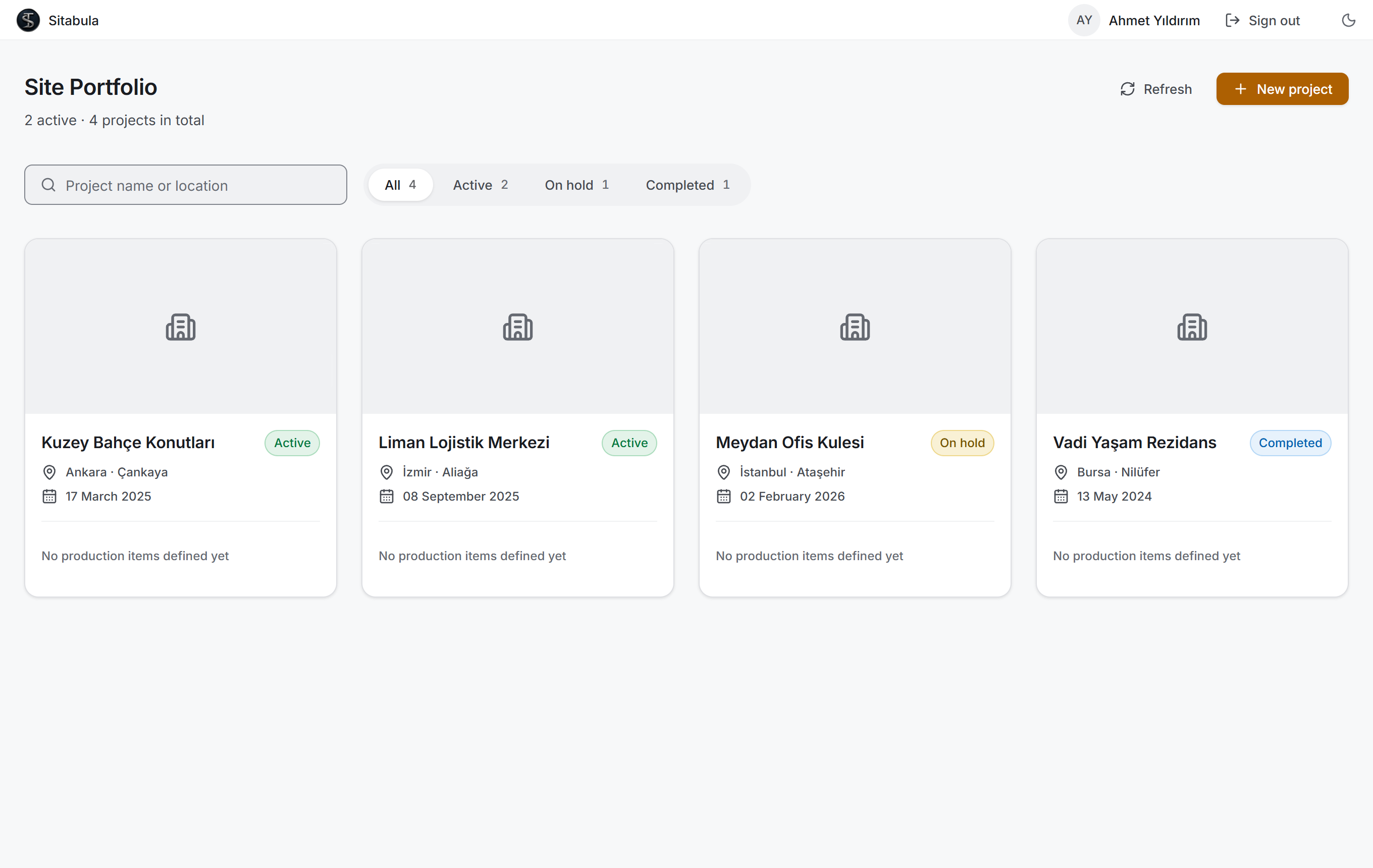
What is on the screen:
- A one-line summary under the title: how many projects are active, how many there are in total.
- The Project name or location search box.
- The status filter — All · Active · On hold · Completed, each with the number of projects in that state.
- Project cards — each card carries the project's image, its name, a status badge, the location, the start date and a progress line. Clicking a card opens that project.
- Refresh and New project at the top right.
- Who you are signed in as, and Sign out, in the title bar.
Cards can be chosen from the keyboard too: Tab between them and press Enter.
If the list is empty
An empty list has three different causes, and the screen tells you which one it is:
| What you see | What it means | What to do |
|---|---|---|
| A message saying your account is pending | Your role is Suspended | Talk to your administrator; no project appears until your account is activated |
| A message saying the company has no projects | You are an administrator but no project has been created yet | Create a project |
| A message saying no project has been opened to you | Projects exist but none has been opened to you | Ask your project manager for access |
Why the choice is not remembered
The app shows the portfolio again on every start; it does not drop you straight into the project you last worked in. This is deliberate: in the meantime your permissions may have changed, the project may have been deleted, or you may have moved to another company. In any of those cases, landing in an empty shell with no explanation is far worse than seeing the list one more time.
4. The layout of the screen
Choosing a project opens the app's actual shell. It has three parts: the title bar at the top, the sidebar on the left, and the content area in the middle.
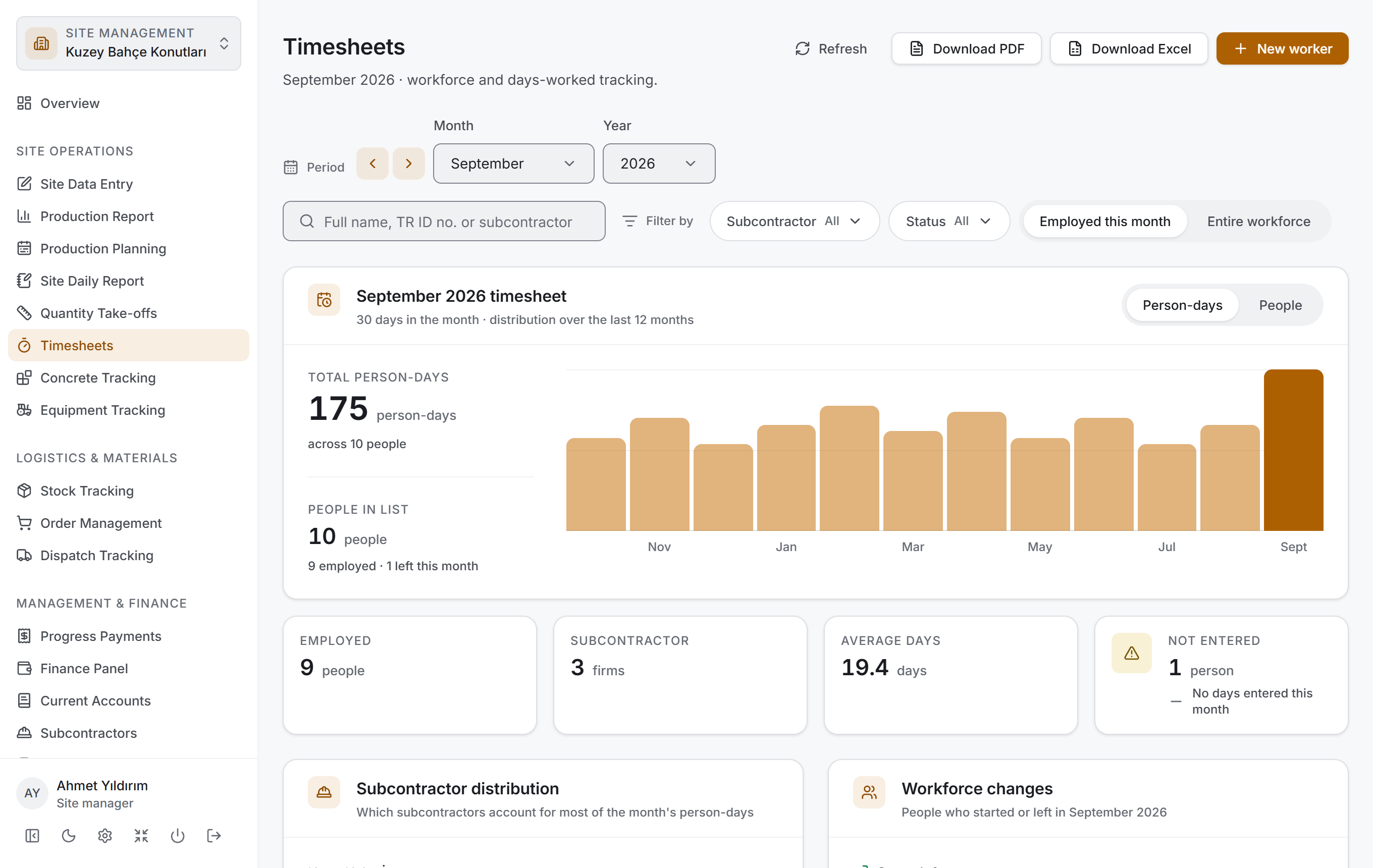
4.1 The title bar
Windows' own title bar is switched off; the app draws the bar itself.

From left to right:
- The brand mark and the word "Sitabula".
- The context trail: the open project's name, then an arrow, then the name of the open page — for example Kuzey Bahçe Konutları › Timesheets. It tells you where you are at a glance.
- The window buttons: Minimise, Maximise / Restore, close.
Any empty part of the bar can be used to drag the window.
On screens without a sidebar — sign-in and project selection — this bar also carries the theme switch, who you are signed in as and the Sign out button. Inside the shell all of those live in the strip at the bottom of the sidebar.
4.2 The sidebar
The sidebar has three layers.
The project switcher at the top. It reads Site Management in small letters with the open project's name underneath. Clicking it returns you to the Site Portfolio, where you can pick a different project.
The module list in the middle. The modules are gathered into four groups:
| Group | Modules |
|---|---|
| (no heading) | Overview |
| Site Operations | Site Data Entry · Production Report · Production Planning · Site Daily Report · Quantity Take-offs · Timesheets · Concrete Tracking · Equipment Tracking |
| Logistics & Materials | Stock Tracking · Order Management · Dispatch Tracking |
| Management & Finance | Progress Payments · Finance Panel · Current Accounts · Subcontractors · Suppliers · Customers |
| Office & Tools | Files · Users |
The account and shell strip at the bottom. Your name and role on top, six buttons below:
| Button | What it does |
|---|---|
| Collapse sidebar / Expand sidebar | Reduces the sidebar to a narrow strip of icons |
| Switch to dark theme / Switch to light theme | Changes the theme |
| Settings | Opens the settings screen |
| Full screen / Exit full screen | Puts the window into full screen, or takes it out |
| Quit application | Closes the app |
| Sign out | Leaves your account and returns to the sign-in screen |
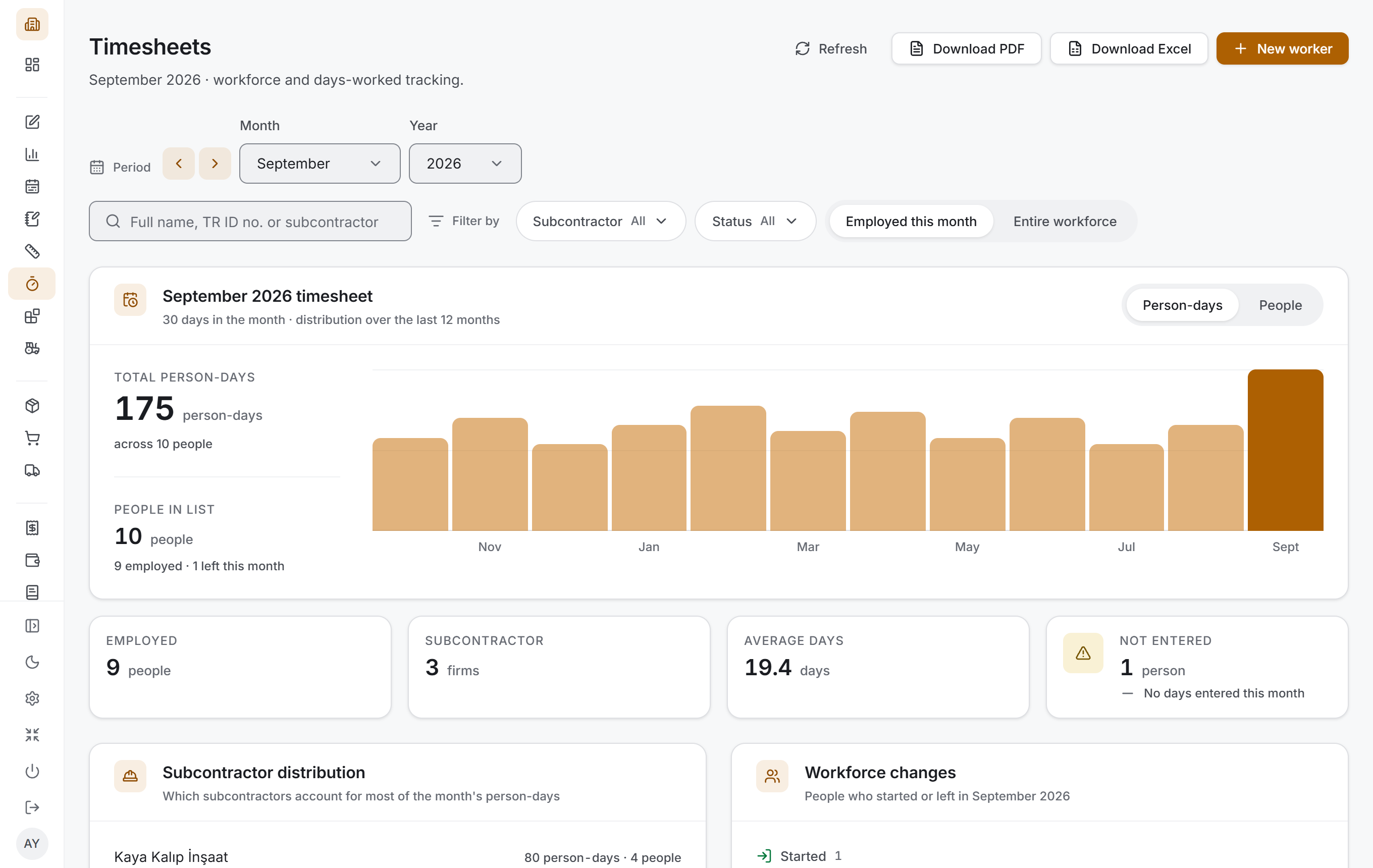
When the sidebar is collapsed the module names are hidden and only the icons remain; the group headings become thin dividing lines. Hovering an icon shows the module's name as a tooltip.
4.3 The content area
The page of the module you chose is drawn here. Most module pages share the same skeleton, so by the time you open the second one you already know the layout:
| Layer | What it does |
|---|---|
| Title and actions | The page's name, its period, and Refresh · Download PDF · Download Excel · New … on the right |
| Toolbar | Period or date selection, the search box, and the filters under Filter by |
| Summary cards | The page's few most important numbers and a 12-month chart |
| Breakdown | The same data distributed across groups |
| Table | The records themselves; clicking a row opens its detail |
| Side panel | The selected record's details, its history and the actions available on it |
5. Roles and permissions
Access in Sitabula goes through two separate layers: your role and your project permissions.
5.1 Roles
A role applies company-wide — it is the same whichever project you are in.
| Role | What it means |
|---|---|
| Administrator | Full access to all projects and all pages. User management is open to this role only; the permission matrix does not apply to administrators. |
| Site manager | Access is set by the per-project permission matrix. |
| Field engineer | Access is set by the per-project permission matrix. |
| Viewer | Read-only. Cannot write notes, files or records even if editing is enabled in the permission matrix. |
| Suspended | The account is suspended. It cannot see any project even if permissions are granted. |
You can see your role in the strip at the bottom of the sidebar, under your name.
5.2 Project permissions
For every role except administrator, each module is opened individually, and this is per project. Being able to see Timesheets in one project does not mean you can see it in another. Permissions are granted by the project manager.
A module that is closed to you is not removed from the menu — it appears dimmed with a padlock beside it. Hovering it shows a short note saying why. Clicking it opens a window headed Access denied which says "Permissions are granted by the project manager."
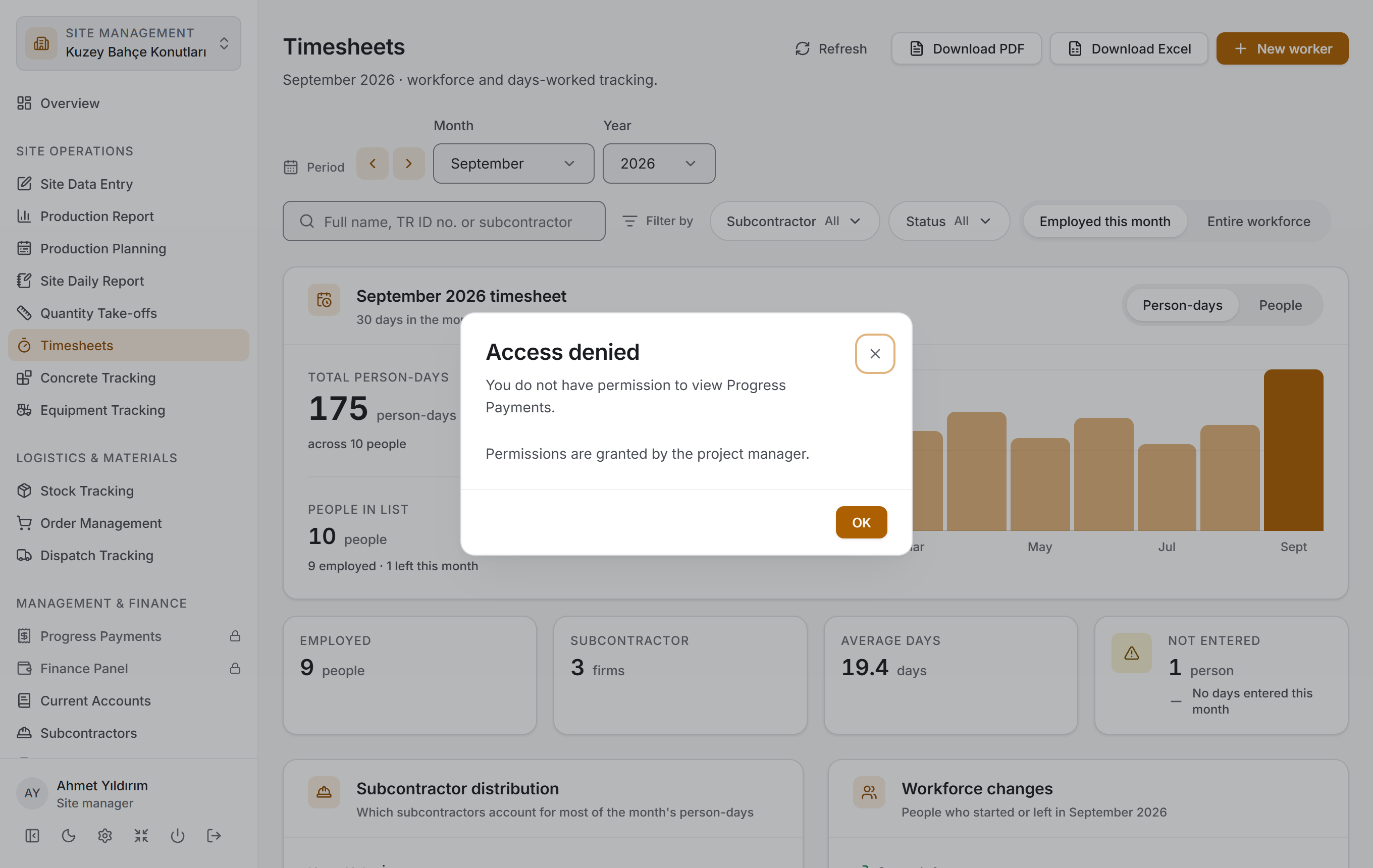
Not hiding the module is deliberate: this way you know that part of the program exists and can ask your manager for it if you need it.
5.3 Which page the app opens on
When the shell opens, the first module available to you is selected automatically. If you can see Overview, the app opens there; if not, it opens on the first module in the list you can reach.
If you have permission for no module at all, the content area reads "No sections available to you — no section has been opened to you in this project."
5.4 Sections not yet migrated
Some modules appear in the menu but their page has not been written yet. Today the only example is Customers; opening it shows a card saying the section has not been migrated yet. This is not an error and has nothing to do with your permissions.
6. Settings: theme, language and currency
The settings screen opens from the gear icon in the strip at the bottom of the sidebar.
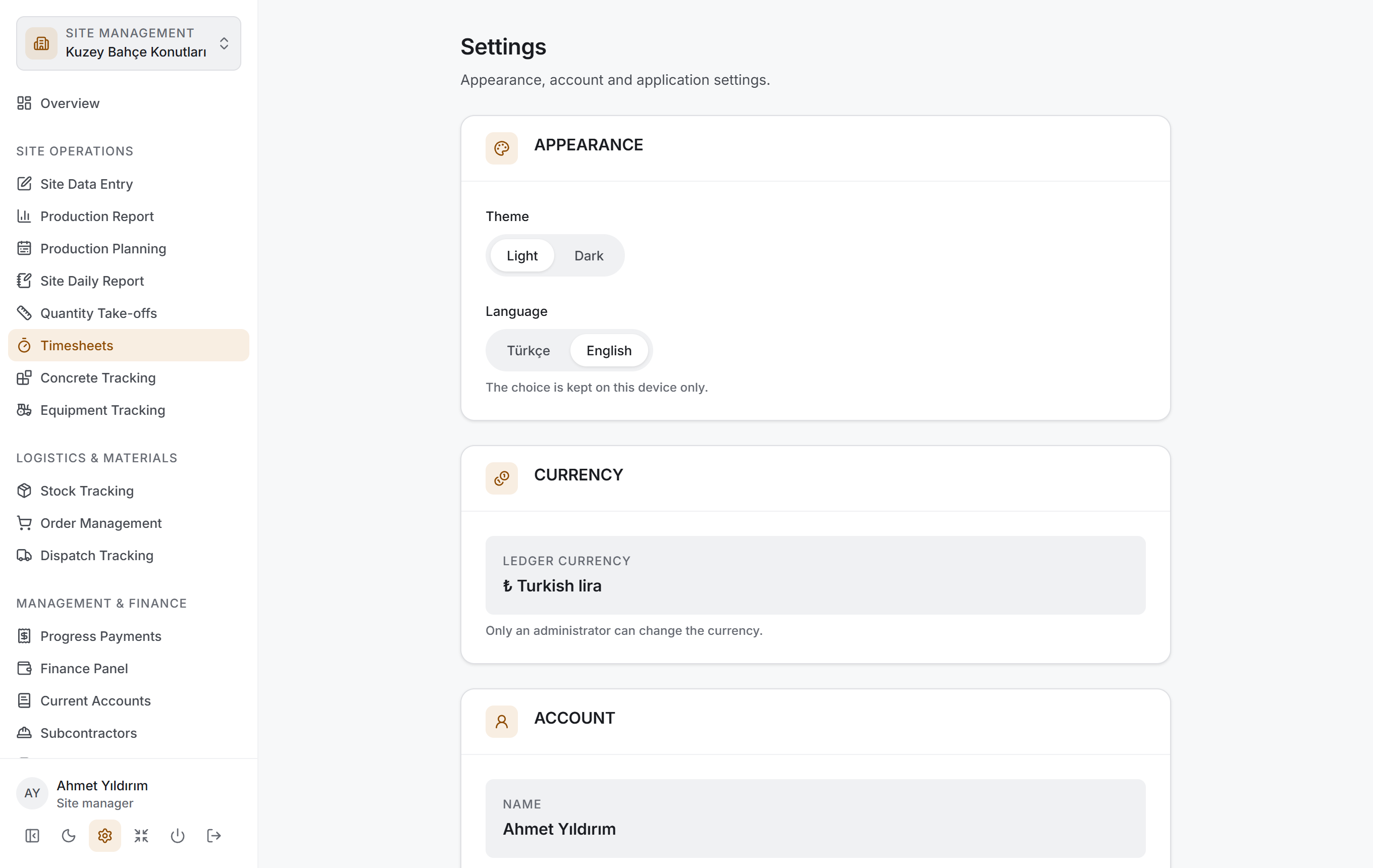
The APPEARANCE section holds two settings:
Theme — Light or Dark. You can make the same change from the moon/sun button in the sidebar.
Language — Türkçe or English. The choice applies immediately; you do not have to restart the app.
The CURRENCY section shows the company's ledger currency: ₺ Turkish lira, $ US dollar or € Euro.
The settings screen also carries your account's name, email and role; links to the legal documents; the app's version number; and, at the very bottom, the account deletion section. The details are in the Settings section.
7. Updates
Updates are checked at startup (§1). If a new version is published while the app is open, a New version available notice appears saying "The new version has been downloaded. Restart the app to install it." The Restart button completes the installation.
8. Signing out
The Sign out button in the strip at the bottom of the sidebar returns you to the sign-in screen. Quit application, next to it, closes the program altogether.
You do not need to sign out to move between projects; use the project switcher at the top of the sidebar.
9. Key terms
Terms that recur throughout the guide:
| Term | Meaning |
|---|---|
| Company | The organisation accounts belong to. Projects, users and definitions belong to the company. |
| Project | A construction site. Almost every record in Sitabula is attached to a project. |
| Module | A section in the sidebar — Timesheets, Stock Tracking and so on. |
| Permission | A user's right to view or edit a particular module in a particular project. |
| Block / Unit / Room | The physical breakdown of a project. Production records hang from this tree. |
| Production item | A unit of work done on site — formwork, rebar, plaster and so on. |
| Quantity take-off | The quantity calculation for a piece of work. |
| Timesheet | The monthly record of days worked by the workforce. |
| Progress payment | The periodic calculation of what the completed work is worth. |
| Current account | The debit–credit ledger with a subcontractor, supplier or customer. |
| Subcontractor | A firm taking on part of the work. |
| Supplier | A firm selling materials. |
Related sections
- The first page you see after signing in: Overview
- Creating, editing and deleting projects: Projects
- Language, theme, account and version information: Settings
- Creating users and granting roles and permissions: Users